Welcome to our community

Be a part of something great, join today!

  • Hey all, just changed over the backend after 15 years I figured time to give it a bit of an update, its probably gonna be a bit weird for most of you and i am sure there is a few bugs to work out but it should kinda work the same as before... hopefully :)

Best settings for IPP2 in Resolve

Patrick,

I understand what you are saying now. ;)


Edit: I was going to suggest using a less contrasty IPP2 Output Transform Lut in-camera along with maybe a slight higher ISO, but I believe, if I remember correctly, that you have a Red camera that doesn't support internal IPP2. So the method you mentioned would be the best alternative.


Rand
 
Last edited:
Patrick,


In the future I will include, when giving settings, the caveat of possible problems when enabling "Apply Metadata Curves" in Davinci Resolve. But if I forget, you chime in again and remind me.


rand
 
You're welcome Andreas!
 
Last edited:
Hiya,
After messing around this is what I came up with. The color managed workflow is needed, otherwise all the thumbnails will be grayed out. They only look fine if they are in managed as far as I understand. Is this correct?

If I use the managed workflow is there any way to use the different Luts for highlight or contrast still on individual clips?
I must say I quite like to start with changing ISO, whitebalance and tint together with the contrast and highlight before I start grading. That way they all sit together, but cannot figure out how to do it in Davinci currently. Of course instead of the luts I can just work with the curves and contrast but the results are quite different.

Thoughts of a good way to approach this? Is this even a good workflow?
/Andreas
 
Andreas,

Unfortunately, when using the Color Managed workflow, you will have to stick with the one IPP2 "Output Tone Map" and "Highlight Roll-Off" you chose under the " Red Output Gamut Mapping" setting . You can change those settings at anytime, however, doing so will change "All" the contrast and highlight roll-offs of all the clips in your timeline.

If you chose the "Color Managed" workflow, its best to chose one "Output Tone Map" and one "Highlight Roll-Off" and develop your images with a combination of the "Camera Raw" tools that are not "Greyed Out", The Primary Tools and whatever Secondary " tools you feel you may need.
 
You can also just export your different .R3D files out of Redcine-X in either ProRes or Avid DNxHD/DNxHR each with their own Output Tone Maps and Highlight Roll-Offs plus any intial grading "baked in" in just a Normal Non- IPP2 , Non- Color Managed workflow Timeline project.
 
Andreas,


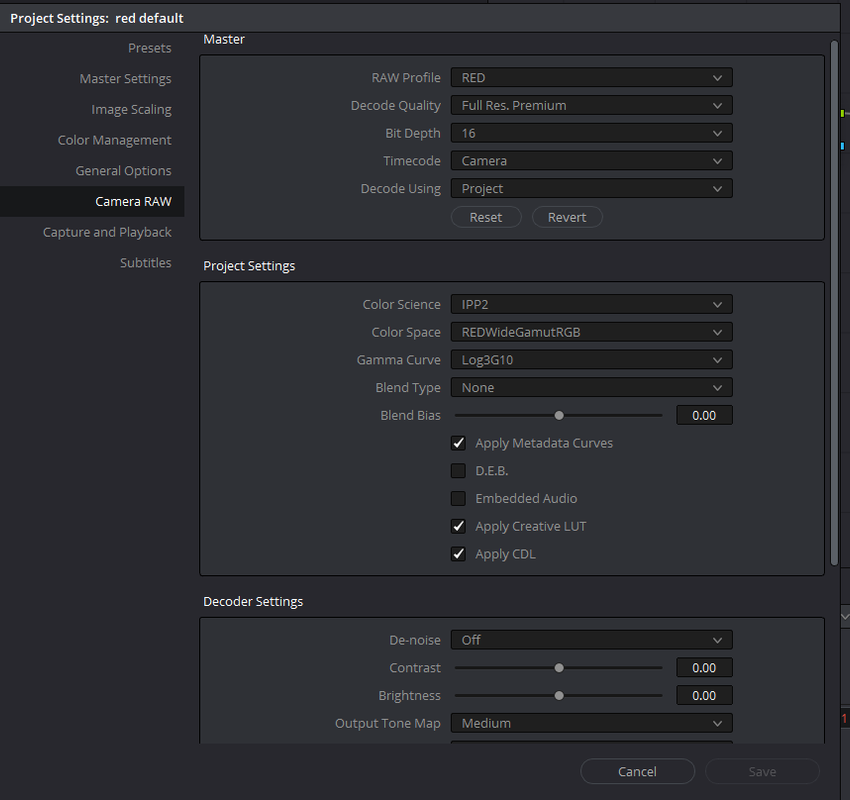
Again to set up the IPP2 Workflow, use these settings below.


Screenshot-637.png


And for the "Apply Metadata Curve", Patrick Tresch advises not to select this if you created a curve "In-Camera" because you may get unwanted results


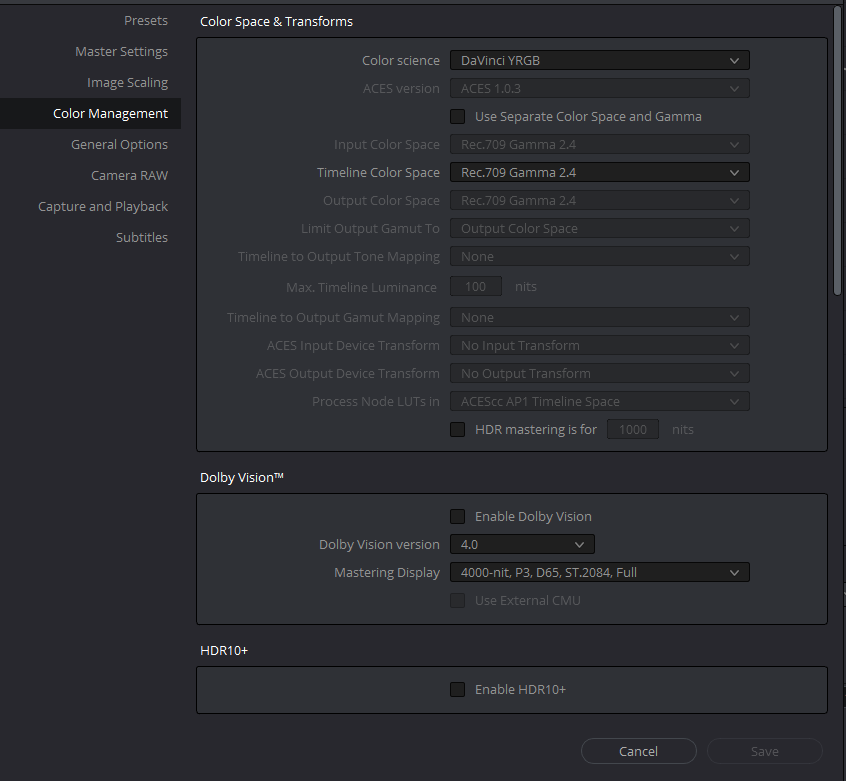
and for "Color Management" choose whatever Color Space you will be working in, in the example below I use Rec709/Gamma 2.4

Screenshot-674.png


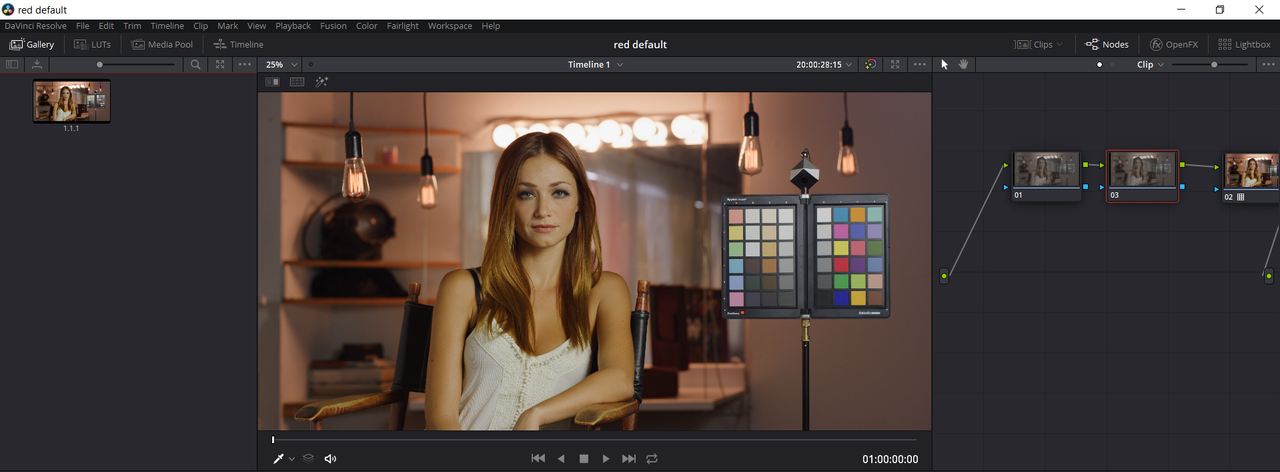
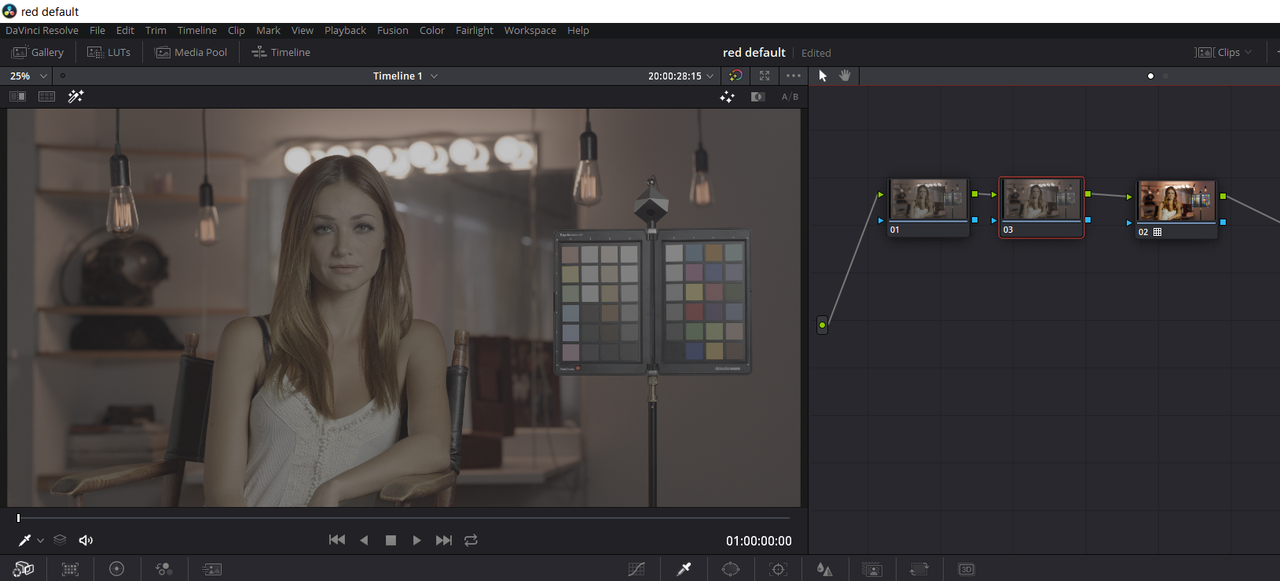
Inside of resolve to keep those thumbnails from being "Greyed Out" simply add a "Second" Node to the Clip and add an "IPP2 Output Transform Lut" to it, just because its an "Output" Transform Lut doesn't mean it actually has to be added last. This way you will be able to audition the different "IPP2 Output Transform Luts" Tone maps(Constrast Curve) and Highlight Roll-Offs. Plus, by adding additional Nodes prior to the Node with the "IPP2 Output Transform Lut applied to it, you will be able to see the affect of your grading upon the clip. Just make sure you don't have the "Magic Wand" icon enabled in the Top left-Hand corner of the "Viewer" window or you will only see the flat image I believe you are referring to.


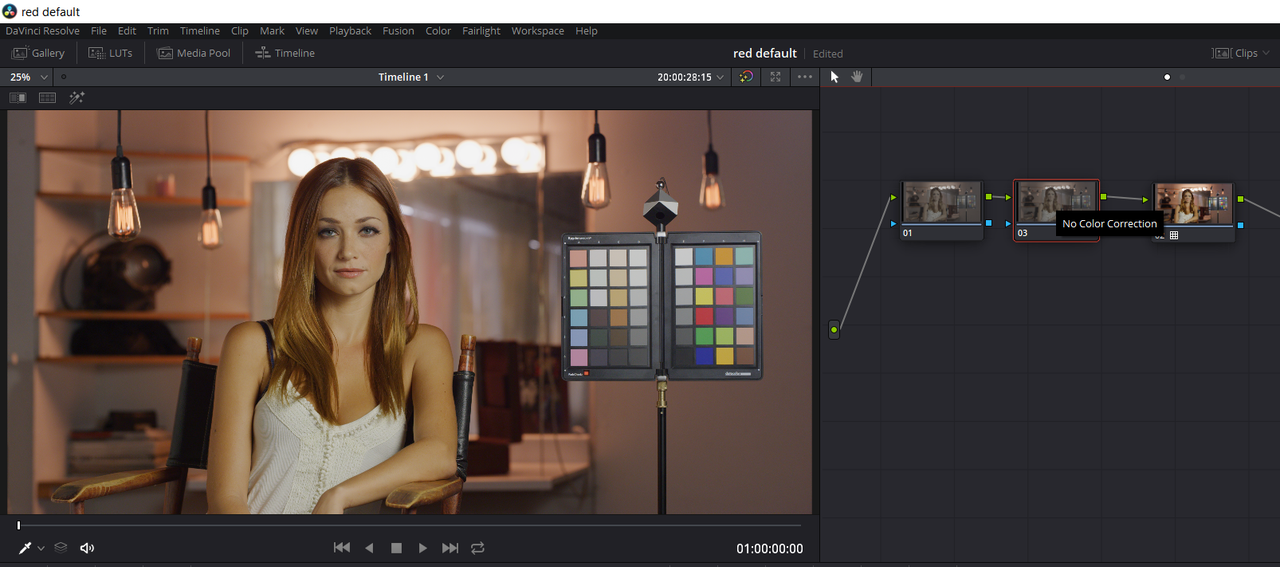
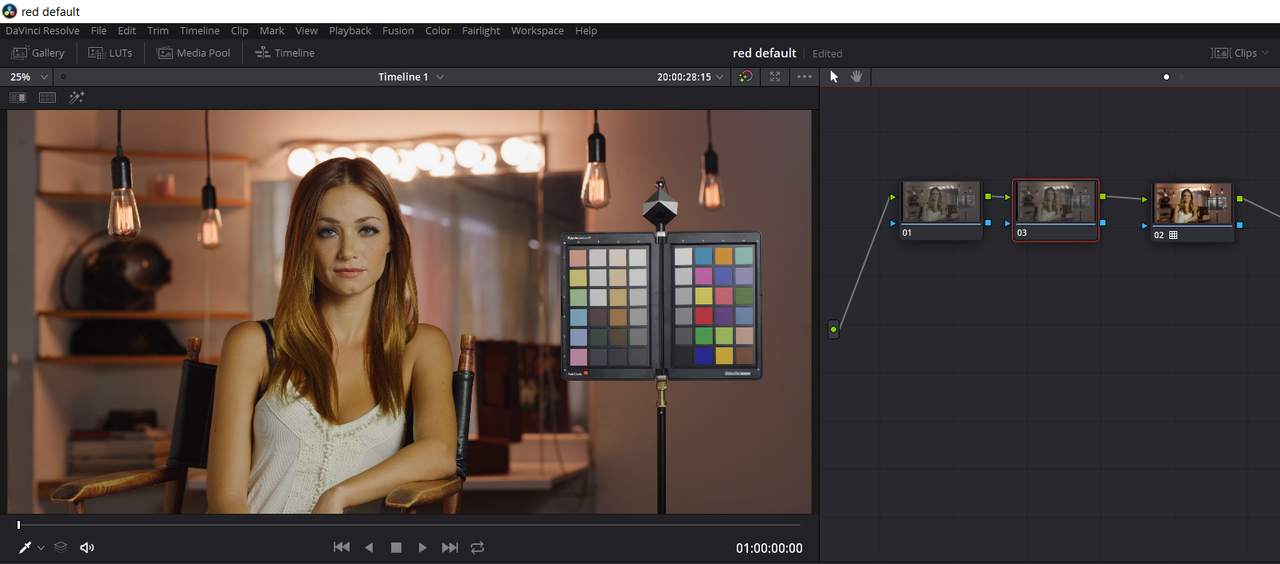
In the examples below you can see that I have added Two additional nodes. The Last Node has a different "IPP2 Output Transform Lut" in each of the two images below. I also selected the Node right before the Node with the "IPP2 Output Transform Lut"on it, "Node 3"(its the third node I added after the node I placed the "IPP2 Output Transform Lut"on) to show you that it still retained the Contrast and Highlight Roll-Off characteristics of the Last "IPP2 Output Transform Lut" Node.


First image "IPP2 Output Transform Lut" Medium/Soft applied to last Node.

Screenshot-622.png


Second image "IPP2 Output Transform Lut" Hi Con/Very Soft applied to last Node.

Screenshot-623.png


the third image shows a Gallery thumbnail grab from the Node prior to the "IPP2 Output Transform Lut" Node with seemingly no grade applied to it.

Screenshot-643.png


The image below shows what the grade looks like when you have the "Magic Wand" icon enabled in the Top left-Hand corner of the "Viewer" window.

Screenshot-628.png
 
Last edited:
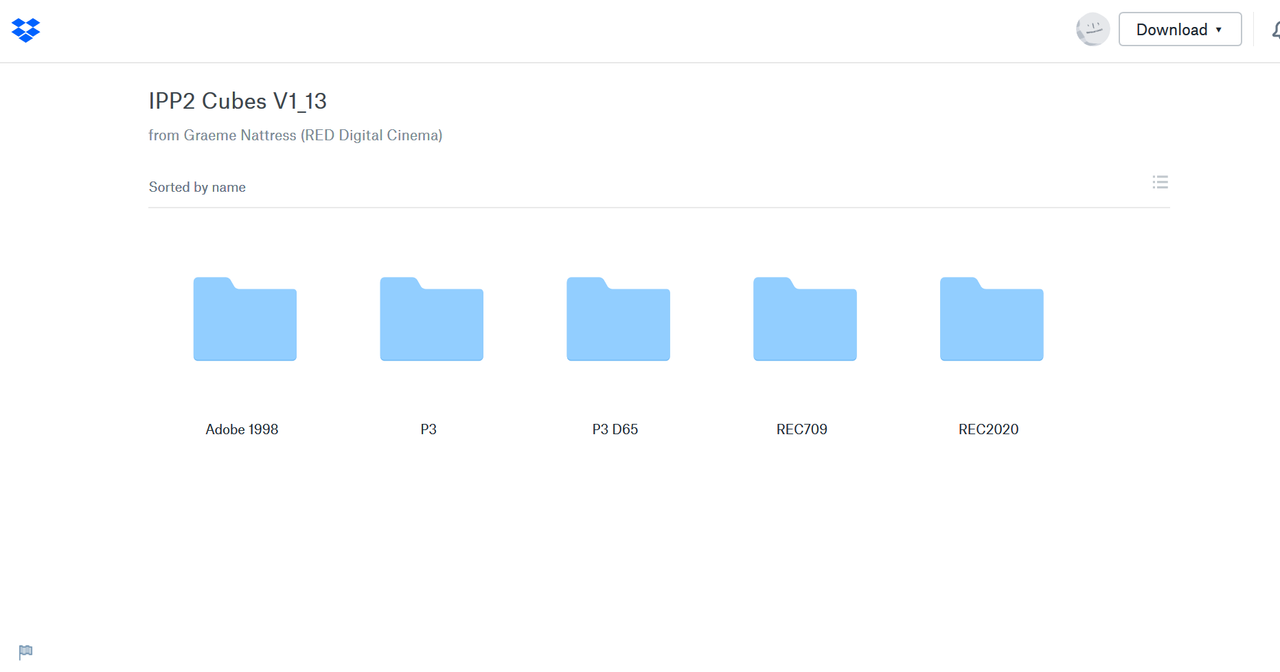
Where can we find the current "IPP2 Output Transform" luts? I still have the preview versions from before the official release of IPP2, and have been trying to make the color-managed workflow work for the last few projects. However, I keep running into situations where I don't want the Output Tone Mapping to apply to certain clips (like non-RED footage or reference images). I can't seem to bypass the color management for select clips.

Is anyone else having issues with the way curves behave when using DRCM and IPP2? Just touching the highlight portion of the curve causes all sorts of issues. The "highlight soft rolloff" tool causes the highlights to clip and compress as soon as the slider adjustment is moved. This has been happening for the last few versions now.
 
Garrett,

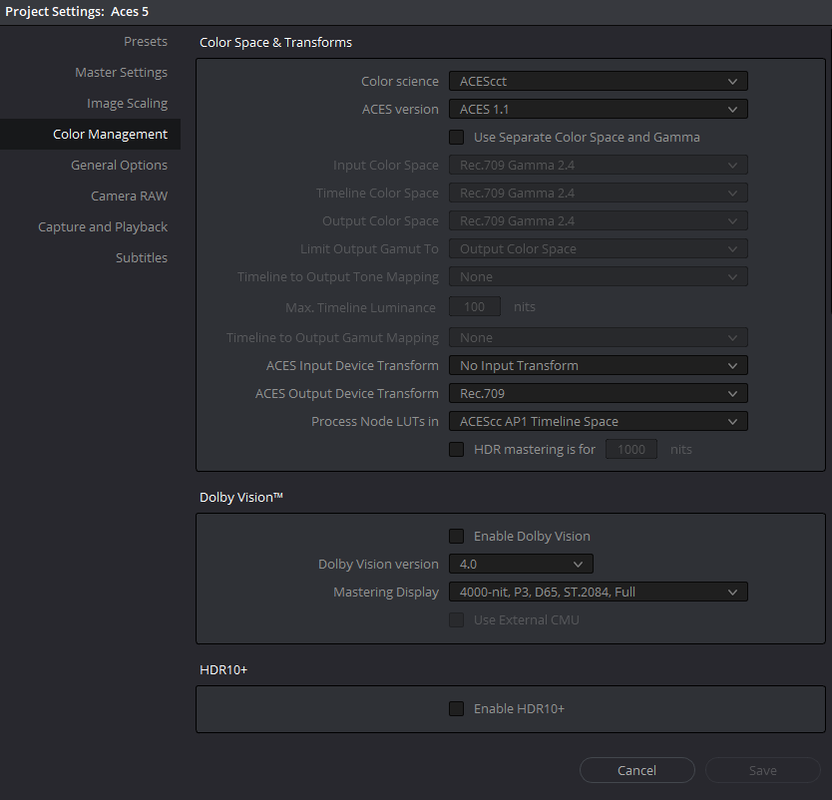
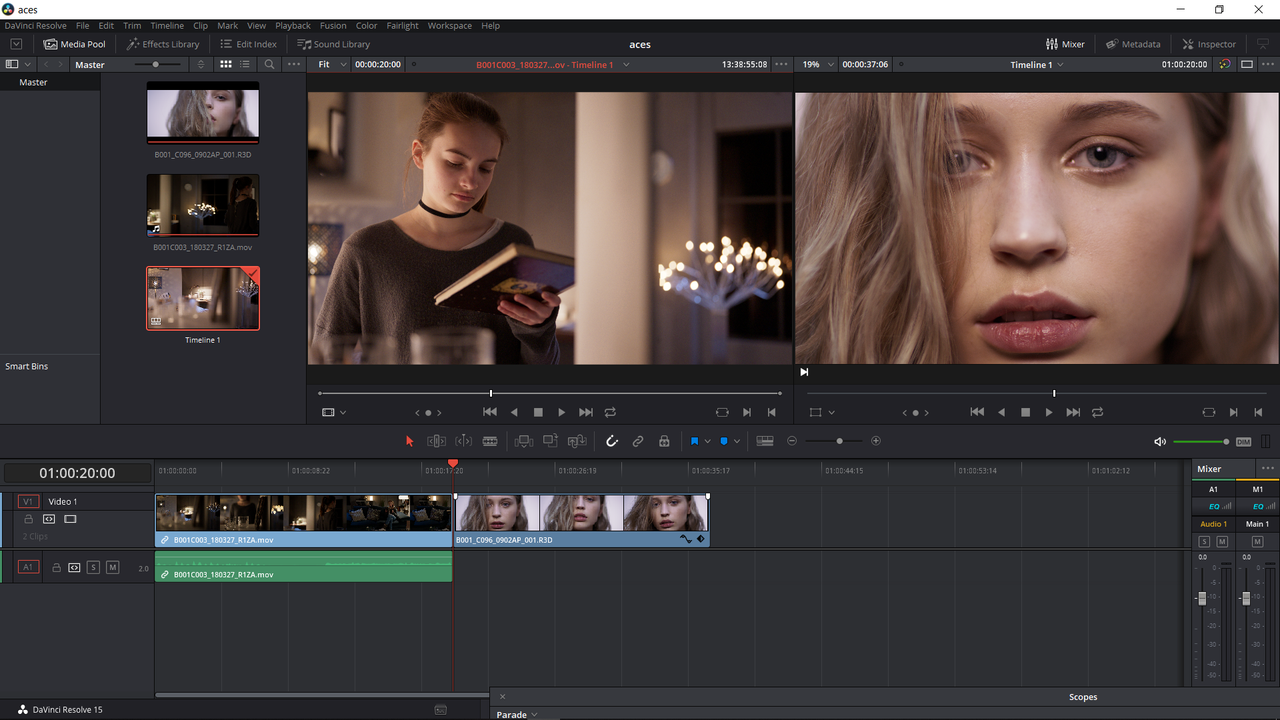
Here is roughly an Aces Workflow, I haven't been working with it that much, so if there are any more seasoned users of Aces please chime in if I get something wrong.

Here is basically the set up for ACES in Resolve.


Edit:

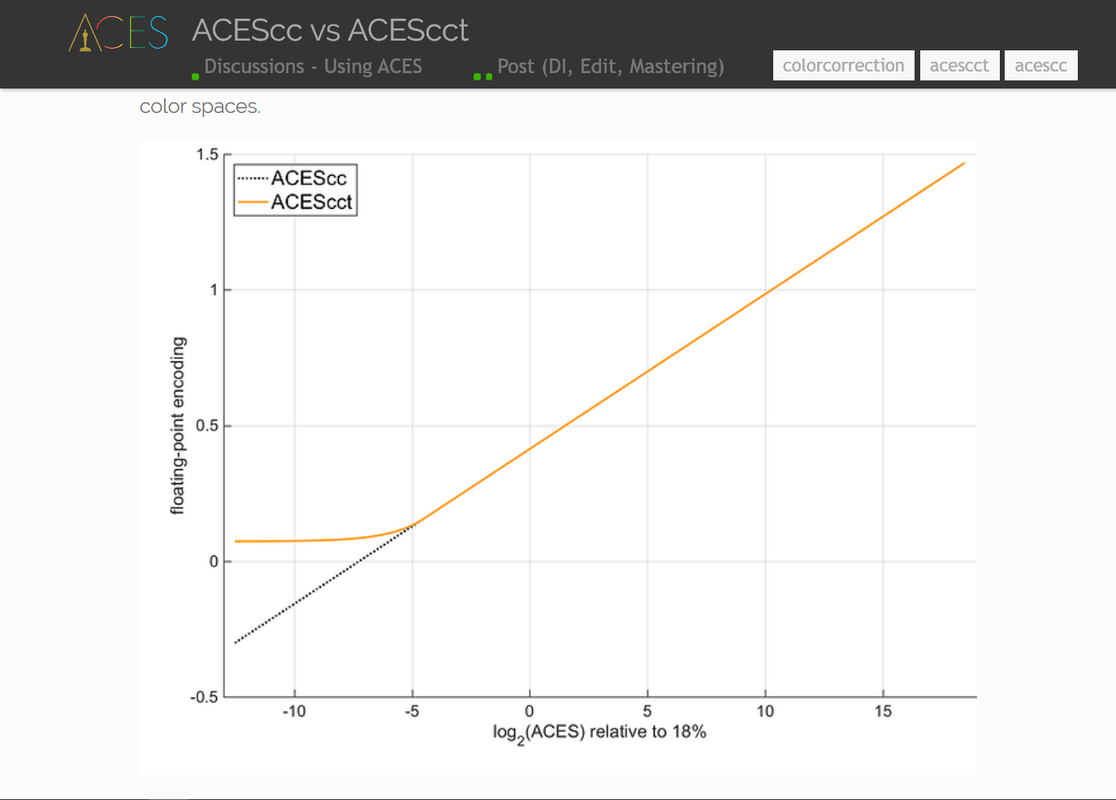
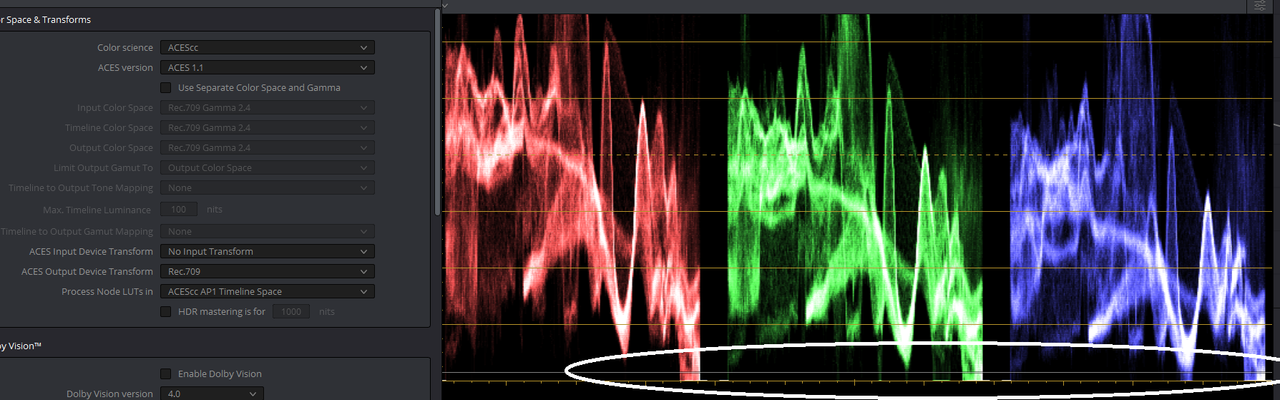
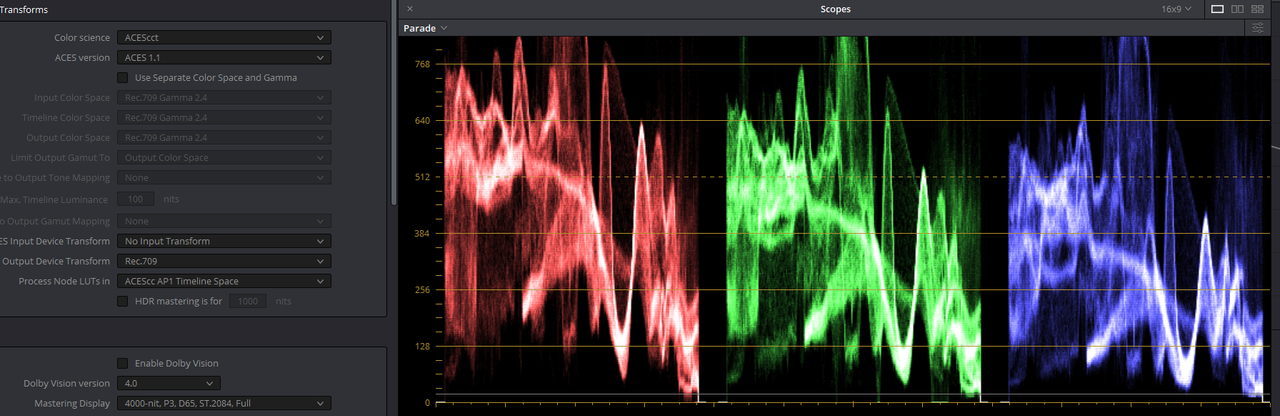
Its probably best to use "ACEScct(Toe)" instead of "ACEScc" for its better "blacks" Roll-Off

Screenshot-781.png


Screenshot-778.png


ACEScc Blacks


Screenshot-779.png


ACEScct Blacks


Screenshot-780.png


When I import the various different types of media Aces knows basically how to transform Raw footage from the different camera companies So the Red Helium 8k file I used in this example came in in some Legacy non IPP2 format.


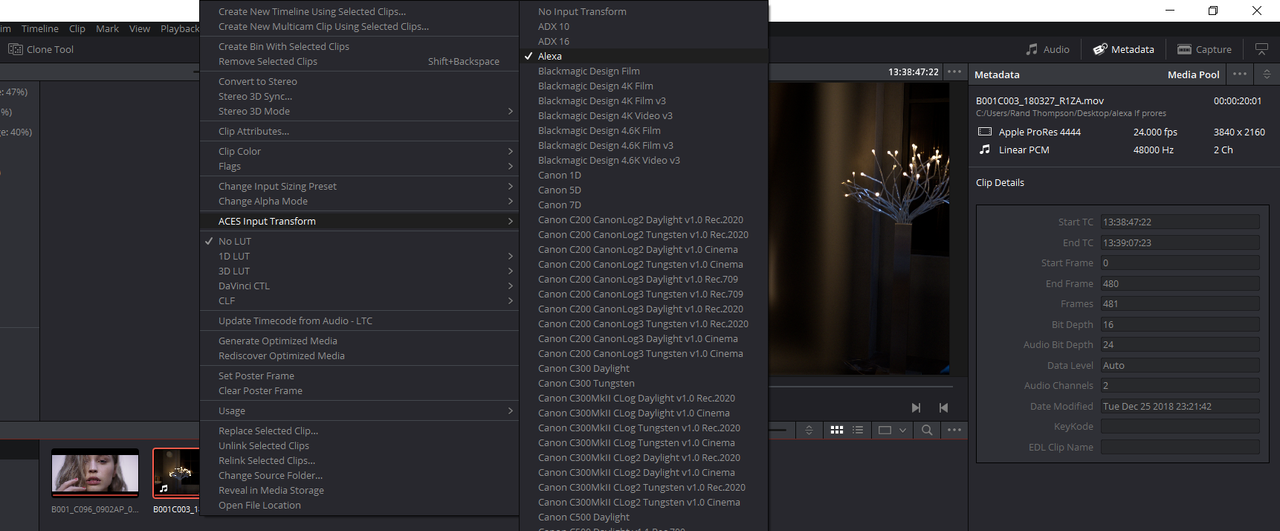
The Alexa LF 4KUHD Prores file will need an ACES input transform applied to it. So by Right-clicking the Alexa LF file and selecting "Aces Input Transform" then "Alexa" I get a proper Arri Alexa transform applied to the image.

Screenshot-742.png


Here are both the Alexa LF image (in the Left window viewer) and the Red Helium 8K image cropped and roughly color matched in the ("Timeline viewer window").

Screenshot-743.png


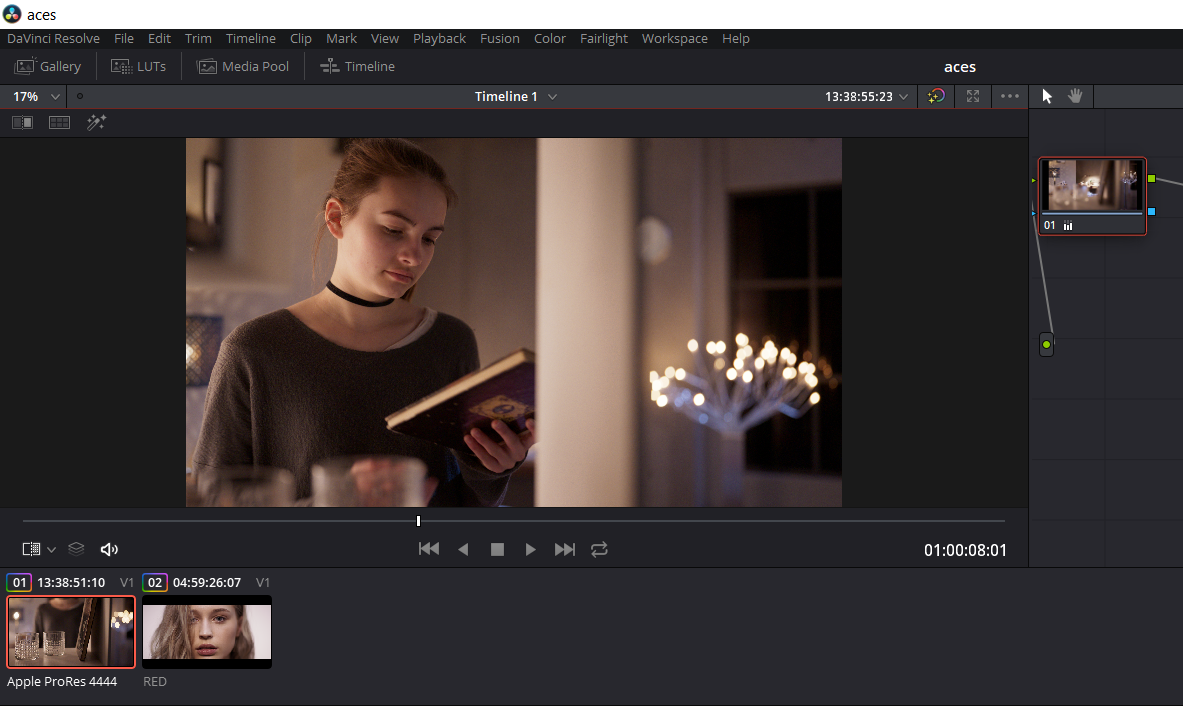
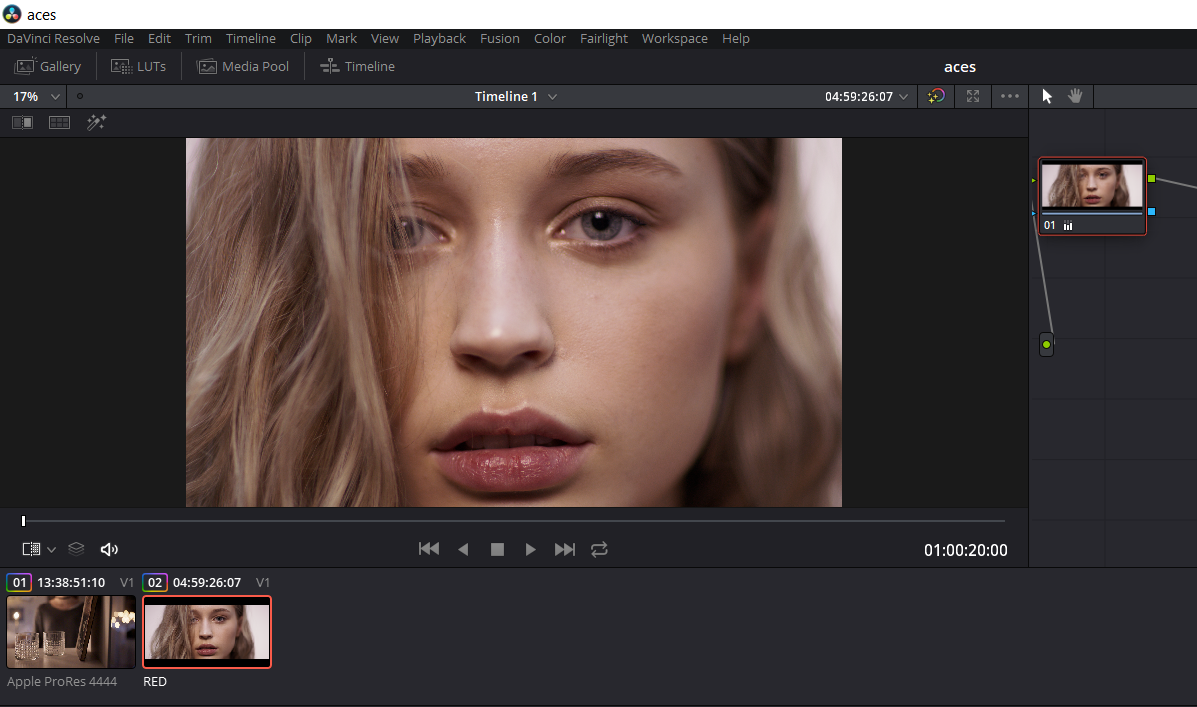
Your can see that they are different formats in the images below.


Screenshot-747.png


Screenshot-748.png
 
Last edited:
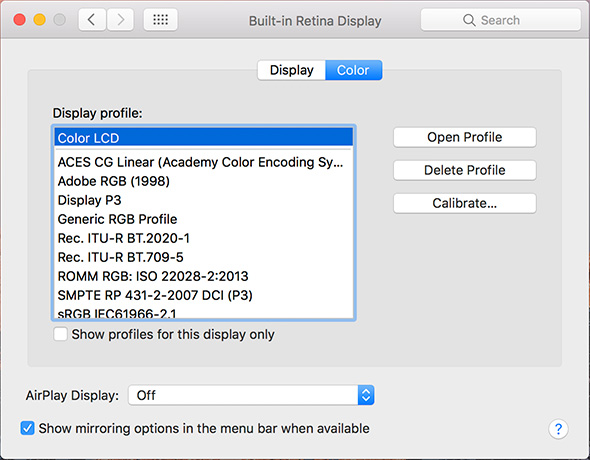
How are people choosing to monitor on their MBP? My main workstation is windows and the monitor is calibrated (i.e. have a LUT made via light space for it). Now i will get around to doing the same on the MBP but because the screens are pretty consistent i wonder if there are some generic profiles? The screen is near P3 so clearly work has to be done to monitor 709 on it. Originally i was changing the Resolve output colourspace to P3 for the MBP but i know that's not correct.

So just throwing it out there. I don't really grade on the MBP but i may do some work on it at times.

cheers
Paul
 
Paul,

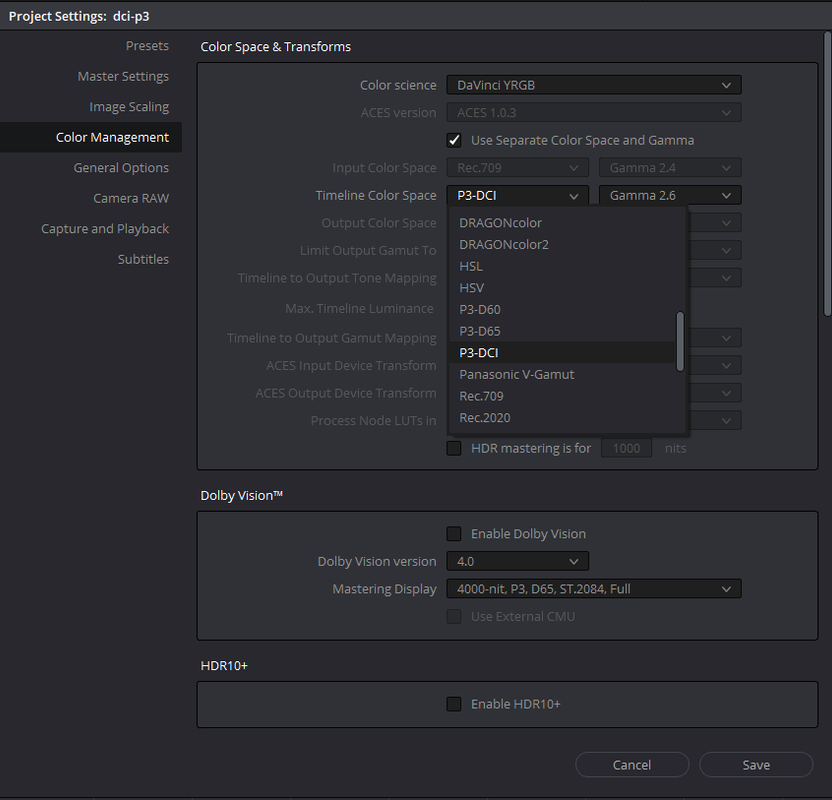
Just use IPP2 and monitor using a DCI-P3 or DCI-P3 D65 Output Transform Lut in the last Node of your clips. I don't know how accurate the Apple MacBook Pro's DCi-P3 is to the DCI-P3 standard, but just select that along with a DCI-P3 or DCI-P3 D65 Output Transform Lut and see how that works.
 
Paul,


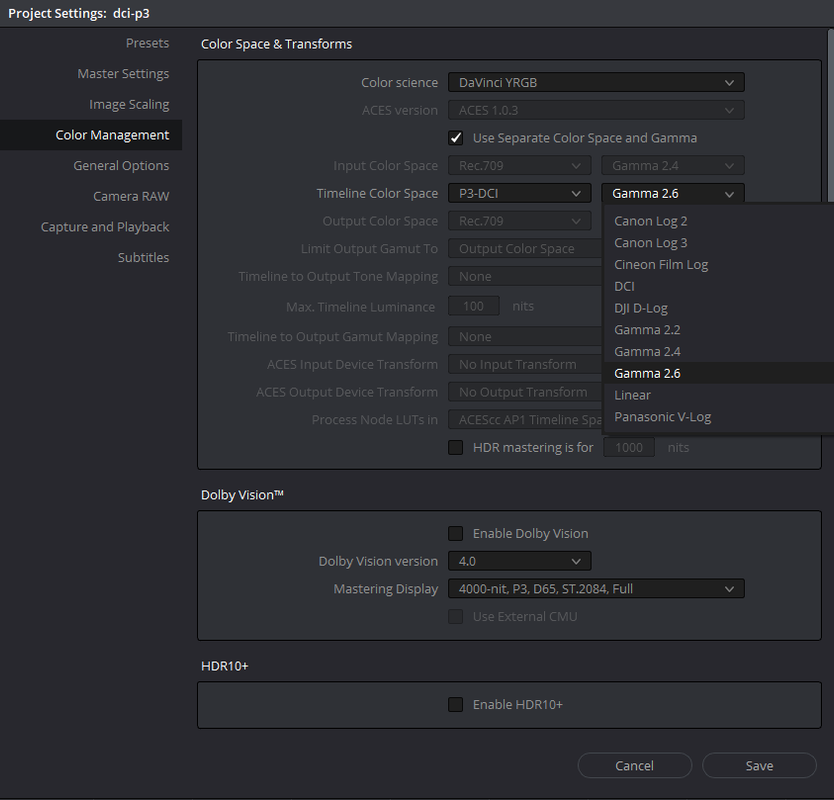
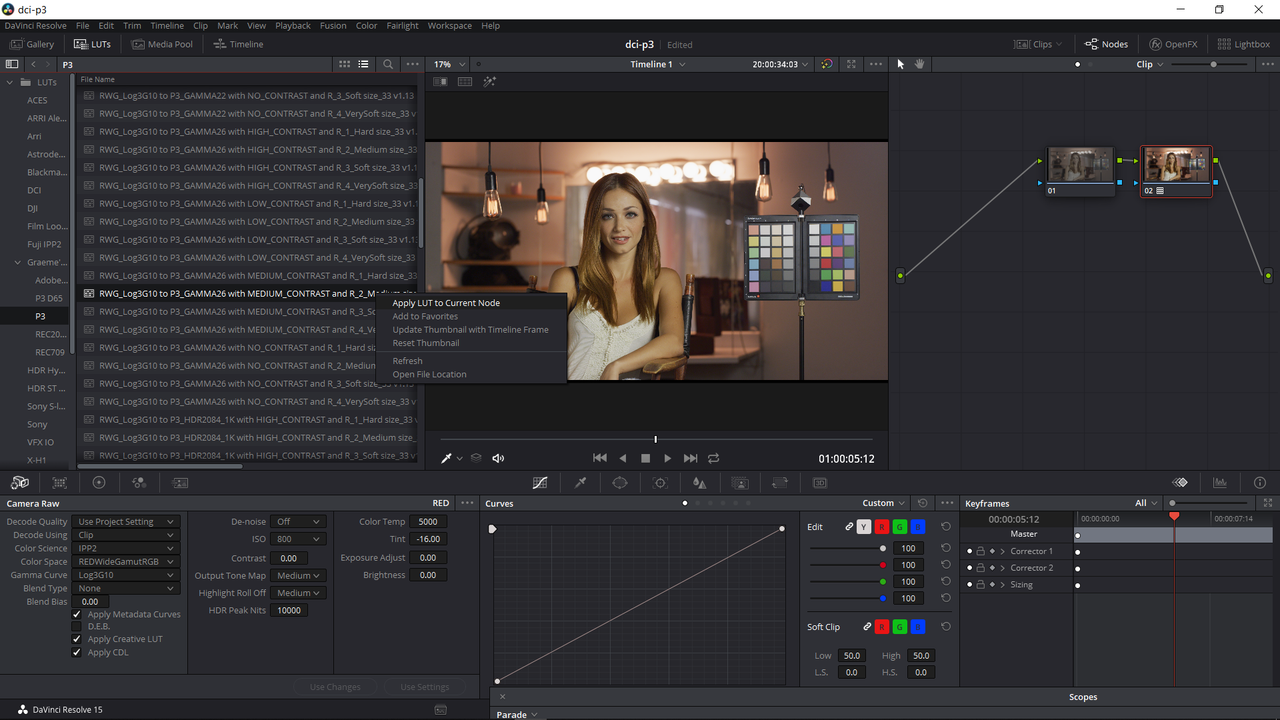
Something like this.

Screenshot-637.png


Screenshot-753.png


I believe the Gamma for DCI-P3 is Gamma 2.6 but correct me if I'm wrong.

Screenshot-752.png


I used a 800 iso, Color temp=5000 and Tint=-16.00. I also brought in the Metadata Curve from Redcine-X and the CDL grade.

Screenshot-757.png


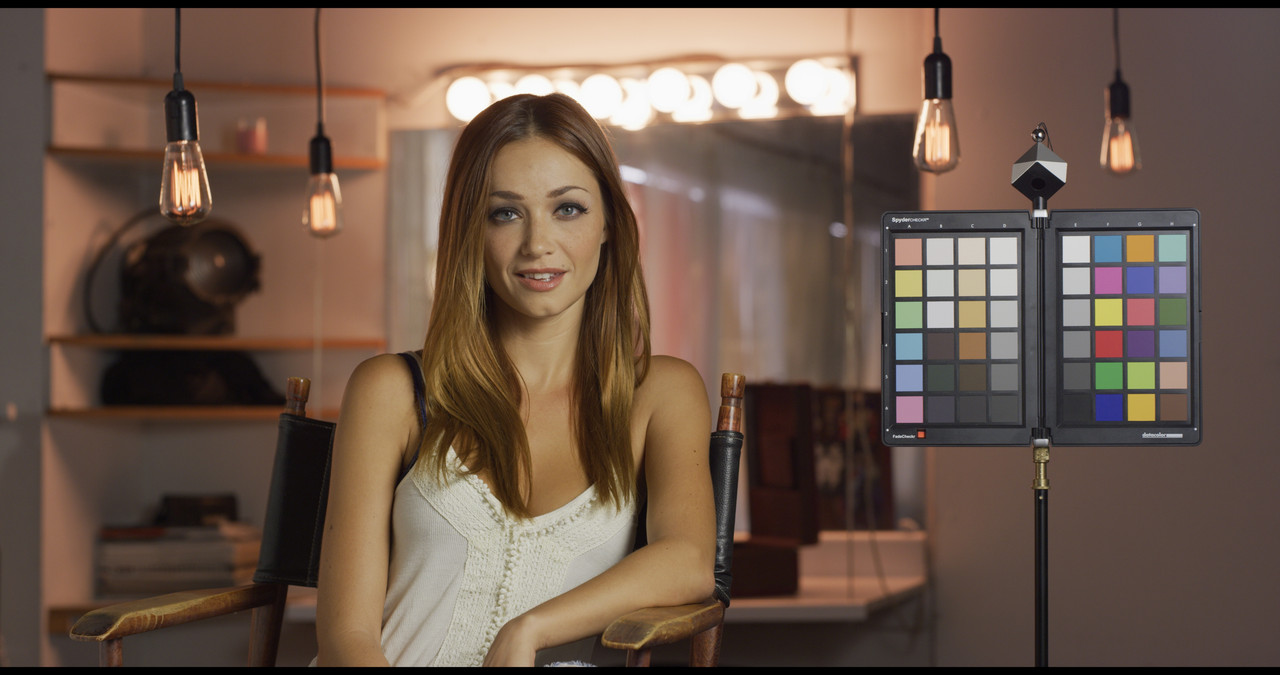
I then applied a RWG-Log3G10 to P3/Gamma 2.6 Medium/Medium IPP2 Output Transform Lut. This image will probably look better on a DCI-P3 Monitor but I think you get the Idea.


DCI-P3 Image

DCI-P3-1-1-1.jpg


rand
 
Last edited:
Thanks for all the great info. Is it possible somehow to get the videos in the bin to not look completely washed out? With the nodes I can get everything I am editing to look good, but would be nice to also have it in the bins.

Cheers!
 
Andreas,

Unfortunately, when You chose the IPP2 workflow, you convert the .R3Ds into the Redwidegamut RGB/Log 3G10 format. The images have to be Transformed into a Rec709, Rec2020 and DCI-P3 color space with an IPP2 Output Transform Lut. So until they are transformed, they will remain in the "Flat" looking RWG/Log 3G10 format.


If you could somehow get the IPP2 Output Transform Lut to "Write-back" to the .R3D file like a modified and saved .RMD, it wouldn't really work the way Red designed IPP2 to work. IPP2 Output Transform Luts act like little "Policemen" whos job is to be the last line of defense to put a check on and modify some of the evils of color grading(Over-saturated Illegal colors, Hard clipping/harsh highlight roll-offs..ect).
 
Last edited:
Paul,

Just use IPP2 and monitor using a DCI-P3 or DCI-P3 D65 Output Transform Lut in the last Node of your clips. I don't know how accurate the Apple MacBook Pro's DCi-P3 is to the DCI-P3 standard, but just select that along with a DCI-P3 or DCI-P3 D65 Output Transform Lut and see how that works.

Hey Rand,

Thanks. Yes this is how i've got things set up at the moment but bouncing a project destined for 709 between Mac and Windows this approach isn't correct. I'm not targeting P3 in this case. So i think that i really need to make a monitoring LUT which restricts the MBP to 709 and Resolve can add that to the chain on the Mac side. On the windows side the calibration LUT is part of the monitor software so Resolve just assumes a 709 display (correctly).

thanks
Paul
 
Back
Top