Welcome to our community

Be a part of something great, join today!

  • Hey all, just changed over the backend after 15 years I figured time to give it a bit of an update, its probably gonna be a bit weird for most of you and i am sure there is a few bugs to work out but it should kinda work the same as before... hopefully :)

Scarlet and Epic BUILD 4.0.6 BETA

Question. Normally I turn off the camera by holding down the power button. Is this correct? Often when I restart it sais that the camera was not properly shut down.Am I doing it wrong?
Andreas

You should let go of the power button when the "Shutting Down" message appears. If you continue to hold the power button (~5 seconds total) the camera will power off without completing a clean shutdown.
 
You should let go of the power button when the "Shutting Down" message appears. If you continue to hold the power button (~5 seconds total) the camera will power off without completing a clean shutdown.

When I'm holding down the power button in this build, "Shutting down" message is not appearing.
 
I have major hd-sdi and hdmi problems with this build. When trying to output on both the sdi and hmdi port, one of the 2 doesn't work. When i change the herz of the hdmi, the SDI output suddenly doesn't work anymore, etc. That kind of stuff.

This really should get fixed, on a c300 i never ever have problems with outputs behaving strange, but on the epic, also in previous build sdi and hdmi are acting quite strange.
 
I would like to suggest some requests and I wonder, if not more user would agree with me....?
1. to have the option of a complete power shut down. I would like to keep my so little power source inside the sidehandle. But I remove it all the time, because it does drain the battery - very little, but does. If I can leave the battery in, it would also not wear that battery clip holder out fast.
2. This is for those whose eyesight is not that what it used to be:
to have an option, to make the timecode numbers a little bigger as well.
3. I had requested that long time ago (still on the RED One) and Steward said, that will be easy to implement:
something like a timer.
I often have to time my shots, e.g. 20 sec or 30 sec or whatever. Have to look at the timecode (actually edge code) and calculate.
Or using a stopwatch (which I mostly forget to bring with me.)
Or maybe... even better... like the interval setting has a frame limiter.... if that would be possible for normal run time, that would be great!\\

Thank you.

Dorian
Tokyo
 
I would like to suggest some requests and I wonder, if not more user would agree with me....?
1. to have the option of a complete power shut down. I would like to keep my so little power source inside the sidehandle. But I remove it all the time, because it does drain the battery - very little, but does. If I can leave the battery in, it would also not wear that battery clip holder out fast.
2. This is for those whose eyesight is not that what it used to be:
to have an option, to make the timecode numbers a little bigger as well.
3. I had requested that long time ago (still on the RED One) and Steward said, that will be easy to implement:
something like a timer.
I often have to time my shots, e.g. 20 sec or 30 sec or whatever. Have to look at the timecode (actually edge code) and calculate.
Or using a stopwatch (which I mostly forget to bring with me.)
Or maybe... even better... like the interval setting has a frame limiter.... if that would be possible for normal run time, that would be great!\\

Thank you.

Dorian
Tokyo


In 4.0.x you can change the size and location of any overlay item. The large setting for the Timecode might be too big in your case, but we can look at adding more sizes.

The frame limiter is active in continuous mode. That is, I believe you can achieve why you are asking for already.
 
Version 4.0.6 does offer shorter pre-record times (down to 4 seconds).

Pre-Record is not really a mode, you need to trigger it. However, in 4.0.6 we added a "Always trigger Pre-Record before recording" checkbox (in Settings->Recording->Pre-Record). Make sure this is unchecked.

Thanks Trent - found that today and it worked a treat, a 2 second pre-record time would still be very useful when shooting high speed - 4 seconds at 100fps is still 16 second playback at 25fps. Also found the check-box so am sorted - appreciated!
 
I would like to suggest some requests and I wonder, if not more user would agree with me....?
1. to have the option of a complete power shut down. I would like to keep my so little power source inside the sidehandle. But I remove it all the time, because it does drain the battery - very little, but does. If I can leave the battery in, it would also not wear that battery clip holder out fast.
2. This is for those whose eyesight is not that what it used to be:
to have an option, to make the timecode numbers a little bigger as well.
3. I had requested that long time ago (still on the RED One) and Steward said, that will be easy to implement:
something like a timer.
I often have to time my shots, e.g. 20 sec or 30 sec or whatever. Have to look at the timecode (actually edge code) and calculate.
Or using a stopwatch (which I mostly forget to bring with me.)
Or maybe... even better... like the interval setting has a frame limiter.... if that would be possible for normal run time, that would be great!\\

Thank you.

Dorian
Tokyo
I like the idea of a "per shot" timer that resets itself on every shot. Minutes and seconds. Optional, of course.

Also, could you add a "marker" system that you can trigger in camera while shooting by pressing a button ? This could be very useful when scrubbing through long takes in RCX trying to find a given moment. Even if it couldn't be exported afterwards it still could be handy.
 
Great news to hear.. Thanks Jarred and the Red Team!
 
I think that this happens if I press the button too long. Trying to hold it only for a few seconds and it seems better. That is a strange functionality

Cheers
/Andreas
 
In 4.0.x you can change the size and location of any overlay item. The large setting for the Timecode might be too big in your case, but we can look at adding more sizes.

The frame limiter is active in continuous mode. That is, I believe you can achieve why you are asking for already.

Trend,
thank you, clear on the limit frames now works great, but not sure, how I could activate the bigger fonts?
Could you please give some help on that?
Also, a little confusion on my side:
I recently bought the Nikon Mount, in order to enjoy the autofocus, I also bought the Micro Nikon 60mm.
I learned, Touching the screen with your finger anywhere, it will focus there.
Problem No. 1: I saw a demo at RED Tokyo. While the lens is seeking focus, there is a green (or yellow) light showing up, to show, that the lens is focusing.
It never happen in my case, no light at all..... (only the Tally light when recording)
Problem No. 2: after touching the portion on the screen I want in focus, I press the record button, it happens many times while pressing, the seek focus function (pressing the button half way) is activated and the lens starts trying to start focus again, but at that time I m already at the recording position and the camera records a totally out of focus image.
I am sure, I must have overseen something..?
And also 1 more question: in the Focus Menu I have Brain HDMI and Brain SDI HDI. I don't know, which one applies to using the 5" LCD screen and where, if any, is the difference.

Thank you.

Dorian
 
Trend,
thank you, clear on the limit frames now works great, but not sure, how I could activate the bigger fonts?
Could you please give some help on that?
Dorian

1. Goto: Settings->Display->Monitor Control->Overlay Tab
2. Select 'Standard (Red)' from list on Left
3. Press [Clone...]
4. You are now in the Overlay Editor
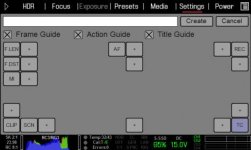
5. Press on the [TC] box in the lower right (this is the Timecode)
step5.jpg
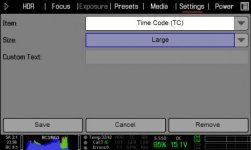
6. Change size to 'Large'. As I said before this will probably be too large for you as it is intended for reading from long distance
step6.jpg
7. Press [Save]
8. Name the new overlay
9. Press [Create]
10. Goto: Settings->Display->Monitor Control->Monitor Tab
11. Chose the monitor you are using (e.g. Brain LCD)
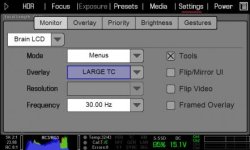
12. Change the Overlay setting to your newly created overlay
step12.jpg

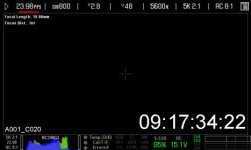
Here is what it should look like:
example.jpg
 
I recently bought the Nikon Mount, in order to enjoy the autofocus, I also bought the Micro Nikon 60mm.
I learned, Touching the screen with your finger anywhere, it will focus there.
Problem No. 1: I saw a demo at RED Tokyo. While the lens is seeking focus, there is a green (or yellow) light showing up, to show, that the lens is focusing.
It never happen in my case, no light at all..... (only the Tally light when recording)
Problem No. 2: after touching the portion on the screen I want in focus, I press the record button, it happens many times while pressing, the seek focus function (pressing the button half way) is activated and the lens starts trying to start focus again, but at that time I m already at the recording position and the camera records a totally out of focus image.
I am sure, I must have overseen something..?

Problem 1:
The AF window itself will change color while it is focusing:
Blue: focus in progress
Green/Yellow/Red: confidence of focus once focus is completed

Are you not seeing the AF window change color at all? Even if you do a half-press to trigger AF?

Problem 2:
There is a 100ms window that determines if you performing a half-press or a full-press on the record button. That is, if you press the record button half-down and within 100ms complete the full press the half-press action (AF:Start by default) will not be performed. If, however, it takes longer than 100ms for you to complete the full-press it will look as if you performing a half-press following by a full-press.


If you continue having problems pressing the record button quickly, and are OK with just using the touch screen (or a different key to trigger AF), your best bet might be to unmap the half-press on the record button.

- Goto: Settings->Setup->Keys->Key Mapping Tab
- Press the record key
- Change the 'SH Record Half Press' action from 'AF: Start' to '-Key Disabled-'
 
And also 1 more question: in the Focus Menu I have Brain HDMI and Brain SDI HDI. I don't know, which one applies to using the 5" LCD screen and where, if any, is the difference.

This setting only applies if you have 'Enhanced A/F' enabled.

Enhanced Auto Focus is a new Auto Focus algorithm that offers better performance. However, it comes with a cost; you lose control over one monitor - either the HDMI or HDSDI. Whichever monitor you chose to give up for Enhanced Auto Focus will be forced to clean with a set resolution and update frequency. Enhanced Auto Focus also provides an improved Confirm mode with a visual indicator of how in focus the region is.
 
Helllloooooo anyone at Red reading this ?... Is there anywhere else where I can find the latest Redmote firmware that works with the Beta builds ?

When I go to the RED.com download page and click on the download link for REDMOTE FIRMWARE I get a different link and it works:
Release:
http://s3.amazonaws.com/red_3/downloads/firmware/redmote/REDmote_Firmware_v4.0.10.zip
Beta:
http://s3.amazonaws.com/red_3/downloads/firmware/redmote/REDmote_Firmware_v5.0.11.zip

I'm not sure where you got the link you posted.
 
Last edited:
When I go to the RED.com download page and click on the download link for REDMOTE FIRMWARE I get a different link and it works:
http://s3.amazonaws.com/red_3/downloads/firmware/redmote/REDmote_Firmware_v4.0.10.zip

I'm not sure where you got the link you posted.
Thanks Trent,
someone from here was kind enough to send me a working link a couple of days ago. ;)

The link I posted came from this page :
https://www.red.com/downloads/50d4b905a48c372a96001721
(click on "REDmote Firmware (Beta Version)" on the left column of the page)

Same link on this post from Jarred, from the previous beta version (the new version didn't include a link to the redmote firmware) :
http://www.reduser.net/forum/showth...BUILD-4-BETA&p=1123815&viewfull=1#post1123815

Still not working, you might wanna update these links.
 
Problem 1:
The AF window itself will change color while it is focusing:
Blue: focus in progress
Green/Yellow/Red: confidence of focus once focus is completed

Are you not seeing the AF window change color at all? Even if you do a half-press to trigger AF?'

Yes, Trend, I see the blue lined box. I thought the yellow light (of the tally light) is the only indicator.
(Before I knew that I can focus by touching the screen, I always used the record button halfway, but often the lens did not focus all the way.)
So I had to switch over to manual to get a correct focus). Now with touching the screen, focus is much better and easier.
This and the option to change/override the factory settings is really fantastic!
I have only one more request:
Could you please explain in detail too, how to save all those wonderful settings in the event of a Firmware upgrade.
I tried to follow the instructions which come with the firmware, but always lost my settings somehow.
Thank you for explaining everything in detail so clear.

Dorian
 
I dont' know if anyone has reported this yet, but Epic freezes up every time I try to view "Test Signals."

Pressing the record button, or switching the test signal tab to Off should disable the test pattern being shown.

If you are seeing a different behavior, please open a support ticket and send us your log file.
 
So I installed the beta build on the new epic and lost all data coming down SDI, TC and files info for pix 240. rolled back to 3.15 and were back in business . Thoughts?
 
Hi Red Team!
Long time reader, almost never wrote a post.
I just wanted to point out that this build has been one of the best so far, mainly because of "pre-record" option.

I've been using my dad's Epic (Equilibrio FIlms) last couple of months. We've just updated the firmware and have been using it without major problems.
We've seen a couple of times the "screen issue", when seems like turning on and off while using magnify 1 to 1 option. Also we have experienced half pink screen when turning the camera on or attaching a canon lens for the first time to the camera and then turning the camera on. Re-booting fixed both issues.

I just wanted to ask for a little feature request for the pre-record options: Is it possible to add a custom button function like "Pre-Record Stop"?
I could find just the "Record Stop" option, but if I use this option when "Pre-Record" already activated, the clip that the camera was "pre-recording", it's saved to the SSD instead of being dumped by the camera.

Thanks!
 
Back
Top