Welcome to our community

Be a part of something great, join today!

  • Hey all, just changed over the backend after 15 years I figured time to give it a bit of an update, its probably gonna be a bit weird for most of you and i am sure there is a few bugs to work out but it should kinda work the same as before... hopefully :)

Davinci Resolve 16 Beta

rand thompson

Well-known member
Joined
Aug 9, 2011
Messages
18,999
Reaction score
622
Points
113
Davinci Resolve 16 Beta


Davinci Resolve 16 Beta


Mac

https://www.blackmagicdesign.com/support/download/1d5d71d1092c4e2d9f51741e9c8eb7a7/Mac OS X


Windows


https://www.blackmagicdesign.com/support/download/1d5d71d1092c4e2d9f51741e9c8eb7a7/Windows


Davinci Resolve Studio 16 Beta


Mac

https://www.blackmagicdesign.com/support/download/b64f92f72942405e98fe4d4fbf4a6334/Mac OS X

WINDOWS

https://www.blackmagicdesign.com/support/download/b64f92f72942405e98fe4d4fbf4a6334/Windows


Main page on Blackmagic Design Home page.

https://www.blackmagicdesign.com/products/davinciresolve/


What's New in DaVinci Resolve 16


This video demonstrates some of the new features in Davinci Resolve 16. The first half of the video covers the new cut page, while the rest of the video covers dozens of other new features across the rest of the application.

00:00 Introduction
00:15 Difference between Edit and Cut pages
01:00 Cut page interface overview
01:43 Cut page media pool
02:19 Cut page dual timeline
02:46 Cut page scratch trimming
03:10 Cut page smart edit features
04:30 Cut page trimming
04:50 Cut page graphical trim editor
05:28 Cut page transitions and smooth cut buttons
06:23 Cut page source tape mode
07:26 Cut page fast review
07:46 Cut page transformation, retiming, audio tools
08:35 Cut page title 3D templates and other effects
08:58 Cut page quick export and upload
09:15 Edit page custom timeline settings
09:38 DaVinci Neural Engine and facial recognition
10:15 Edit page automatic Smart Bins and organization
10:45 Edit page Speed Warp retiming with neural engine
11:14 Edit page adjustment clips
11:30 Edit page new Resolve FX
11:35 Edit page realtime Fusion 3D title templates
11:58 Edit page shot stabilization
12:17 Edit page curve editor for Resolve FX and Open FX
12:27 Edit page rectified and full audio waveforms
12:33 Edit page tape style audio scrubbing
12:43 Native frame.io integration
13:27 Fusion page performance
13:53 Fusion page GPU accelerated tools
14:11 Color page new feature introduction
14:23 Color page DaVinci Neural Engine color and shot match
14:42 Color page curves with histogram overlay
14:55 Color page paste attributes
15:00 Color page Gallery interface improvements
15;27 Color page new split screen options
15;36 Color page smart fill object removal
15:58 Color page Resolve FX and neural engine
16:38 Color page keyframe editor for Resolve FX and Open FX
16:50 Color page GPU accelerated scopes
18:07 Color page viewer channel options
18:23 Fairlight page introduction
18:30 Fairlight page new automation controls
18:40 Fairlight page automation preview
18:54 Fairlight page bus and VCA timeline tracks
19:18 Fairlight page new loudness and metering tools
19:39 Fairlight page loudness graph in timeline
19:55 Fairlight page clip normalization options
20:05 Fairlight page ProTools session import
20:20 Fairlight page immersive 3D audio support
20:44 Fairlight page 3D panner and new 3D Space View
21:18 Fairlight page B-chain monitoring and setup options
21:35 Fairlight page elastic wave alignment for dialog sync
21:59 Fairlight page new Fairlight FX plugins
22:10 Fairlight FX Frequency Analyzer
22:24 Fairlight FX Limiter
22:40 Fairlight FX Phase Meter
23:00 Fairlight FX Dialog Processor
23:55 Fairlight page free foley sound library
24:10 Fairlight FX Foley Sampler
25:20 DaVinci Resolve 16 summary
 
Last edited:
What's new in DaVinci Resolve 16

Features marked with * are in progress.
Features marked with ^ have additional descriptions below


Key new features

Addition of all-new Cut page
Support for the DaVinci Resolve Editor Keyboard
Multiple performance improvements with significantly faster Fusion processing
Collaboration workflow improvements - DaVinci Resolve Studio
Speed Warp motion estimation powered by the DaVinci Neural Engine in DaVinci Resolve Studio
Timeline level resolution, frame rate, scaling and monitoring settings within the same project
Upload directly to YouTube and Vimeo
Quick Export for quickly performing renders from all pages
Adjustment Clips to apply filters, effects and grades on top of a range of timeline clips
Frame.io integration supporting media imports, direct uploads, marker and comment syncing - DaVinci Resolve Studio
Significantly improved GPU accelerated real-time scopes
Initial immersive 3D audio support including Dolby Atmos, Auro-3D, MPEG-H, and SMPTE ST 2098 - DaVinci Resolve Studio
Free foley sound effects library available from the Blackmagic Design support website for use in DaVinci Resolve


Cut

Dual timelines with the ability to quickly navigate or edit anywhere on the timeline
Ability to use Source Tape mode to preview multiple media pool clips as a sequence of shots
Dedicated trim tool in the viewer to allow for frame-accurate trimming
Fast review mode with adaptive preview speeds to quickly review footage
Intelligent editing behavior based on playhead proximity to edit points
Dedicated edit and transition buttons
Compact viewer controls for context-specific actions including transform, audio, text and effects
Ability to access and edit all DaVinci Resolve transitions, effects and Fusion title templates
Multiple media pool sort and display modes - including new filmstrip mode and new list mode with thumbnails
Easy access to Quick Export options to export and share videos

Performance

User selection to preserve video essence for faster rendering of clips without content changes^
Improved playback performance with title templates in the effects library^
Improved Fusion playback performance
Improved caching performance for clips with Fusion comps
Improved 3D engine performance for clips with Fusion effects
Improved performance when playing back Fusion clips with cached effects
Improved performance with support for GPU-accelerated scopes
Improved performance for the Super Scale algorithm powered by the DaVinci Neural Engine in DaVinci Resolve Studio
Improved playback performance on Linux systems with a single NVIDIA GPU
 
Collaboration

Per-system render cache for collaboration projects - DaVinci Resolve Studio^
Ability to create and modify markers in the Color page for collaboration projects - DaVinci Resolve Studio
Ability to modify clip metadata and flags from the Color page for collaboration projects - DaVinci Resolve Studio
Ability to display and change clip color from the Color page for collaboration projects - DaVinci Resolve Studio
Ability to load collaboration projects in read only mode - DaVinci Resolve Studio
Support for Dolby Vision and HDR10+ in collaboration projects - DaVinci Resolve Studio
Frame.io integration supporting media imports, direct uploads, marker and comment syncing - DaVinci Resolve Studio^
Ability to override the output and monitoring settings per collaboration system - DaVinci Resolve Studio^
Ability to see the machine and IP address of the user who is currently using a non-collaboration project
Options to show or hide flags and markers of specific colors
Ability to delete markers and flags by color

Edit

Speed Warp motion estimation powered by the DaVinci Neural Engine - DaVinci Resolve Studio^
Timeline level resolution, frame rate, scaling and monitoring settings within the same project^
Adjustment Clips to apply filters, effects and grades on top of a range of timeline clips^
Ability to analyze video clips for detecting and classifying people powered by the DaVinci Neural Engine - DaVinci Resolve Studio^
Custom safe areas for titles and actions^
Ability to assign any media pool clip or timeline as an offline reference clip^
Video orientation angle in the Clip Attributes dialog
Ease in and out position keyframes in the curves editor
Ability to view and edit keyframes for OpenFX plugins in timeline curves
Stabilize video clips from the Inspector
Support for pasting color correction properties from the Paste Attributes dialog
Improved audio behavior when scrubbing in the Edit and Media page viewers
Temporarily enable/disable snapping for titles on the viewer using the Alt/Opt key
All available viewer area is automatically used for 2-up and 4-up displays
Blade operations on a selected clip results in the preceding section being selected
Ability to toggle viewer overlays on/off and assign shortcuts for specific modes in the Edit and Color page viewers^
Support for a larger selection of words in the keyword dictionary from workspace menu
Ability to group and manage smart bins using folders
User preference to automatically create smart bin categories from media pool clips based on keywords, shot, scene and people metadata
Ability to duplicate existing smart bins
Ability to toggle between searching all media pool bins and current bin
Support for Go to In/Go to Out functions for three point edits even when preview marks are not visible
Support for switching the video monitoring output when toggling between source and timeline viewer in gang mode
Automatic updating of the Usage in Media Pool list view
Project setting to limit reel name matching to a specific number of characters when conforming or color tracing timelines^
Project setting to ignore a specific number of characters from the beginning of the reel name when conforming or color tracing timelines^
Newly pasted clips are now automatically selected
Ability to render broadcast wave files with support for metadata when exporting timelines to Pro Tools
Improved handling of video codec defaults and audio file names when exporting timelines to Pro Tools
Ability to switch buses for monitoring from the Edit page
Options to toggle views for rectified, full waveform and waveform borders in timeline options^
Improved alpha channel handling for compound clips with more than two layers^

Fusion


Fusion Studio 16 release concurrent with DaVinci Resolve 16
Improved playback performance with title templates in the effects library
Improved Fusion playback performance
Improved 3D engine performance for clips with Fusion effects
Support for MultiSampling in the 3D Renderer
Ability to flexibly scale animation with changing clip lengths
Improved performance when playing back cached Fusion clips
Improved responsiveness of Fusion viewer interactions when using a Wacom tablet
Ability to view and edit Fusion composition names from the clip thumbnail context menu
Improved memory management on large Fusion compositions with a high layer count
Improved GPU memory utilization for Fusion compositions with temporal processing
Improved performance for Change Depth with new Error Diffusion option
Improved performance and accuracy for Camera Tracker, with support for lens distortion
Improved performance with Fusion Dissolve with GPU acceleration support
Improved performance with Fusion TimeSpeed and TimeStretch with GPU acceleration support
Improved performance for Planar Tracker
Improved performance for B-Spline rendering with GPU acceleration support
Improved performance for Vector Motion Blur and motion blur in other tools with GPU acceleration support
Improved performance for Fusion Splitter and Combiner with GPU acceleration support
Improved performance for Fusion BitmapMask with GPU acceleration support
Improved performance for Fusion CornerPin and PerspectivePin with GPU acceleration support
Improved performance with Fusion Mask rendering with GPU acceleration support
Improved performance with Fusion Color operations with GPU acceleration support
 
Color

All new scopes engine
GPU accelerated with real-time performance
Option to apply a low pass filter for cleaner views
CIE scope for viewing gamut distribution
Option to set quality of the scopes
Additional YRGB and YCbCr modes in Parade
Option to see extents in Parade and Waveform
Option to colorize Parade and Waveform
Additional luminance and chroma modes in Waveform
Ability to set ranges and view shadows, midtones and highlights independently in the Vectorscope
Ability to view individual or combined extents for shadows, midtones and highlights in the Vectorscope
Additional YRGB mode in the Histogram
Option to see input or output histograms in the background of custom curves
Option to see input or output histograms in the background of HSL curves
Support for new auto-color and color match processing powered by the DaVinci Neural Engine^
Ability to gang the zoom on the Color page viewer and the video output^
Ability to view individual red, green and blue channels in the viewer^
Ability to view and adjust keyframes for ResolveFX and OpenFX^
Ability to adjust the thumbnail size for timeline and lightbox to view a larger range of clips
Ability to copy and paste attributes between nodes
Ability to step forward and backward by 1 second
Ability to mark in-out ranges, mark current clip or clear ranges in the timeline for looped playback and to perform quick exports of specific sections
New smart filter for clips with edit sizing
New smart filter for clips with specific ResolveFX or OpenFX applied
Ability to view and set stereoscopic floating windows in pixels^
Additional strength controls for advanced video stabilization
Tracks can be enabled/disabled from the application menu and using shortcuts
Option to monitor stereoscopic content using line by line with the first line being even
List view mode for gallery stills and PowerGrades
Ability to update and navigate the current timeline wipe using the Timelines section in the gallery
Ability to optionally enable scrubbing when performing live preview in the gallery^
Support for a new Selected Still Images split screen mode
Accessing clip attributes from the thumbnail context menu
Revealing media in Media Pool from the thumbnail context menu
Revealing applied LUT in LUT browser from the node context menu
Support for Canon C700 IDTs in ACES workflows
Support for tooltips with track names in the Color page timeline
Support for AstroDesign ALog OETF in Resolve Color Management workflows
Support for 203 nit gamma mapping in Color Management settings when performing SDR to HDR color space conversions
Ability to pan and tilt an image beyond the project resolution in input, node and output sizing
Modifying Canon and Panasonic Camera Raw controls from the DaVinci Resolve Mini and Advanced Panels
Switching tabs automatically when adjusting primary parameters from DaVinci Resolve panels

ResolveFX

ResolveFX Stylize powered by the DaVinci Neural Engine in DaVinci Resolve Studio
ResolveFX Object Removal in DaVinci Resolve Studio^
ResolveFX Analog Damage in DaVinci Resolve Studio
ResolveFX Pencil Sketch in DaVinci Resolve Studio
ResolveFX Chromatic Aberration in DaVinci Resolve Studio
ResolveFX Chromatic Adaptation
ResolveFX Vignette
ResolveFX Invert Color
ResolveFX Drop Shadow
Support for the ResolveFX Blanking Fill, Lens Blur and Tilt Shift Blur in the Fusion page
Support for the ResolveFX Patch Replacer in the Edit page
Support for integrated beauty enhancements in ResolveFX Face Refinement
Improved ResolveFX Beauty with a new Auto mode, better edge behavior, individual controls and larger parameter ranges
Improved ResolveFX Scanline
Improved behavior for handling glow sources in multiple ResolveFX plugins^
Improved behavior for ResolveFX plugins with support for processing the alpha channel in the Edit timeline
Improved ResolveFX Blanking Fill with better defaults, support for more granular cropping and easier controls
Improved ResolveFX Warper with support for keyframing
Improved ResolveFX Dead Pixel with support for keyframing
Improved ResolveFX Colorspace Transform with support for SMPTE-C and Gamma 2.5

Fairlight

Initial support for Dolby Atmos audio in DaVinci Resolve Studio^
Initial support for Auro-3D audio in DaVinci Resolve Studio^
Initial support for MPEG-H audio in DaVinci Resolve Studio*
Initial support for SMPTE ST 2098 3D audio from DaVinci Resolve Studio
Support for B-Chain monitoring in the Fairlight page in DaVinci Resolve Studio
Support for labeling and protecting specific speakers from unwanted signal patching from the B-Chain port setup
Support for a larger variety of track formats including support for 3D audio formats
FairlightFX Frequency Analyzer
FairlightFX Limiter
FairlightFX Phase Meter
FairlightFX Dialog Processor*
FairlightFX Foley Sampler
Elastic Wave adaptive audio timing
Ability to save and recall multiple track automation mixes
Ability to copy, paste, edit and erase user selected portions of track automation data from the Fairlight menu
Improved viewing and control of 3D pans in the Fairlight pan tool
Support for Fairlight Audio Accelerator via Thunderbolt expander for macOS
Support for importing AAF timelines with support for decoding embedded audio content
Viewing and editing automation parameters for buses in the timeline view
New loudness monitoring standards - including ATSC, 1770 and R128 standards
Improved clip normalization with an option to set loudness standards
Ability to view integrated loudness curves for the Main bus in the timeline^
Ability to reset playback volume by Alt/Opt-clicking the volume slider
Media path mapping for the Sound Library
Ability to save and recall full console library presets
 
Codecs and Delivery

Quick Export for quickly performing renders from various pages^
Rendering all timeline audio tracks individually in single clip mode^
Decoding iOS Voice Memo, including lossless formats
Improved support for decoding and linking IMF supplemental packages in DaVinci Resolve Studio
Support for 20th Century Fox IMF preset in DaVinci Resolve Studio
Option for DCP quantization levels when rendering using the Kakadu JPEG2000 codecs
User alert when the render resolution is larger than the timeline resolution
Ability to use Super Scale in timeline output scaling in order to perform upscaling on renders and deliveries
Support for encoding to Panasonic SHV 8K in DaVinci Resolve Studio
Support for trimming MXF clips with temporal codecs in media management
Ability to minimize or disable viewer updates during rendering
AMD hardware accelerated decoding of H.264 and H.265 on Windows in DaVinci Resolve Studio
AMD hardware accelerated encoding of H.264 and H.265 on Windows in DaVinci Resolve Studio
Improved support for NVIDIA H.264 and H.265 rendering parameters on the Delivery page on Windows and Linux in DaVinci Resolve Studio
Improved support for Intel Quick Sync H.264 and H.265 parameters on the Delivery page on Windows in DaVinci Resolve Studio
Option to select the hardware acceleration method for decoding H.264 and H.265 on Windows and Linux - DaVinci Resolve Studio
Improved performance when decoding H.264 and H.265 clips on macOS
Improved performance when encoding H.264 and H.265 clips on macOS
Option to select hardware or software encoding for H.264 in macOS
Ability to set the Entropy mode when encoding H.264 on macOS
Improved display of options for H.265 profiles with implicit bit depth selection in the Deliver page on macOS
Improved HDR metadata encoding when rendering to H.265
Improved performance when encoding to AVI formats
Support for D-Gamut and D-Log for DJI RAW clips
Support for GPU accelerated decoding of Canon RAW clips using the Canon SDK
Support for decoding Canon C700 Full Frame clips
Support decoding Canon RAW clips in half res and quarter res mode
Support for decoding and encoding Avid DNxUncompressed formats
Support for decoding ARRI HDE clips
Ability to control QuantScale and MaxFrameSizeInPercent parameters when encoding to Grass Valley formats
Improved IMF composition settings options with the ability to rename native assets
Improved naming support for native DCP and IMF renders
Removed folder extensions from IMF/DCP renders


General

Support for the DaVinci Resolve Editor Keyboard
Exporting videos directly to YouTube^
Exporting videos directly to Vimeo^
Per OS login preferences and settings with support for local UI layouts, database management, system and user preferences^
Ability to check for software updates from the DaVinci Resolve menu
Playback speed indicators in Resolve viewers
Ability to enable or disable individual pages in DaVinci Resolve^
Ability to hide the page navigation bar from the Workspace menu
Ability to enable or disable focused panel indicators in DaVinci Resolve
Ability to list and navigate to open Media Pool windows from the Workspace menu
Support for automatically checking for software updates when connected to the internet
Support for Russian user interface
Improved Live Save behavior on the Fusion and Color pages
Ability to add and edit project notes from the Project Manager and app menu^
Support for using timeline name and project name as burn in and render tags
Support for editing descriptions and comments columns for timelines in the Media Page
Ability to view the GPU Processing mode when set to Auto
Support for using DaVinci Resolve Studio dongles to enable Fusion Studio
General stability and performance improvements

Developer

Ability for OpenFX plugins to access any frame from the current clip
Scripting support for python 3.7
Discoverable scripting APIs in python and python 3
Combo boxes in Davinci CTL plugins
Ability to encrypt and specify expiry dates for DaVinci CTLs
Ability to query current timecode and current clip using the scripting API
Improved scripting support for importing, exporting and restoring projects and archives
Improved scripting support for listing, loading, renaming and deleting Fusion compositions and Color versions
 
Pre-installation Notes

DaVinci Resolve 16 introduces support for operating system user-level configurations and preferences.

When starting DaVinci Resolve 16 for the first time, your system level global configuration files, layouts, logs and other preferences will be copied into your user folder. The existing system level files will be left untouched and will continue to work with older versions.

Any changes made to your system or user level preferences in DaVinci Resolve 16 will not be reflected in older versions.

DaVinci Resolve 16.0 requires a database upgrade from DaVinci Resolve 15.3.1 and previous versions.

We strongly recommend that you backup your existing database (both DiskDB and PostgreSQL) before performing an upgrade.

DaVinci Resolve 16.0 requires a graphics card with at least 2GB of VRAM which supports Metal, OpenCL 1.2 or CUDA 10.

This applies to both the compute and display graphics cards.

Please also install the latest graphics drivers on Windows and Linux recommended by your graphics card vendor.

Feature Descriptions

User selection to preserve video essence for faster rendering of clips without content changes
The option to "Bypass re-encode when possible" can be toggled in the Advanced Settings in the Deliver page.

When enabled, DaVinci Resolve determines if the source file codec matches the selected delivery codec and if the clip has no modifications and then bypasses re-encoding the video content.

Improved playback performance with title templates in the effects library.

The Fusion based title temples available on the Effects Library play significantly faster on the timeline with many effects playing in real-time without caching.

These effects benefit from a high performance GUI GPU. This enhancements is currently only available on single GPU systems are will be available in multi-GPU systems in a future beta update.

Per-system render cache for collaboration projects.

Collaboration projects now have support for render caching clips.

The render cache data is stored per system and each collaboration user can generate and manage their cache files.

Frame.io integration supporting media imports, direct uploads, marker and comment syncing
DaVinci Resolve Studio now supports native integration with Frame.io.

Login using the Sign In button under the Frame.io section of Internet Accounts under Preferences and follow the on-screen prompts.

Once the sign-in is complete, the Media Storage will have a Frame.io entry where the projects and clips within the account can be accessed.

Frame.io clips added to the Media Pool are automatically downloaded in the background for use in the project.

Timelines or sections of the timeline can be rendered and uploaded using the Frame.io Deliver page preset.

Timelines uploaded to Frame.io automatically sync markers and comments which are visible to all the users who have access to the clip and project.

Ability to override the output and monitoring settings per collaboration system.

The "Use Local Overrides" option can be enabled in the Video Monitoring section of Project Settings in a collaboration project.

When enabled, the user can customize monitoring settings for their system.

Speed Warp motion estimation powered by the DaVinci Neural Engine

The "Speed Warp" option for optical flow motion estimation can be selected from the Edit page Inspector under Retime and Scaling for clips with speed changes.

The Speed Warp takes effect for retimed clips with optical flow processing enabled.

Timeline level resolution, frame rate, scaling and monitoring settings within the same project
Resolution, frame rate, scaling and monitoring settings can now be set independently for each timeline.

By default, new timelines pick up these options from the Project Settings.

Users can choose to override these defaults with custom values by using the "Use Custom Settings" button in the New Timeline creation dialog.

The timeline settings can also be accessed and modified using the Media Pool timeline context menu.
 
Last edited:
Feature Descriptions-Part 2

Adjustment Clips to apply filters, effects and grades on top of a range of timeline clips.

Adjustment clips act as generator clips that get their input from the clips and tracks below them.

Adjustment Clips can be added to the timeline from the Effects section in the Effects Library, adjusted to the appropriate length and modified and graded independently.

Ability to analyze video clips for detecting and classifying people powered by the DaVinci Neural Engine
Multiple video clips can now be processed for face recognition from the clip context menu in the media pool.

Detected people can be named and individual faces can be untagged or reclassified from the People dialog accessible from the Workspace menu.

Automatic smart bin creation can be enabled for people from the Preferences dialog and the People field can be used like other metadata in smart bin and filter creation.

Custom safe areas for titles and actions

Safe areas for titles and actions can now be customized from the Editing section of User Preferences by enabling "Use custom safe area overlays".

Ability to assign any media pool clip or timeline as an offline reference clip

Any Media Pool clip or timeline can now be assigned as an offline reference clip for a timeline.
This can be done by switching the source viewer to offline mode and dragging the desired Media Pool clip on to the viewer. Please note that the source timecode of the selected offline reference clip will need to match the timecode of the timeline.

Ability to toggle viewer overlays on/off and assign shortcuts for specific modes in the Edit and Color page viewers

Viewer overlays for the Edit and Color page viewers can now be toggled from the View menu, under the Viewer Overlay submenu. Additionally, custom shortcuts can be assigned for each individual mode to switch modes quickly.

Project setting to limit reel name matching logic when conforming or color tracing timelines

Two options have been added in Project Settings under Conform Options in General Options to limit reel name matching when conforming or color tracing. The first limits the matching logic to a user defined number of leading characters in the reel name. The second ignores a user defined number of leading characters in the reel name.

Options to toggle views for rectified, full waveform and waveform borders in timeline options

The timeline options dialog in the Edit timeline now provides toggles for rectified waveforms, full clip height waveforms as well as waveform borders similar to the Fairlight page timeline.

Improved alpha channel handling for compound clips with more than two layers

Previously, alpha channels were preserved for single layer compound clips. Now, even compound clips with multiple layers correctly preserve alpha channels and composites when placed on a timeline.

Support for new auto-color and color match processing powered by the DaVinci Neural Engine

The "Apply Auto Primary Grade" and "Apply Auto Shot Match" actions are now powered by a new algorithm powered by the DaVinci Resolve Neural Engine. The legacy methods can still be accessed by enabling "Legacy Auto Color" and "Legacy Shot Match" from the Color tab of User Preferences.

Ability to gang the zoom on the Color page viewer and the video output

The "Gang viewer zoom with video output" option can be found in the three-dot option menu of the Color page viewer. Enabling this option will pan, tilt and zoom the reference monitor output in conjunction with the viewer in the Color page. You can reset the reference monitor output by applying zoom to fit in the viewer.

Ability to view individual red, green and blue channels in the viewer

The menu options to enable individual viewer channels on the Color page viewer can be found in the View menu under "Viewer Channels".

Ability to view and adjust keyframes for ResolveFX and OpenFX

ResolveFX and OpenFX plugins that are applied in the Color page node graph can now be seen in the keyframes section of the Color page and can be managed from there.

Ability to view and set stereoscopic floating windows in pixels

3D Stereoscopic floating windows can now be viewed and modified in pixels using the option in the 3D panel three-dot option menu.

Ability to optionally enable scrubbing when performing live preview in the gallery

When Live Preview is enabled in the Gallery three-dot option menu, additional hover scrub preview options are now available to disable scrubbing, enable hover previews only on the thumbnails or both on the thumbnail and viewer.
 
Last edited:
Feature Descriptions-Part 3


ResolveFX Object Removal in DaVinci Resolve Studio

The ResolveFX Object Removal plugin can be used in the Color page to quickly remove unwanted objects from the clip. In order to use this plugin, an alpha mask of the object needs to be fed in and "Use OFX Alpha" needs to be enabled on the node with the plugin.

Improved behavior for handling glow sources in multiple ResolveFX plugins

The generated glow in the Aperture Diffraction, Glow, Lens Reflections and Light Rays plugins can now be filtered to emanate from specific parts of the image. This can be enabled by turning on the Use OFX Alpha option in the appropriate ResolveFX node and either drawing power windows or providing an alpha channel input into the node.

Initial support for immersive 3D audio formats

Individual immersive 3D audio formats can be turned on from Project Settings under Fairlight to make them available as bus and track formats. In addition, the target Dolby Atmos RMU settings can be specified in Preferences, under the Video and Audio I/O tab.

Ability to view integrated loudness curves for the Main bus in the timeline

When automation is enabled, the Fairlight track index shows additional entries for main buses. Clicking the eye icons allows mix parameters for each bus to be viewed and manipulated from the timeline.

Quick Export for quickly performing renders from various pages

Quick Export can be accessed from the File menu in order to quickly render a timeline directly from the Edit and Color pages without having to create a render job in the Deliver page.

Rendering all timeline audio tracks individually in single clip mode

The audio tab in the Deliver page settings has a new output track option for single clip render jobs called "Timeline Tracks". This option allows render all audio tracks in the timeline as is to the file being rendered.

Exporting videos directly to YouTube

The "Internet Accounts" tab in System Preferences allows you to specify your YouTube login. Once the login is complete, the Deliver page will have an option to "Upload directly to YouTube" under the YouTube preset.

Exporting videos directly to Vimeo

The "Internet Accounts" tab in System Preferences allows you to specify your Vimeo login. Once the login is complete, the Deliver page will have an option to "Upload directly to Vimeo" under the Vimeo preset.

Per OS login preferences and settings with support for local UI layouts, database management, system and user preferences

System and User preferences are now stored at an operating system user level. When starting DaVinci Resolve 16 for the first time, the system level global configuration files, layouts, logs and other preferences will be copied into the local user folder. The existing system level files will be left untouched and will continue to work with older versions. Any changes made to DaVinci Resolve preferences will not be reflected in older versions. The DaVinci Resolve activation information, LUTs and existing Disk Databases will continue to be stored at the system level.

Ability to enable or disable individual pages in DaVinci Resolve

The "Show Page" submenu under the Workspace menu allows you to show or hide individual pages in DaVinci Resolve

Ability to add and edit project notes from the Project Manager and app menu

The "Project Notes" dialog, invoked from the Project Manager context menu, can be used to view or modify notes related to the project. Project notes can also be viewed in the Notes column in the Project Manager list view
 
Last edited:
Minimum system requirements for macOS

macOS 10.13.6 High Sierra

16 GB of system memory is recommended and 32 GB is recommended minimum when using Fusion
Blackmagic Design Desktop Video version 10.4.1 or later
CUDA Driver version 418.105
NVIDIA Driver version - As required by your GPU
RED Rocket-X Driver 2.1.34.0 and Firmware 1.4.22.18 or later
RED Rocket Driver 2.1.23.0 and Firmware 1.1.18.0 or later

Minimum system requirements for Windows


Windows 10 Update

16 GB of system memory is recommended and 32 GB is recommended minimum when using Fusion
Blackmagic Design Desktop Video version 10.4.1 or later
NVIDIA/AMD/Intel GPU Driver version – As required by your GPU
RED Rocket-X Driver 2.1.34.0 and Firmware 1.4.22.18 or later
RED Rocket Driver 2.1.23.0 and Firmware 1.1.18.0 or later

Minimum system requirements for Linux

CentOS 7.3

32 GB of system memory is recommended minimum
Blackmagic Design Desktop Video version 10.4.1 or later
NVIDIA/AMD Driver version – As required by your GPU
RED Rocket-X Driver 2.1.34.0 and Firmware 1.4.22.18 or later
RED Rocket Driver 2.1.23.0 and Firmware 1.1.18.0 or later

Upgrading your PostgreSQL database server on Mac

Until DaVinci Resolve 12.5.2, the Mac installer used to ship with PostgreSQL version 8.4.2. Starting from macOS Sierra 10.12, PostgreSQL version 8.4 is no longer supported. If you intend to upgrade to the latest OS, you will need to upgrade your PostgreSQL database server to version 9.5.4 prior to upgrading macOS. Once your PostgreSQL installation has been upgraded and your data has been ported, you can then proceed with your macOS upgrade.

We have provided apps to simplify upgrading your PostgreSQL version on your Mac.The apps along with instructions can be found in the:
/Library/Application Support/Blackmagic Design/DaVinci Resolve/Upgrade PostgreSQL
folder. Starting from DaVinci Resolve 12.5.3, new installations will include PostgreSQL version 9.5.4.
 
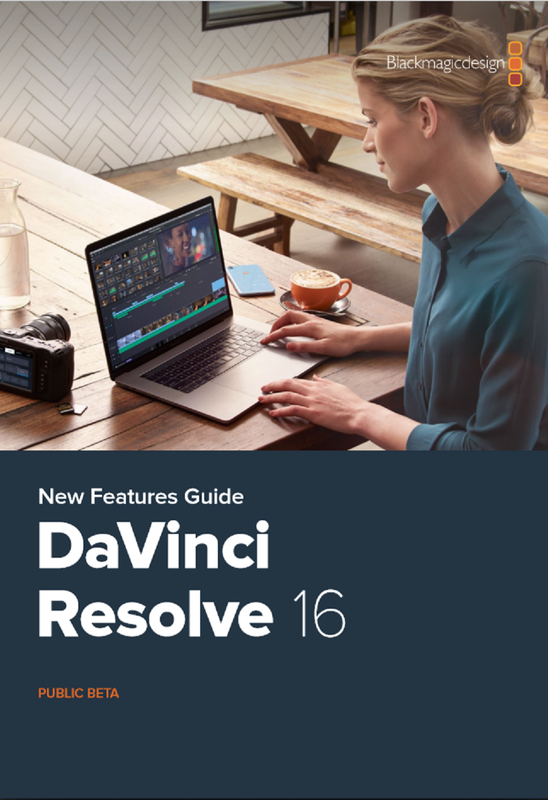
Davinci Resolve 16 New Feature Guide.

https://documents.blackmagicdesign....ve_16_New_Features_Guide.pdf?_v=1554708600000


Screenshot-223.png
 
Blackmagic NAB 2019 Technical Product Overview

He actually starts talking about Davinci Resolve 16 at the 1:14:14 mark, and not at the 1:40:00 mark

By Blackmagic Design


Watch to learn more about the latest products released at NAB including HyperDeck Extreme 8K HDR, ATEM Constellation 8K, Teranex Mini SDI to HDMI 8K HDR, DaVinci Resolve 16 and more!

00:00:00 Introduction
00:00:27 HyperDeck Extreme 8K HDR
00:36:24 Blackmagic MultiDock 10G
00:40:11 ATEM Constellation 8K
01:05:40 Teranex Mini SDI to HDMI 8K HDR
01:40:00 DaVinci Resolve 16
02:13:37 Blackmagic Pocket Camera Battery Grip
 
Last edited:
KO!!!

Is it possible to install the beta side by side with the 15?
 
Joel,


It may be possible, however I've personally never tried to due it on the same computer, especially if you already have very important existing projects from a previous "Final" Retail version.
 
ProRes RAW vs Blackmagic RAW - Interview with Atomos CEO Jeromy Young


By cinema5D


Read all about it here: https://cinema5d.com/prores-raw-vs-bl...

At NAB 2019, we got a chance to talk about the future of ProRes RAW and Blackmagic RAW with Atomos' CEO Jeromy Young.
 
Hmm, might be all great news. But to me the timline stuff lean to be a bit overcomplicated one of those where you ask a bunch of users what they like/would want in a NLE and then give em all with a lot of overlapping functionalities. Lots of time that cause confusion more than anything else. Kind of like flame, that has, I don't know how many ways to display or edit a timline. Its probably not the best way to get new users aboard but possibly keeps the daily users happy. Will be interesting to see where this takes resolve.
 
Bjorn,


Yeah, Don't know how having two editing workflows inside of Resolve will help or hurt. It may just be one of those things no one knew they really needed or wanted until after they have used it.
 
Hmm, might be all great news. But to me the timline stuff lean to be a bit overcomplicated one of those where you ask a bunch of users what they like/would want in a NLE and then give em all with a lot of overlapping functionalities. Lots of time that cause confusion more than anything else. Kind of like flame, that has, I don't know how many ways to display or edit a timline. Its probably not the best way to get new users aboard but possibly keeps the daily users happy. Will be interesting to see where this takes resolve.

I can't wait to buy the keyboard so I can slip and roll clips under transitions and/or slip and roll transitions without the selection nightmares of the present interface!

I've been feeling around the DR16 public beta this afternoon, and it just feels nice!
 
Perphaps we should move the Atomos interview to a nab 2019 thread?
But Im trying to understand what Red and Atomos is cooking. Is Atomos going to be able to record r3d? or is it going to convert r3d to prores raw on the fly? Im hoping for record r3d.
 
Perphaps we should move the Atomos interview to a nab 2019 thread?
But Im trying to understand what Red and Atomos is cooking. Is Atomos going to be able to record r3d? or is it going to convert r3d to prores raw on the fly? Im hoping for record r3d.

Question, why would you like to record r3d outside of camera?
 
Back
Top