Welcome to our community

Be a part of something great, join today!

  • Hey all, just changed over the backend after 15 years I figured time to give it a bit of an update, its probably gonna be a bit weird for most of you and i am sure there is a few bugs to work out but it should kinda work the same as before... hopefully :)

ARRI 4K Super 35 Camera Will be Launched Next Month

RAVENGRADE a DCTL Plugin In Resolve - PART 2 ( SECTION 3)


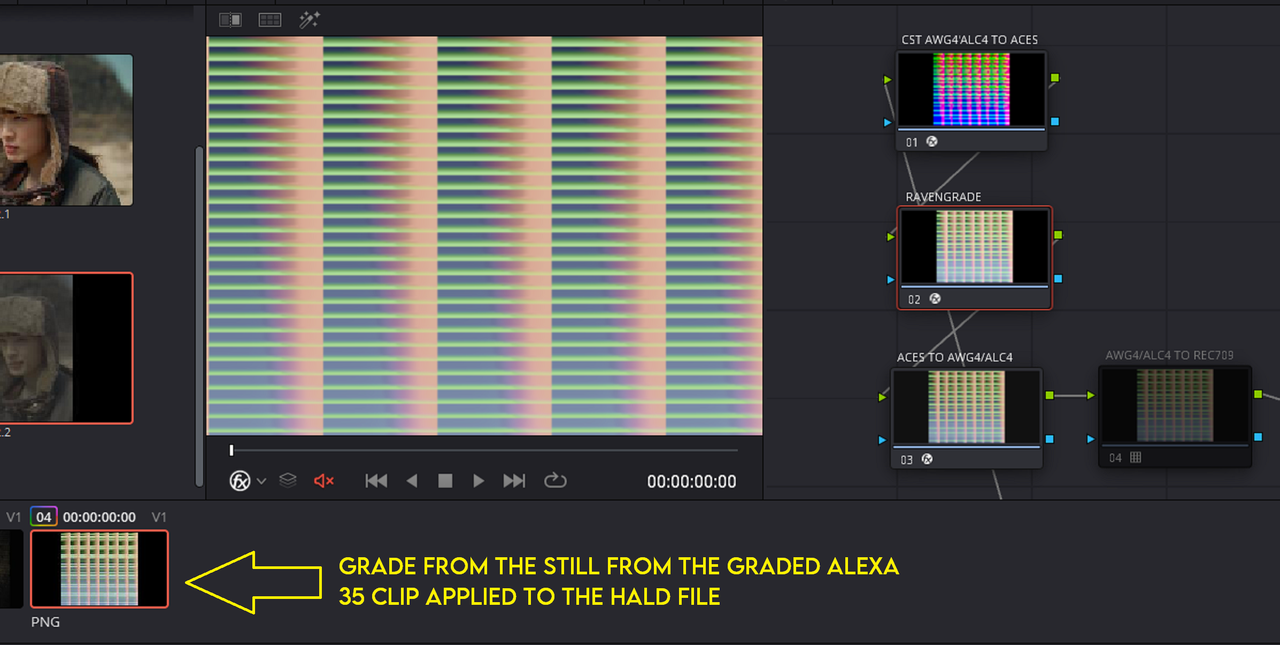
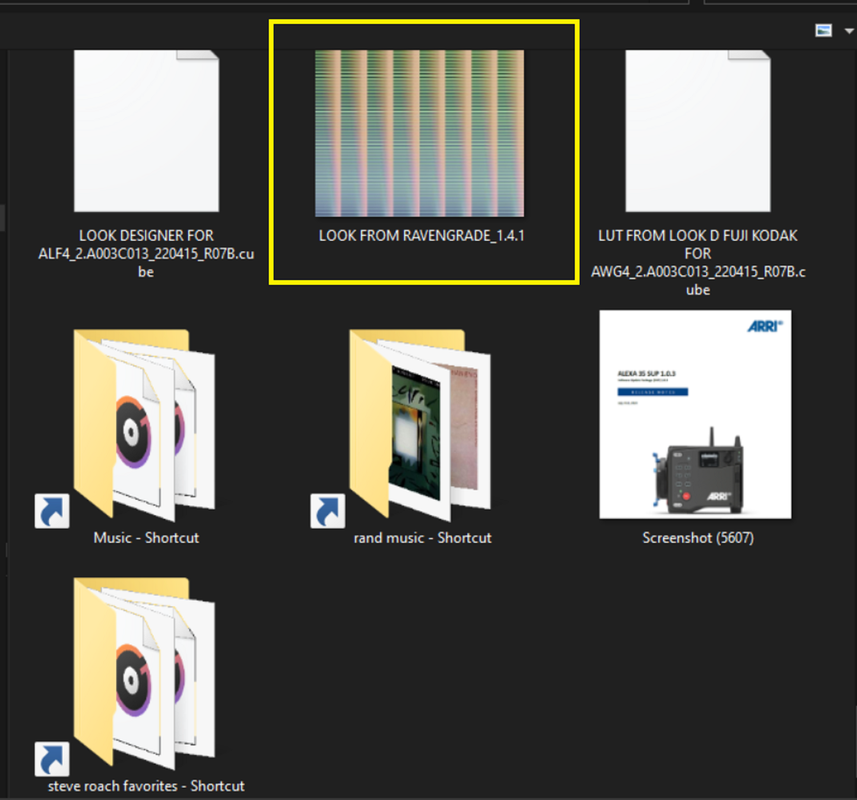
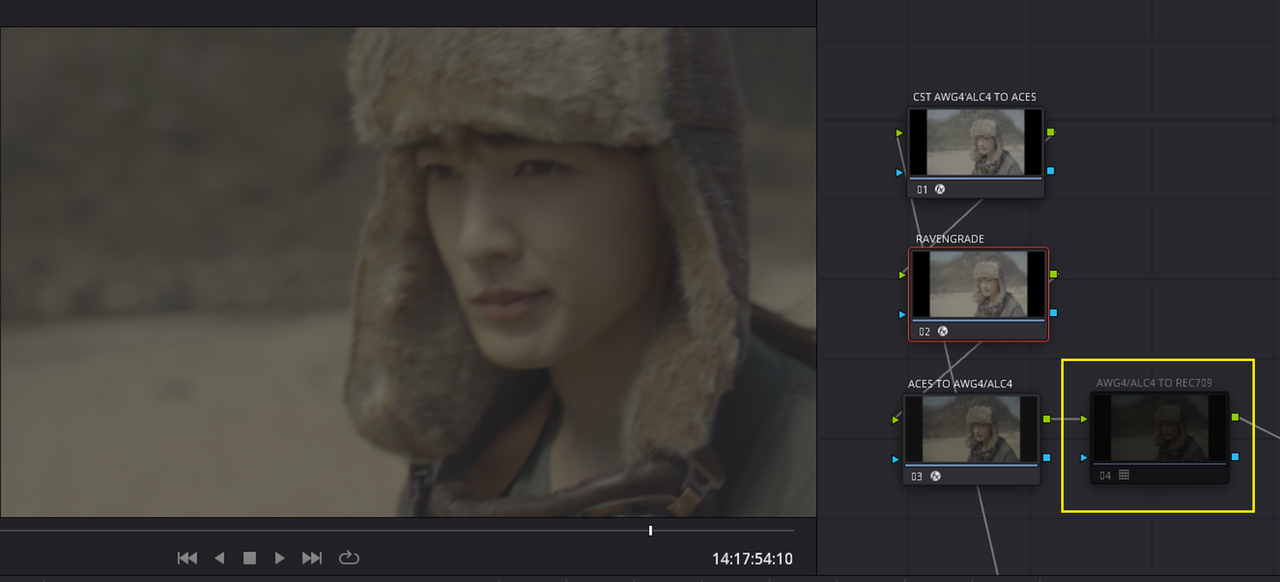
1) Now back on the "COLOR" Page, after the "HALD" File has been place next to the other video clips on the timeline, Go back to the video clip with the Node tree from before and "DISABLE" the "ARRI AWG4/ALC4 TO REC709" Lut in the 4th / last Node of the Node Tree .
13.png


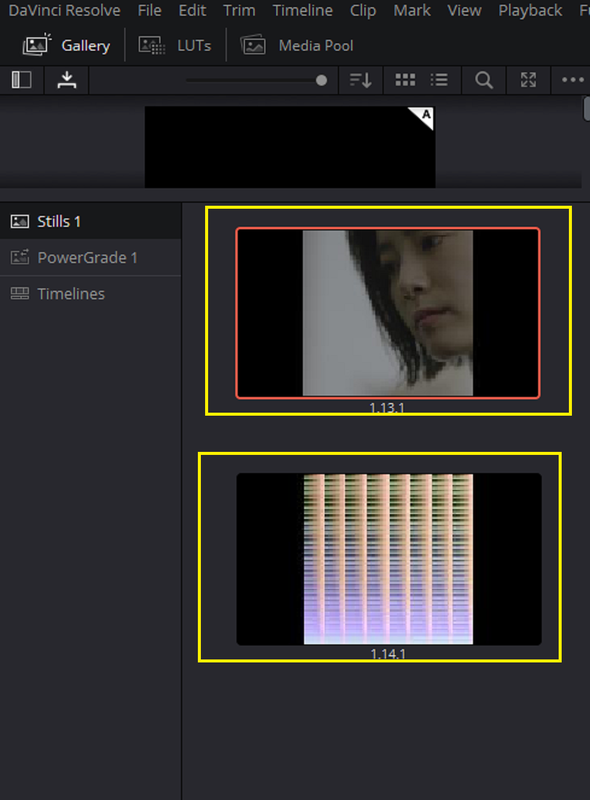
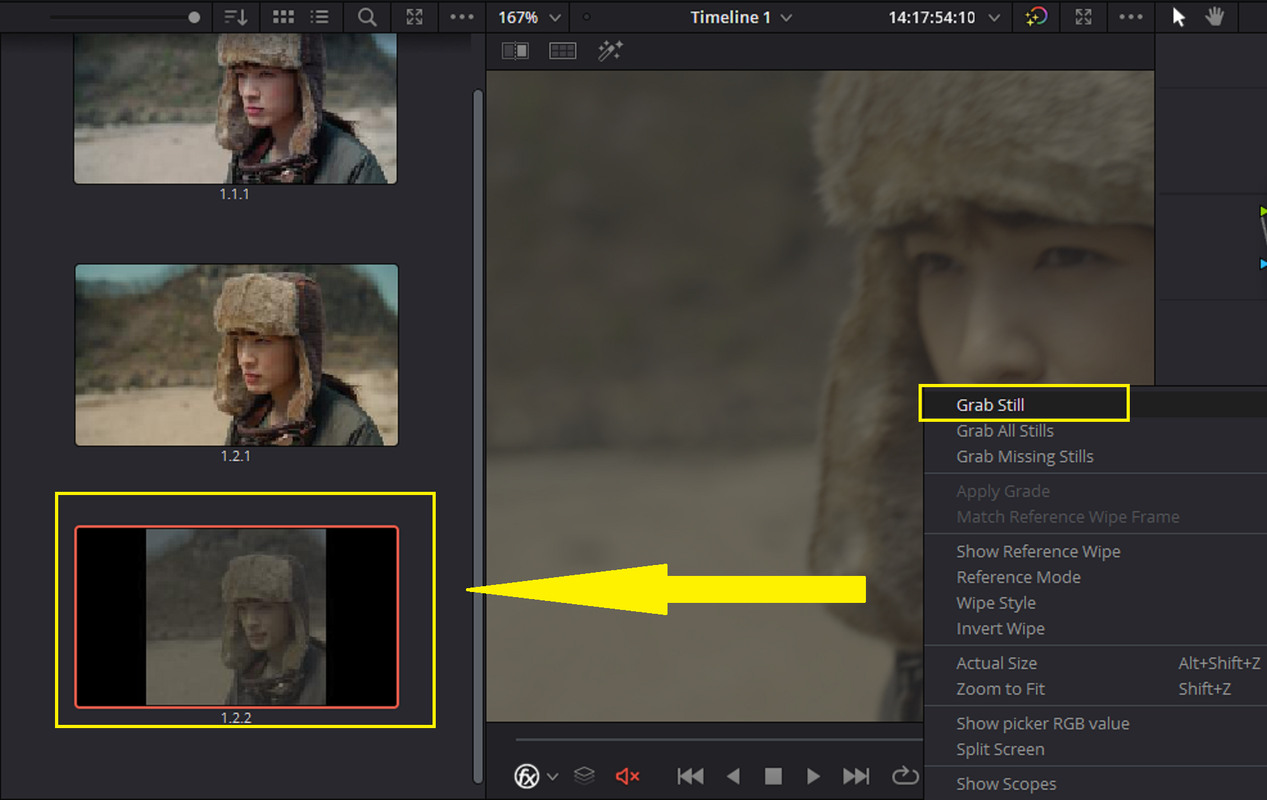
2) "GRAB A Still" from the resulting image without the ARRI AWG4/ALC4 to REC709 Lut applied to it to be placed in the "Stills" Gallery

14.png


3) Now apply the grade from that still to the HALD file on the TIMELINE.
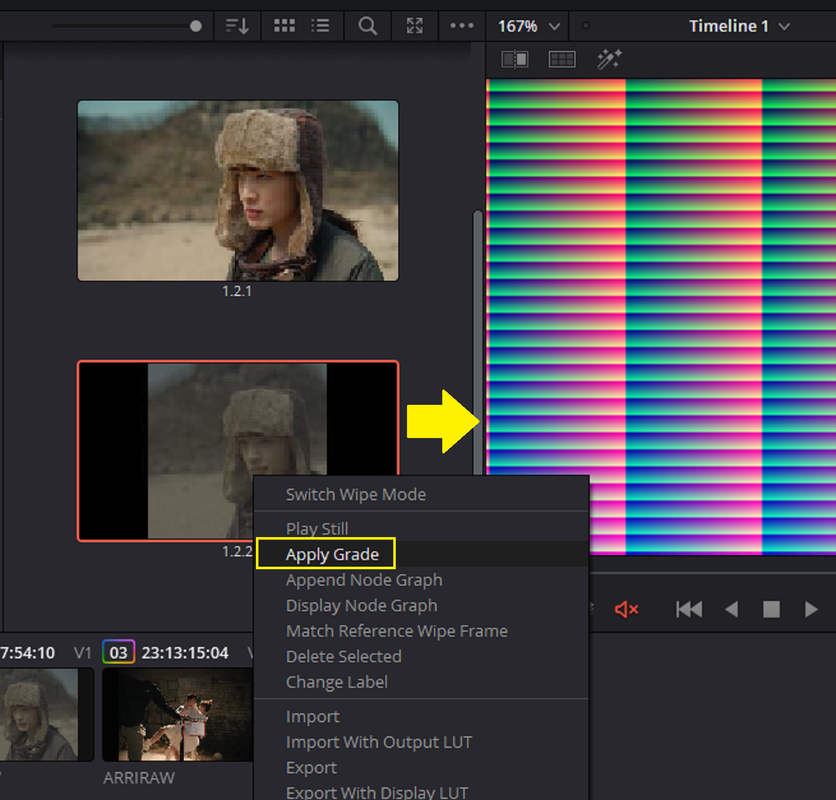

15.png


16.png


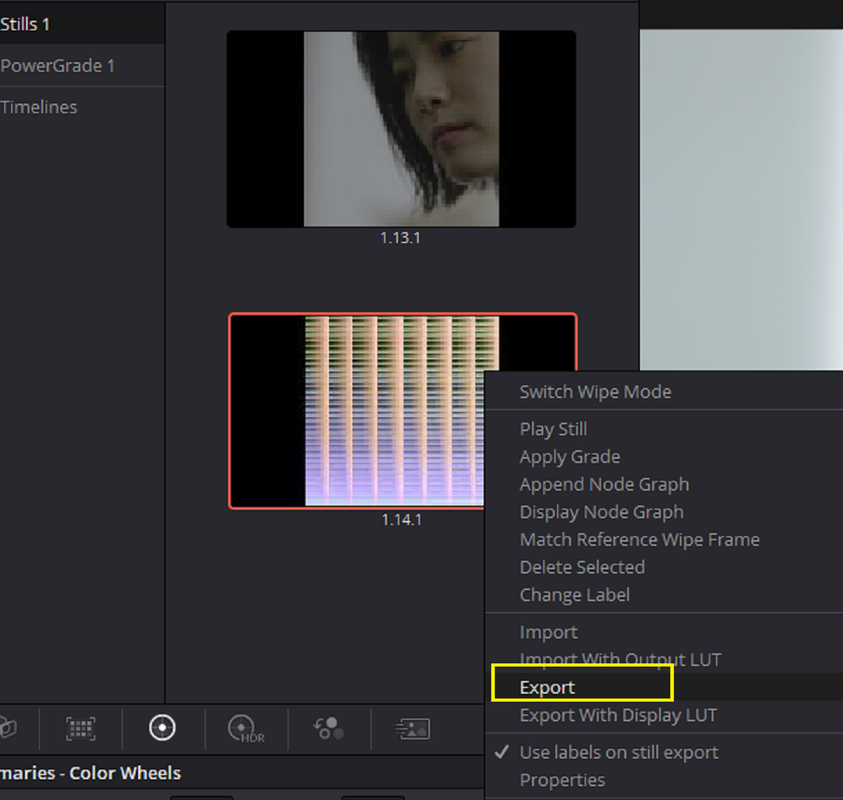
4) Now "GRAB A STILL" of the HALD file with the Grade from the ALEXA 35 graded Still image into the Gallery AREA.
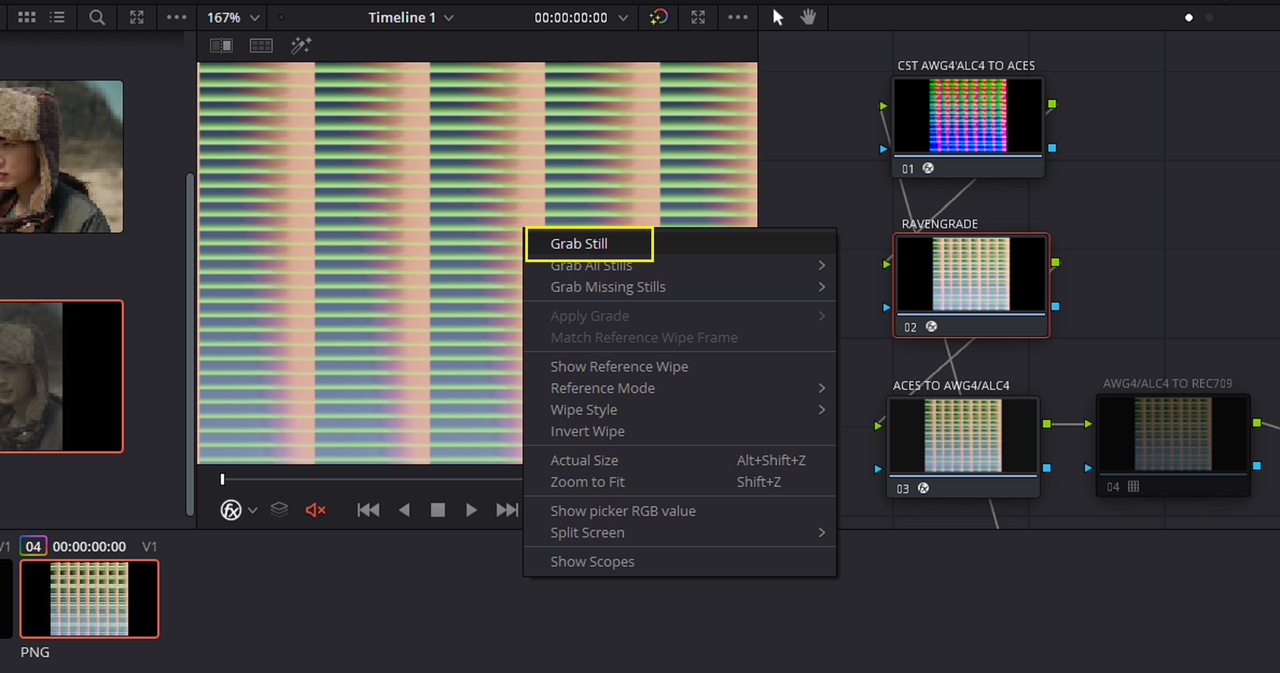
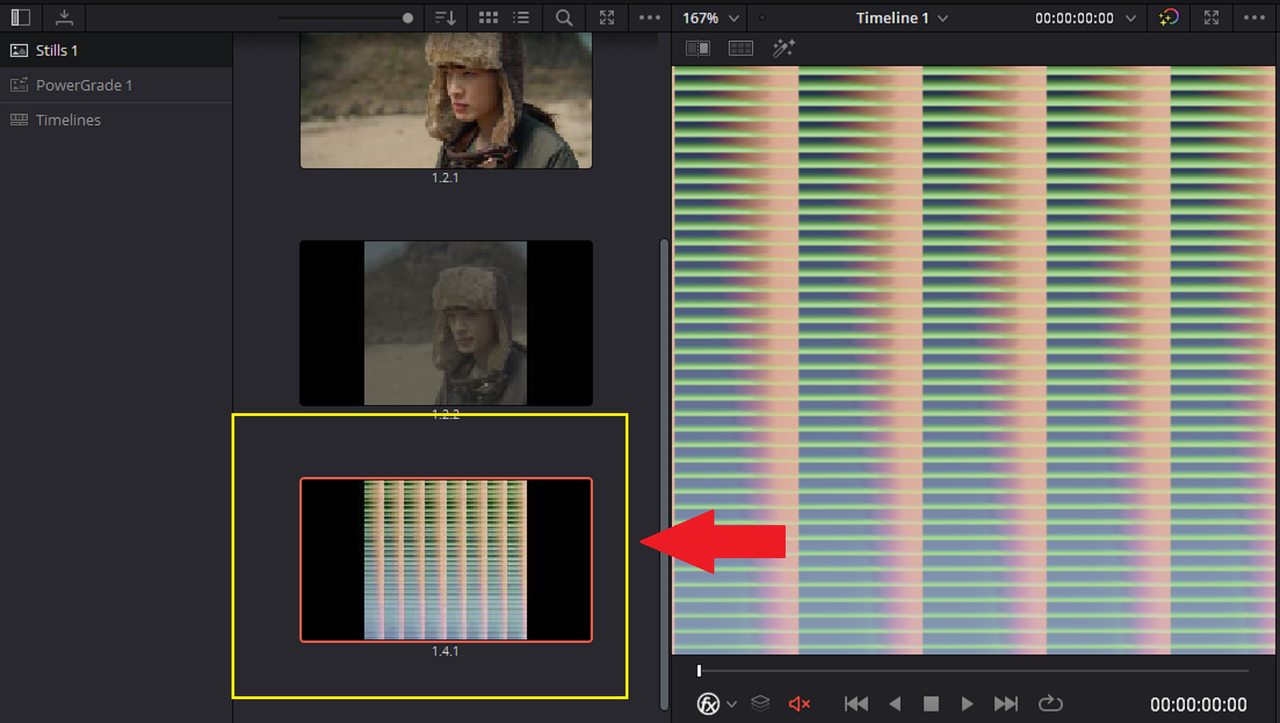
17.png


18.png


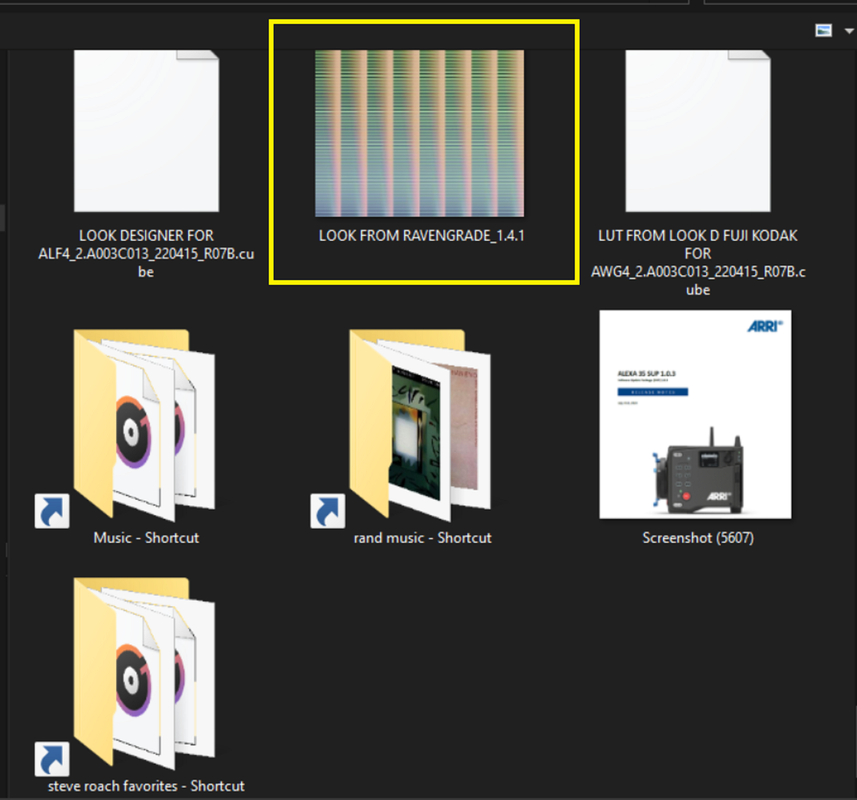
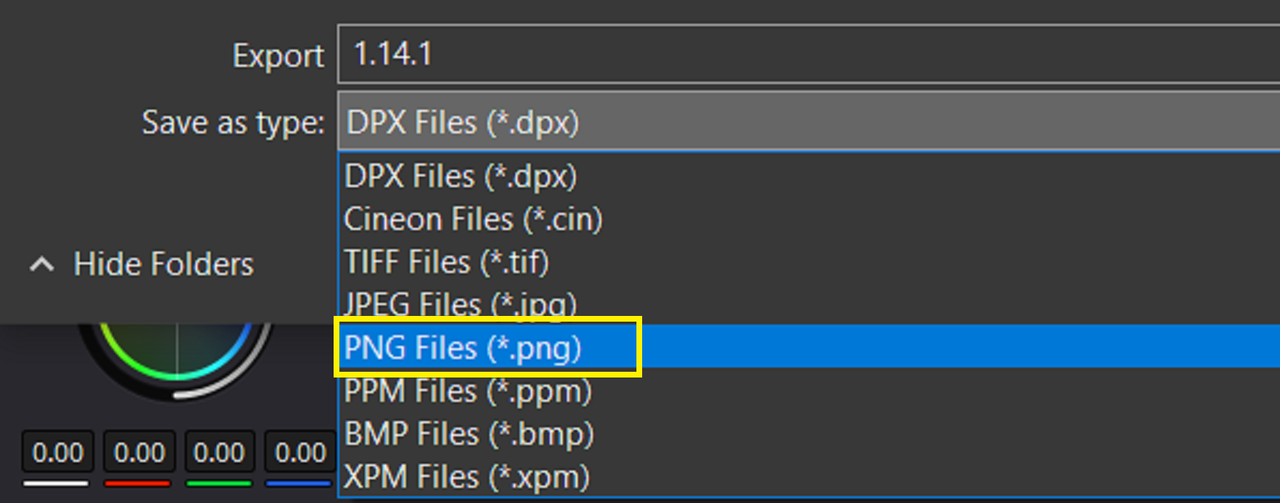
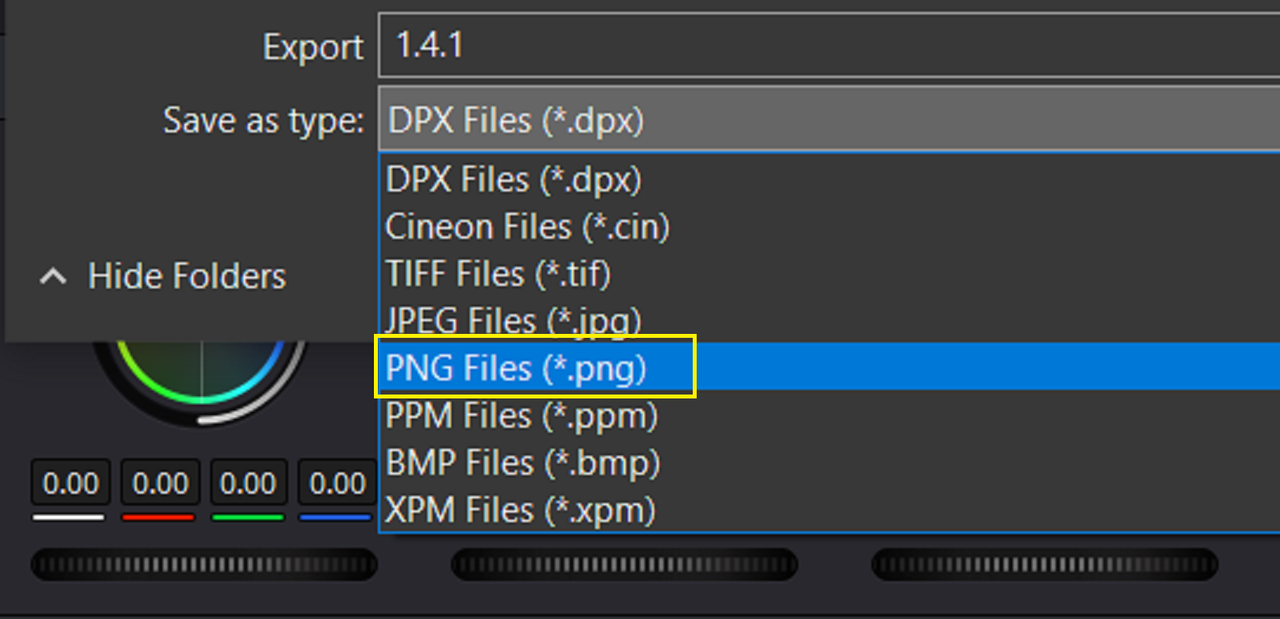
5) Now "EXPORT" the still of the HALD File with the Grade from RAVENGRADE applied to it and either save it as a .TIFF or .PNG file. Using a .JPEG export will result in a very poor quality final Lut.
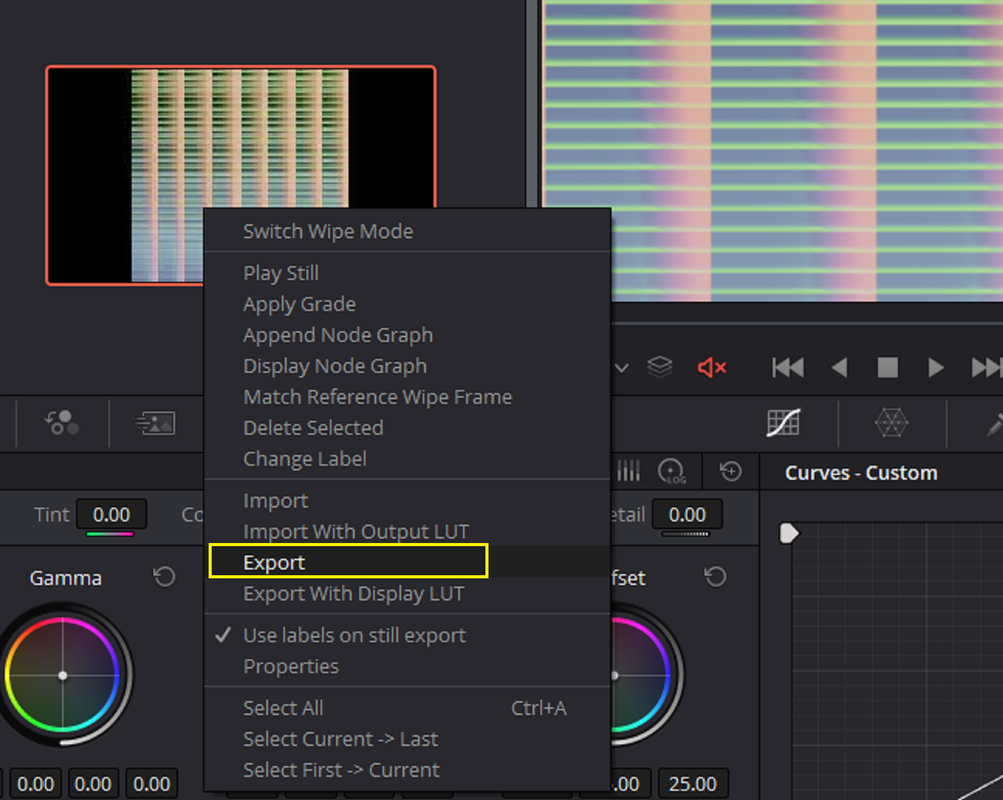
19.png


20.png


Next. Inside of 3D Lut Creator Pro Part 3............

 
Inside of 3D Lut Creator Pro-Part 3

3DLUT Creator Website
3D LUT Creator - official site

TUTORIALS
3D LUT Creator - Tutorials


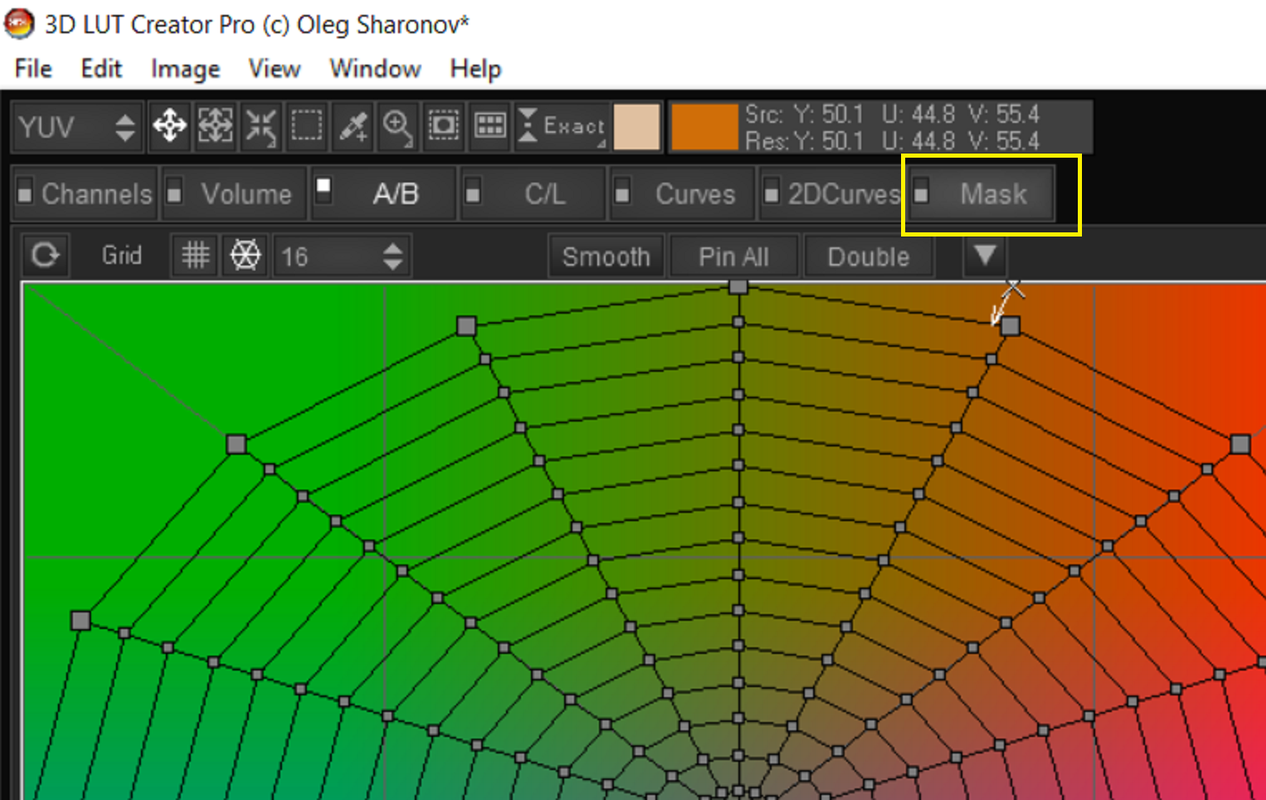
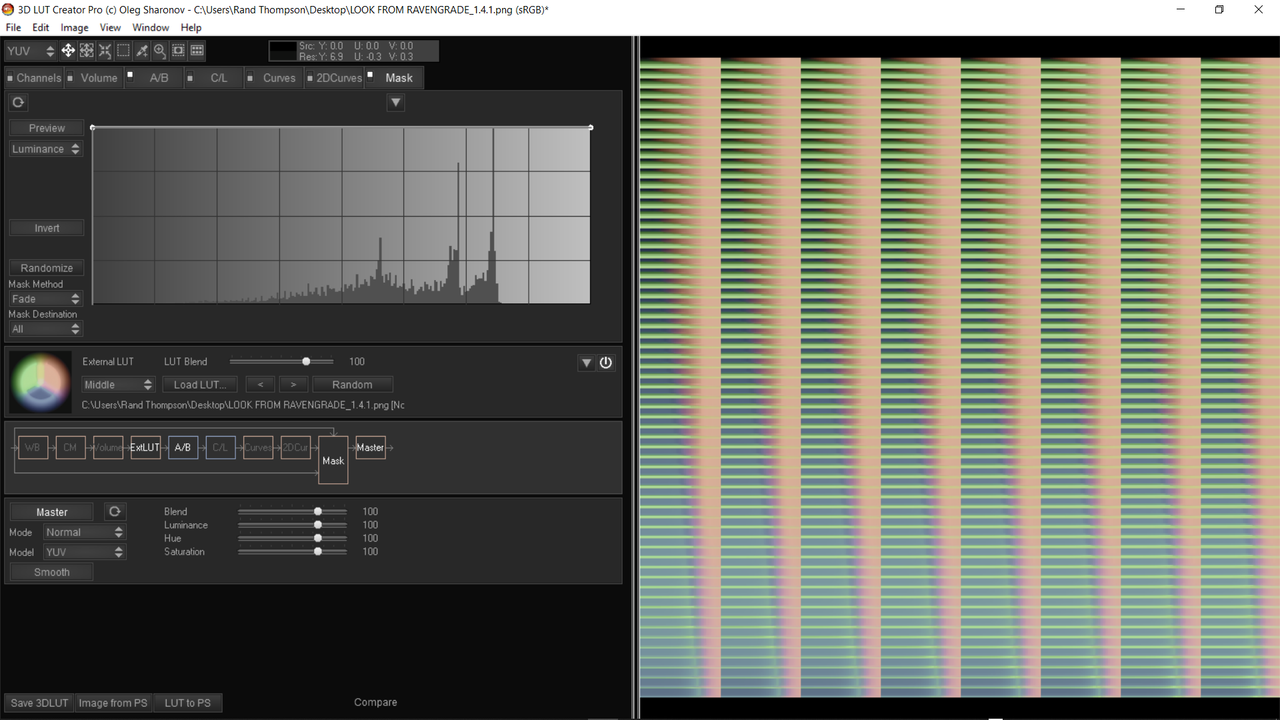
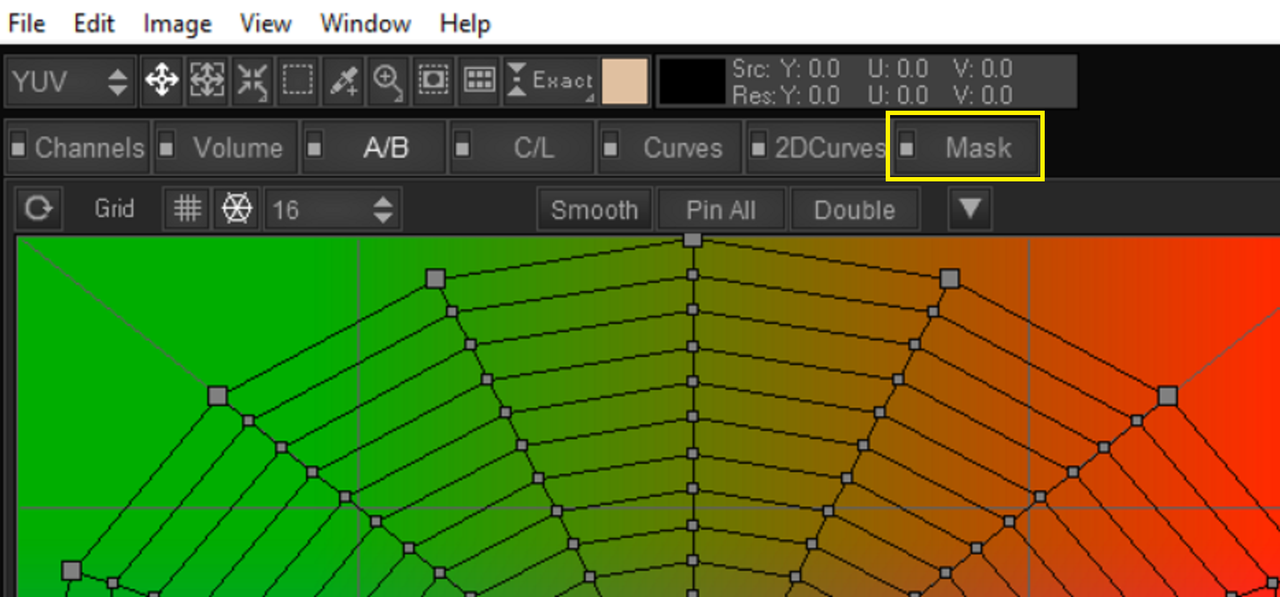
1) In the Top "RIGHT-HAND" side of the 3D Lut Creator pro UI find and select "MASK"

21.png


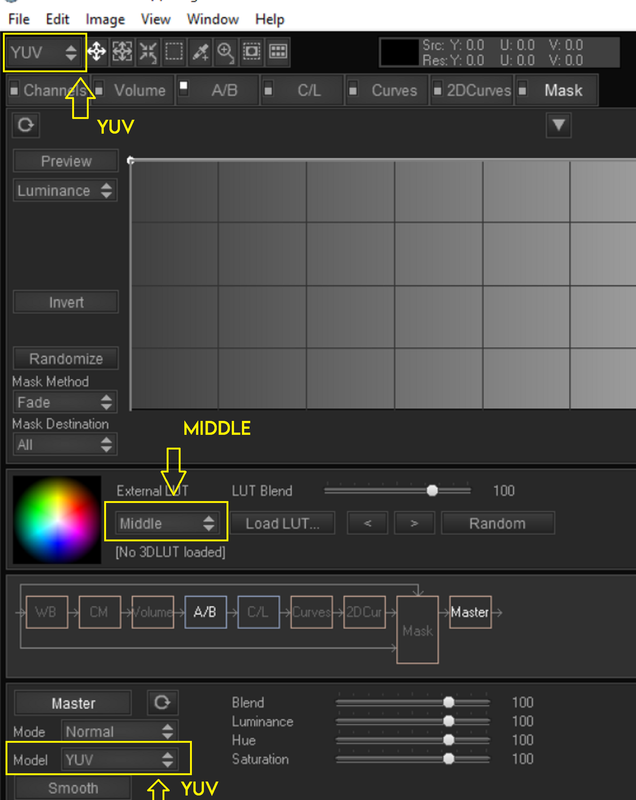
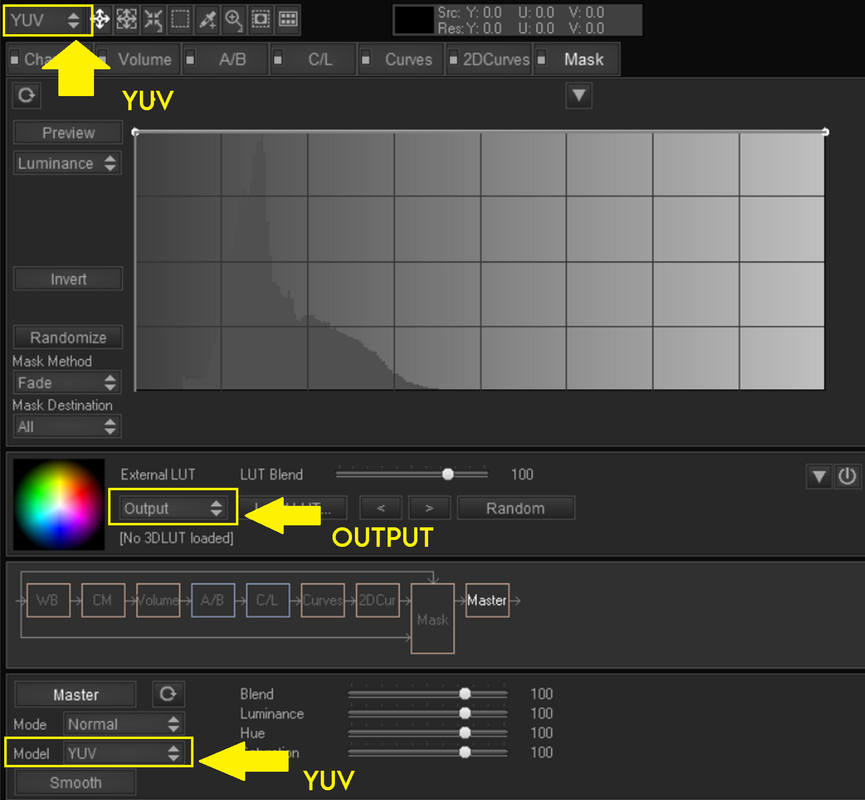
2) In This Area make sure you are using these settings.

22.png


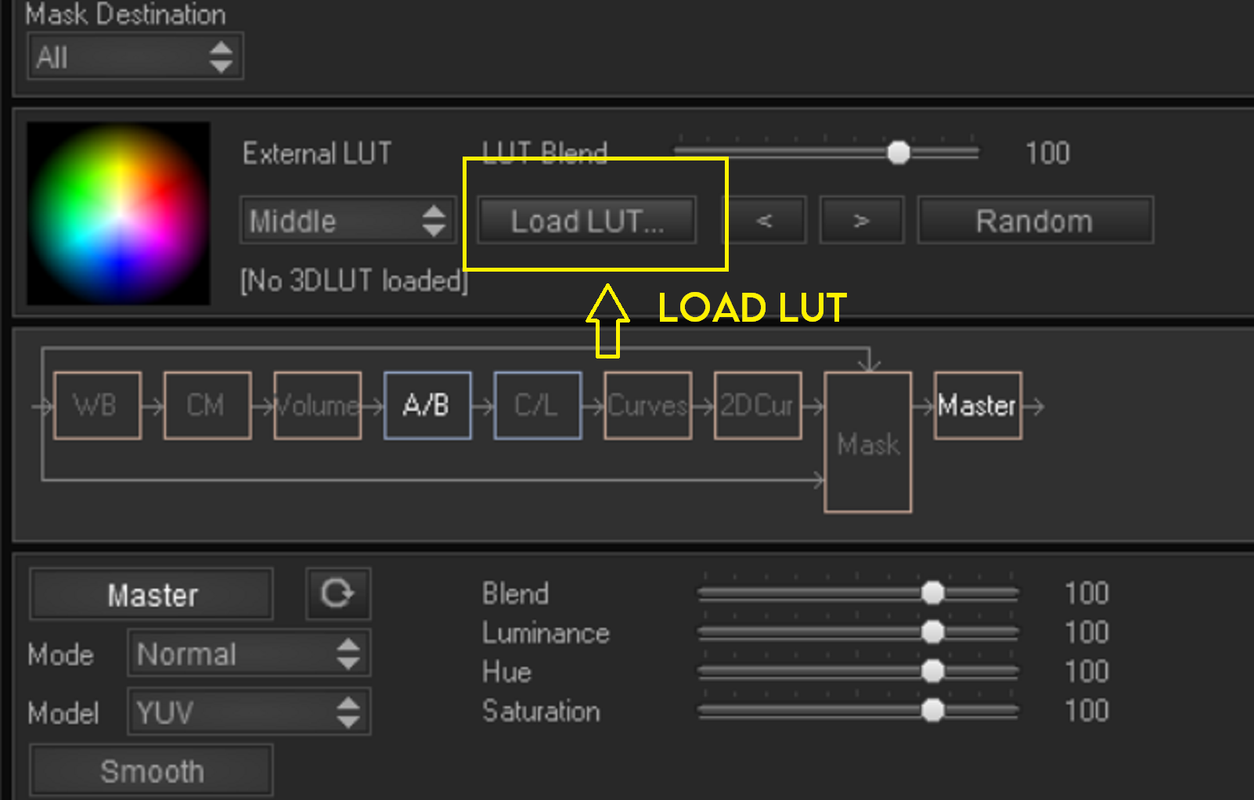
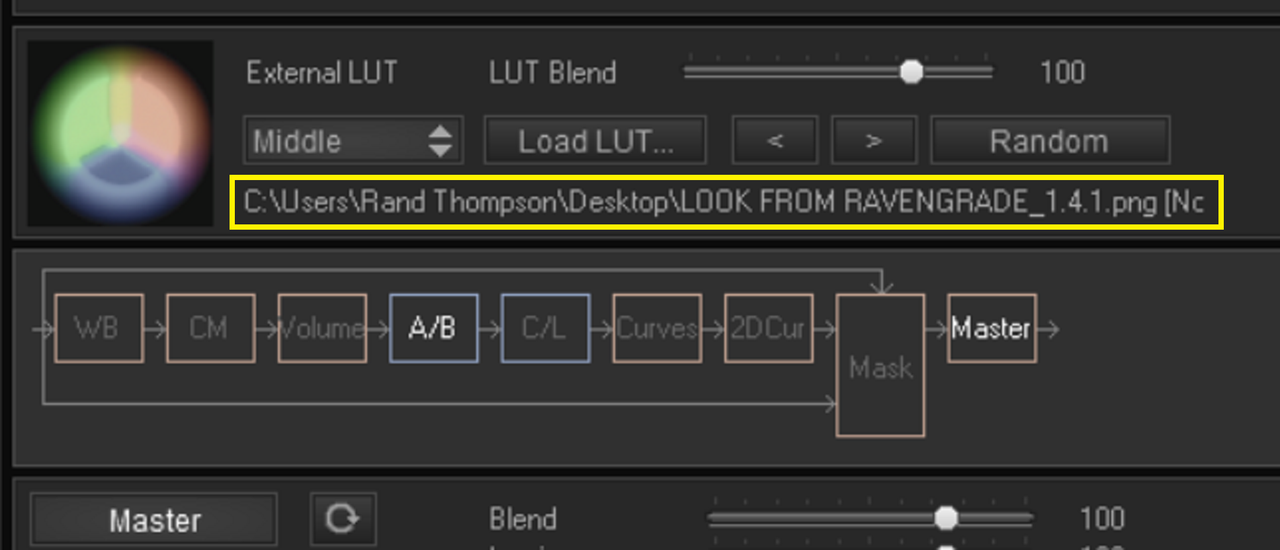
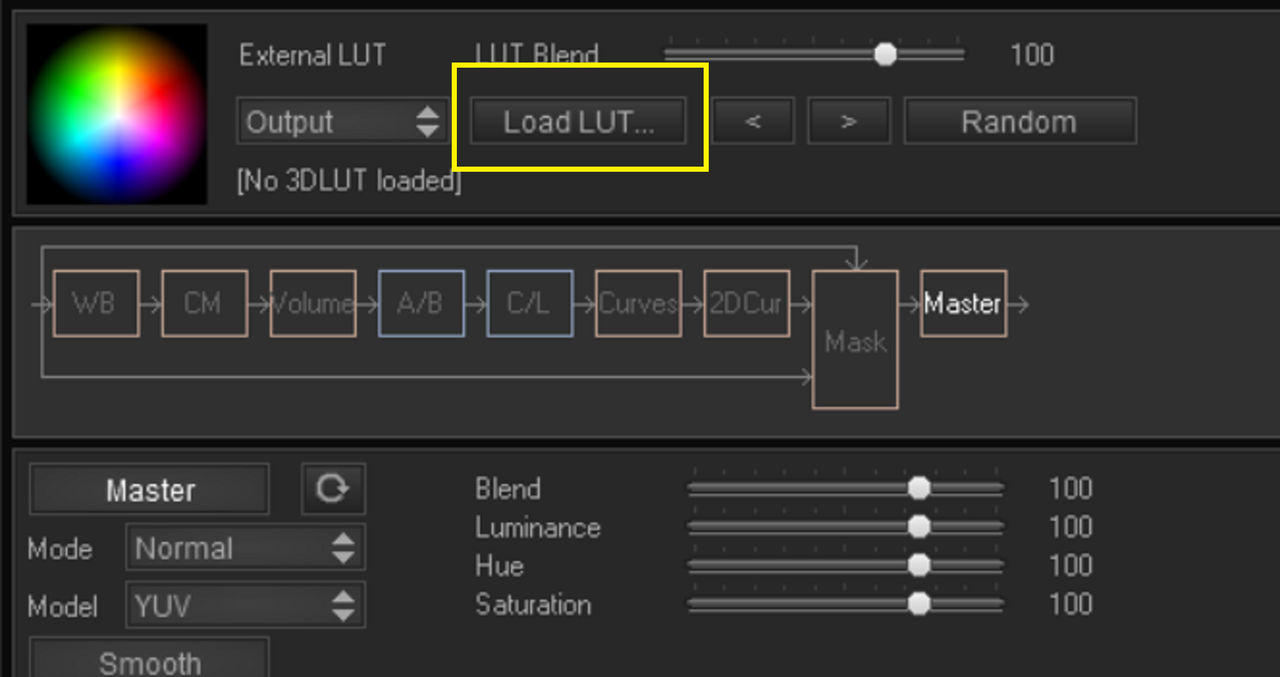
3) Now use the "LOAD LUT" button to find and select the "GRADED" HALD PNG File you exported out of Resolve. The only thing that should happen is that you should see text under the "LOAD LUT" button of directory of where the HALD File came from.


23.png


24.png


25.png


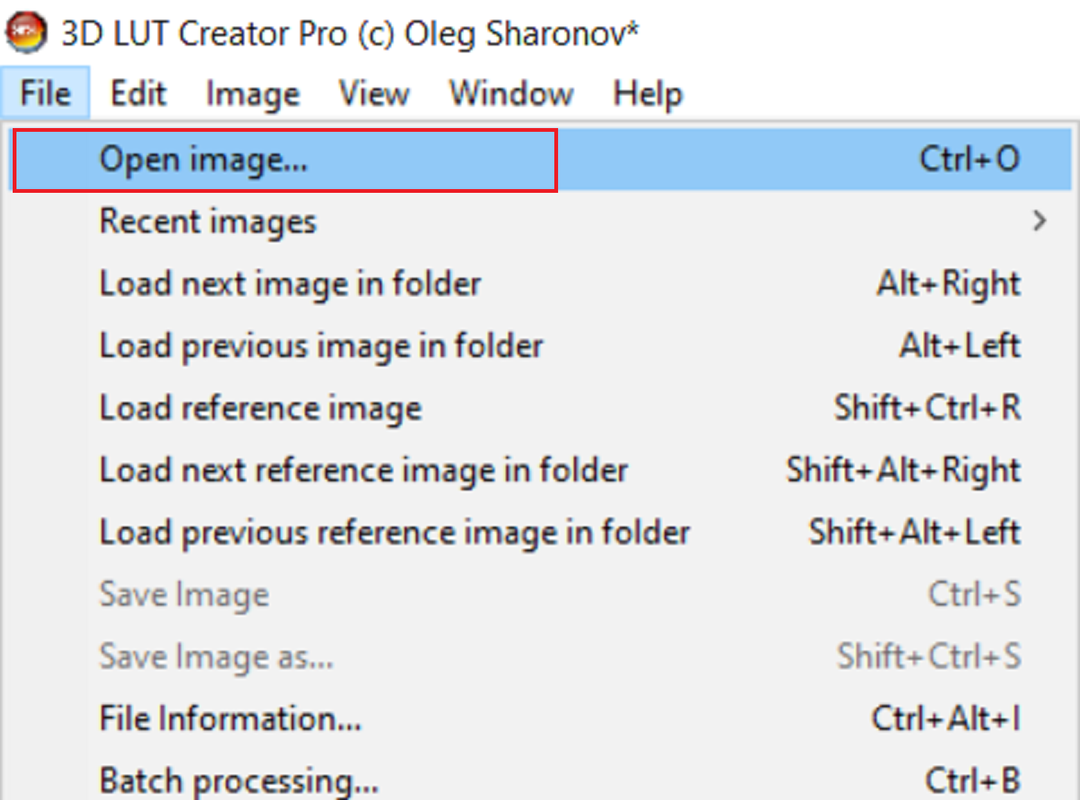
4) Under the "FILE" heading select "OPEN IMAGE" and select the same Hald File once again. This time you should see that the HALD File has been somewhat altered from the way you remembered it coming out of Resolve.

26.png


27.png


28.png


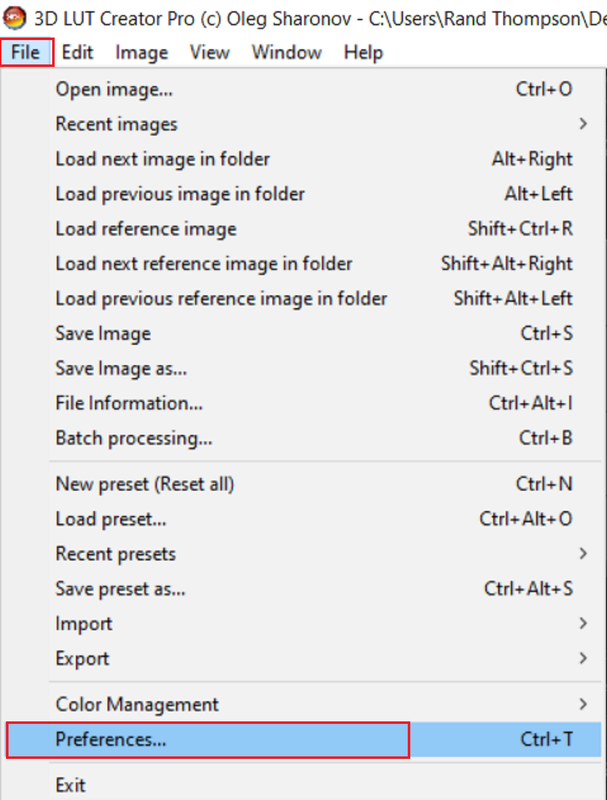
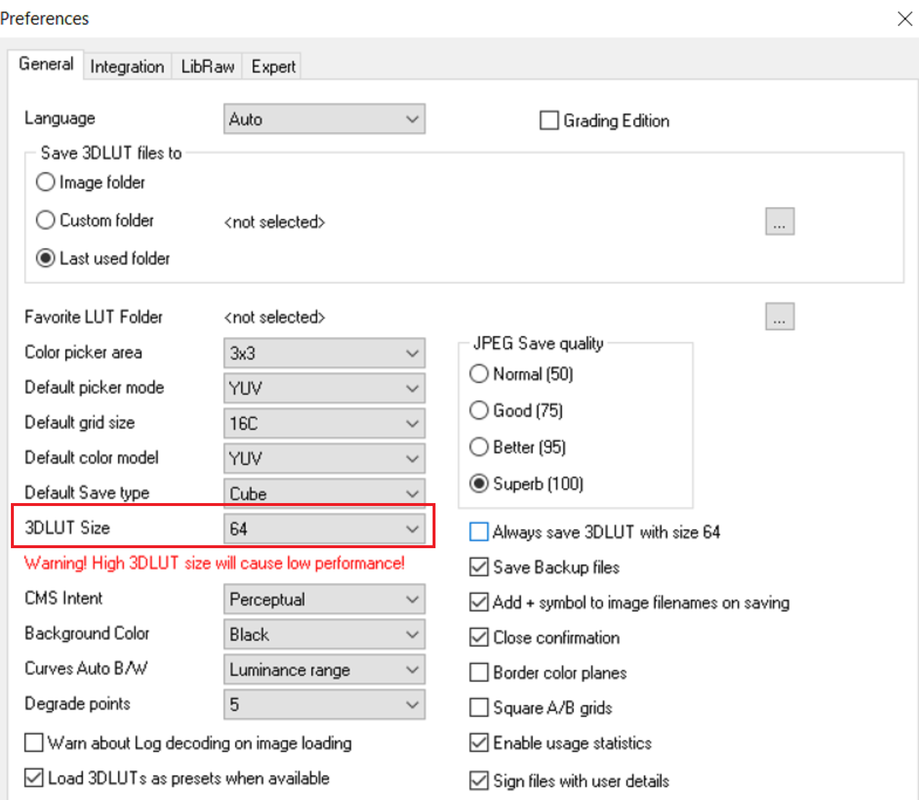
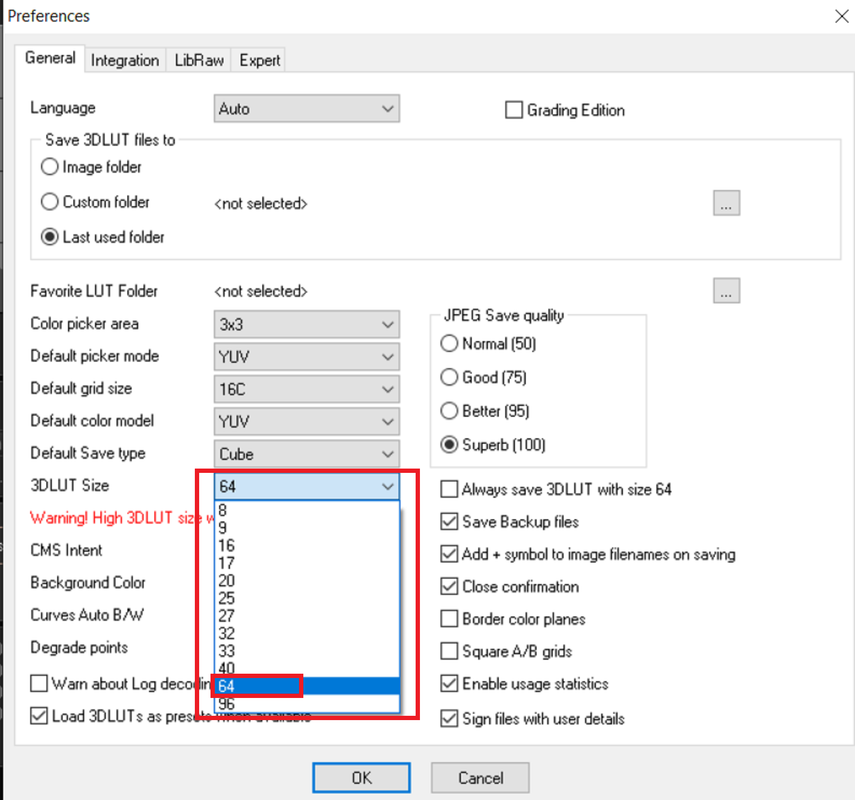
5) Now under the "FILE" heading again select "Preferences" and you can choose what LUT Point size you want to export the Resulting Lut In along with any other properties that you might want to change.

29.png


30.png


31.png


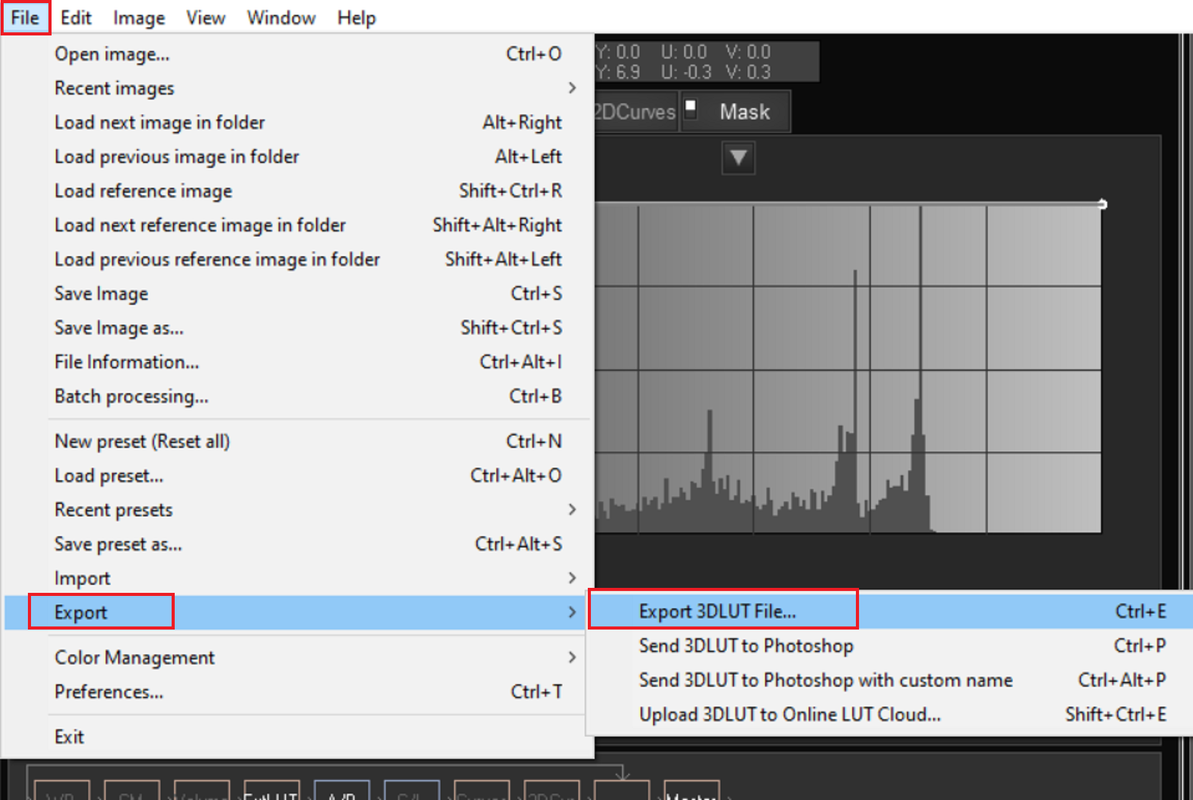
6) Now Finally, Under the "FILE" heading again, Choose "Export" then "EXPORT 3DLUT FILE" and you're done in 3D Lut Creator Pro

32.png


Next, Back in Resolve-Part 4........
 
Last edited:
Back In Resolve-Part 4


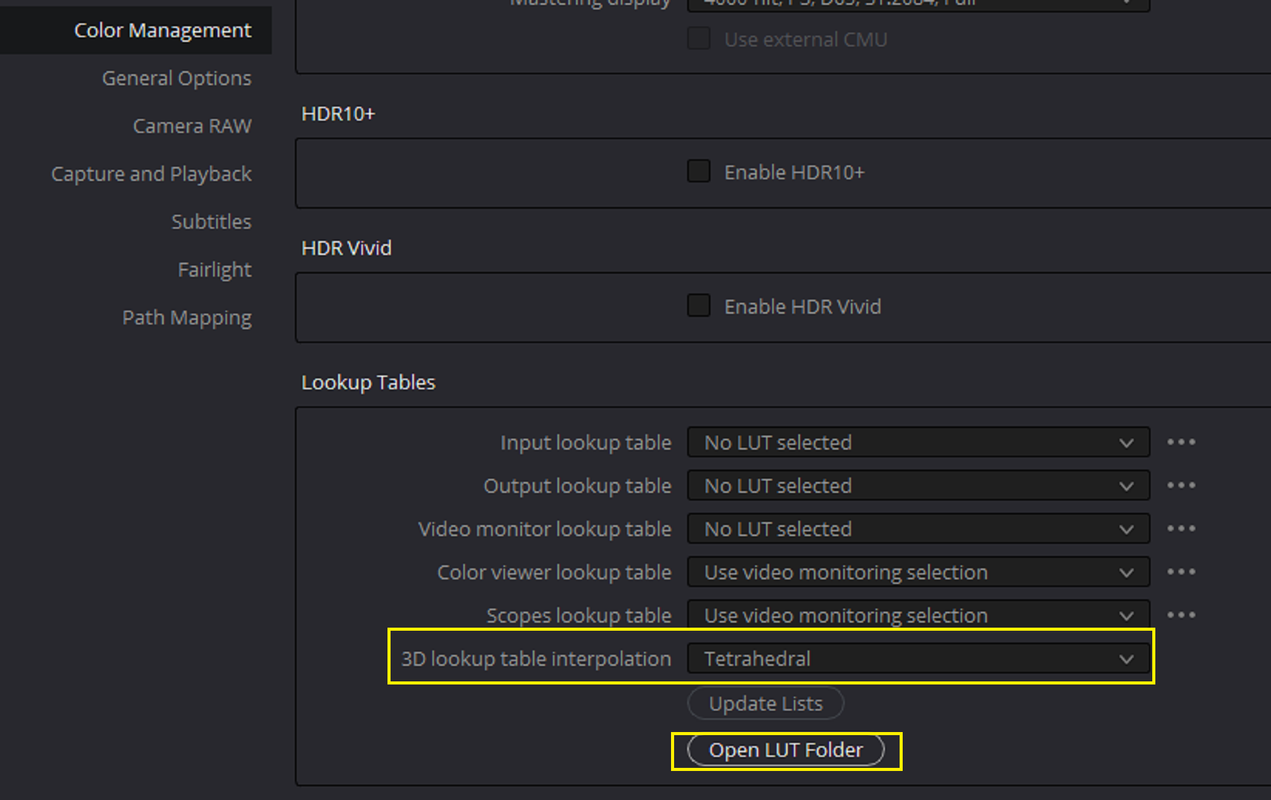
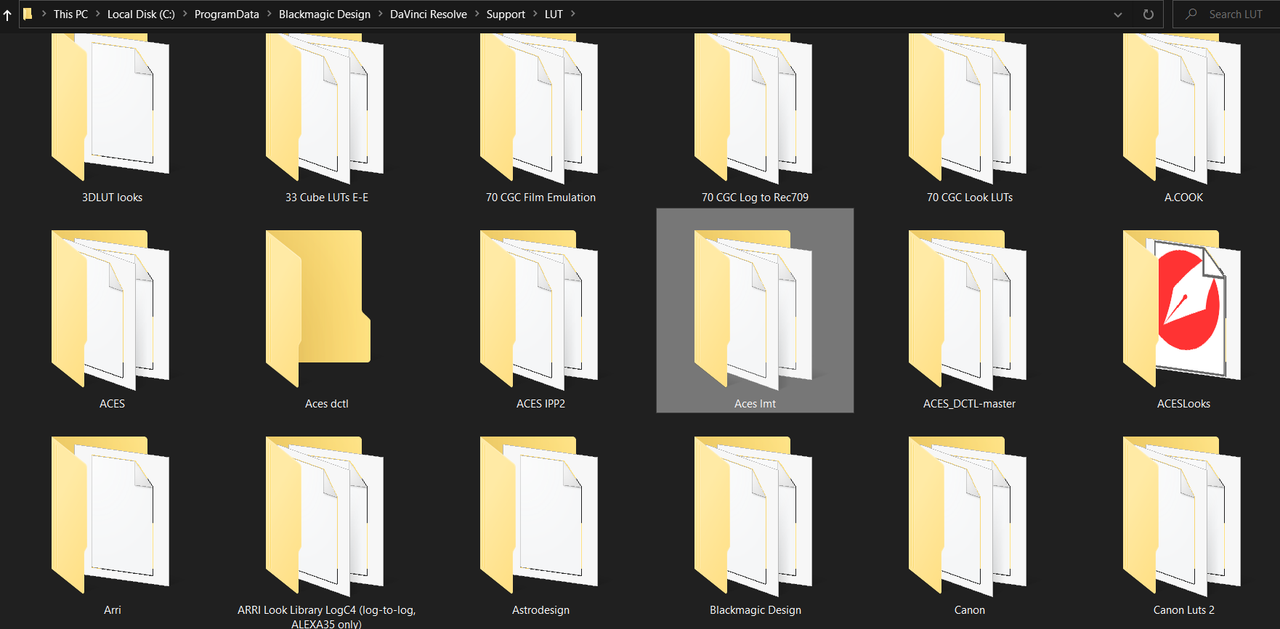
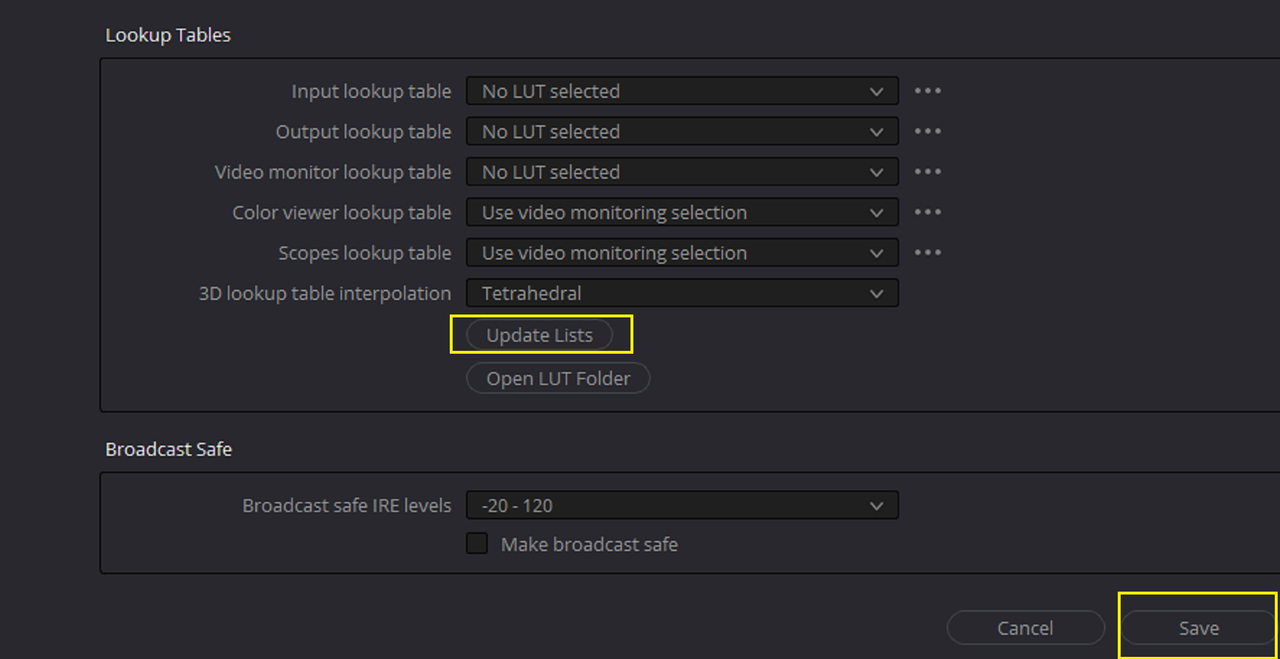
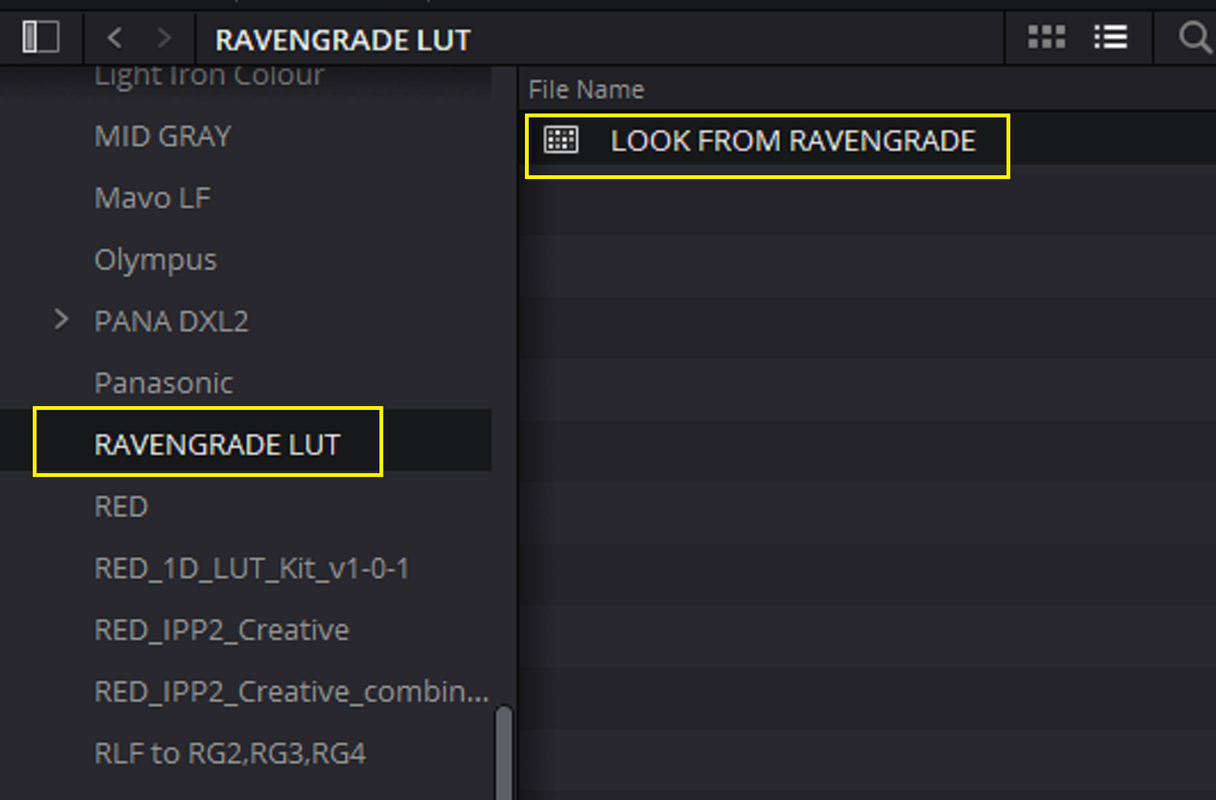
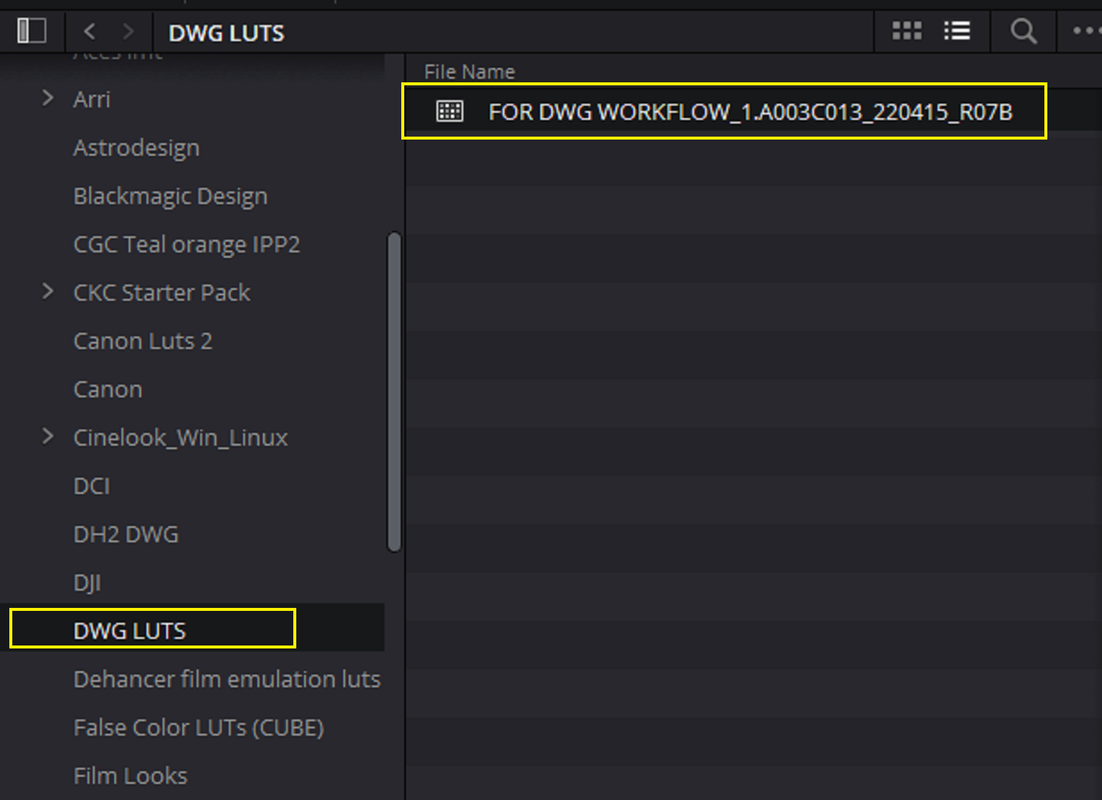
YOU CAN IMPORT THE EXPORTED LUT FROM 3D LUT CREATOR PRO INTO YOUR LUT FOLDER BY SELECTING "OPEN LUT FOLDER". THEN IMPORT THE LUT INTO A FOLDER OR CREATE A FOLDER TO PUT IT INTO. THEN CLOSE THE LUT FOLDER AND SELECT "UPDATE LIST' THEN "SAVE".


33.png


34.png


Screenshot-5701.png


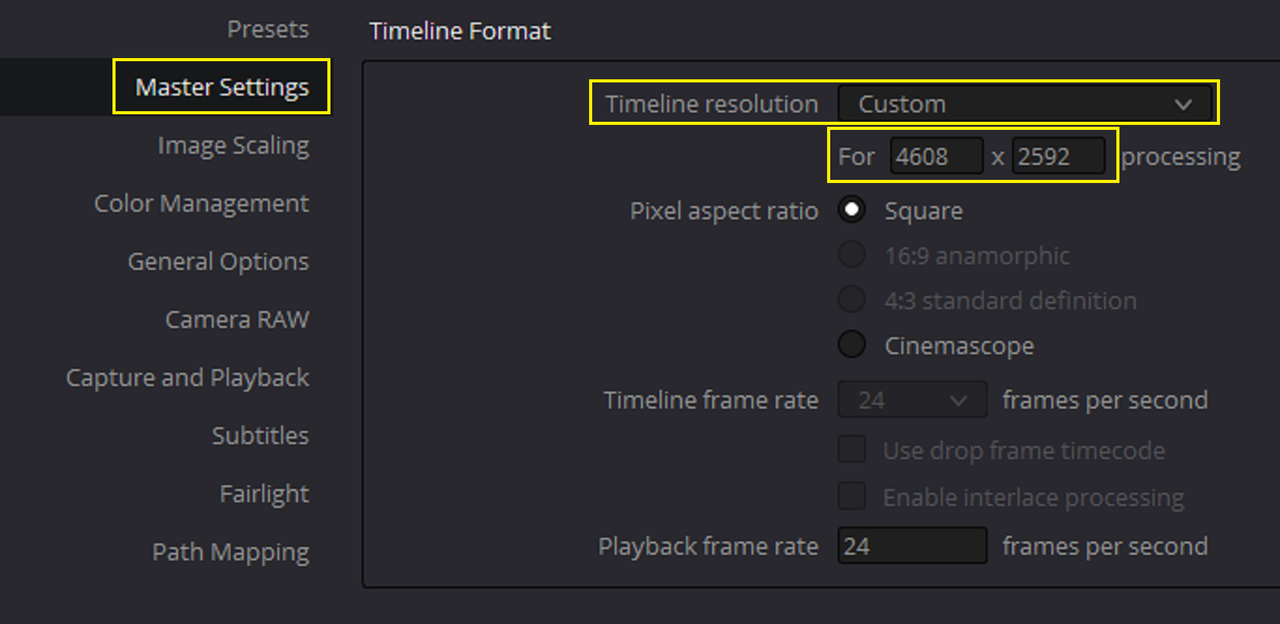
Back inside of the "MASTER SETTINGS", you can now change your Project resolution back to it's original resolution before it was changed to accommodate the resolution of the HALD file.

33.png


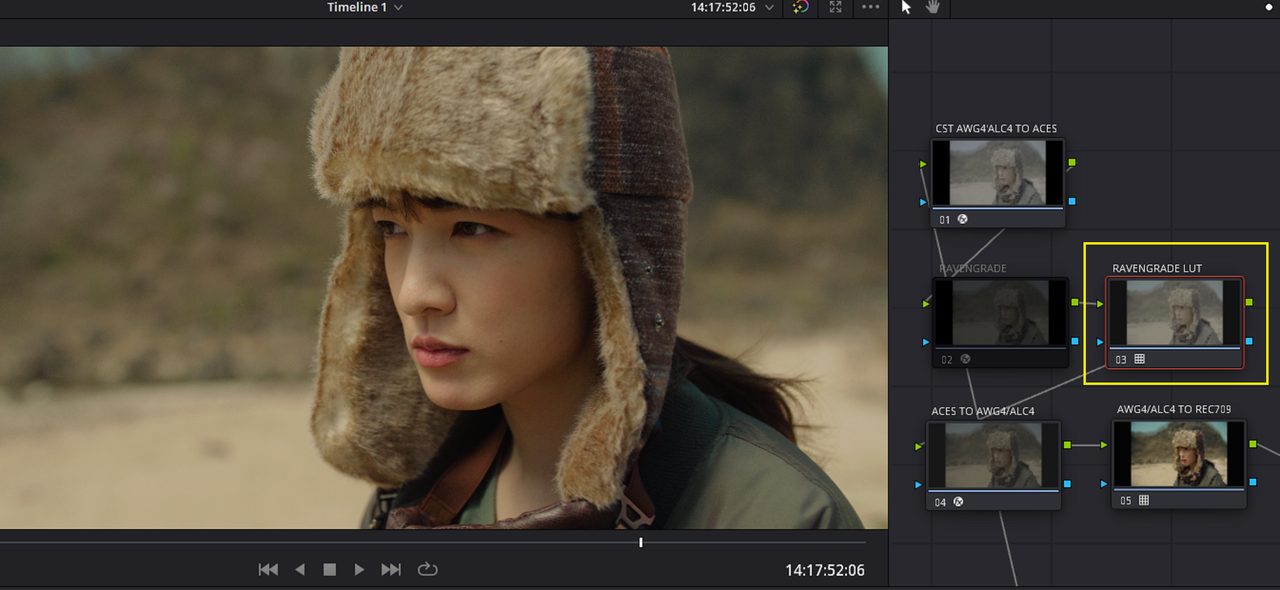
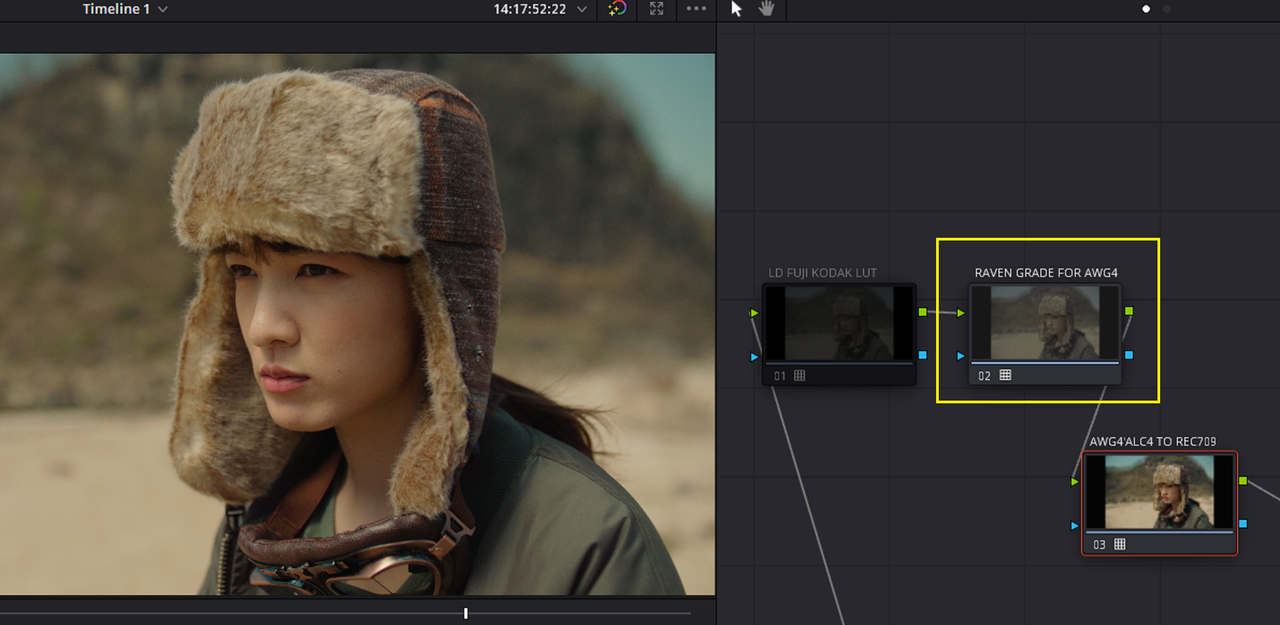
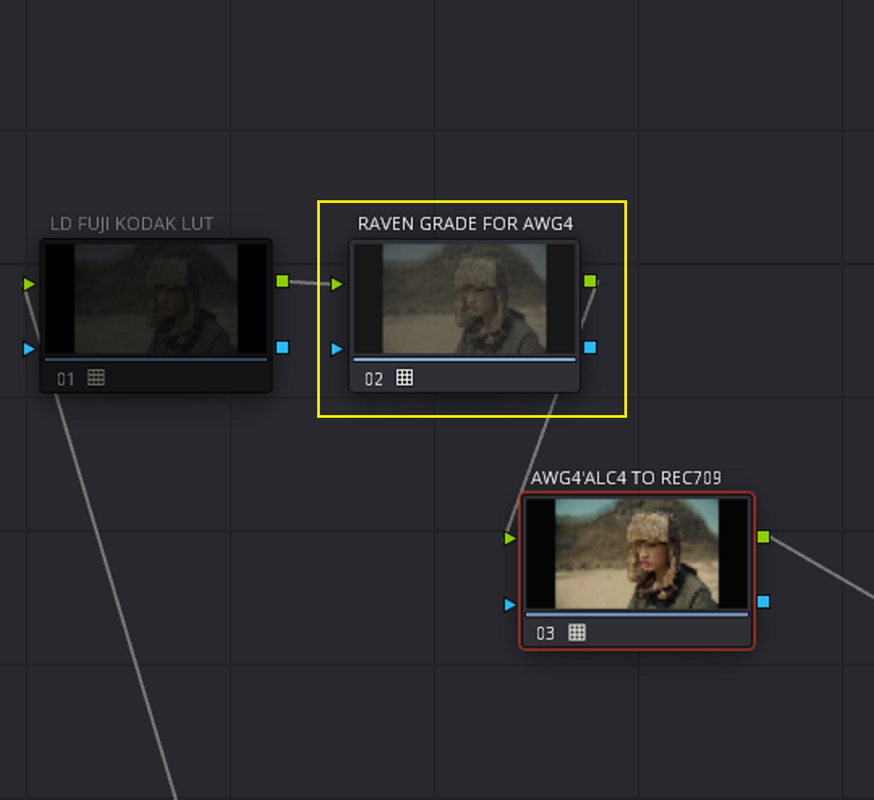
1) Now with the resulting Lut which was created from 3DLut Creator Pro with the RAVENGRADE grade applied to it in your "LUT FOLDER", "DISABLE" the Node with the "RAVENGRADE" DCTL applied to it and make a Node for the " RAVENGRADE" Lut.

34.png


35.png


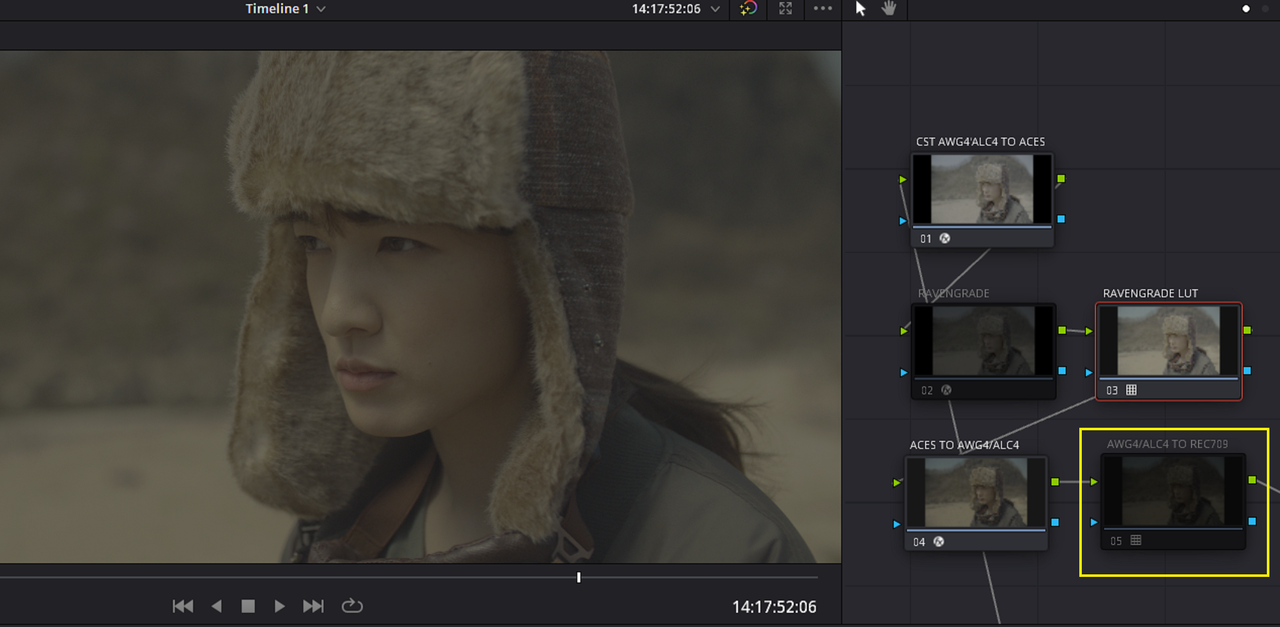
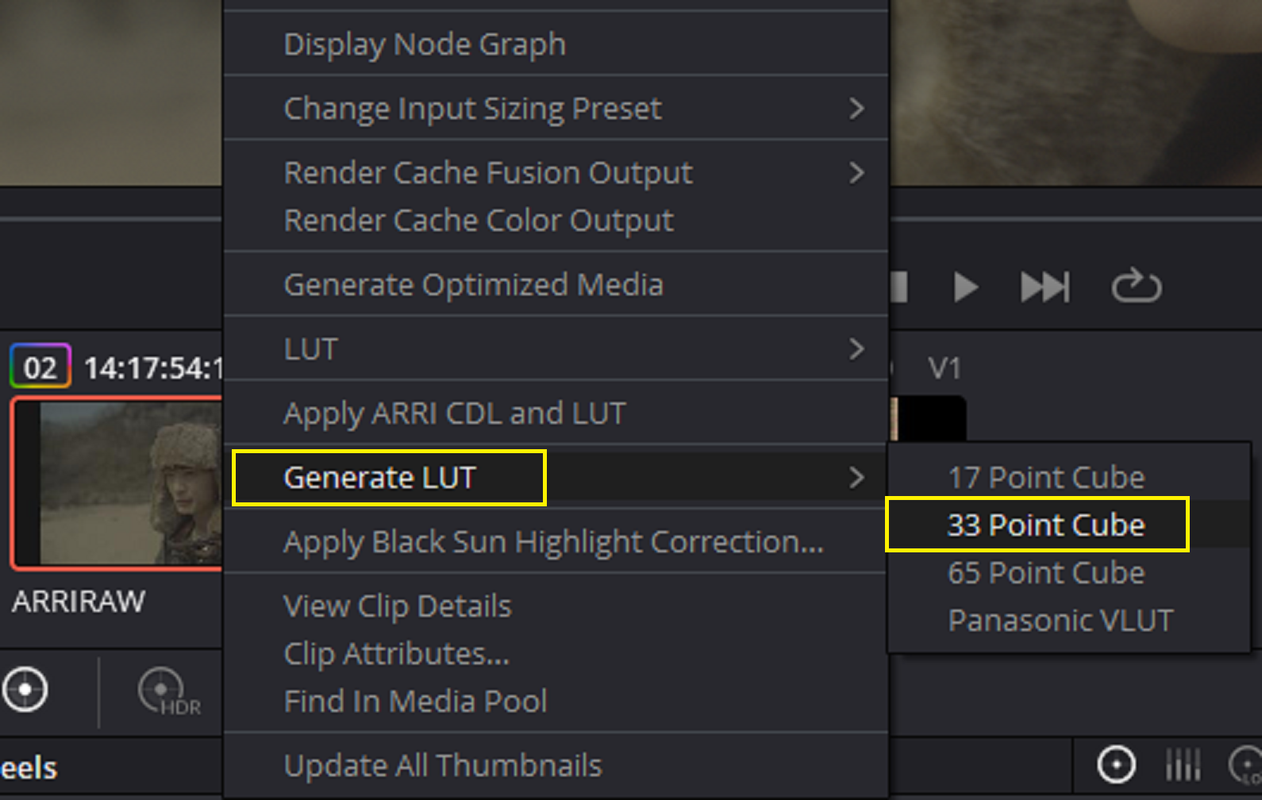
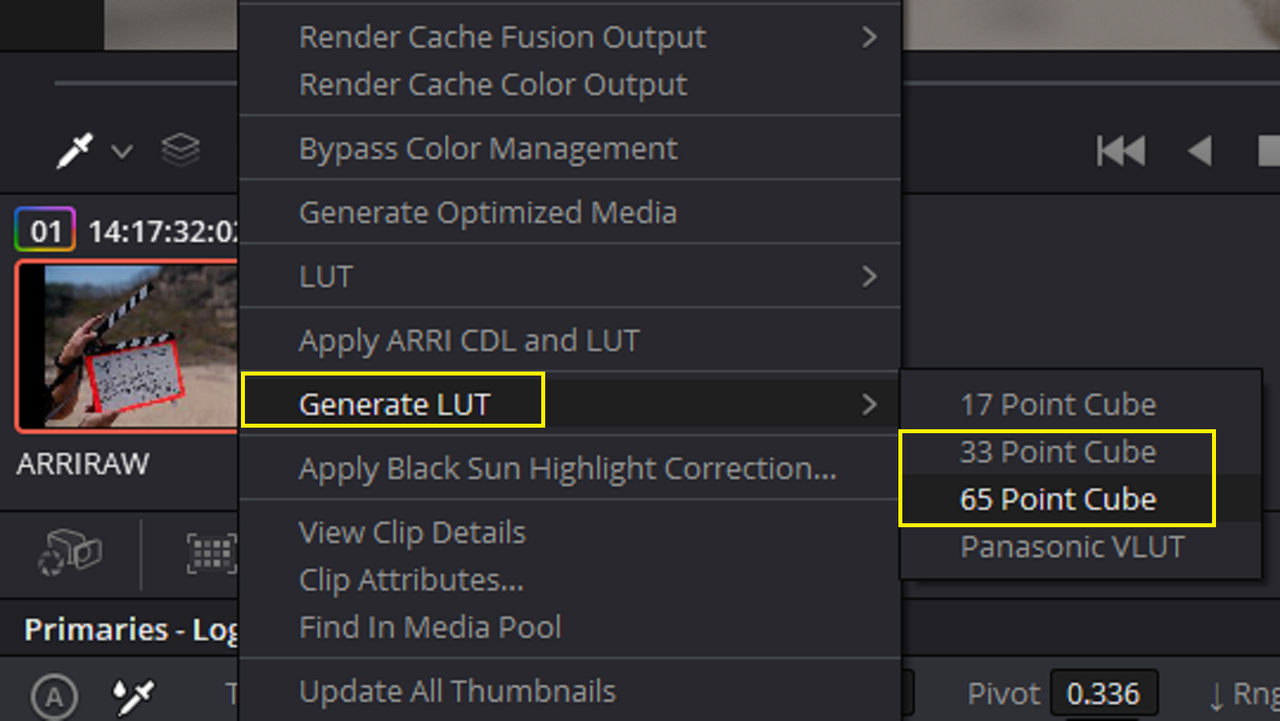
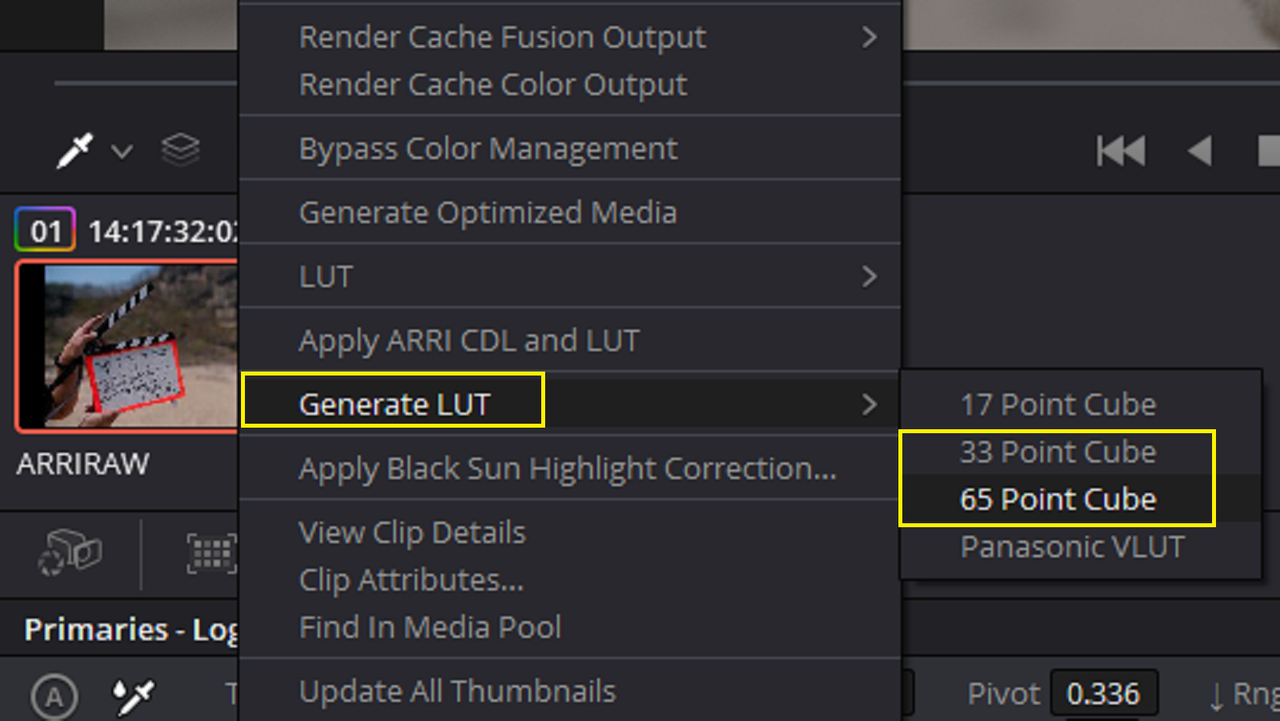
2) Next, Again "DISABLE" the 4th/Last Node with the OFFICIAL ARRI AWG4/ALC4 to REC709 Transform Lut Applied to it and "RIGHT-CLICK" on the graded clip in the "CLIP VIEW" area and "GENERATE LUT" the "33 POINT CUBE"


36.png


37.png


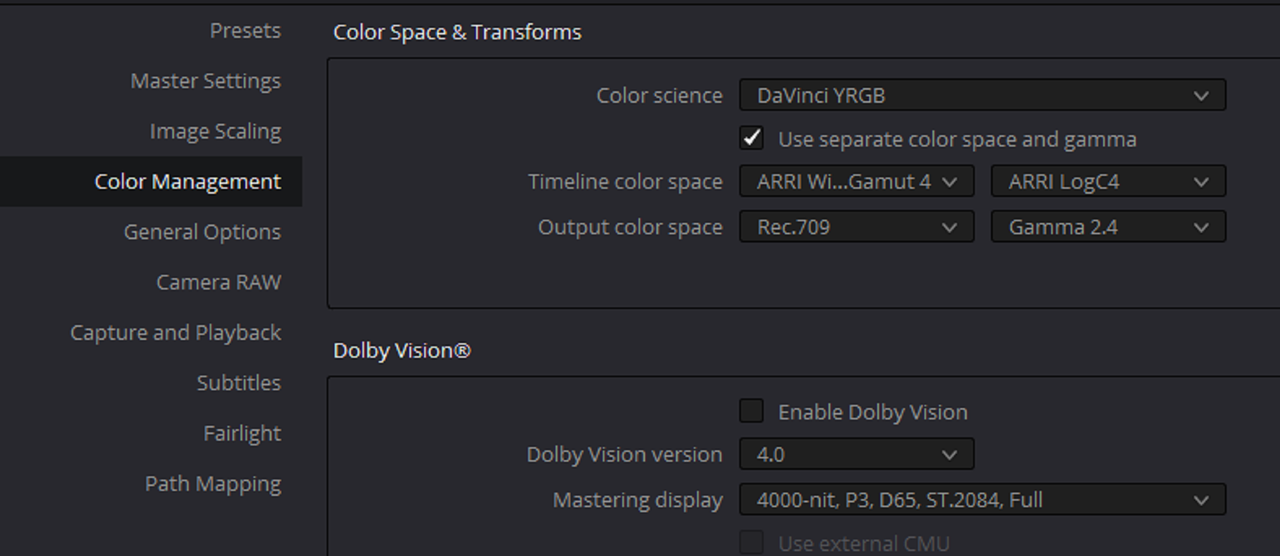
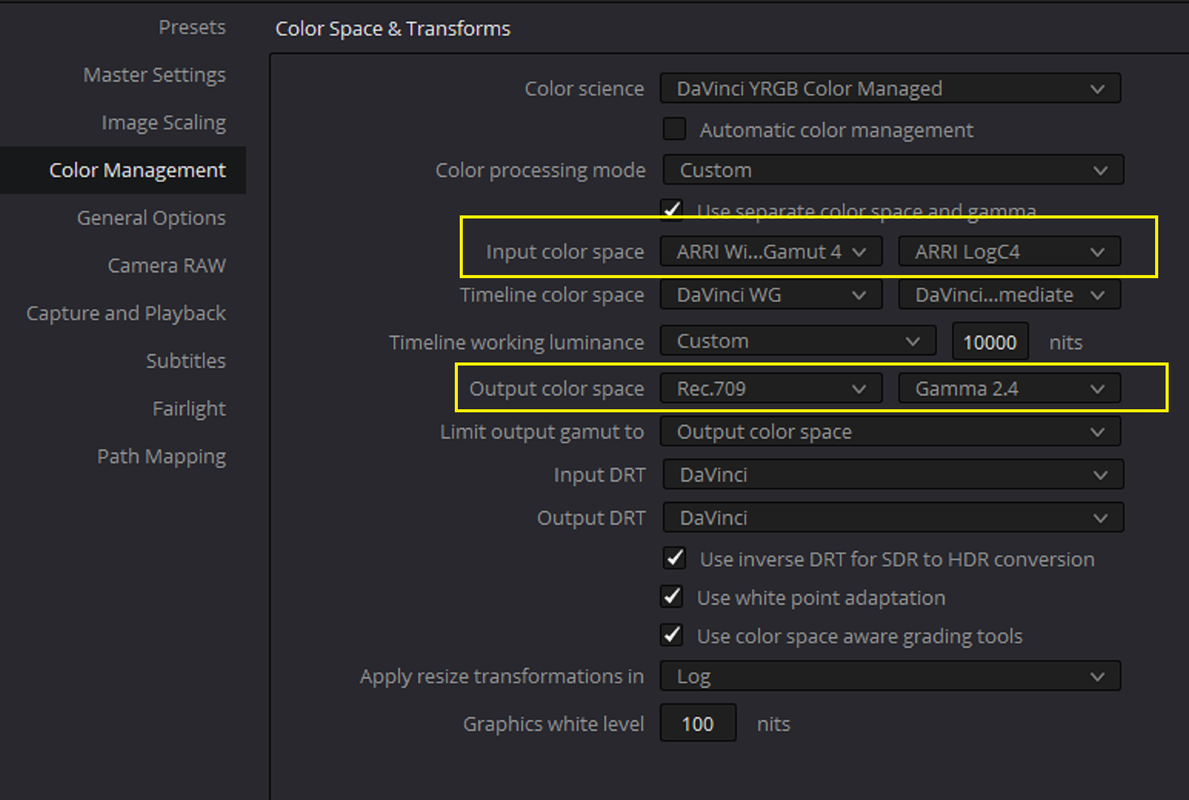
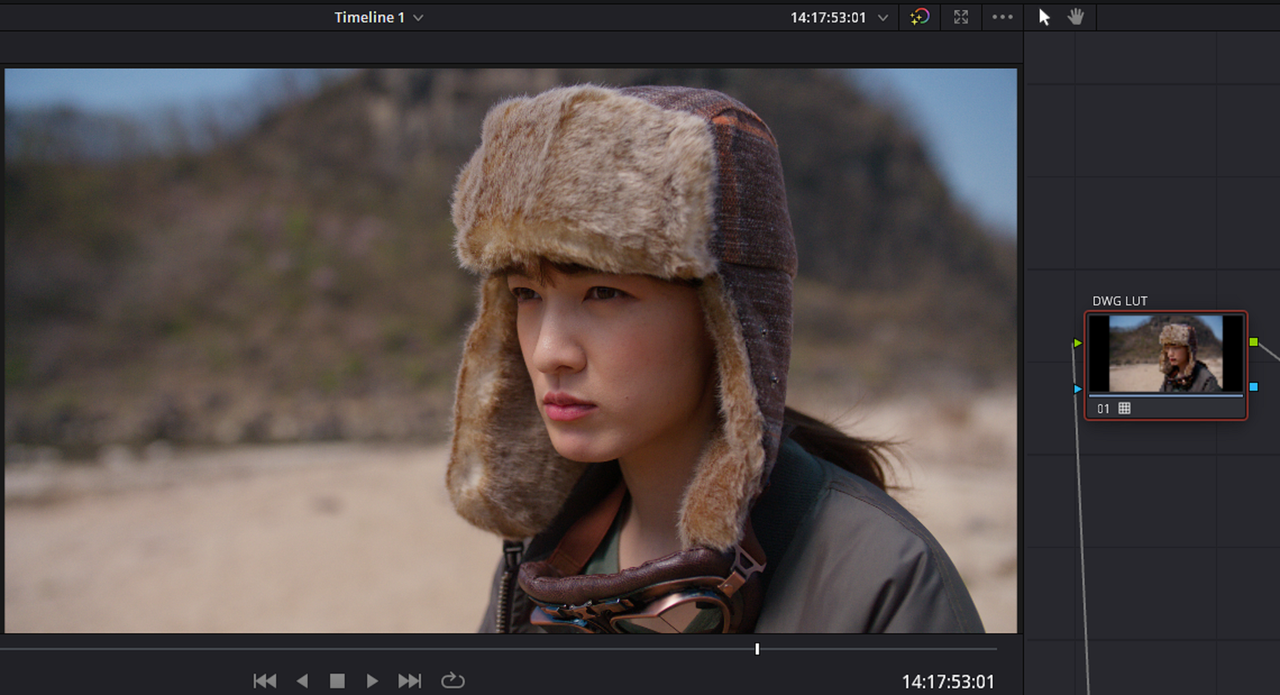
FINALLY, Import the Lut that you exported out of Resolve above back into the same or different LUT FOLDER. Create a Project with the settings below and apply the LUT before one of the OFFICIAL ARRI AWG4/ALC4 transform Luts of your choosing, I chose a REC709 Transform LUT.

w4.png


39.png


40.png


9-END.jpg


I think you already know how to make an ALF4 Look file in the ARRI REFERENCE TOOL with the Lut Above so I won't even bother.


FIN..........................
 
Last edited:
ARRI Tech Talk: How to build your ALEXA 35 Lightweight Set

by ARRICHANNEL

 
ALEXA 35 @ ARRI & Friends UK
by ARRIChannel

 
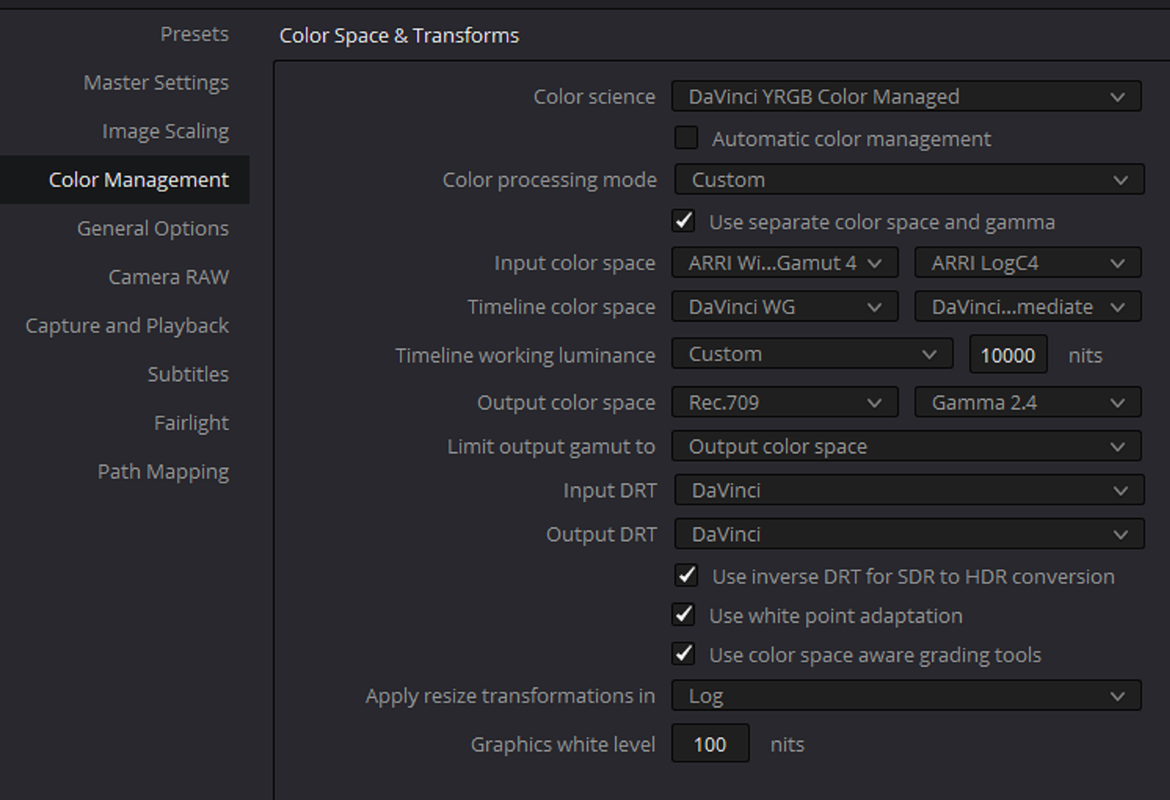
A Quick and easy way to make a Davinci Wide Gamut Compatible Lut that you can use any IDT or ODT with.

I'll use an AWG4/ALC4 to DAVINCI WIDE GAMUT workflow but you can use this lut with any other IDT and ODT.

Project Settings and Workflow

1.png


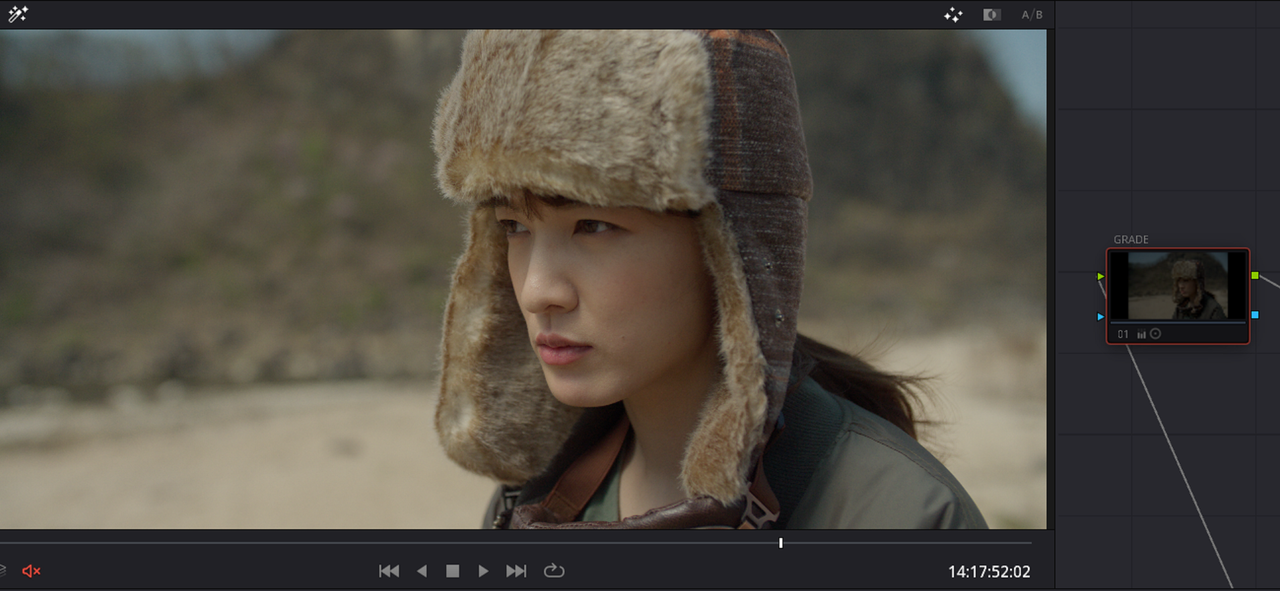
Before a simple grade

2.png


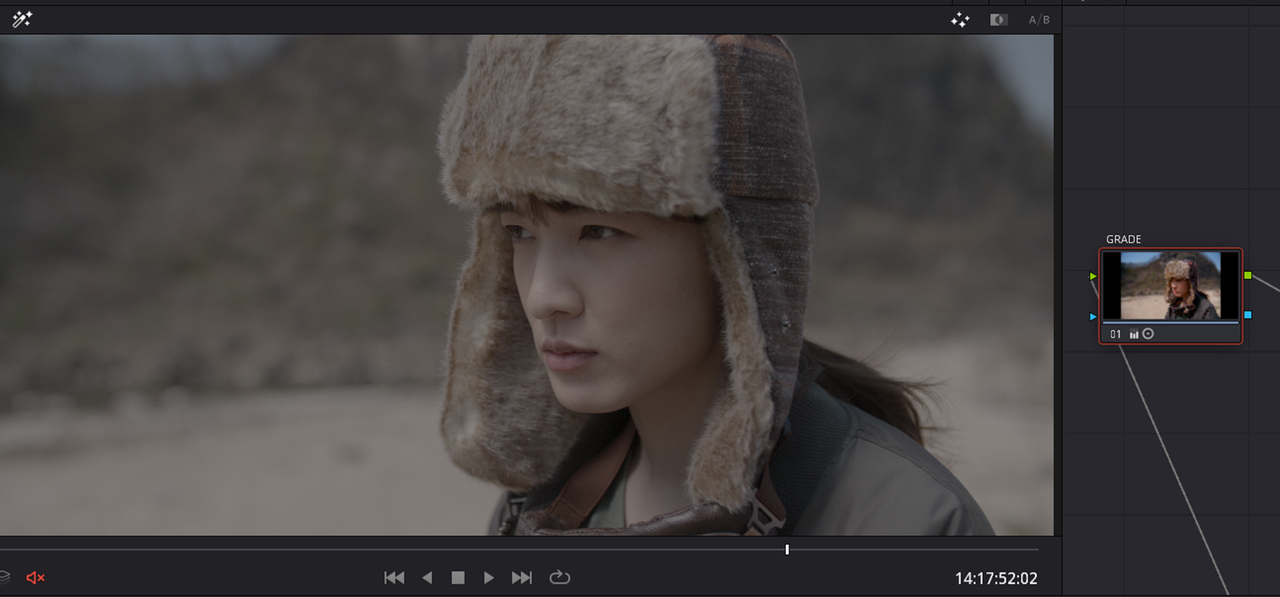
And After

3.png


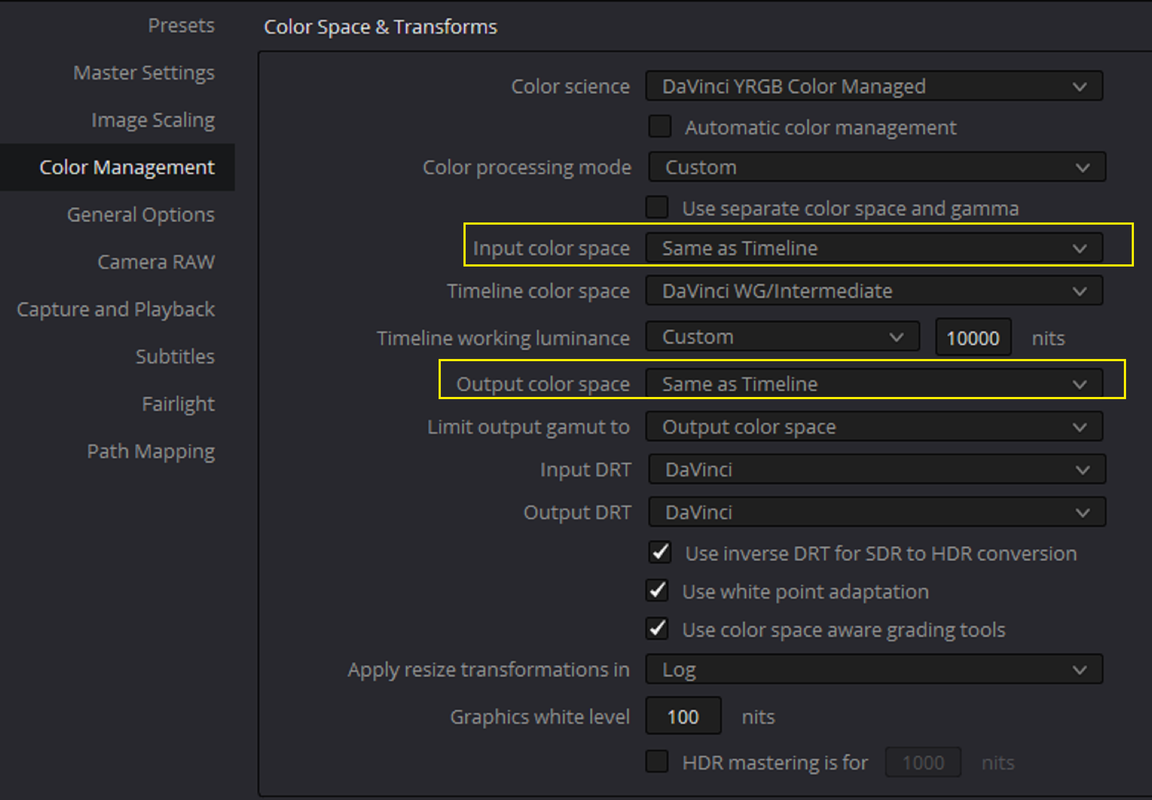
1) Next, go back to the "COLOR MANAGEMENT" section in the "PROJECT SETTINGS". Now Change the "INPUT COLOR SPACE" from the original "AWG4/ALC4"(If you used "Use separate color space and gamma") or "ARRI LOGC4"( if you didn't use "Use separate color space and gamma") to "SAME AS TIMELINE". Also, Change the "OUTPUT COLOR SPACE" from the original "REC709/GAMMA 2.4 to "SAME AS TIMELINE".


4.png


2) Go back to the "Color" page and you should see the image below.

5.png


Now "RIGHT-CLICK" on the Clip in the "CLIP VIEW" area and select "GENERATE LUT" and whatever Lut Point Size you want.

6.png


4) Go Back into the "COLOR MANAGEMENT" area in the "PROJECT SETTINGS" again and re-select the IDT and ODT you want to use this new lut with in a DAVINCI WIDE GAMUT Workflow. Import the Lut into your "LUT FOLDER" and apply it to the image.


7.png


8.png


9.png


94.png


10.jpg
 
Last edited:
According to Harald Brandel a chief color scientist of Arri and who also has the title of "Head of the Center of Competence Image Science in the Camera and R&D" in Munich, from the FDTimes's ALEXA 35 Camera Report June 2022 Issue 115 in the bottom right-hand corner of page 54;

link


115FDTimes-June2022-2.04-150.pdf

"There will be an option in the SDK to process the Mini LF and LF
files into AWG4 LogC4. So, in the future, once the version is out,
there will be a switch in the software where you say process it to
LogC3 or process it to LogC4. When it’s processed to LogC4, then
you can apply the same LUTs, or the same Looks that you have for
your ALEXA 35 images. It works quite well, and we have seen that
we can get quite a good color match between those cameras even
while they have different sensors.
In the first version, it’ll be for the ALEXA Mini LF and ALEXA LF
only, but then we will also have it for the ALEXA Mini and SXT
and every other ALEXA camera.
But the SDK that will live in your DaVinci Resolve or Baselight
will have a switch where you can say process my ALEXA footage
to LogC3 or LogC4. So, yes, it’s done in post."


I have not seen that switch yet inside of Davinci Resolve but it will probably be coming in a future update.

However, I did find "
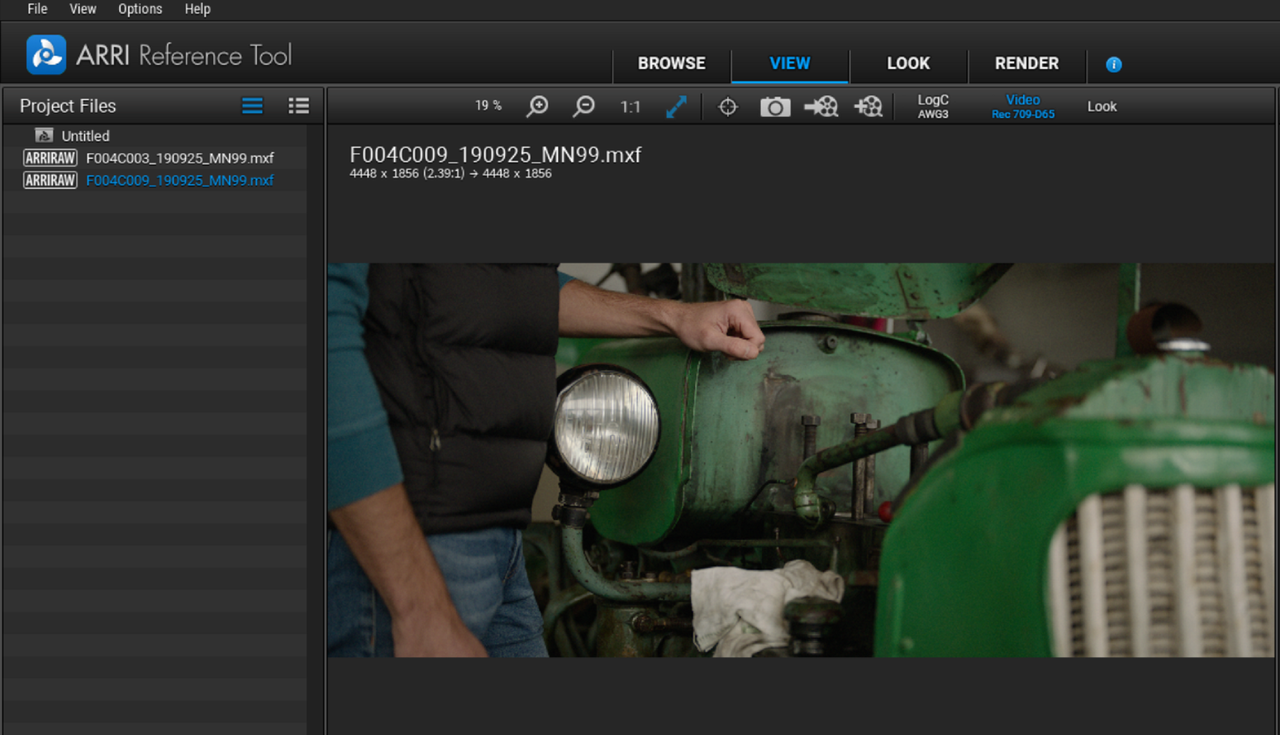
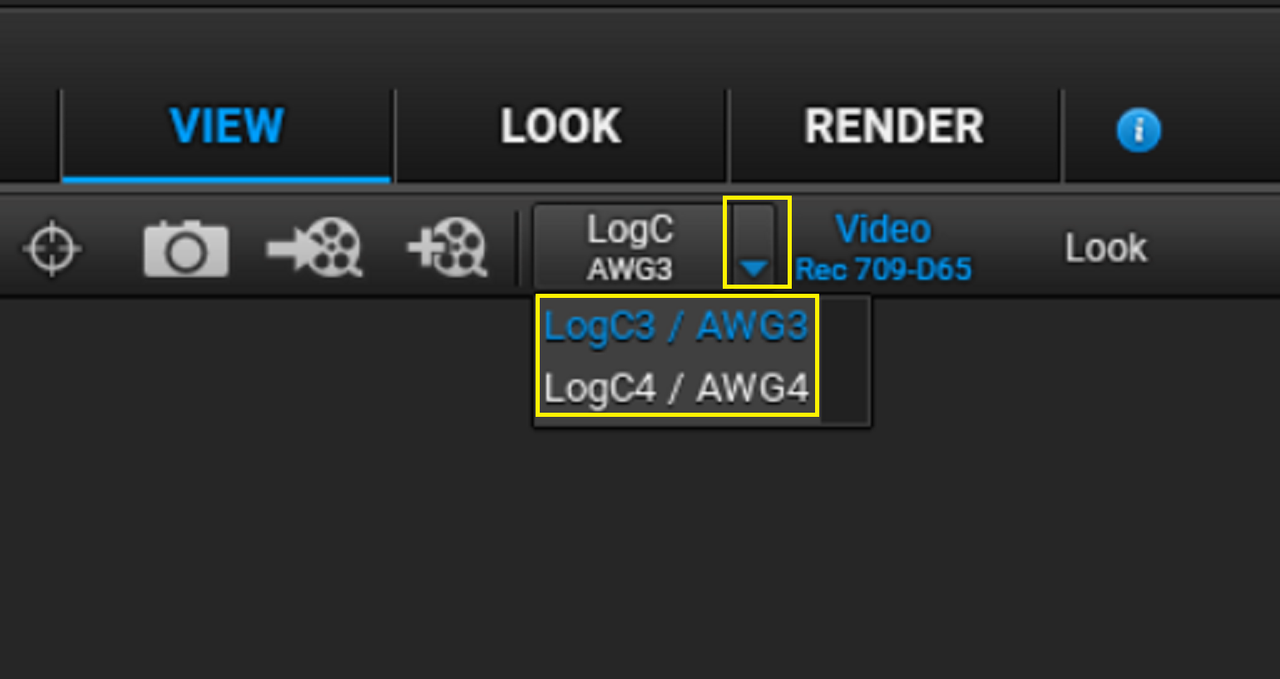
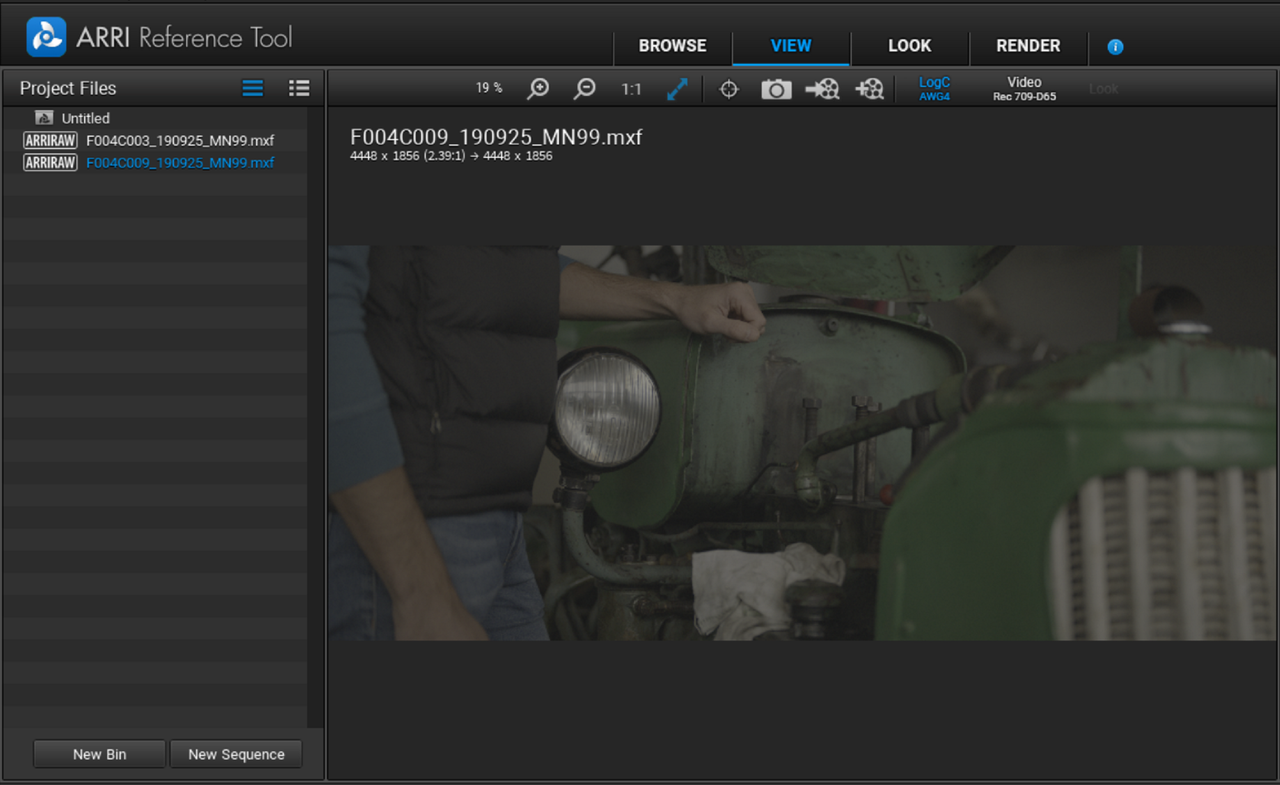
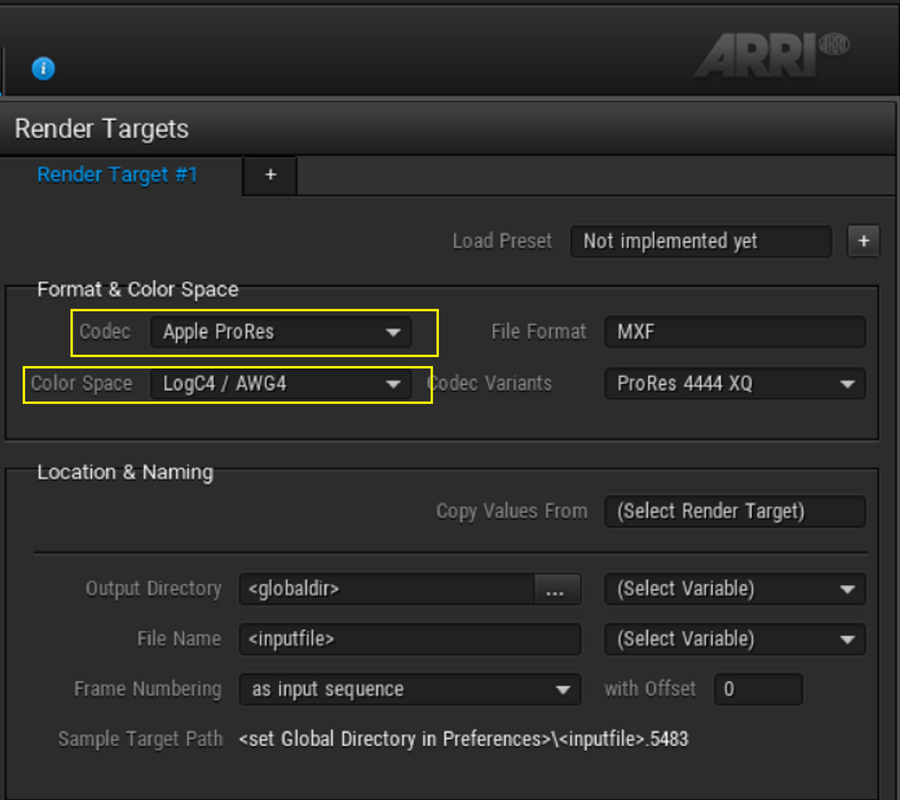
a switch in the software where you say process it to LogC3 or process it to LogC4" in The Arri Reference Tool.

In the article they say that initially only the ARRI Alexa LF and Alexa Mini LF will be capable being processed from LogC3 to LogC4 with all of the other Arri Alexa cameras coming later on

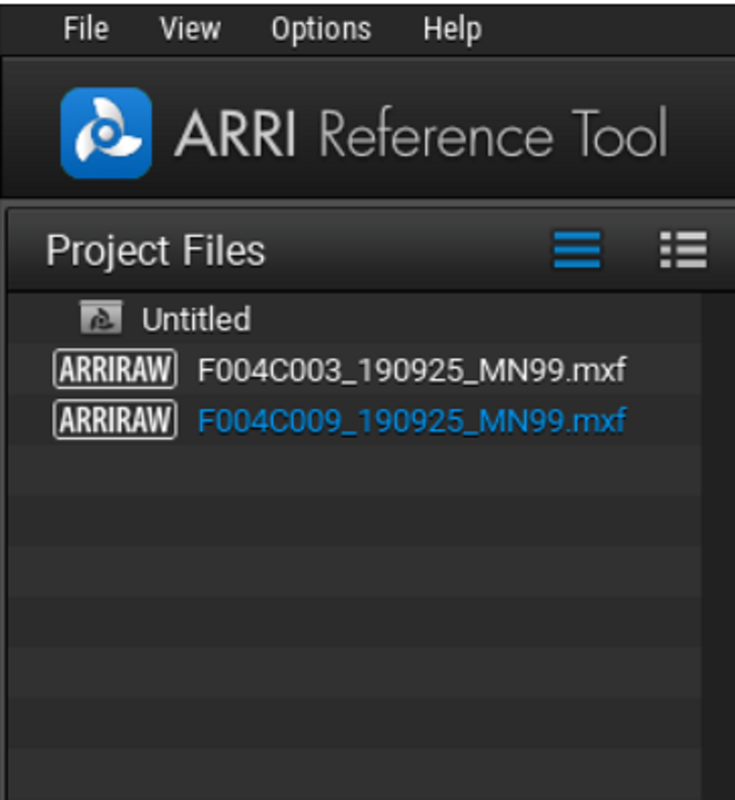
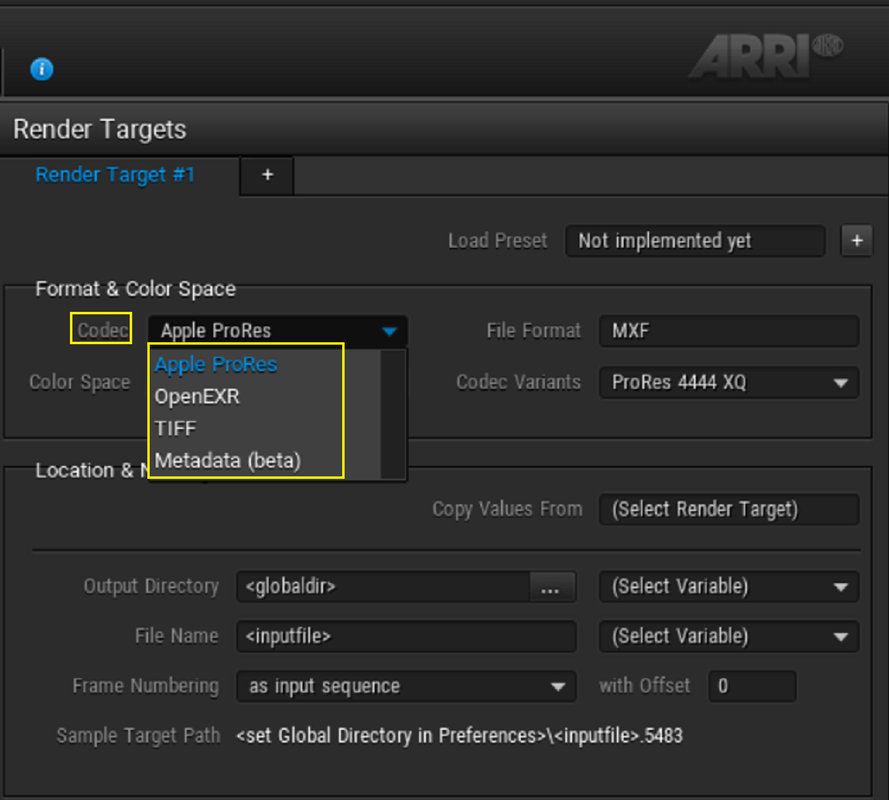
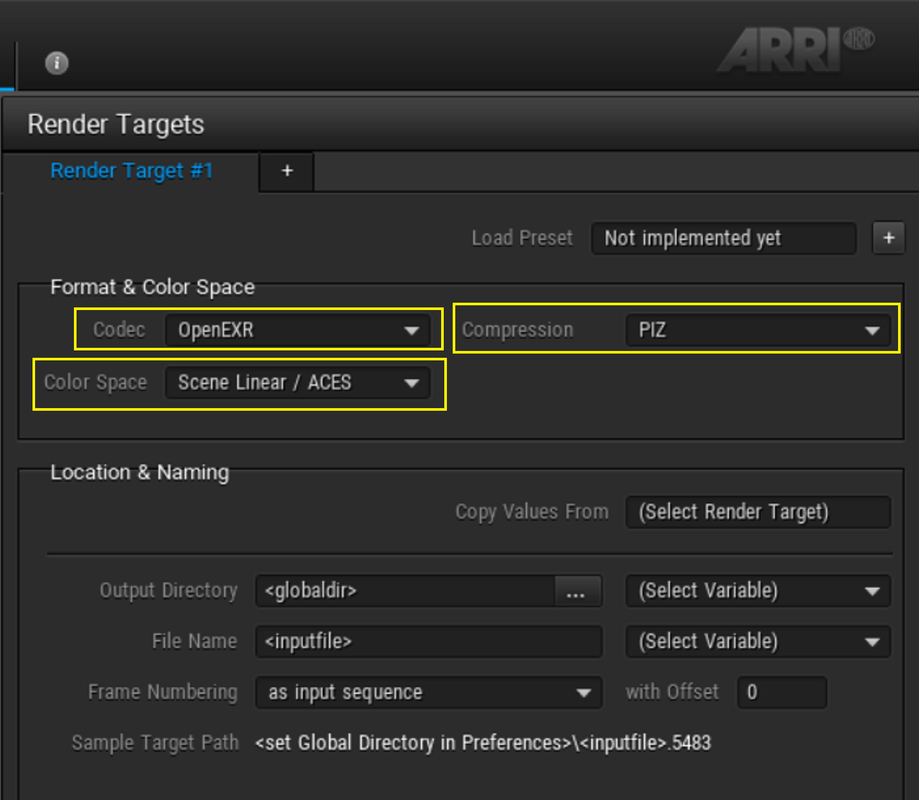
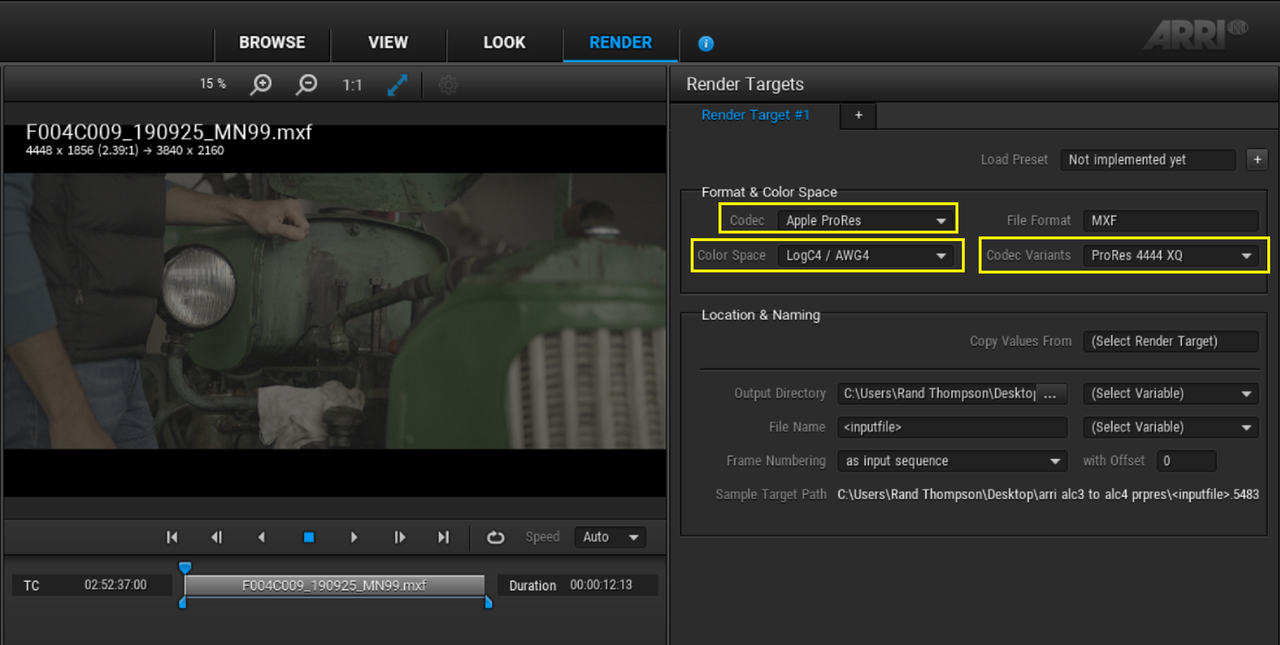
I tried a Sample Alexa Mini LF ARRIRAW file in a .MXF file format in the older LogC3 Color Space inside of the ARRI Reference Tool.

1.png


2.png


3.png


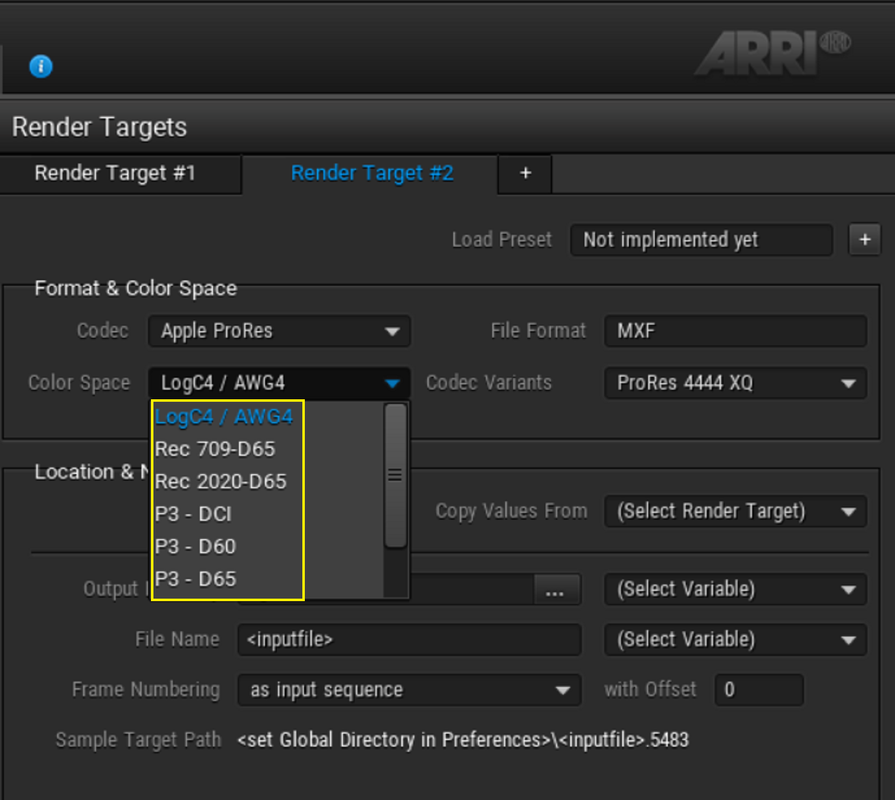
I processed the video image into the LogC4/ AWG4 Color Space


4.png


5.png


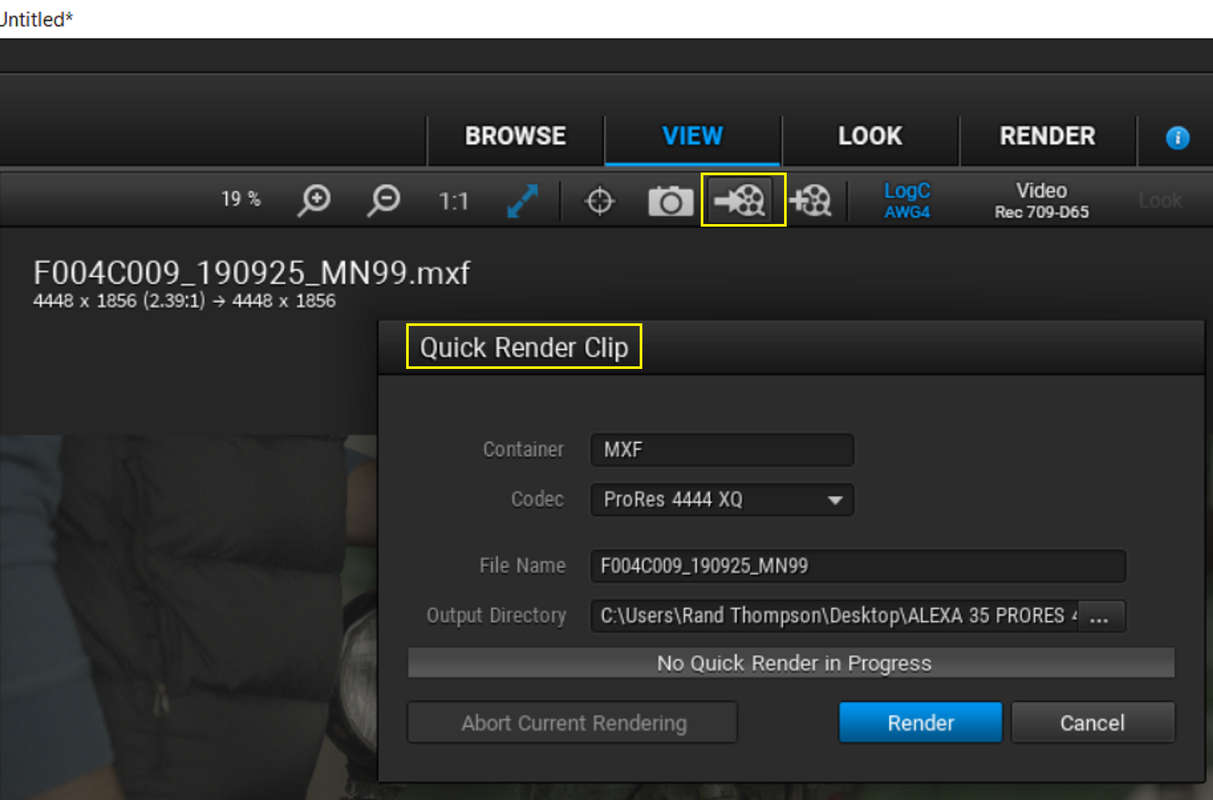
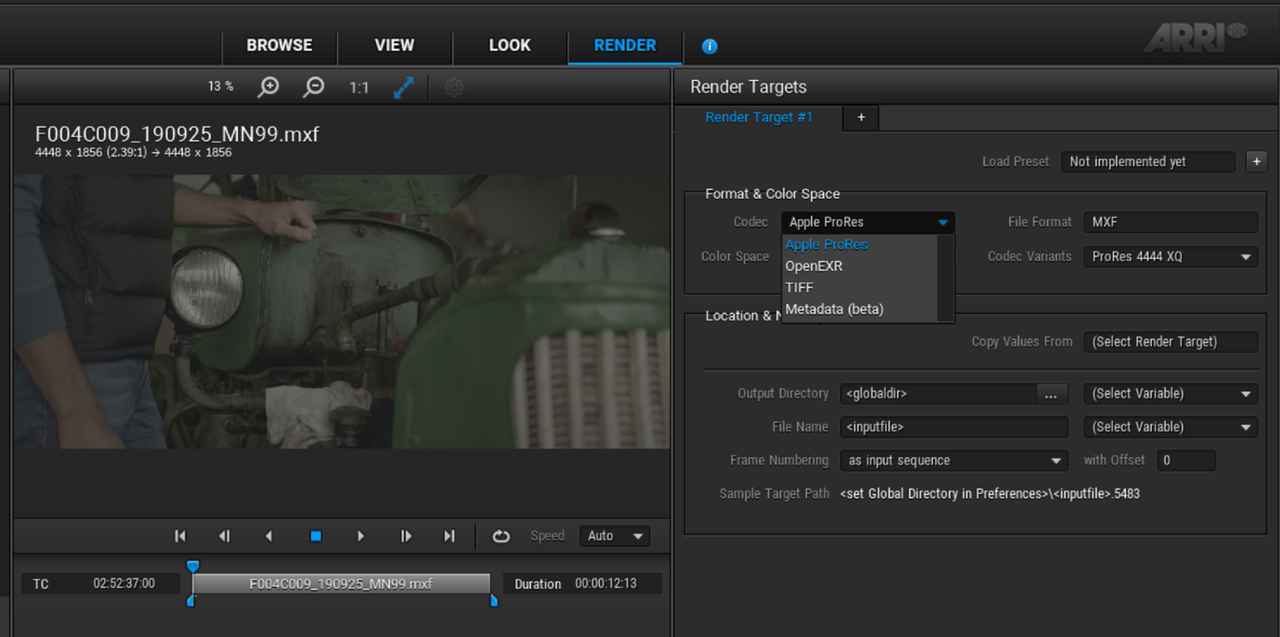
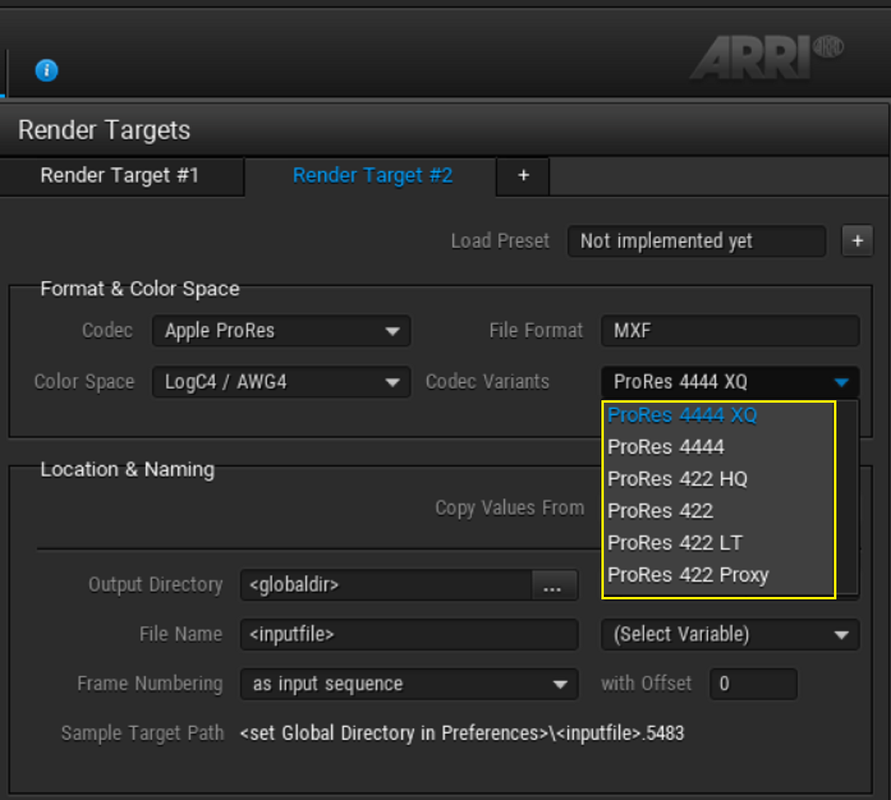
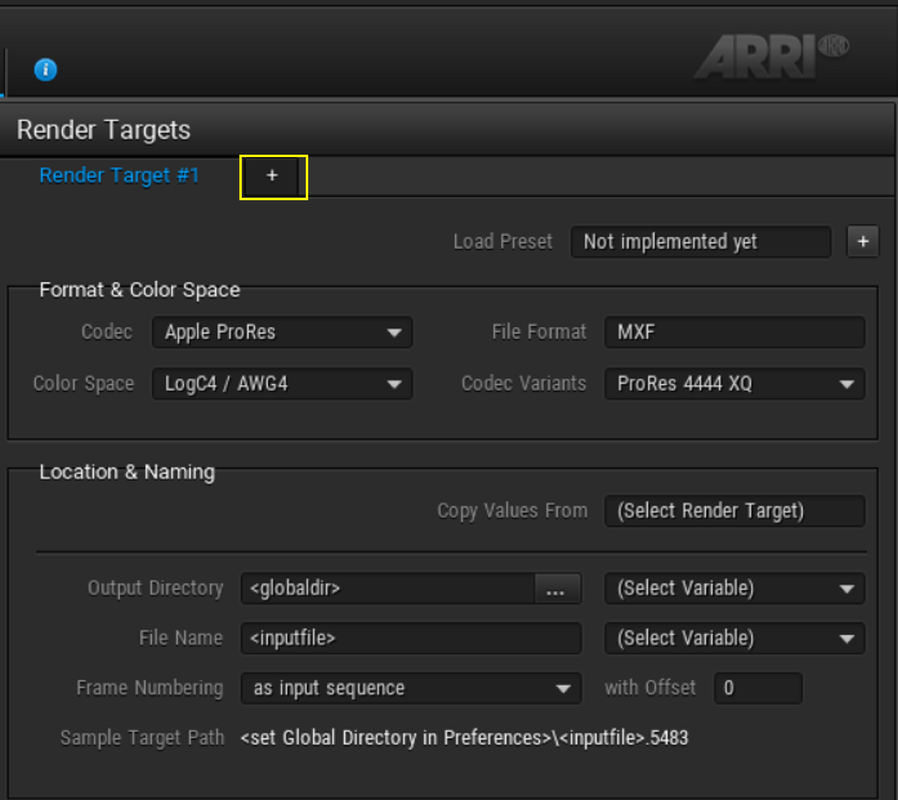
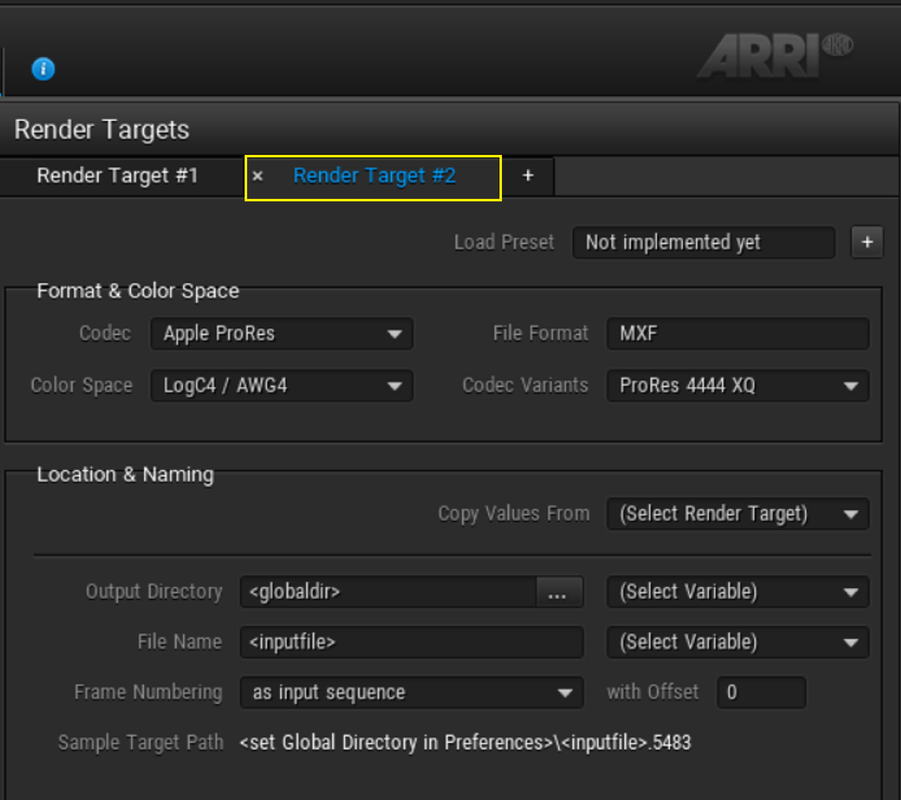
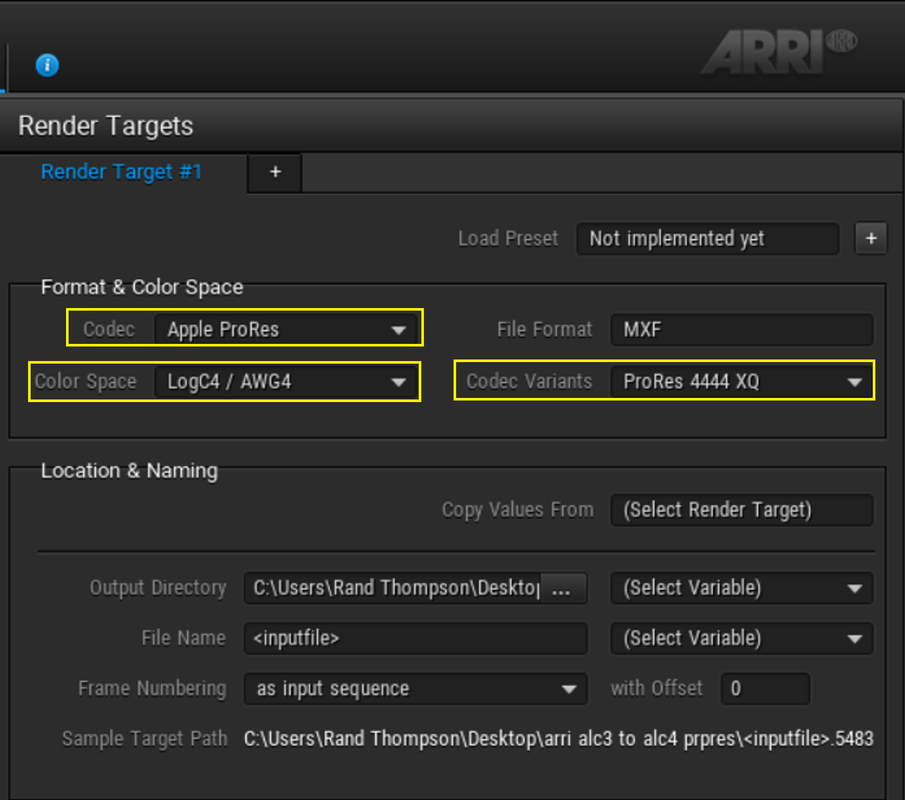
Next, I chose to do a "QUICK RENDER" into the "ProRes 4444XQ file format instead of using the Batch processing under the "RENDER" Tab since it was only just one clip. You have a few more Render setting options under the "RENDER" tab that are not available with the "QUICK RENDER CLIP" export alternative. You can also add multiple batch renderings for the same clips or just for other clips.

6.png

7.png

8.png


7a.png


9.png


10.png


11.png


12.png


In Resolve

In Resolve I brought in both an ARRI ARRIRAW clip in the older AWG3/ ALC3 Color Space of the clip from the ARRI REFERENCE TOOL and a Pro RES 4444XQ sample of the clip Processed into the newer AWG4/ ALC4 Color Space and added an ARRI ALEXA 35 AWG4/ALC4 to REC709 Transform Lut to Both.


ARRIRAW Clip in it's Original AWG3/ ALC3 Color Space

Arri-Reference-Tool-Snapshot-20220731-004745.jpg


Pro RES 4444XQ Clip Processed into the AWG4/ ALC4 Color Space with ARRI ALEXA 35 AWG4/ALC4 to REC709 Transform Lut

1-1-1-1-1-1.png


ARRIRAW Clip in it's Original AWG3/ ALC3 Color Space with ARRI ALEXA 35 AWG4/ALC4 to REC709 Transform Lut

1-2-1-1-2-1.png
 
Last edited:
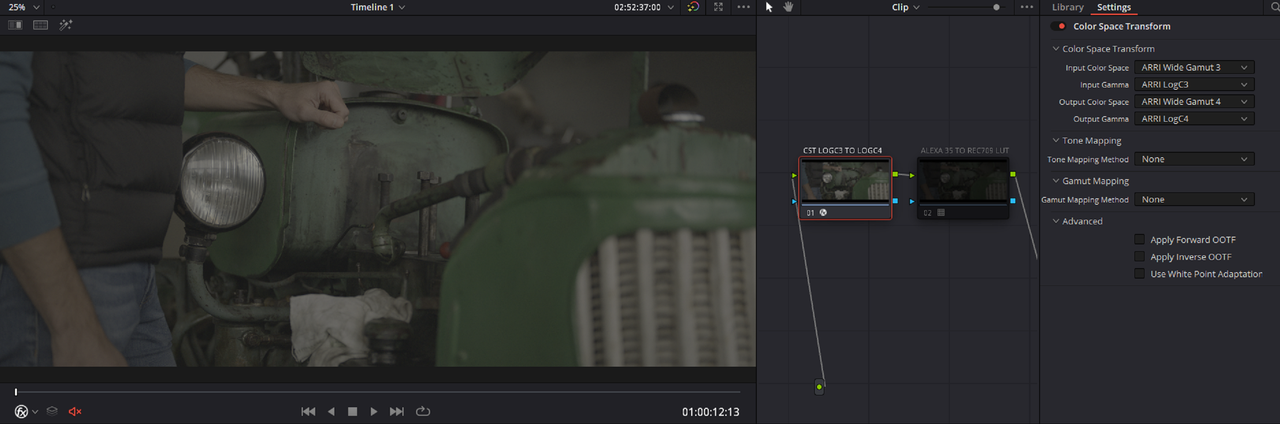
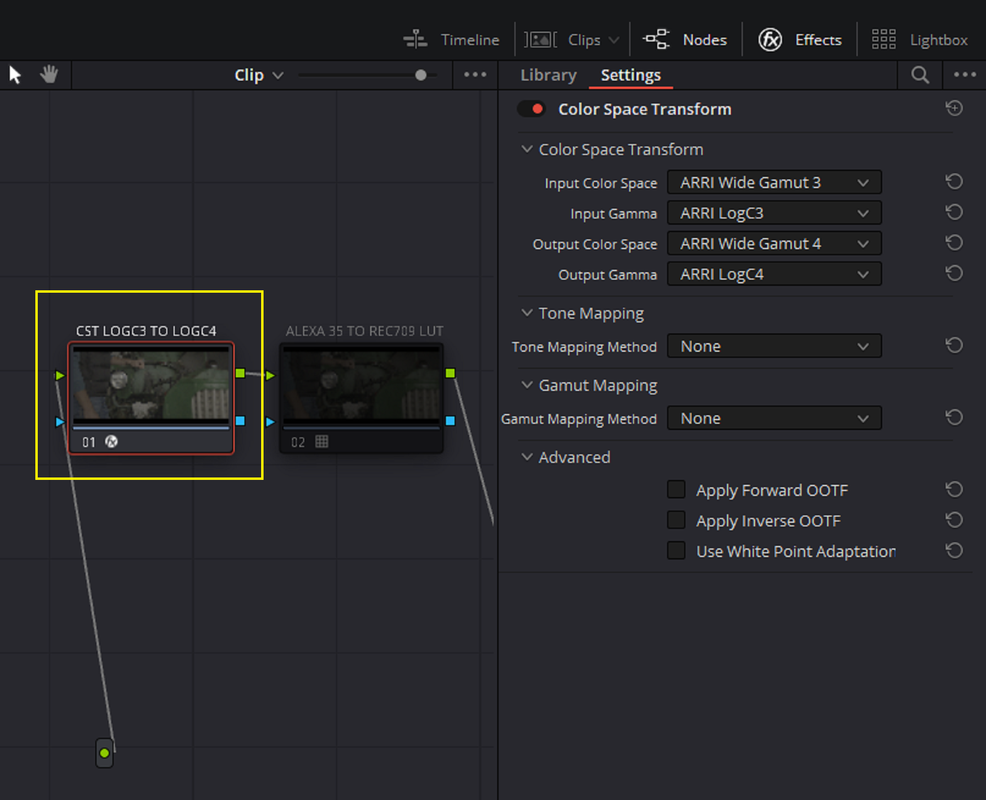
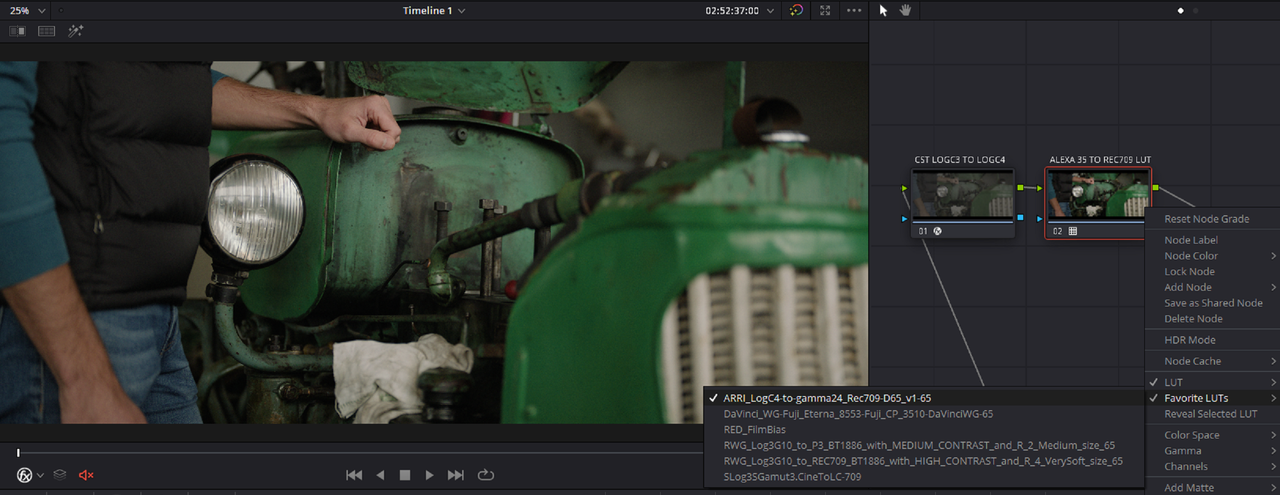
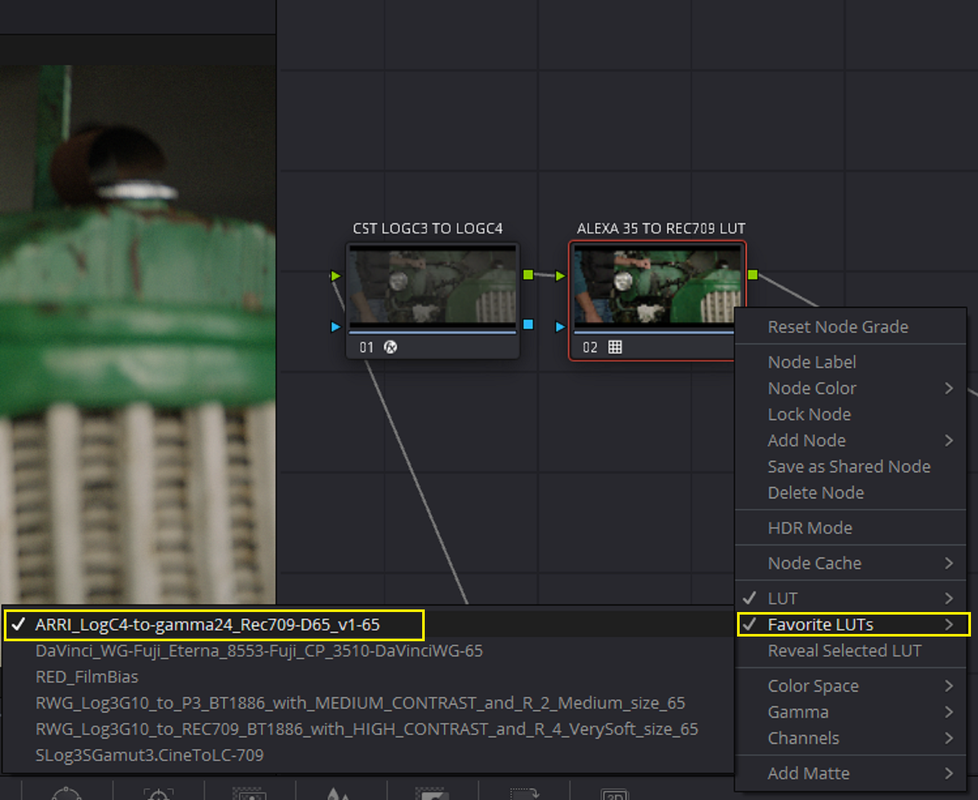
I just tried converting the ARRIRAW clip that was still in the AWG3/ALC3 Color Space to the AWG4/ALC4 Color Space with a "COLOR SPACE TRANSFORM" and applying an ALEXA 35 to REC709 Lut at the End of that, The results are below

13.png


14.png


15.png


16.png


ARRIRAW Clip in it's Original AWG3/ ALC3 Color Space

Arri-Reference-Tool-Snapshot-20220731-004745.jpg


Pro RES 4444XQ Clip Processed into the AWG4/ ALC4 Color Space with ARRI ALEXA 35 AWG4/ALC4 to REC709 Transform Lut


1-1-1-1-1-1.png


ARRIRAW Clip in it's Original AWG3/ ALC3 Color Space transformed into the AWG4/ ALC4 Color Space with a COLOR SPACE TRANSFORM with an ARRI ALEXA 35 AWG4/ALC4 to REC709 Transform Lut.


CST-LOGC3-TO-LOGC4-1-2-2.jpg
 
I've been using node based Davinci YRGB workflows in the previous examples so now I wanted to test this all out with my preferred ACEScct workflow

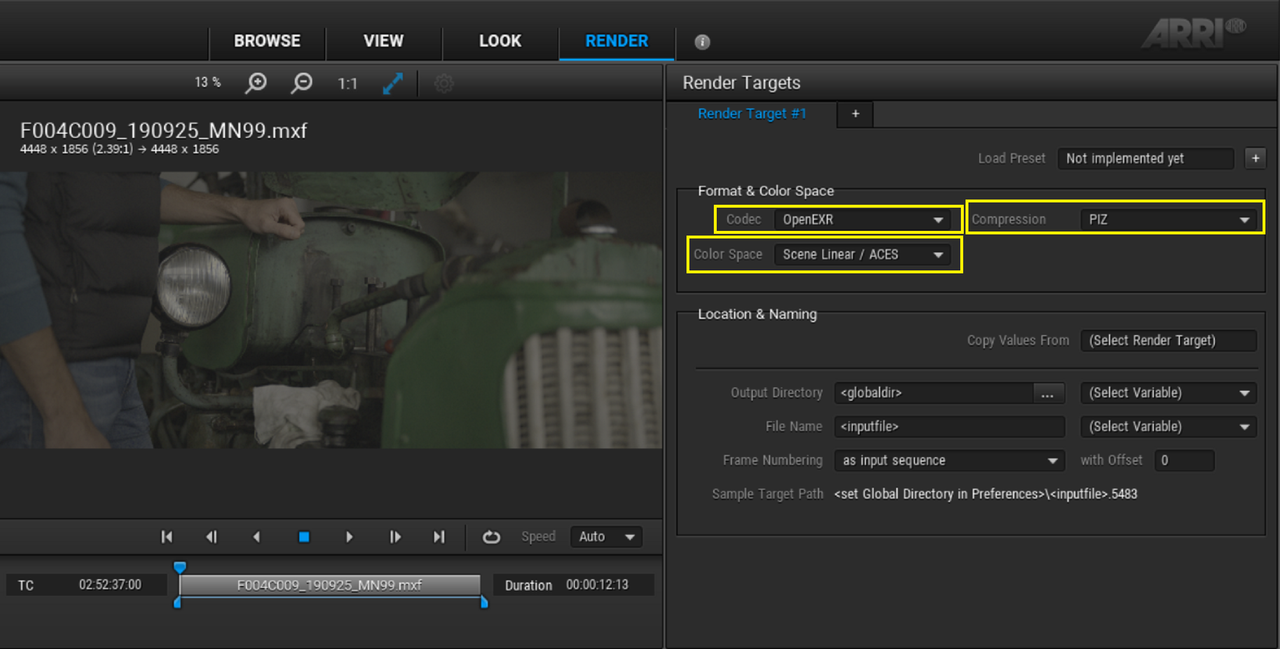
I exported out an Alexa Mini LF LogC3 File processed into LogC4 into an OPEN EXR file and the same file out as a ProRes 4444XQ also in the LogC4 Color Space. I wanted to see how ACEScct would treat the files.

1.png


1a.png


2.png


2a.png


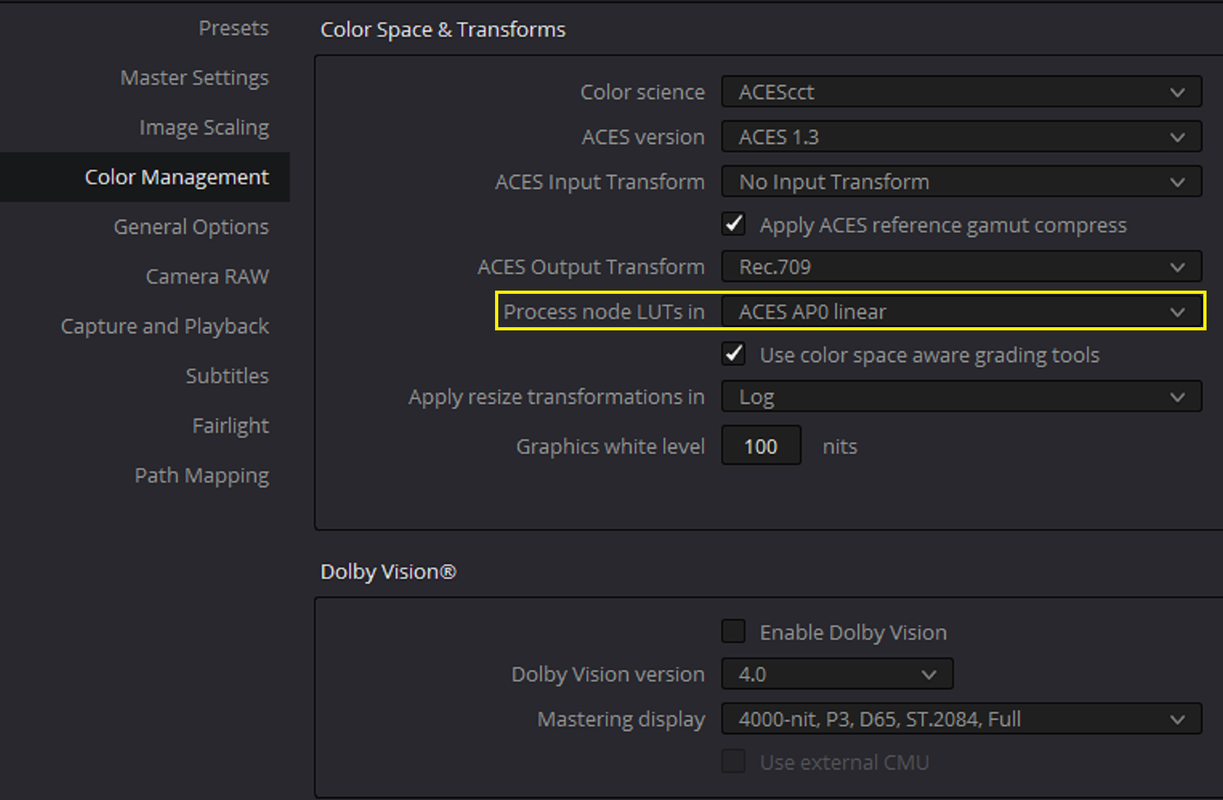
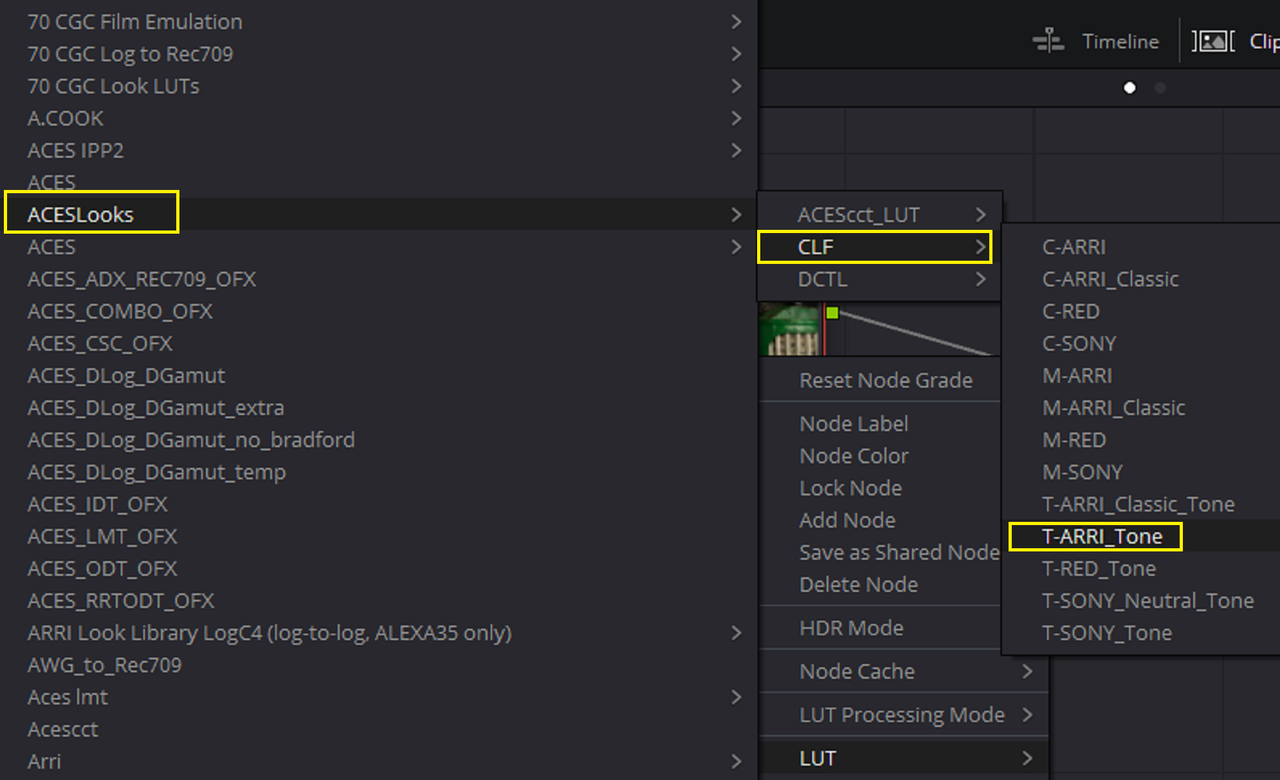
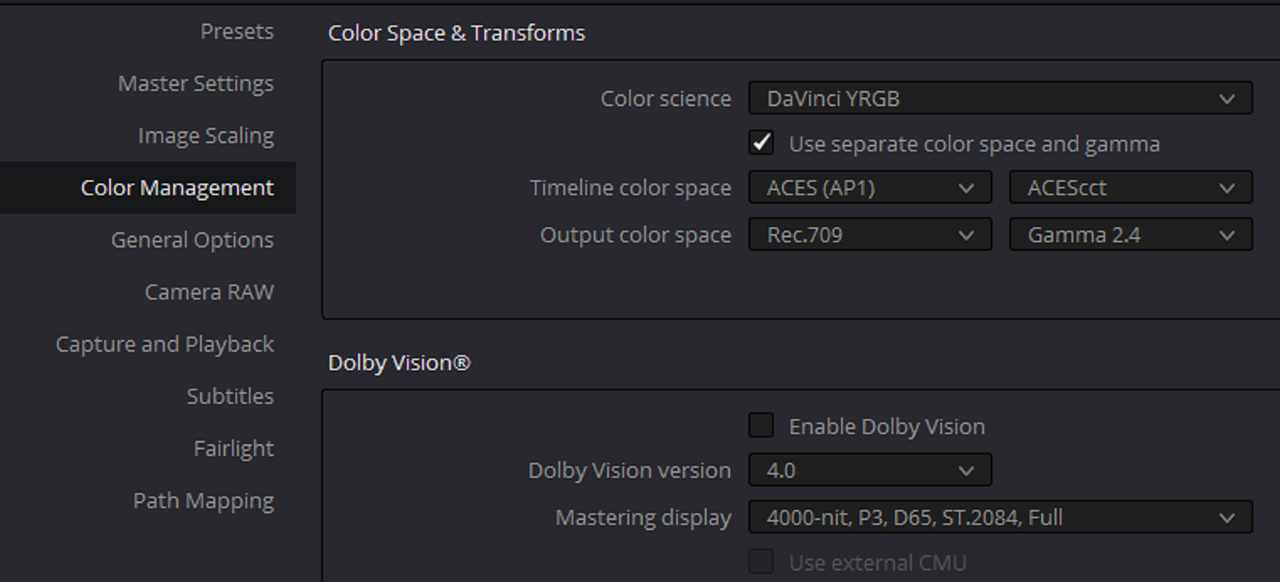
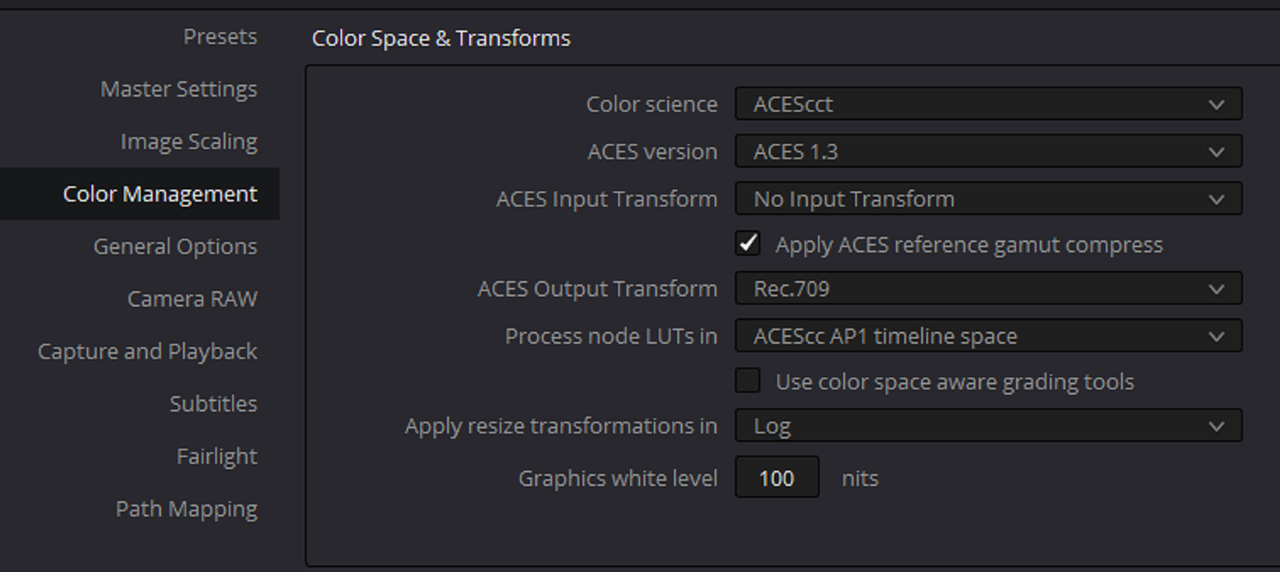
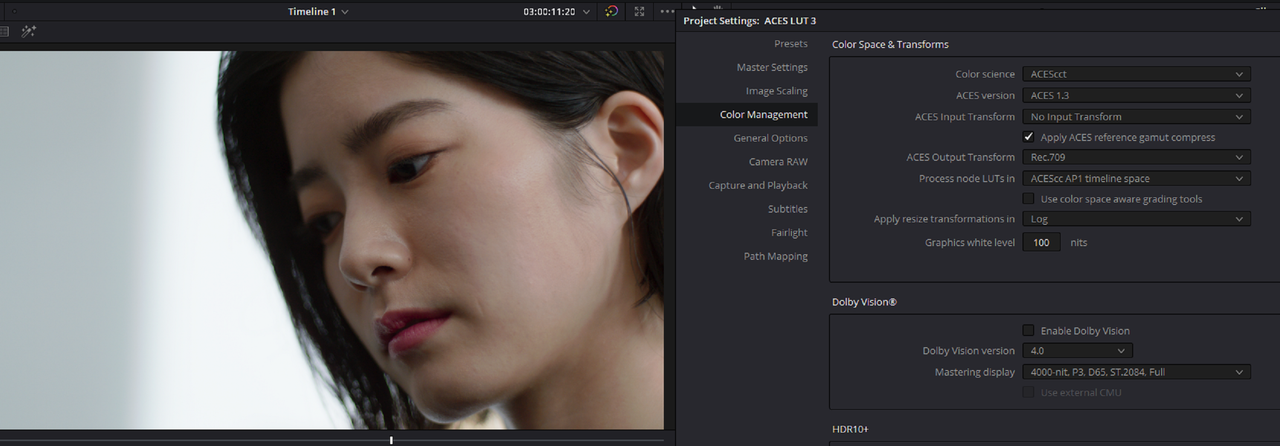
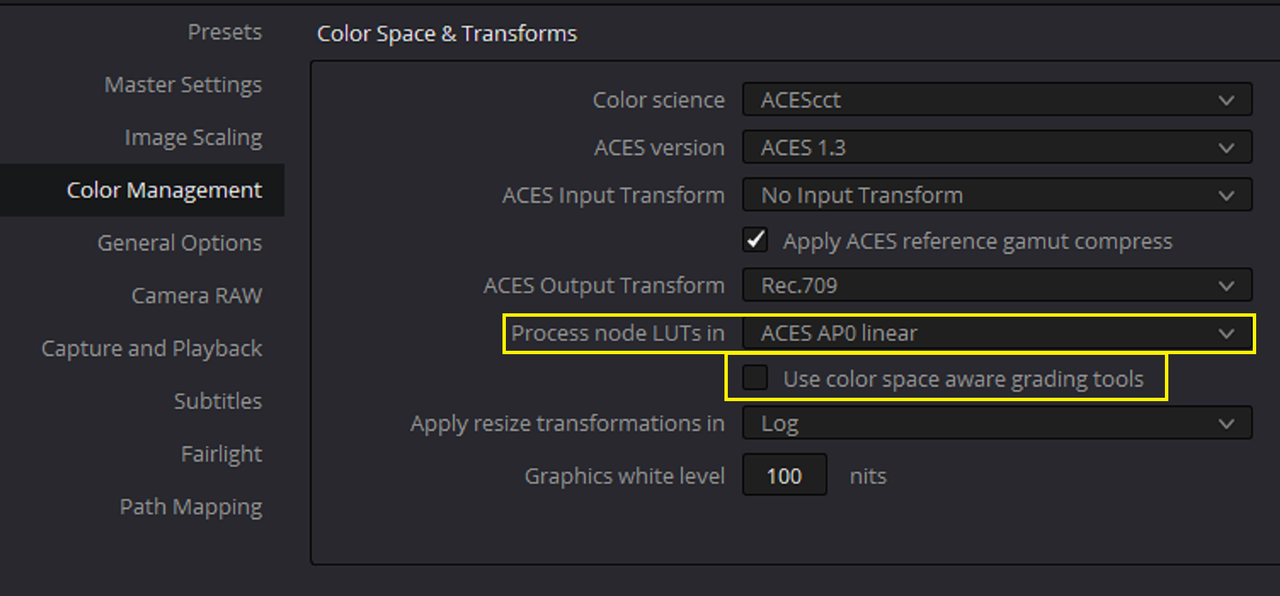
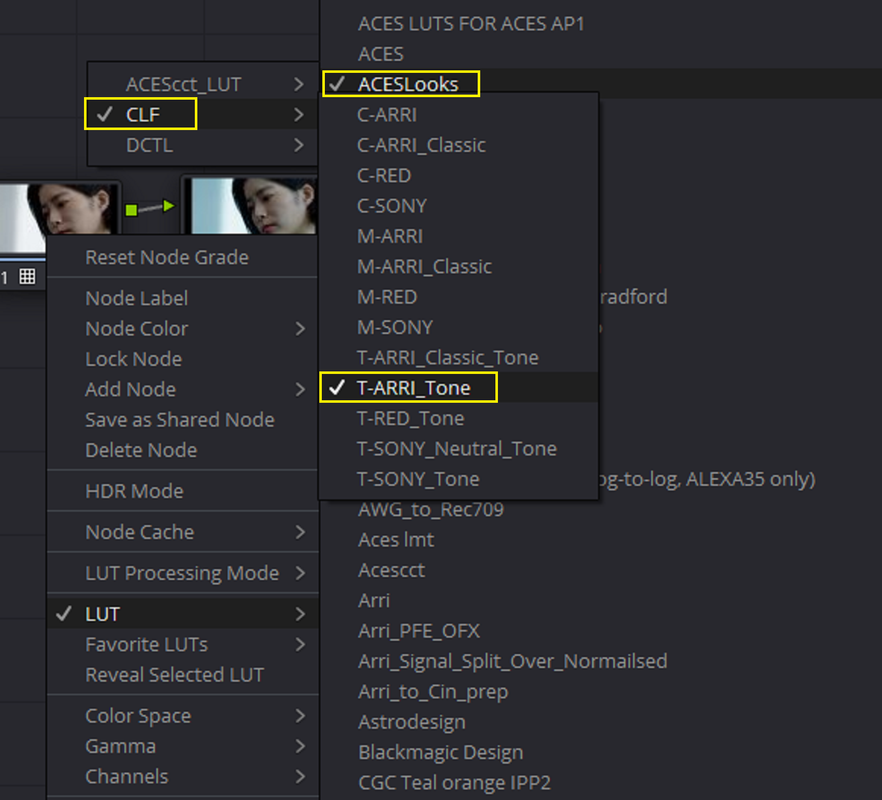
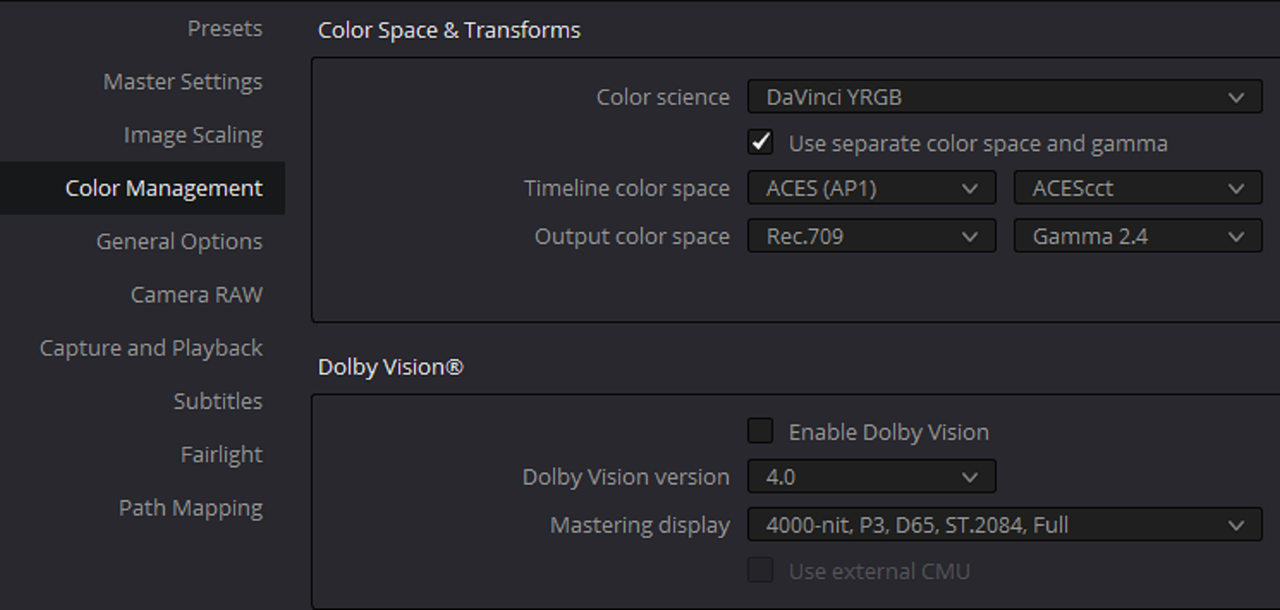
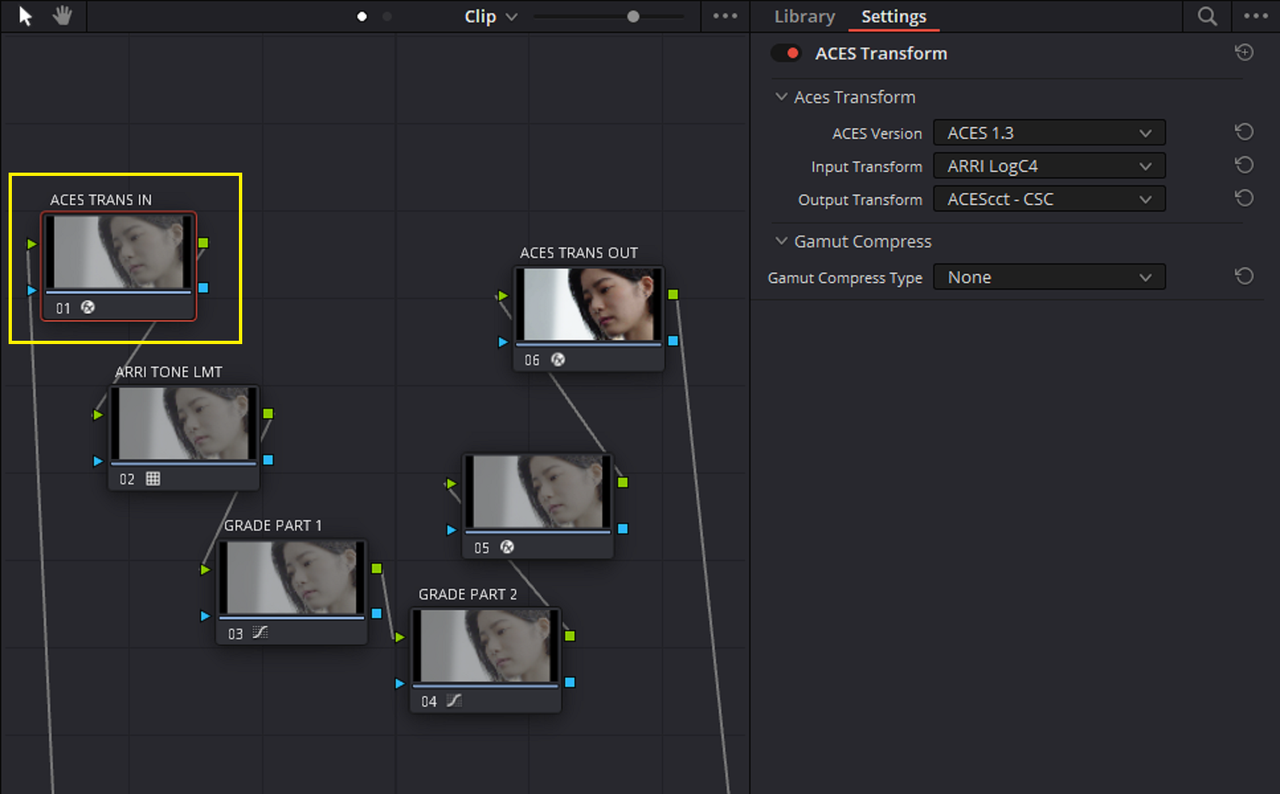
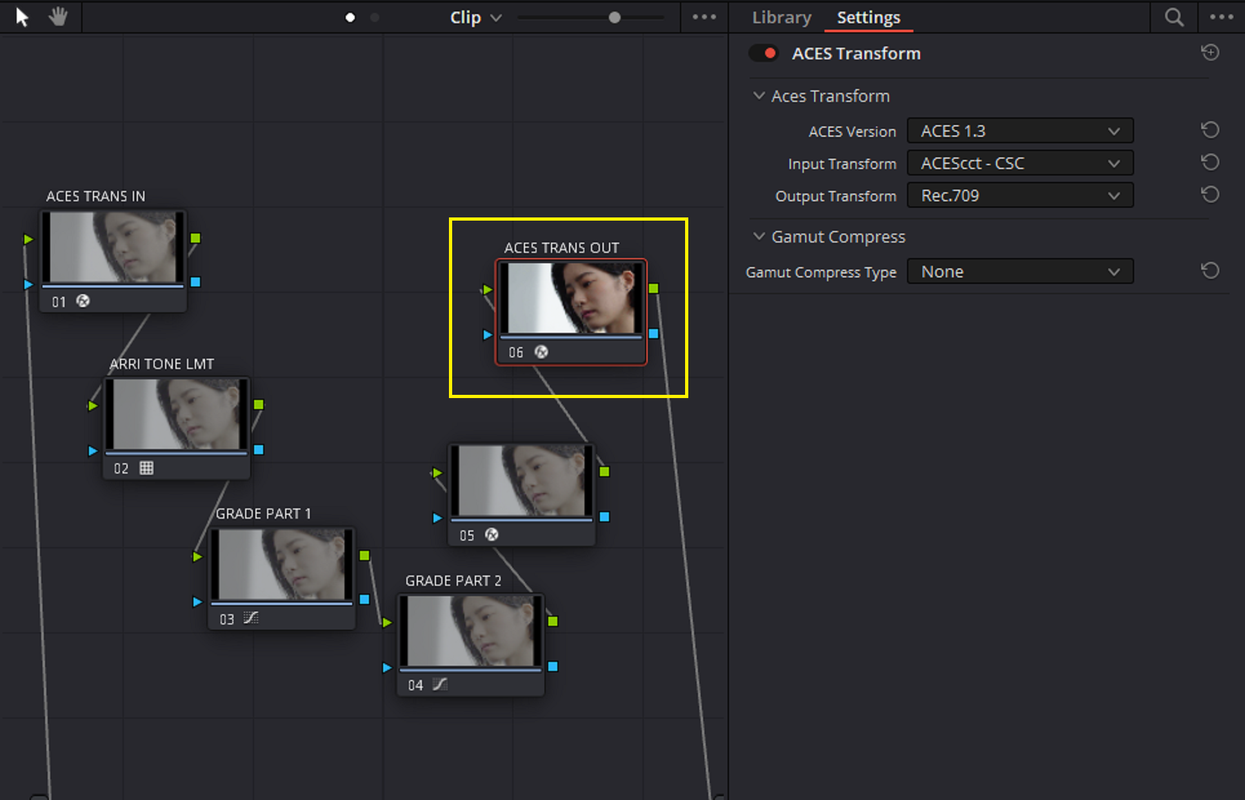
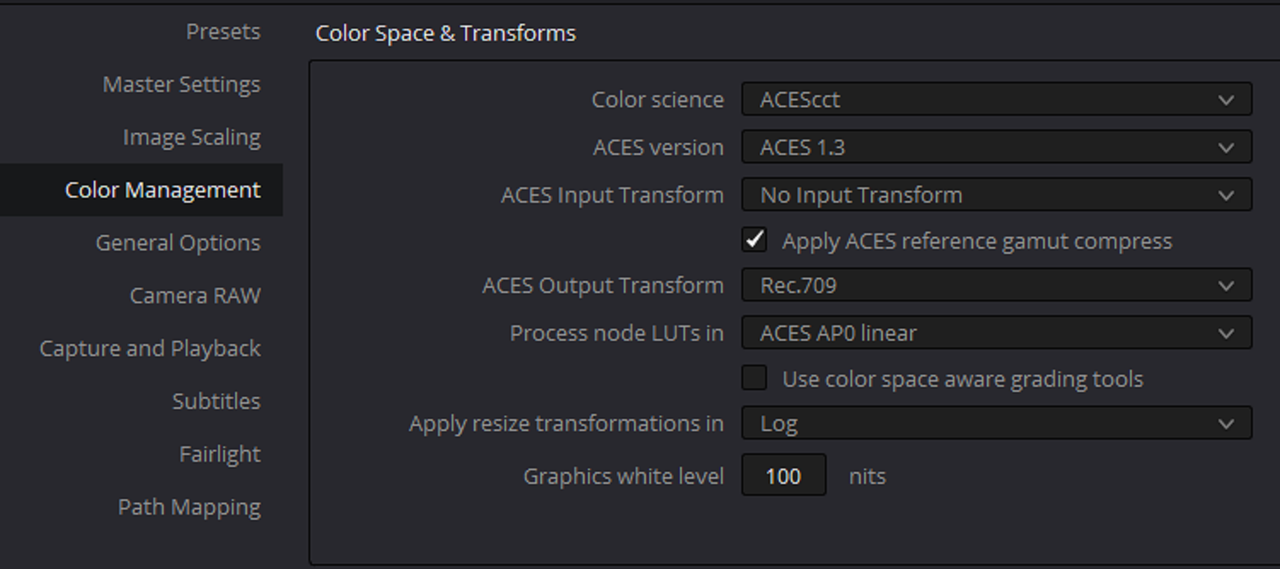
Here is the ACEScct Project settings. I used a CLF(COMMON LUT FORMAT) LMT that required APO/ LINEAR to Offset the look of the ACES RRT(Reference Rendering Transform). It does this by giving a similar ARRI Tone-Curve as in other Non-ACES workflows. So I had to choose "ACES AP0/LINEAR" next to "Process Node Luts In"


3.png


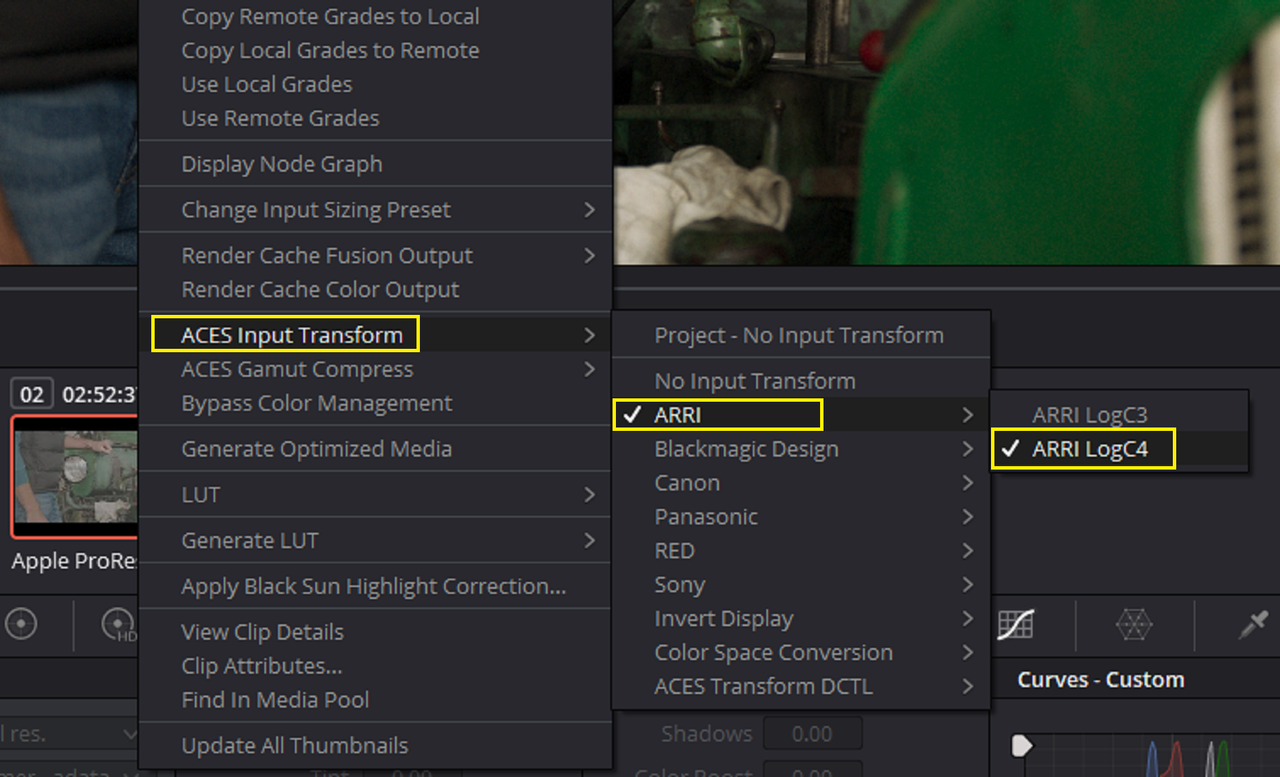
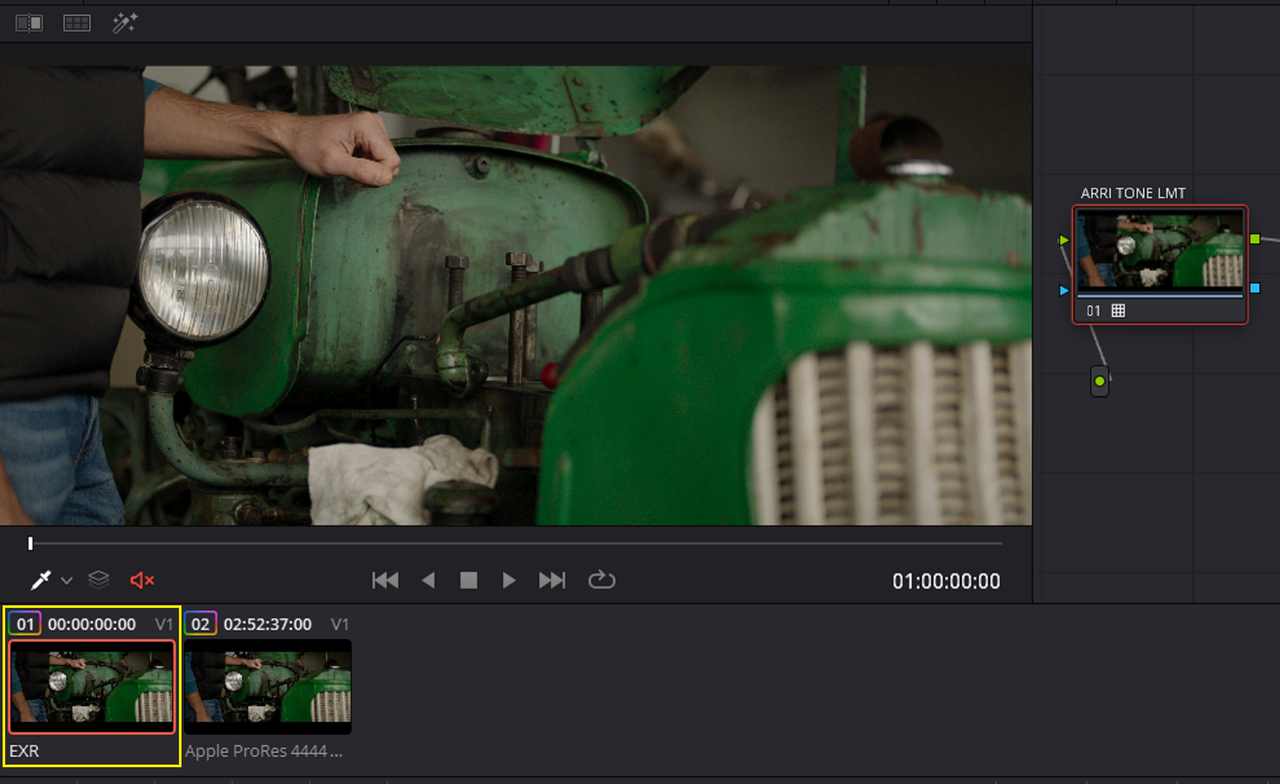
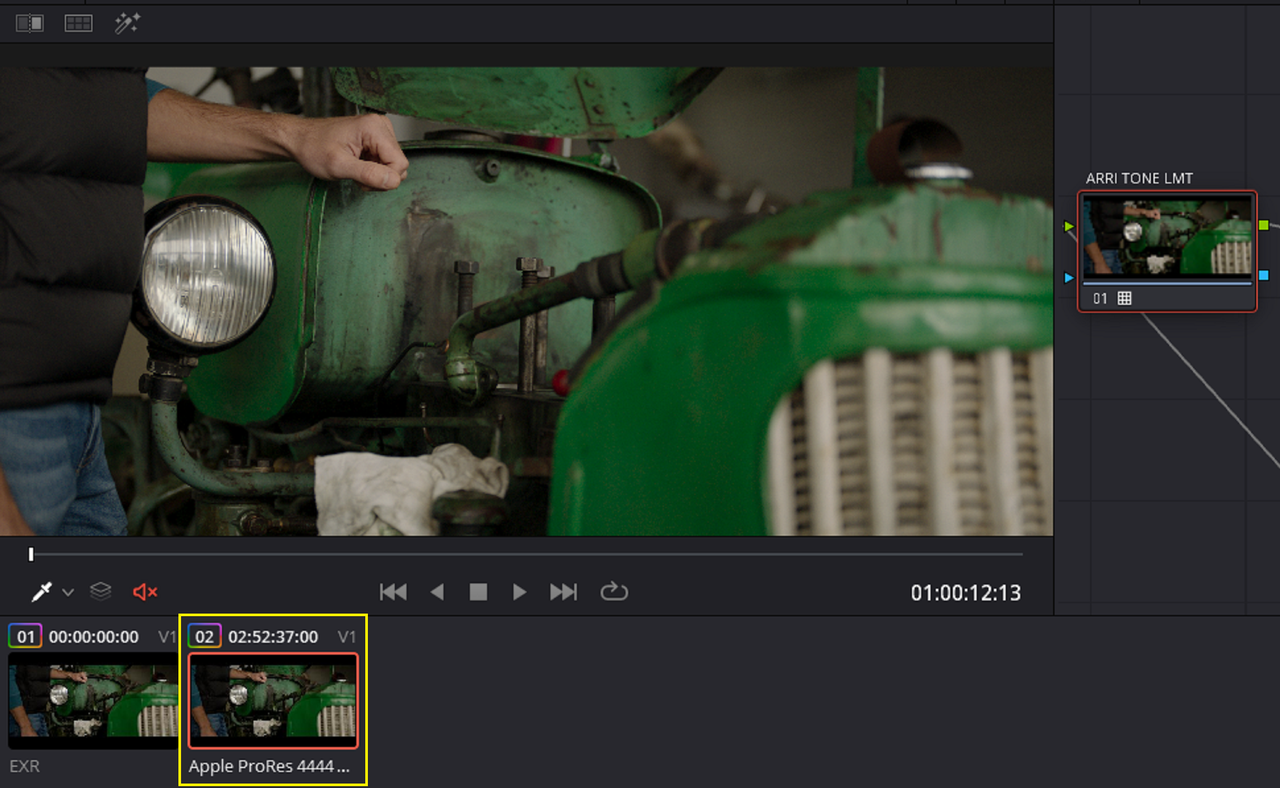
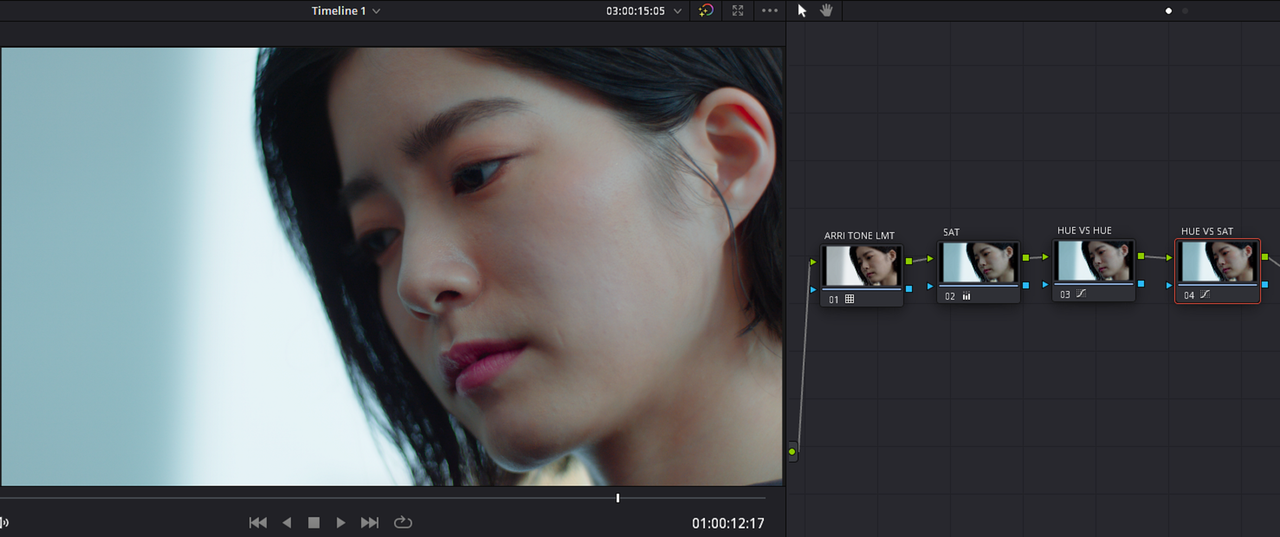
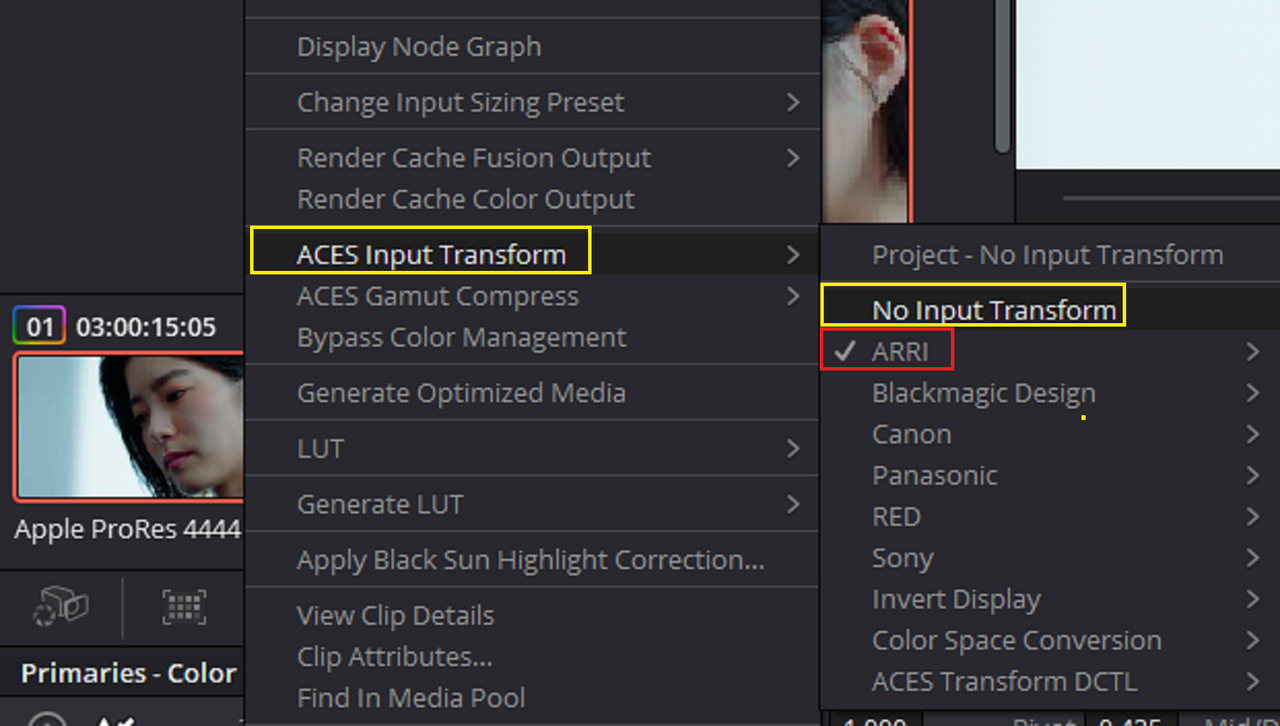
The OPEN EXR file came into ACES just like a Raw file with an IDT already assigned to it. I couldn't tell if The IDT was for LogC4 which I thought it should be or LogC3. So I Assigned an "ARRI LOGC4" IDT to the ProRes 4444XQ file which has also been processed from LOGC3 to LOGC4 to see if the OPEN EXR file was assigned the correct IDT, and they should match each other if so. I also used the ''ARRI Tone" LMT on both.


4.png


5.png


6.png


7.png


OPEN EXR FILE

8.png


ProRes 4444XQ


9.png
 
HOW TO CREATE A LUT/LMT( for AP1 not AP0 / Linear) FOR ACEScct

This is a LUT/LMT designed for use with ACES AP1 and Not AP0/Linear. The difference being is if you are not going to export the Aces Project out for Archival purposes to OPEN EXR or 16-bit TIFF this can be used. However, If this ACES project will be exported out for Archival purposes to OPEN EXR or 16-bit TIFF then this Lut designed for ACES AP1 will restrict the dynamic range and other aspects of the image so only a LMT designed for AP0/Linear can be used and this Lut should be deleted before any Archiving.


Project Settings and Workflow

1.png


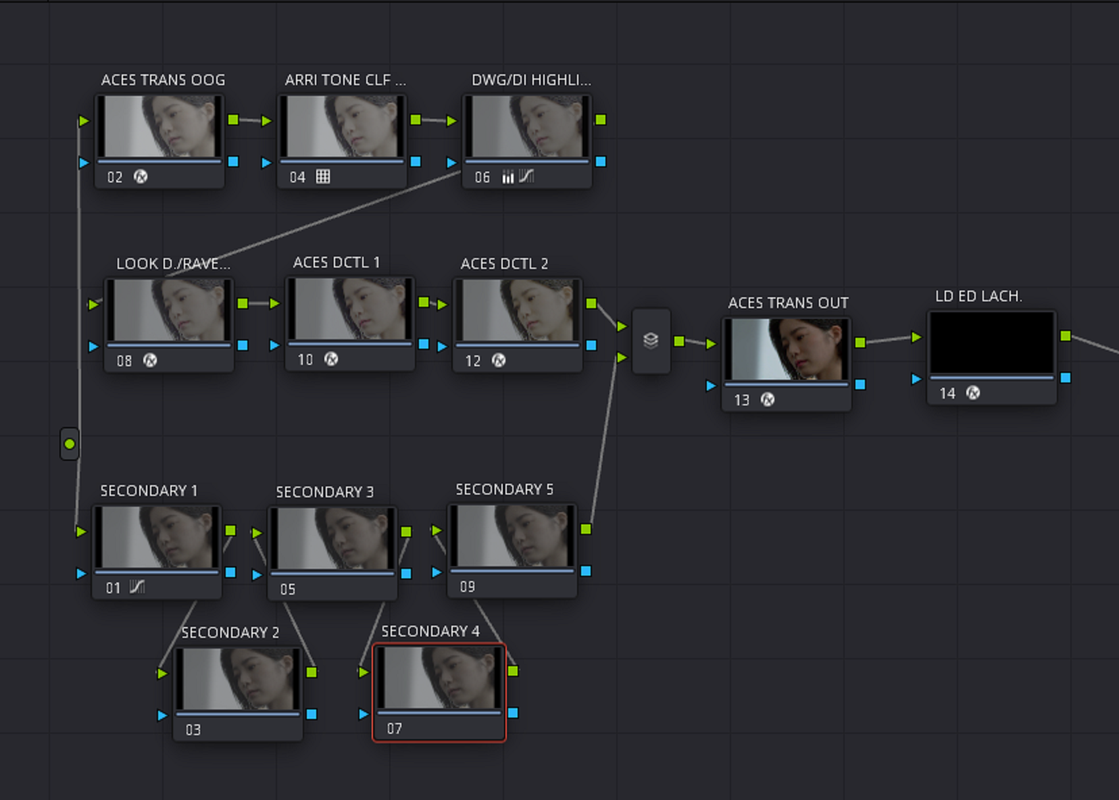
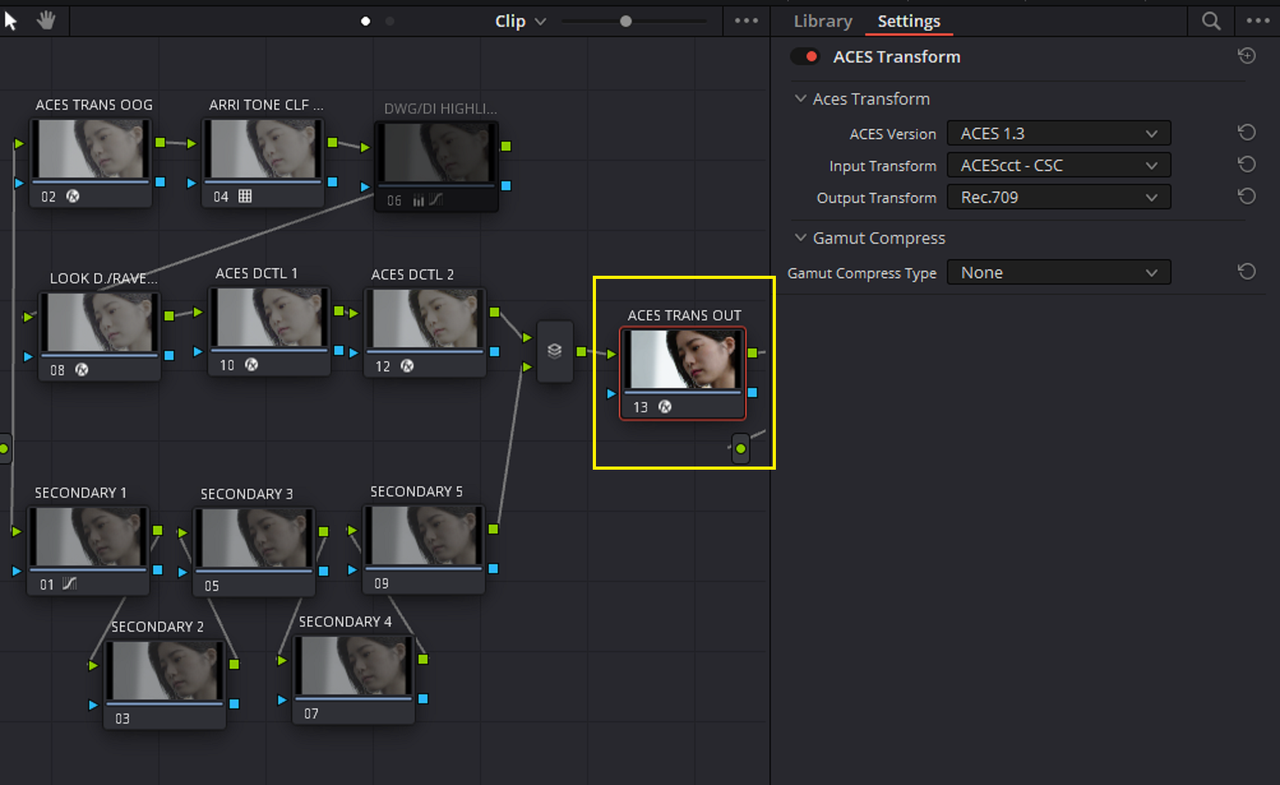
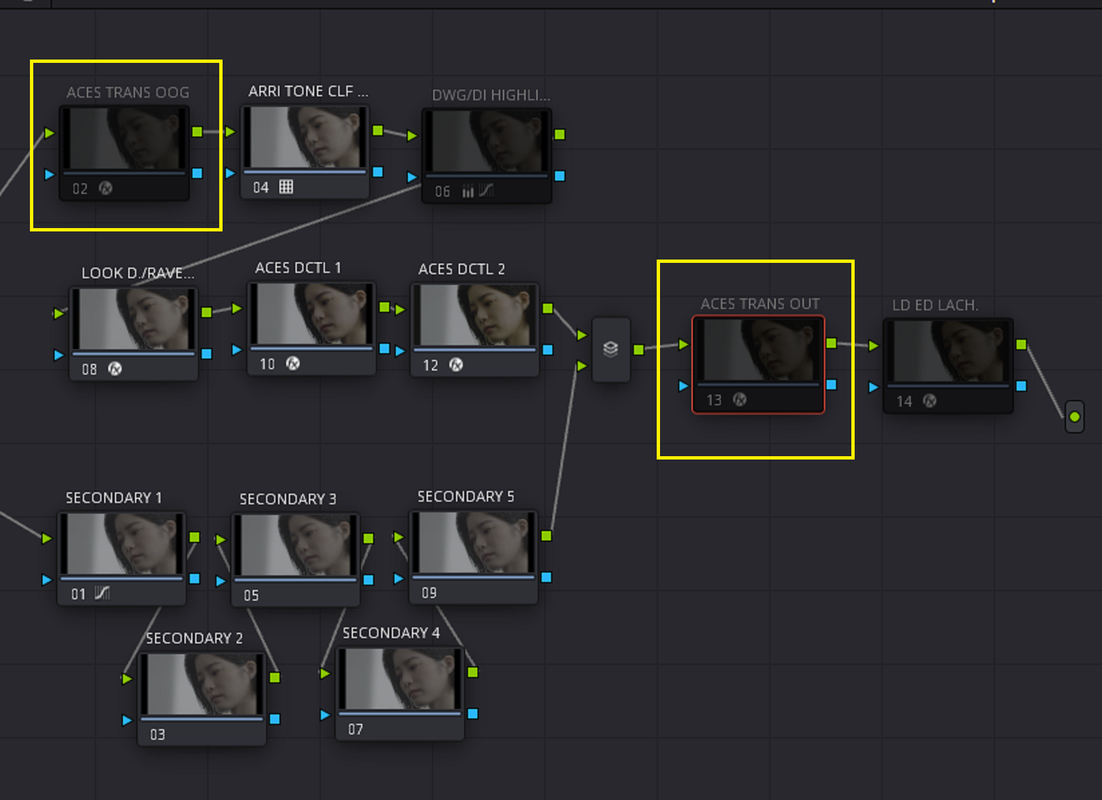
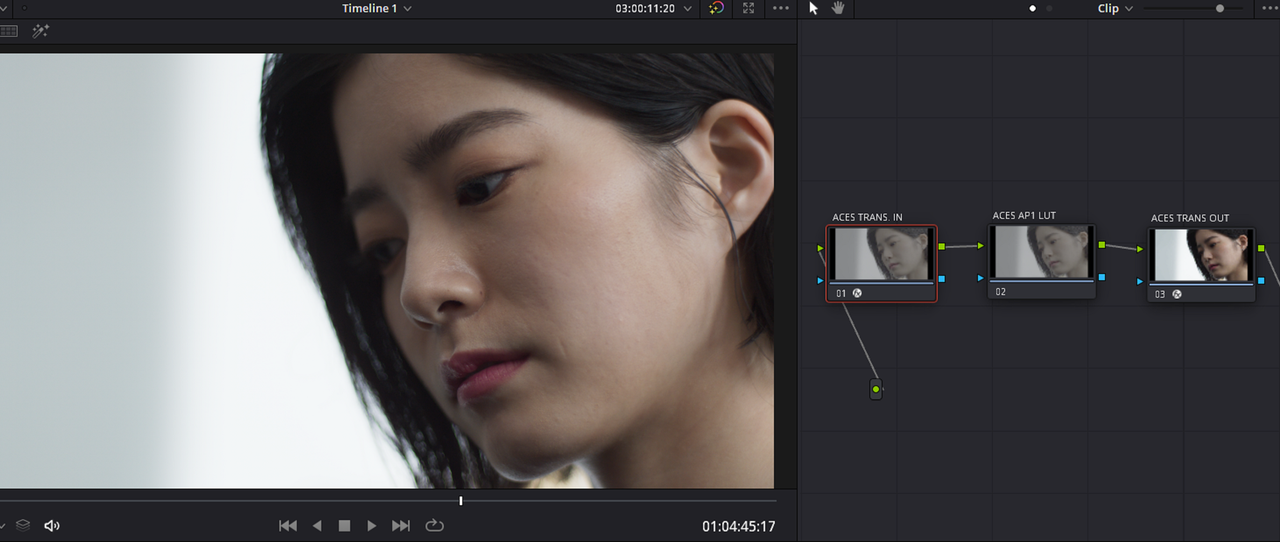
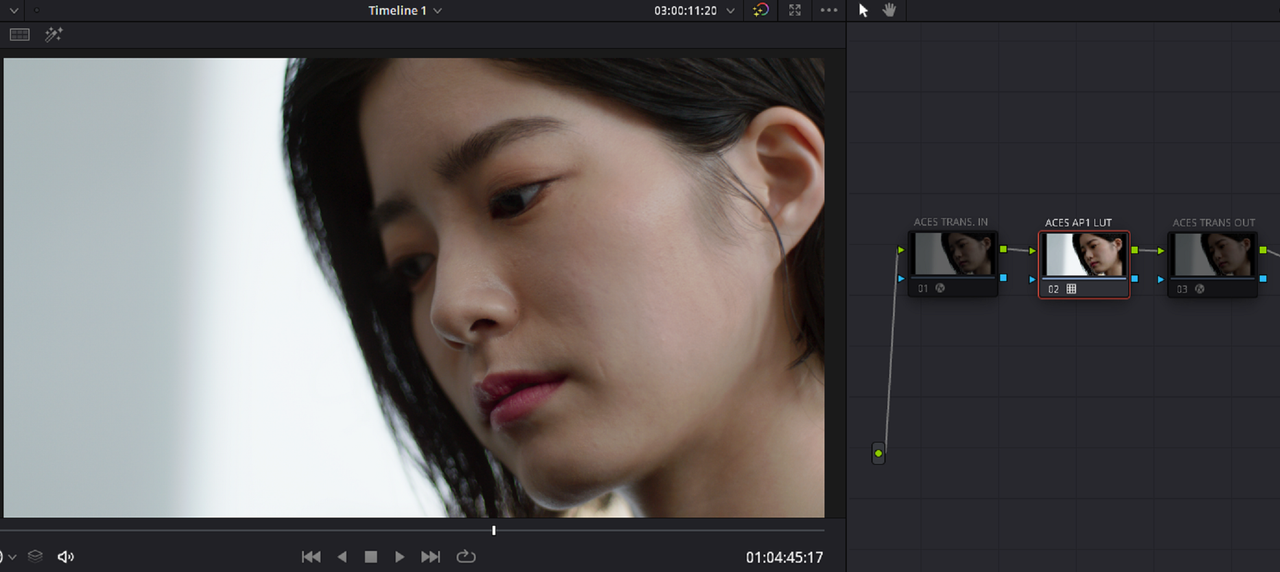
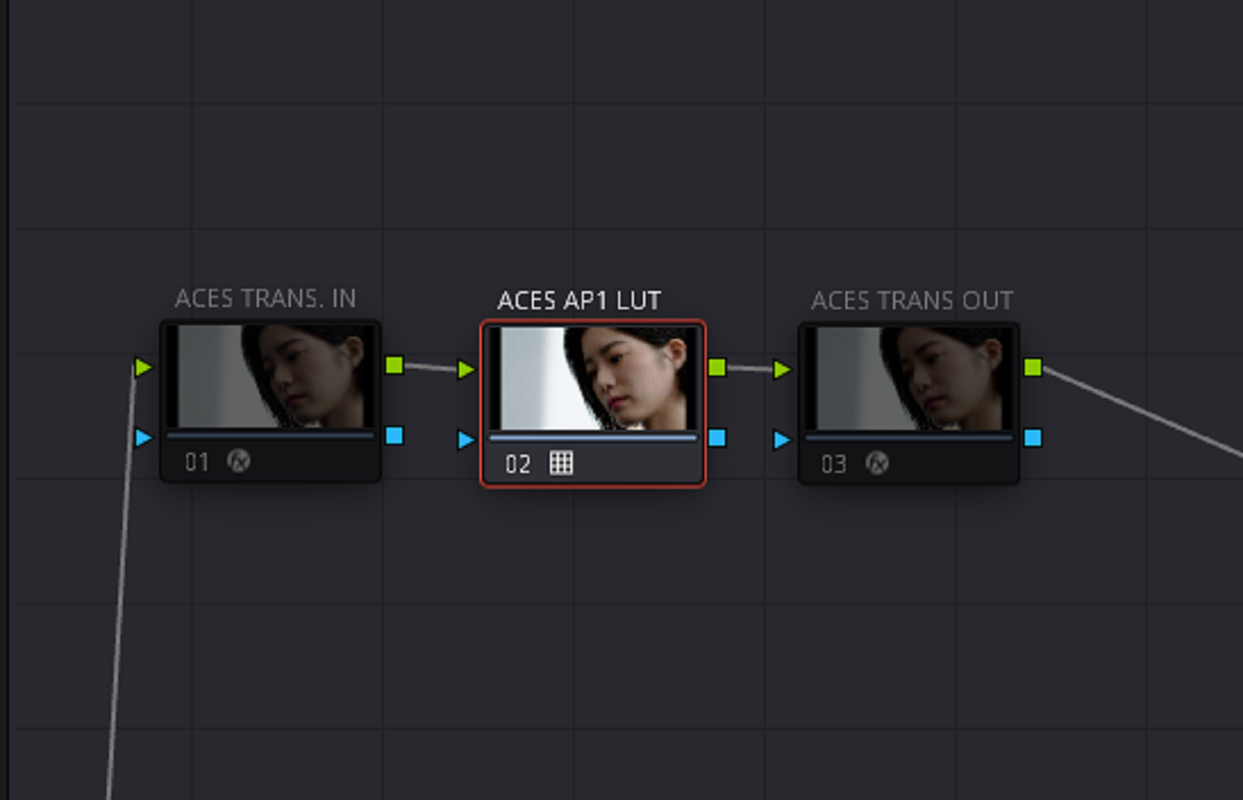
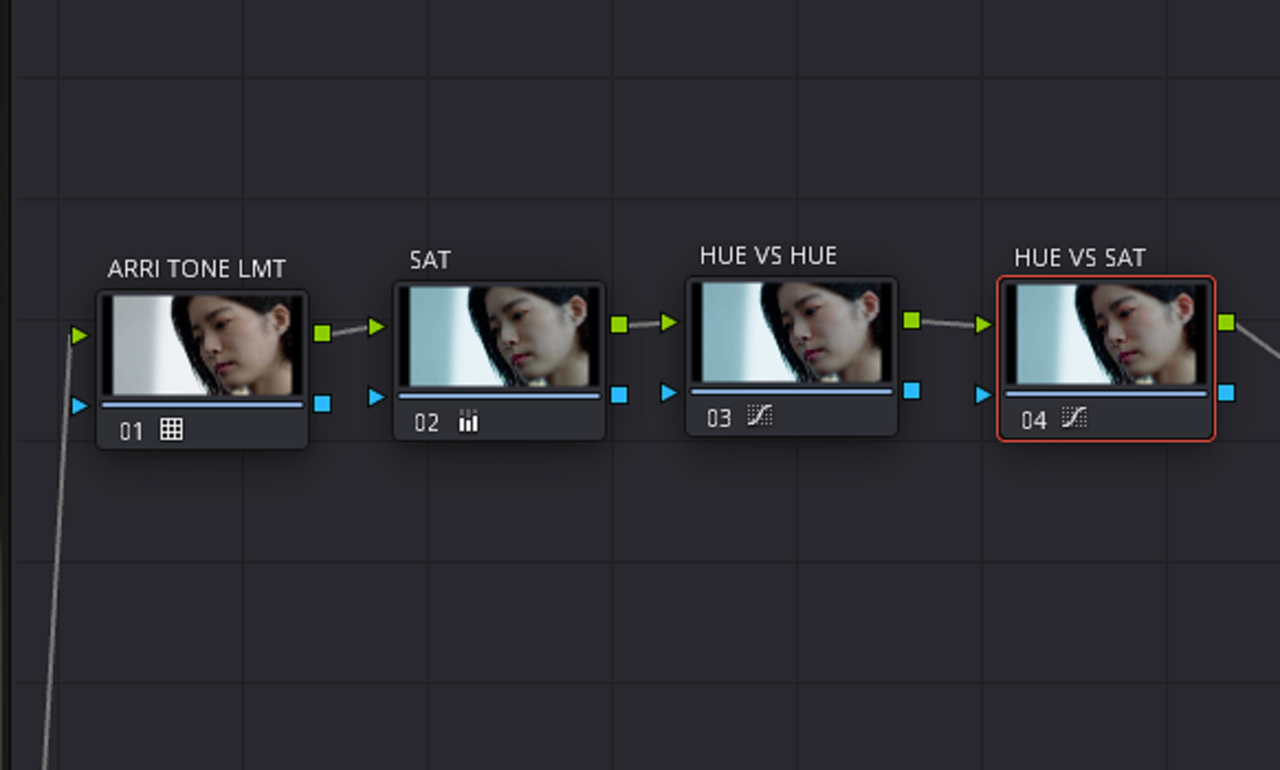
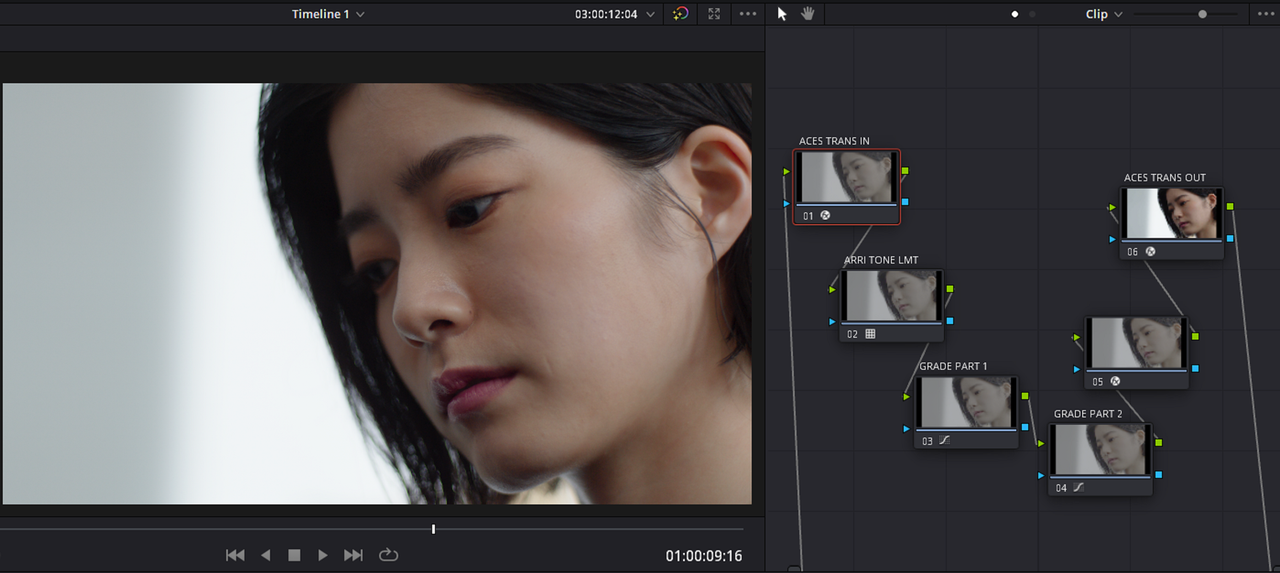
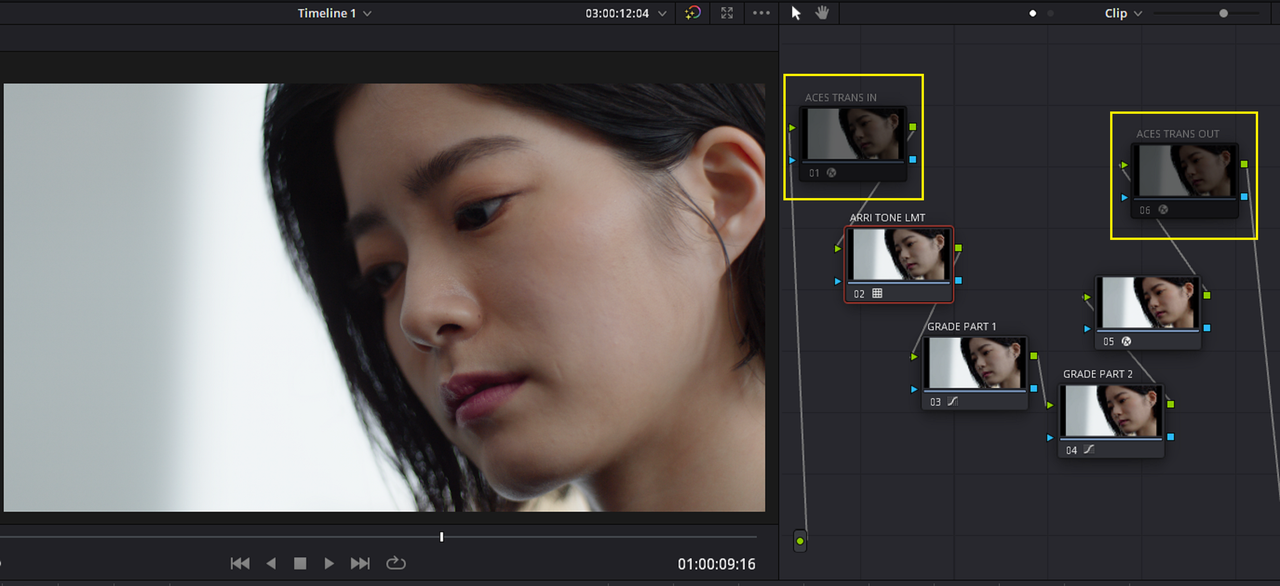
HERE IS NOW MY DEFAULT NODE TREE FOR AN ACESCCT NODE BASED WORKFLOW. HOWEVER TWO OF THE NODES IN THE NODE TREE ARE DISABLED UNTIL I NEED THEM.


2.png


3.png


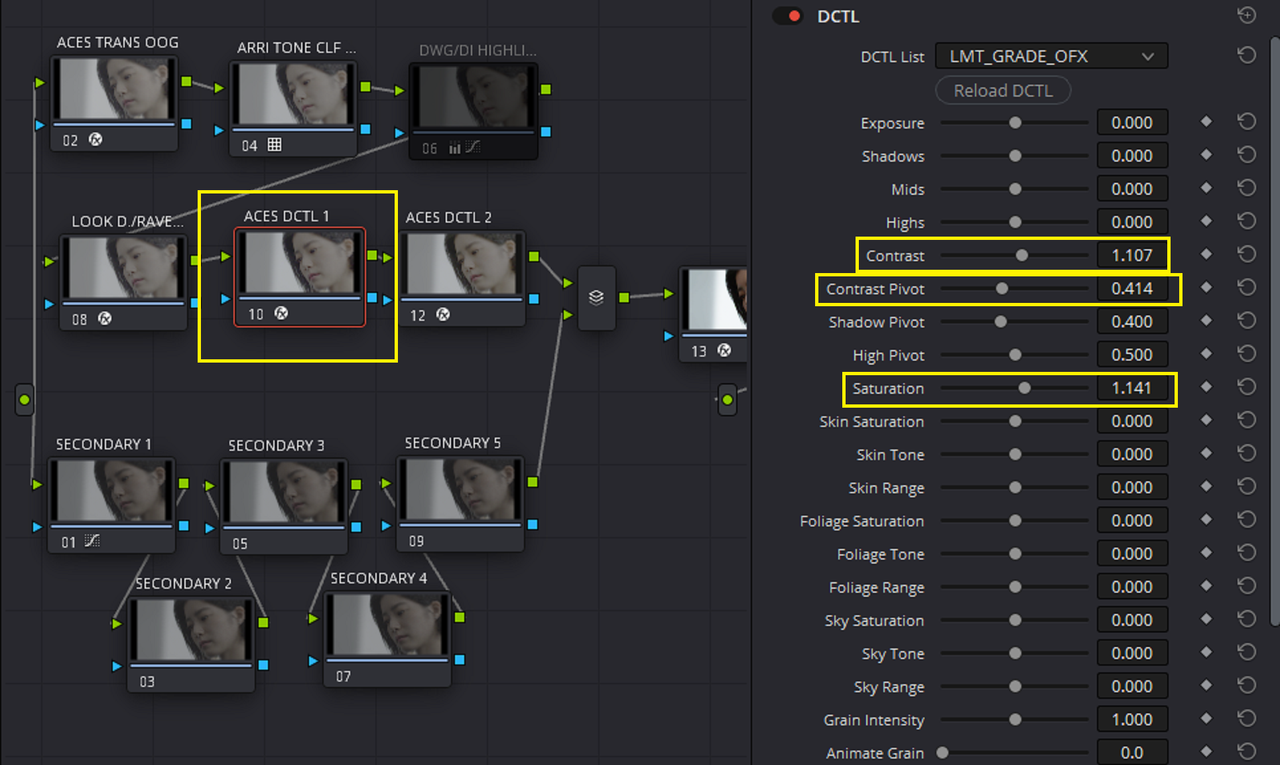
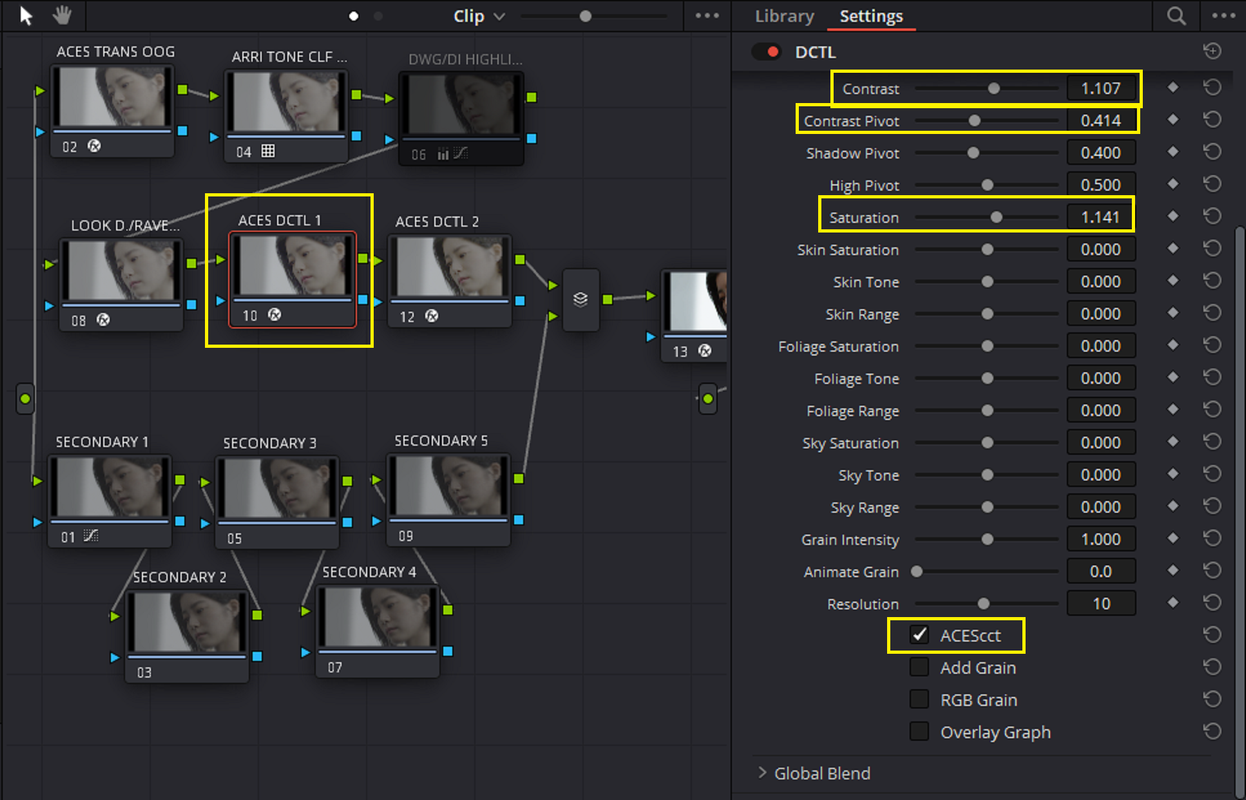
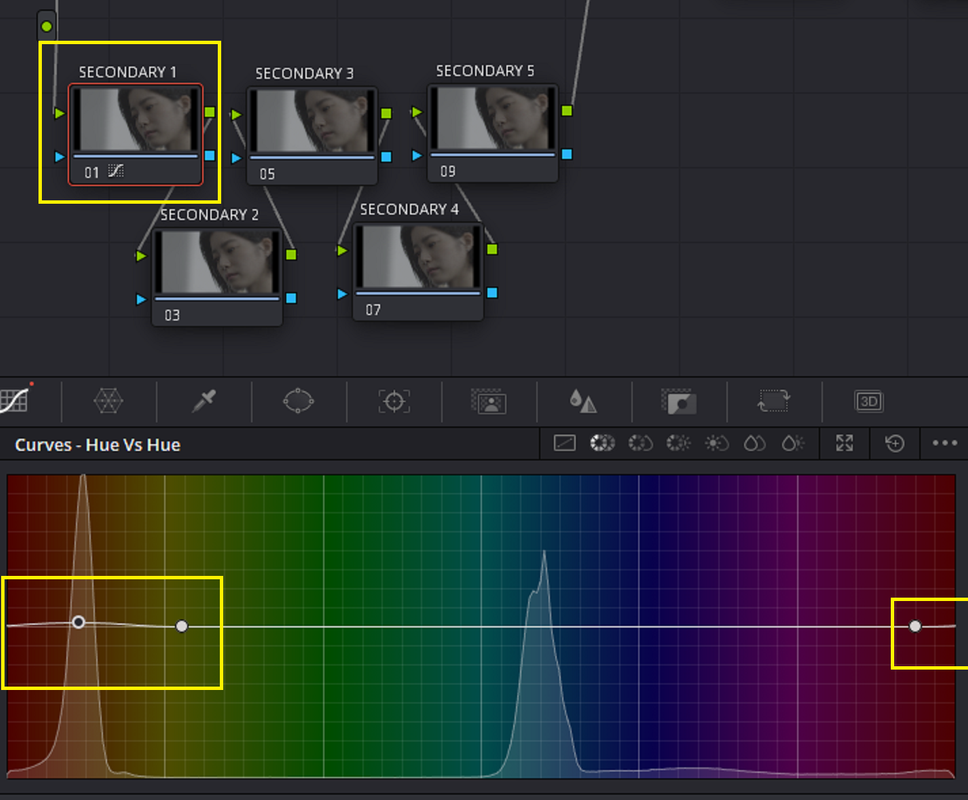
HERE IS A GRADE OF AN ALEXA 35 SAMPLE IMAGE WITH THE NODE TREE SHOWN ABOVE. I USED A "DCTL" AND A "HUE vs HUE" FOR A QUICK GRADE.

4.png


5.png


6.png


7.png


7A.png


7B.png


7C.png


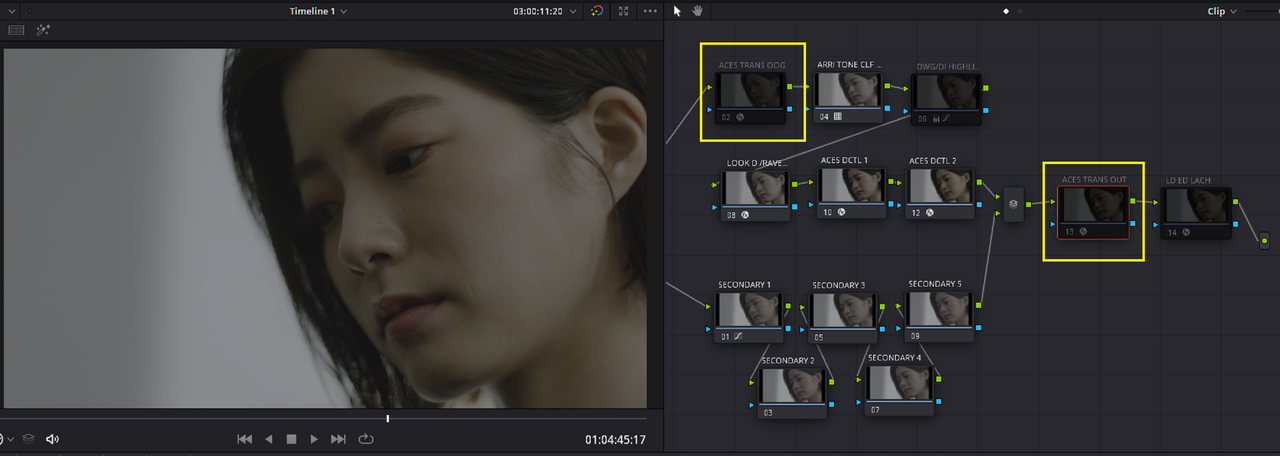
NOW I DISABLE BOTH THE "ACES TRANSFORM IN" AND THE "ACES TRANSFORM OUT". AT THIS POINT I CAN EITHER GENERATE A LUT WITH "GENERATE LUT" IF I DIDN'T USE ANY DCTLs OR START THE "DCTL TO LUT" PROCESS. I USED ONE DCTL SO I WILL HAVE TO START THE "DCTL TO LUT" PROCESS I DESCRIBED ABOVE.

8.png

9.png


GENERATE LUT

9A.png


BEGINNING OF DCTL TO LUT PROCESS

10A.png


10B.png


10C.png


WITH COMPLETED LUT BACK INSIDE OF RESOLVE

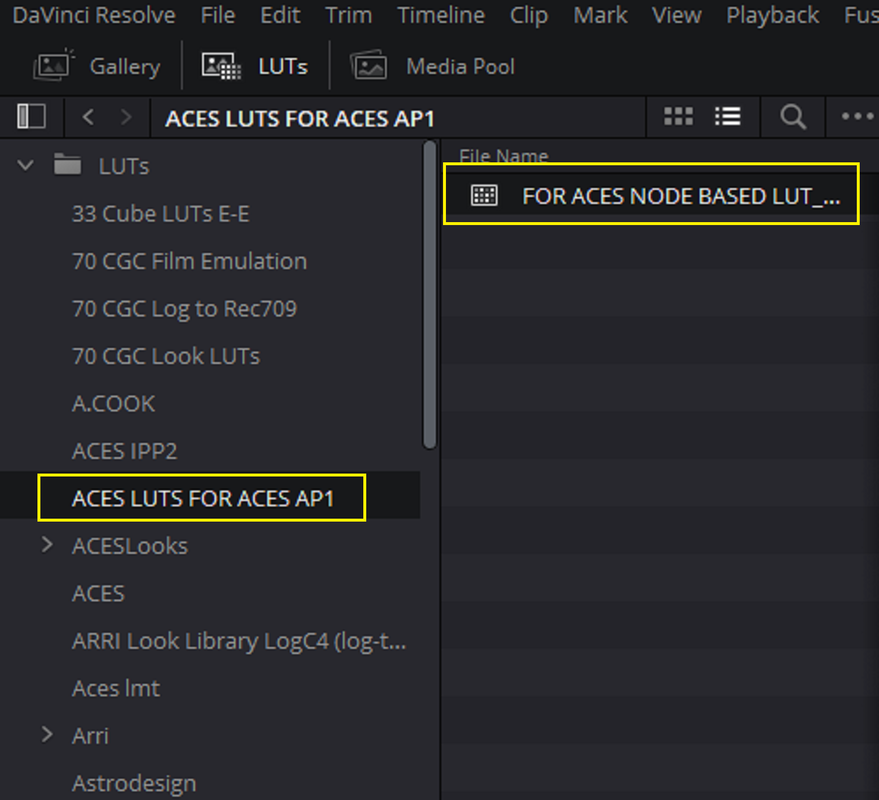
AFTER APPLYING THE LUT TO YOUR "LUT FOLDER", CREATE A SIMPLIER NODE BASED ACES WORKFLOW AND APPLY THE LUT. THIS LUT CAN ALSO BE APPLIED IN AN ACES PROJECT BASED WORKFLOW AS WELL.

1.png


10.png


11.png


12.png


13.png


14.png


14A.png


ACES PROJECT

15.png


16.png


17.png


18.png


ACES NODE BASED

ACES-NODE-BASED-GRADE-1-13-1.png


ACES LUT


ACES-LUT-1-13-2.png


ACES PROJECT

ACES-PROJECT-WITH-LUT-1-13-3.png
 
Last edited:
Cine Lens Test with ARRI 35 & ARRI Mini LF (4K)

by
Gorilla Cinema Force


Video Chapters:

00:00 Introduction
00:21 ARRI ALEXA 35 + ARRI Master Prime 25mm
00:34 ARRI MINI LF + ARRI Master Prime 25mm
00:46 ARRI ALEXA 35 + ARRI Master Prime 50mm
01:01 ARRI MINI LF + ARRI Master Prime 50mm
01:18 ARRI ALEXA 35 + ARRI Master Prime 75mm
01:39 ARRI MINI LF + ARRI Master Prime 75mm
01:54 ARRI ALEXA 35 + ARRI Signature Prime 25mm
02:13 ARRI MINI LF + ARRI Signature Prime 25mm
02:23 ARRI ALEXA 35 + ARRI Signature Prime 47mm
02:34 ARRI MINI LF + ARRI Signature Prime 47mm
02:44 ARRI ALEXA 35 + ARRI Signature Prime 75mm
02:54 ARRI MINI LF + ARRI Signature Prime 75mm
03:15 ARRI ALEXA 35 + Blackwing 27mm
03:37 ARRI MINI LF + Blackwing 27mm
03:48 ARRI ALEXA 35 + Blackwing 57mm
04:03 ARRI MINI LF + Blackwing 57mm
04:14 ARRI ALEXA 35 + Blackwing 77mm
04:28 ARRI MINI LF + Blackwing 77mm
04:38 ARRI ALEXA 35 + Zeiss Superspeed 25mm
04:52 ARRI MINI LF + Zeiss Superspeed 25mm
05:08 ARRI ALEXA 35 + Zeiss Superspeed 50mm
05:28 ARRI MINI LF + Zeiss Superspeed 50mm
05:48 ARRI ALEXA 35 + Ironglass Mir 37mm
06:06 ARRI MINI LF + Ironglass Mir 37mm
06:14 ARRI ALEXA 35 + Ironglass Helios 58mm
06:24 ARRI MINI LF + Ironglass Helios 58mm
06:46 ARRI ALEXA 35 + Cooke mini S4 25mm
06:56 ARRI MINI LF + Cooke mini S4 25mm
07:01 ARRI ALEXA 35 + Cooke mini S4 50mm
07:08 ARRI MINI LF + Cooke mini S4 50mm
07:14 ARRI ALEXA 35 + Zeiss Jena 20mm F4
07:22 ARRI MINI LF + Zeiss Jena 20mm F4
07:28 ARRI ALEXA 35 + Zeiss Jena 50mm F2
07:35 ARRI MINI LF + Zeiss Jena 50mm F2
07:43 ARRI ALEXA 35 + Atlas Orion 32mm
07:52 ARRI ALEXA 35 + Atlas Orion 65mm
08:00 ARRI ALEXA 35 + Lomo Roundfront 35mm F2.5
08:21 ARRI ALEXA 35 + Lomo Roundfront 50mm F2.4
08:33 ARRI ALEXA 35 + Leica R 19mm
08:53 ARRI MINI LF + Leica R 19mm
09:07 ARRI ALEXA 35 & ARRI MINI LF + Leica R 35mm Summilux, Olympus OM 35mm F2, Olympus OM 50mm F1.2,
09:21 ARRI ALEXA 35 & ARRI MINI LF + Nikon AIS 35mm F2, Nikon AIS 50mm F1.2, Canon FD 35mm F2, Canon FD 55mm F1.2
10:06 Credits
 
Last edited:
HOW TO CREATE A LUT/LMT( for AP1) FOR ACEScct With ACES Project settings

Again, this is a LUT/LMT designed for use with ACES AP1 and Not AP0/Linear. The difference being is if you are not going to export the Aces Project out for Archival purposes to OPEN EXR or 16-bit TIFF this can be used. However, If this ACES project will be exported out for Archival purposes to OPEN EXR or 16-bit TIFF then this Lut designed for ACES AP1 will restrict the dynamic range and other aspects of the image so only a LMT designed for AP0/Linear can be used and this Lut should be deleted before any Archiving.


Project Settings And Workflow

VERY IMPORTANT!!!!

Whereas in an "ACES NODE BASED" workflow you could use either Raw or Transcoded/ Non-Transcoded ProRes, DNxHR ..etc files to create a Lut with. In an "ACES PROJECT" Workflow, if you want the resulting Lut to be "UNIVERSAL" for any IDT and ODT, You can't use a raw file because IDTs are automatically assigned at Import of those Raw clips. So unlike the "ACES NODE BASED" approach, you'll have to transcode a raw "HERO" shot to something like ProRes or DNxHR before you can begin the Process.

I used a PRORES 4444XQ file transcoded from an ARRIRAW file inside of the ARRI REFERENCE TOOL


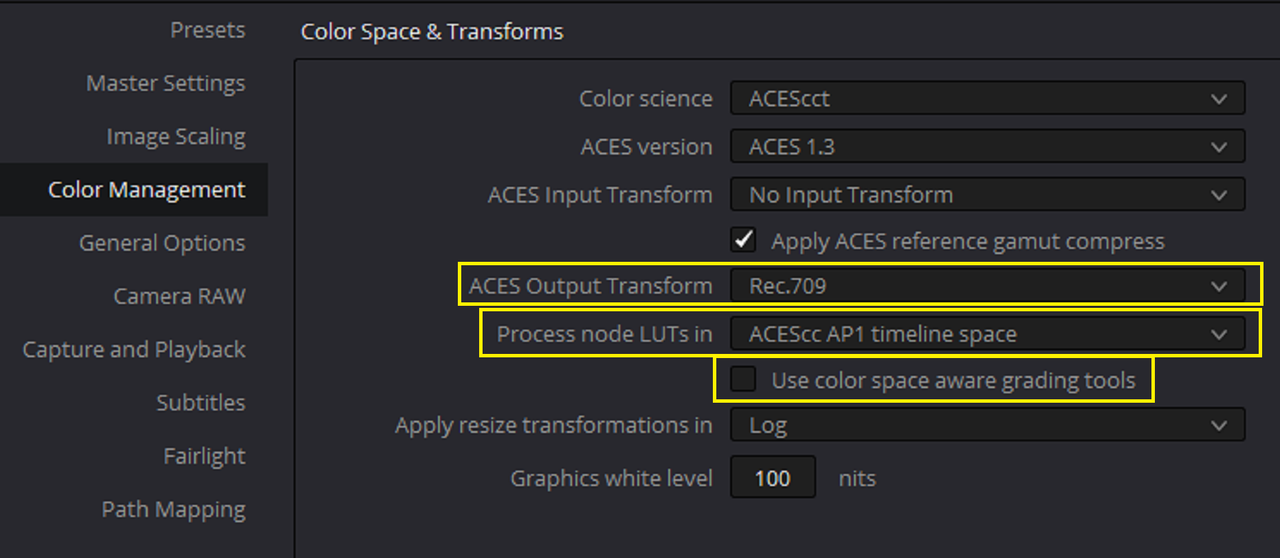
In the screengrab below I have "AP0 LINEAR" selected next to "PROCESS NODE LUTS IN" because I will use an ACES LMT designed for AP0/Linear in this example. Also, I have "USE COLOR SPACE AWARE GRADING TOOLS" "UN-CHECKED".

This is because if you plan on using a Lut from a grade from either an "ACES NODE BASED" or "ACES PROJECT" based workflow, if you want the Lut to be interchangeable between the two workflows, you will have to leave this un-checked.

The reason is because when you select "USE COLOR SPACE AWARE GRADING TOOLS" in the "ACES PROJECT" workflow it enables certain functionalities that make the grading tools respond the way you are normallly use to using them in other non Aces workflows. However, this causes the grades between the two workflows to look dramatically different.


1.png


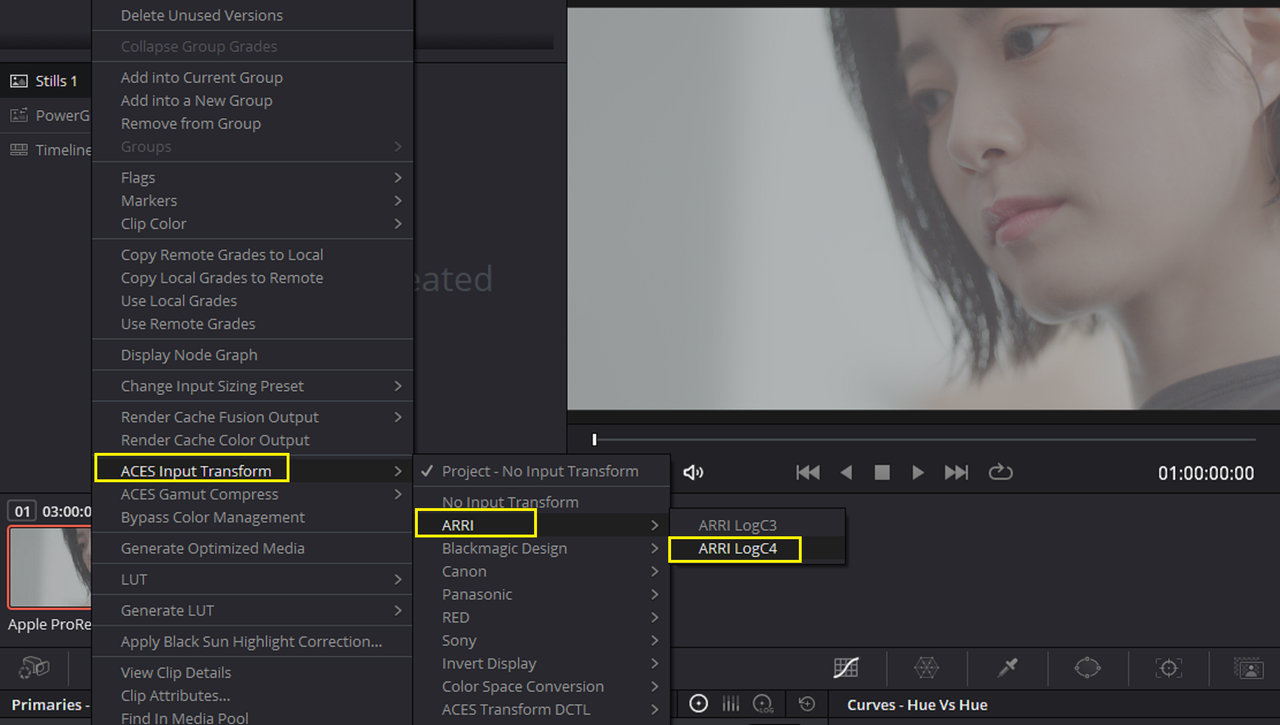
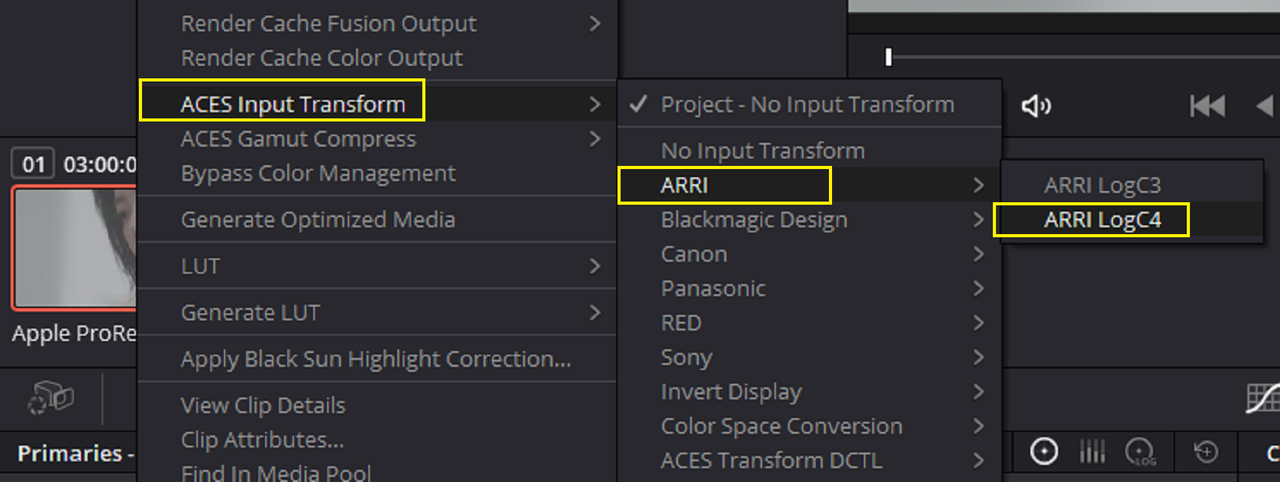
You must first select the correct IDT for the video clip which in this case is "ARRI LOG C4"

1a.png


1B.png


2.png


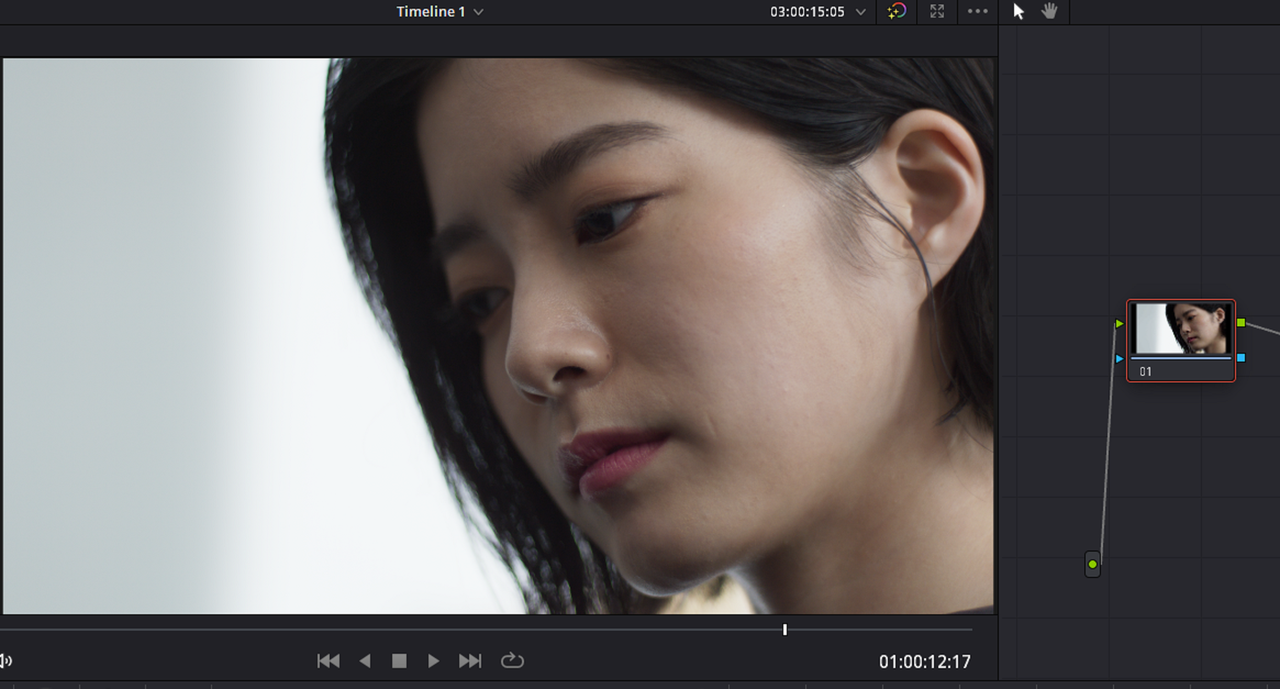
Here is the Clip without the "T-ARRI TONE" LMT designed for AP0/ LINEAR applied to it and with the "T-ARRI TONE" LMT applied.

3.png


3B.png


4.png


Next, Here is the Grade, just something as an example grade.

5.png


6.png


7-ACES-PROJECT-1-1-4.png


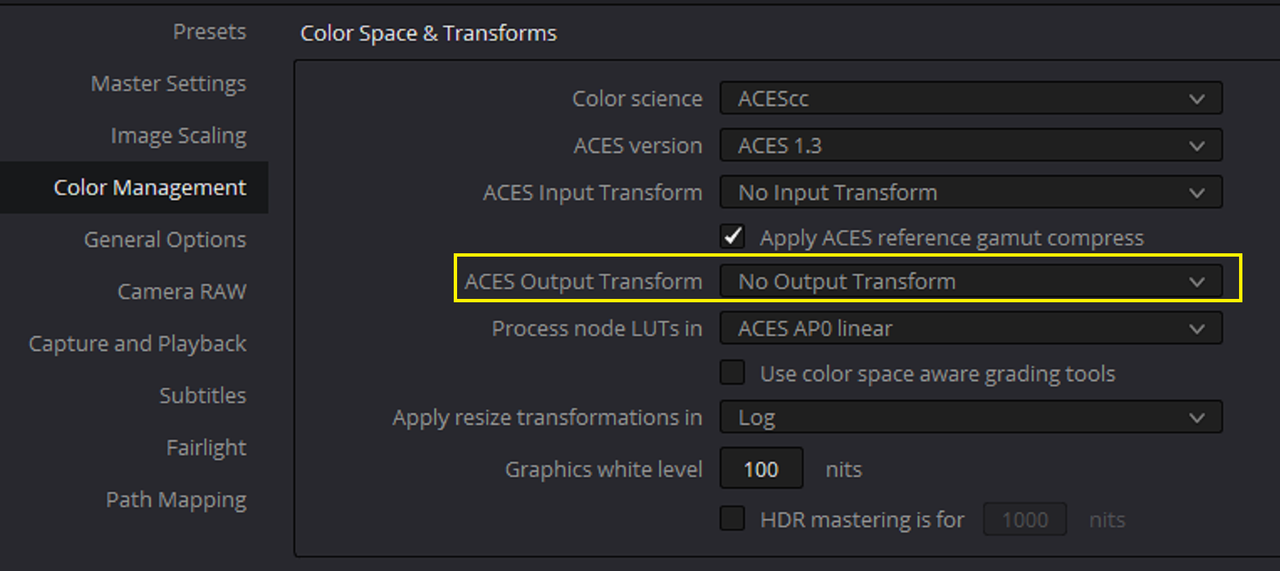
Now, first change the "ARRI LOGC4" IDT back to "NO INPUT TRANSFORM" . Then in the "PROJECT SETTINGS" " COLOR MANAGEMENT" Area change "ACES OUTPUT TRANSFORM" from "REC709" to "NO OUTPUT TRANSFORM"


8.png


9.png


The resulting image should look like this

1-1-7-1-1-7.png


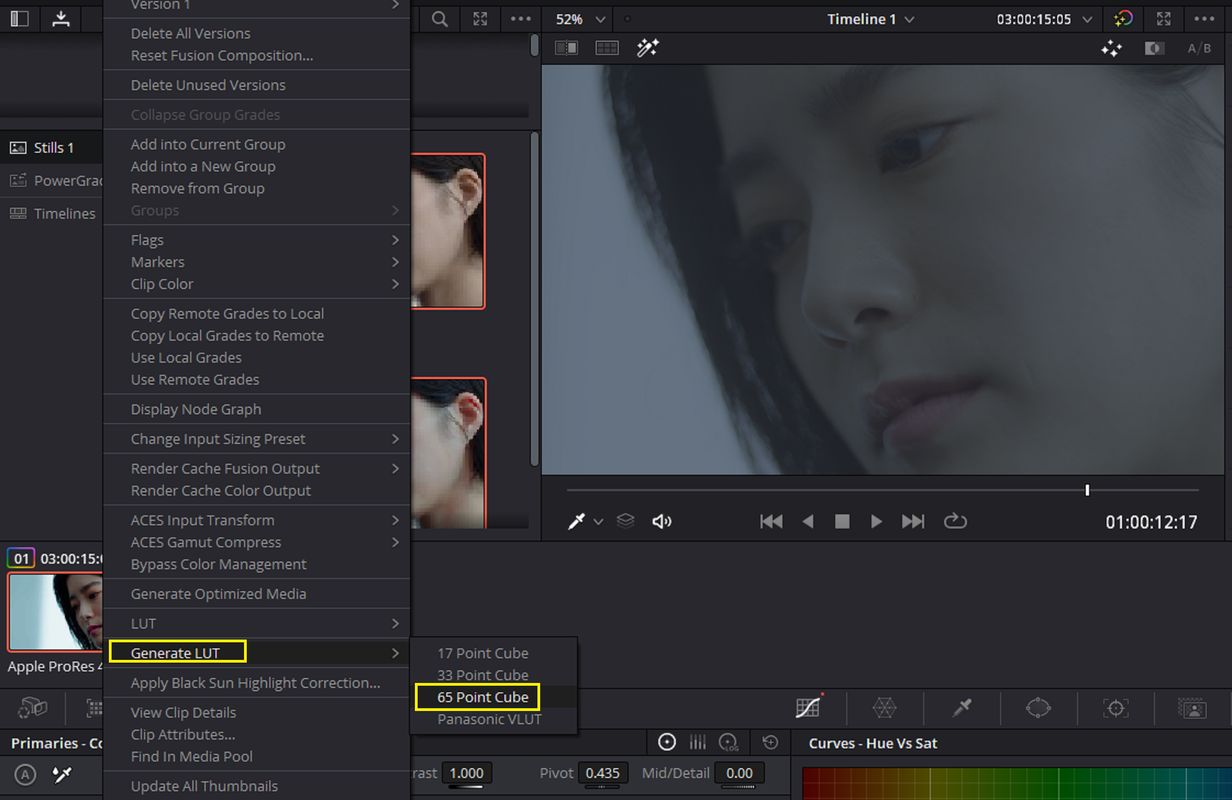
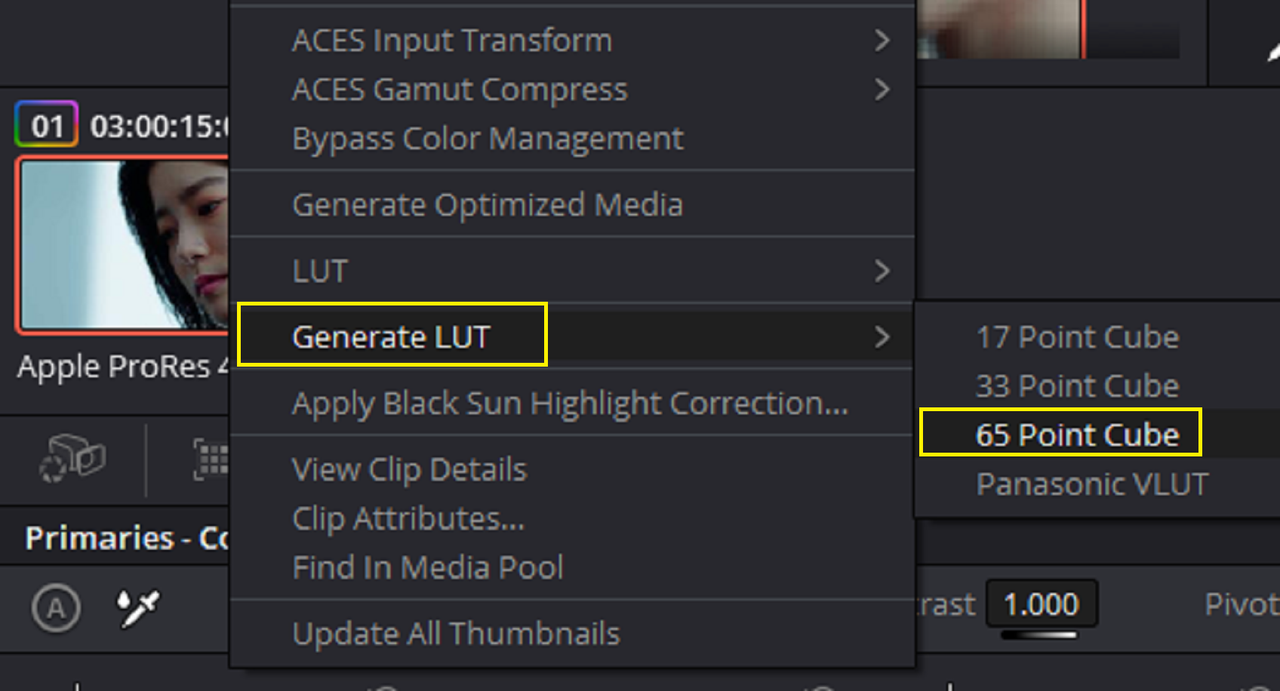
Now "GENERATE LUT" to export the grade as a Lut.


9A.png


10.png


Once you come back into Resolve make sure you have "ACES OUTPUT TRANSFORM" set back to "REC709" and you change "PROCESS NODE LUTS IN" from "ACES AP0 LINEAR" to "ACEScc AP1 TIMELINE SPACE". Also keep ''USE COLOR SPACE AWARE GRADING TOOLS'' unchecked also.


11.png


Apply the "ARRI LOGC4" IDT back to the Image and apply the "AQUA BLUE " Lut

1B.png


12.png


13.png


IN ACES NODE BASED

15.png

16.png

17.png


18.png


ACES PROJECT


7-ACES-PROJECT-1-1-4.png


ACES LUT

ACES-LUT-with-aqua-blue-1-1-3.png


ACES NODE BASED


ACES-NODE-BASED.png
 
Last edited:
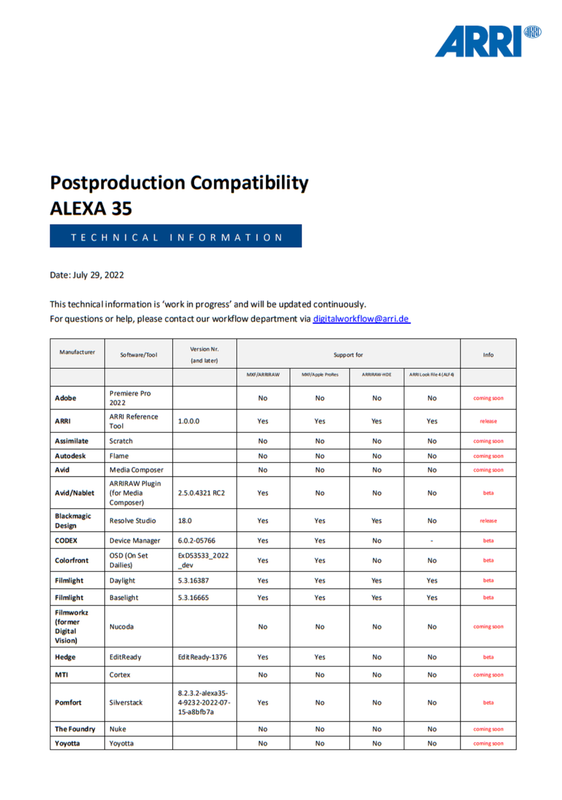
Postproduction Compatibility ALEXA 35-Updated JULY 29

https://www.arri.com/resource/blob/288774/6bc0afc68082a285b01f51221d4a9cd0/2022-07-arri-alexa35-compatibility-data.pdf

Screenshot-5982.png
 
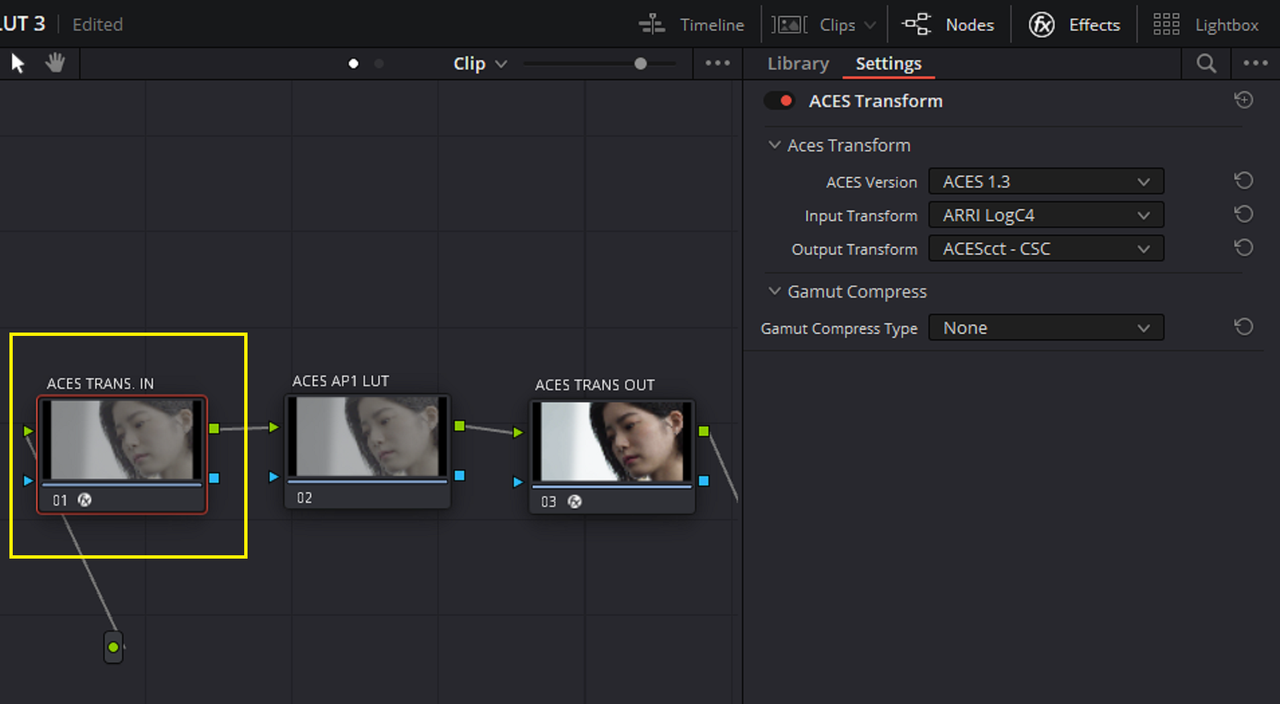
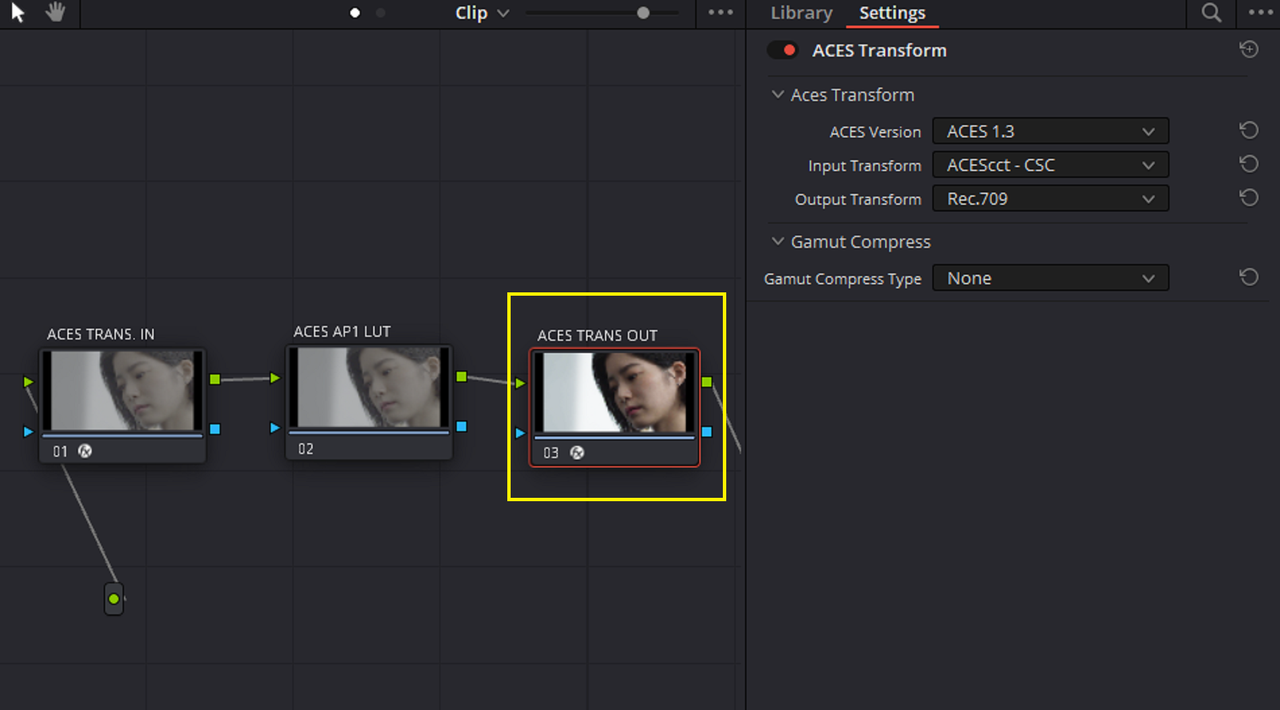
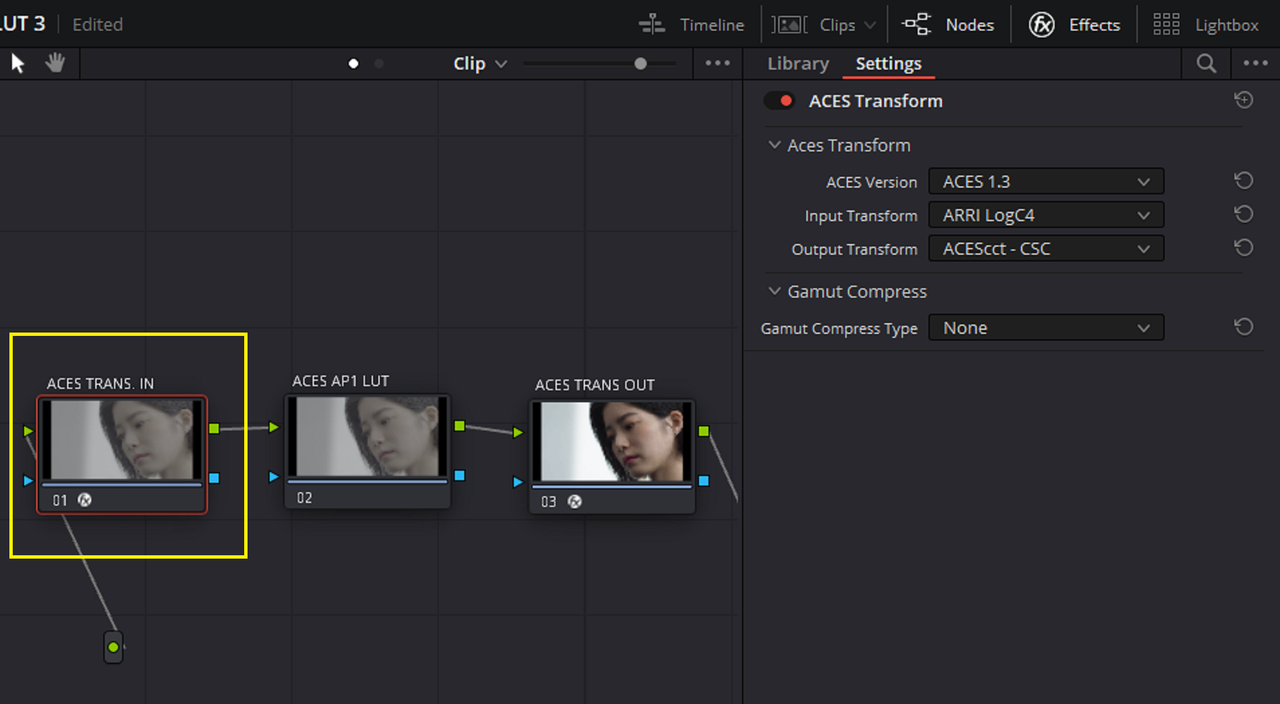
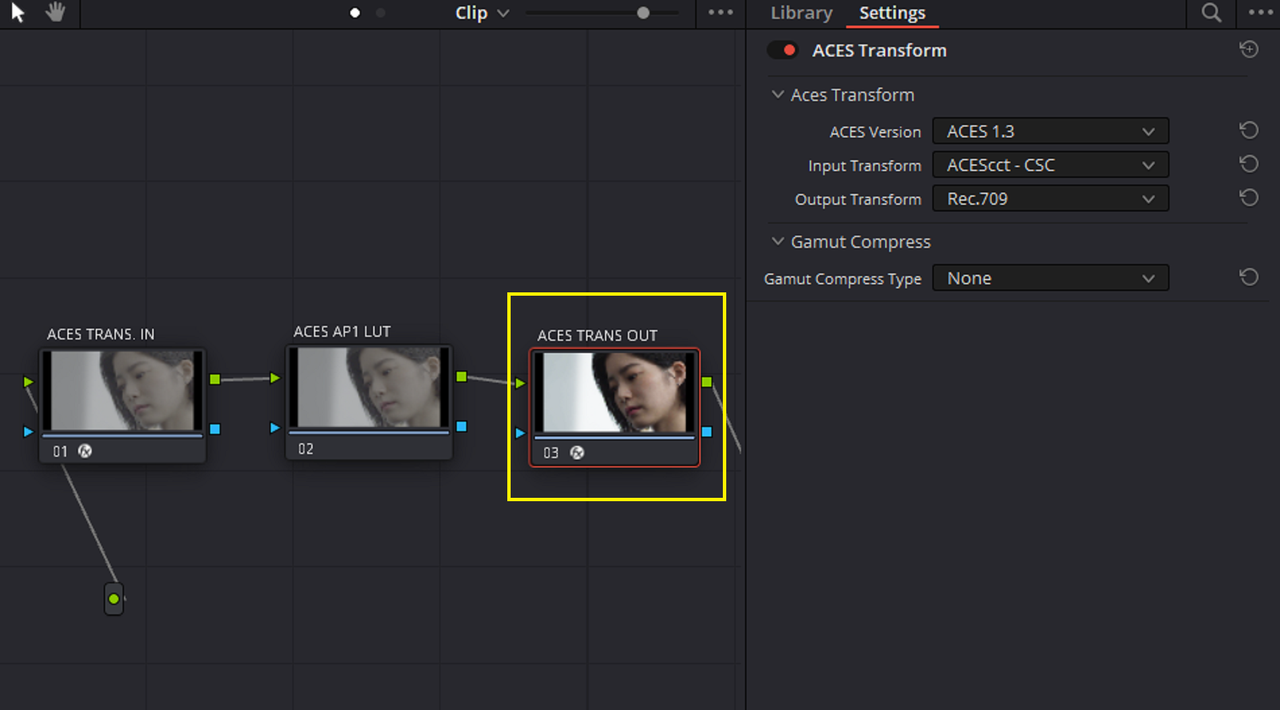
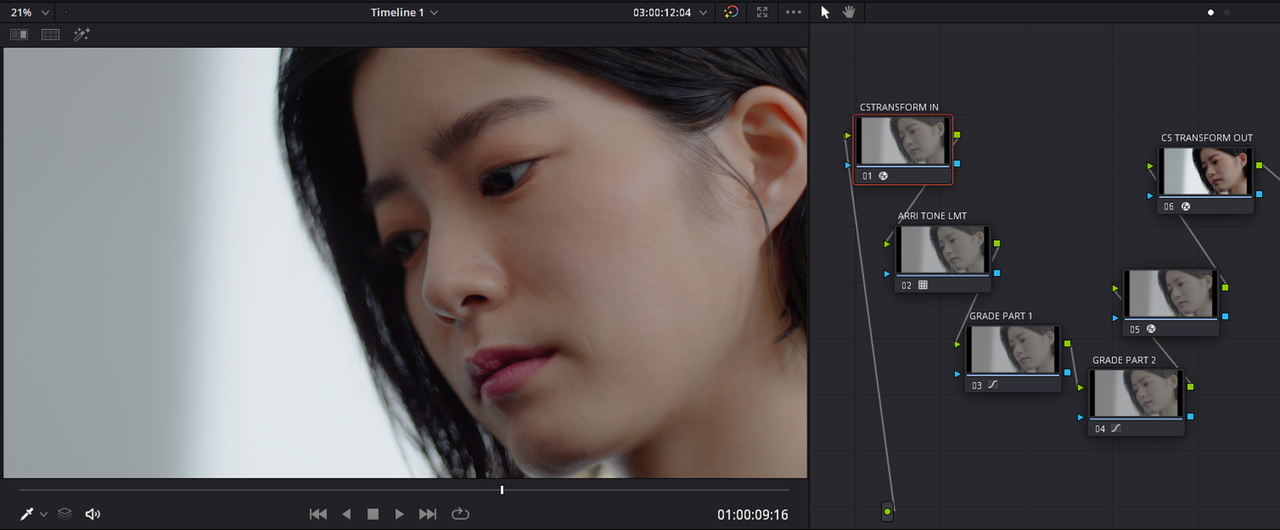
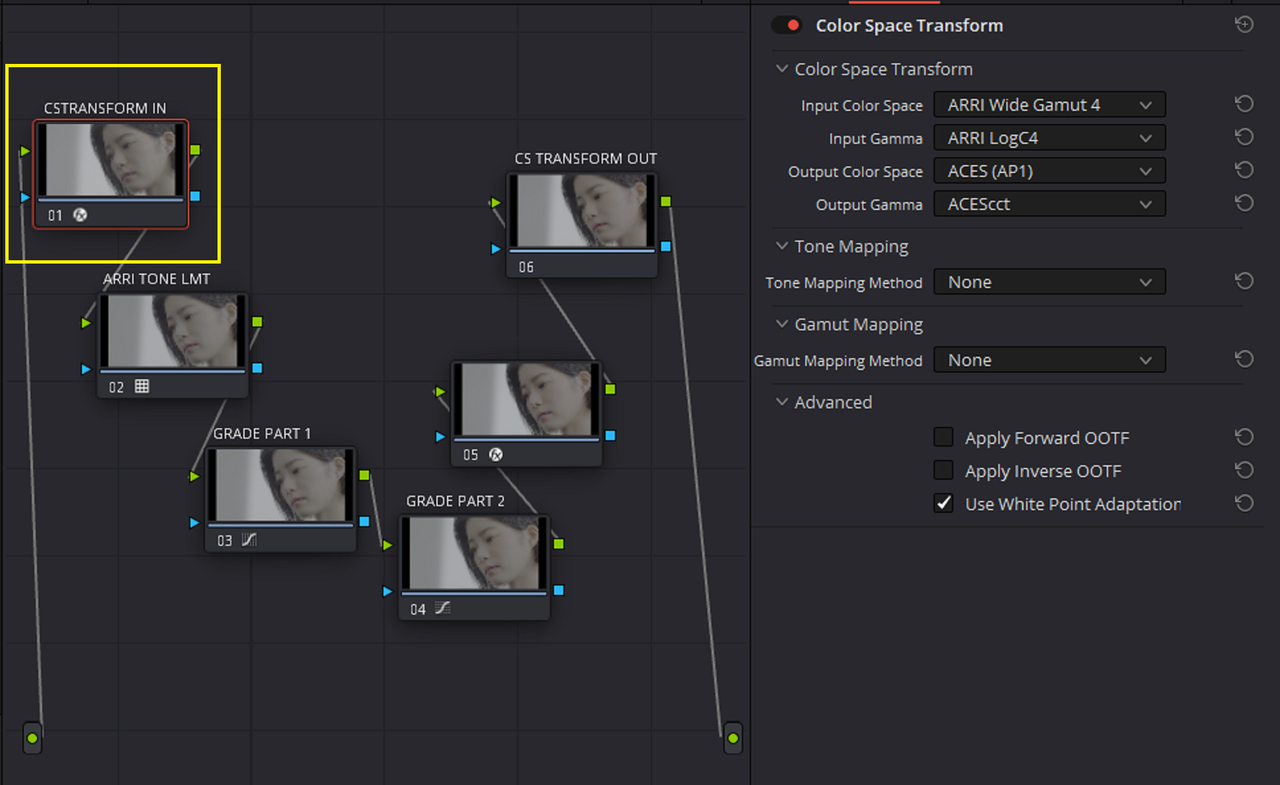
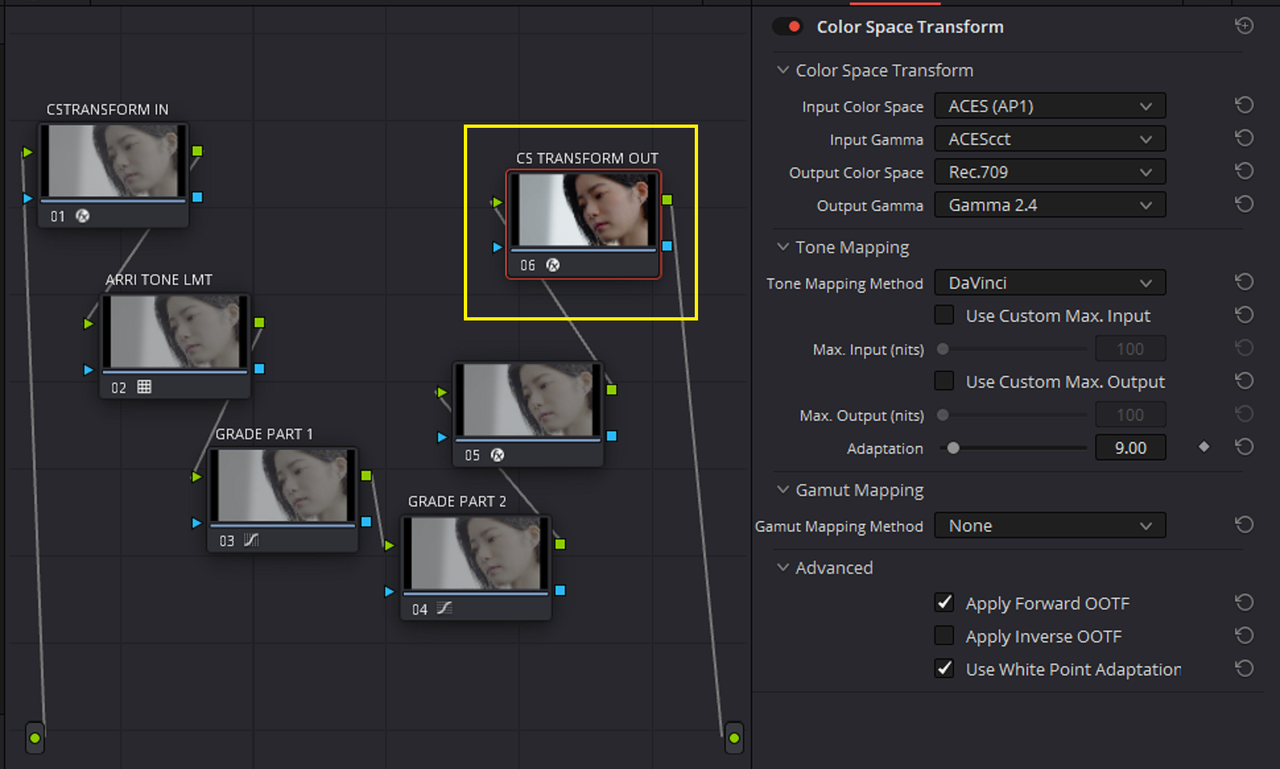
I just wanted to show a quick example of the difference results between an "ACES TRANSFORM" resulting look and a "COLOR SPACE TRANSFORM" resulting look for an " ACES NODE BASED" Workflow


I couldn't really find any real info in the "DAVINCI RESOLVE 18 MANUAL" of the differences between the two or maybe I just missed it within the 4020 pages.

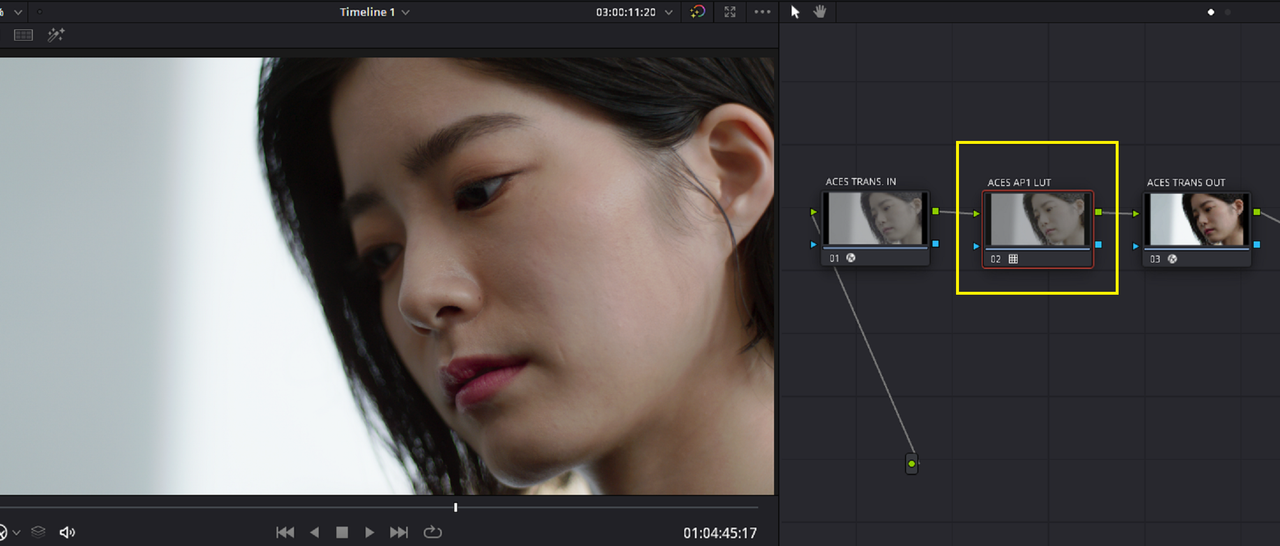
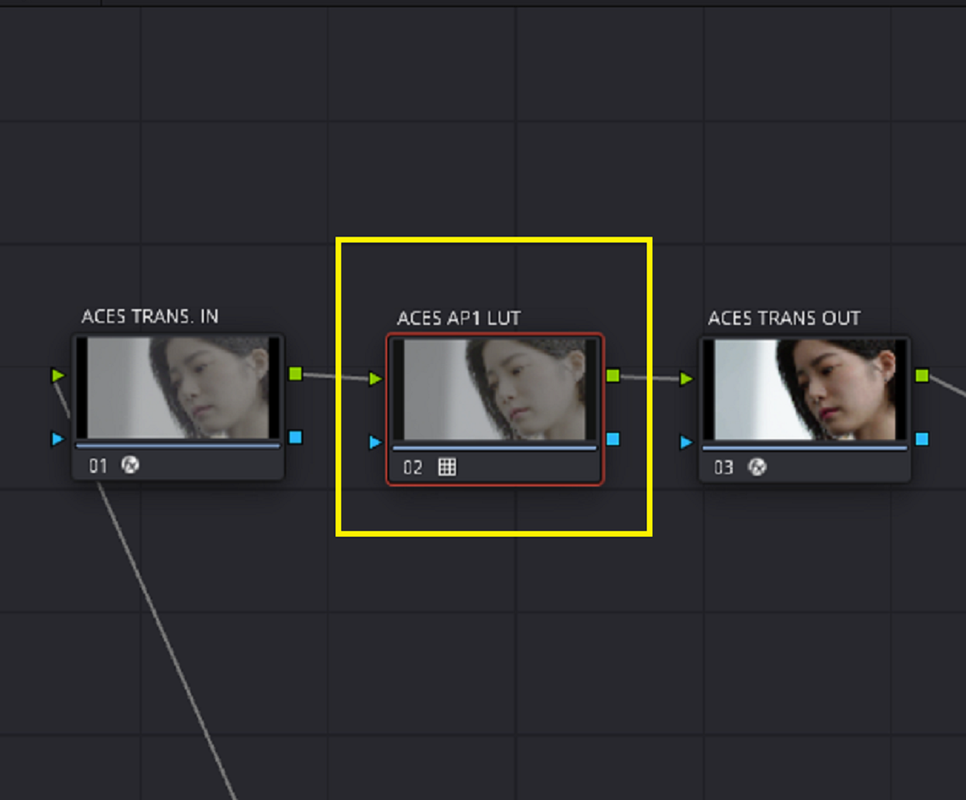
So below is how a sample Alexa 35 sample image looks in an ACES Node Based workflow using "ACES TRANSFORMS" and "COLOR SPACE TRANSFORMS" and how those images compare to an ACES Project Workflow.


Project and Settings

ACES NODE BASED WITH "ACES TRANSFORMS"

1.png


2.png


3.png


4.png


5.jpg


ACES PROJECT

6.png


7.png


8.jpg


I CAN'T CONFIRM IT, BUT I BELIEVE THAT THE ACES NODE BASED WORKFLOW WHICH USES "ACES TRANFORMS " AND THE ACES PROJECT WORKFLOW ARE UTILIZING THE SAME MATH DUE TO THE SIMILARITIES OF THE RESULTING IMAGES.


ACES NODE BASED

5.jpg


ACES PROJECT

8.jpg


ACES NODE BASED WITH "COLOR SPACE TRANSFORMS"

1.png


8b.png


9.png


10.png


11.jpg


THE RESULTING IMAGE FROM THE "COLOR SPACE TRANSFORM" ACES NODE BASED WORKFLOW LOOKS DIFFERENT FROM THE RESULTS FROM THE ACES NODE BASED WORKFLOW WHICH USES "ACES TRANFORMS " AND THE ACES PROJECT WORKFLOW. IT LOOKS MORE TONE-MAPPED DUE TO THE ADDITION OF THE "DAVINCI" TONE-MAPPING IN THE "COLOR SPACE TRANSFORM" ALONG WITH THE "ARRI TONE LMT" TONE-MAPPING

ACES NODE BASED WITH "ACES TRANFORMS " AND ACES PROJECT

8.jpg


ACES NODE BASED WITH "COLOR SPACE TRANFORMS "


11.jpg


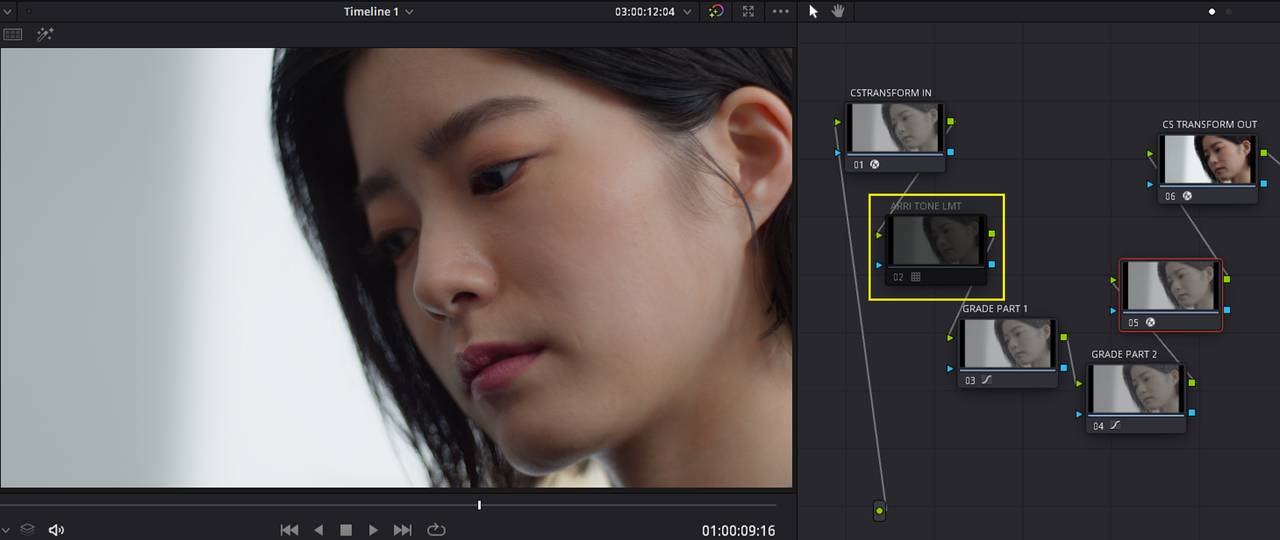
ACES NODE BASED WITH "COLOR SPACE TRANSFORMS" WITHOUT ARRI TONE LMT

1.png


12.png


13.jpg


WITHOUT THE "ARRI TONE LMT", THE TONE-MAPPING LOOKS THE SAME AS THE ACES NODE BASED WORFLOW WITH THE "ACES TRANSFORM" BUT IT LOOKS MORE SATURATED AND MORE RED.

ACES NODE BASED WITH "ACES TRANFORMS " AND ACES PROJECT

8.jpg


ACES NODE BASED WITH "COLOR SPACE TRANFORMS " AND NO ARRI TONE LMT


13.jpg
 
Last edited:
(RCM) RESOLVE COLOR MANAGED AND (CST) COLOR SPACE TRANSFORMS

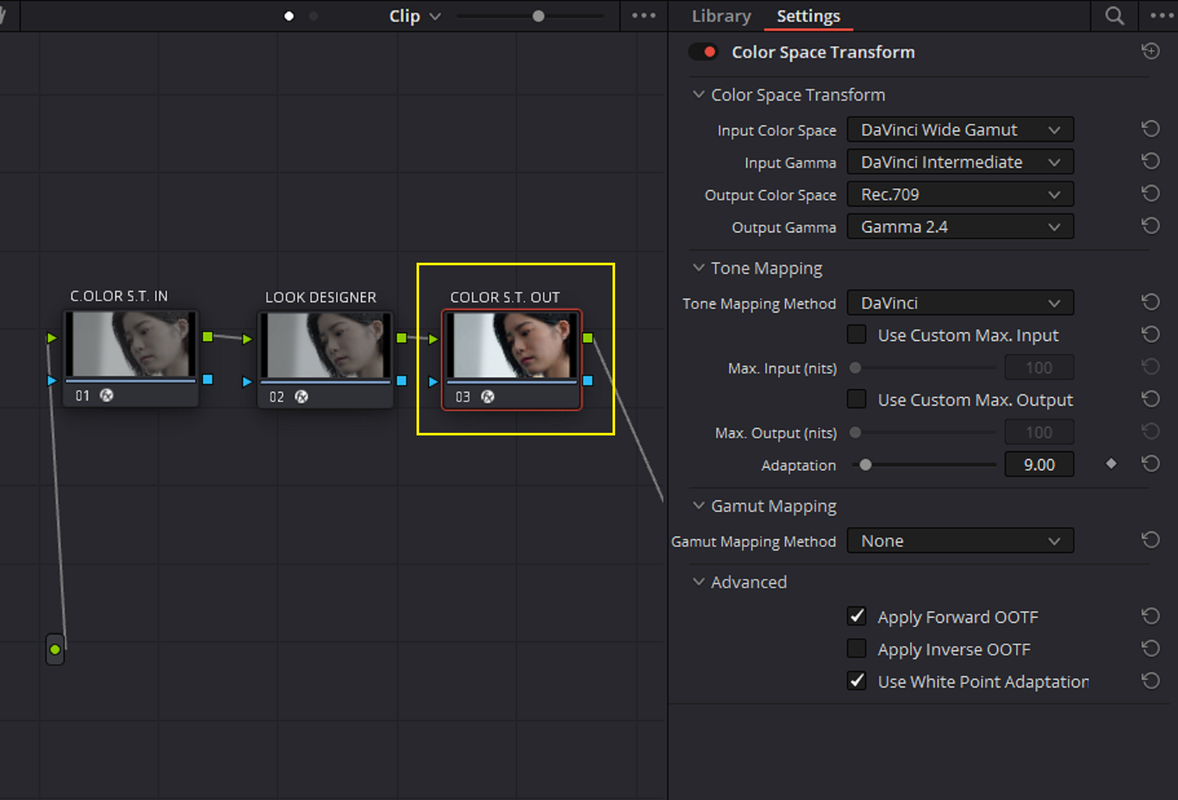
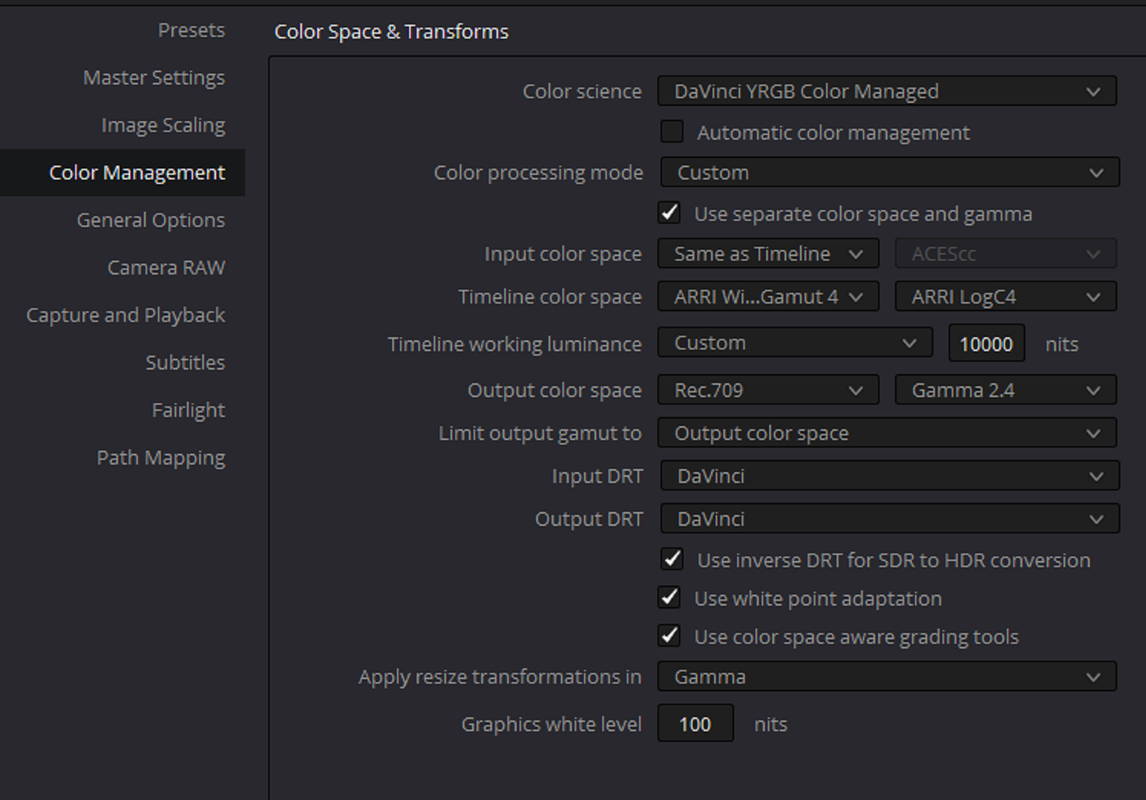
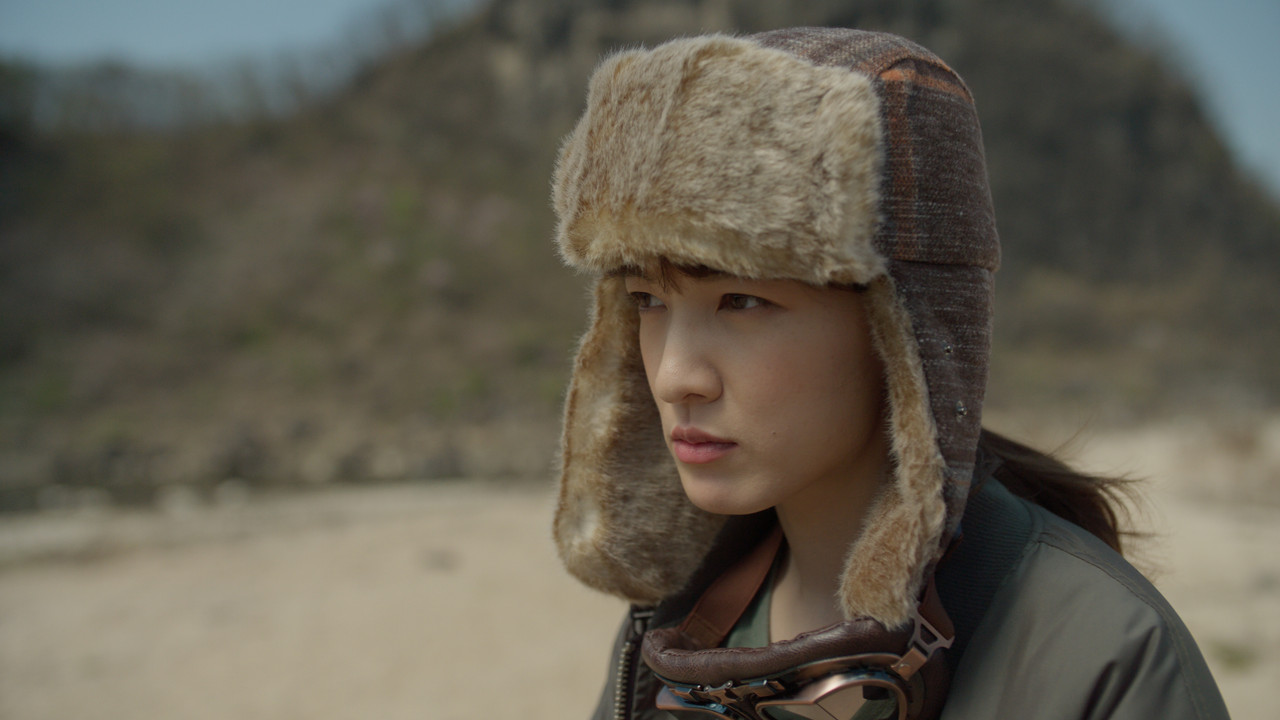
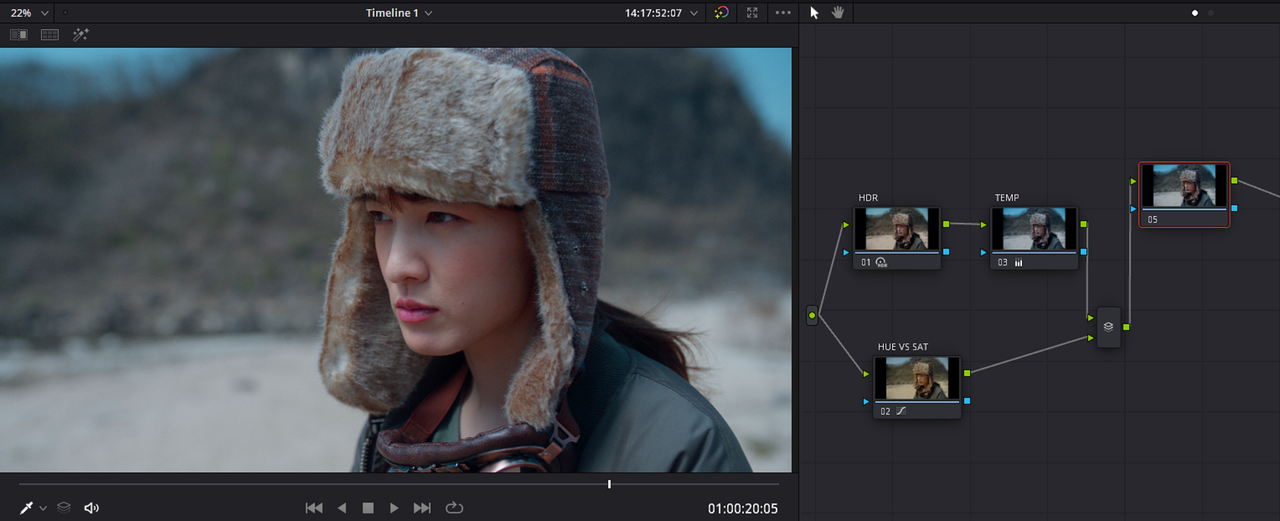
I Believe that the (DWG) Davinci Wide Gamut / Davinci Intermediate Project Resolve Color Managed Workflow and a Node based DWG/DI with Color Space Transforms Workflow are better complimentary workflows than to use CST's for an ACES Node based workflow. The resulting images also look the same between the two.


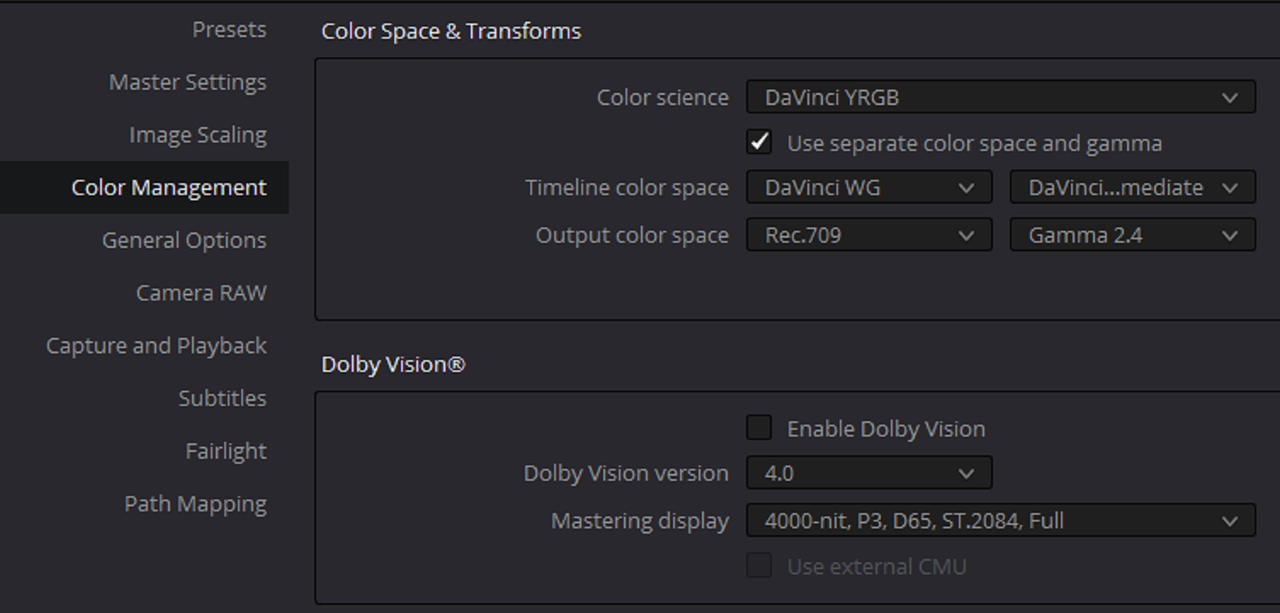
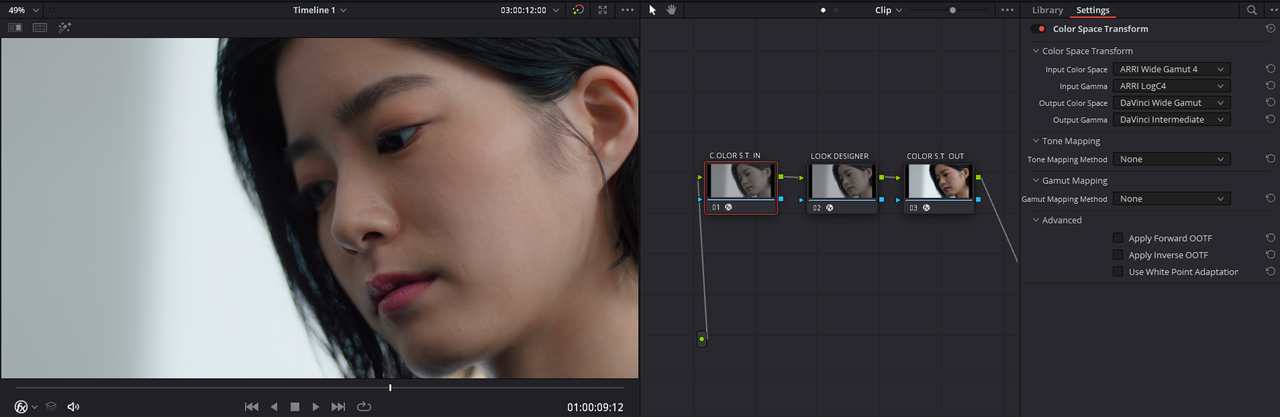
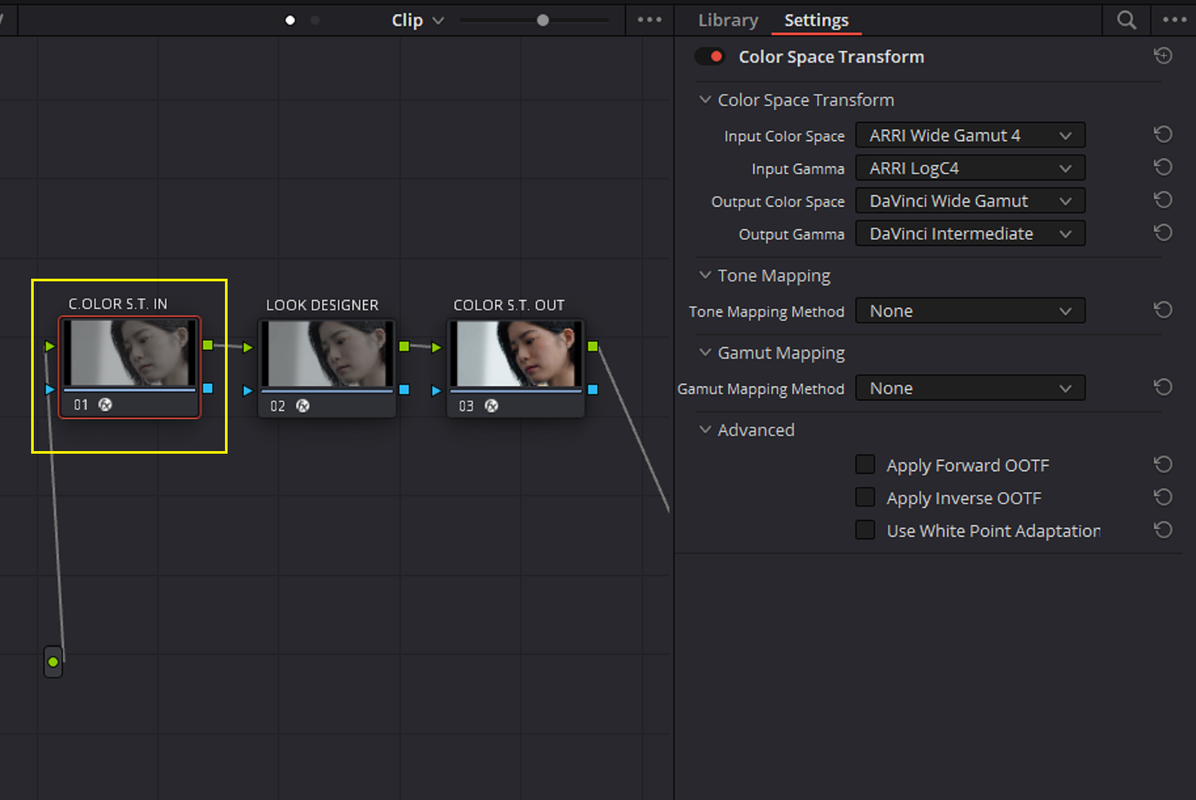
Project and Settings

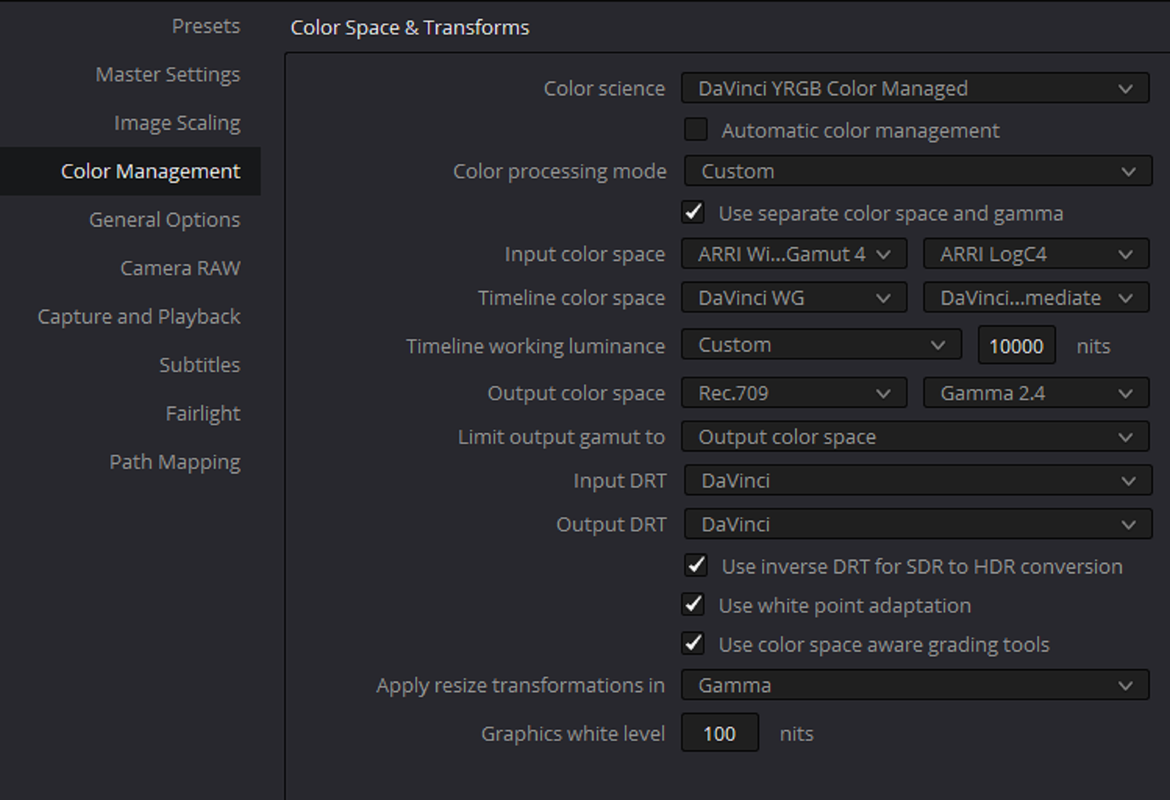
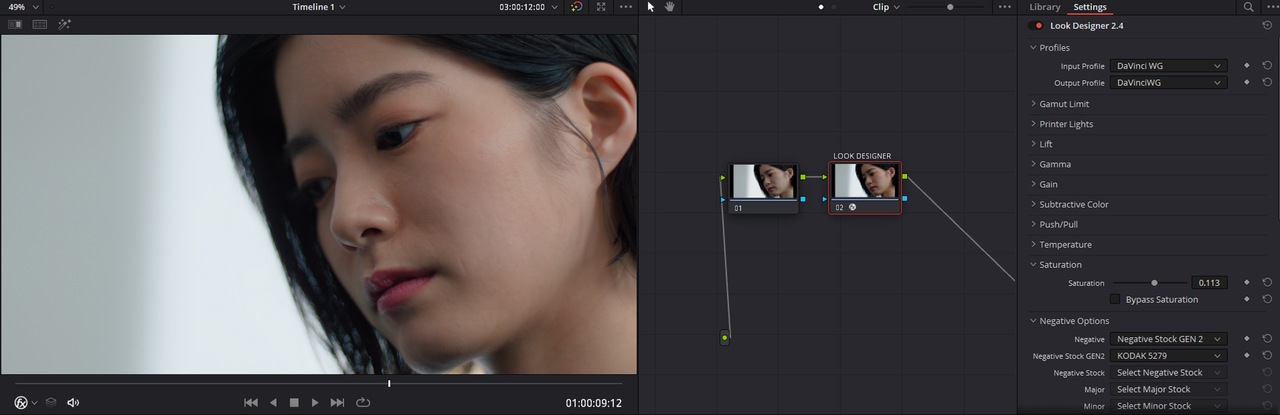
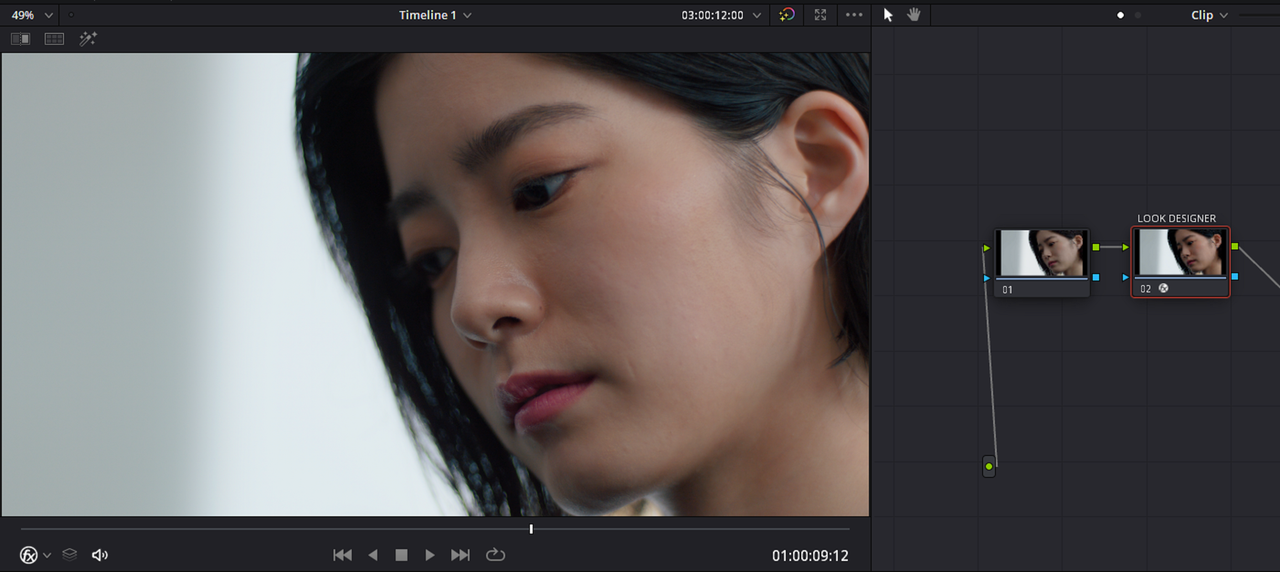
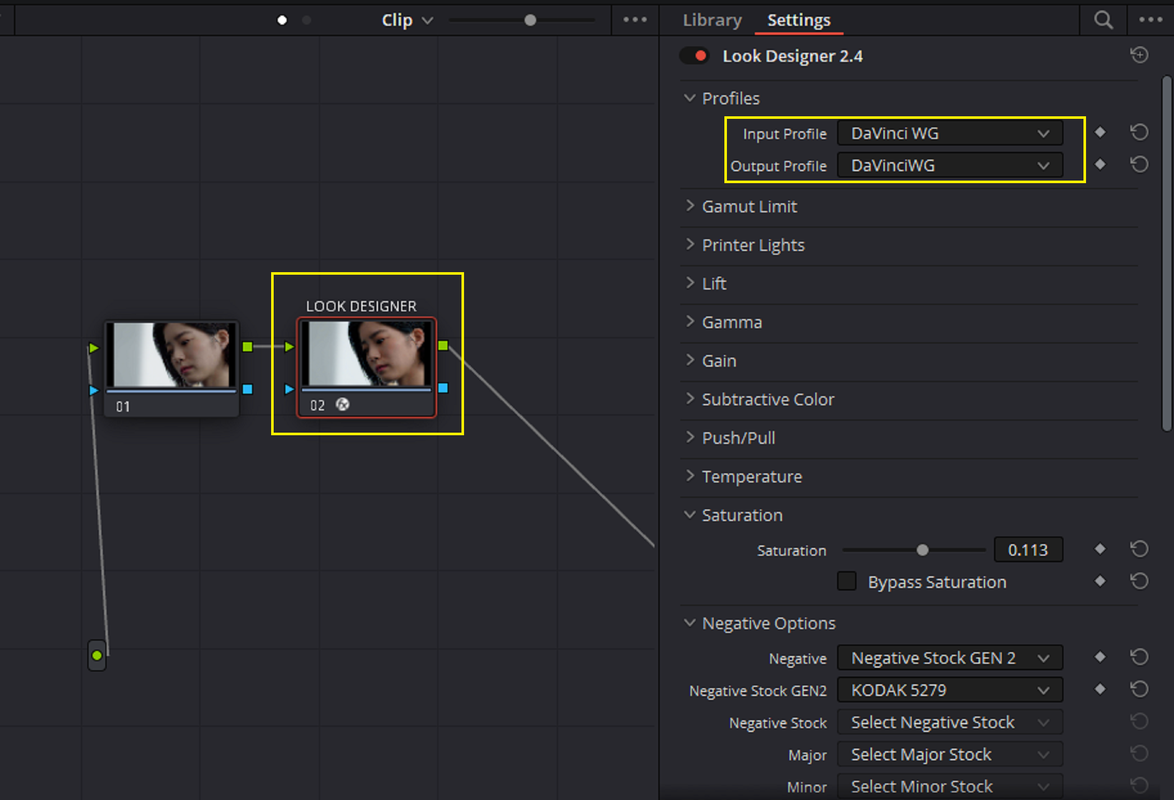
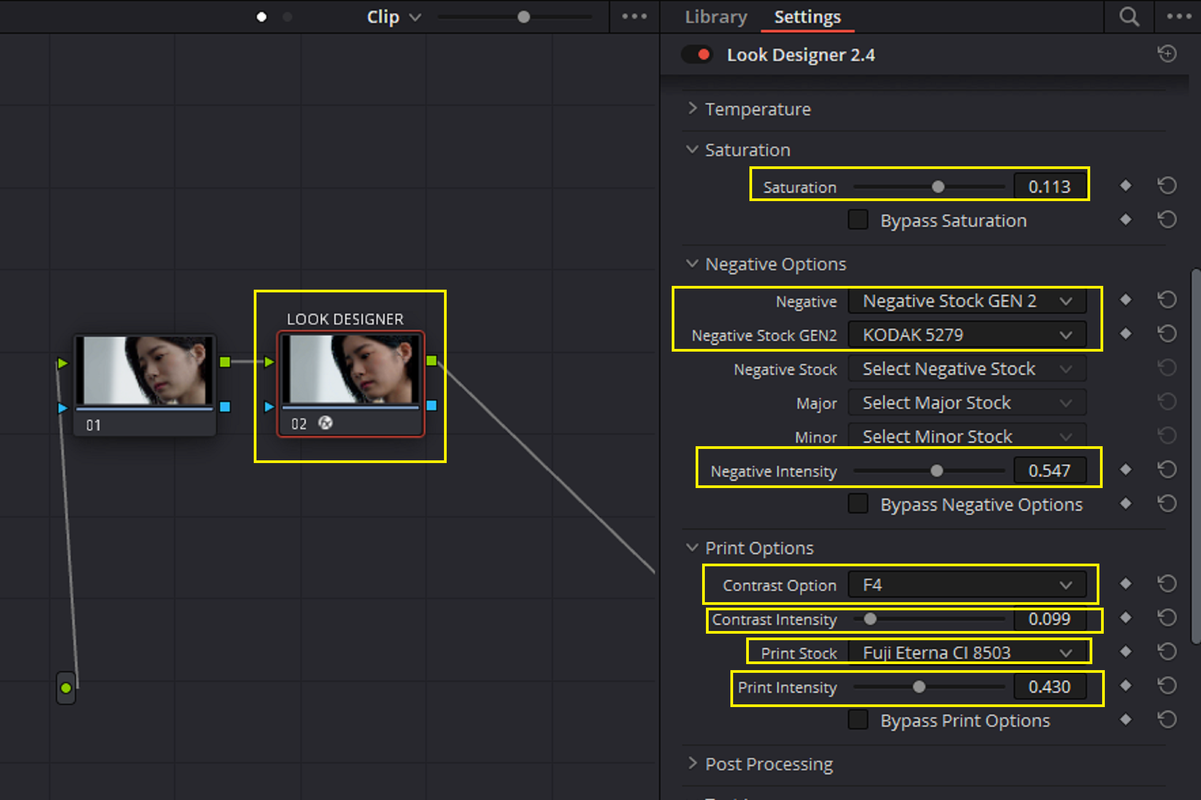
I used the OFX plugin "LOOK DESIGNER 2.4.2" and nothing else for the grade below.

Davinci Wide Gamut / Davinci Intermediate Project Resolve Color Managed Workflow

1.png


2.png


3.png


4.png


5.png


6-color-managed.jpg


Node based DWG/DI with Color Space Transforms

7.png


8.png


9.png


10.png


11-CST.jpg


Davinci Wide Gamut / Davinci Intermediate Project Resolve Color Managed Workflow


6-color-managed.jpg


Node based DWG/DI with Color Space Transforms

11-CST.jpg
 
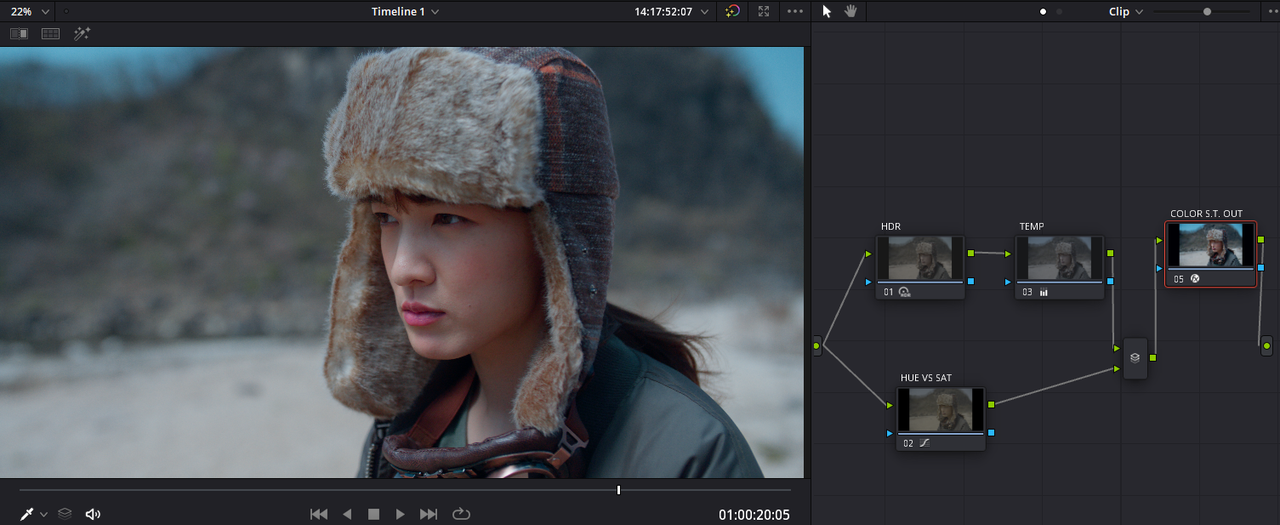
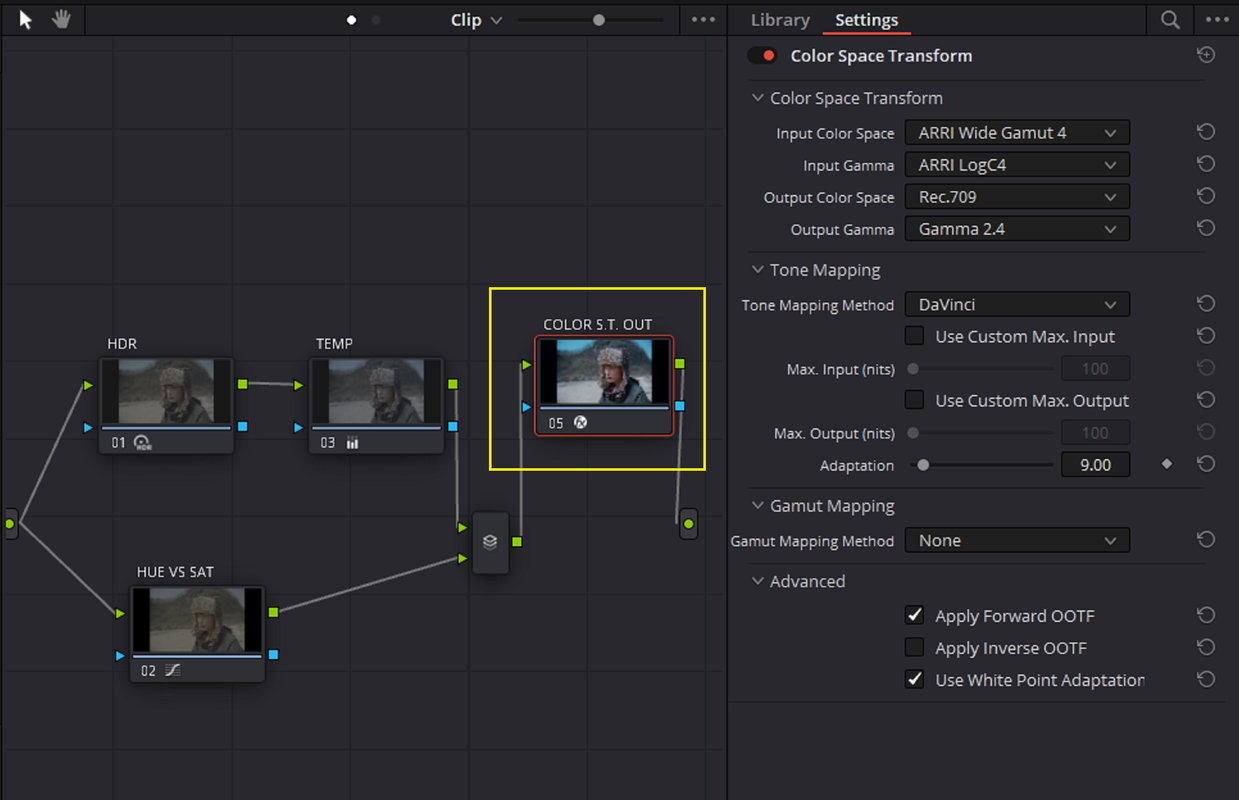
AWG4/ALC4 RESOLVE COLOR MANAGED WORKFLOW AND AWG4/ALC4 DAVINCI YRGB NODE BASED WORKFLOW WITH A COLOR SPACE TRANSFORM


Project and Settings


AWG4/ALC4 RESOLVE COLOR MANAGED WORKFLOW


1.png


ORIGINAL IMAGE


1A.jpg

2.png


3.png


4-AWG4-RCM.jpg


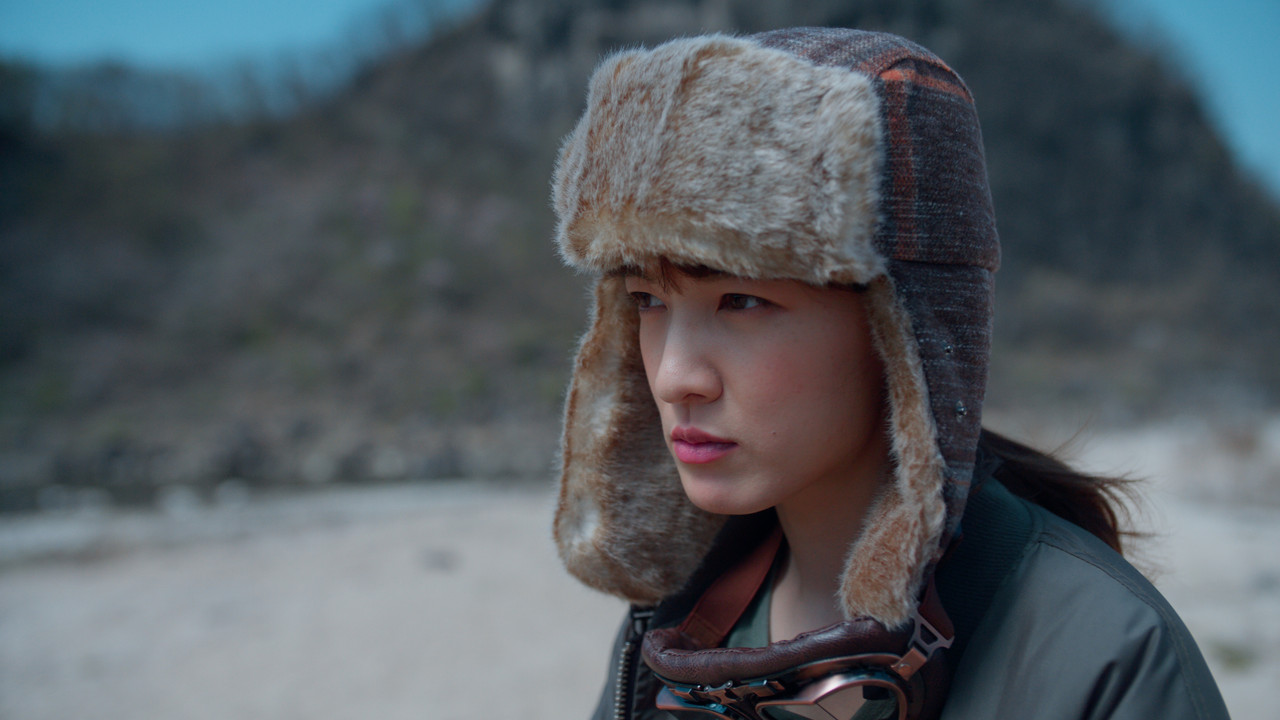
AWG4/ALC4 DAVINCI YRGB NODE BASED WORKFLOW WITH A COLOR SPACE TRANSFORM


5.png


6.png


7.png


8.png


9-CST.jpg


AWG4/ALC4 RESOLVE COLOR MANAGED


4-AWG4-RCM.jpg


DAVINCI YRGB NODE BASED WITH A COLOR SPACE TRANSFORM


9-CST.jpg
 
ARRI Tech Talk: ALEXA 35 Workflows – ACE4, AWG4 and ALF4

bY

ARRIChannel


ARRI Tech Talk: ALEXA 35 Workflows - LogC4 Tonal Curve, False Color, Exposure

bY
ARRIChannel


ARRI Tech Talk: ALEXA 35 Workflows – ARRI Reference Tool

bY

ARRIChannel


ARRI Tech Talk: ALEXA 35 Workflows – Grading und Look Management

bY

ARRIChannel


ARRI Tech Talk: ALEXA 35 Workflows—High Density Encoding (HDE)


bY
ARRIChannel


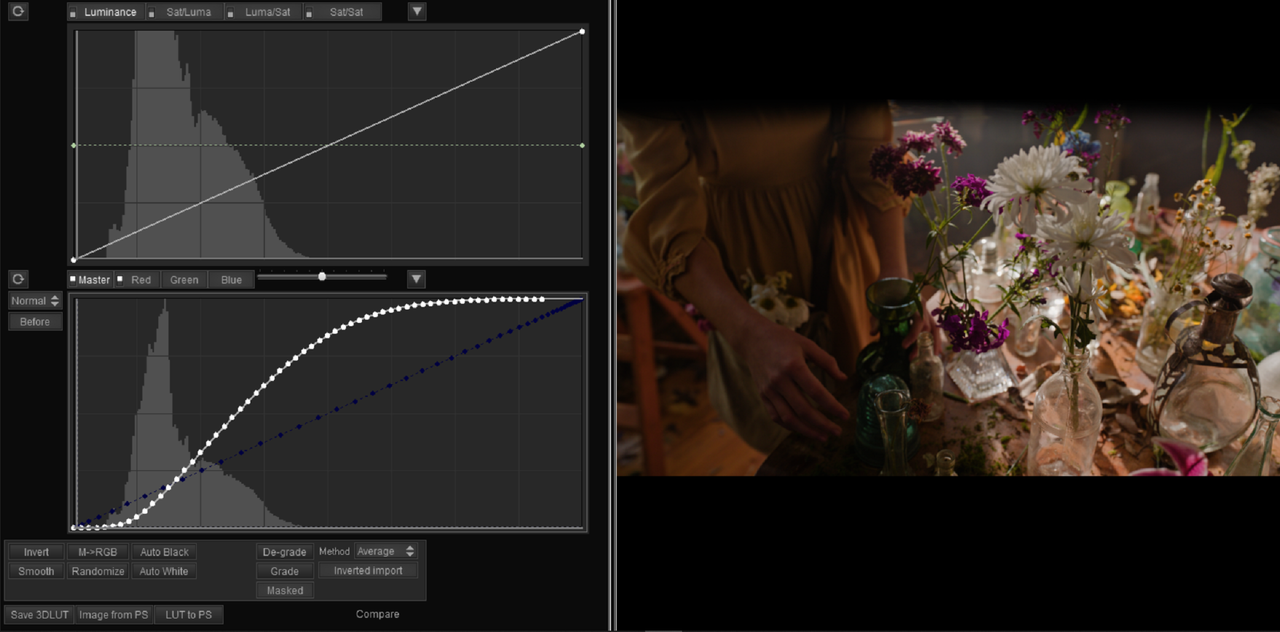
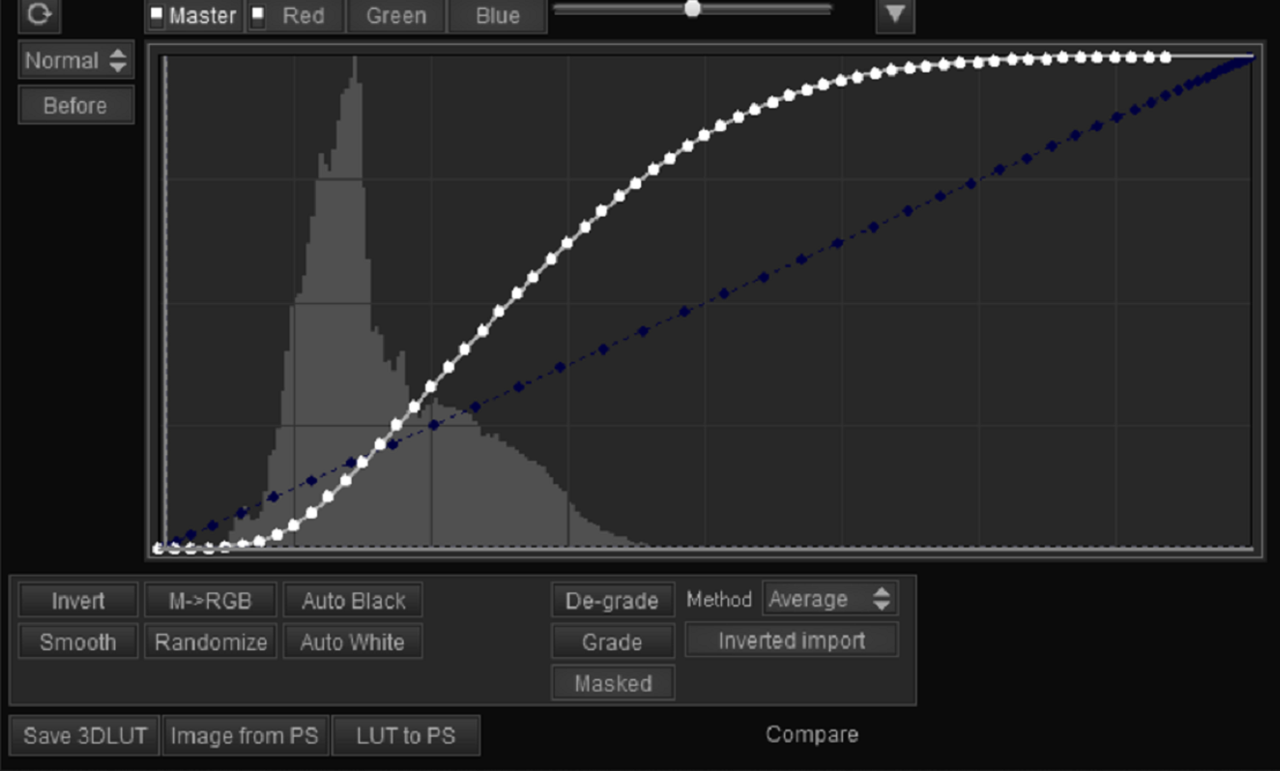
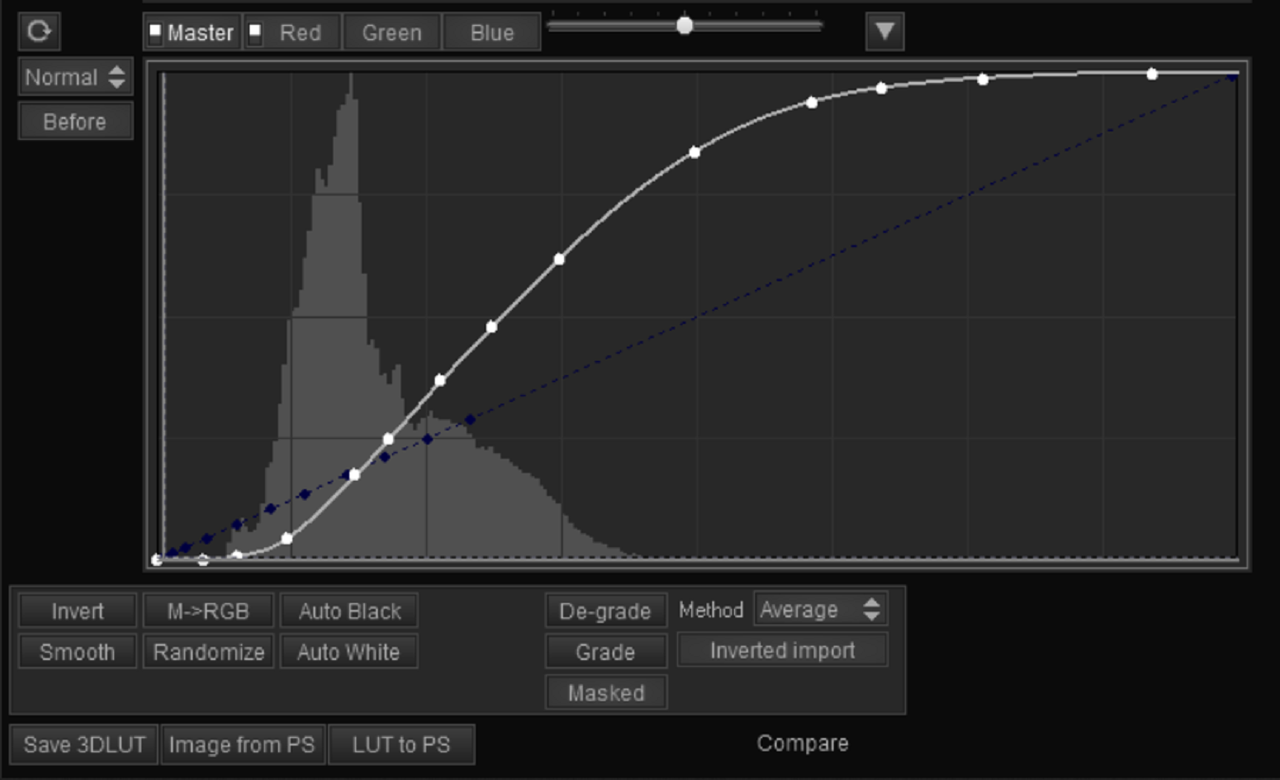
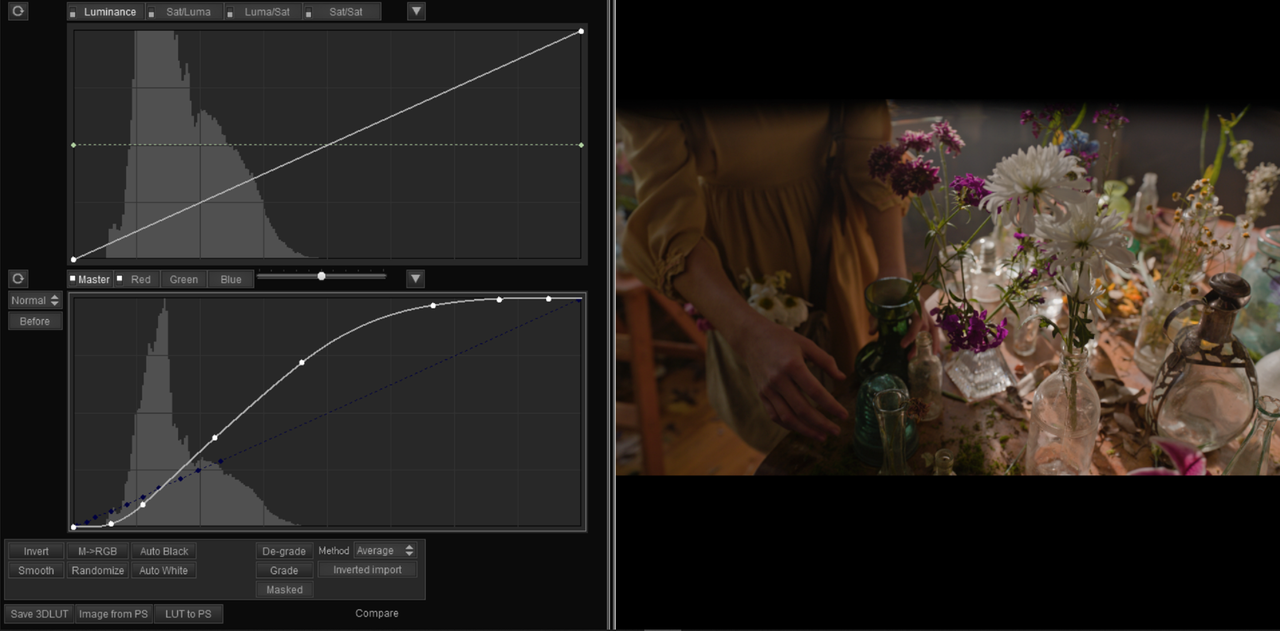
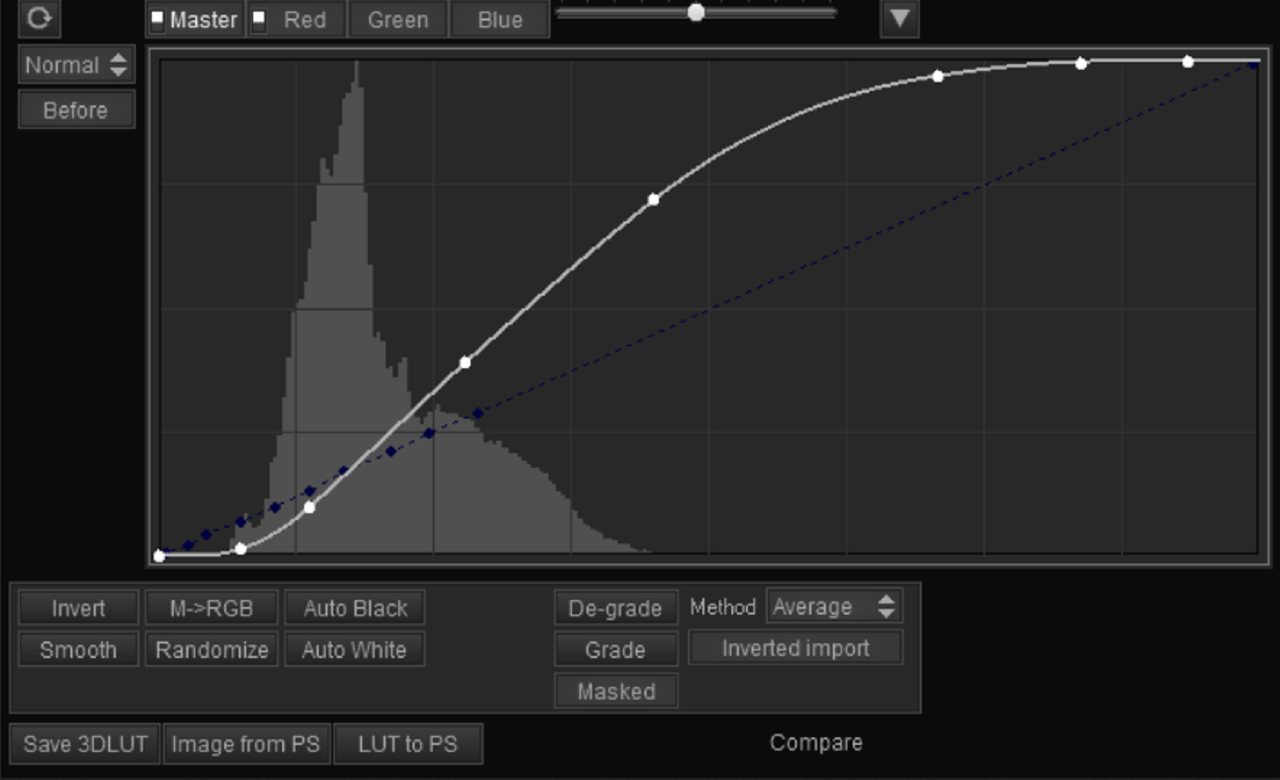
I've been playing around with the "Master Curve" inside the ARRI AWG4/ALC4 to REC709 transform LUT. I "Extracted it separately from the "RGB" Color Info. and been modifying it to get better results in "Some" situations. I realized that this Specific Curve was designed to accommodate an additional 2 1/2 more Stops of Dynamic Range in the ARRI Alexa 35 along with other technical aspects/necessities beyond my knowledge, but I just wanted to fuck around with it all the same.


I used 3DLUT CREATOR PRO to extract the "Master Curve" away from the RGB Color Information and to try a few Mods.


PART 1- THE SETTINGS

I exported out a .PNG "AWG4/ALC4 Log "still" out of RESOLVE to use to apply the Luts to.

1-7-1-1-7-1.jpg


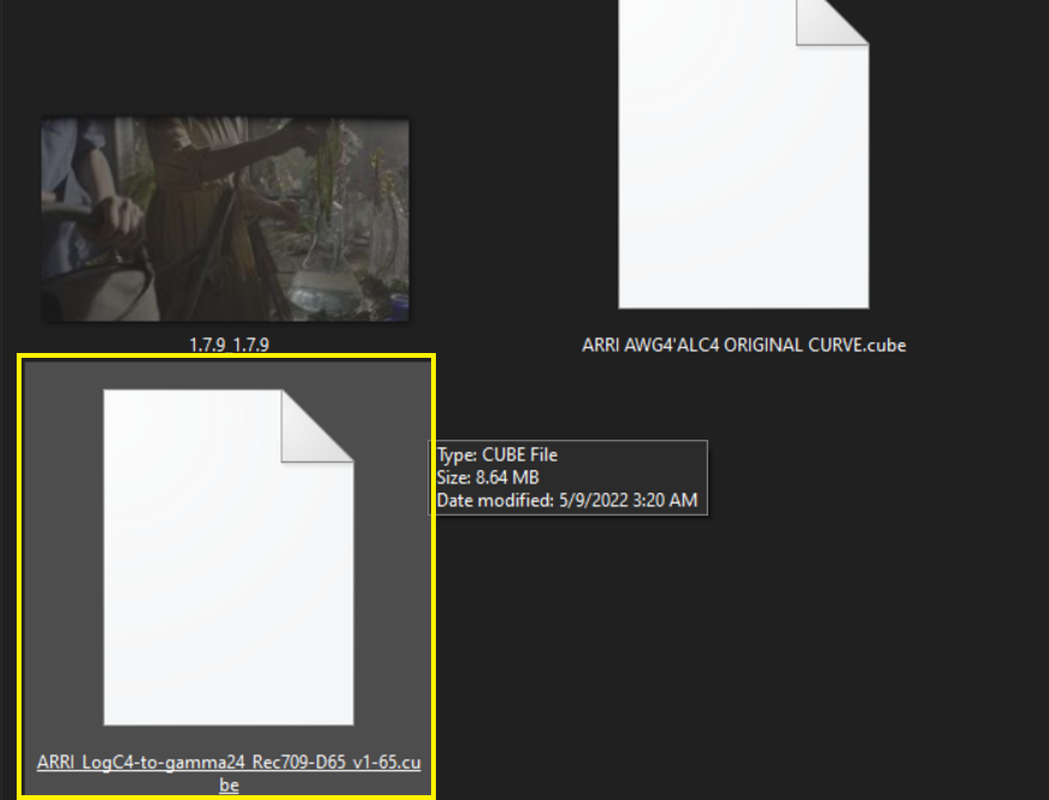
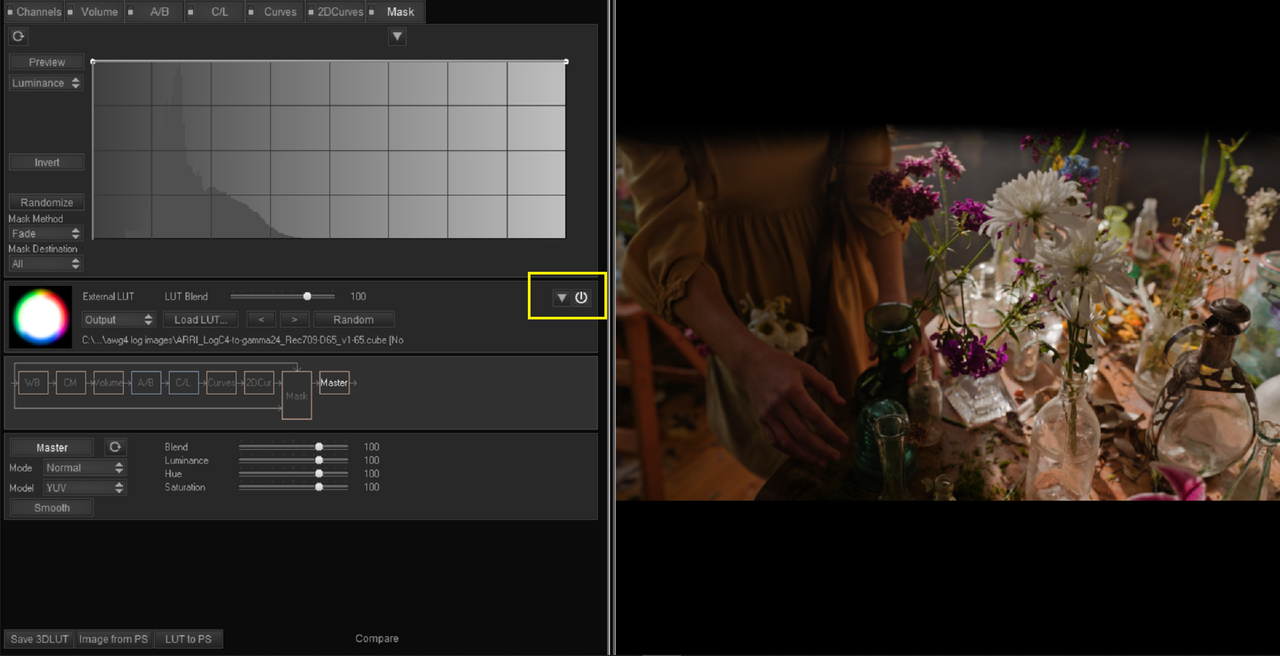
1) I went to the "Mask" section inside of 3DLUT CREATOR PRO and used these settings.Then I selected the"ARRI_LogC4-to-gamma24_Rec709-D65_v1-65.cube"Lut so that I could Extract the "RGB" info and "Master Curve" from.

FIRST.png


0A1.png


0A2.png


0A3.png


NEXT, PART 2 The Extraction...............
 
PART 2- The Extraction

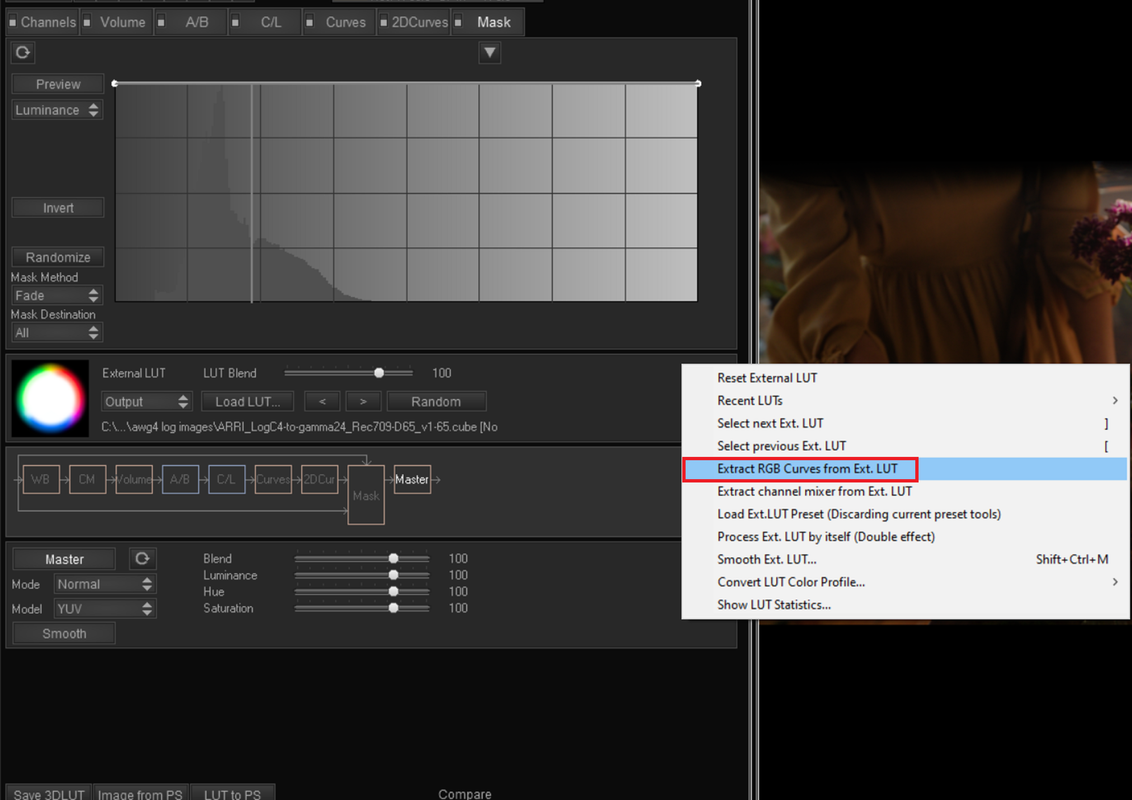
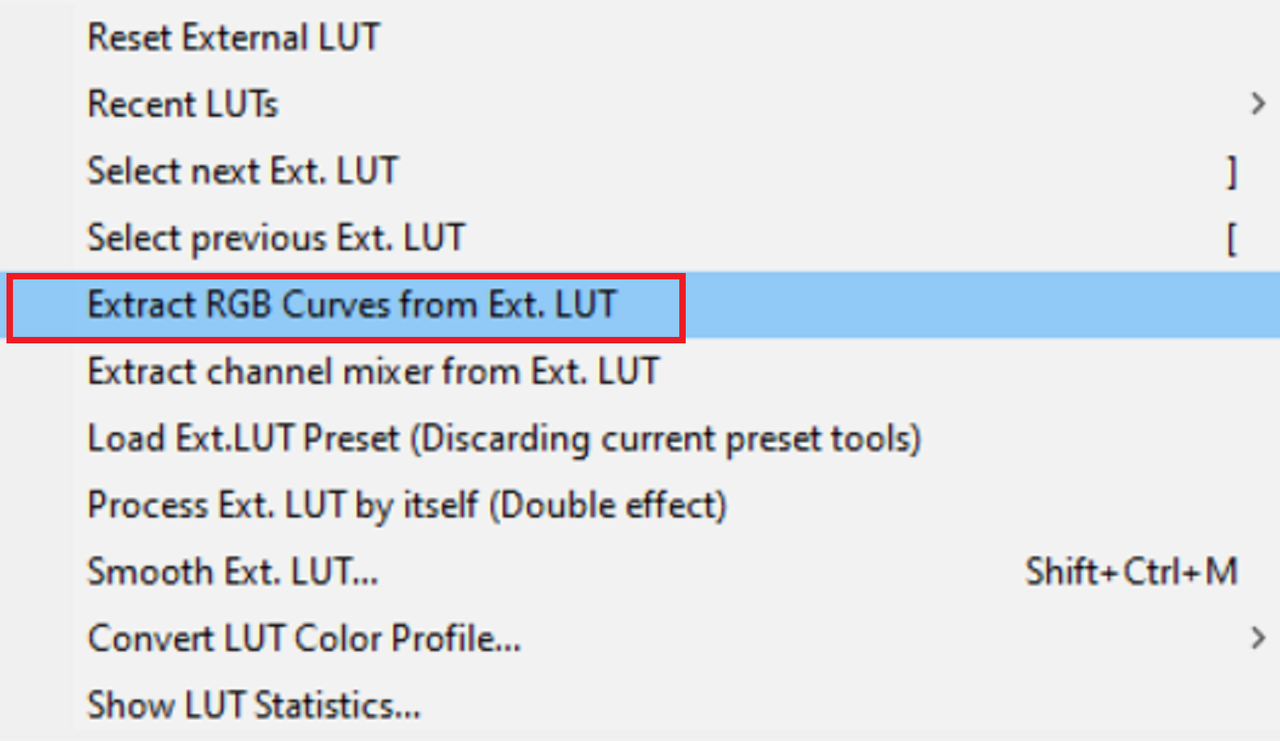
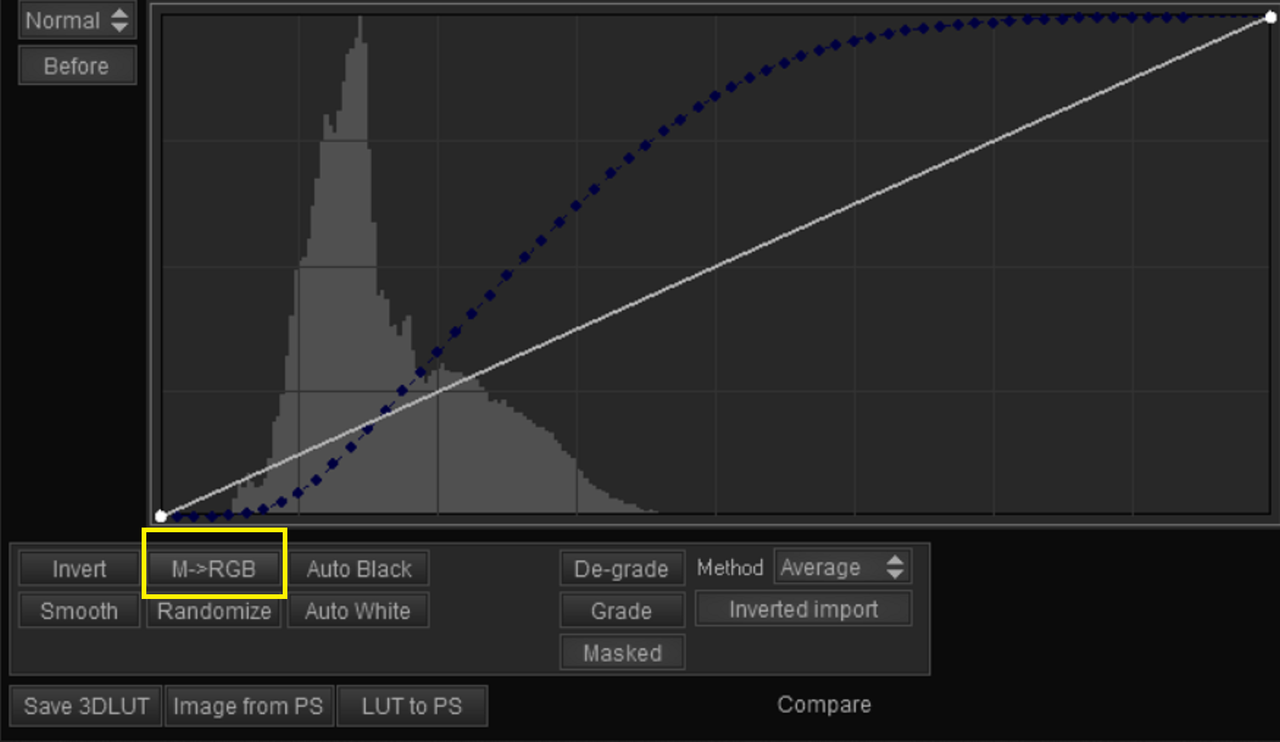
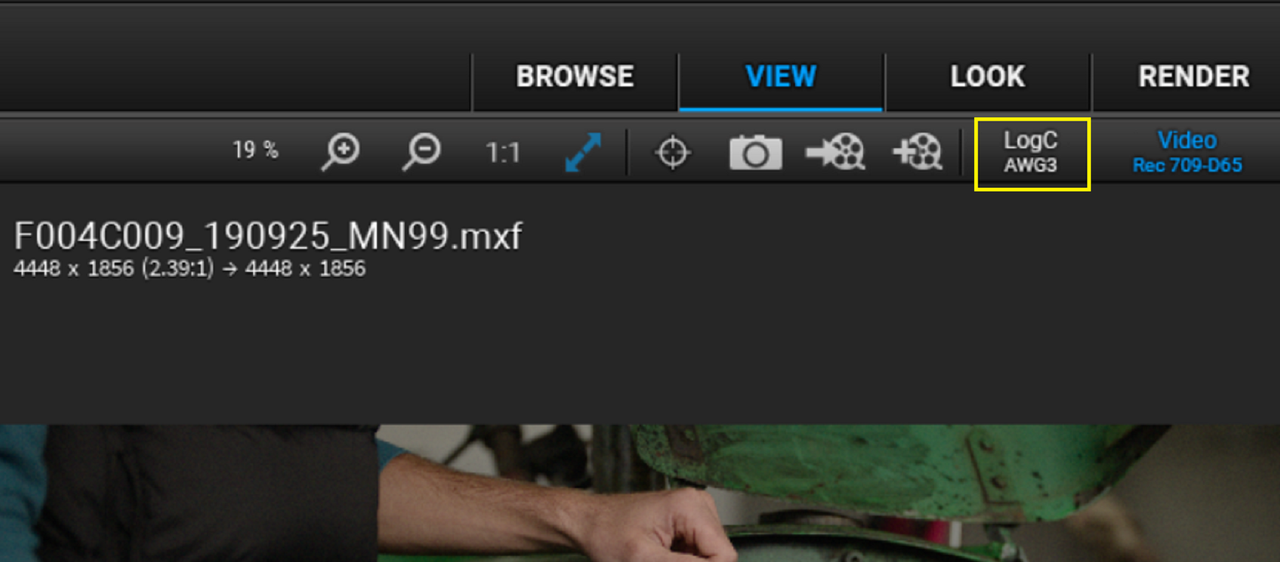
2) After I imported and applied the "ARRI_LogC4-to-gamma24_Rec709-D65_v1-65.cube" to the sample AWG4/ALC4 log image, I selected the "DOWN-ARROW" button highlighted in "YELLOW" to enable an additional "Drop Down Menu" to select the extraction function.

0B.png


0C.png


0D.png


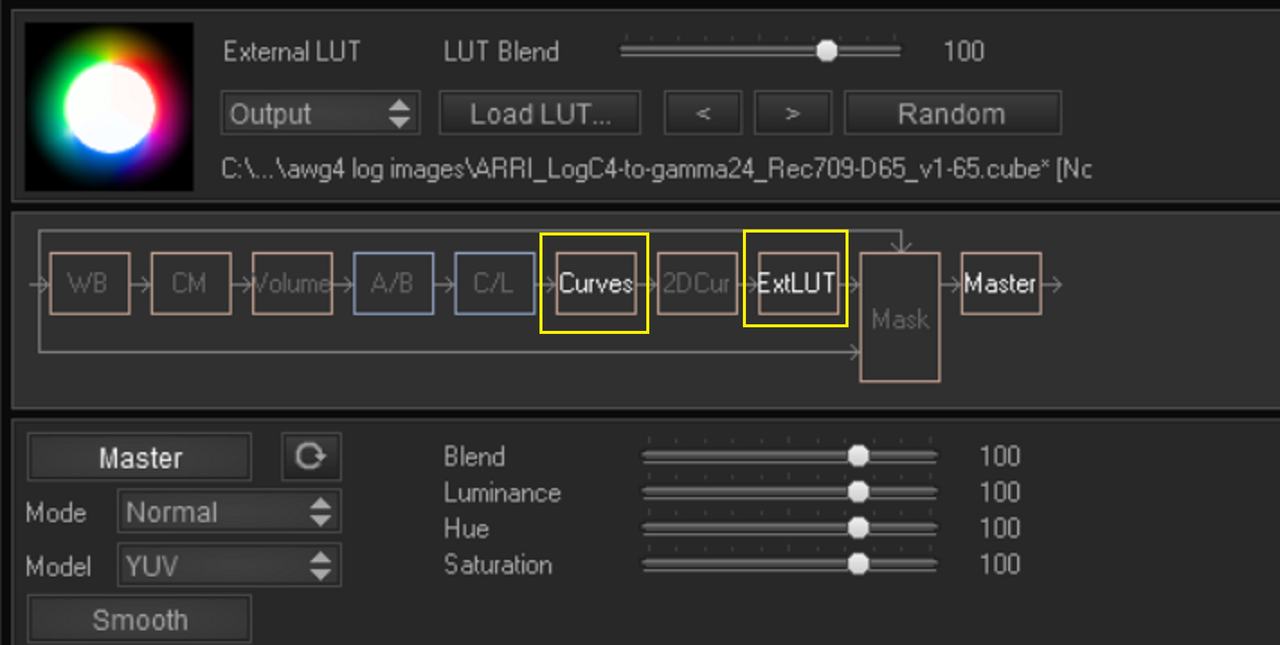
This shows the Master Curve and the RGB Curves separated into parts in the ARRI LUT.


0E.png


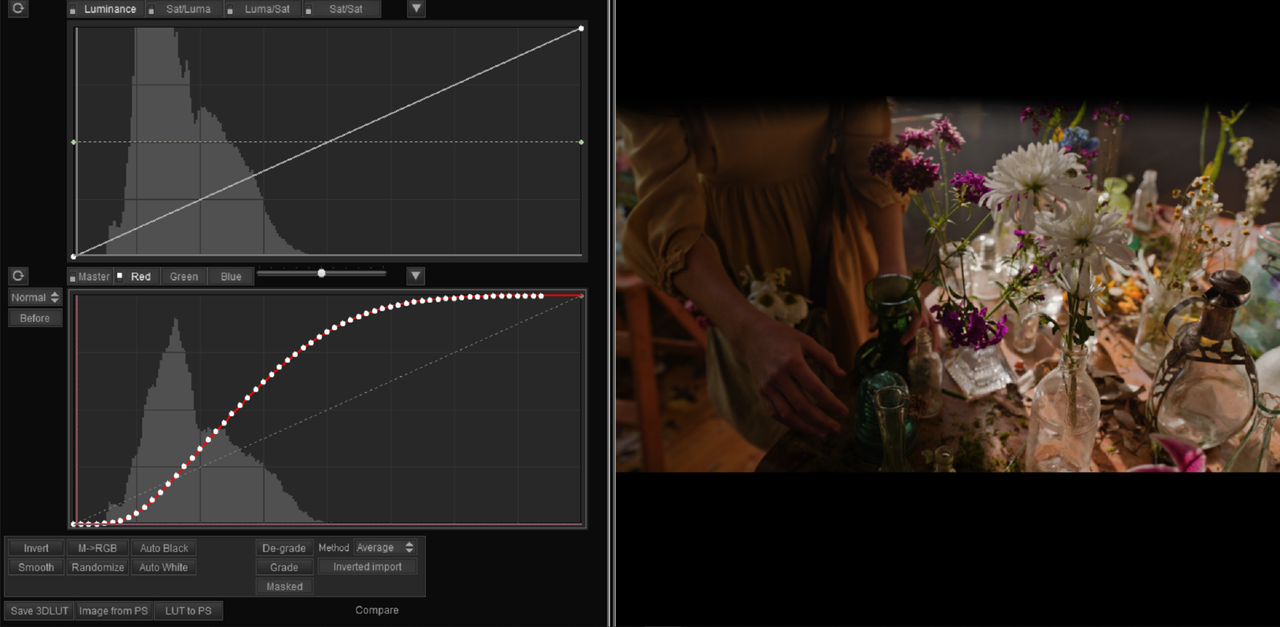
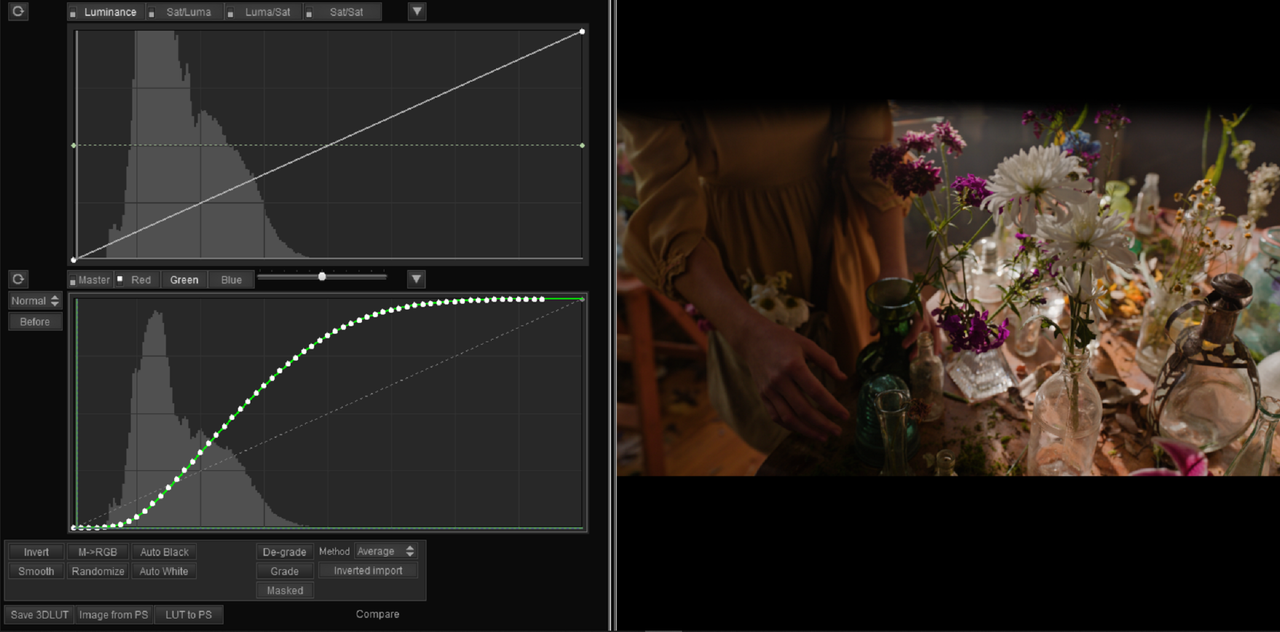
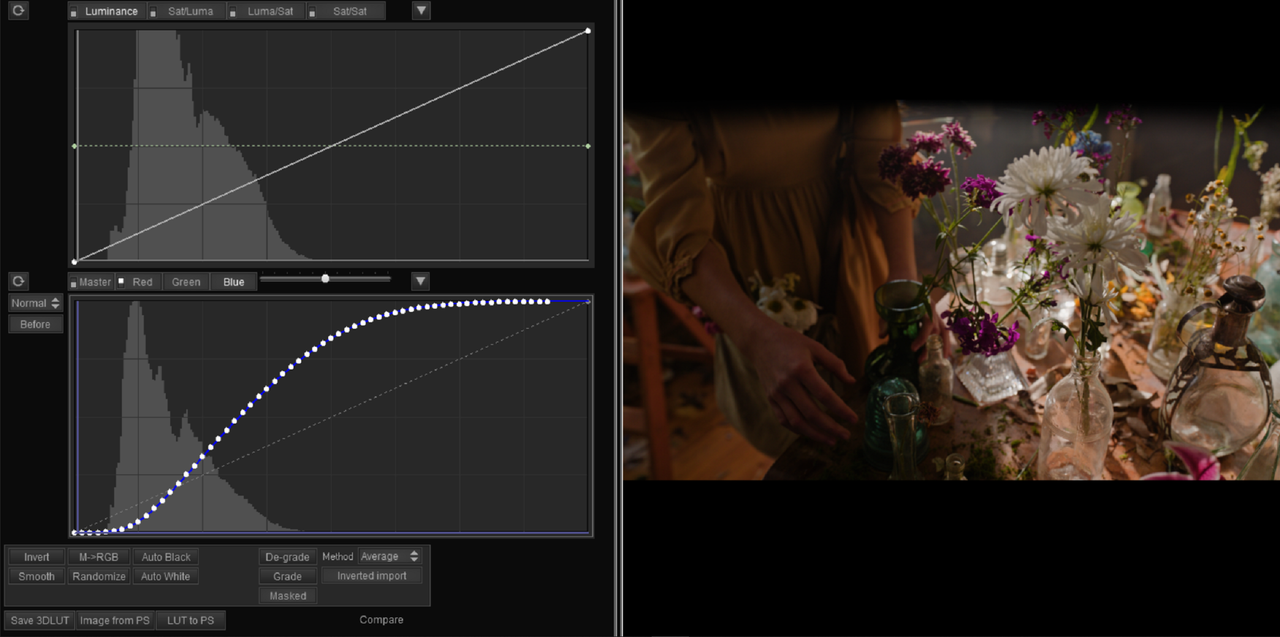
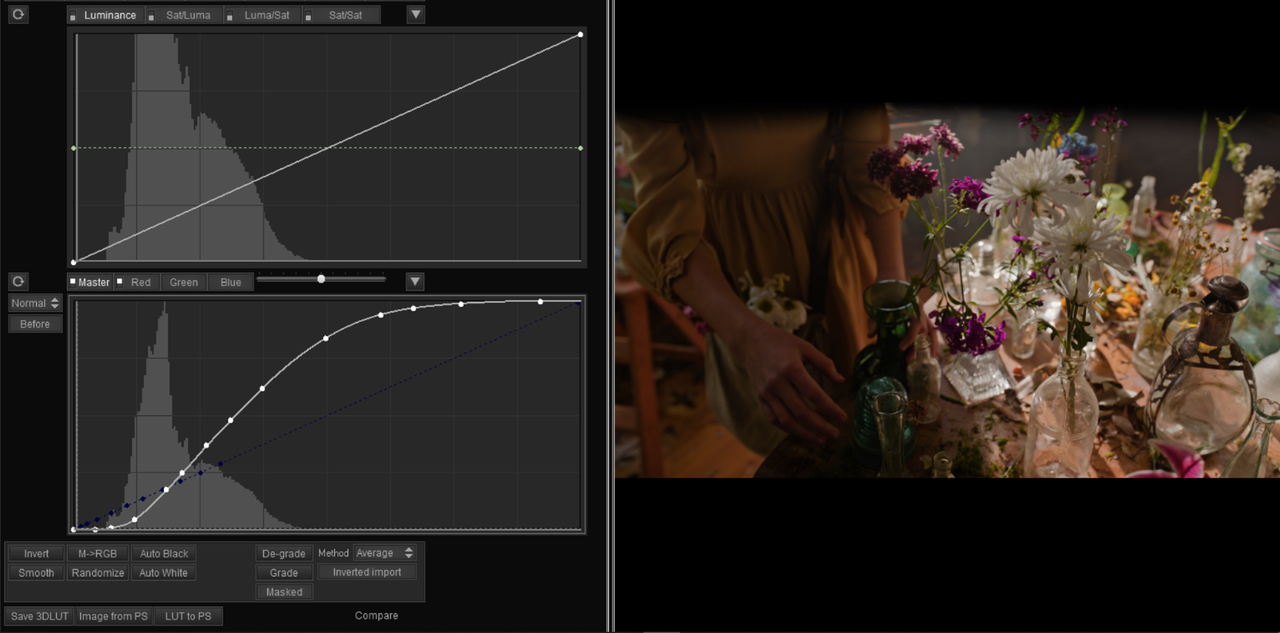
3) Here is the Separated RGB Curves with the Master Curve tied to them. To separate the Master Curve from the RGB Curves I have to select "M>RGB" button. Now the Master Curve can be modded separately from the RGB info.


1.png


2.png


3.png


3A.png


4.png


42.png


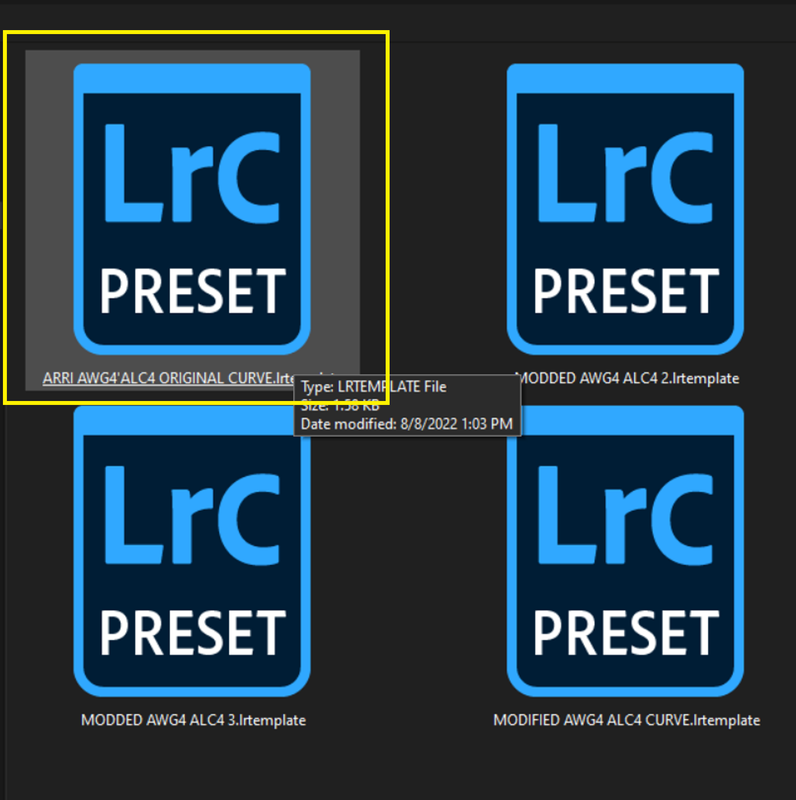
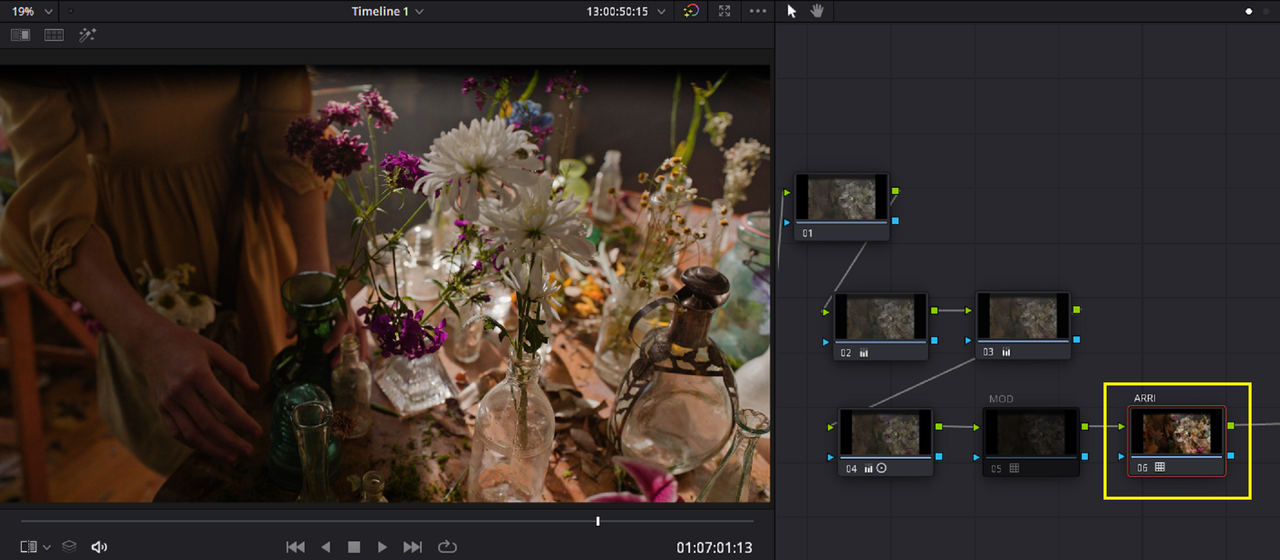
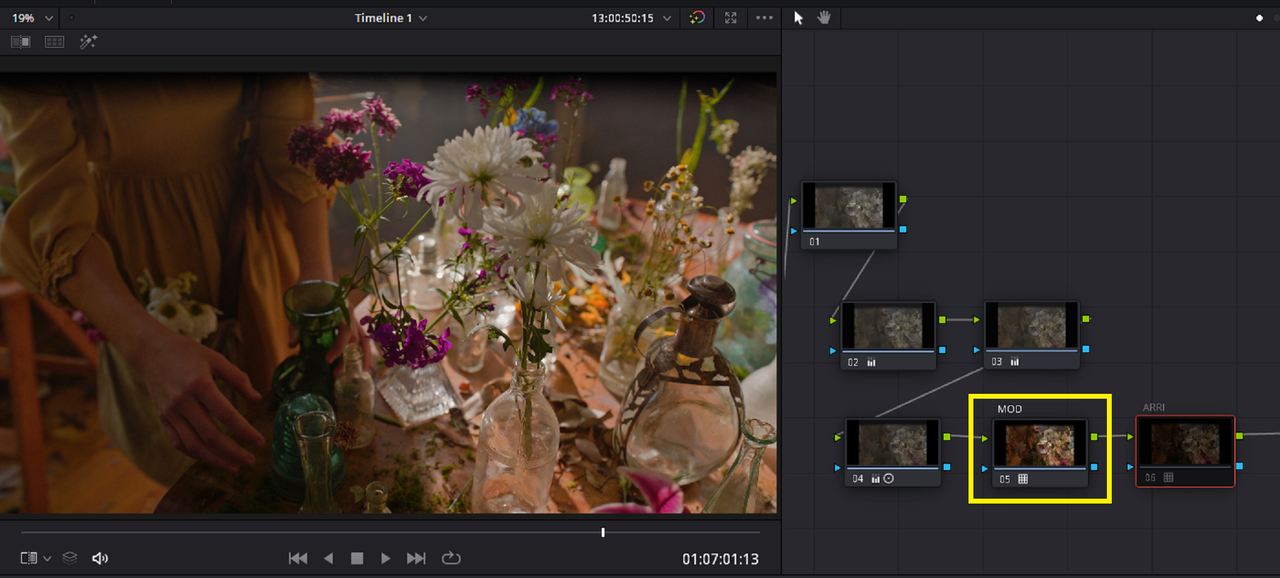
Here are the examples of the Original ARRI AWG4/ALC4 Curve and the Modded Curve that I save both as "LIGHTROOM CURVES". The "MODDED" Lut was made in an attempt to give better "Highlight" and "Shadow" Roll-Offs than the Original Arri Lut.


Original

5.png


6.png


6A.png


Modded

7.png


8.png


8A.png


Original and Modded Luts back inside of RESOLVE

Original

9.png

10-ARRI-ORIGINAL-1-7-2.jpg


Modded


11.png


12-MODDED-AWG4-ALC4-LUT-1-7-3.jpg
 
Last edited:
Back
Top