Welcome to our community

Be a part of something great, join today!

  • Hey all, just changed over the backend after 15 years I figured time to give it a bit of an update, its probably gonna be a bit weird for most of you and i am sure there is a few bugs to work out but it should kinda work the same as before... hopefully :)

RED V-Raptor vs Alexa 35

Rand, the s35 is no more than 2/3rd of stop “better” in the highlights, VV is atleast 2 stops better in the shadows. You showed where s35 could be corrected to match vv, but you didn’t take into account that VV could’ve also been pushed further and denoised and corrected. VV also has less need for color correction in the underexposure. Yes you’ll get similar results in most case because for total DR they aren’t that far, 17 & 16.5, but this just says they can see the difference in the patches, it’s doesn’t show that VV would have much less noise, or that it would hold more color information down there. So sure they are close, but in extreme circumstances, you’ll always be able to squeeze more from VV than s35. As Nick said, many shoot VV at 1280 or 1600, I shot a shot a few weeks ago at 6400 to protect highlights, the frame is in a forum post somewhere here. No one’s going to be shooting 6400 on s35. Even Jarred said on Scott’s live stream that he probably wouldn’t shoot above 1600 on s35 but would comfortably shoot 6400 on VV.

In the same post where Graeme mentioned the difference in the Gain for s35, I asked Jarred if they could do the same with VV and he said they are considering it.
 
Rand, the s35 is no more than 2/3rd of stop “better” in the highlights, VV is atleast 2 stops better in the shadows. You showed where s35 could be corrected to match vv, but you didn’t take into account that VV could’ve also been pushed further and denoised and corrected. VV also has less need for color correction in the underexposure. Yes you’ll get similar results in most case because for total DR they aren’t that far, 17 & 16.5, but this just says they can see the difference in the patches, it’s doesn’t show that VV would have much less noise, or that it would hold more color information down there. So sure they are close, but in extreme circumstances, you’ll always be able to squeeze more from VV than s35. As Nick said, many shoot VV at 1280 or 1600, I shot a shot a few weeks ago at 6400 to protect highlights, the frame is in a forum post somewhere here. No one’s going to be shooting 6400 on s35. Even Jarred said on Scott’s live stream that he probably wouldn’t shoot above 1600 on s35 but would comfortably shoot 6400 on VV.

In the same post where Graeme mentioned the difference in the Gain for s35, I asked Jarred if they could do the same with VV and he said they are considering it.

You make some good points above. I didn't really watch or really pay that much attention to that part of Scott's Livesteam.. If Jarred states that he didn't believe that the S35 was really as good as the VV above 1600ISO, that really would make a big difference.
 
You make some good points above. I didn't really watch or really pay that much attention to that part of Scott's Livesteam.. If Jarred states that he didn't believe that the S35 was really as good as the VV above 1600ISO, that really would make a big difference.

I was surprised too, because he followed by saying - that makes it seem like VV has more than two stop better DR, but that’s not the case, it’s just about how the VV collects the information basically. That’s not a direct quote obviously.
 
I was surprised too, because he followed by saying - that makes it seem like VV has more than two stop better DR, but that’s not the case, it’s just about how the VV collects the information basically. That’s not a direct quote obviously.


I think once much more V-Raptor S35 footage is put out and much better testers and scientific tests that analyze the S35 against the VV are done, we'll know more factually how they actually perform against each other.
 
Qualifying in IPP2


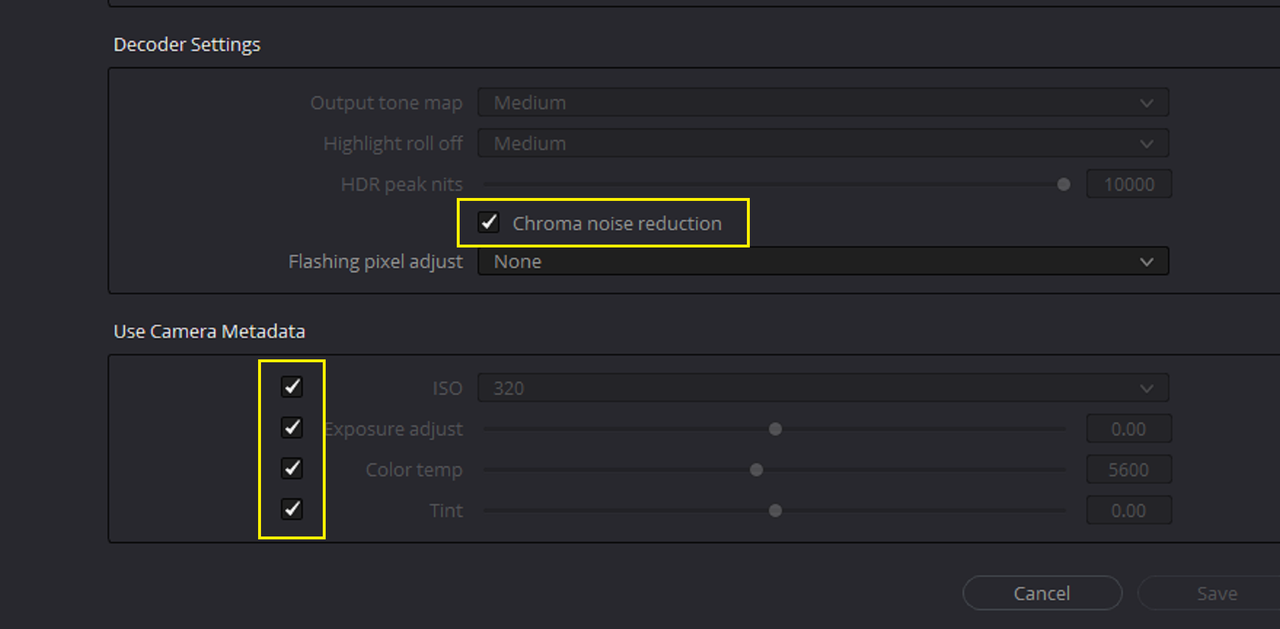
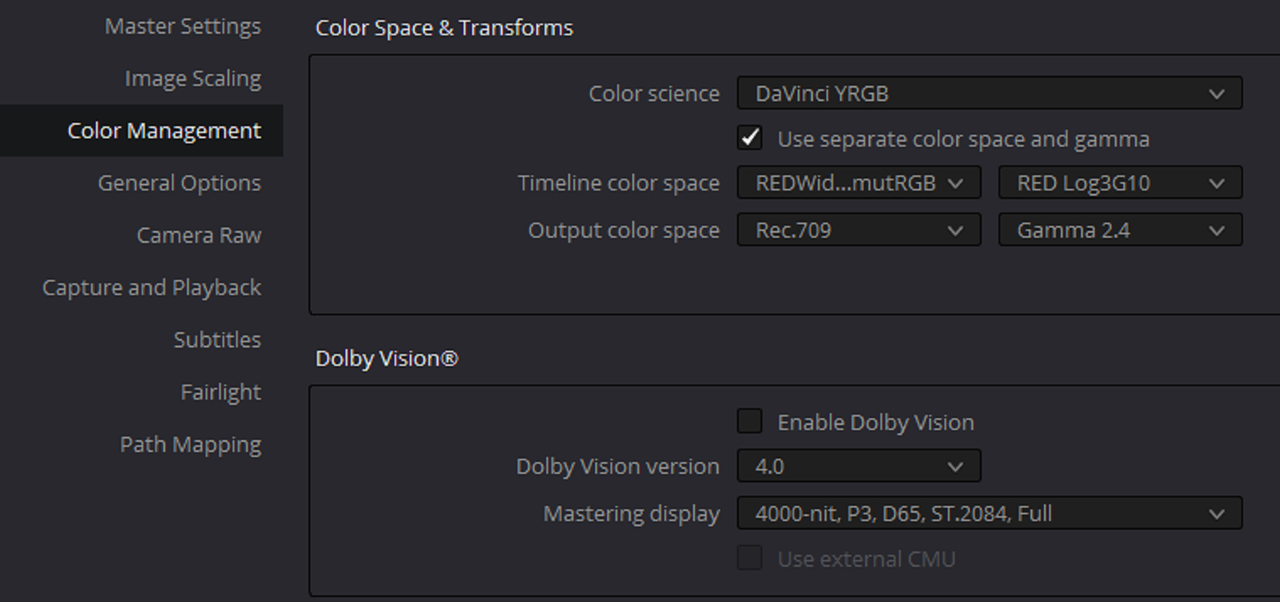
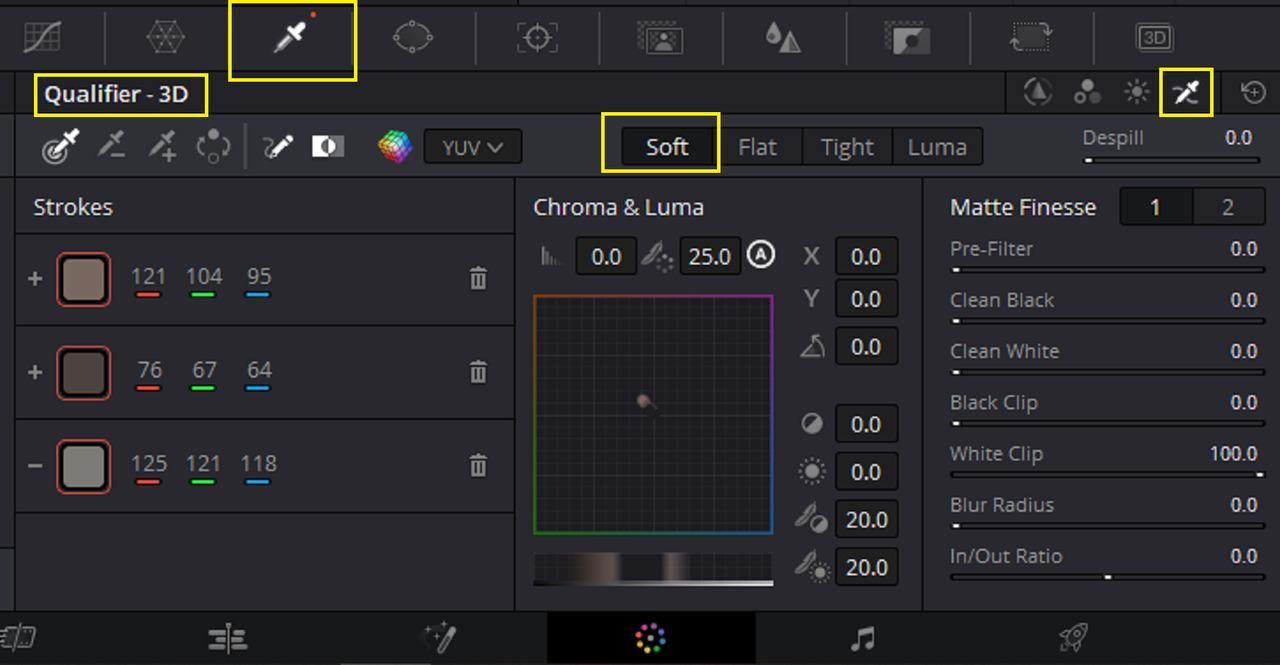
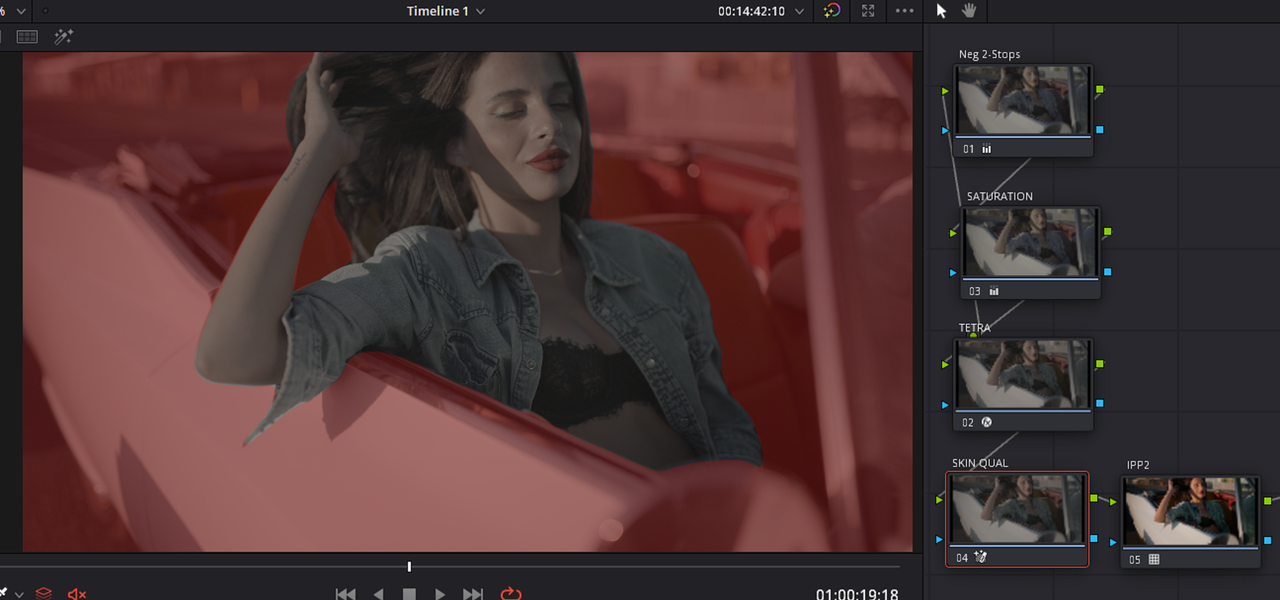
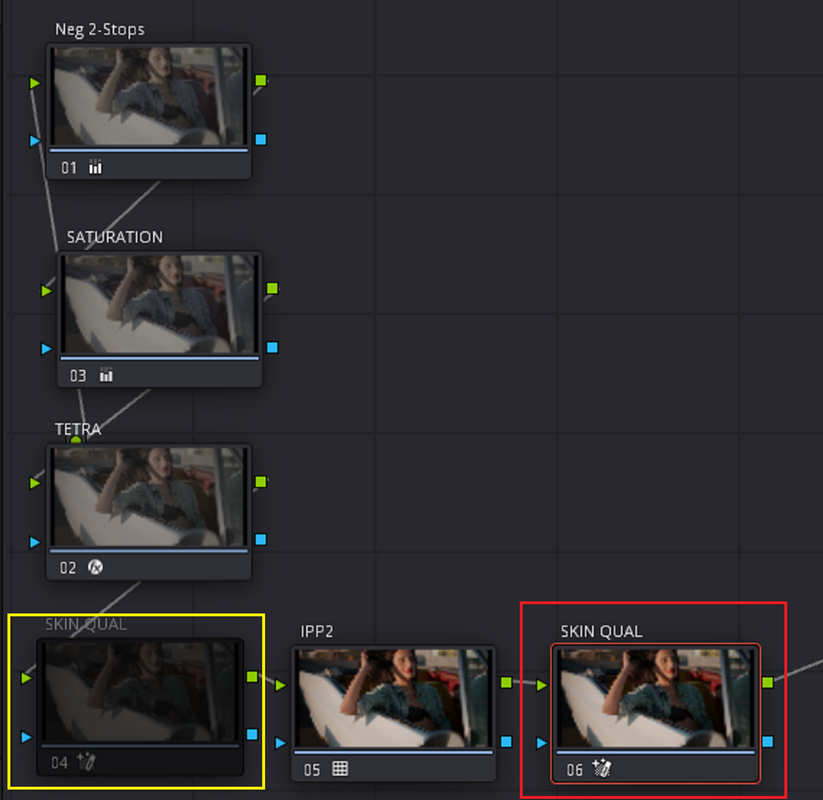
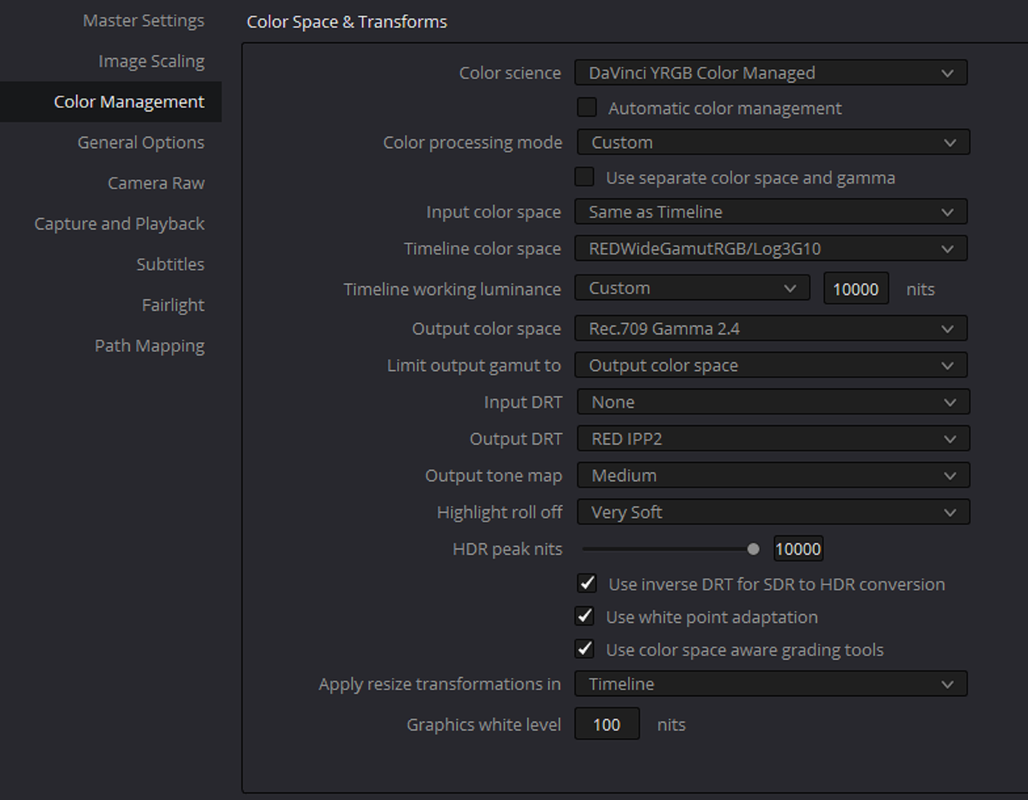
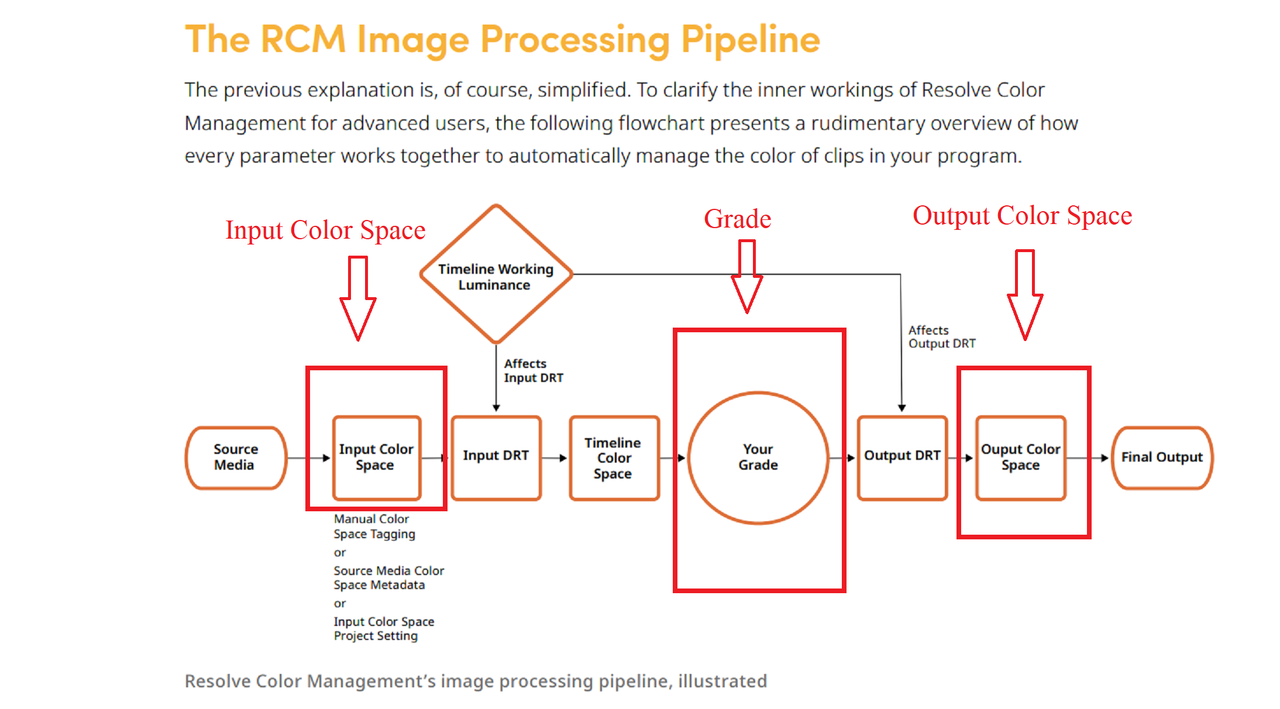
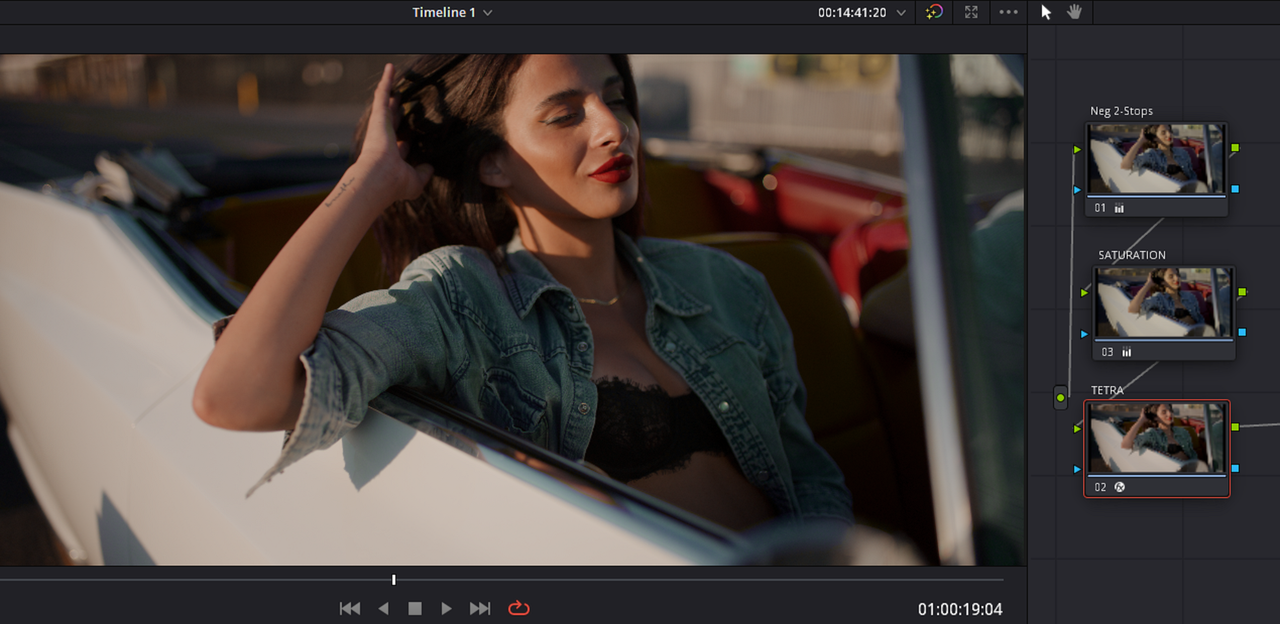
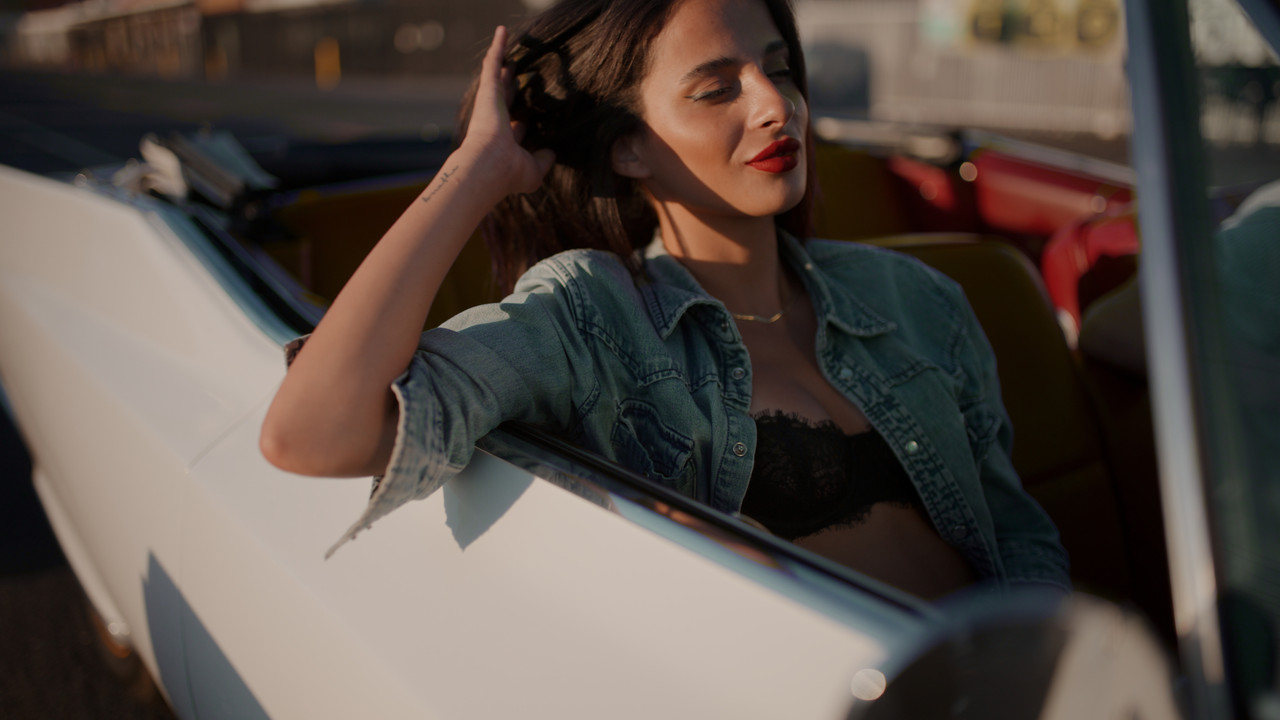
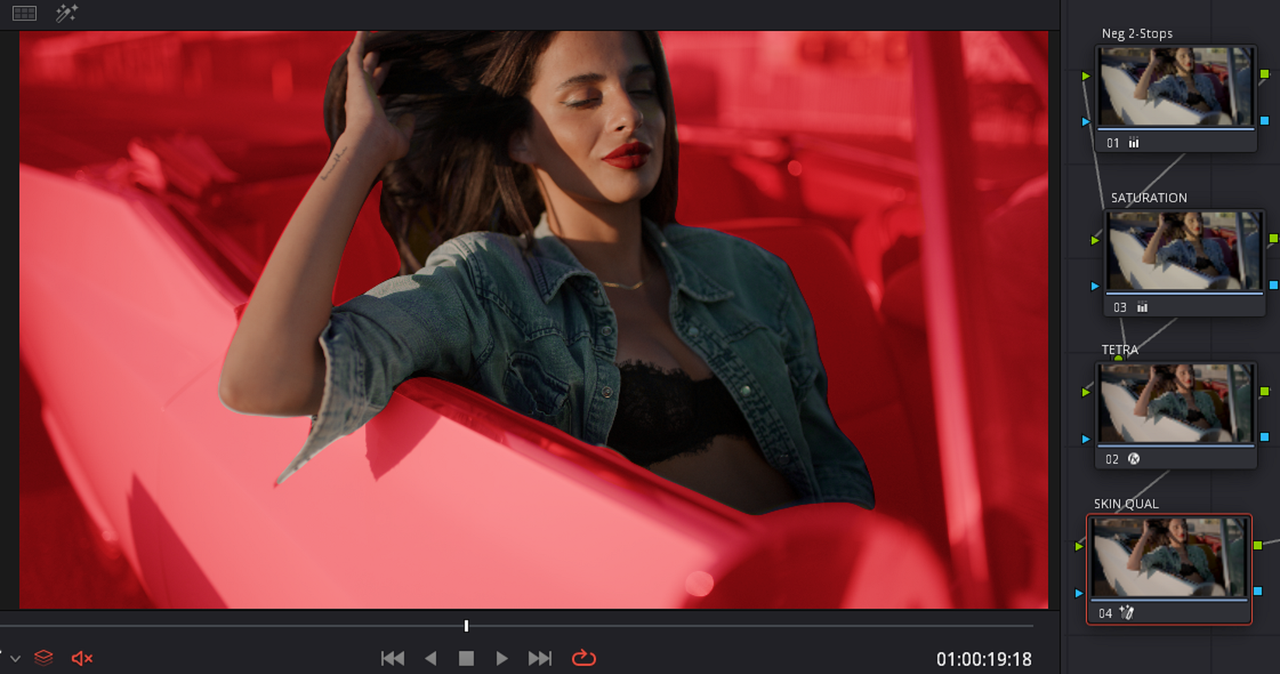
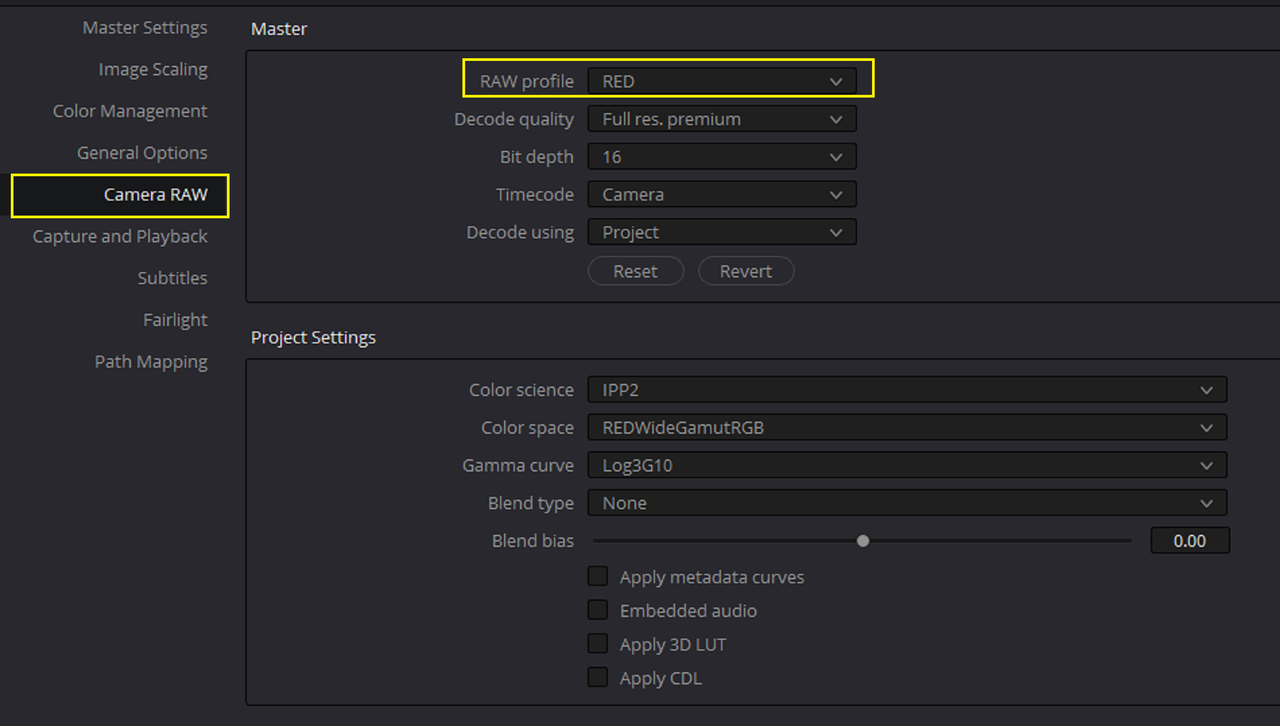
I was trying to help a friend two days ago with IPP2. He knows how to setup the Project Settings and the Camera Raw settings .However he was qualifying skintones "After" the IPP2 Output Transformation to REC709. You can do this but I told him that it won't yield as good a quality image as doing it "Before" the IPP2 Transformation in RWG/LOG3G10. Also it would restrict using a different IPP2 Transform with another ODT to like P3-D65 or something else in the future if he needed to deliver it in something other than REC709.

I told him that he could get the same results as qualifying after the IPP2 to REC709 transform with a RED IPP2 Color Managed workflow which would have the Qualification in RWG/LOG3g10. After showing him the Color Managed workflow, he thought that that was too much to remember and is still qualifying after the REC709 transform. I sent him a ZIP file of all of the screengrabs below just in case he changed his mind.


So I thought I would post what I sent him here before I deleted it. I very rarely use qualification anymore in the conventional way with the "Eyedroppers" since I start using the "Color Warper" and DCTLs but some people still do on a regular basis so this is for those people.

Qualifying with a IPP2 Output Transform at the end of the Node tree in a basic Red IPP2 workflow in Resolve

rerr-2.png


rerr-1.png


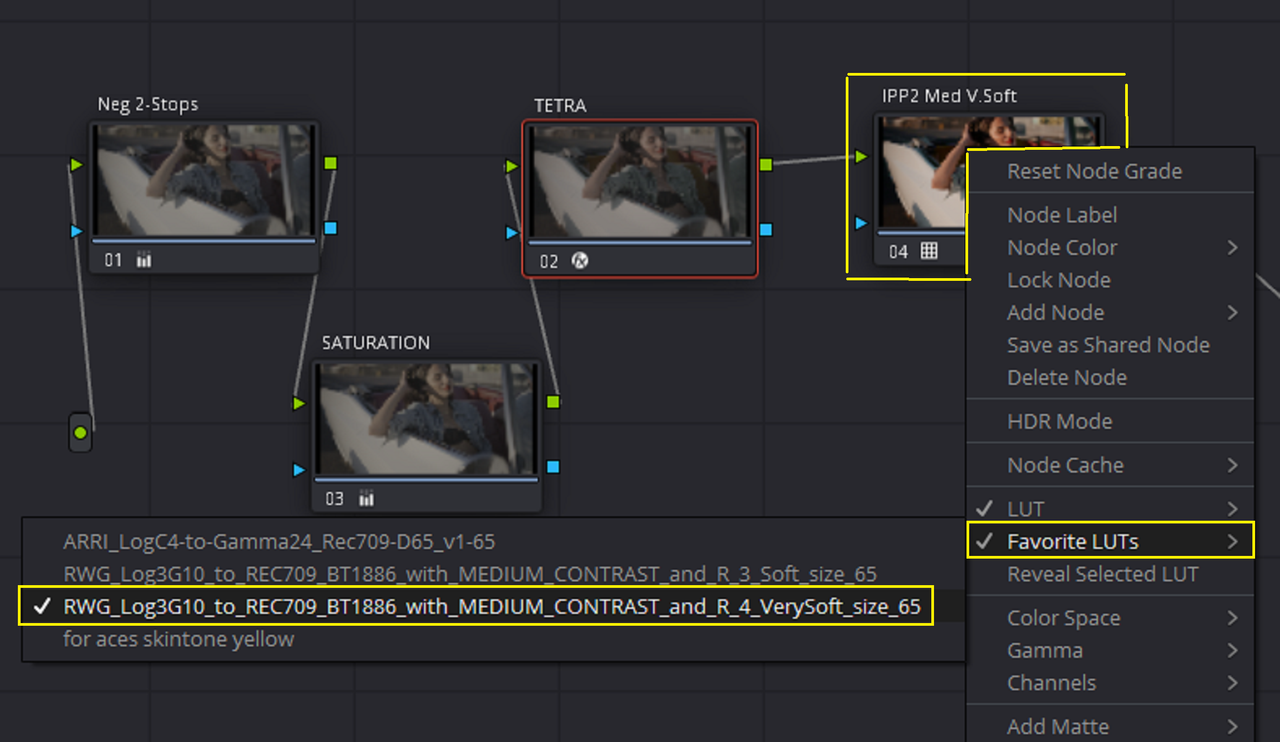
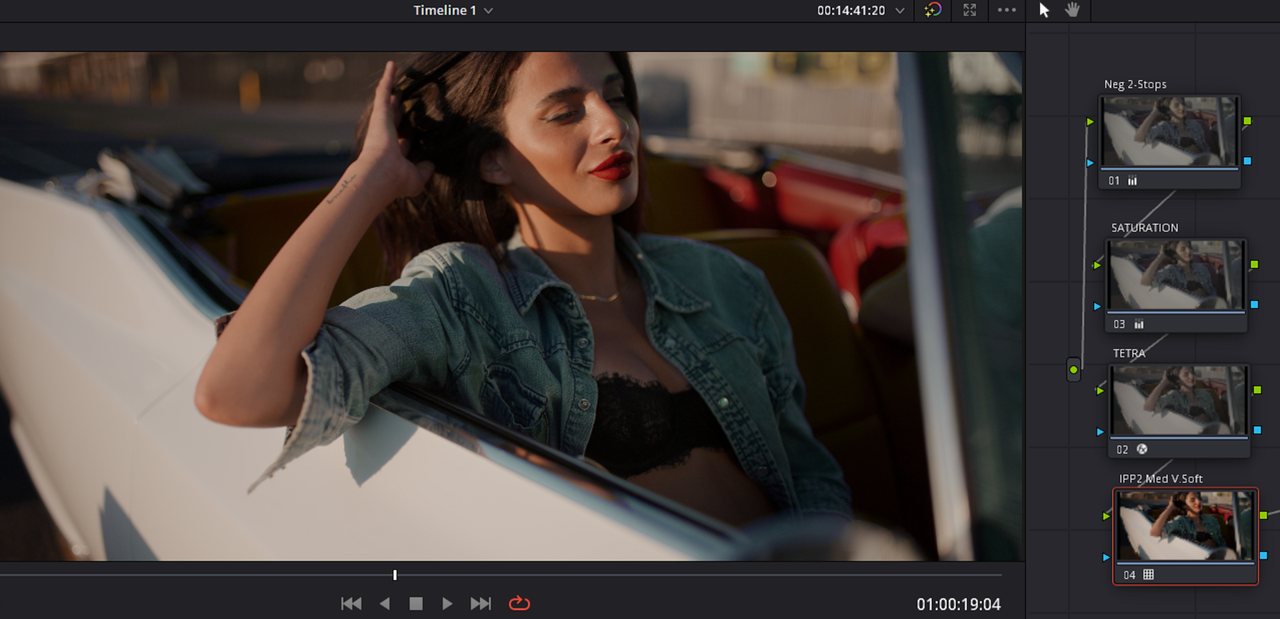
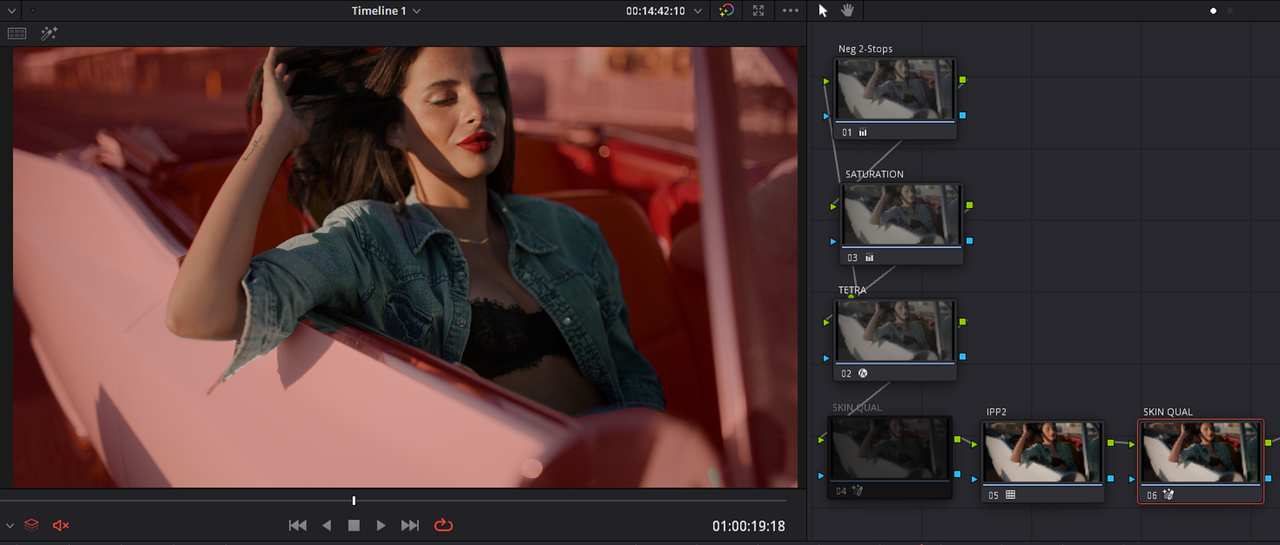
Here is a RED IPP2 Workflow with an IPP2 Output Transform Lut at the end of the Node Tree with a simple grade.


1.png


2.png


3.png


3a.png


3b.png


3c.png


3d.png


3e.png


3f.png


3f1.jpg


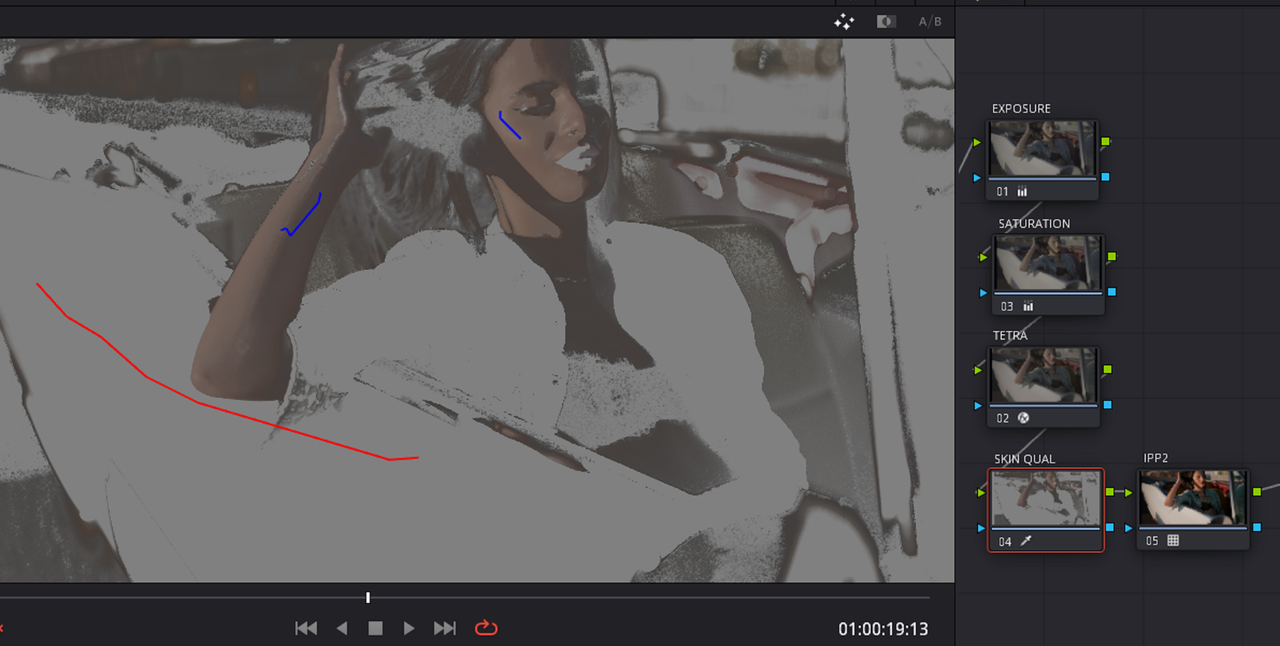
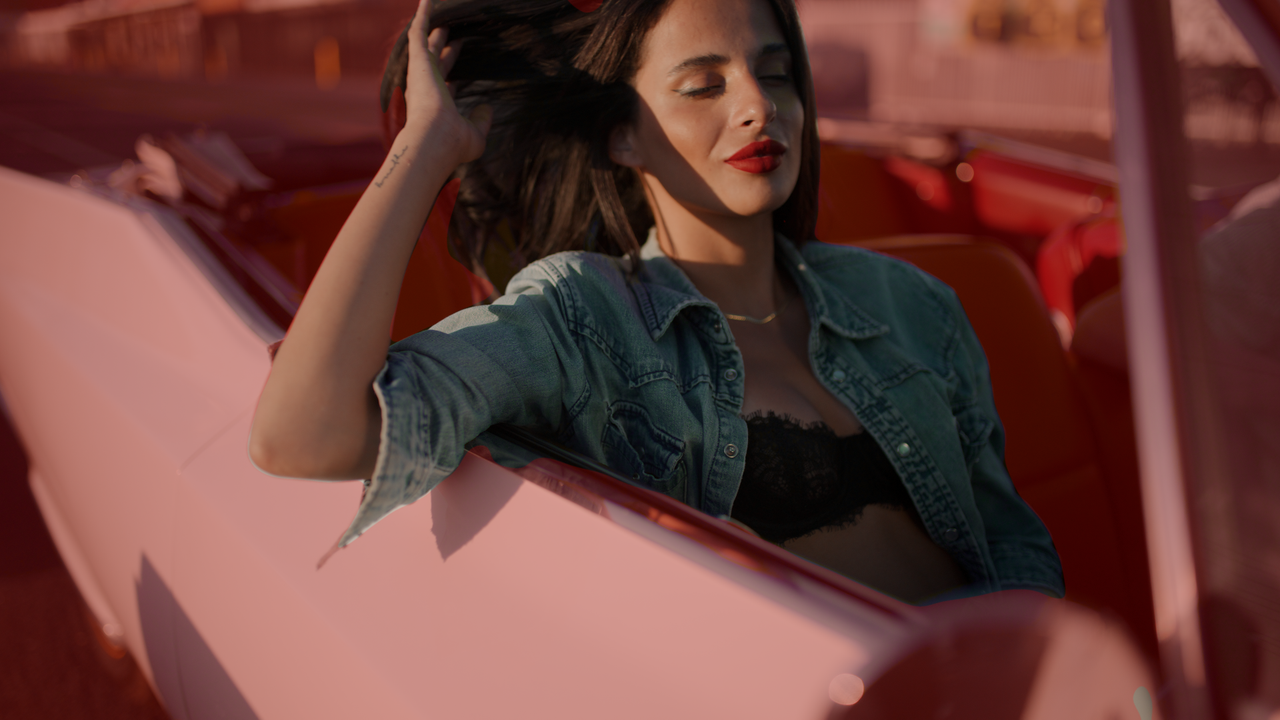
If I remove the Grade and just try to correct the skintone from a more yellow appearance to more of an accurate skintone with the old method of the "3D Qualifier" tool, these are the results below. The qualification looks a little crappy and the Image looks flat.


3g.jpg


3h.png


4.png


5.png


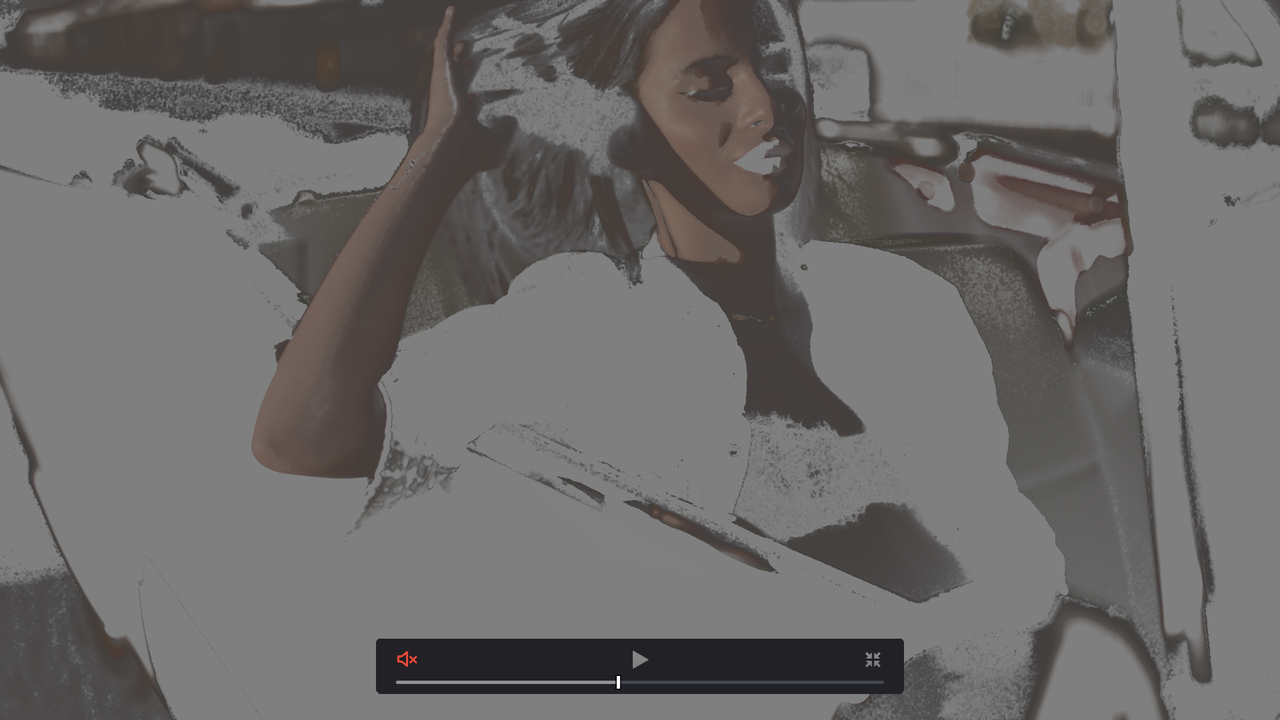
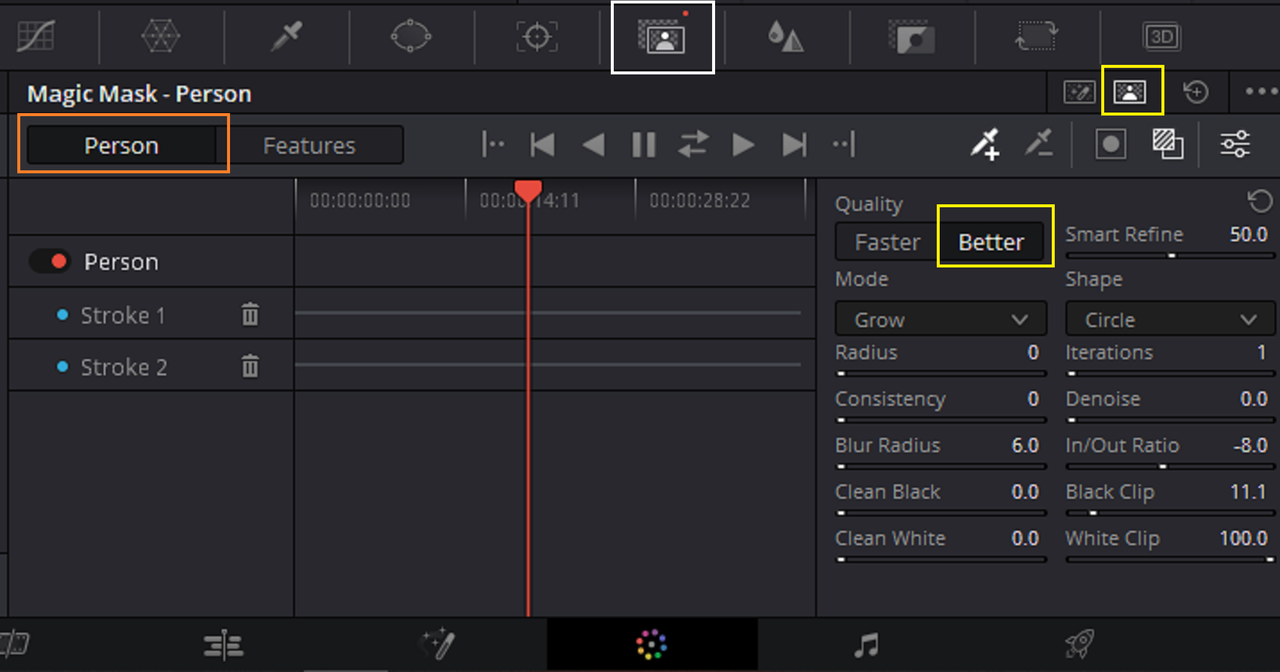
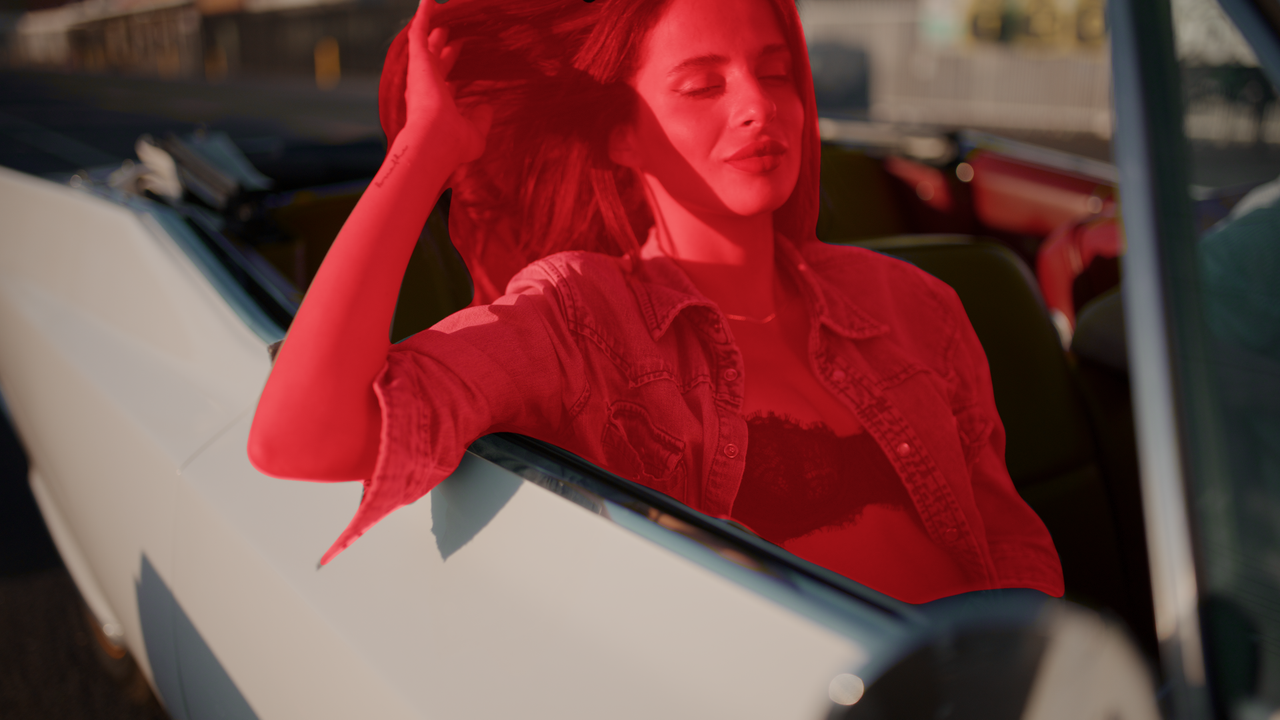
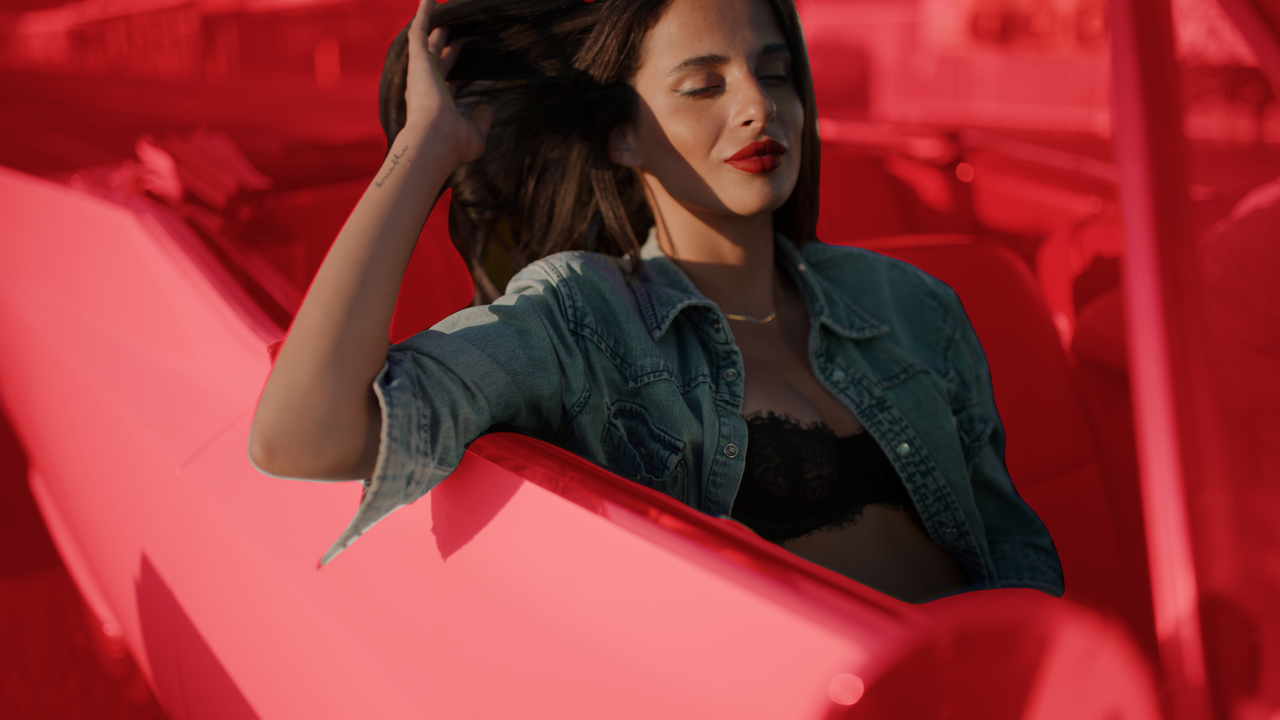
You can get a better qualification of a single source with the Newer "Magic Mask" tool than with the Older "3D Qualifier" tool but you still get that Flat Look. This is why some people try qualifying after the transform to REC709. Again, you can do that but it won't give you the "BEST" results.


6.png


7.png


8.png


9.png


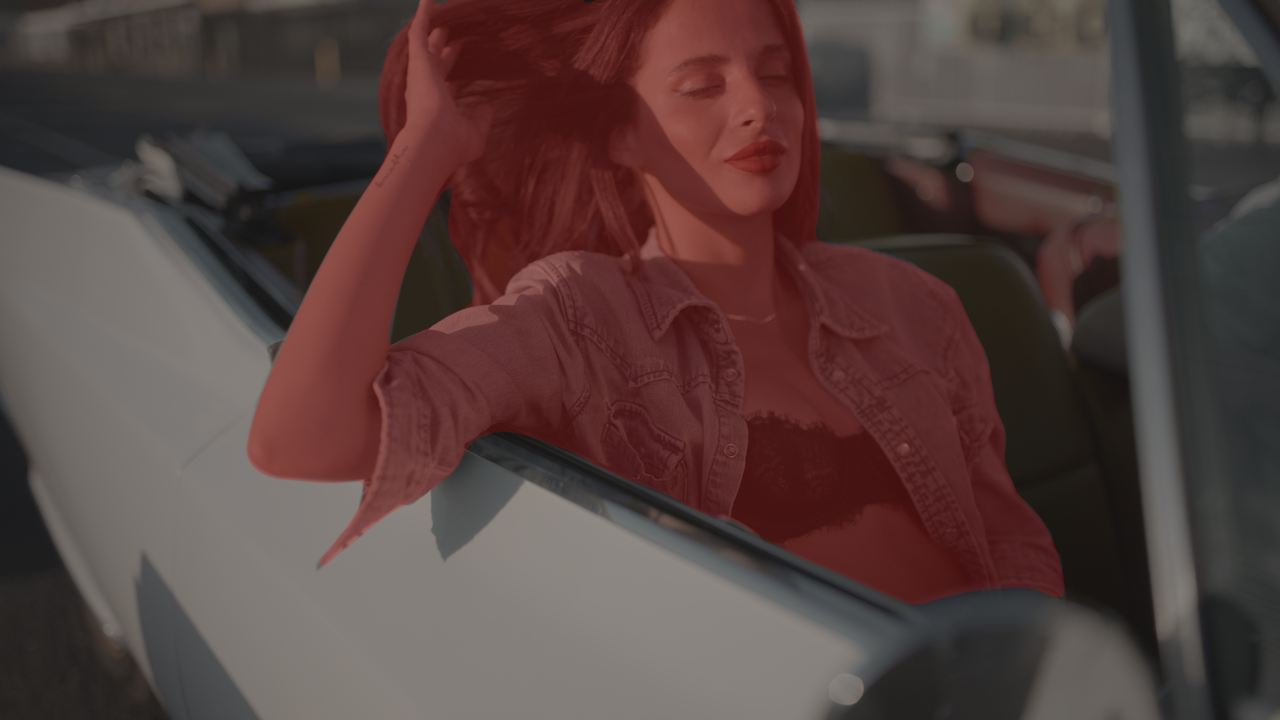
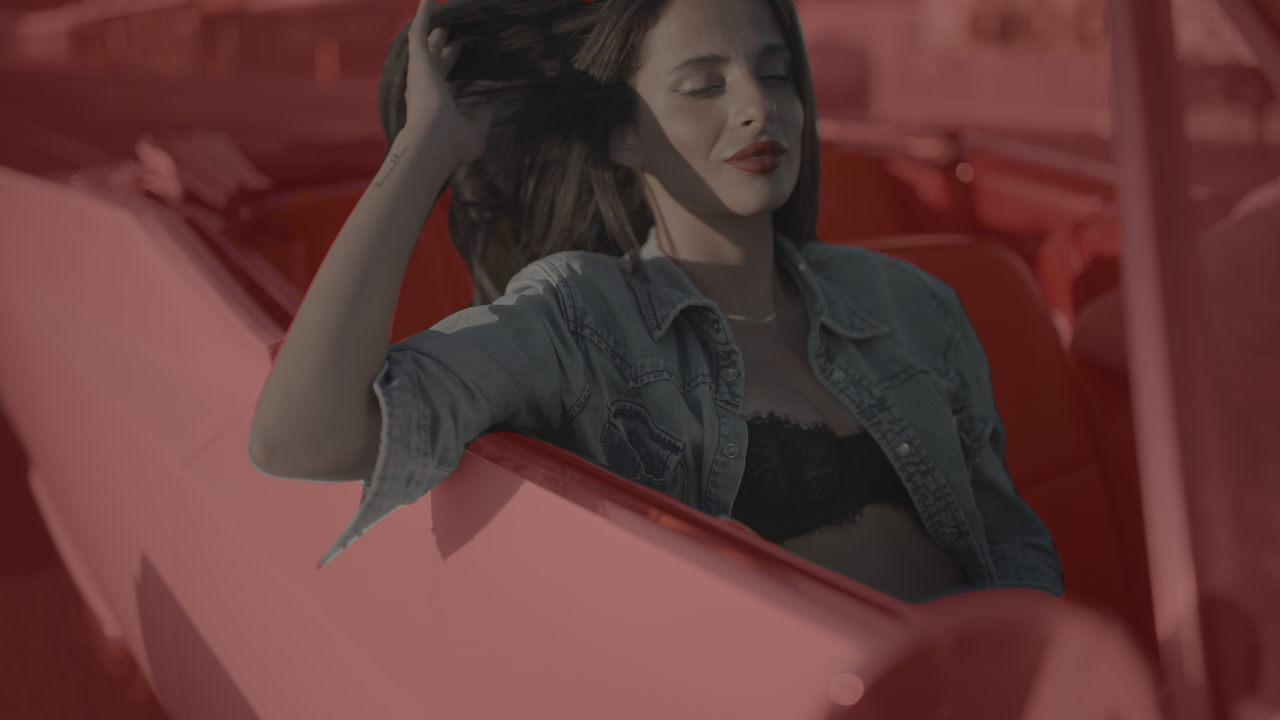
Qualifying after the transform to REC709( the mask is "inverted" to show what the skintones look like, the "RED" area would be the area you would be changing with the "Magic Mask" tool)


10.png


11.png


12.png


However, you could use a "RED IPP2 Color Managed" workflow and you would be qualifying in the RWG/LOG3G20 Color Space without the "Flat" looking image and this would happen before the Output Transform. Plus the image would look exactly the same as with the IPP2 Output Transform Lut workflow with the Lut at the end of the Node tree.


13.png

14.png

15.png

15a.jpg


17.png


18.png

19.png


IPP2 Output Transform Lut Workflow

3f1.jpg


IPP2 Color Managed Workflow

15a.jpg
 
Avid Media Composer with Baselight For AVID Plugin


Part 1- Introduction


About 6 or 7 years ago when I was still using a MAC and using Avid Media Composer before I really ever truly made the switch over to Davinci Resolve, I was looking for a better Color Correcting Tool than Media Composer Offered. Jake Blackstone, A Colorist out of L.A who is also a member of this forum, suggested that I look into "BASELIGHT" but specifically BASELIGHT for Avid Media Composer. After installing the trial version, I realized how truly powerful it was. However because My Mac was really under powered the plugin caused Media Composer to crash regularly. This was also when my mac completely died on me and I had to make the move back to the PC. Back then I believed that Baselight for Avid was just for the Mac. Now I see that is available for Media Composer for Windows so I'm giving it another Shot. I still Love using Davinci Resolve but for Color Correction there's not alot new to excite me that much anymore. So along side Resolve I'm going back to Avid Media Composer and Baselight for Avid for awhile .

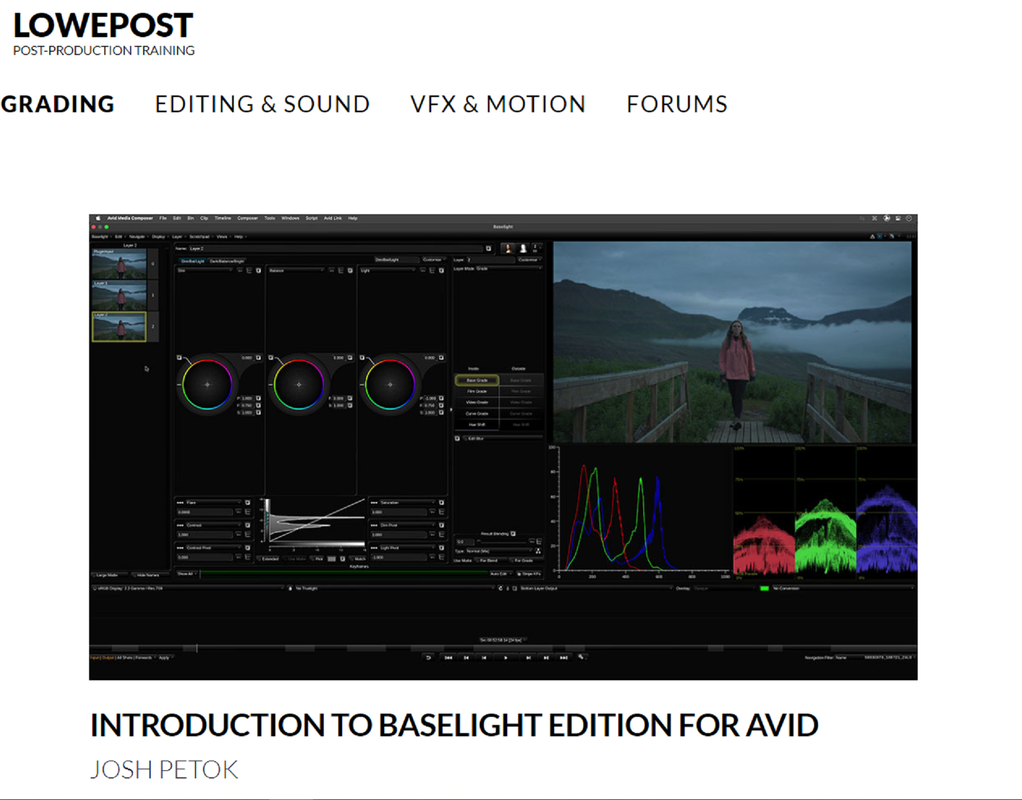
Lowepost gave me a great refresher on Baselight for Avid


Lowepost

INTRODUCTION TO BASELIGHT EDITION FOR AVID
https://lowepost.com/courses/baselight/introduction-to-baselight-edition-for-avid-r62/


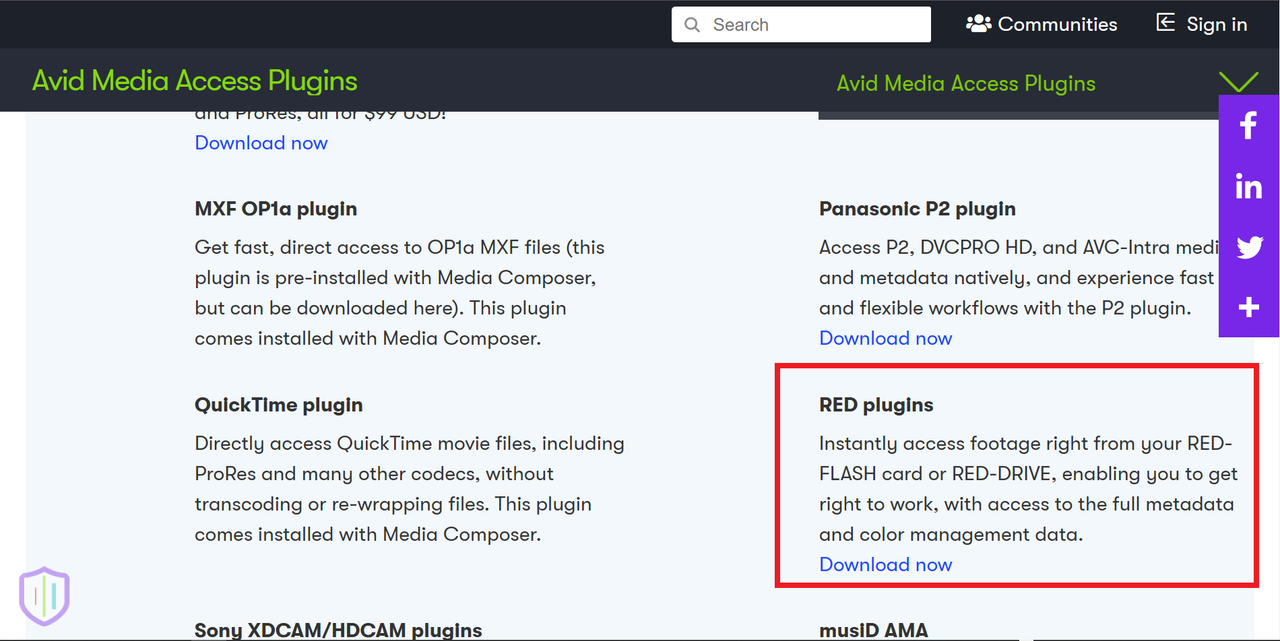
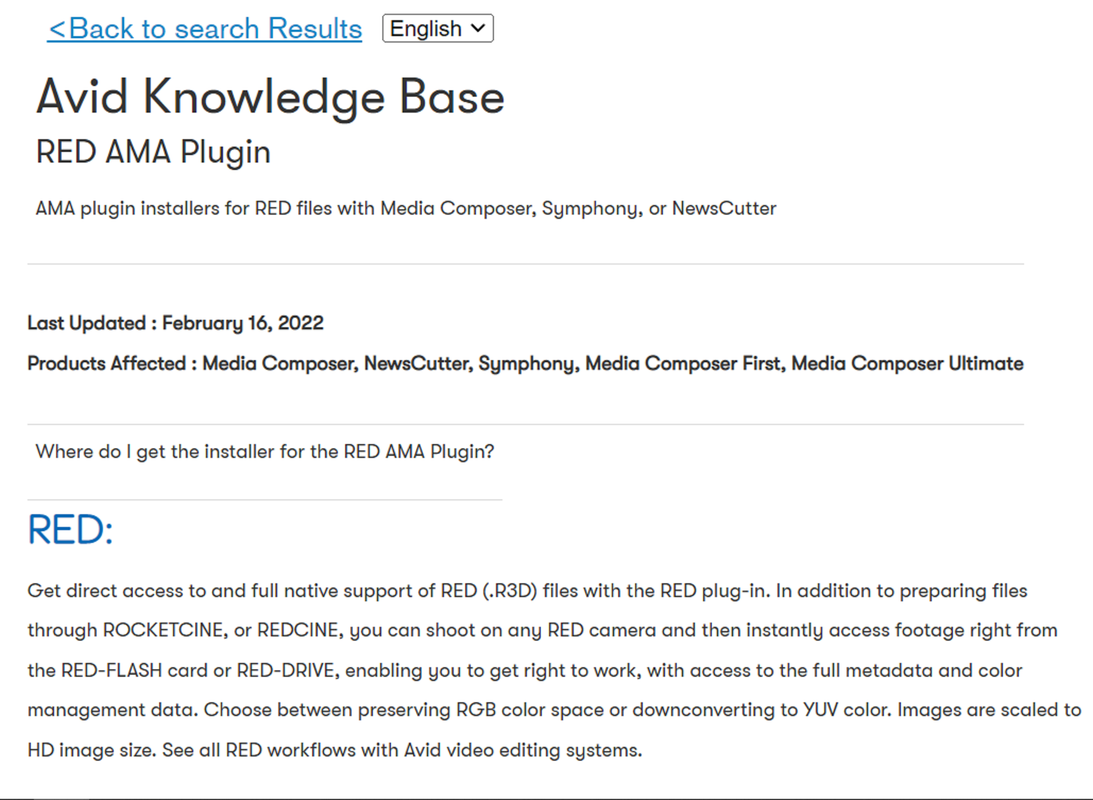
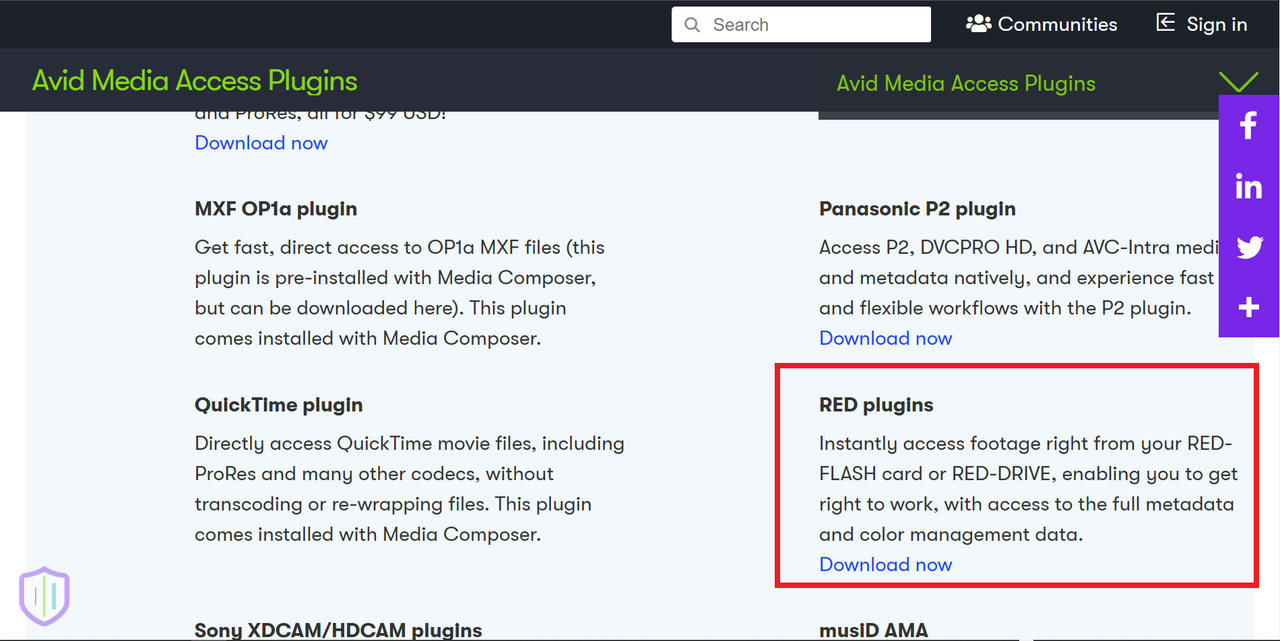
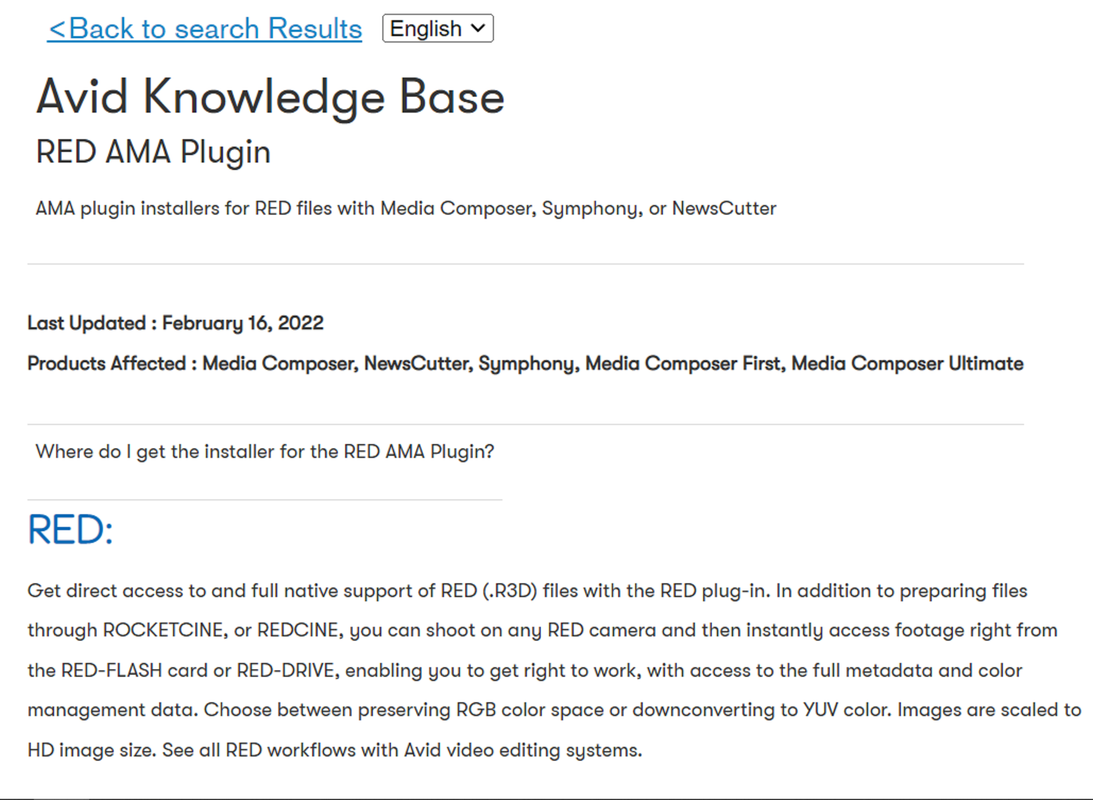
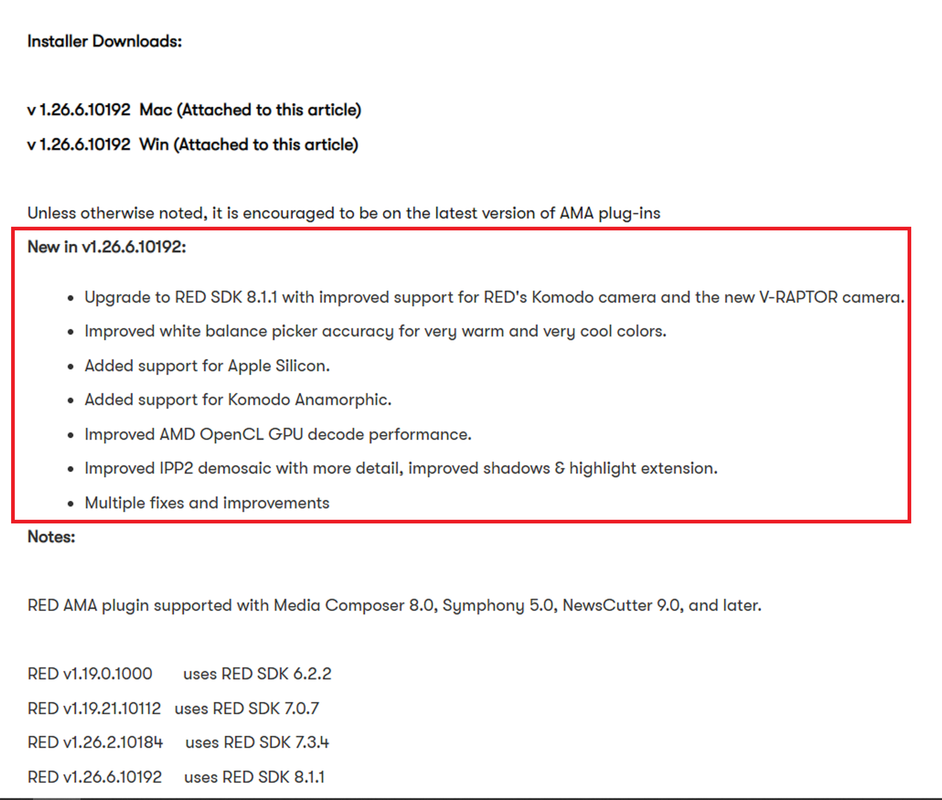
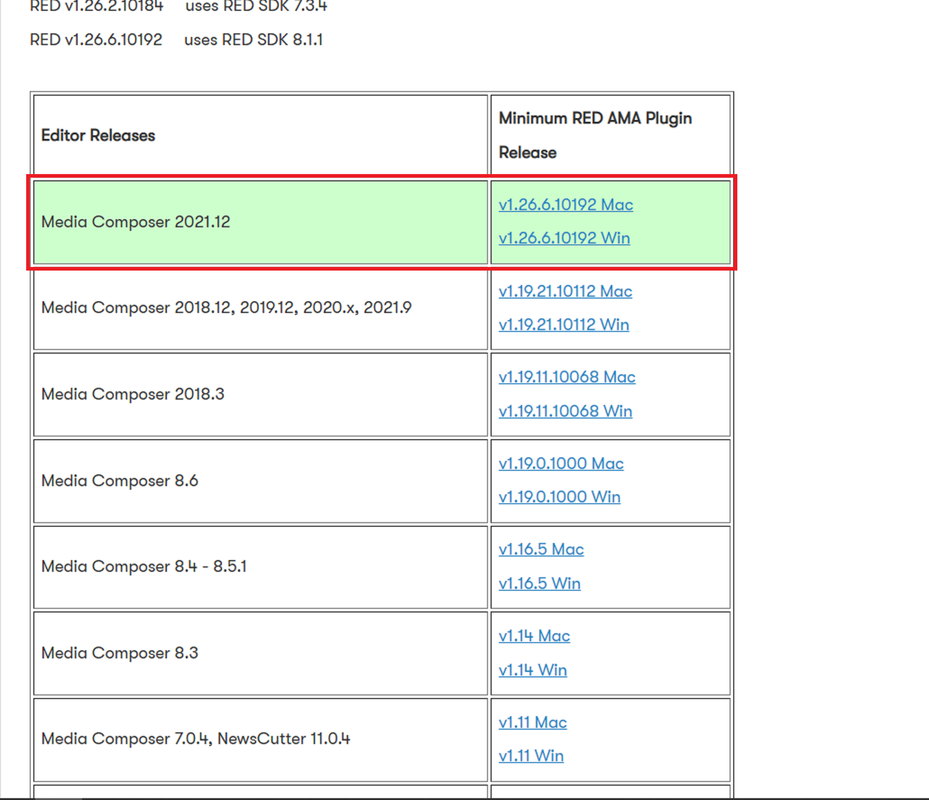
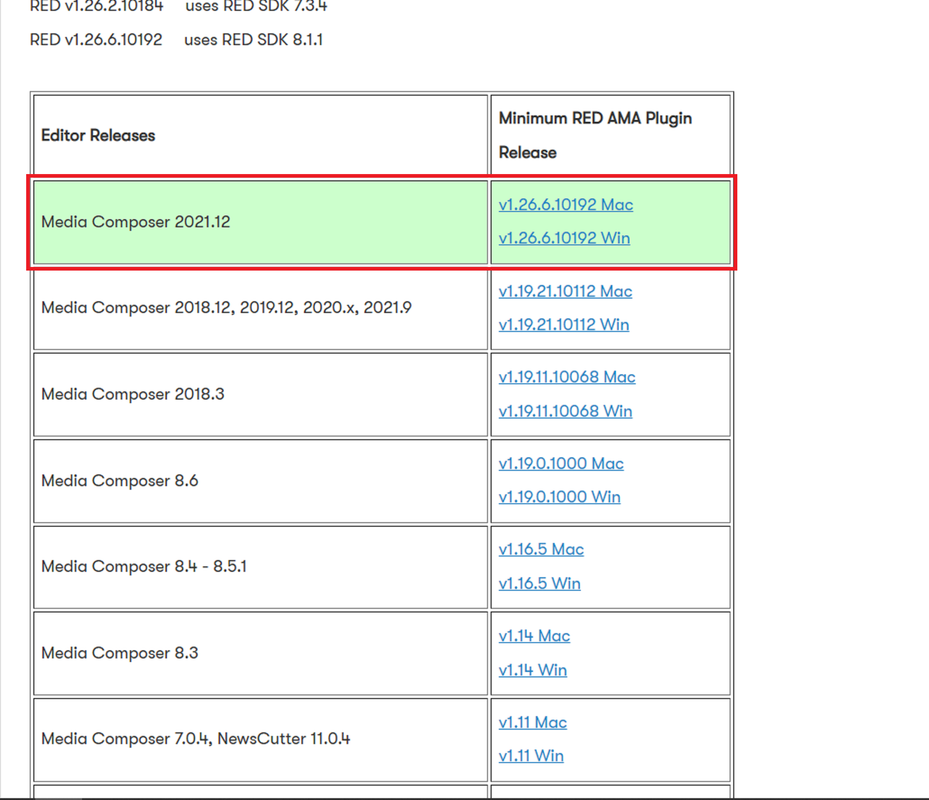
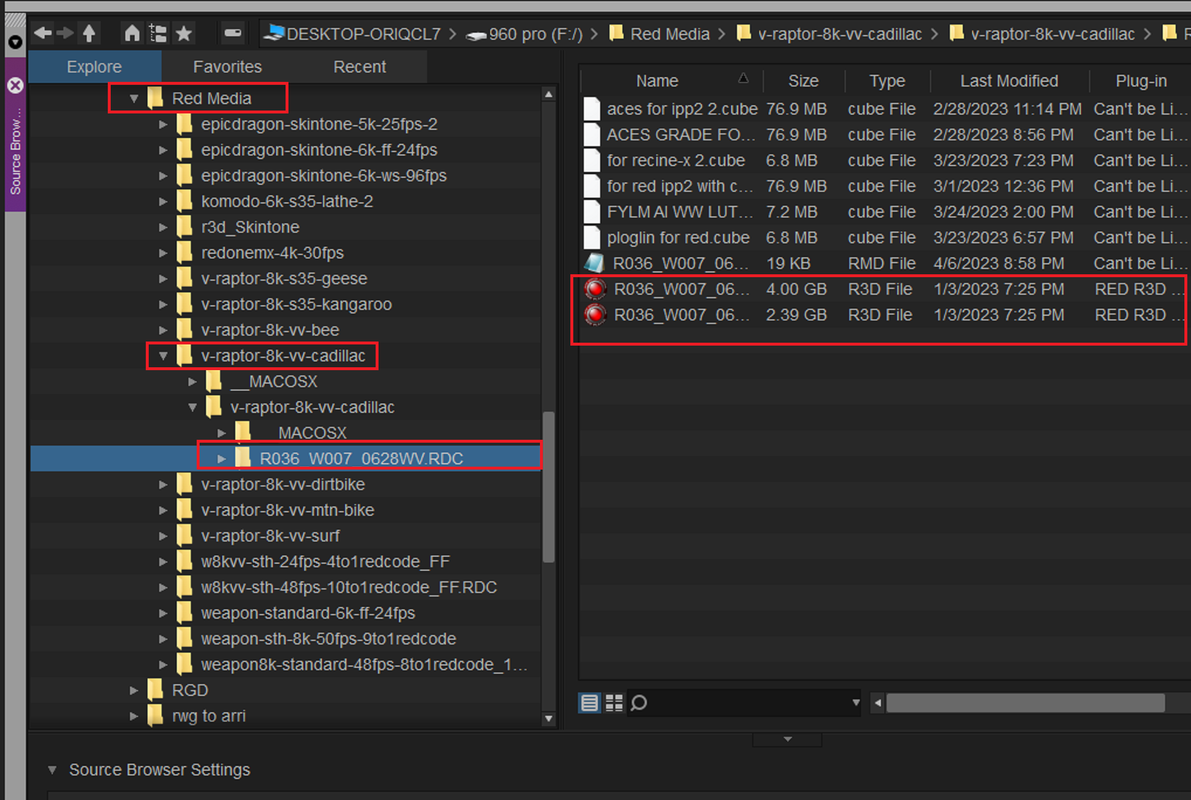
After you have installed Avid Media Composer, you absolutely have to install the AMA Plugin for RED or you won'tbe able to link to the RED.R3D files nor the RMA metadata


Avid Media Composer AMA RED Plugin
Avid Media Access (AMA) - Avid


2.png


3.png


4.png
 
Last edited:
Part-2 Avid Media Composer Settings


Here are some important settings in Avid Media Composer


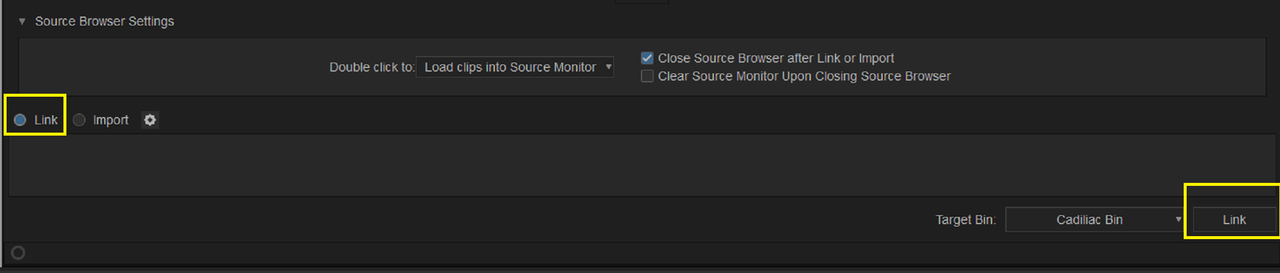
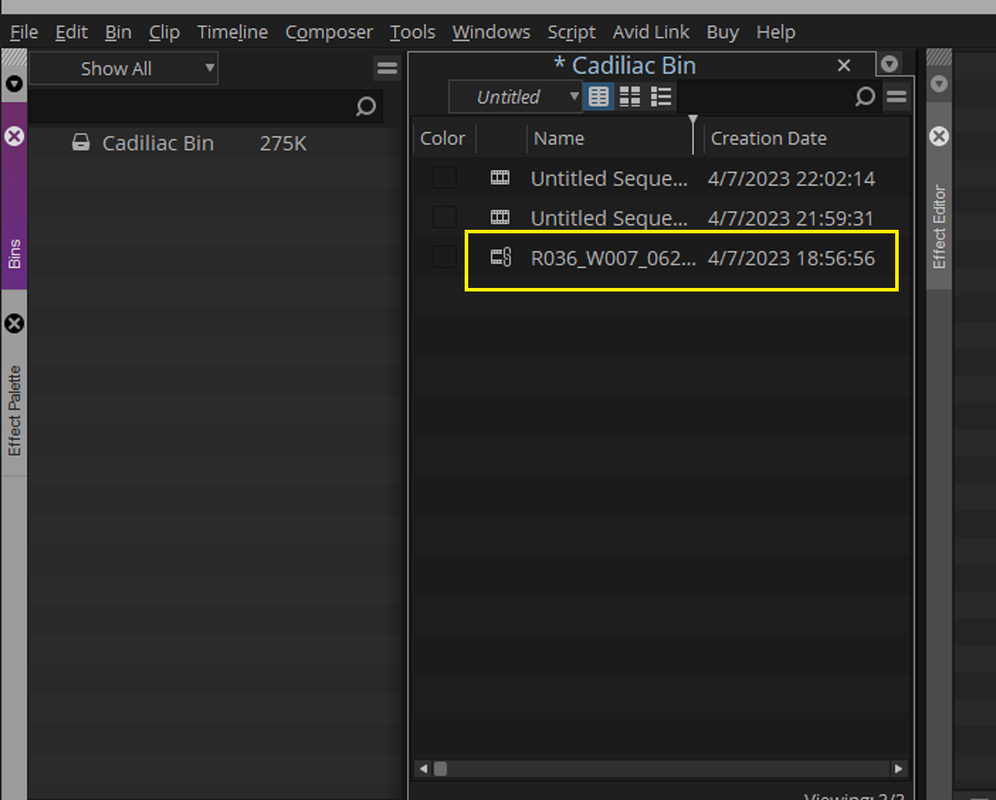
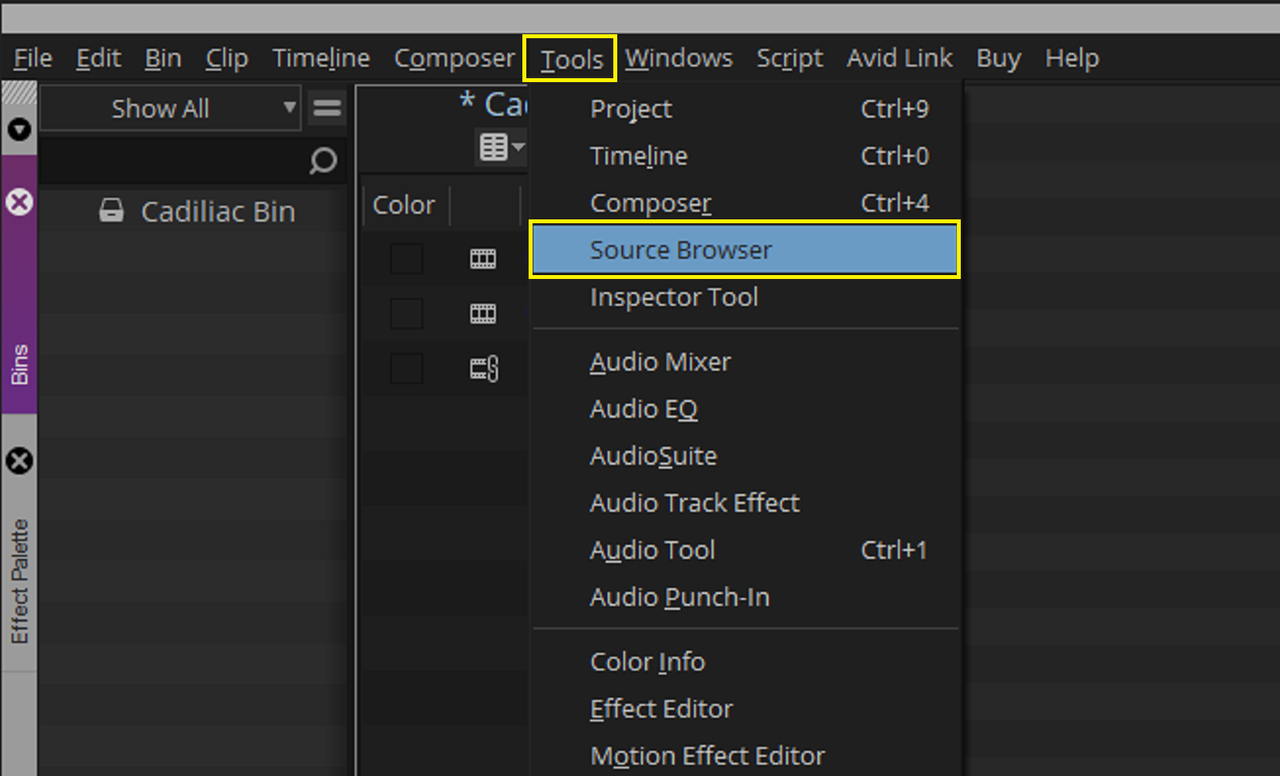
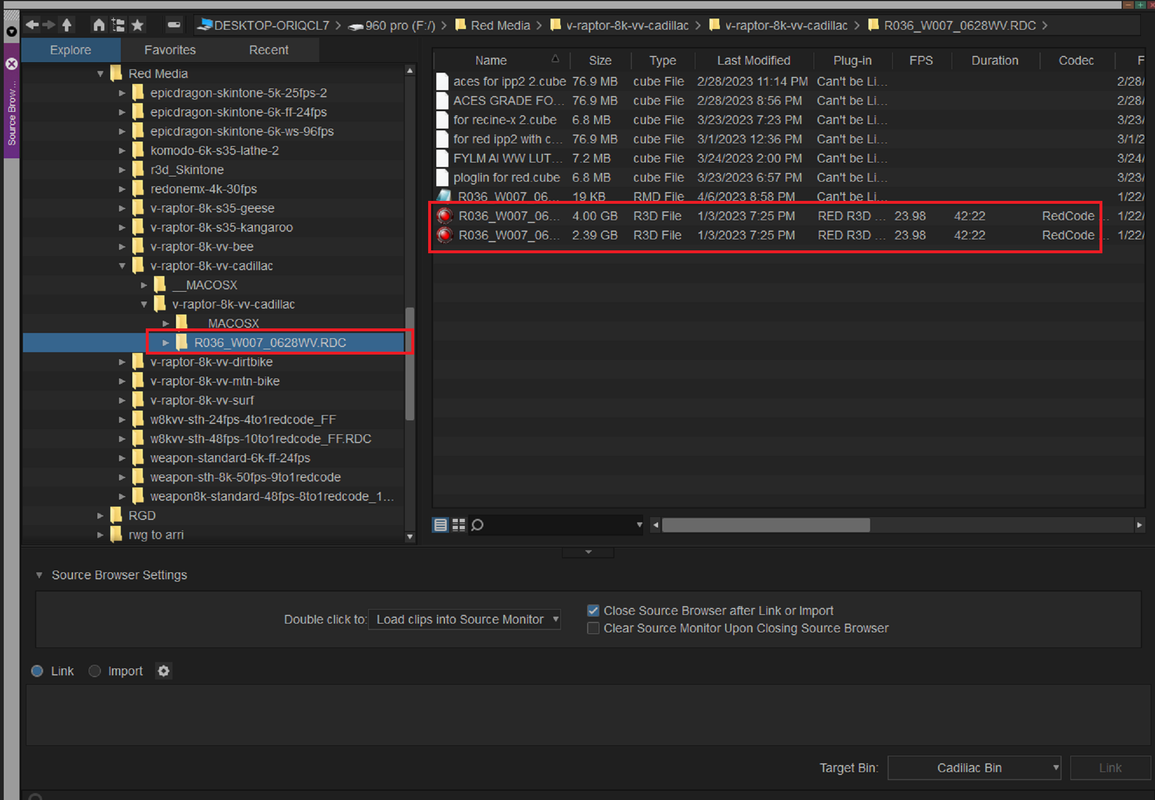
Go to "Tools" in the top menu and Select "Source Browser" from the drop down menu. Then Find the RED .R3D files you want and Select "Link" at the bottom far left-hand corner of the interface so that the "AMA" plugin will link to the Red Raw files and accompanying metadata. Then press the "Link" button in the bottom far right-hand corner to bring the clips into the project Bin.

7.png


8.png


8-1.png


Screenshot-9417.png


9.png


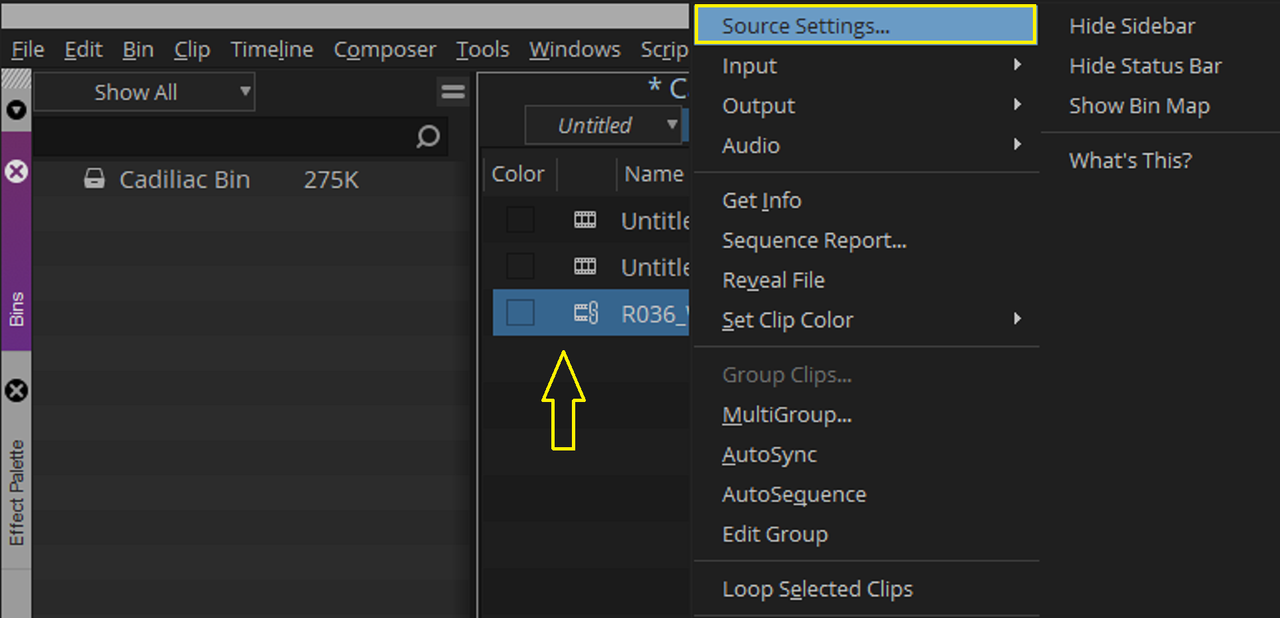
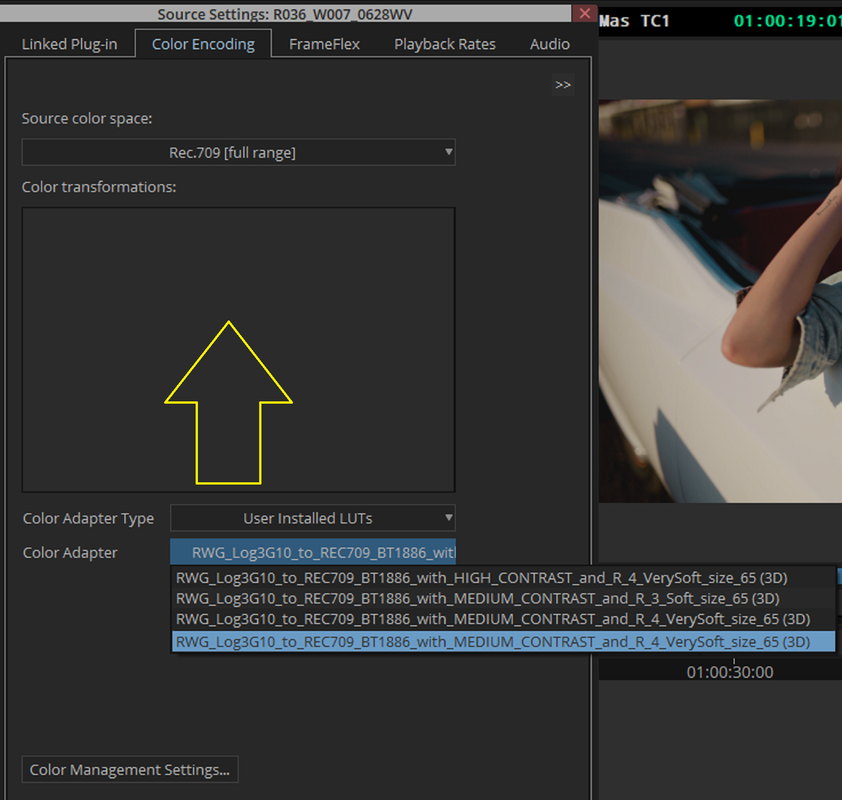
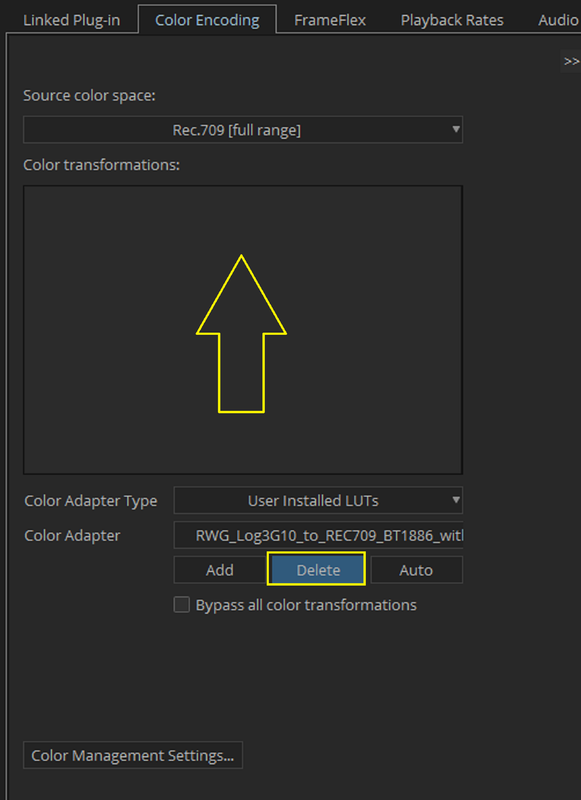
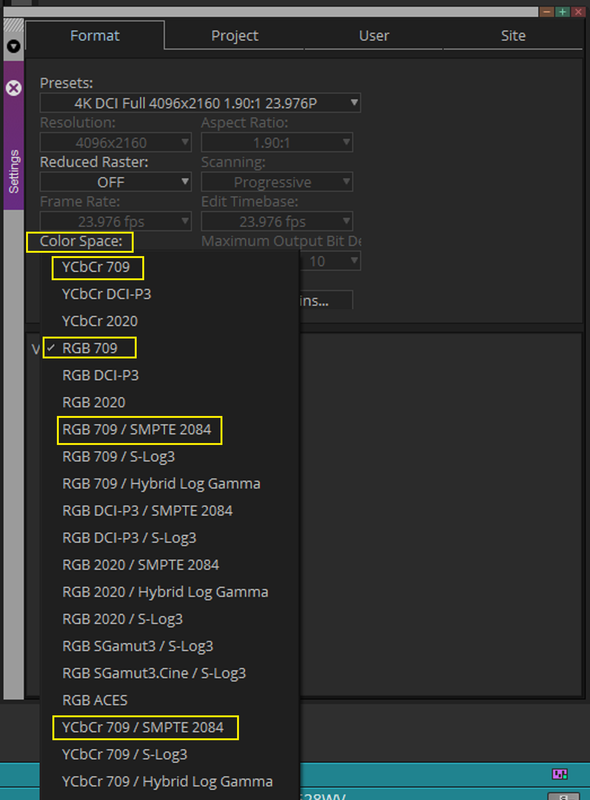
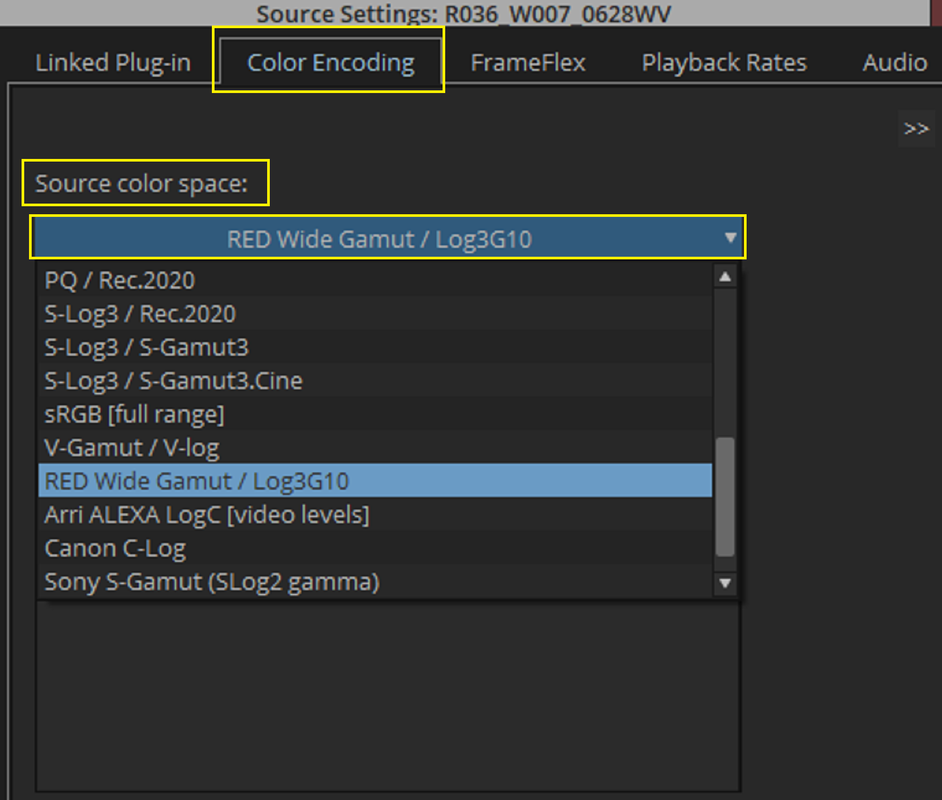
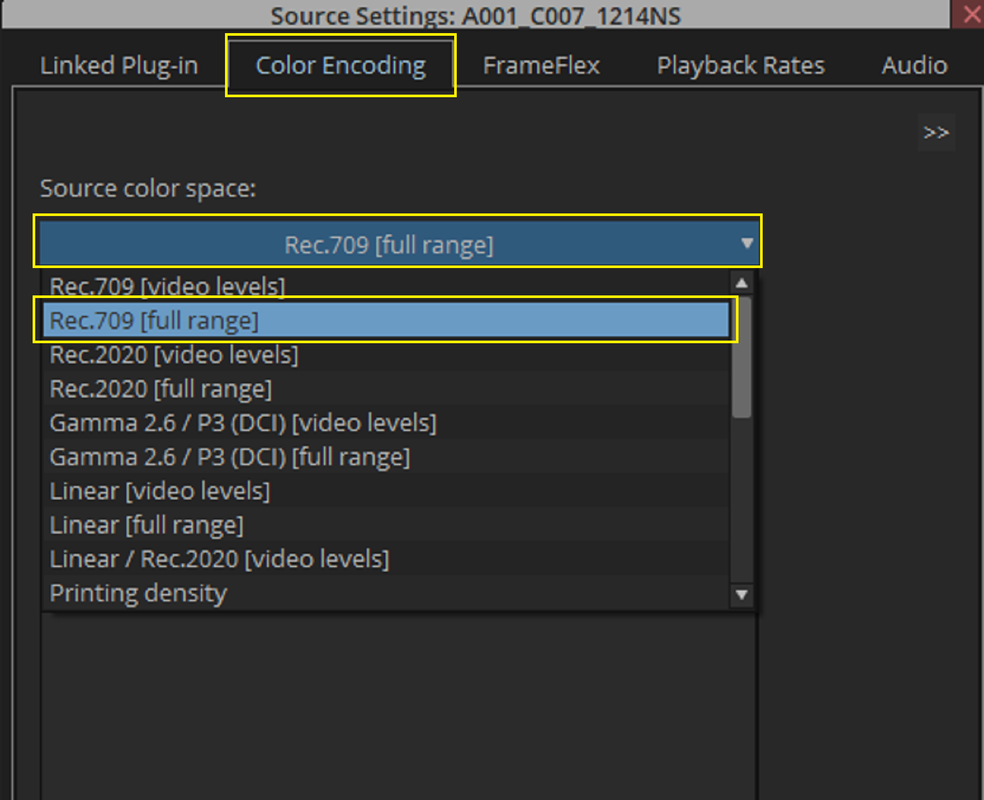
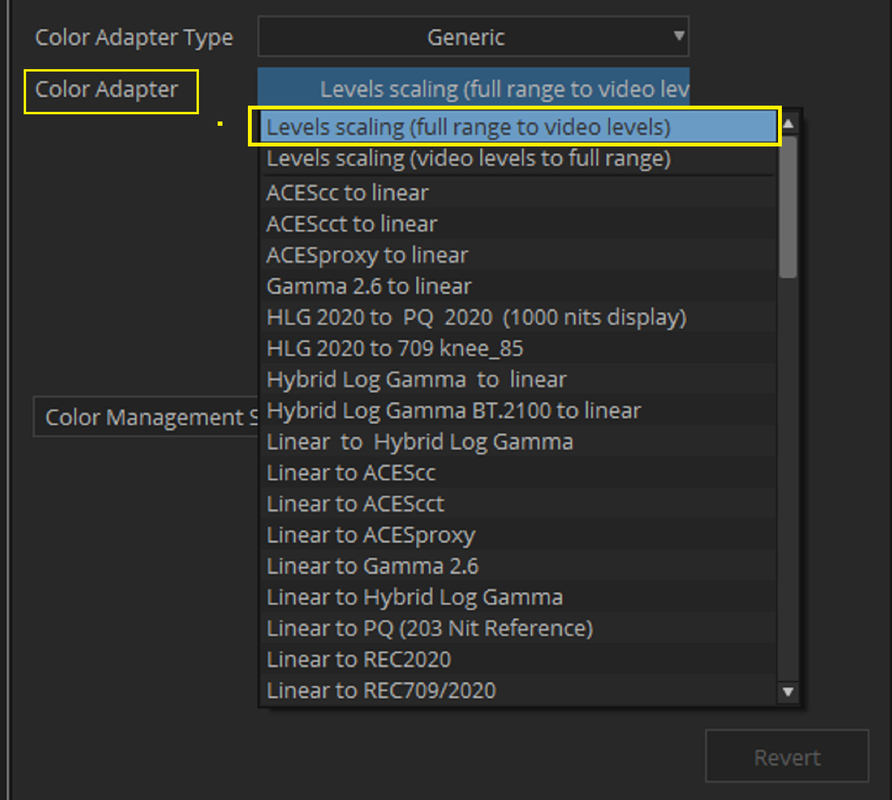
Now "Right Click" on the Linked .R3D files and select "Source Settings". Go to the "COLOR ENCODING" tab and make sure that there is nothing listed in the "COLOR TRANSFORMATIONS" box, if so delete them. This will disable any Color Management in Media Composer from interfering with the Color Management of the Baselight Plugin.


10.png


12.png


13.png


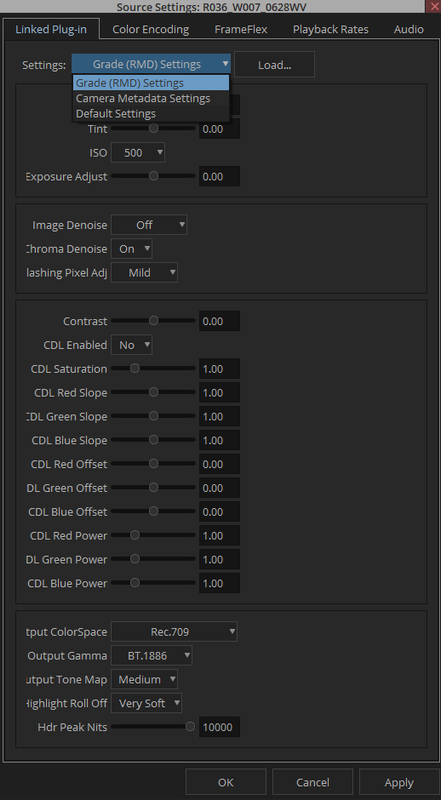
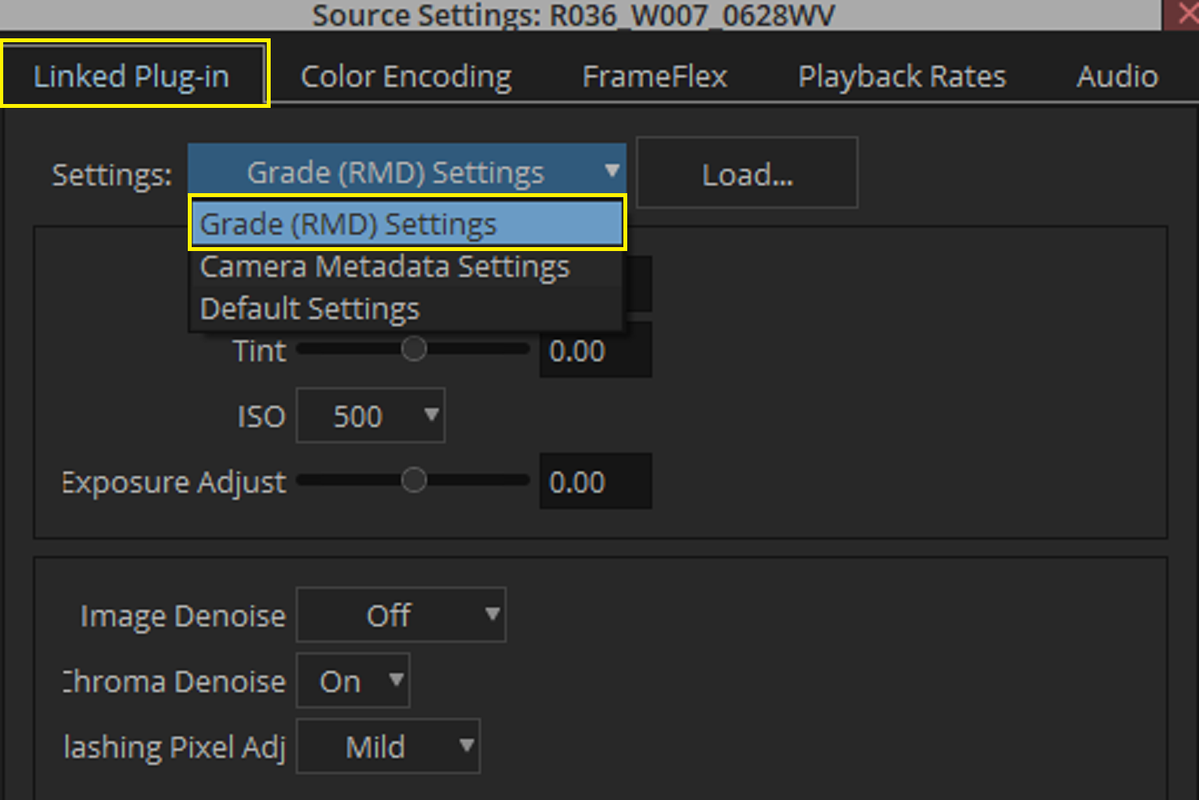
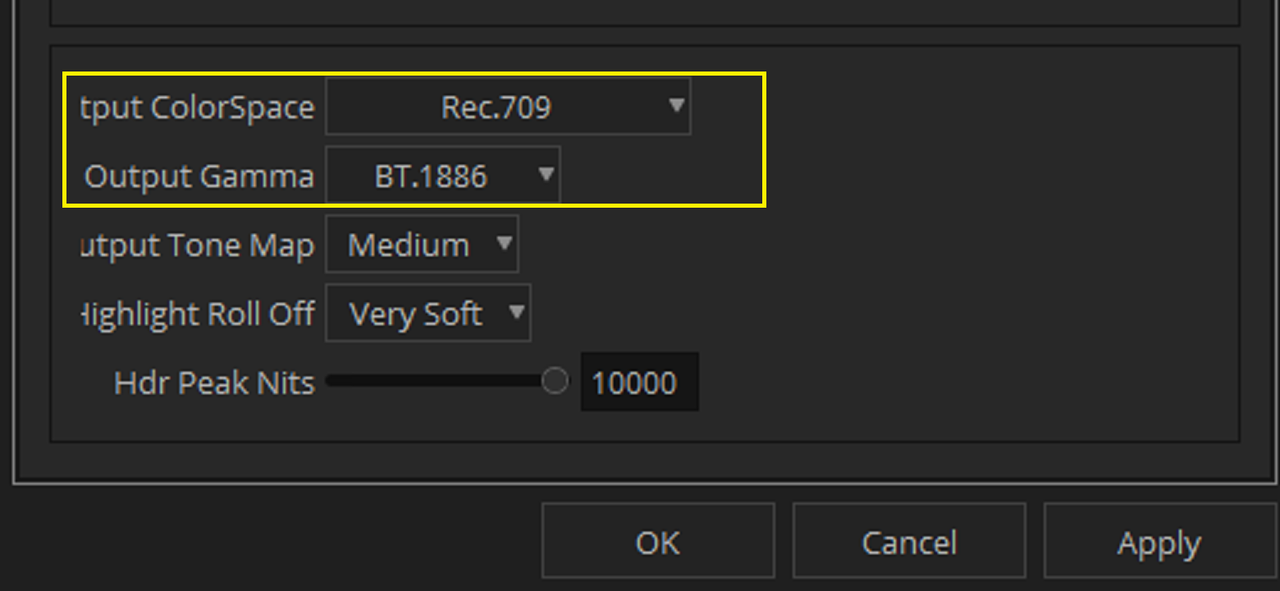
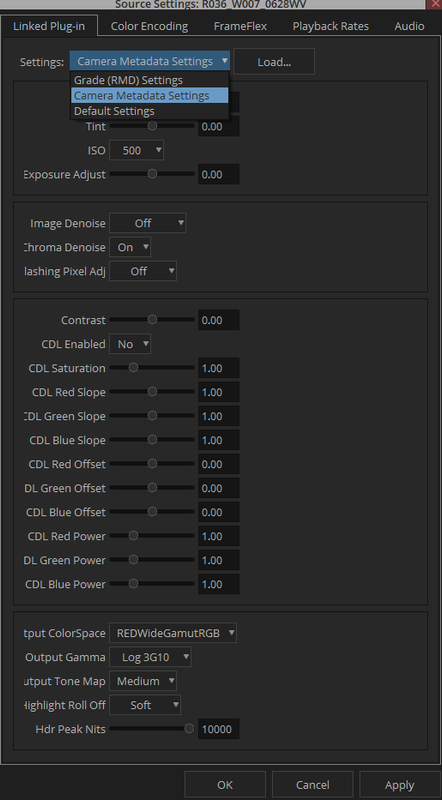
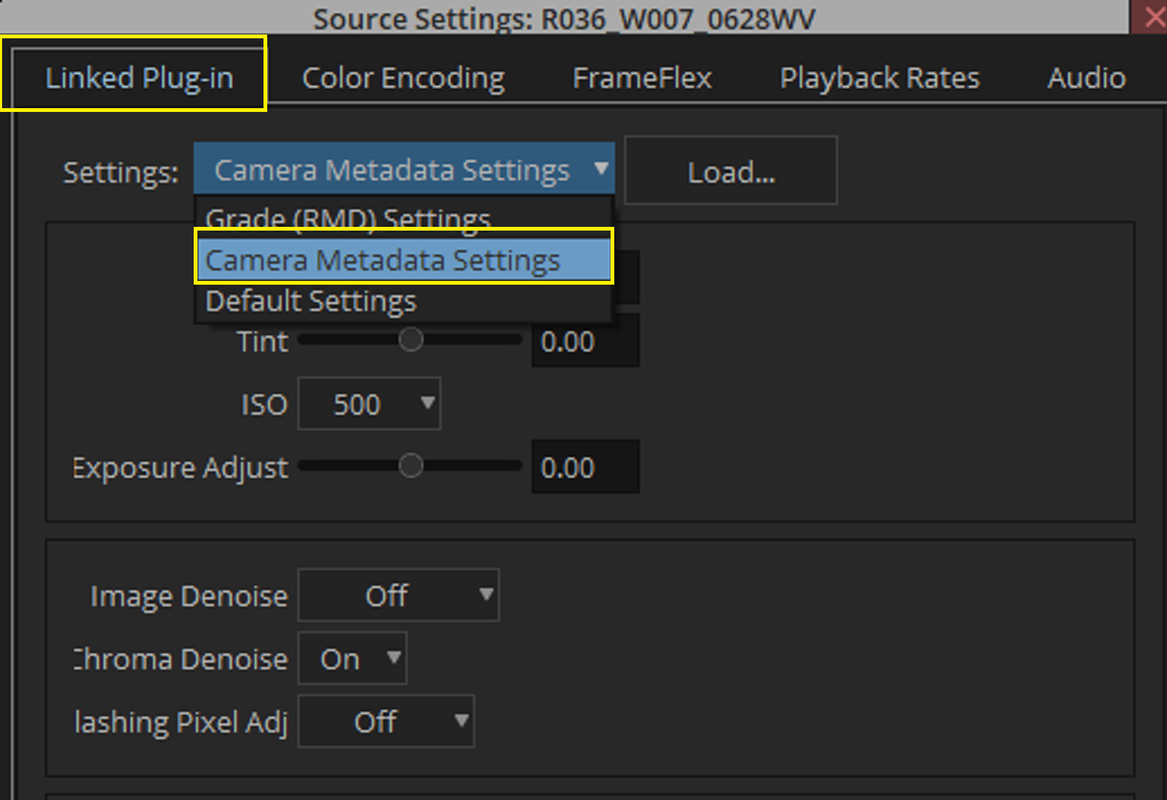
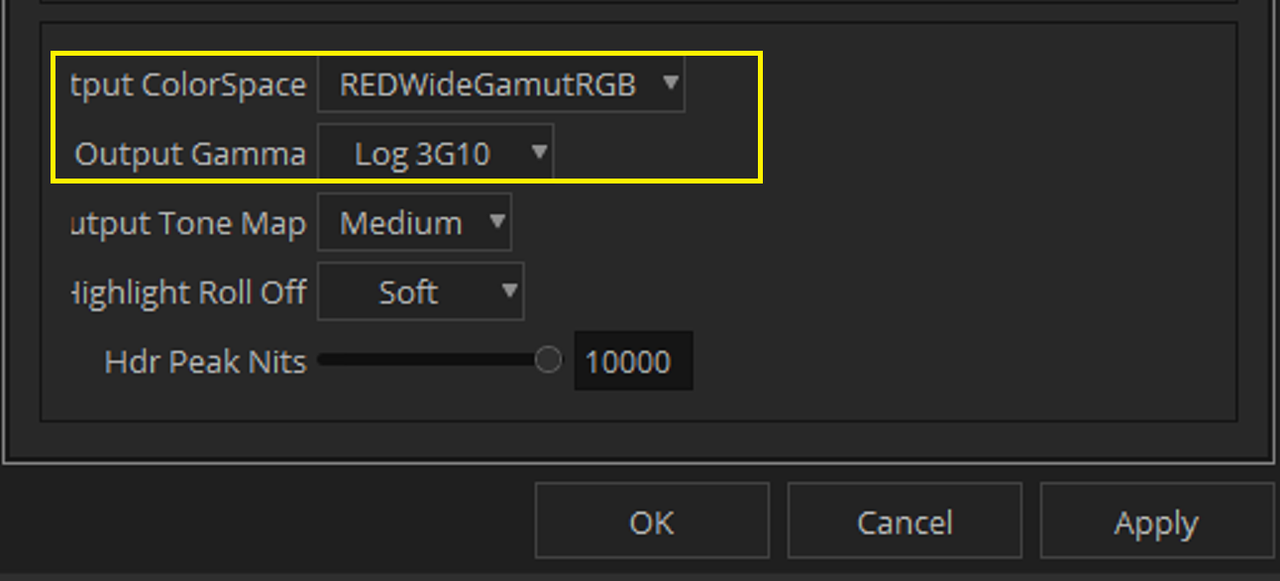
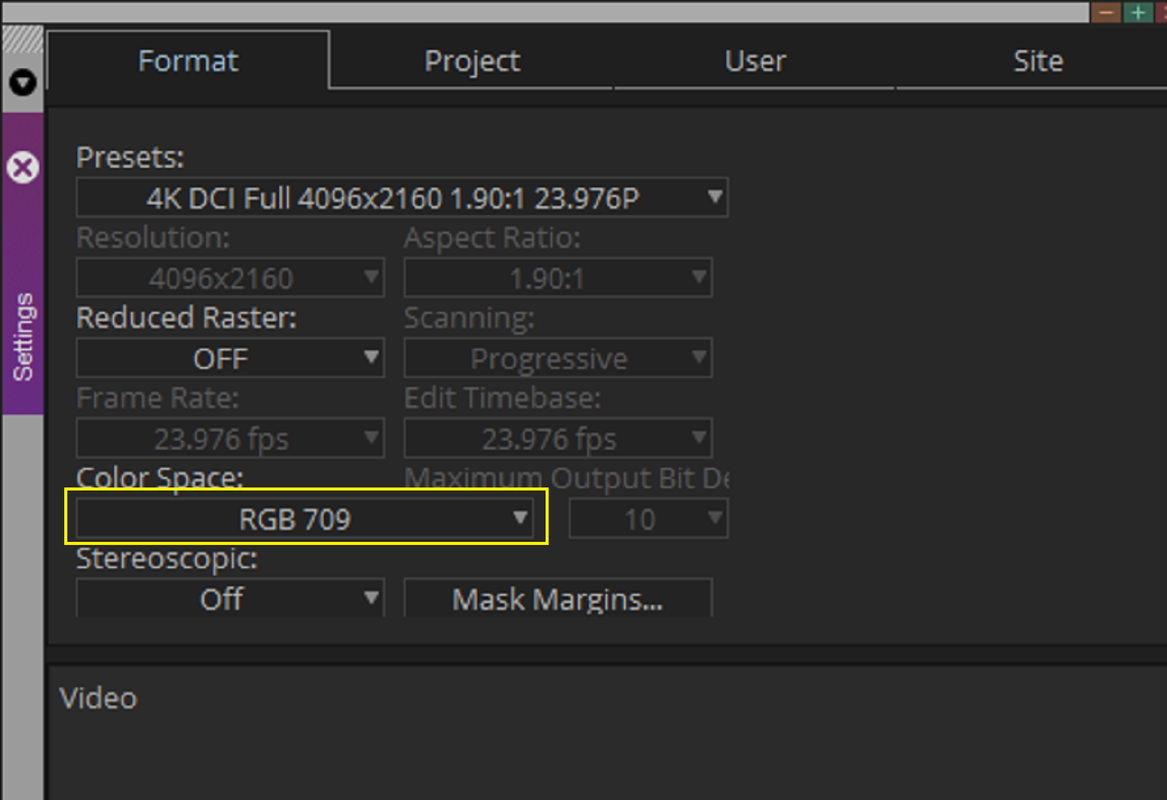
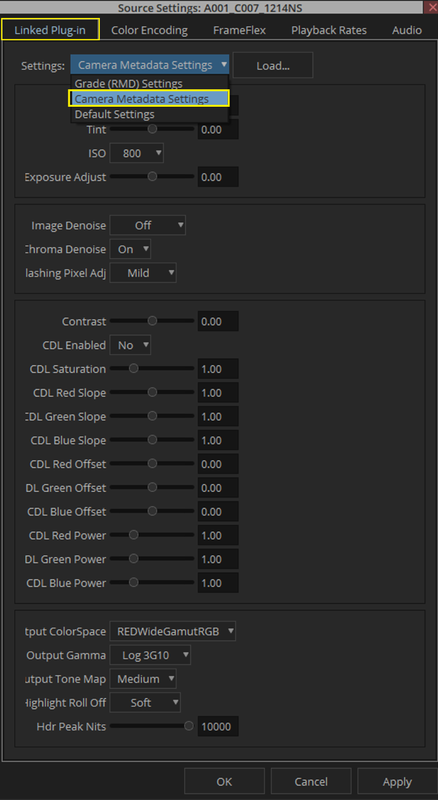
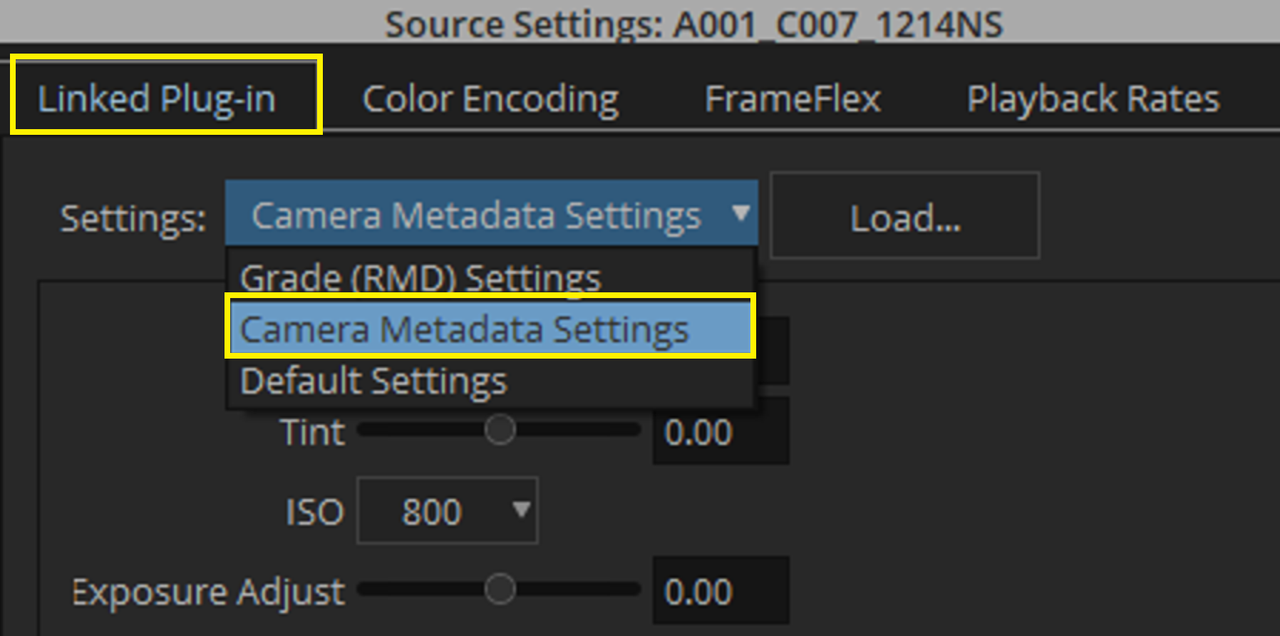
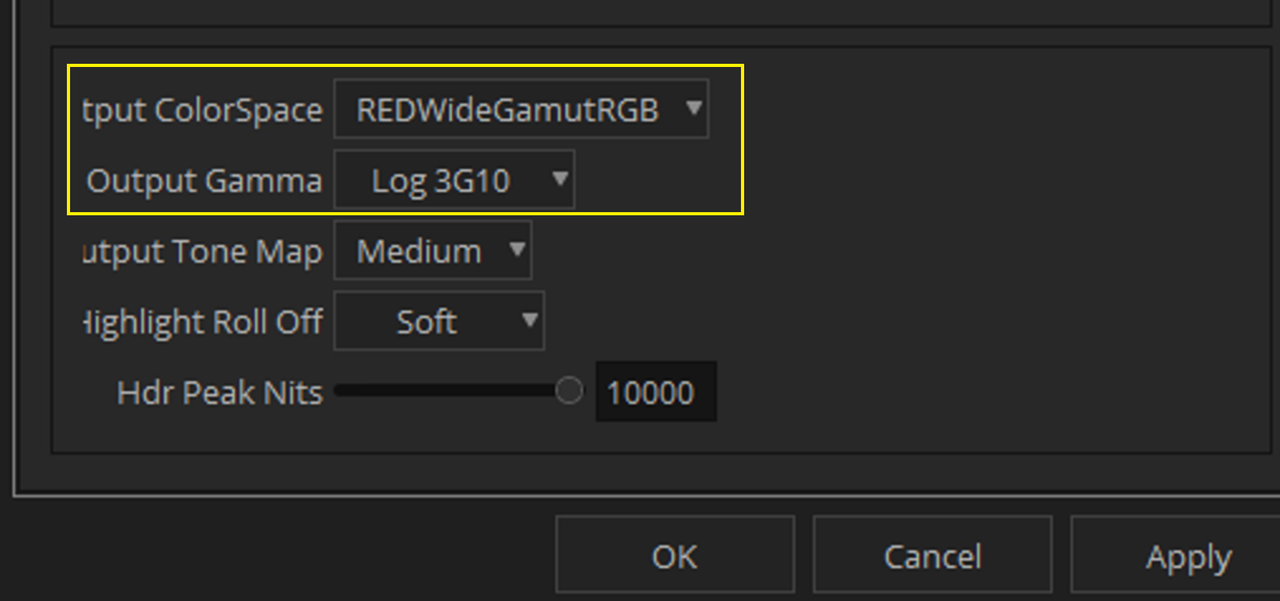
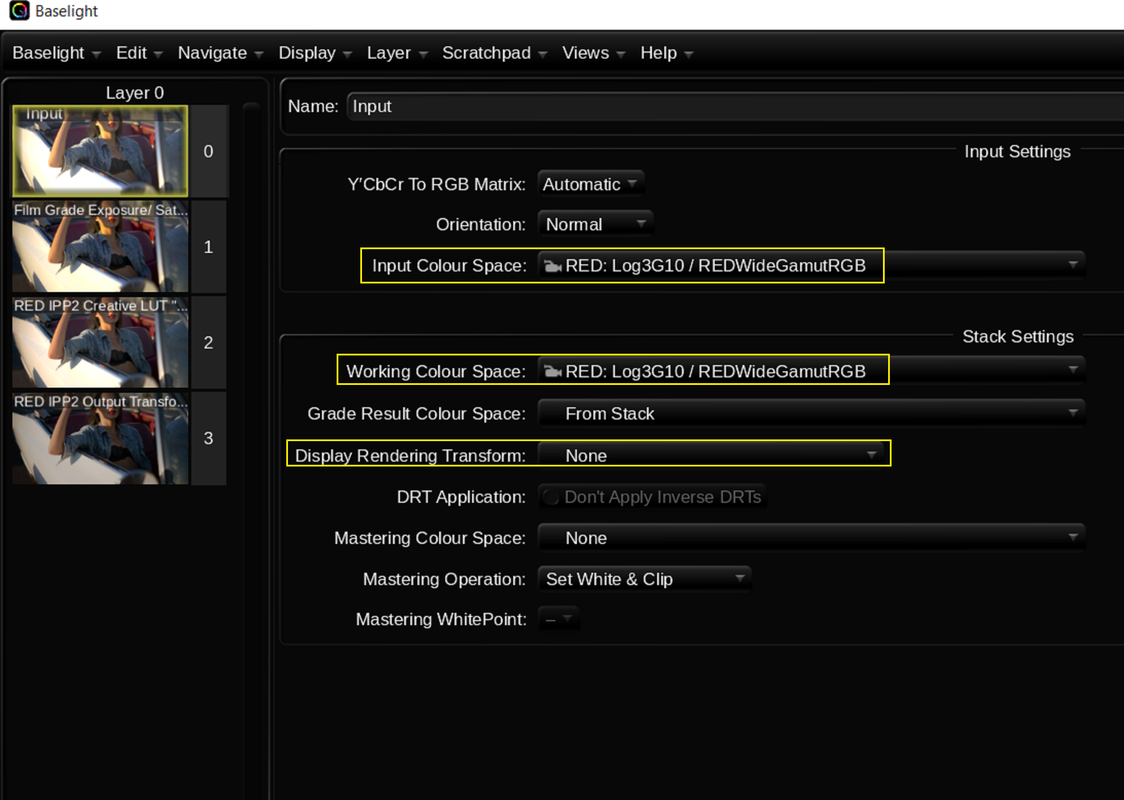
Also, change "GRADE (RMD) Settings" which will have the Rec709 Transform data from the .RMD file imbedded( REC709/BT.1886) to "CAMERA METADATA Settings" which will put it back to REDWideGamutRGB/LOG3G10. If you don't do this when you apply the Baselight Plugin, you will have two ODTs applied instead of one.


14.png


15.png


15a.png


16.png


17.png


17a.png


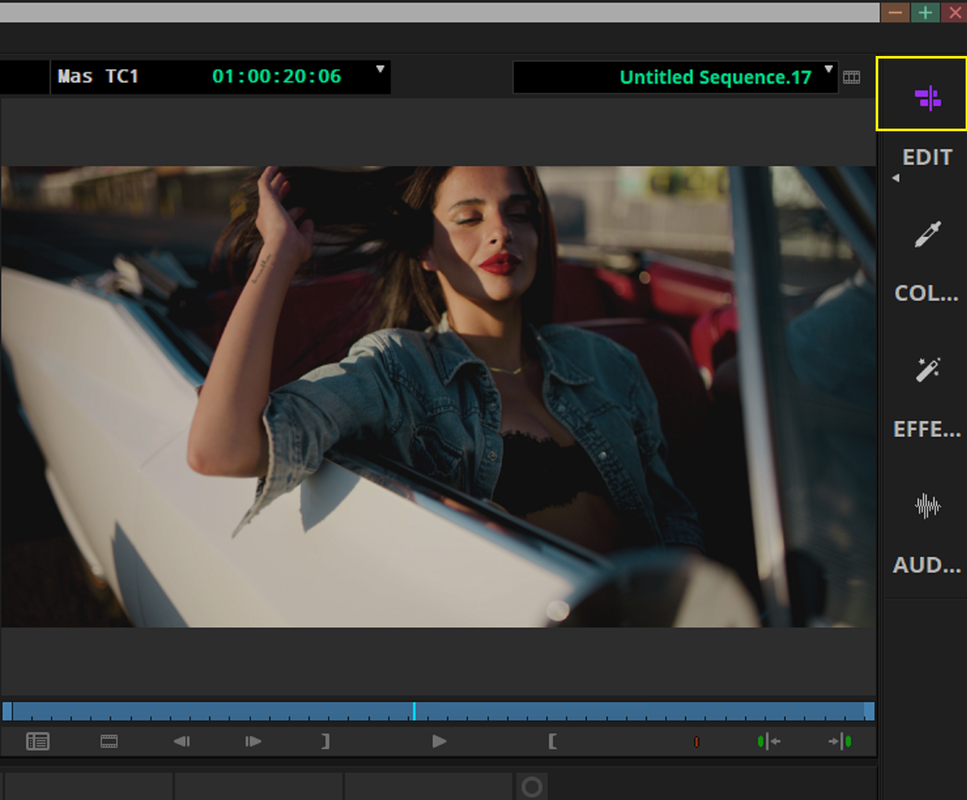
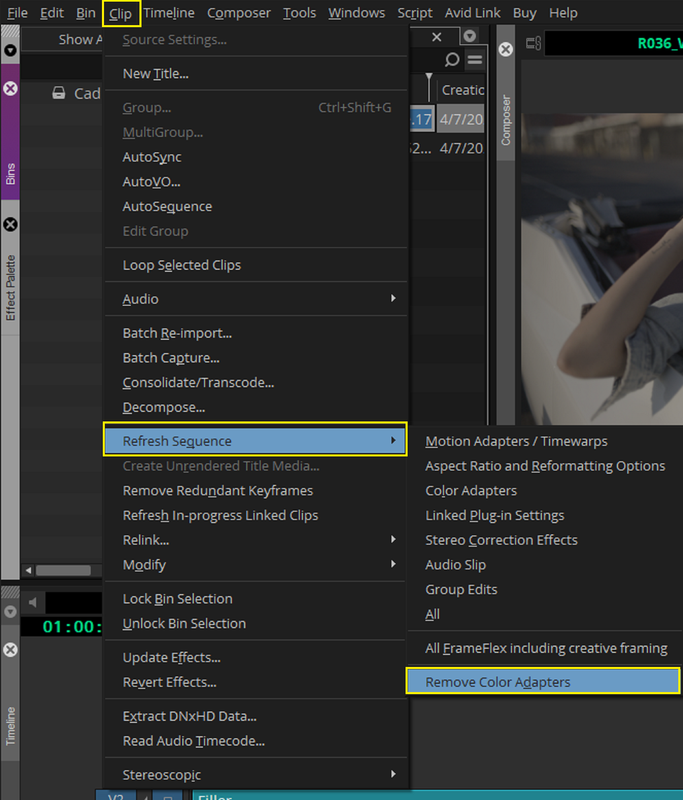
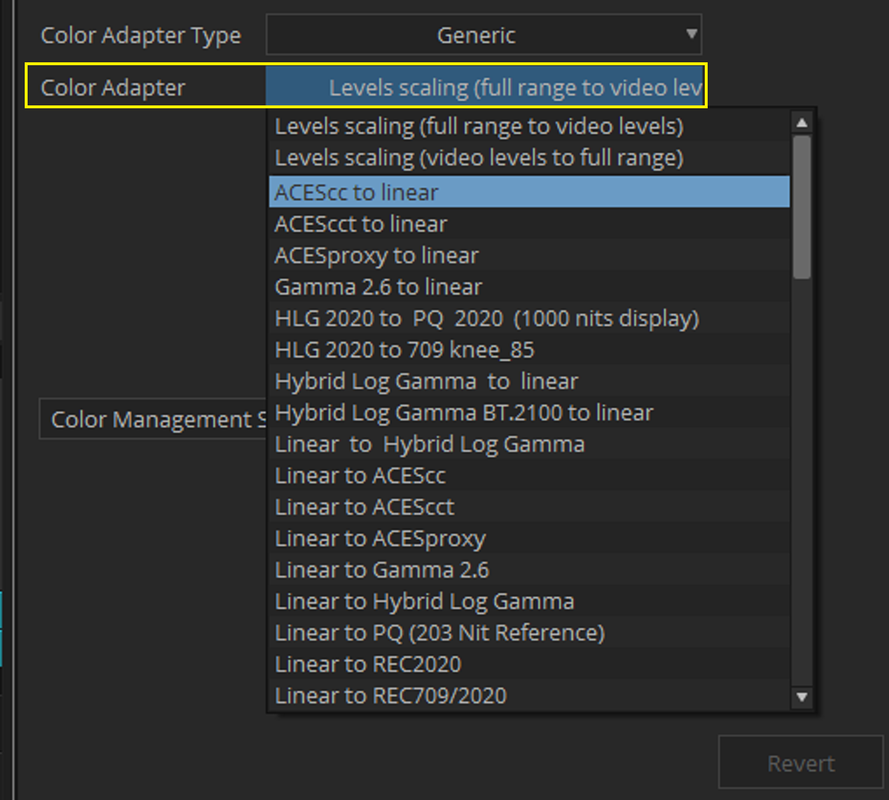
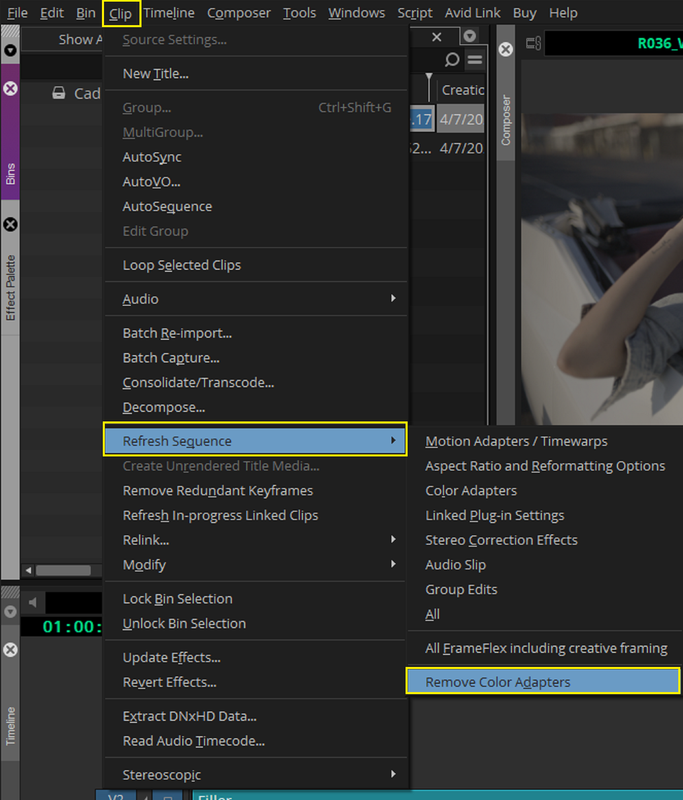
You can also remove any other "COLOR ADAPTERS" that may cause two ODTs to be combined by going to the "EDIT" menu, then go to the TIMELINE SEQUENCE then to the top menu and under "Clip" select "REFRESH SEQUENCE" and "REMOVE COLOR ADAPTERS".


17b.png


17c.png
 
Part 3- The Baselight for Avid settings


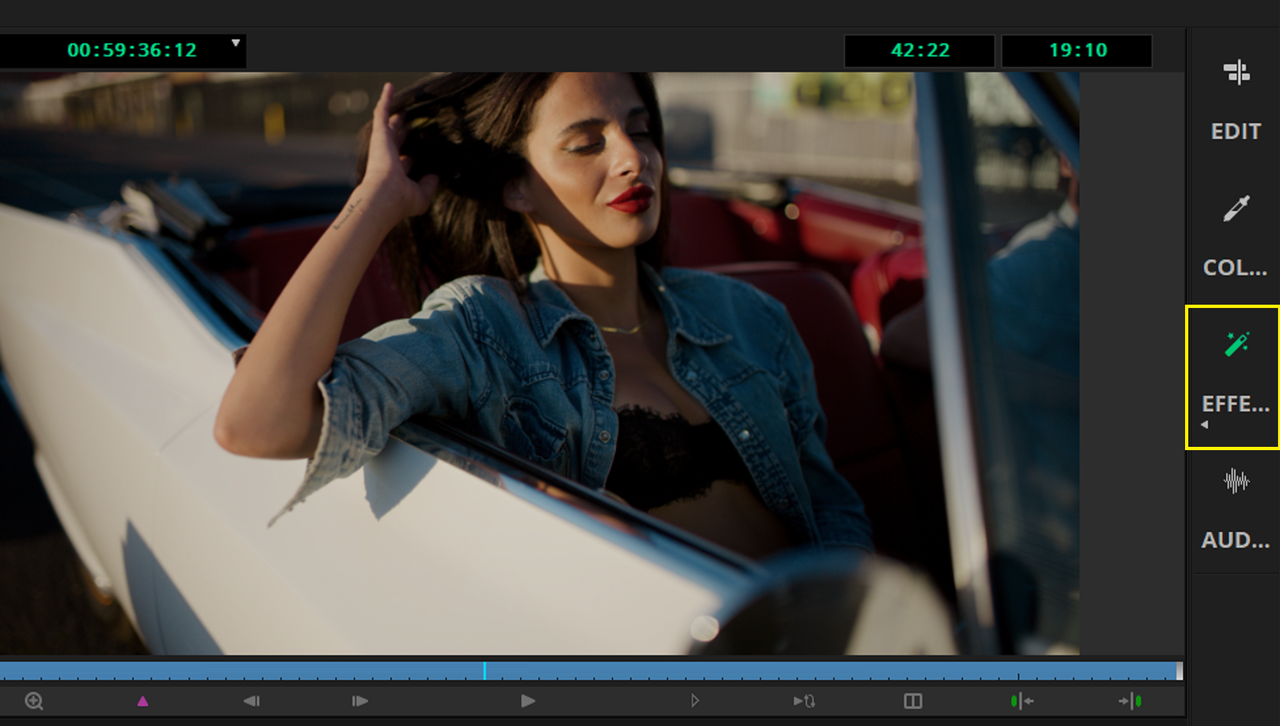
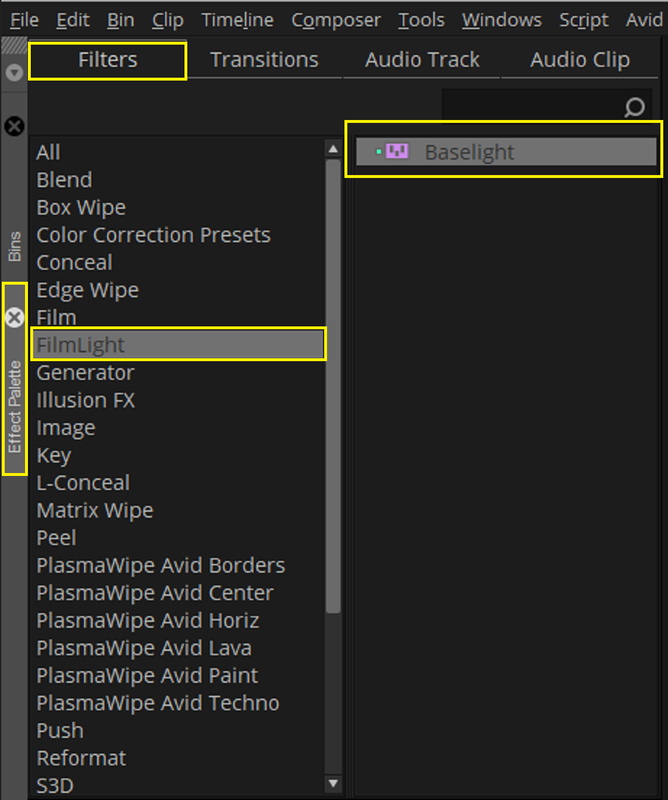
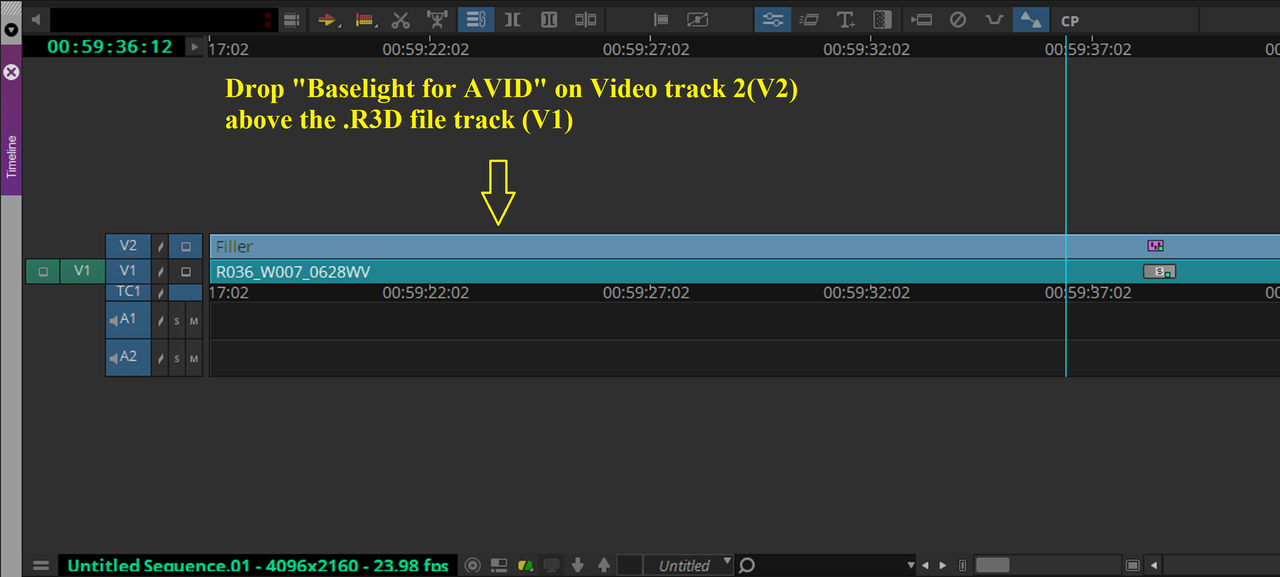
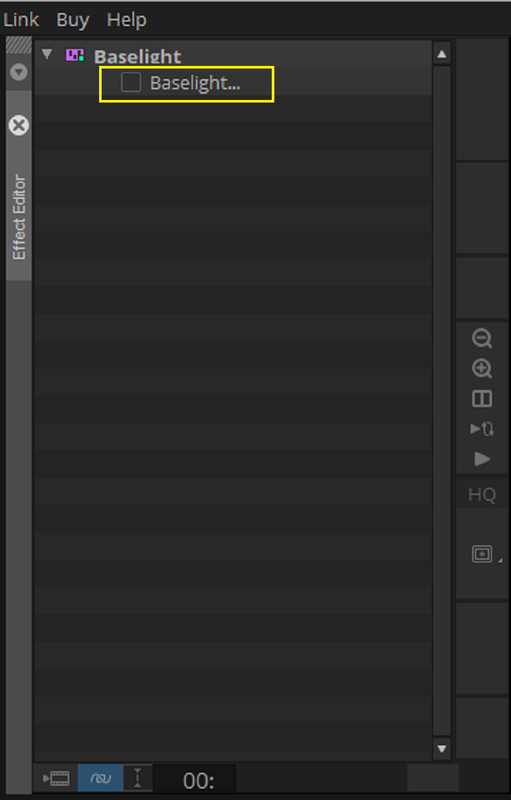
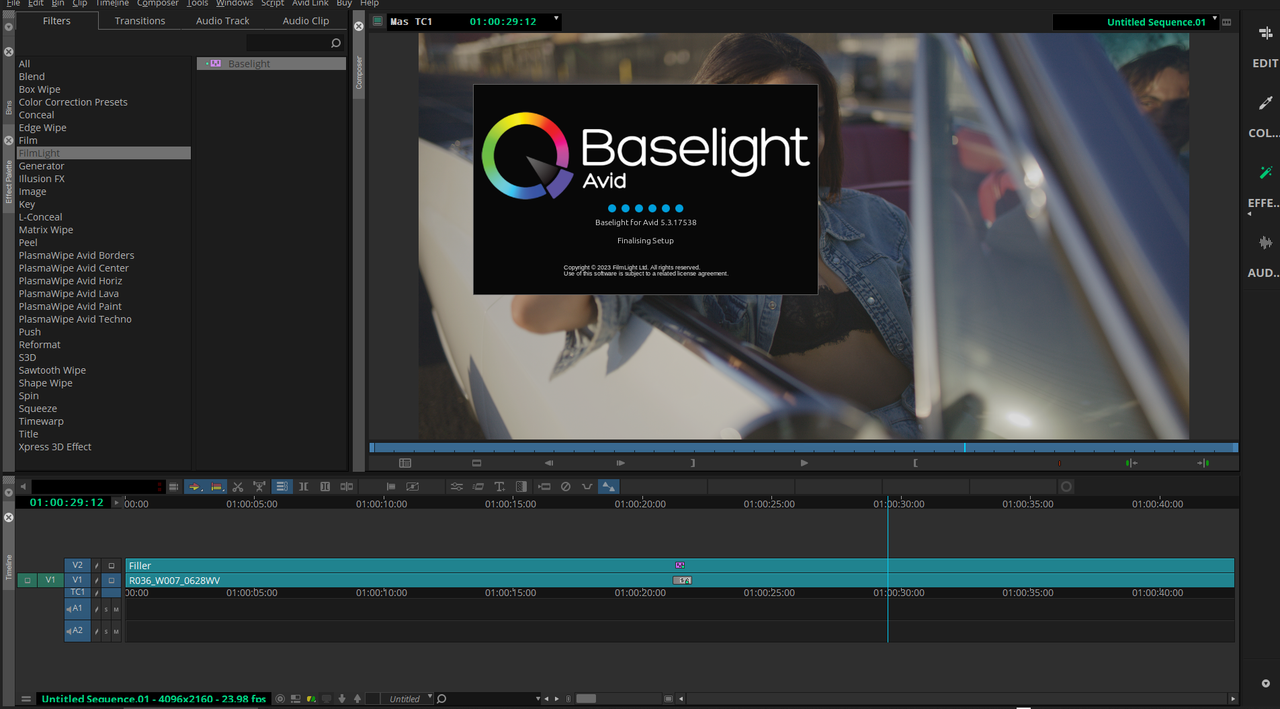
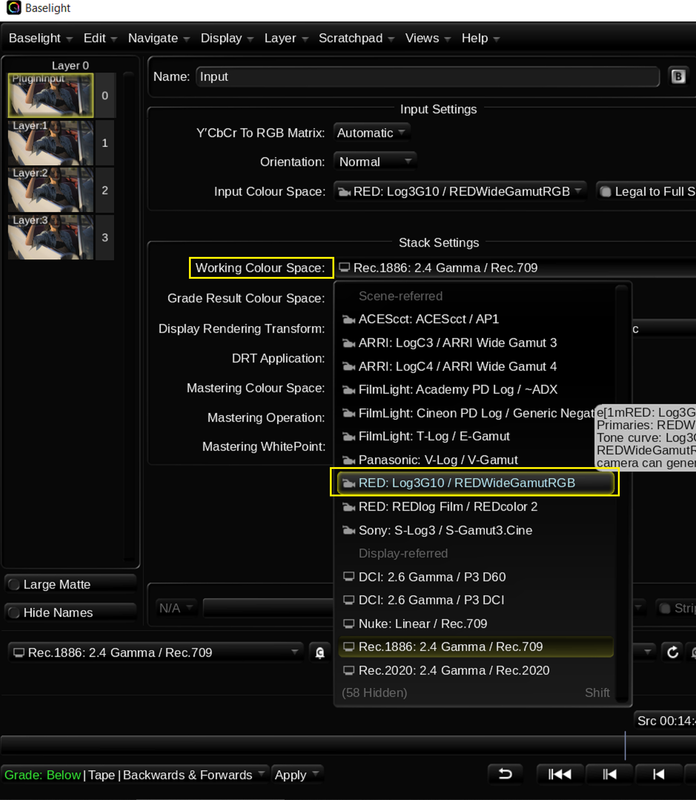
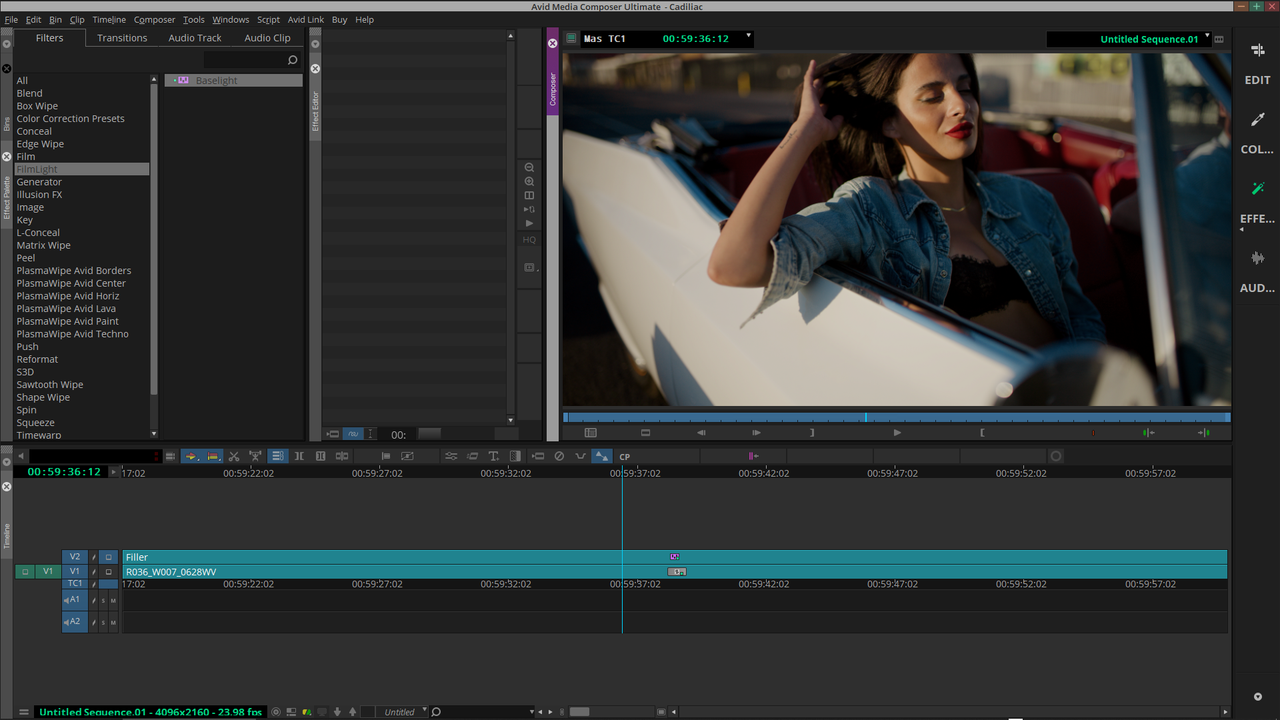
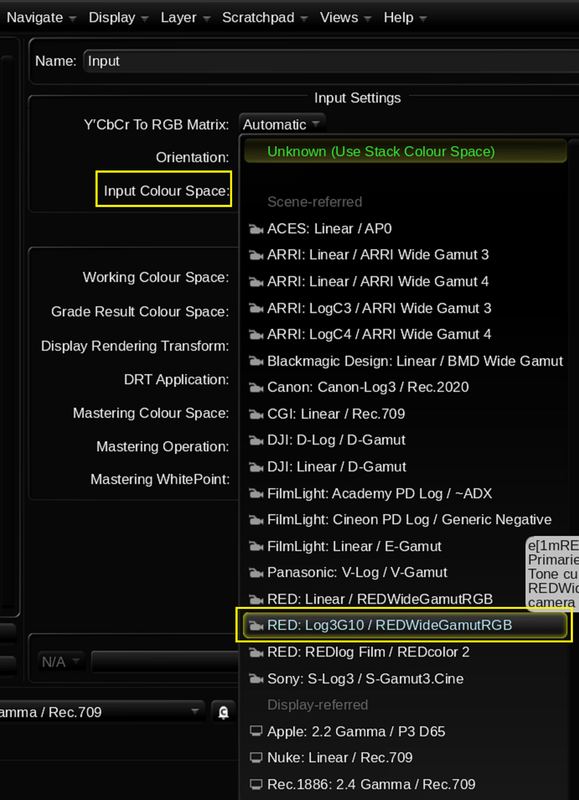
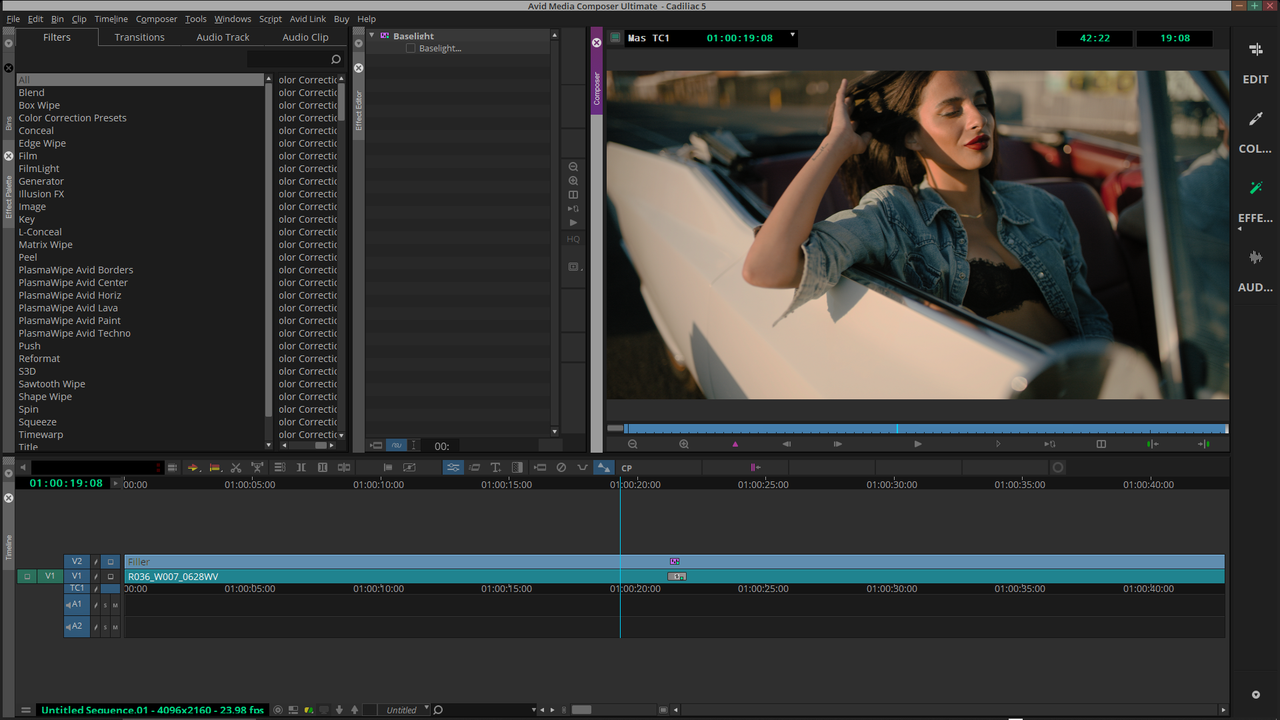
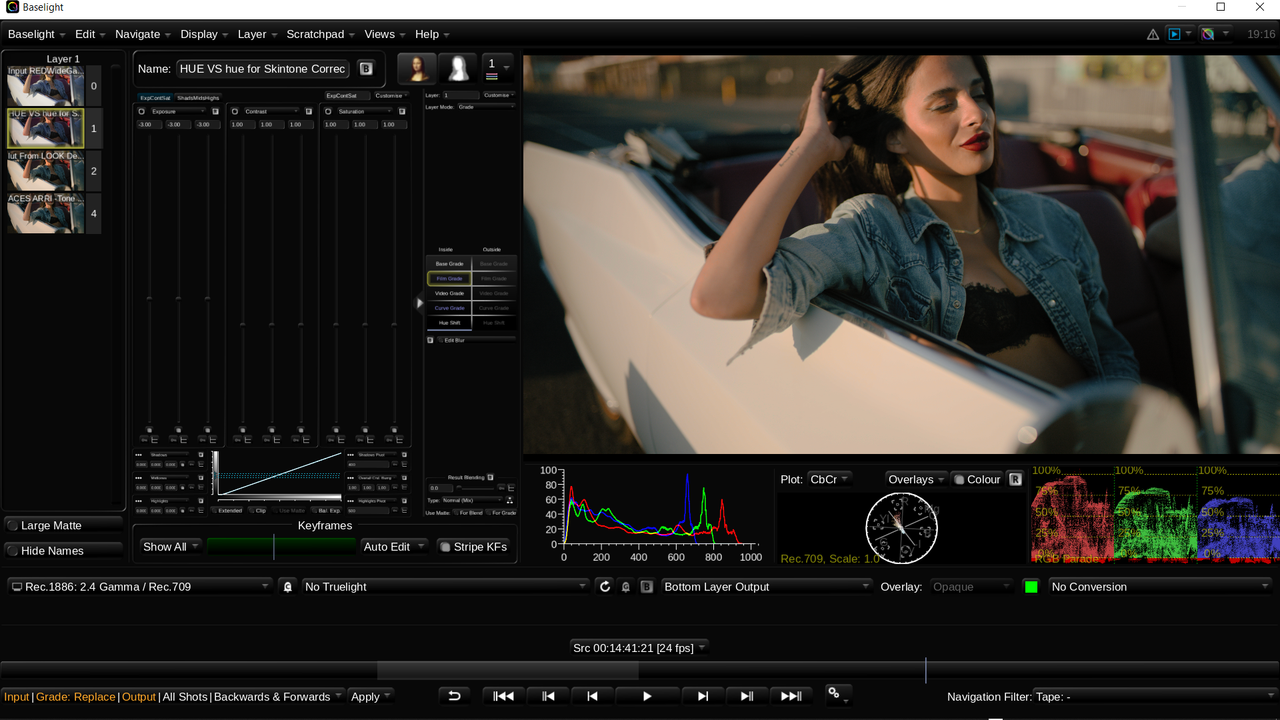
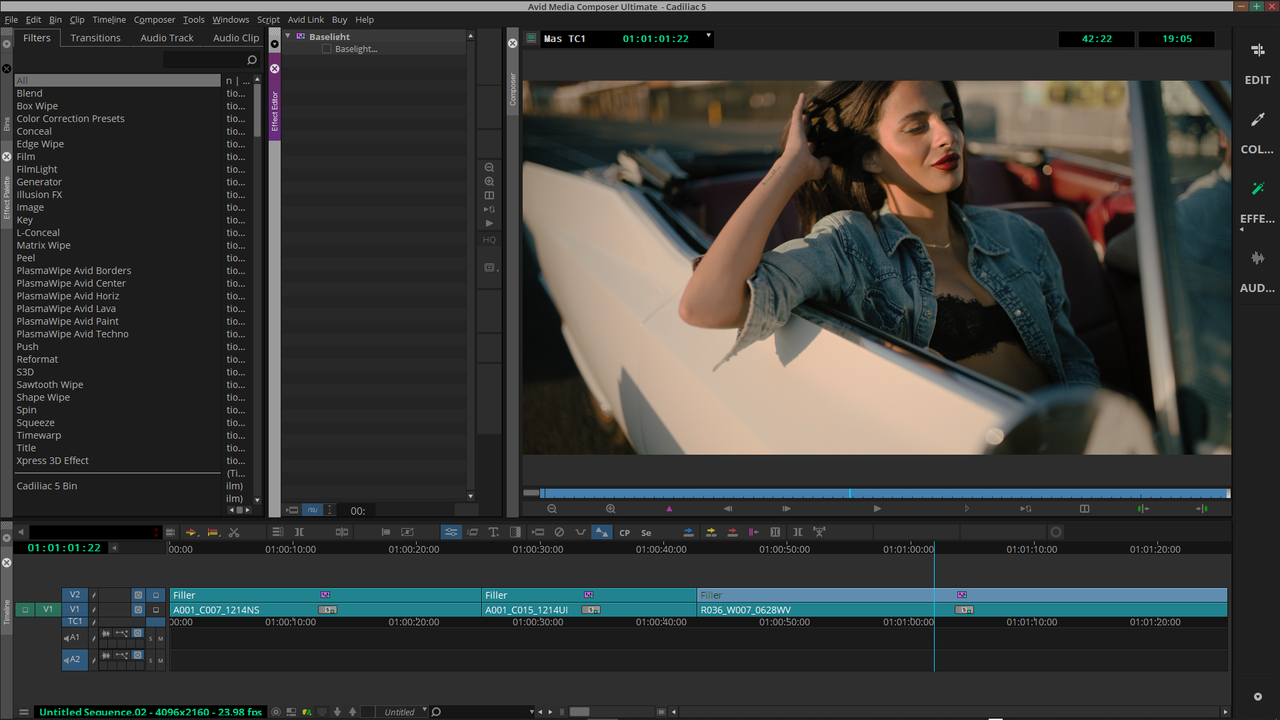
Add a second video track above the RED.R3D files track. Then go to the "Effects" Menu and from the list of effects, select "FILMLIGHT" then the "BASELIGHT". Now click on the "V2" track with the "BASELIGHT" Effect applied then go to the "EFFECTS" Menu again and under the "BASELIGHT" Plugin listed click on the Blank box next to "BASELIGHT....". This will launch the BASELIGHT UI INTERFACE


1.png


2.png


3.png


4.png


18.png


Inside the BASELIGHT For AVID interface

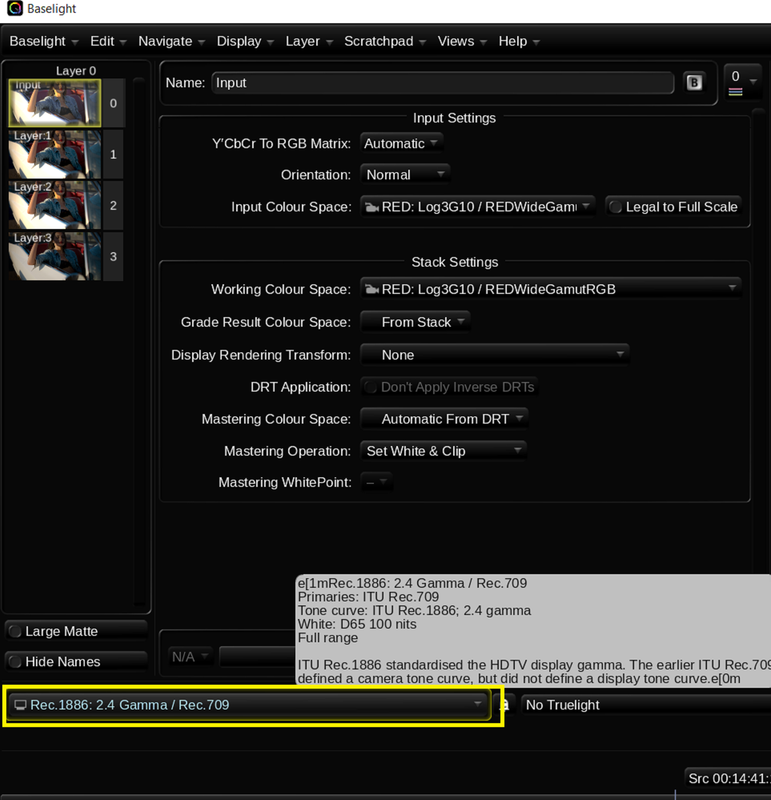
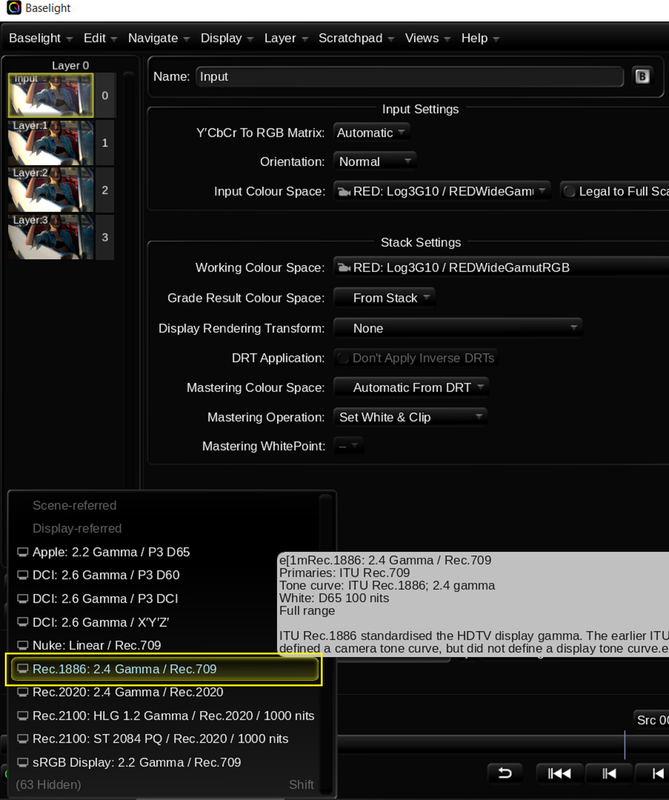
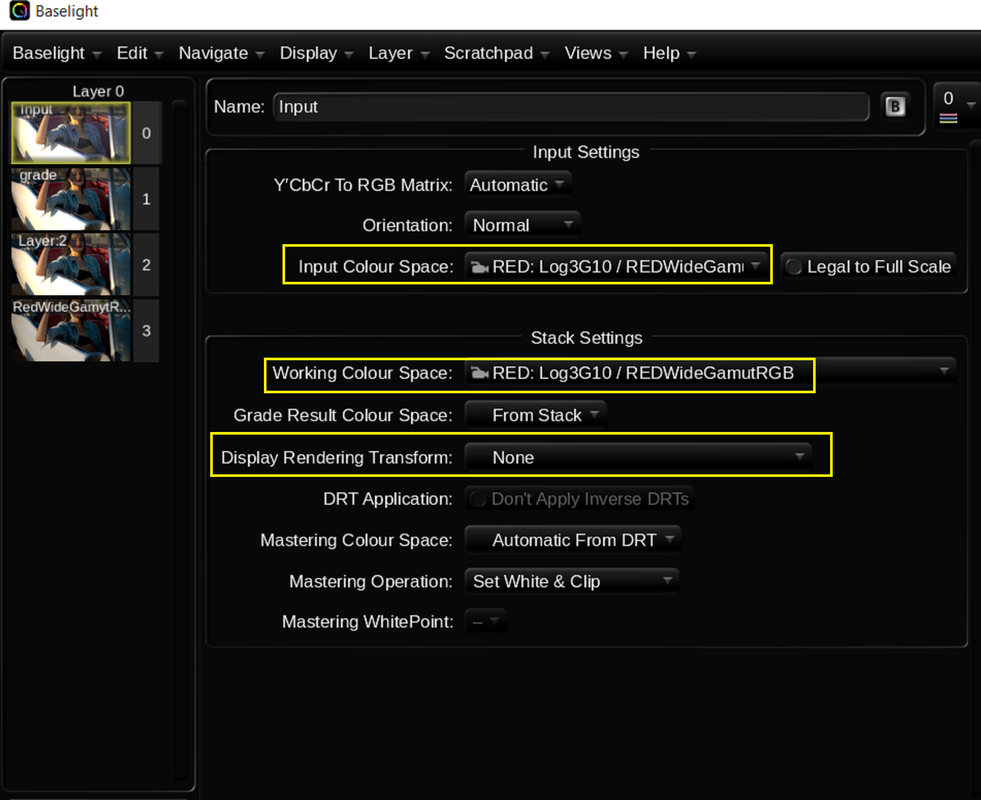
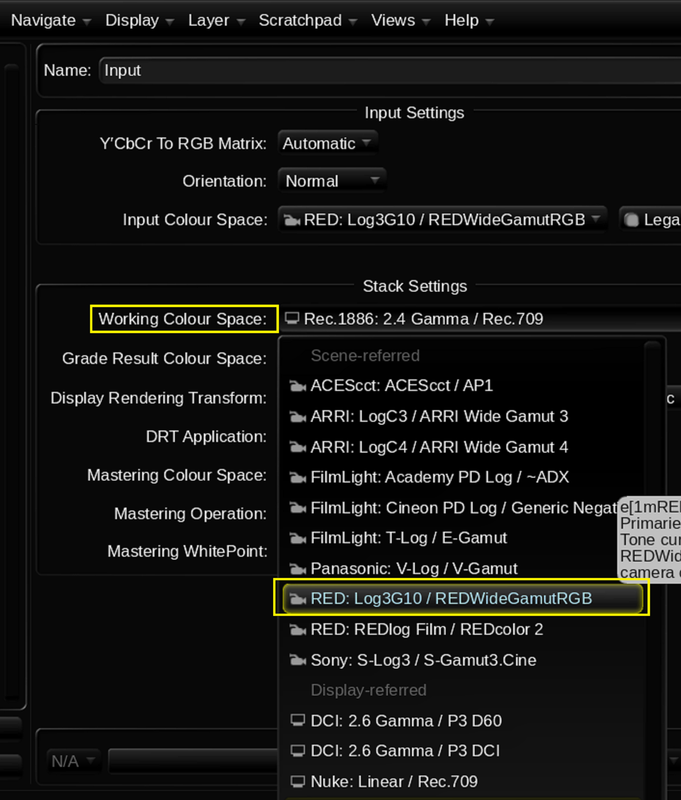
Settings for RED IPP2 Workflow

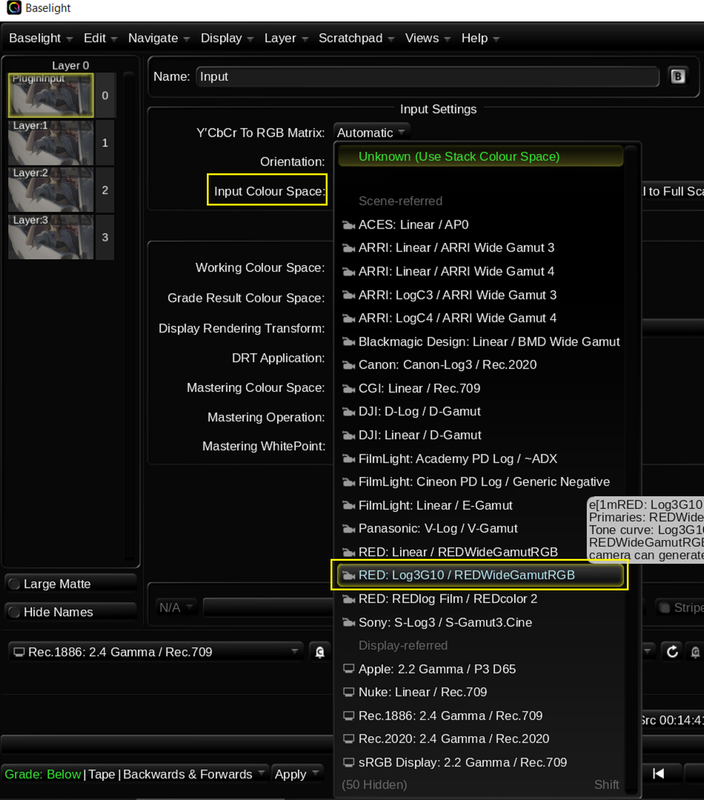
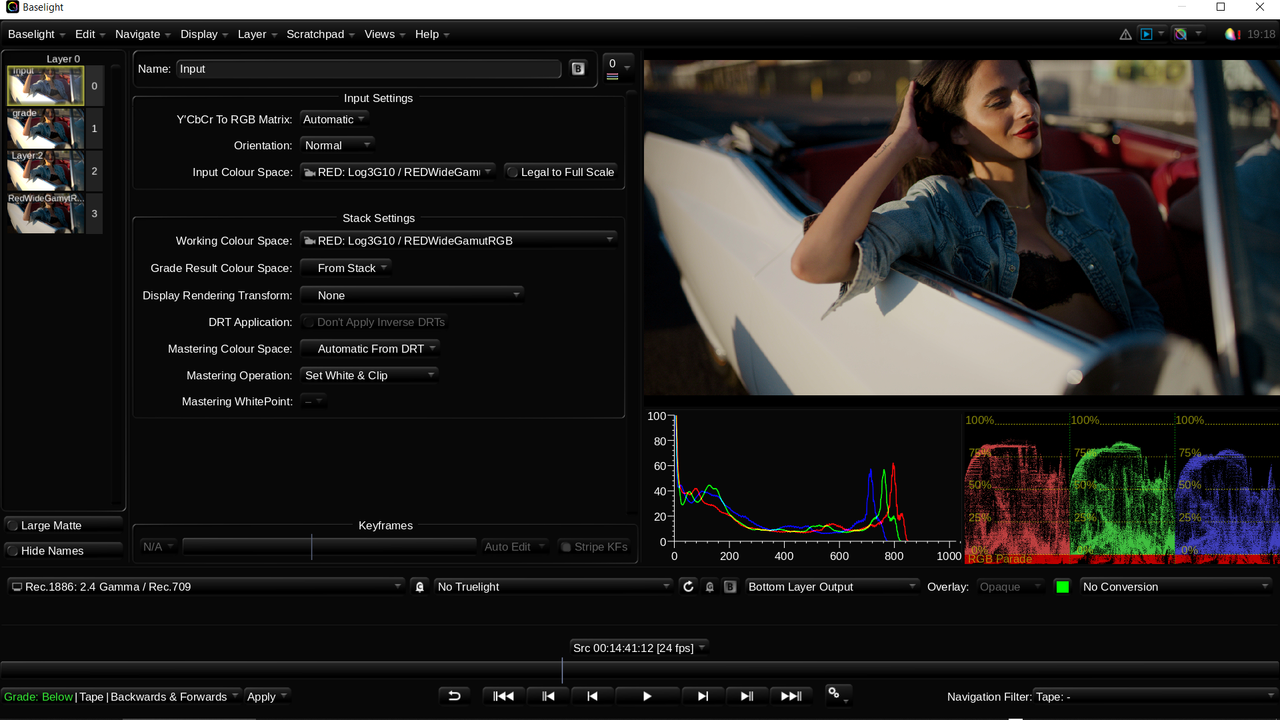
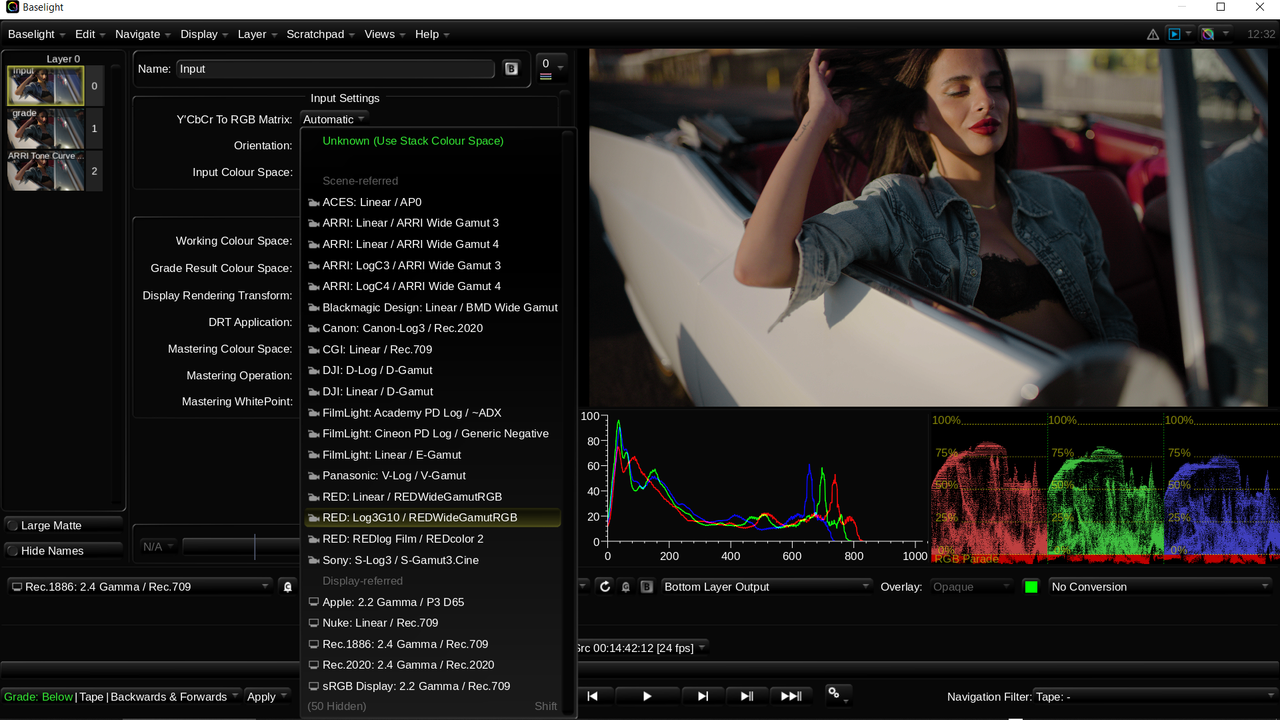
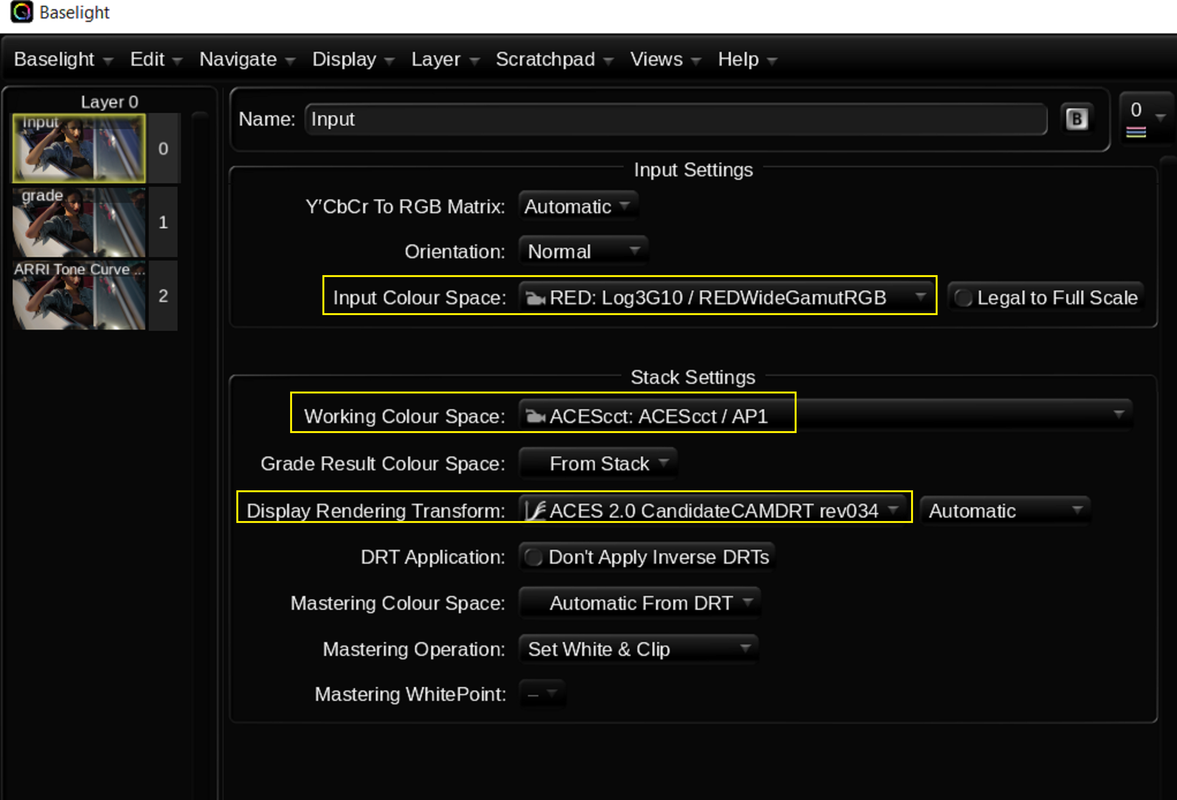
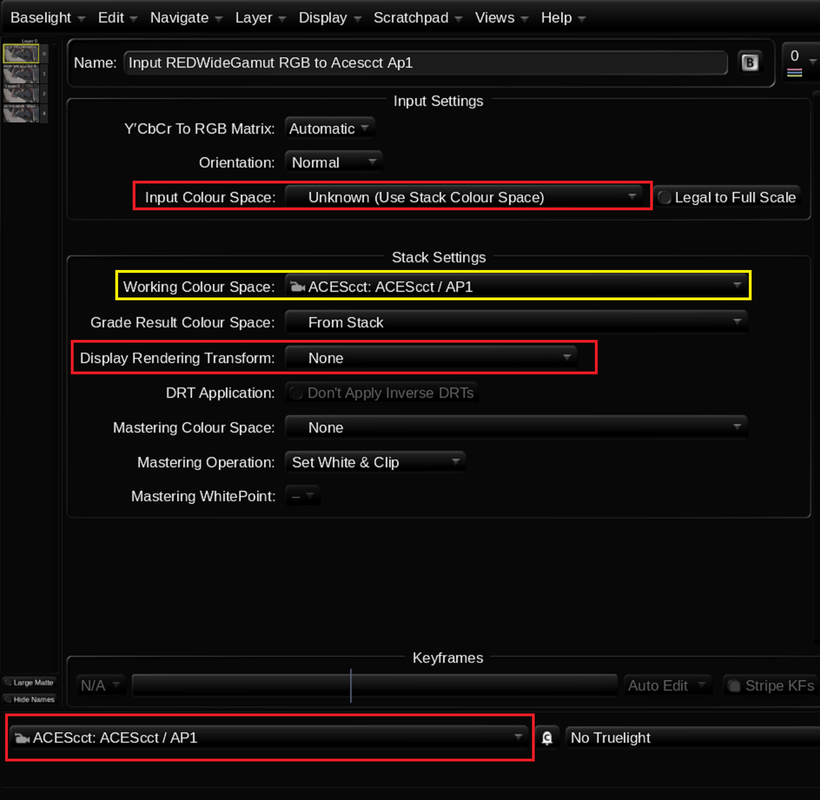
In Layer "0" select these settings


19.png


20.png


21.png


22.png


23.png


What the final settings in Layer "0" should look like

24.png


25.png


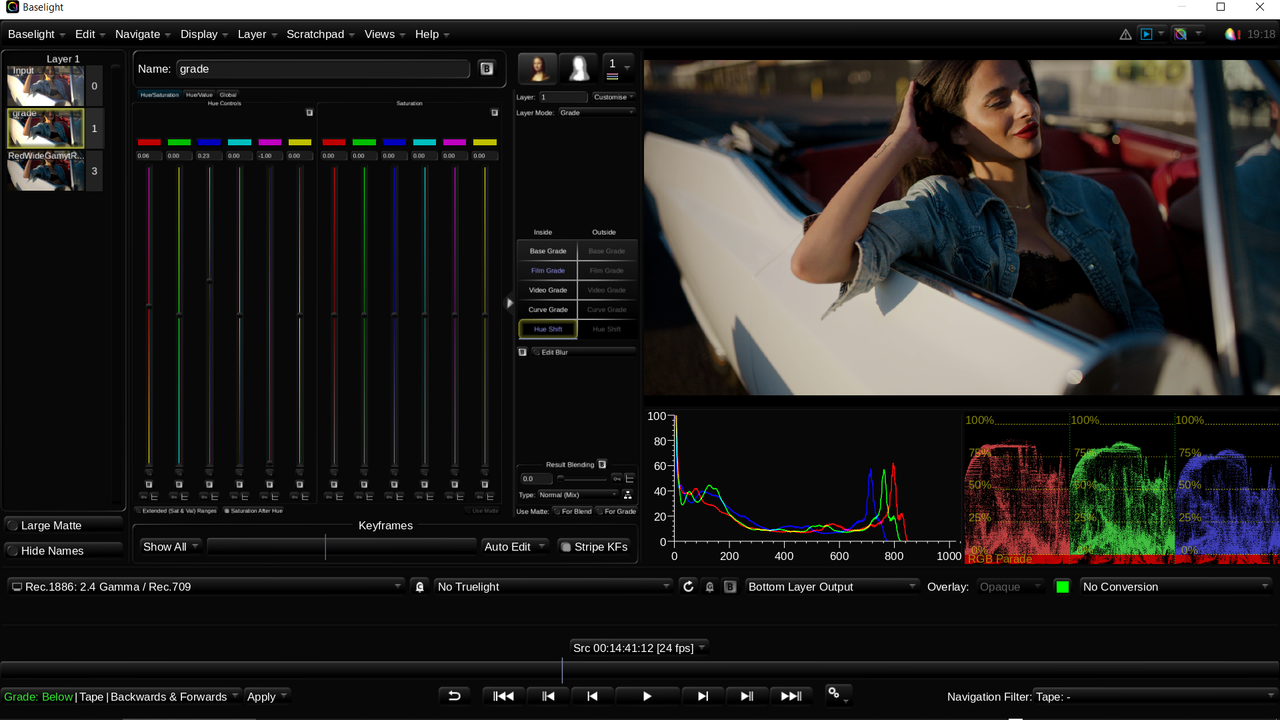
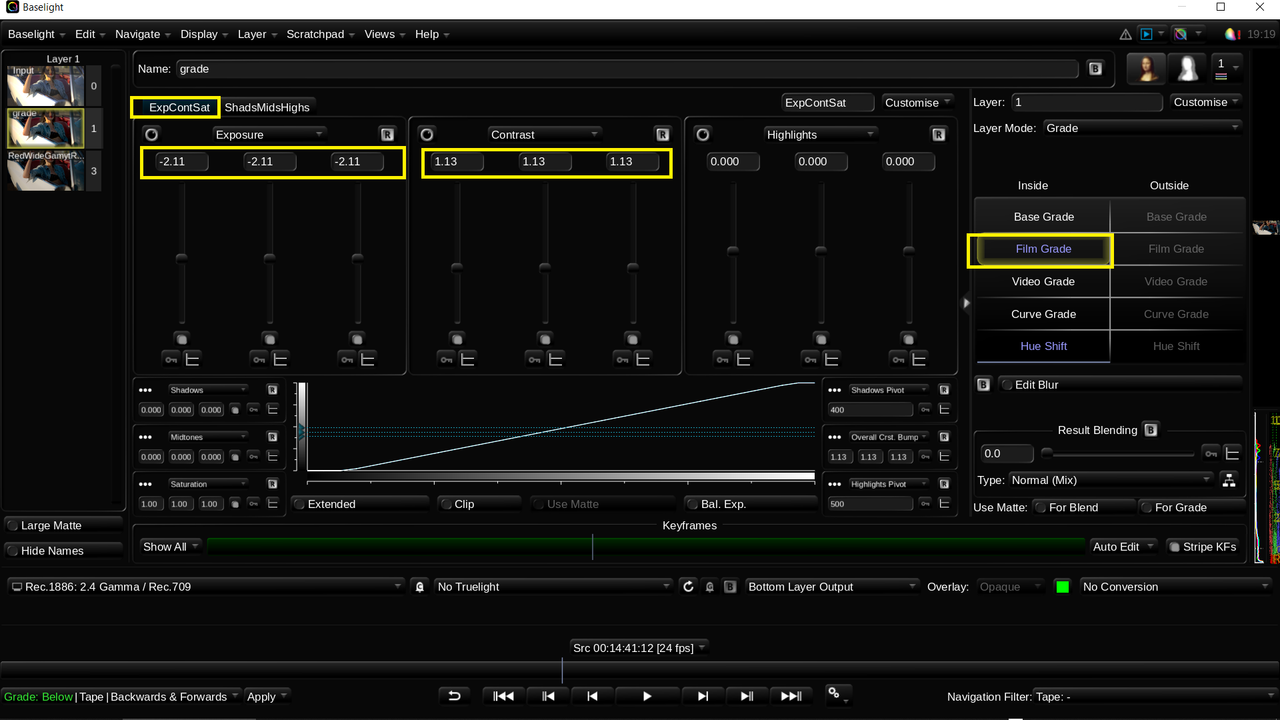
Here are the grades

26.png

27.png


28.png


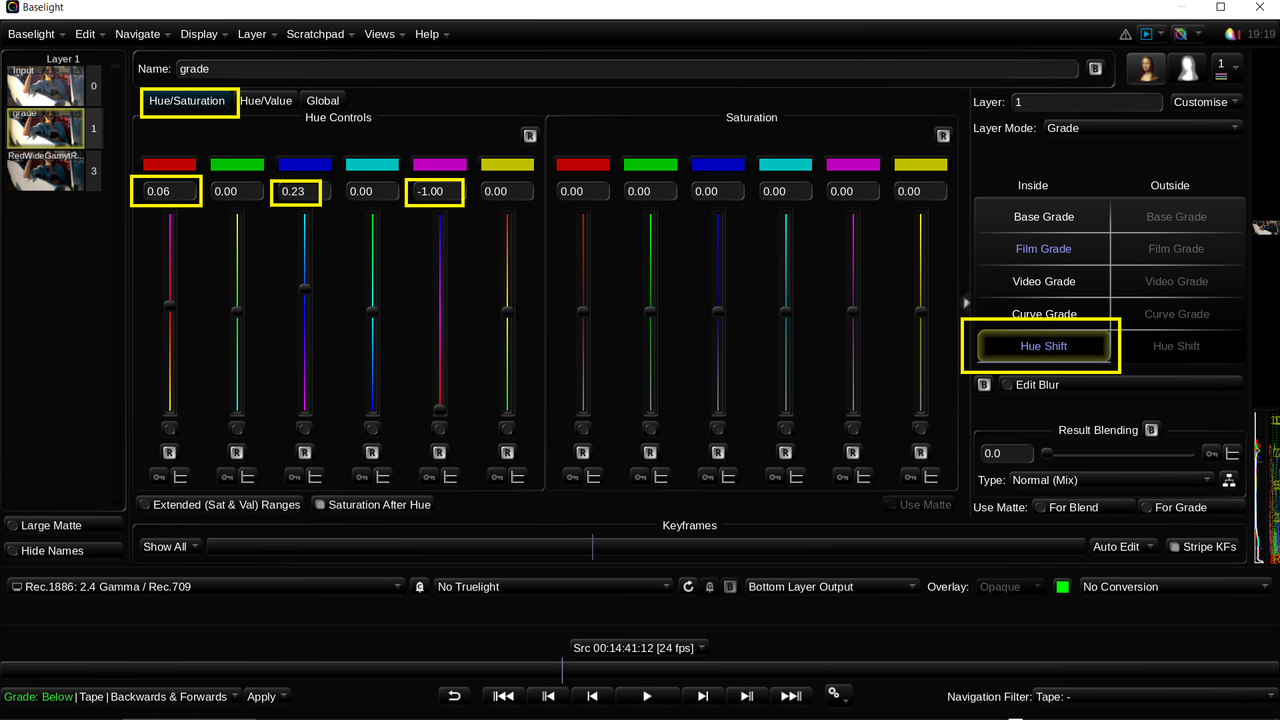
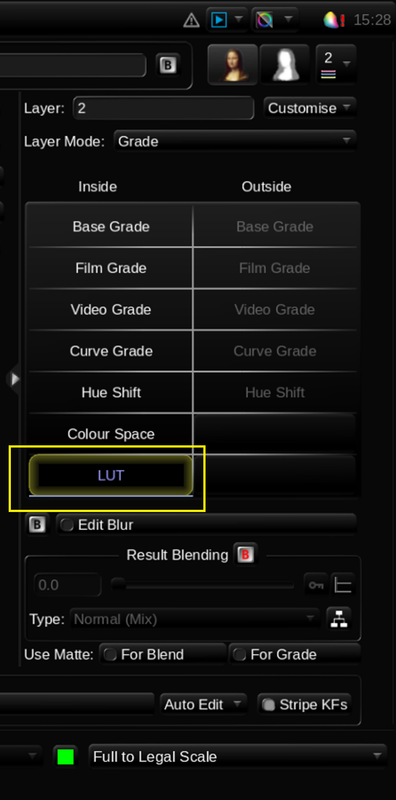
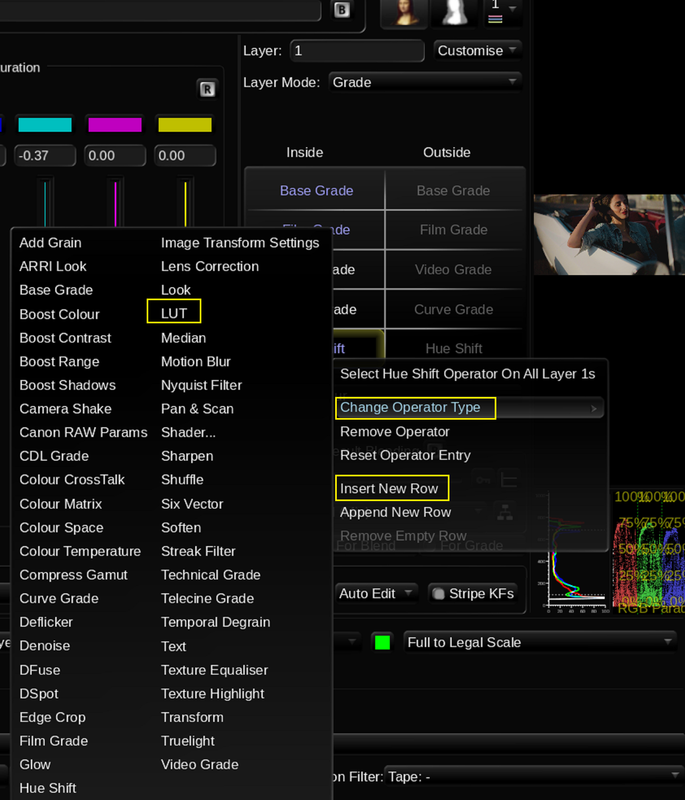
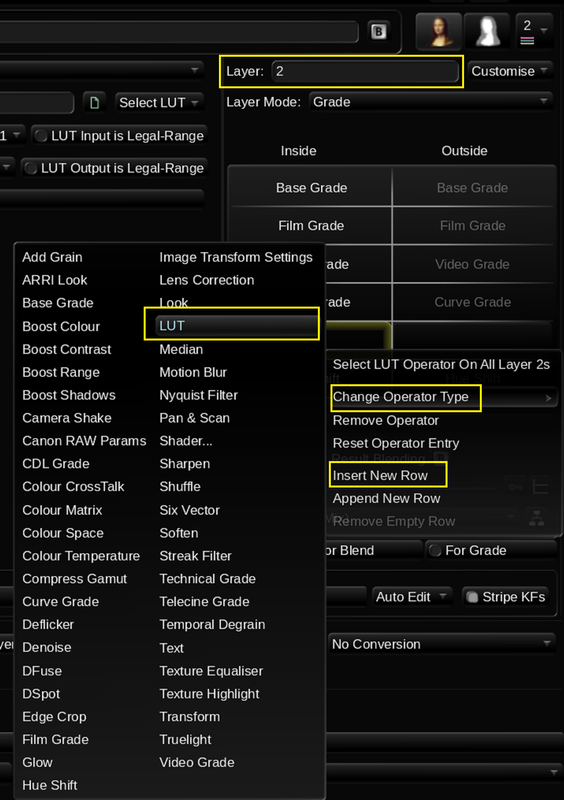
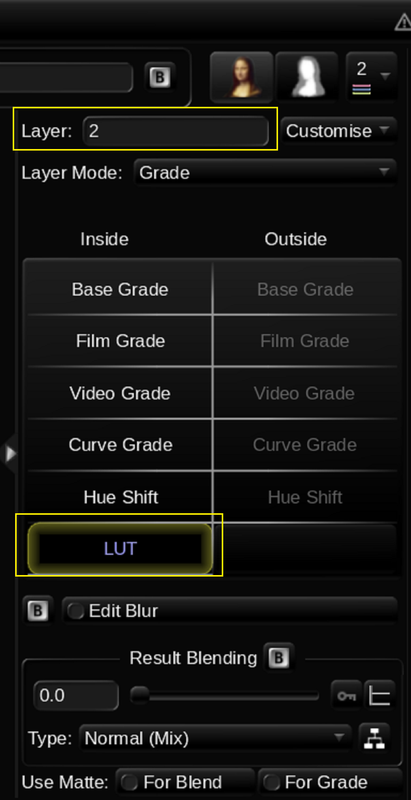
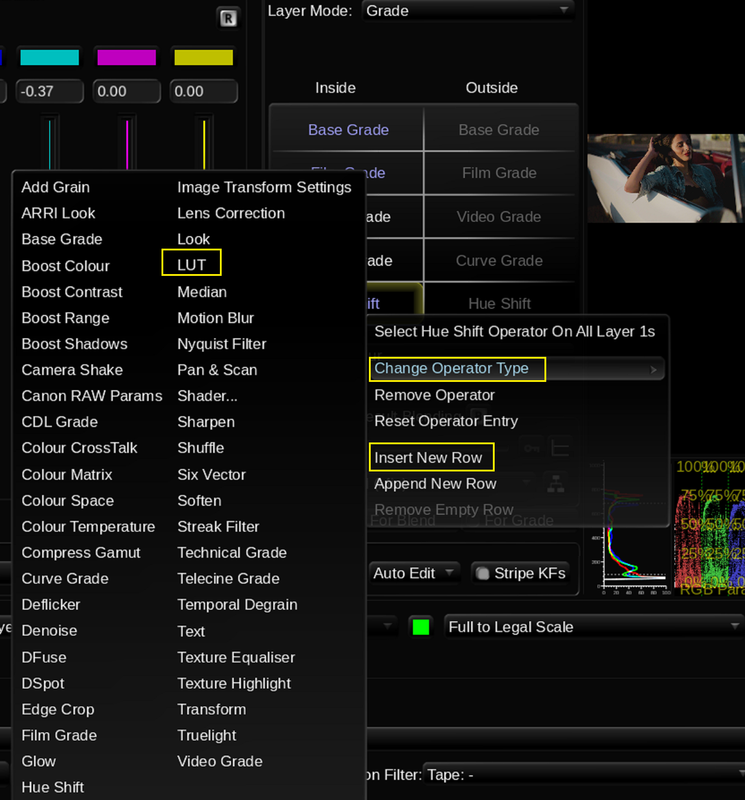
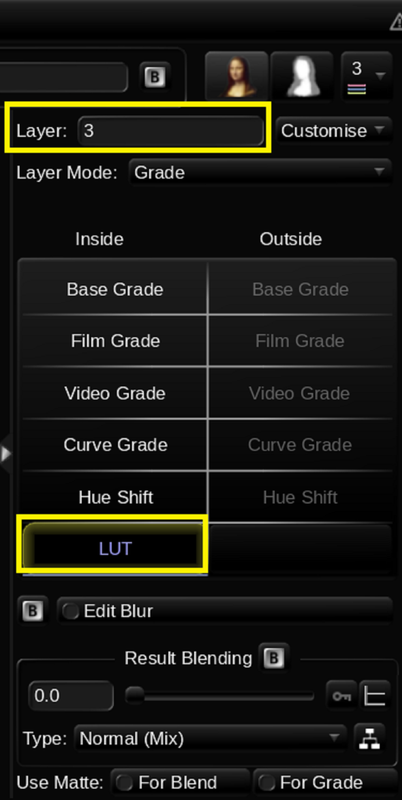
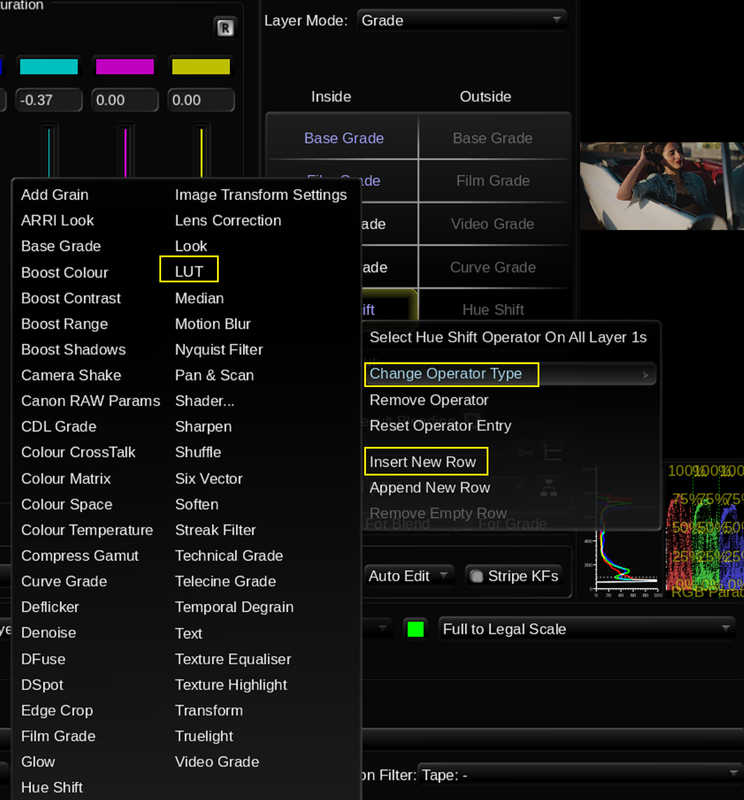
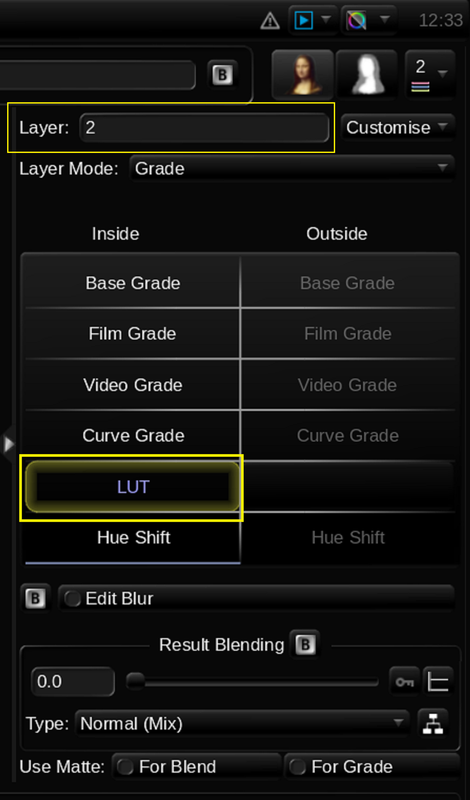
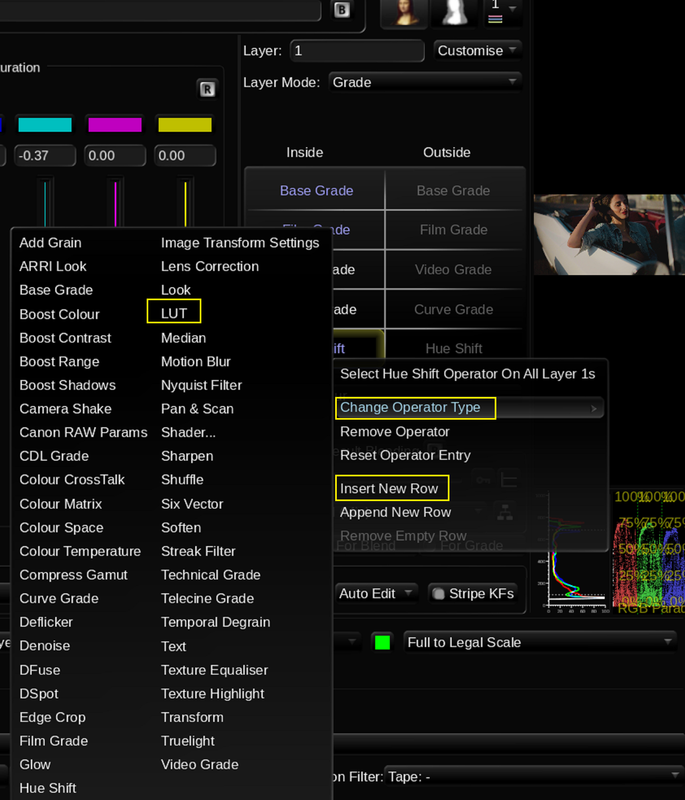
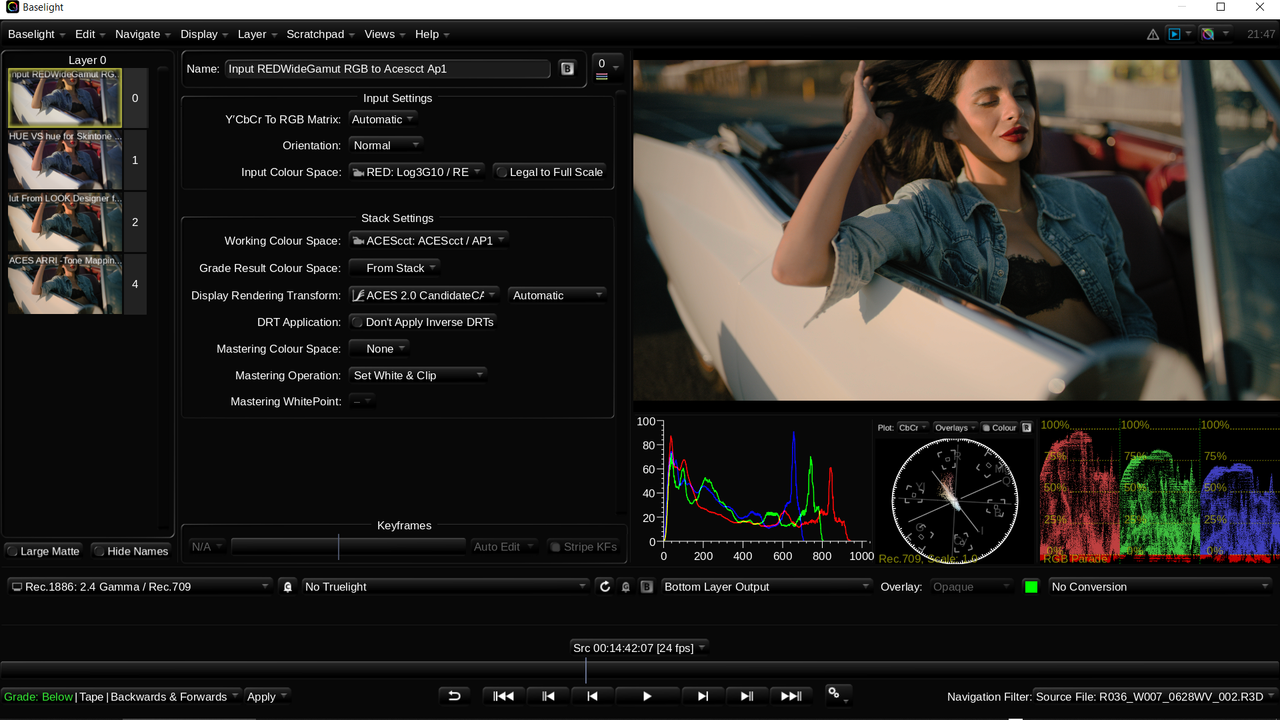
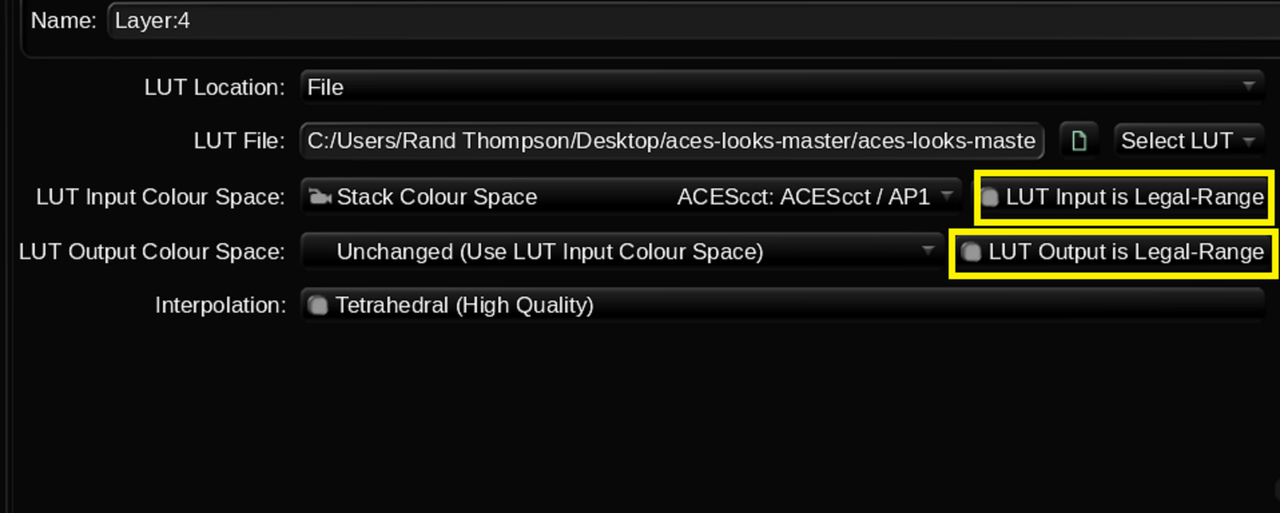
I added a "LUT" operator so that I could add a RED IPP2 Output Transform Lut at the bottom of this "Layer" Tree.

29.png

30.png


31.png


32.png


After closing out the Baselight plugin, here we are back inside of the Media Composer Interface again.


33.png


34.png
 
Last edited:
Baselight for Avid ACES Workflow


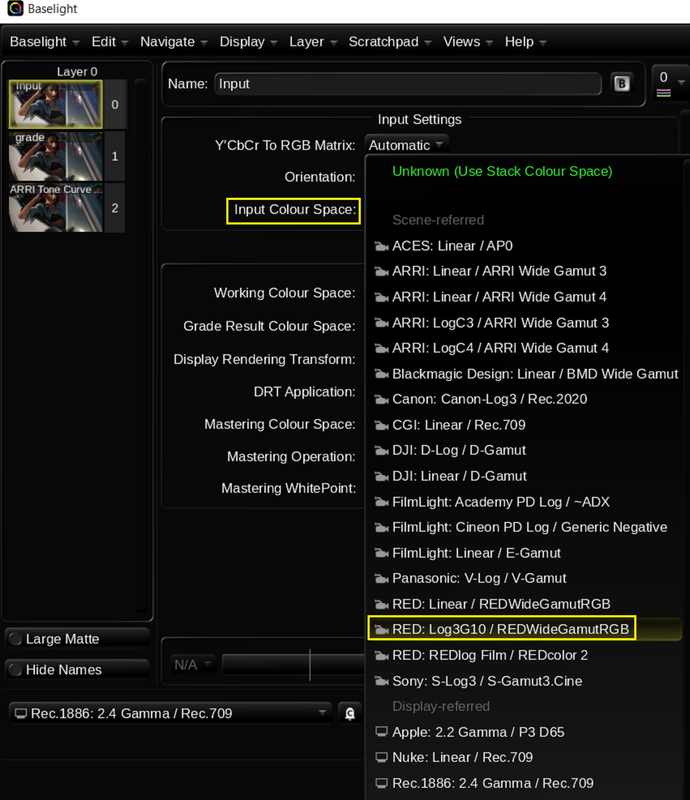
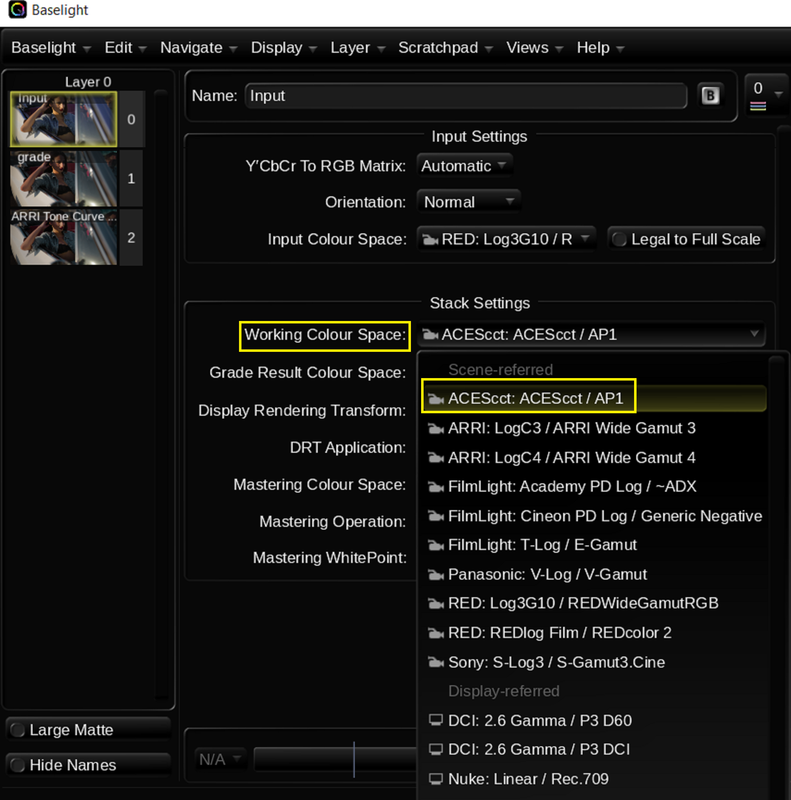
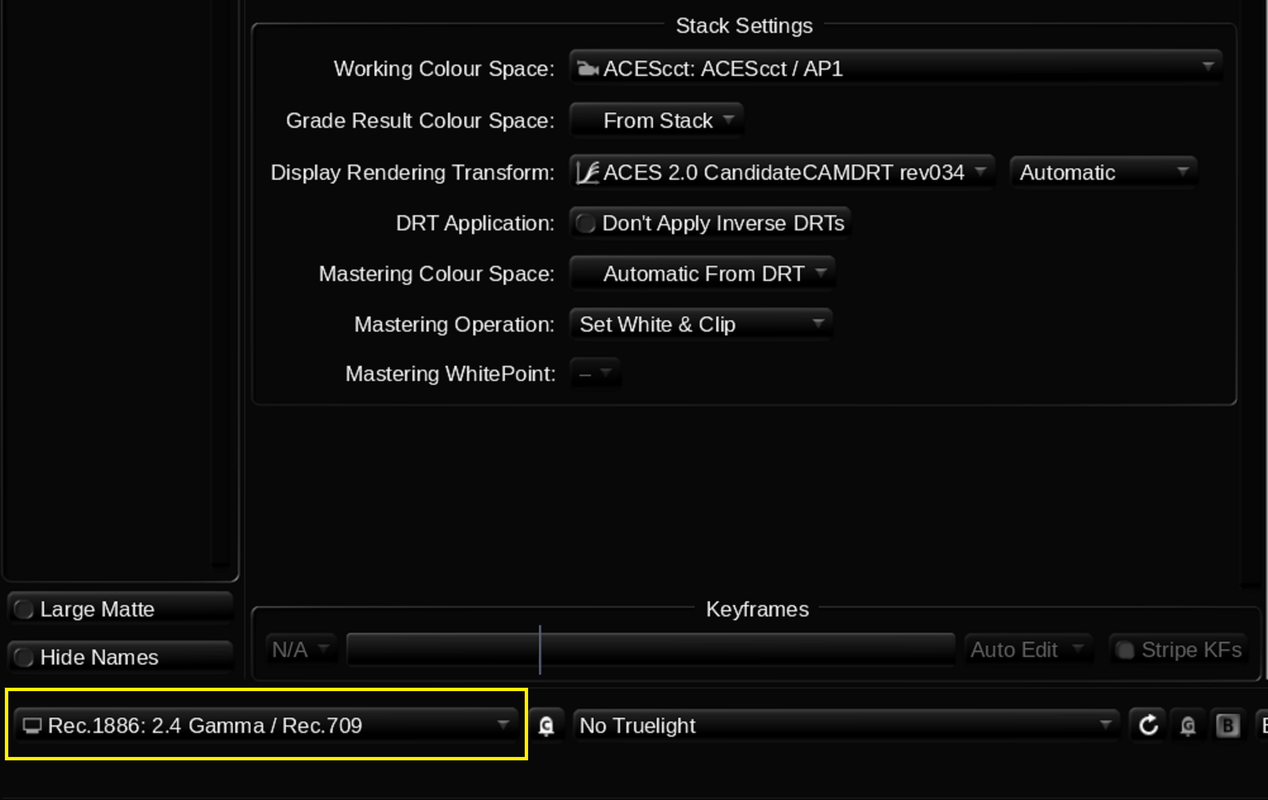
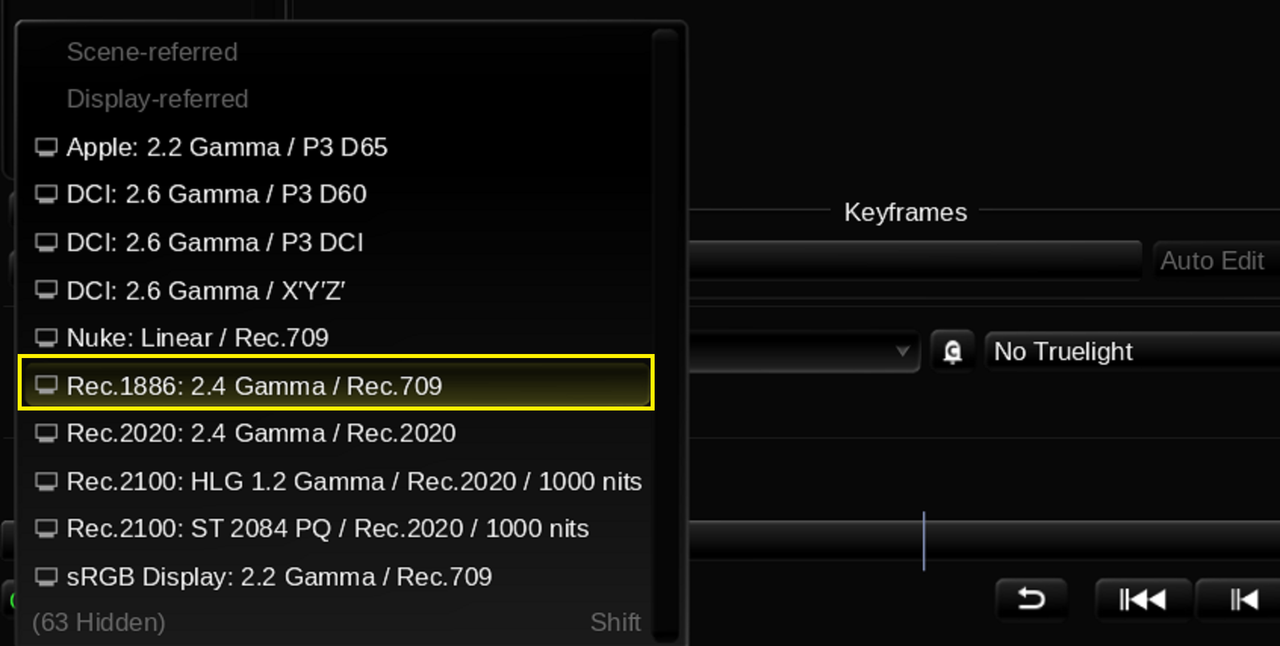
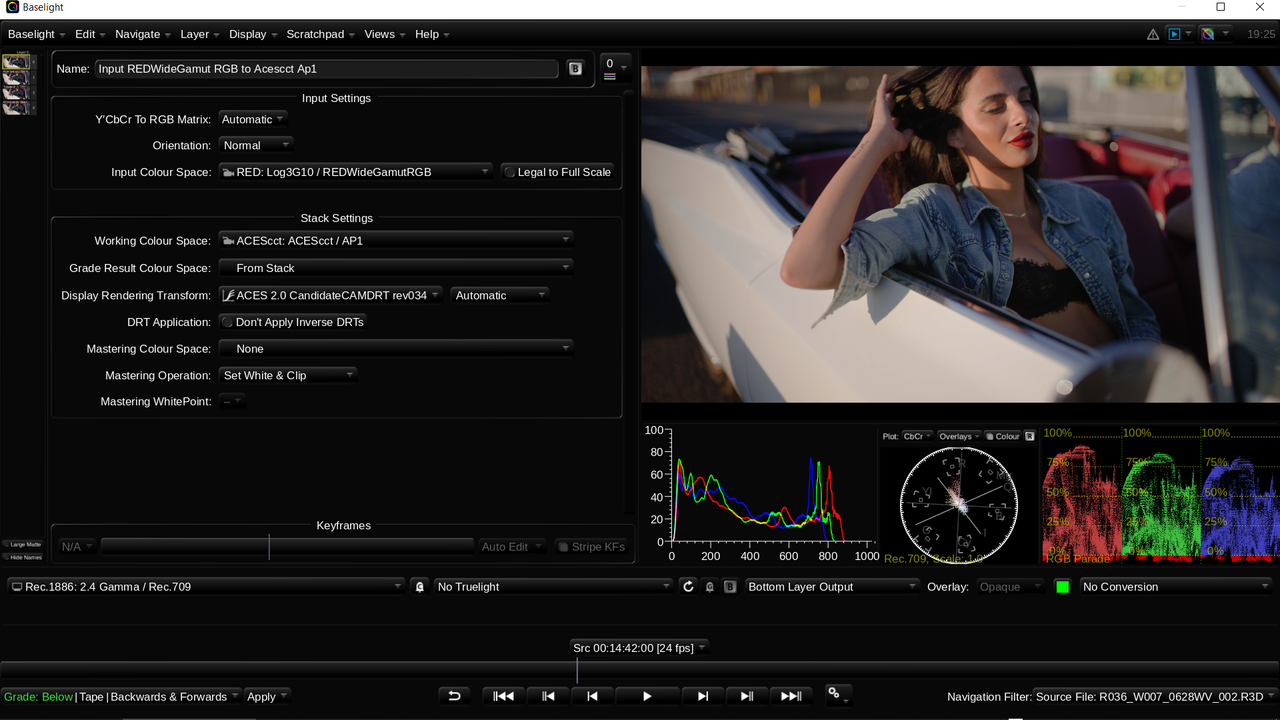
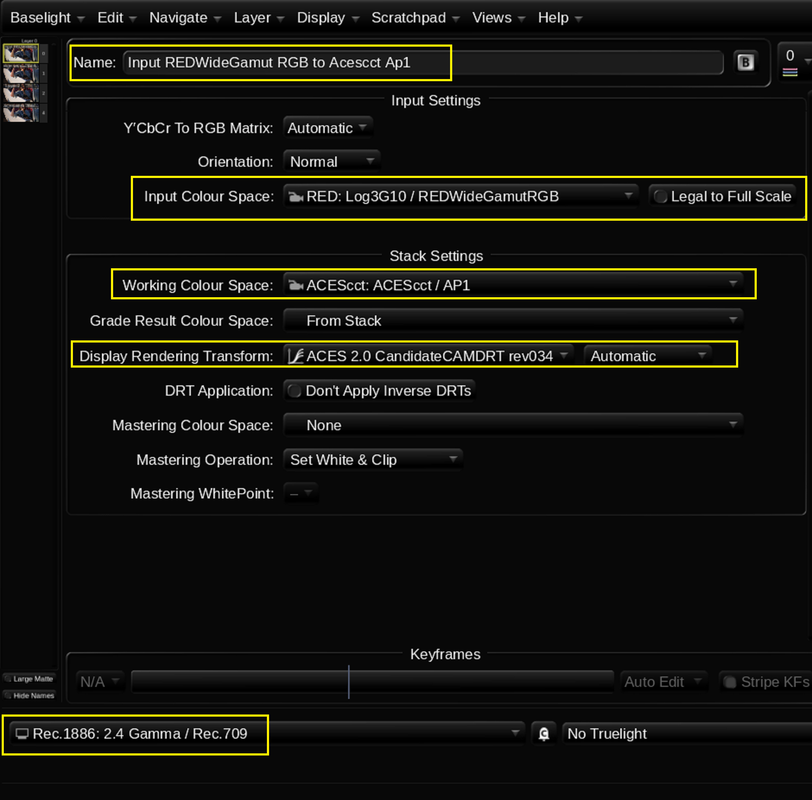
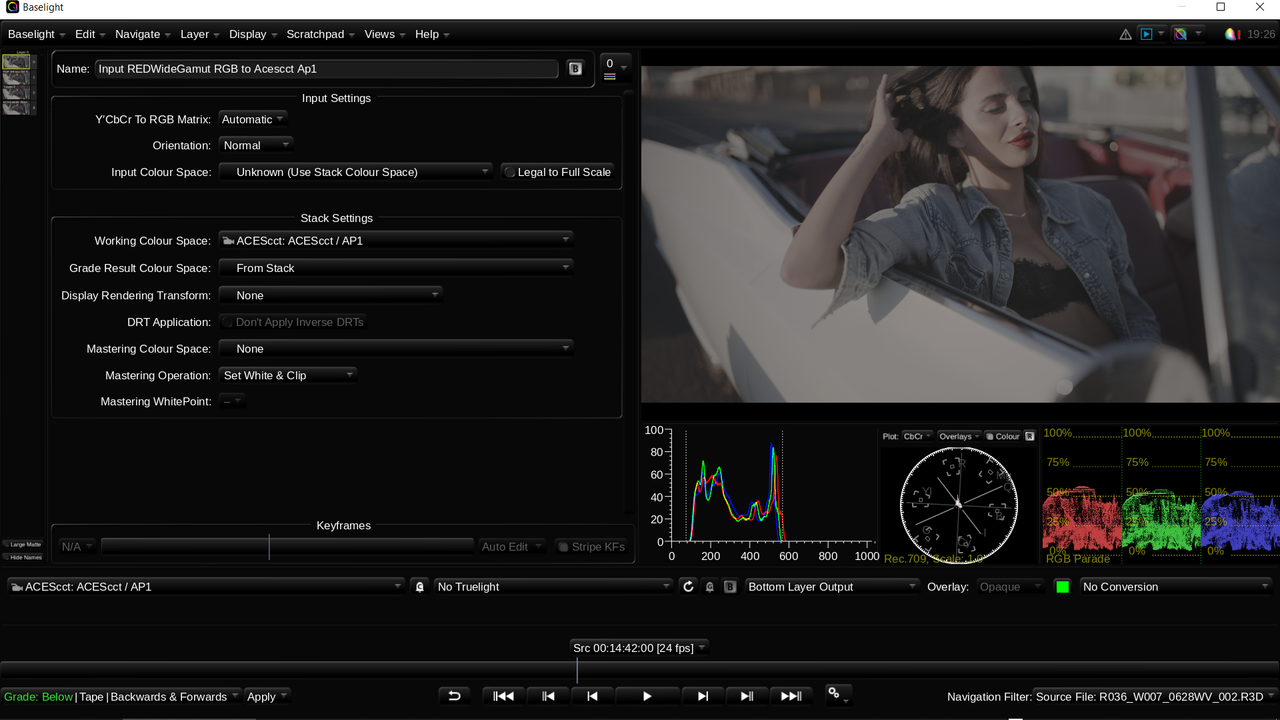
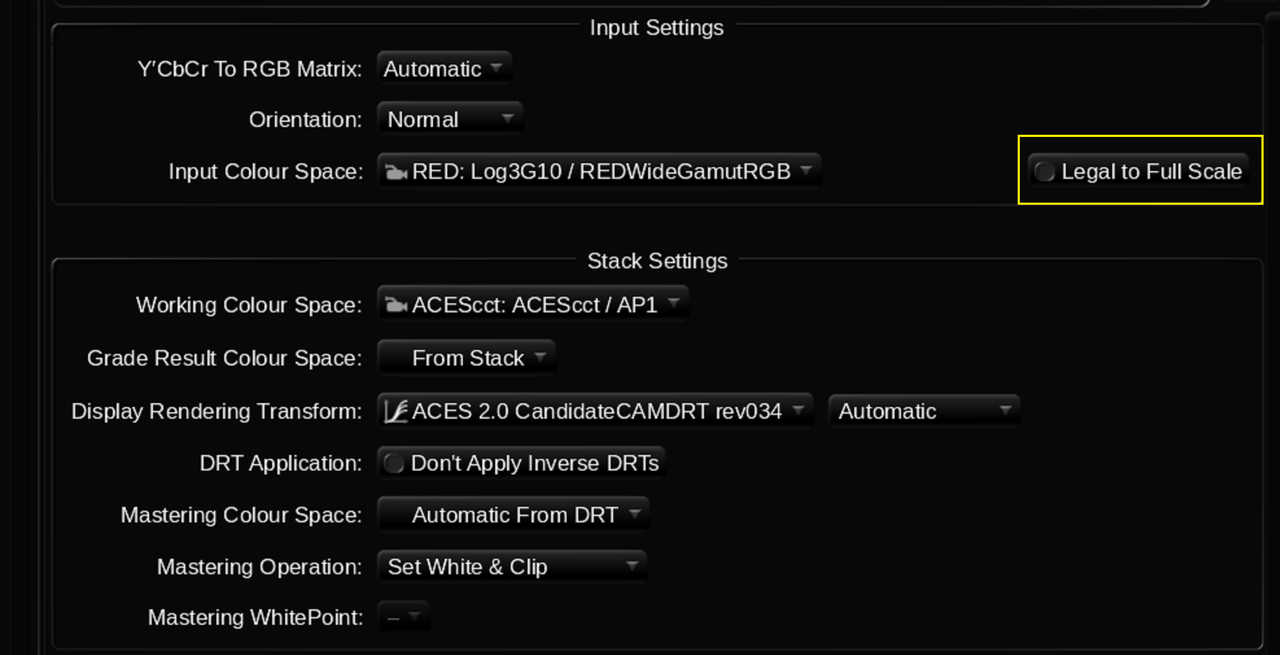
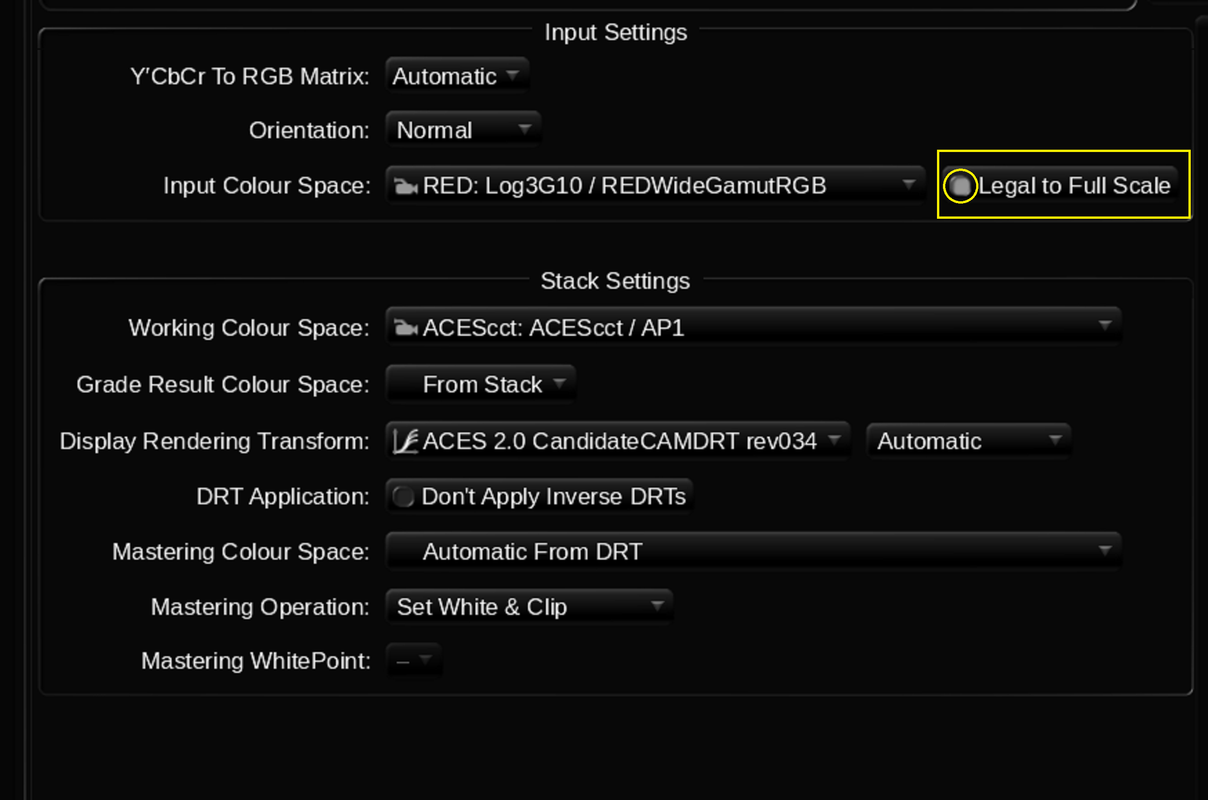
Here are the settings I used for ACEScct in Baselight


1.png


2.png


3.png


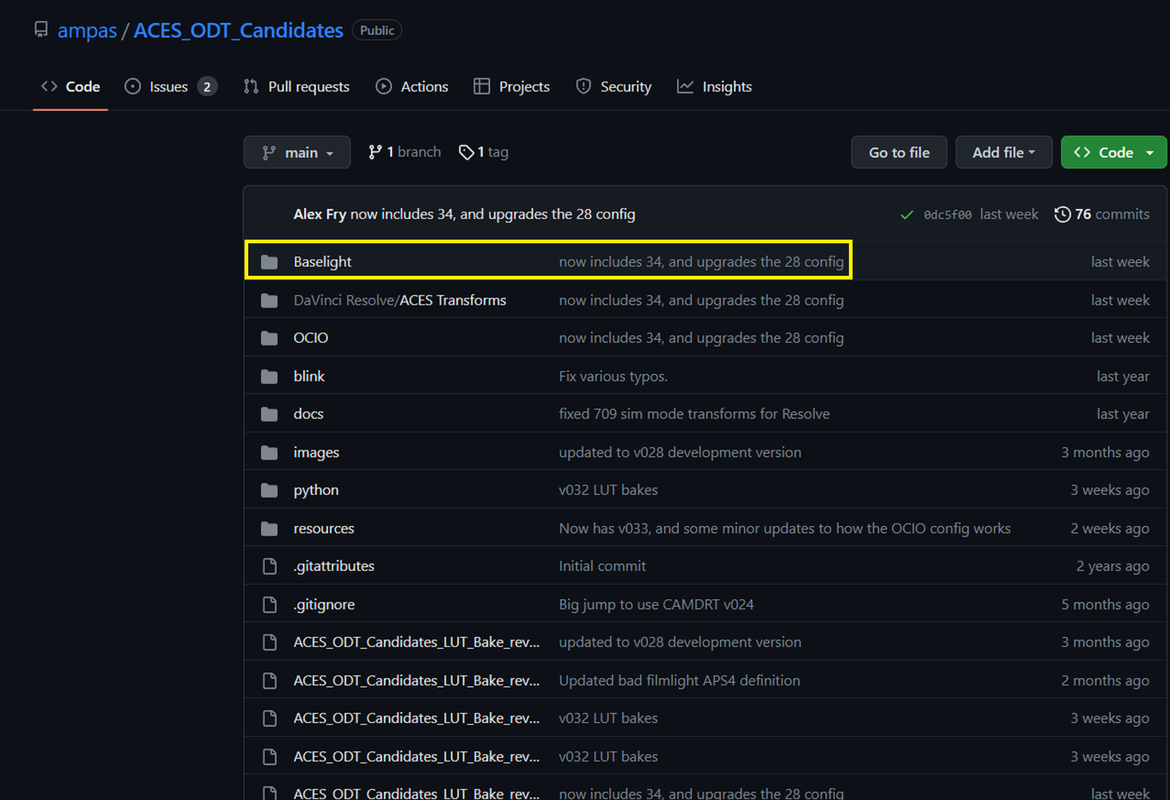
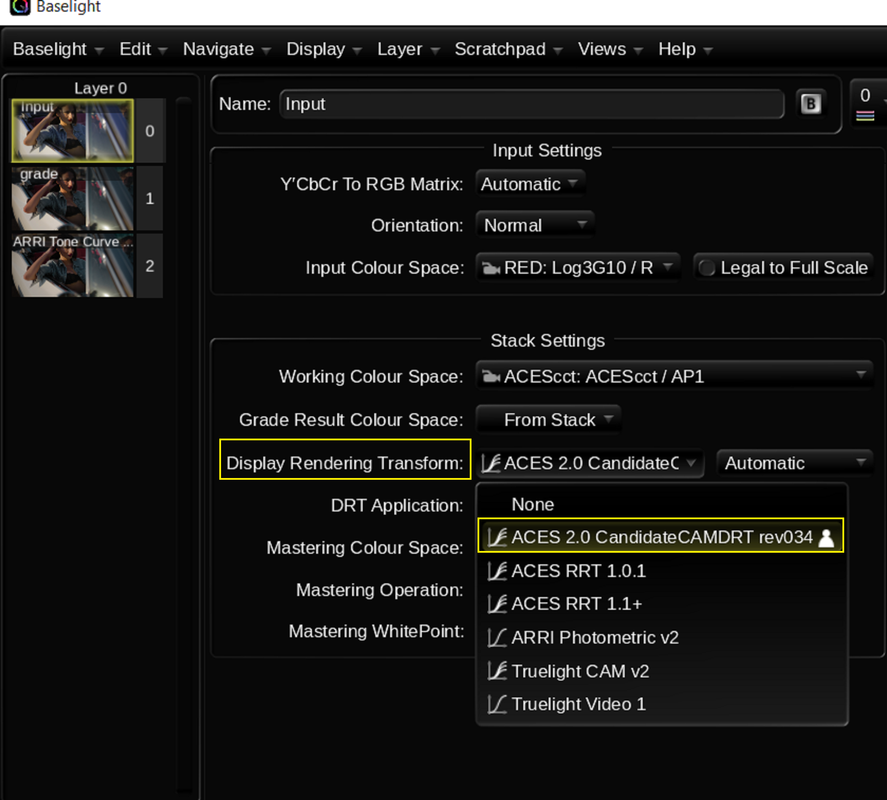
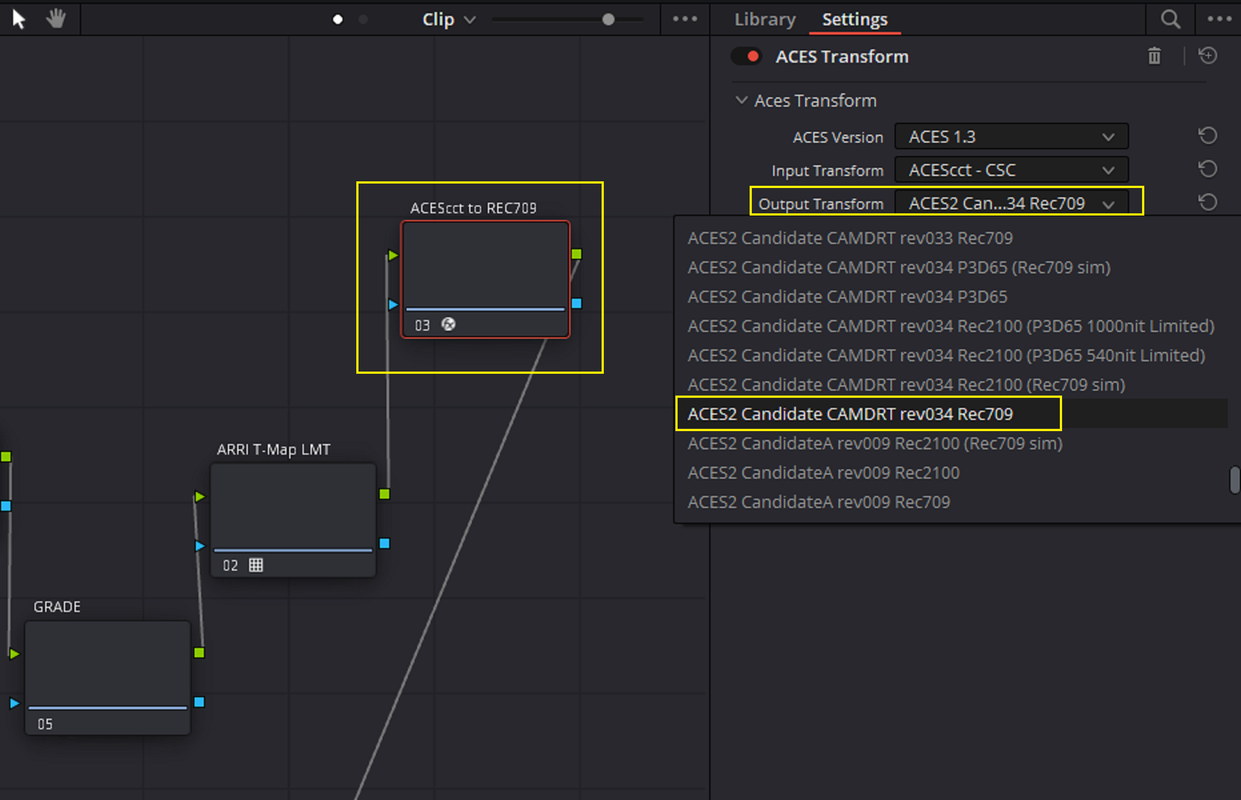
For this setting, I had to download the ACES 2.0 Candidates from the Github Repository Website and install them in the proper Baselight directory. The "Aces RRT 1.0.1" and "ACES RRT 1.1+" RRTs give the image that overly Crunchy Look that usually people don't like about ACES. The ACES 2.0 candidates gives the image a less crunchy better Tone-mapped look. Along with an additional ACES LMT, like I use later in this workflow with an ARRI Tone Curve, you can get a more traditional look like any other workflow.

ACES 2.0 Candidates Website

ampas/ACES_ODT_Candidates (github.com)


4.png


6.png


7.png


8.png


9.png


The Grade

Layer-1

10.png


10-1.png


11.png


11-1.png


Layer-2

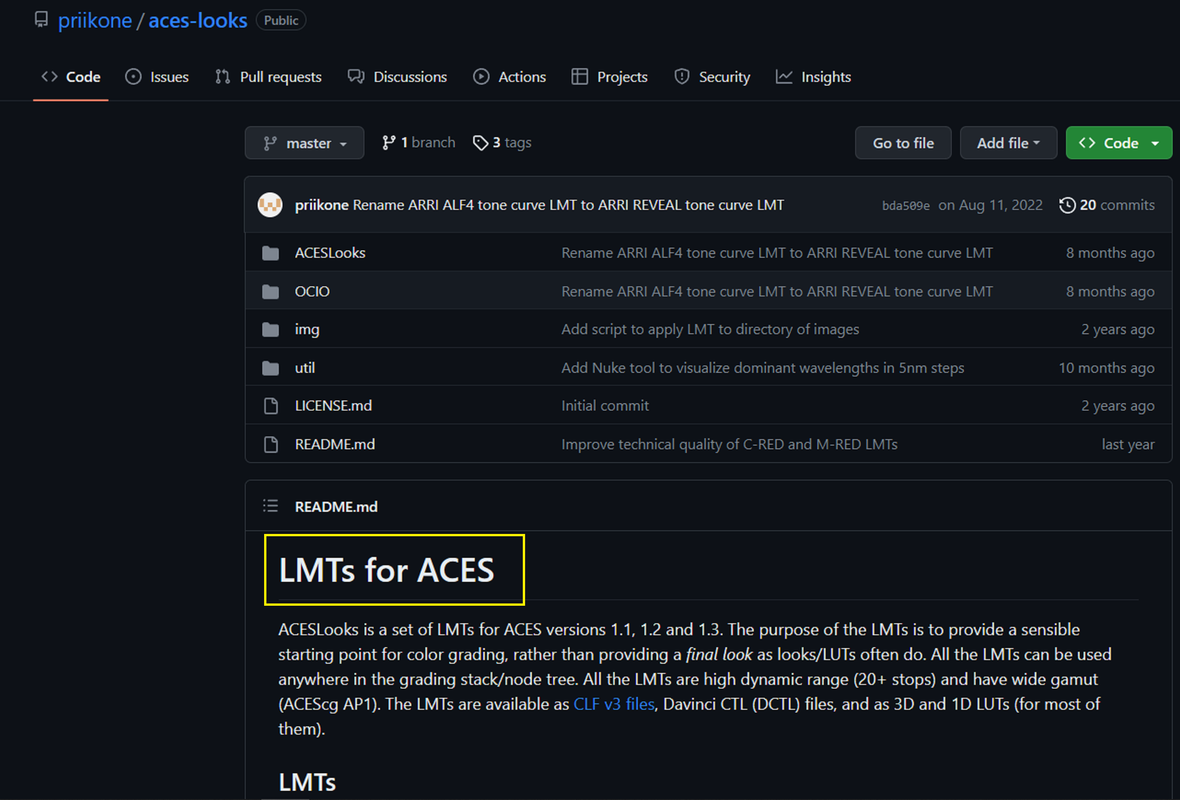
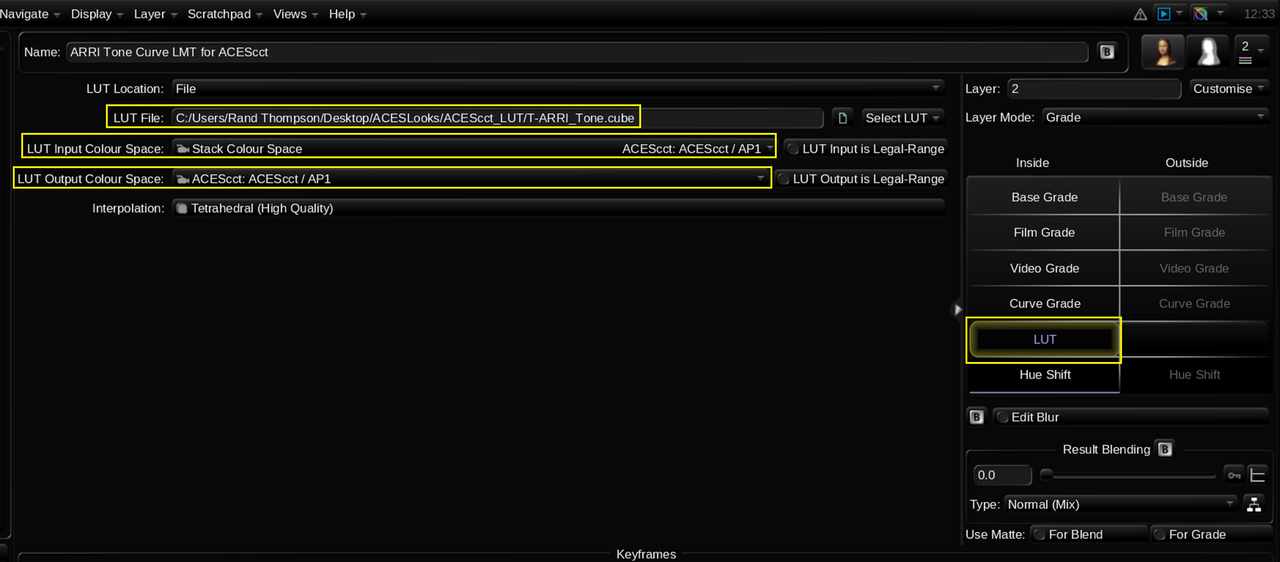
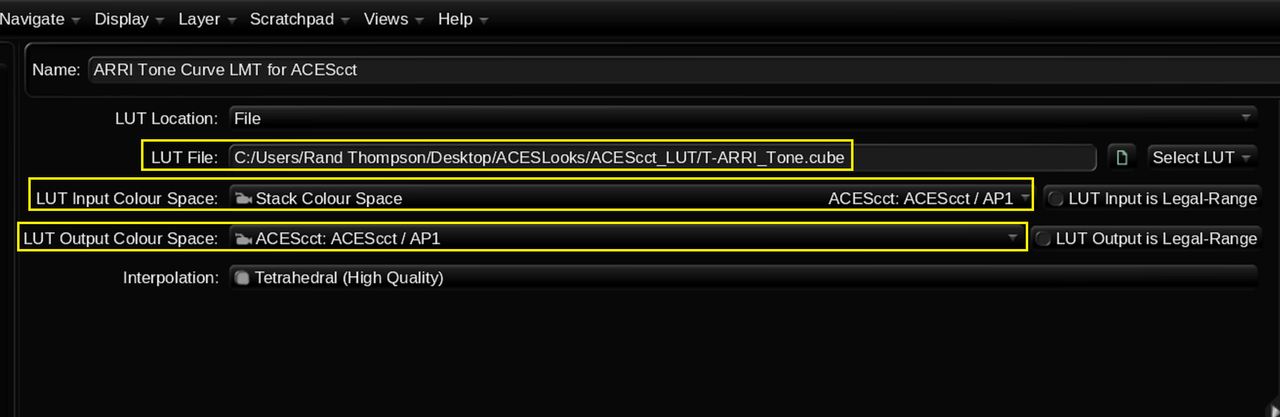
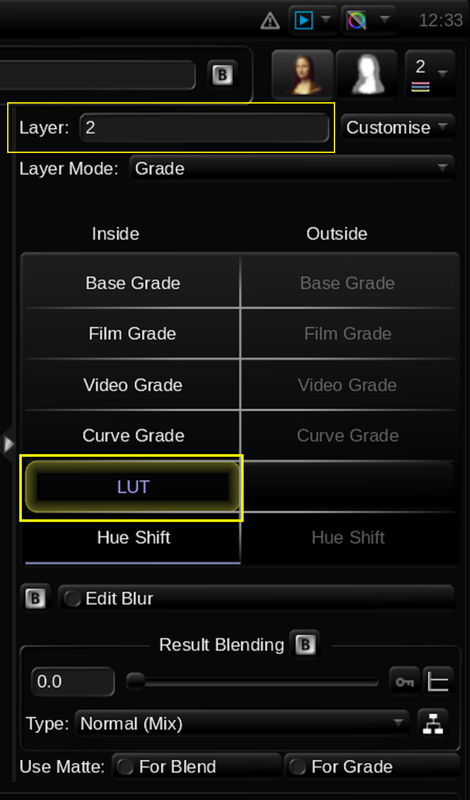
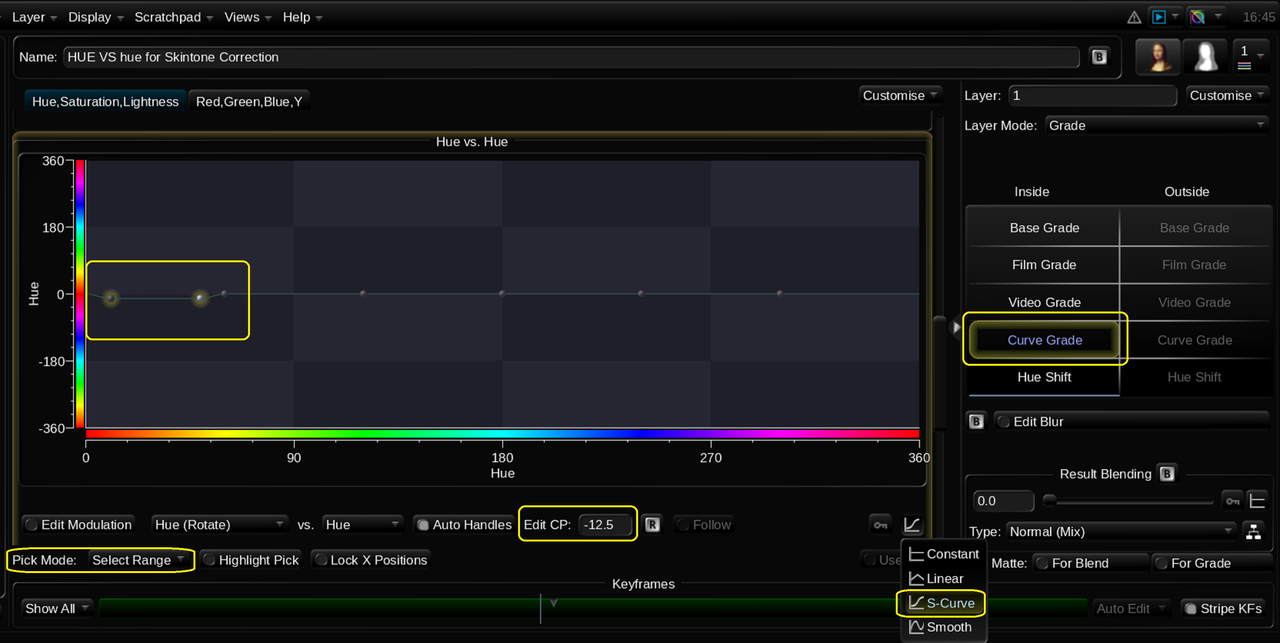
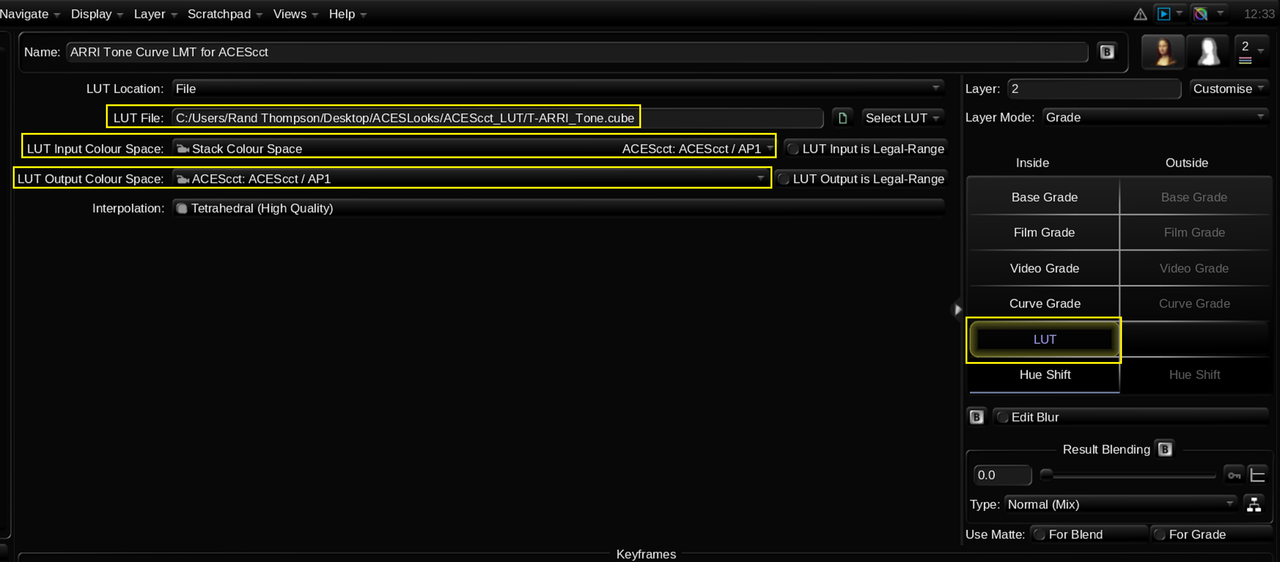
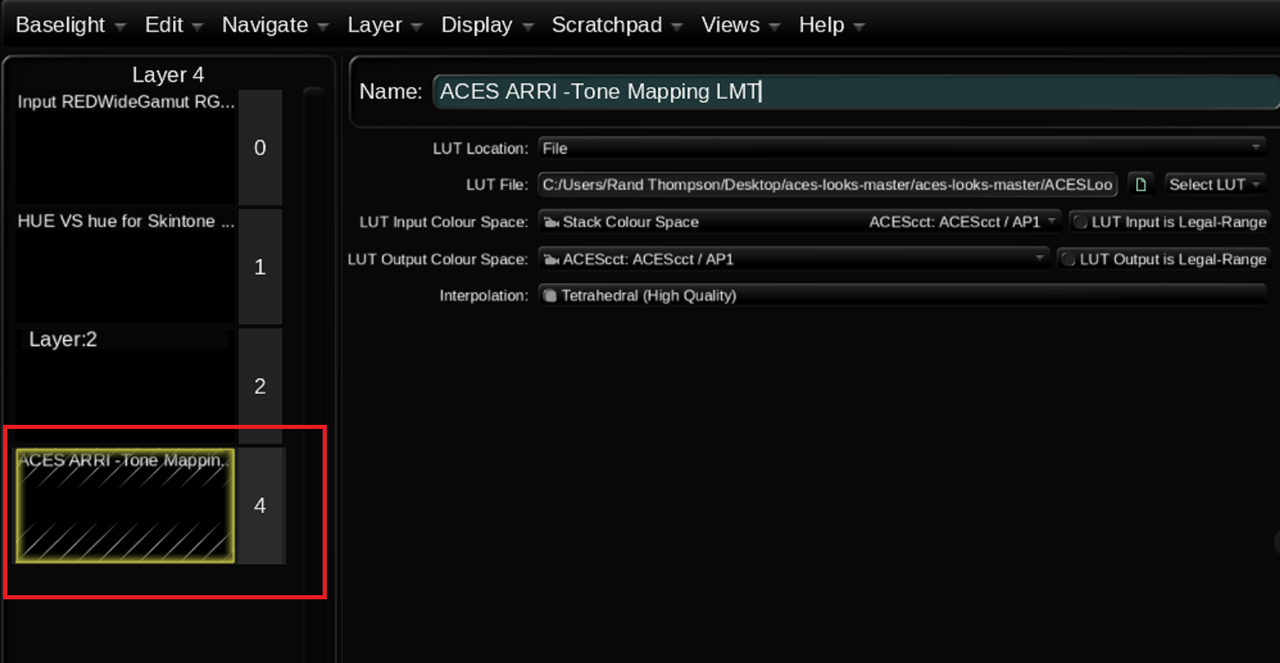
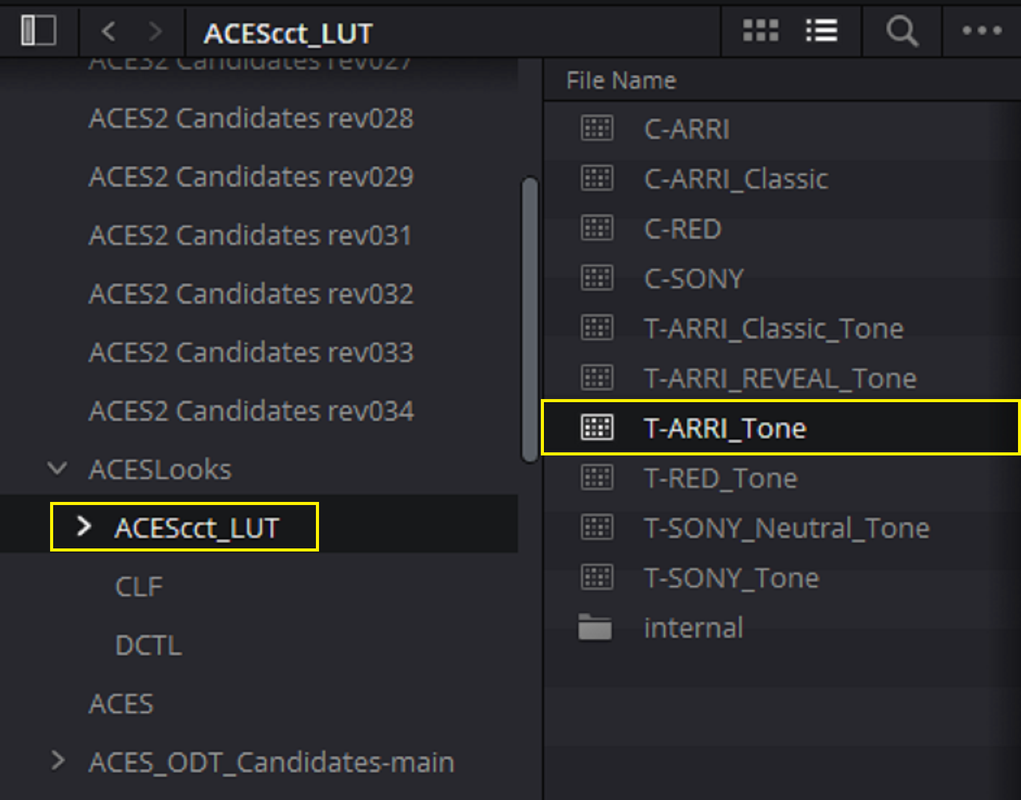
Here is the ACES LMT with ARRI Tone Curve that I also got from the GITHUB Repository Website that also helps contribute to the better Tone-Mapping of this Image.

PRIIKONE ACES-Looks
priikone/aces-looks: ACESLooks is a set of LMTs for ACES. (github.com)


12.png


12-1a.png


12-1.png


Screenshot-9462.png


Screenshot-9465.png


How the image would have looked without the ACES 2.0 Candidate Transform using the "ACES RRT 1.1+" RRT instead and without the ACES ARRI LMT Tone-Mapping.


Screenshot-9466.png
 
Last edited:
Baselight for Avid RED IPP2 Workflow Using RED "FILMBIAS" Creative Lut


Here is How I set it up


Initial Setup


1.png


1a.png


1b.png


2.png


3.png


4.png


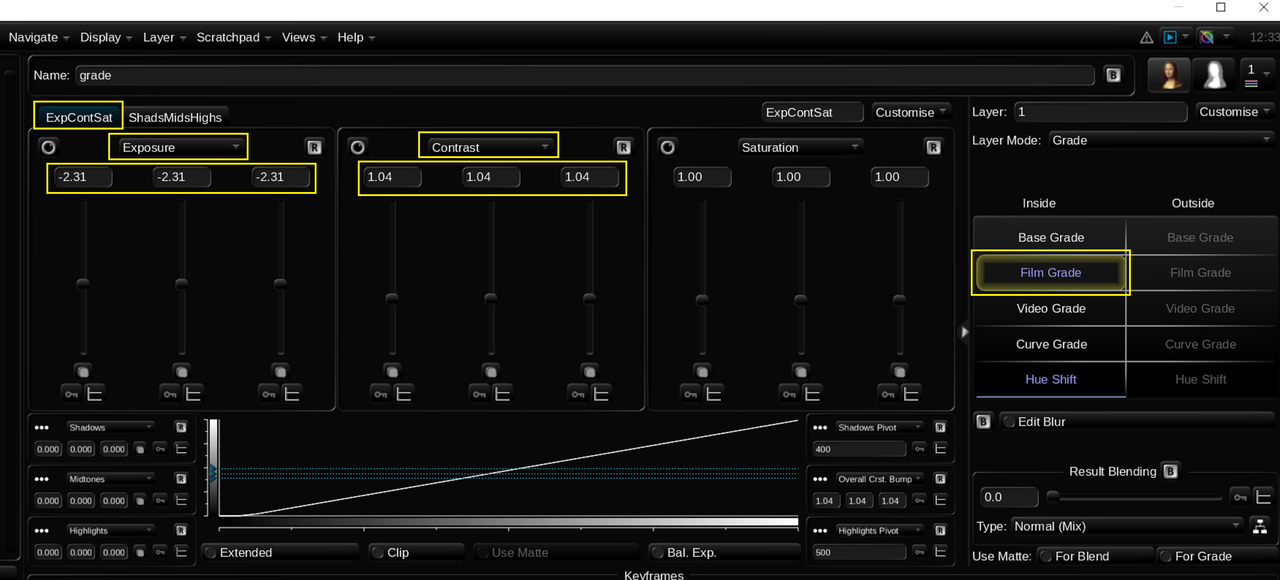
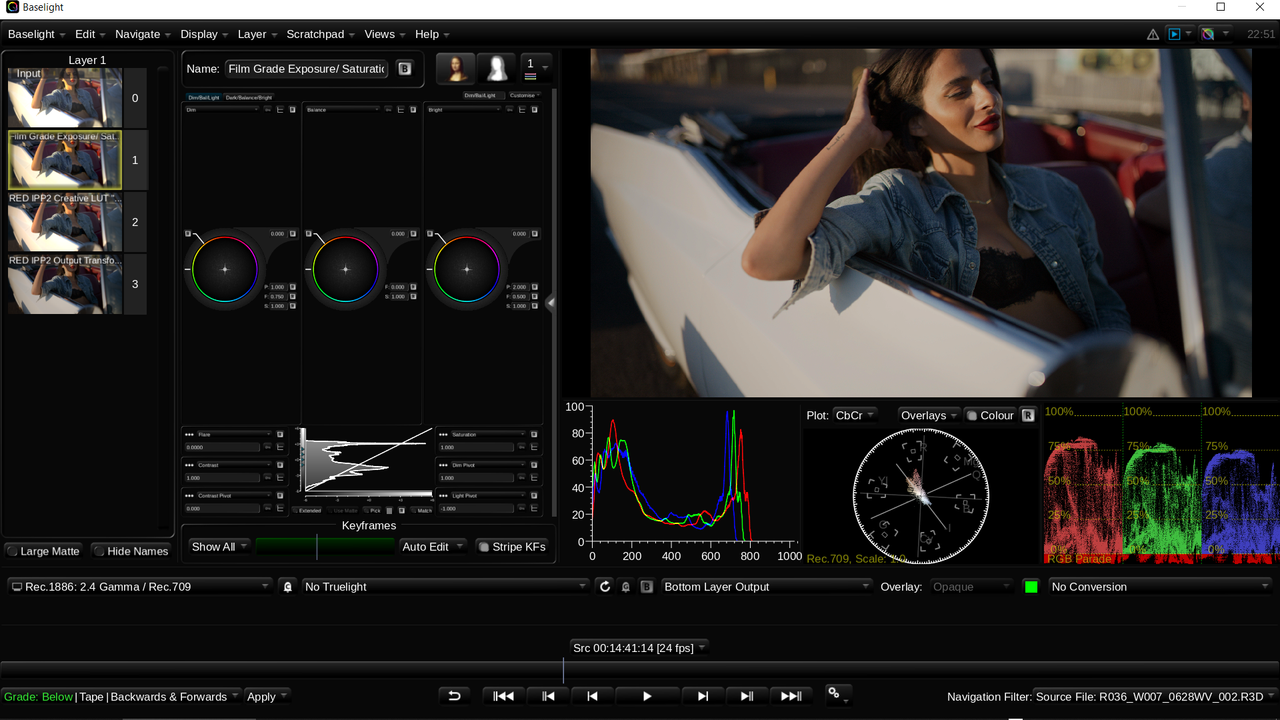
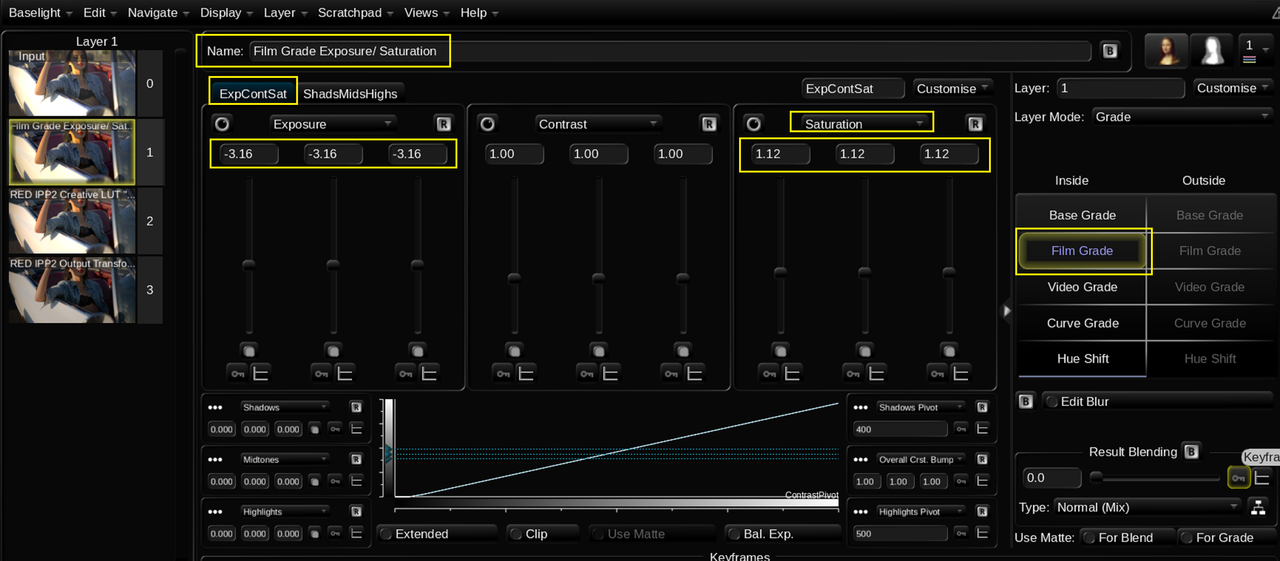
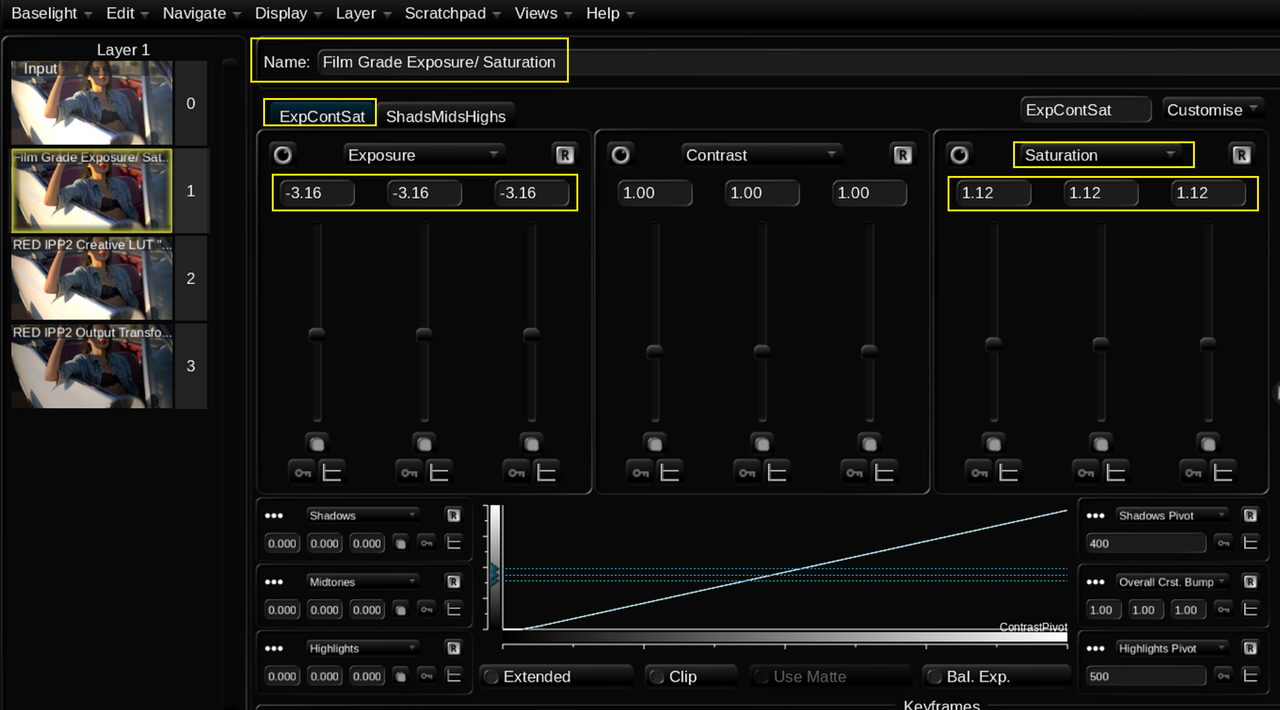
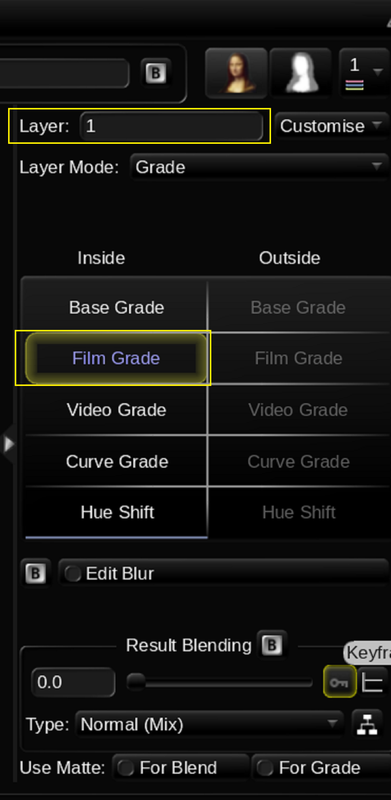
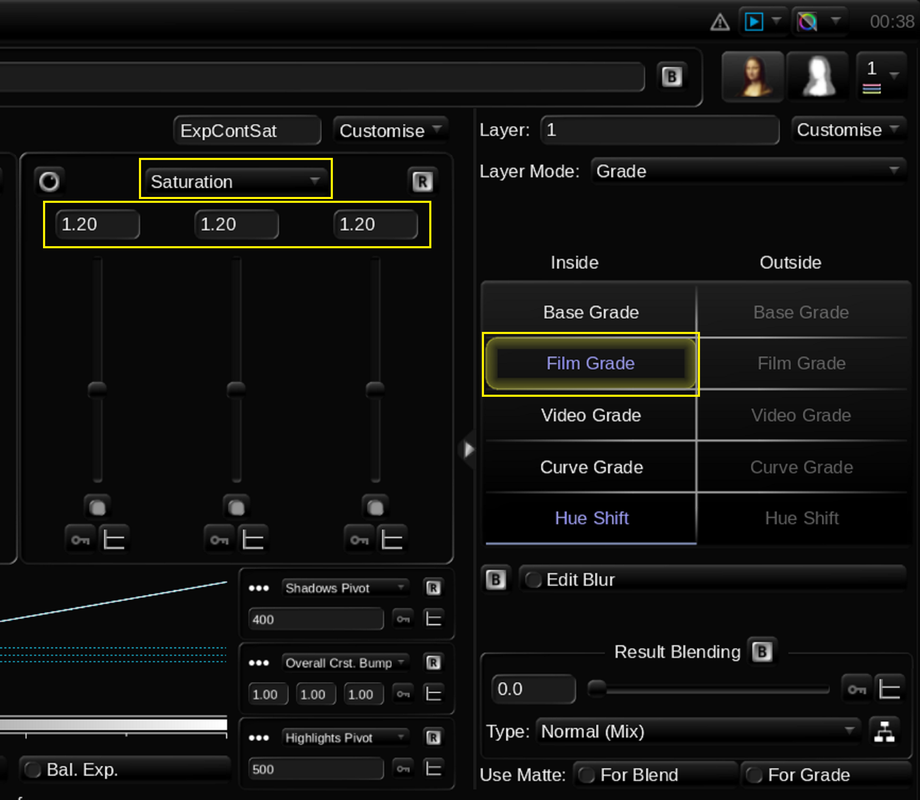
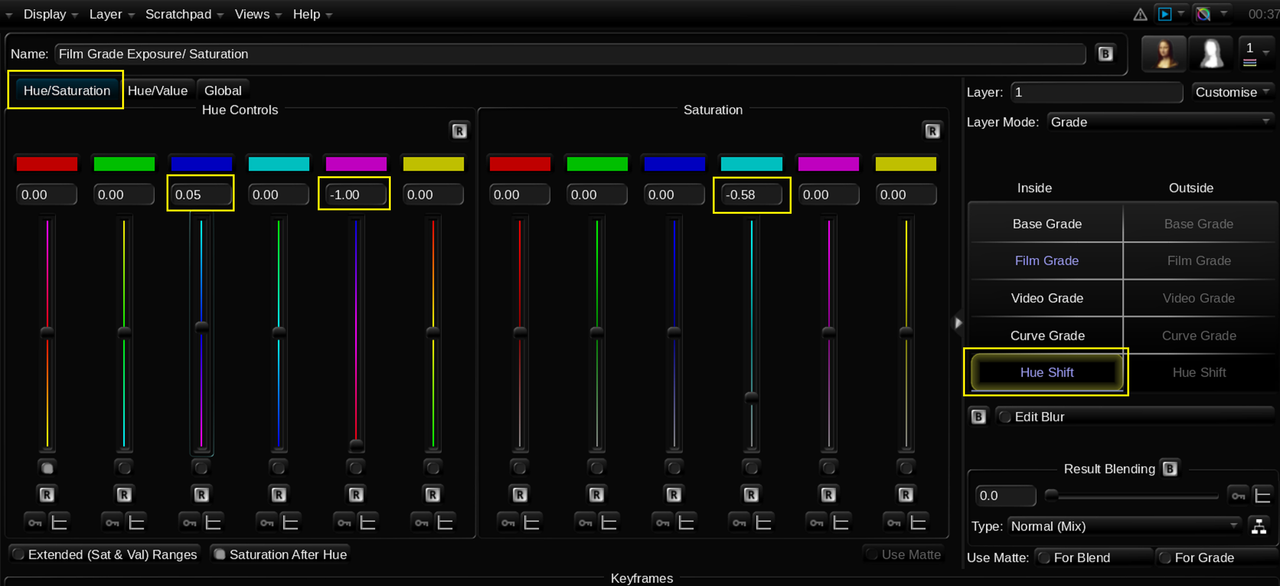
FILM GRADE Exposure and Saturation- LAYER-1


5.png


6.png


7.png


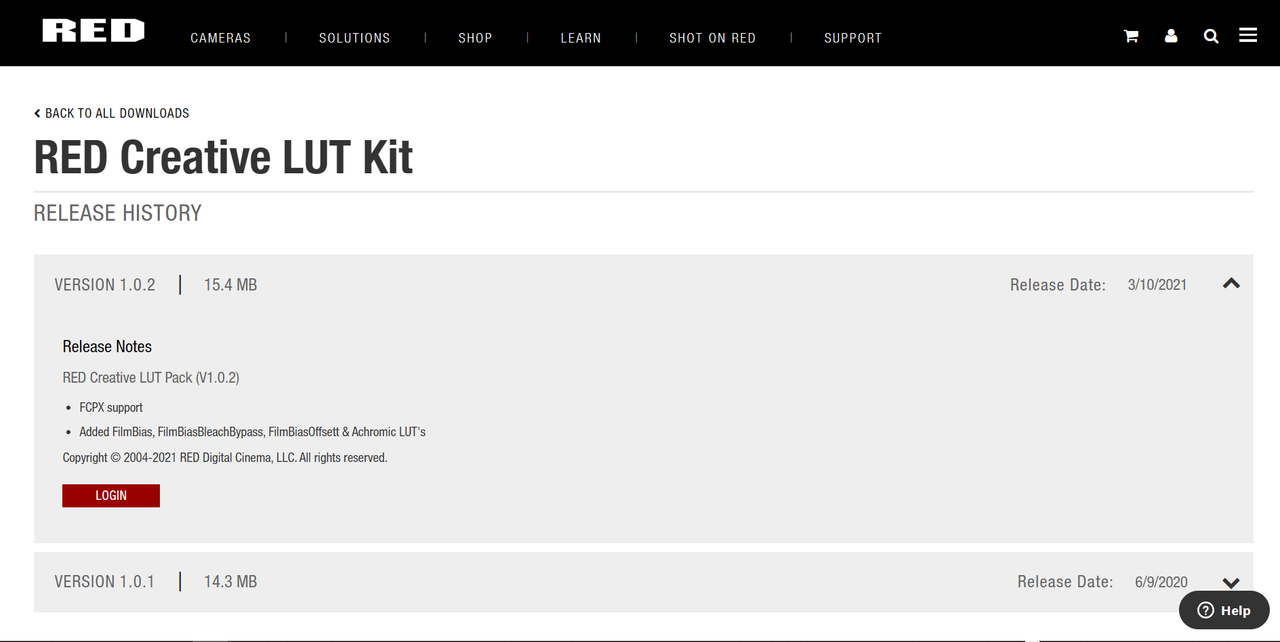
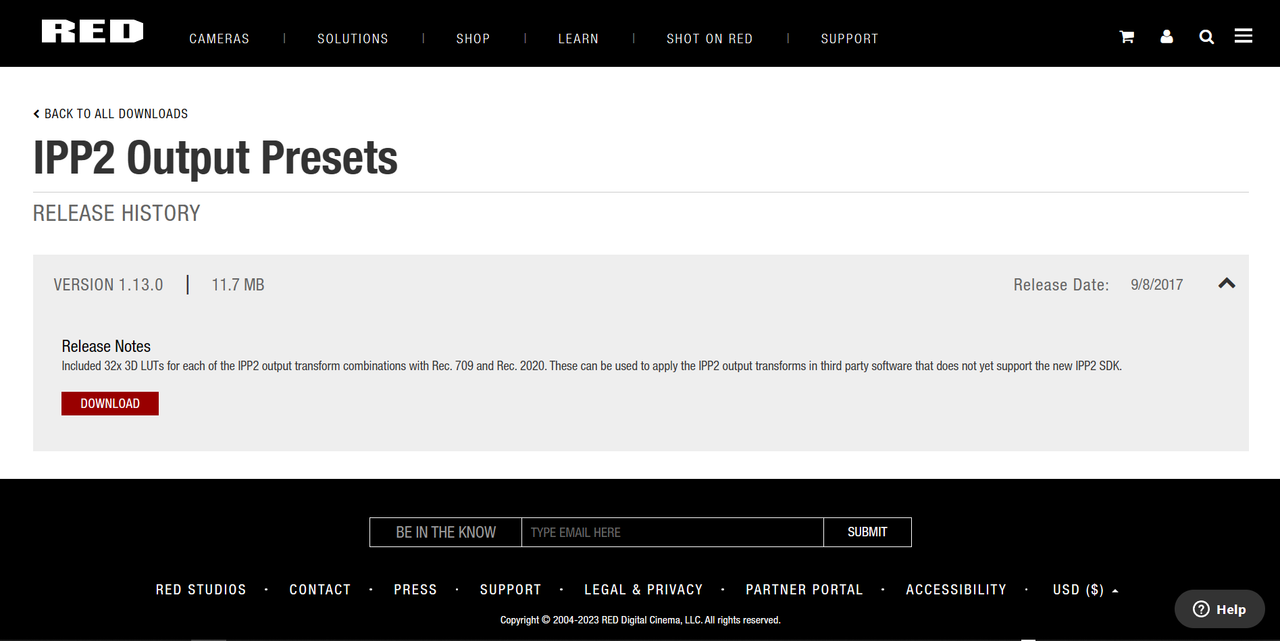
You can download the "FILMBIAS" RED IPP2 Creative Lut and RED IPP2 Output Presets from the Links below

RED IPP2 Creative Luts
Downloads Details (red.com)


IPP2 Output Presets
Downloads Details (red.com)


Screenshot-9484.png


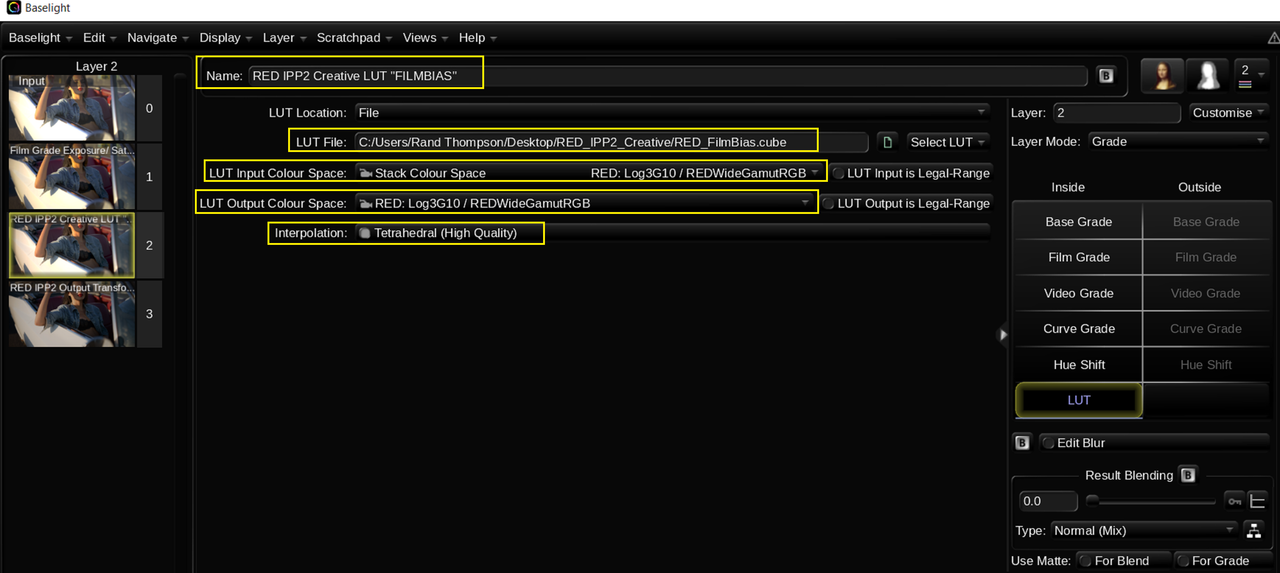
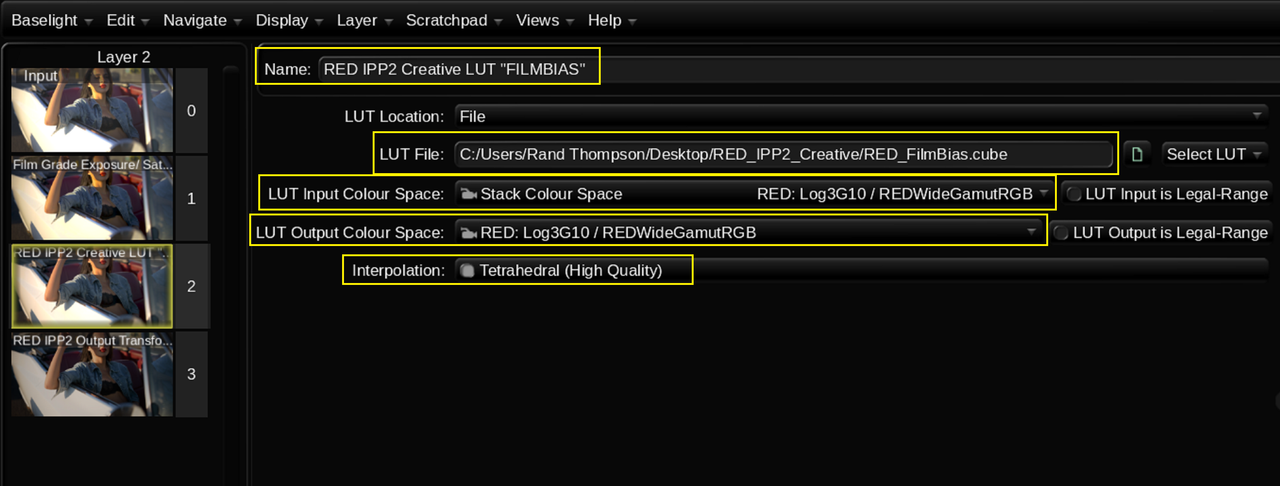
RED IPP2 Creative Lut "FILMBIAS" ADDED WITH "LUT" Operator-LAYER-2


8.png


9.png


10.png


11.png


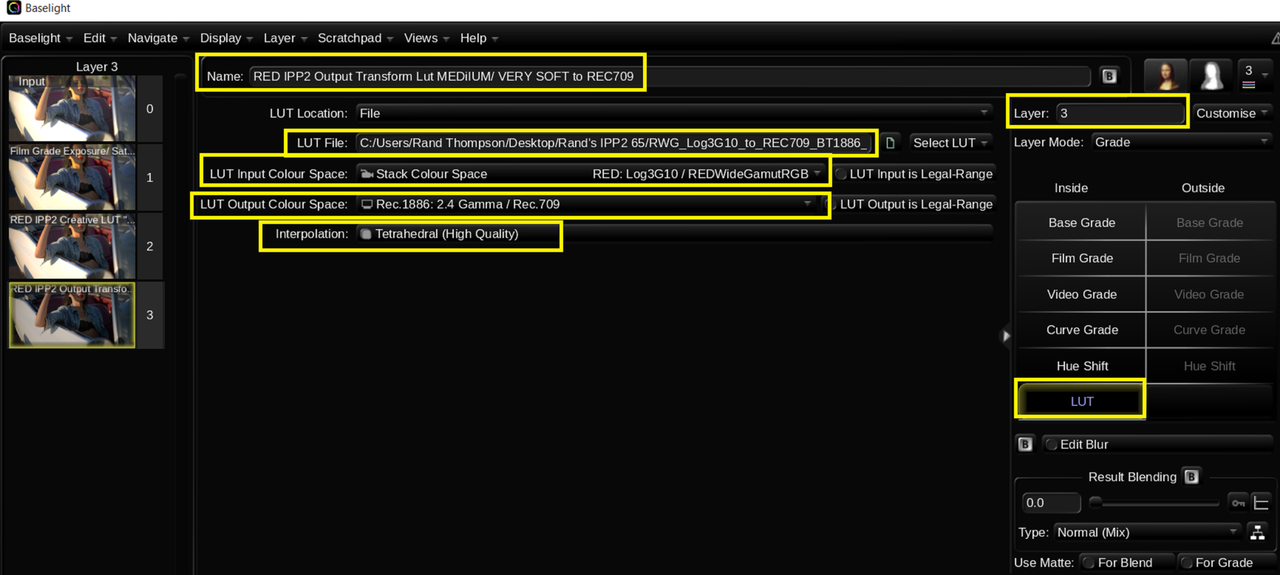
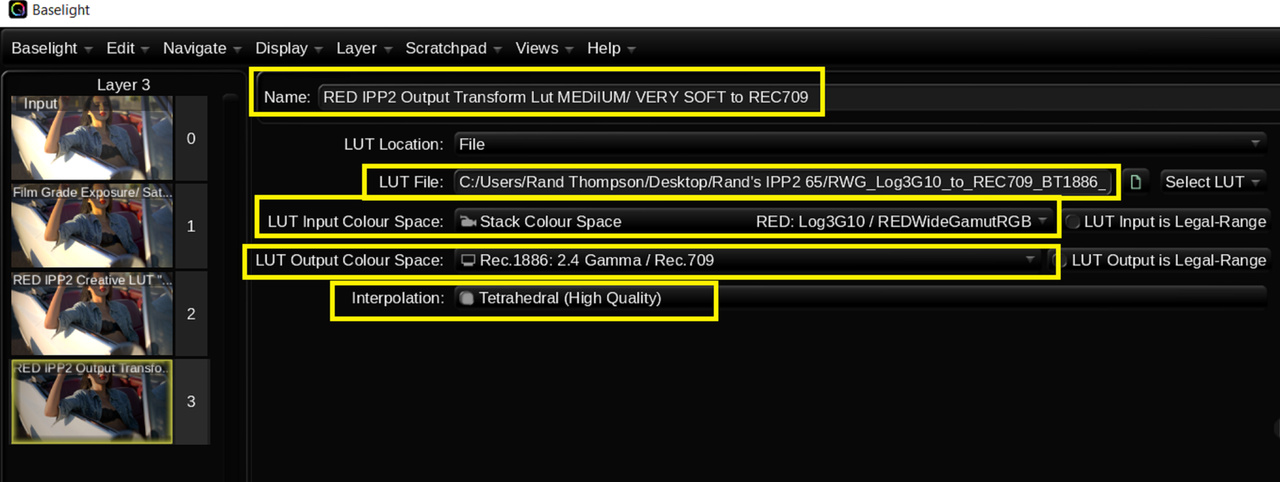
Excuse the Incorrect Spelling of "Medium", the text can be very small sometimes in Baselight. I didn't see this until after I enlarged it for a Screengrab.


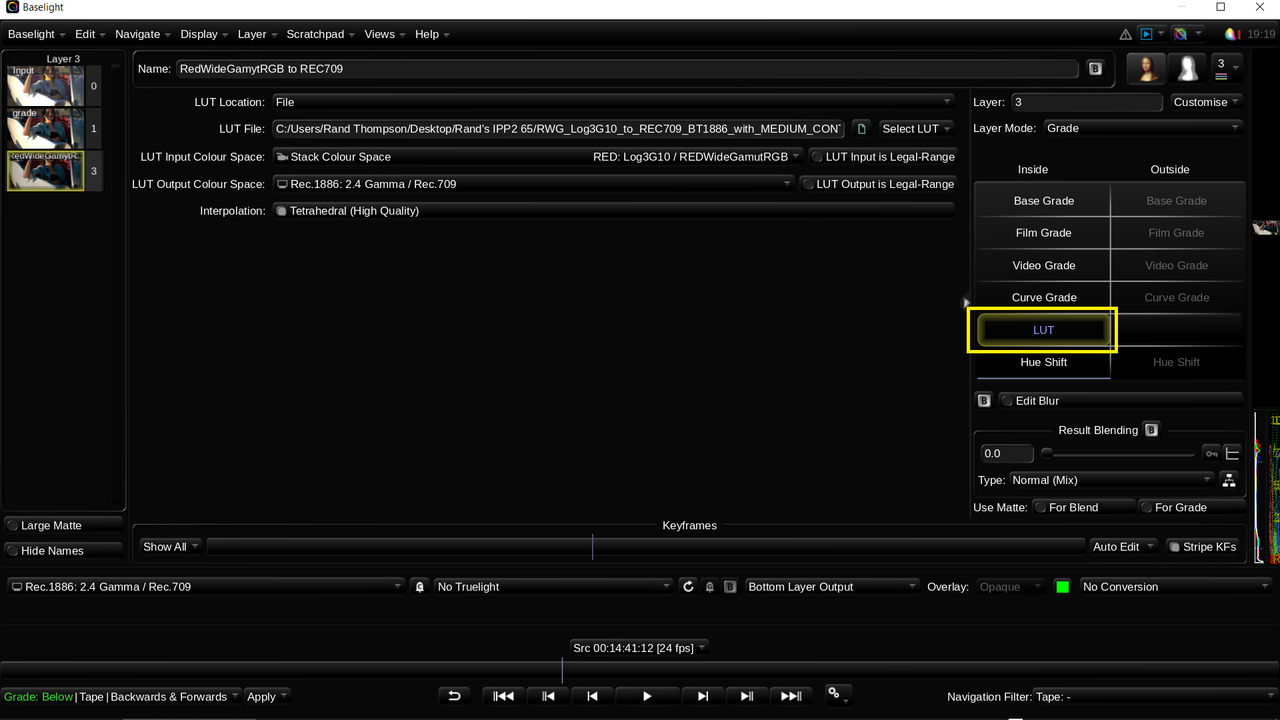
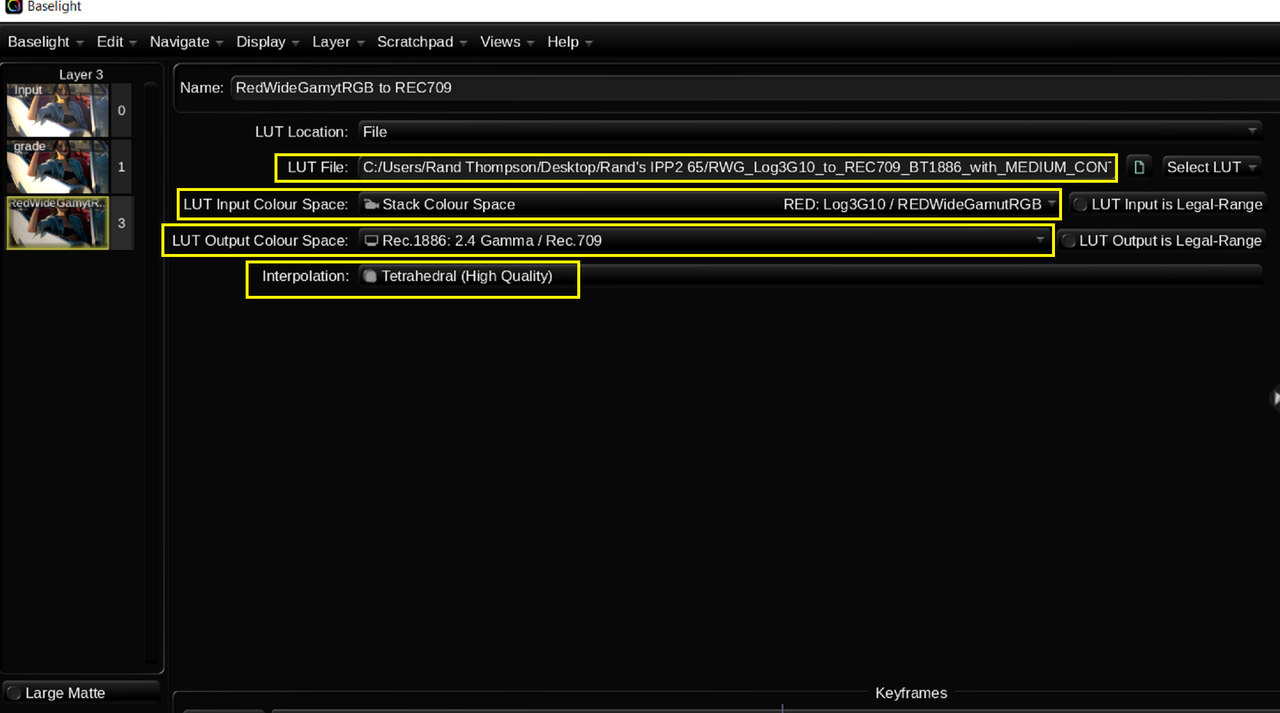
RED IPP2 "MEDIUM CONTRAST/ VERY SOFT" OUTPUT TRANSFORM LUT ADDED WITH "LUT" Operator-LAYER-3


12.png


13.png


13a.png


15.png


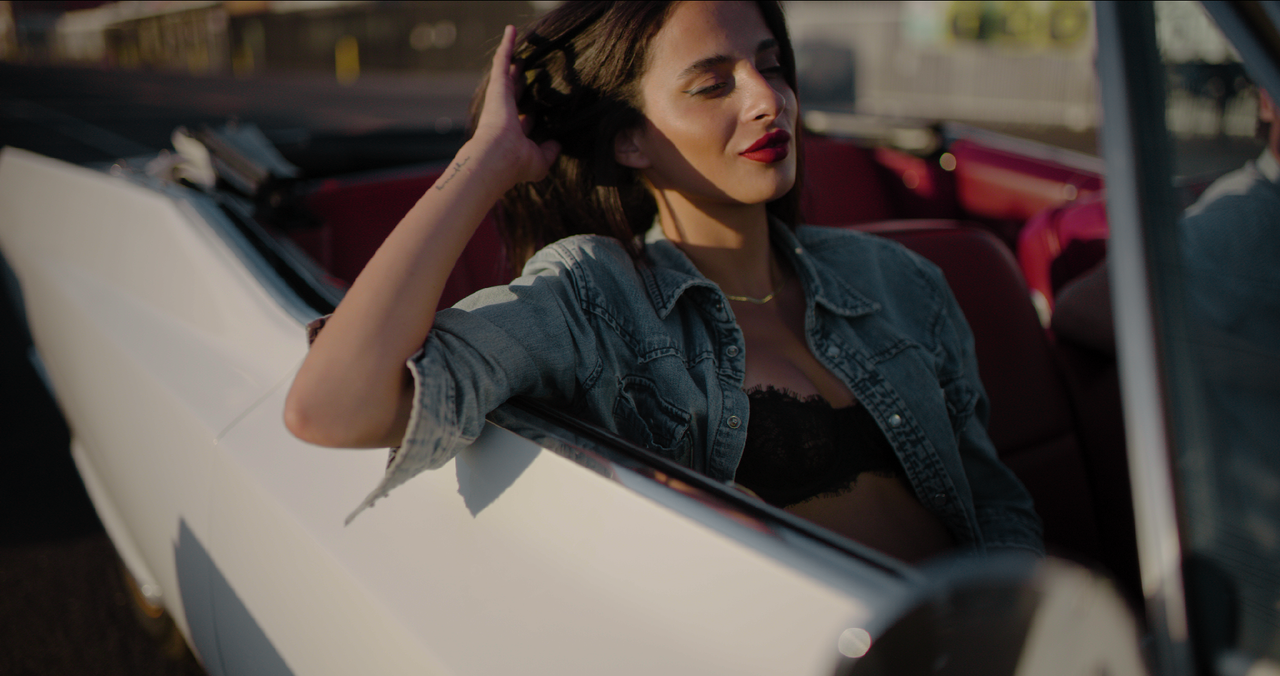
Before "FILMBIAS" LUT


Screenshot-9471.png


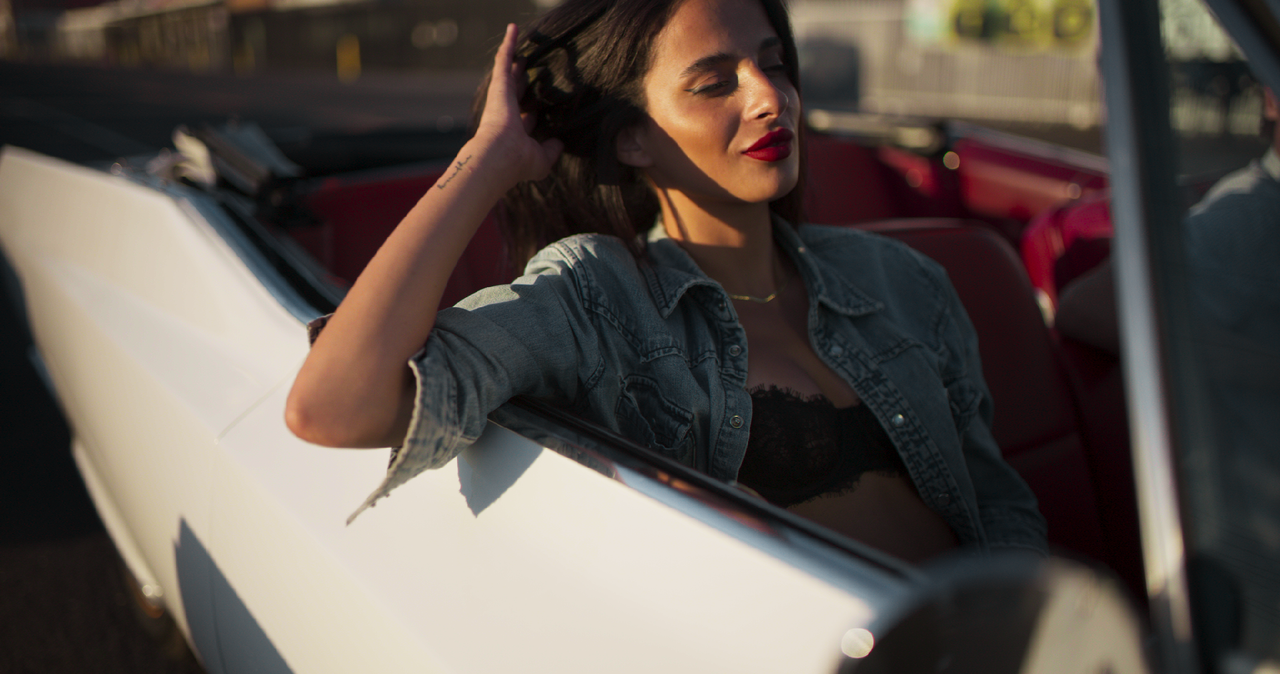
After "FILMBIAS" LUT

Screenshot-9472.png


Grade With additional Corrections

Screenshot-9489.png


Screenshot-9488.png


Screenshot-9490.png
 
Last edited:
Nick,

But the thing about using a Full Frame sensor is at what F-stop will you attain 'Critical Focus"? I think most people like that Foreground and Background separation and perspective. However at what F-stop will you need to have your main character/s in focus to be able to track them from one camera movement to another without losing focus. I think maybe F/4 to F/8 and some lenses are "Diffraction Limited" by F8 if not by f/11. I think a S35 sensored camera would allow for a greater range of sharpness and critical focus throughout the F-Stop range of a lens without becoming Diffration limited than would a Full Frame sensored camera. But that's just my opinion.

You will get used to it. There are good FF glass also. It just more costly.
FF sensor gives you both worlds. Of all the glass out there.
 
You will get used to it. There are good FF glass also. It just more costly.
FF sensor gives you both worlds. Of all the glass out there.

Alex,

I believe you're right. I guess I just like the S35 esthetic more .
 
Using Davinci Resolve OFX and DCTL to make Luts for Baselight + Something Extra


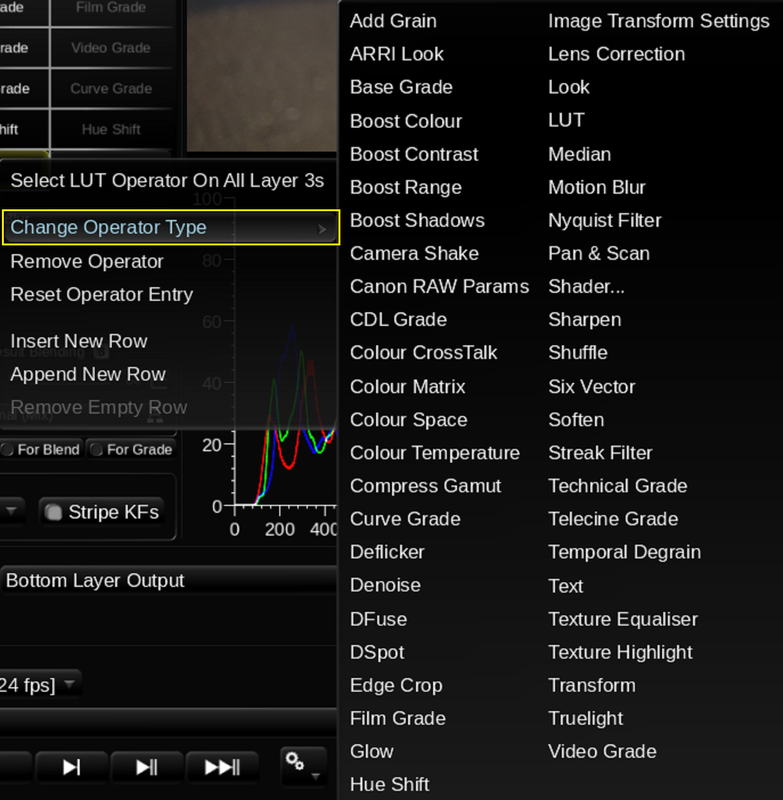
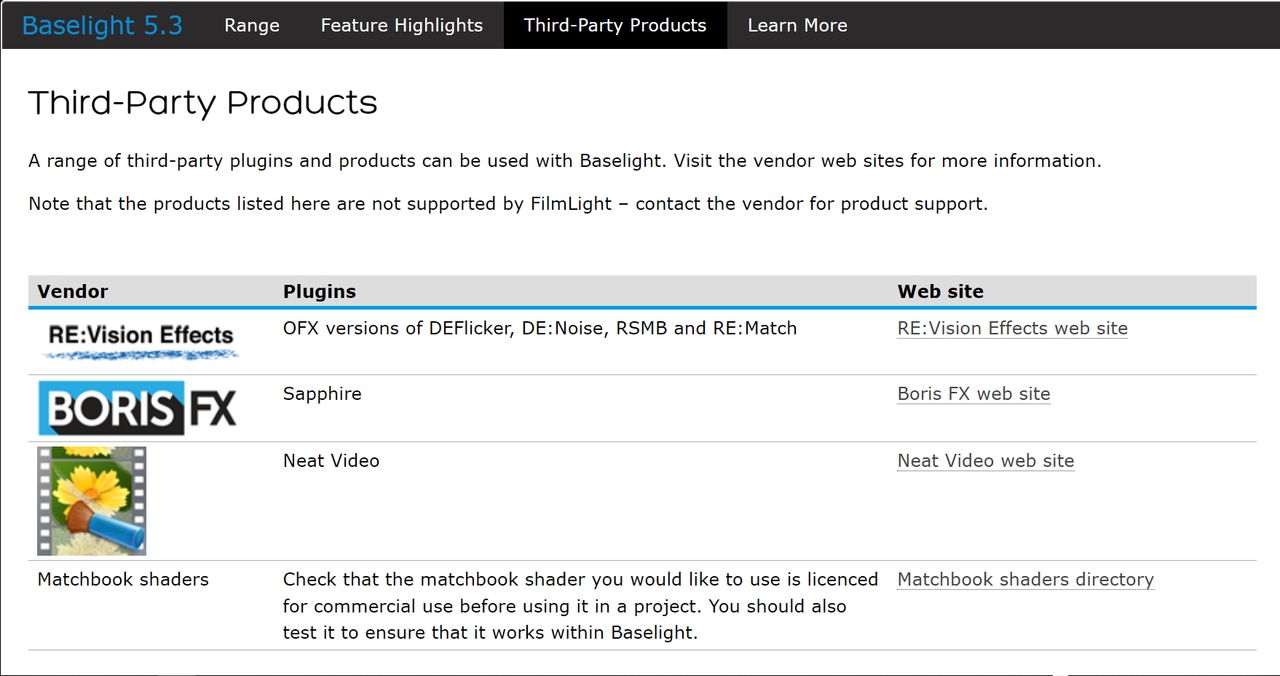
I have recently been using Avid Media Composer Ultimate ( a Friend Had multiple Perpetual licenses) and Baselight 5.3 30-Day trial. I used this combination about 6 or 7 years ago when I was on a 17-Inch Macbook Pro. So I thought I would try it out on my Windows 17.3 inch MSI GT Dominator Pro laptop. Although Baselight comes with a lot of additional "OPERATORS" you can add to help develop your image there are very few Third Party add ons available.

Screenshot-9574.png
wAAACH5BAEKAAAALAAAAAABAAEAAAICRAEAOw==


0.png
wAAACH5BAEKAAAALAAAAAABAAEAAAICRAEAOw==


Davinci Resolve has many included OFX plugins as well as very many DCTL plugins that can be added to help develop your image. So I wanted to try to set up a way to use Davinci Resolve's OFX and DCTL plugins to make Luts for Baselight.


Part 1- The Initial setup in Baselight-For the Reference Image


1.png


2.png


2a.png


2b.png


2c.png


3.png


3a.png


4.png


4a.png


5.png


6.png


6ajpg.jpg


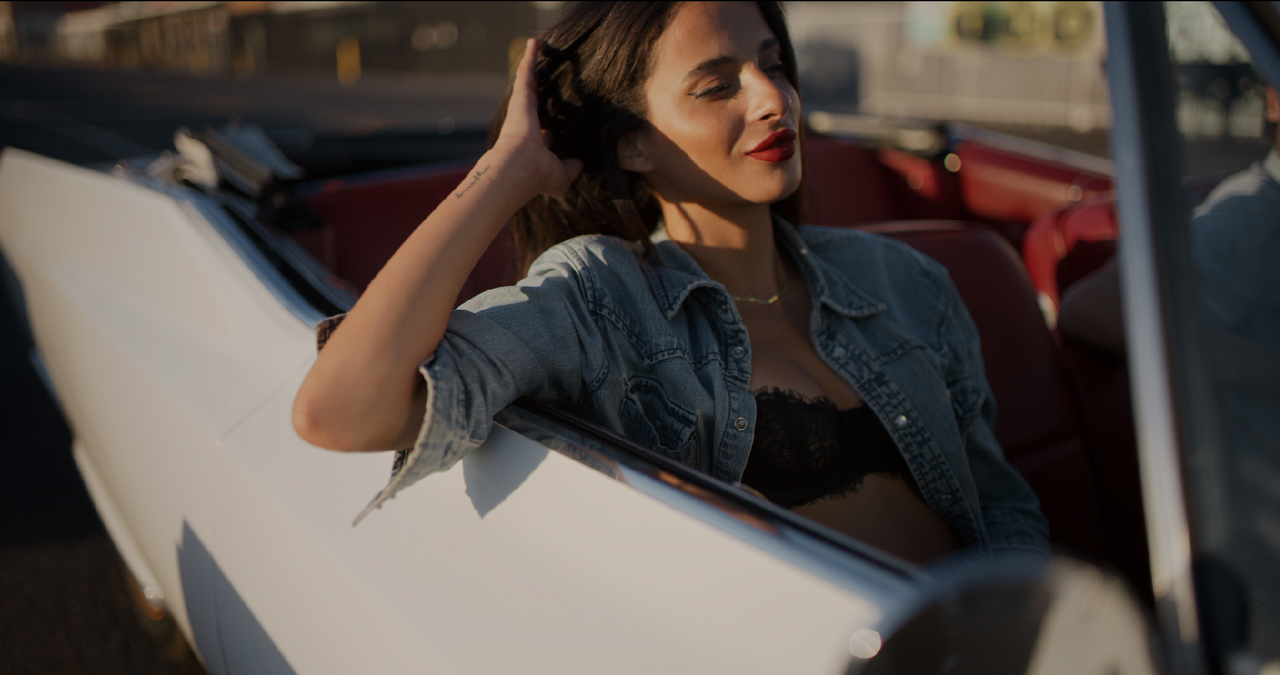
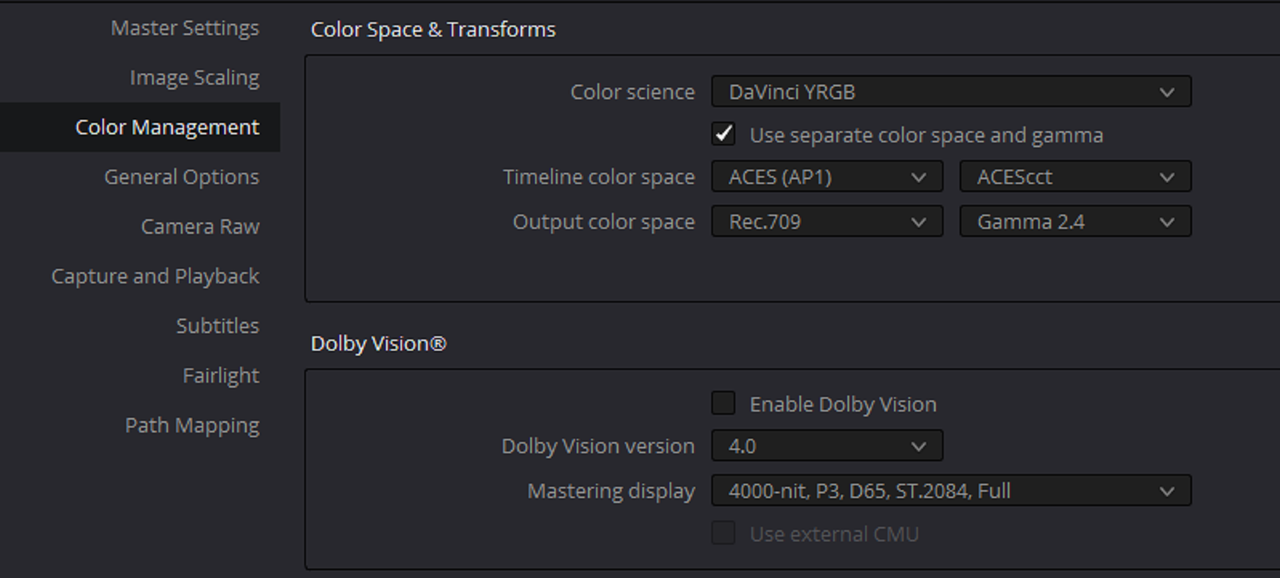
This Image will be used in a Resolve "Node Based" ACES workflow since ACES should be ACES in both programs to be used to correct for any differences in COLOR SCIENCE between Baselight and Resolve so that I can create a Lut that looks the same in both Baselight as in Resolve.


7.png


Here are the Adjustments to the previous settings so that I should be able to get almost the exact same FINAL IMAGE in Resolve's Aces workflow as in Baselight's ACES workflow.

8.png


Also I "DISABLED" the "ACES ARRI Tone-Mapping LMT" that was "Enabled" in the Previous "Reference Image" workflow.

9.png


10jpeg.jpg


11.png


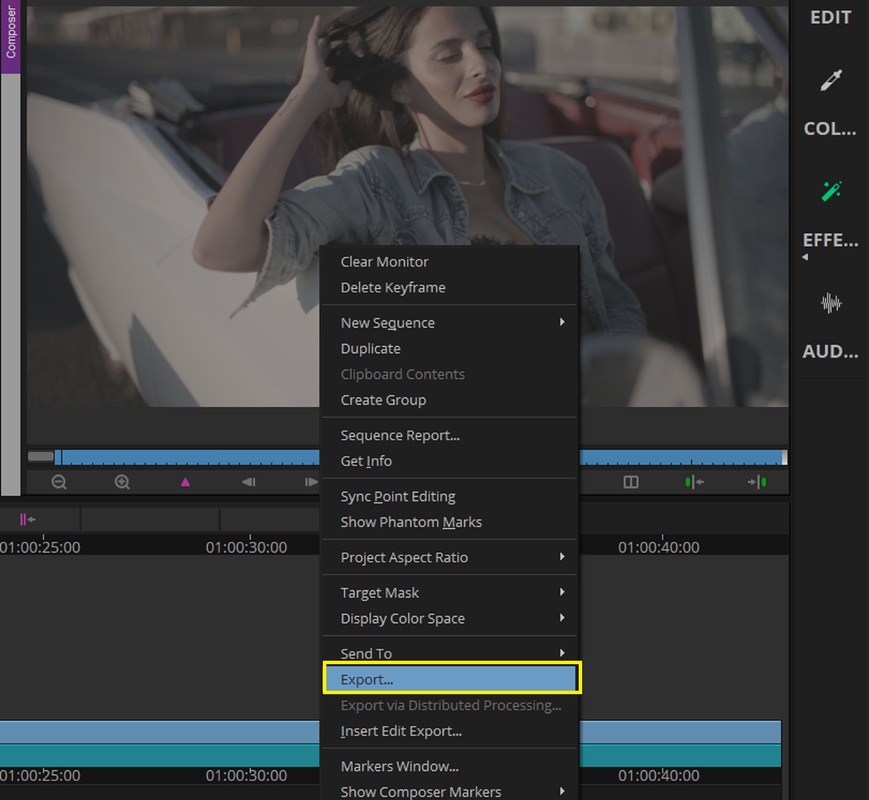
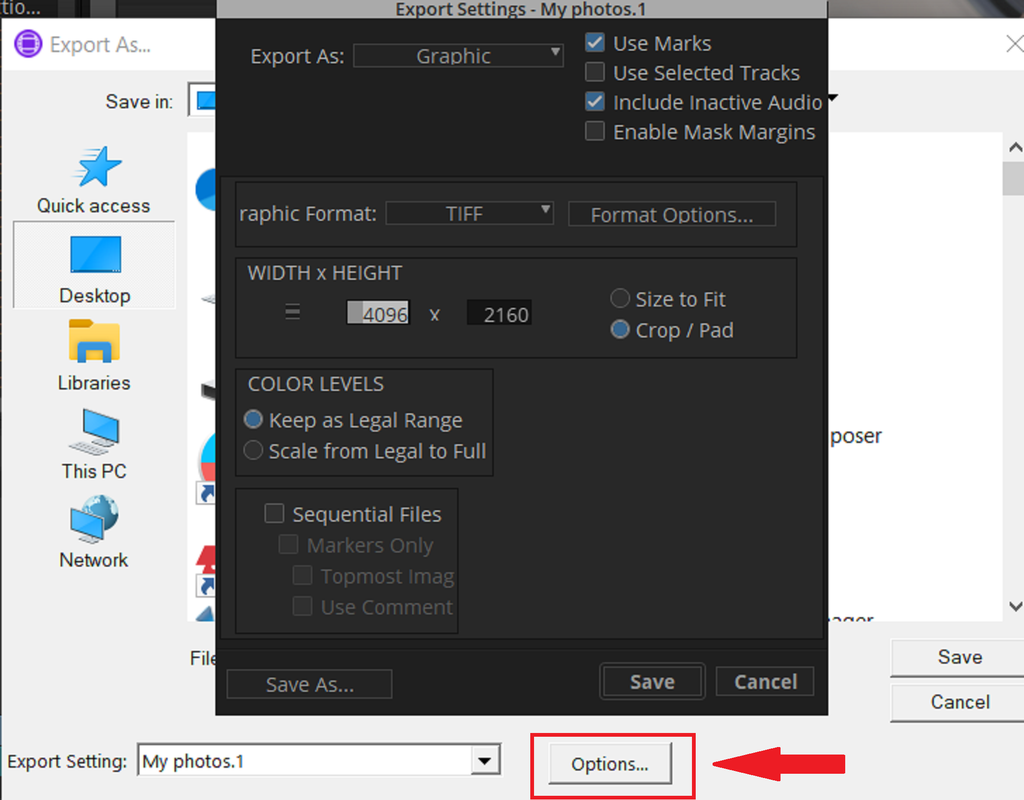
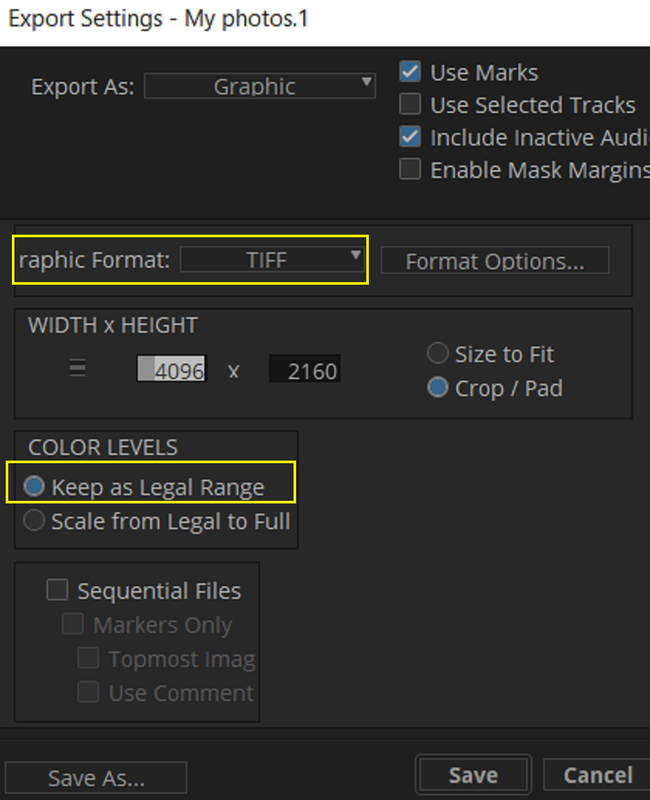
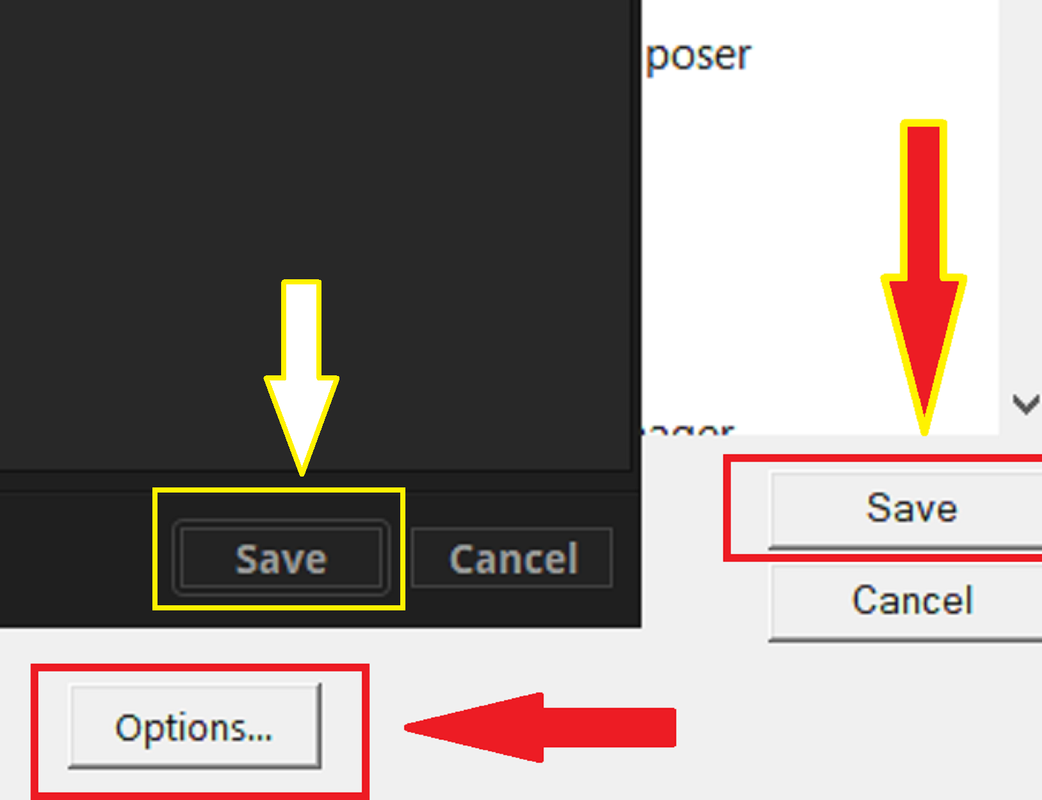
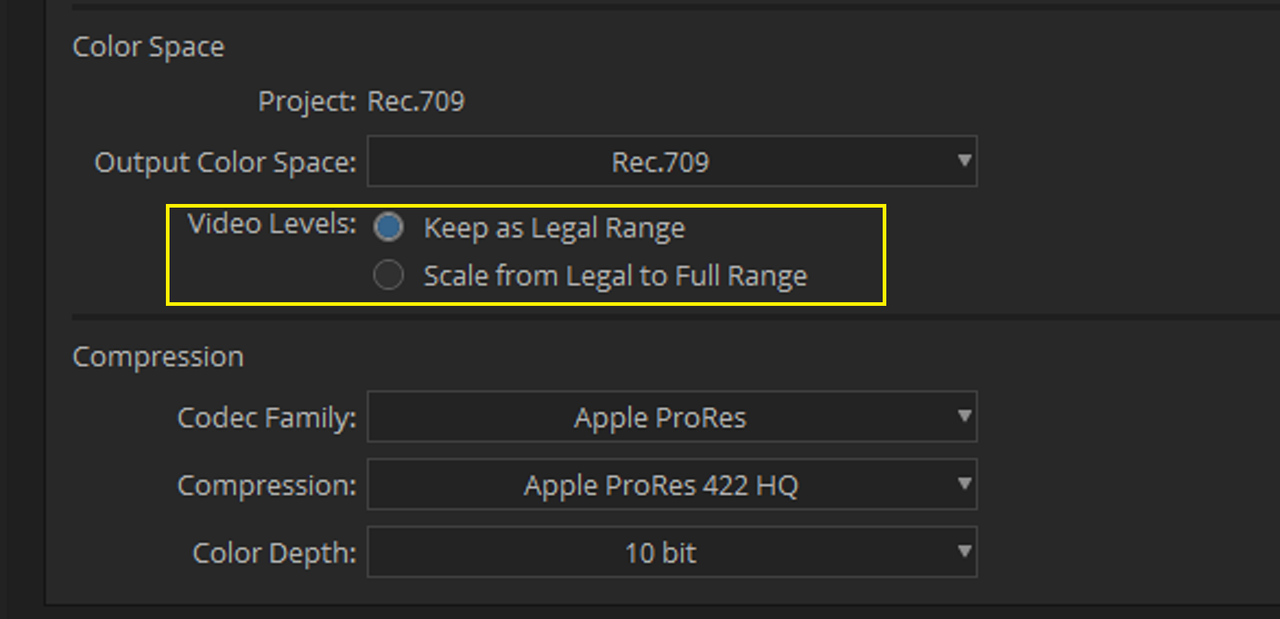
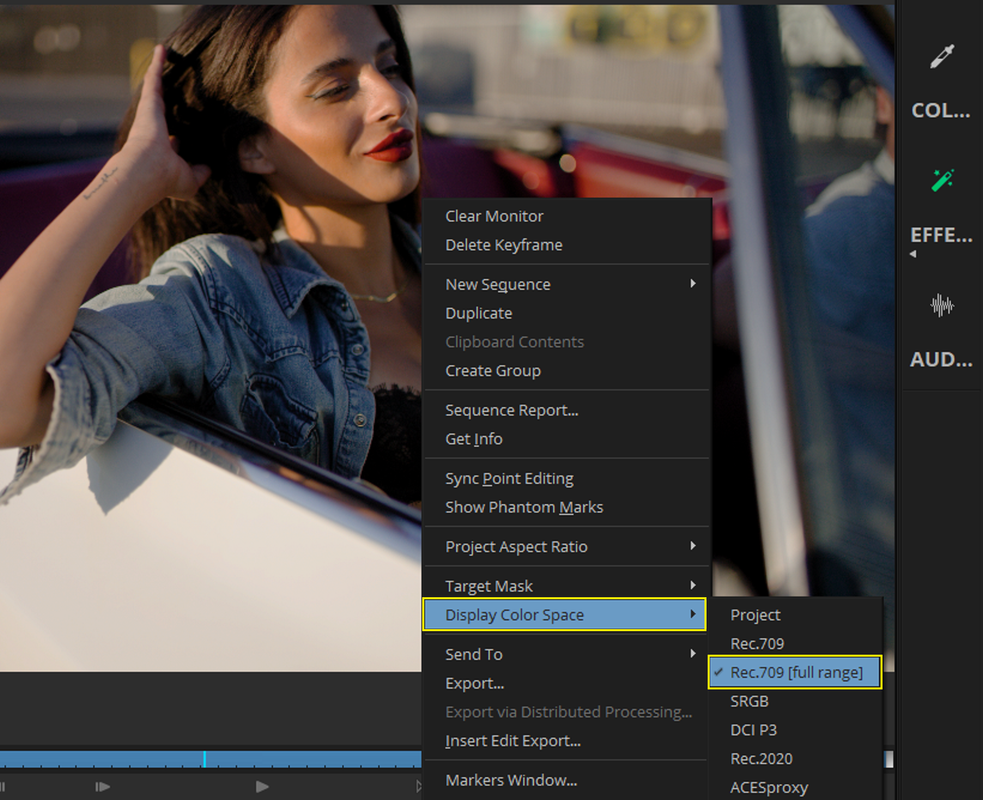
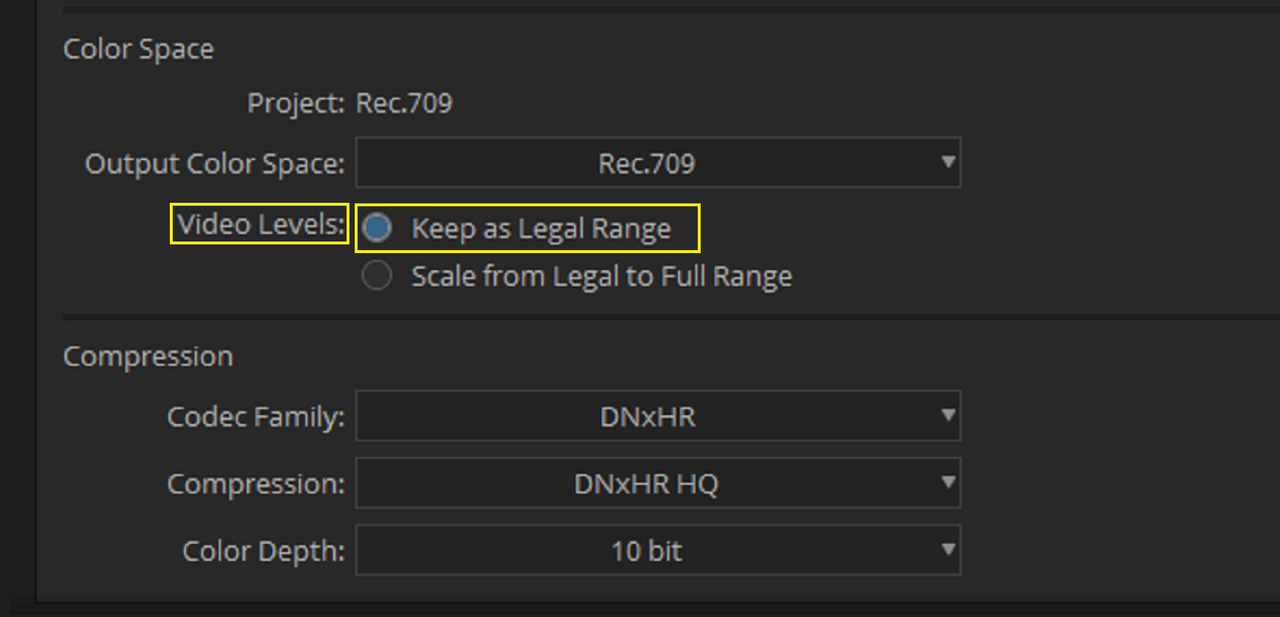
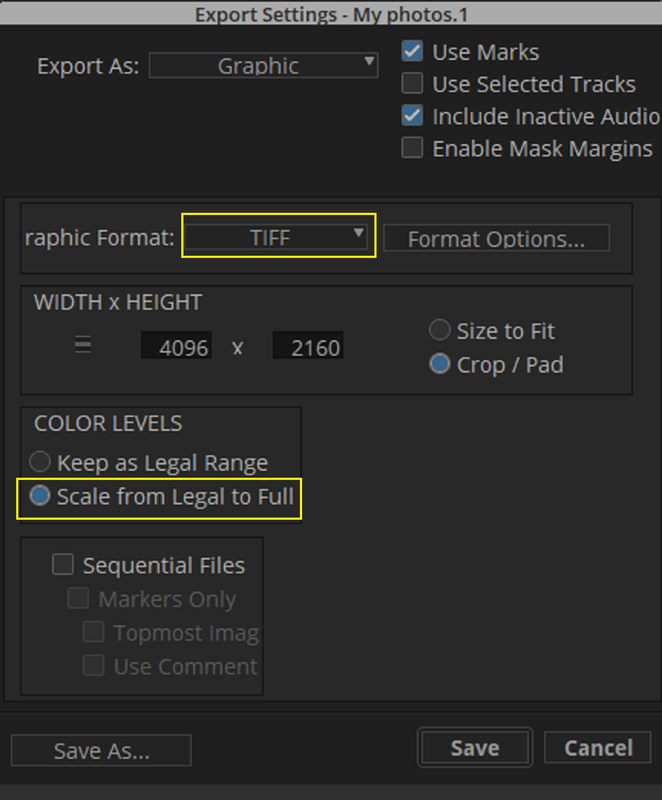
Next click on "OPTIONS", then make your selection and press "Save" on "Export Settings" and "Save" again. I exported the image out as a ".TIFF" file and "Keep as Legal Range"

12.png


13.png


13a.png


dfz
 
Last edited:
PART-2 In Davinci Resolve


Here are the Initial settings in Resolve

14.png


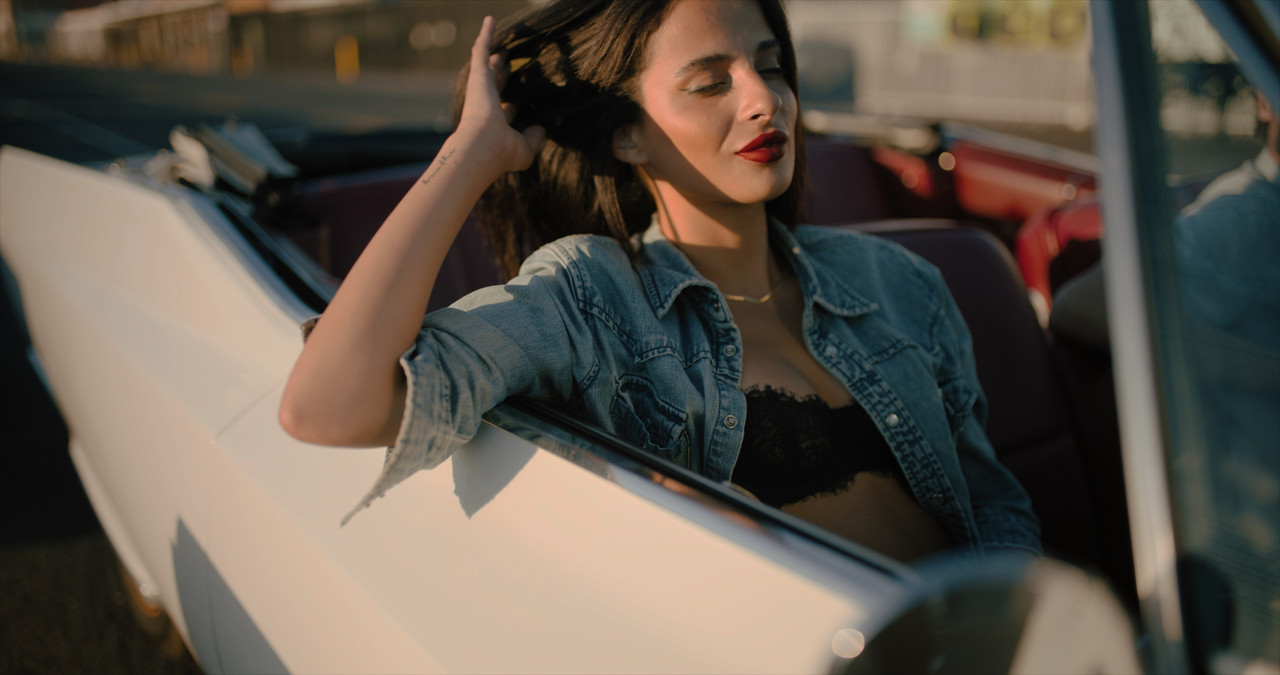
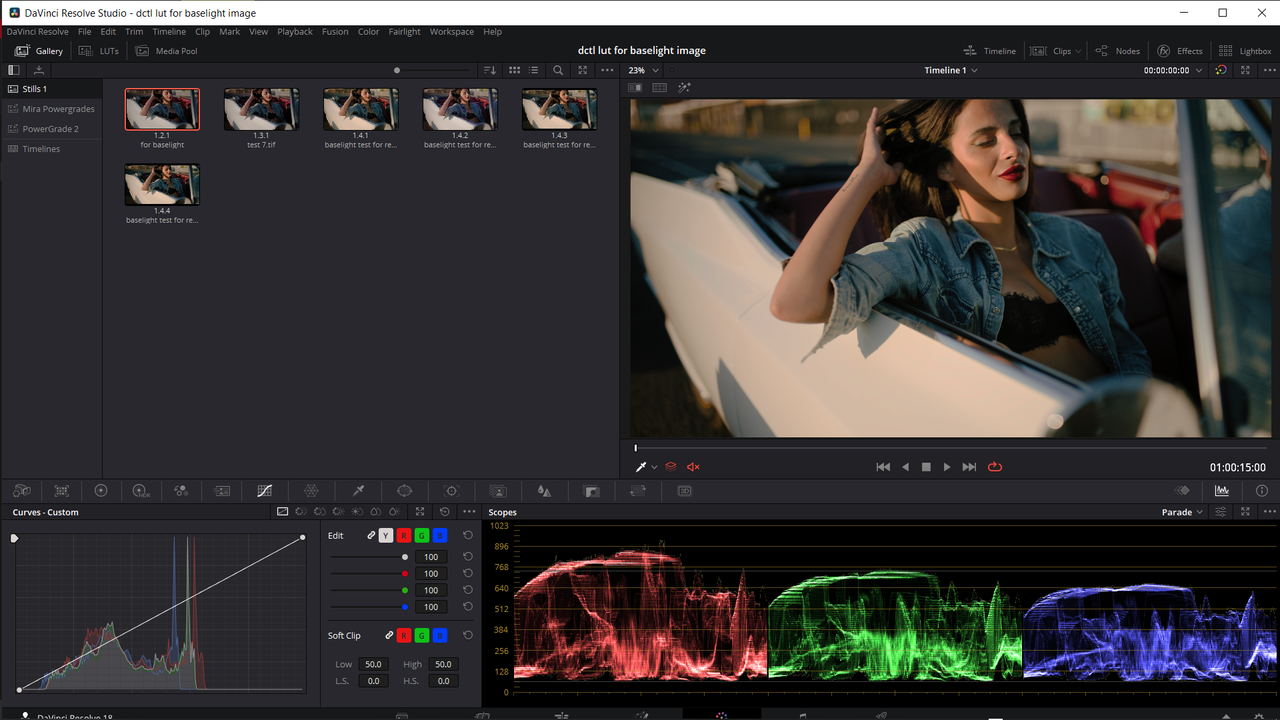
The Reference Image From Baselight


15.png


The Image From Baselight to Develop in the "NODE BASED" ACES Workflow In Resolve to make a Lut from.

16.png


The Image From Baselight to Develop in the "NODE BASED" ACES Workflow After ACES Node Base Workflow.


16A.png


17.png


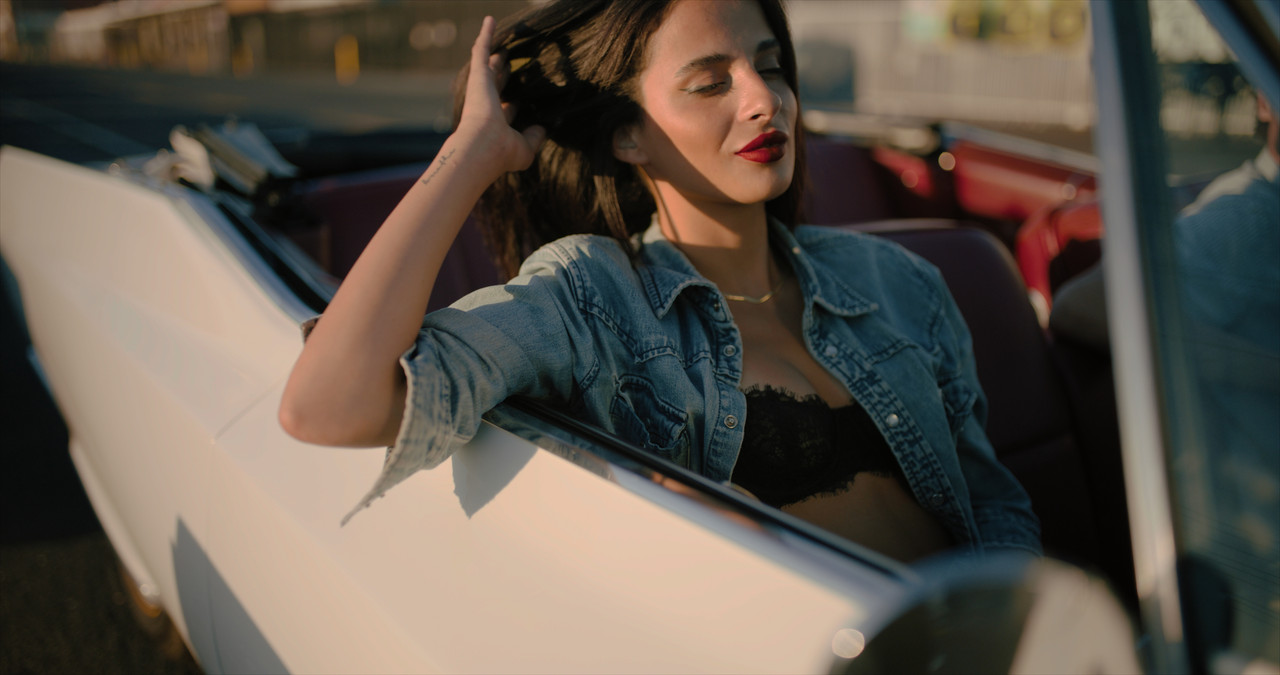
Reference Image from Baselight

6ajpg.jpg


Image from Baselight to be Developed in Resolve Aces Workflow


10jpeg.jpg


Image from Baselight to be Developed in Resolve Aces Workflow Final

22.png


20-baselight-test-for-resolve-final-grade-1-4-2.jpg


Reference

6ajpg.jpg


Image for Aces in Resolve after Initial Correction to match the Reference image from Baselight


20-baselight-test-for-resolve-final-grade-1-4-2.jpg


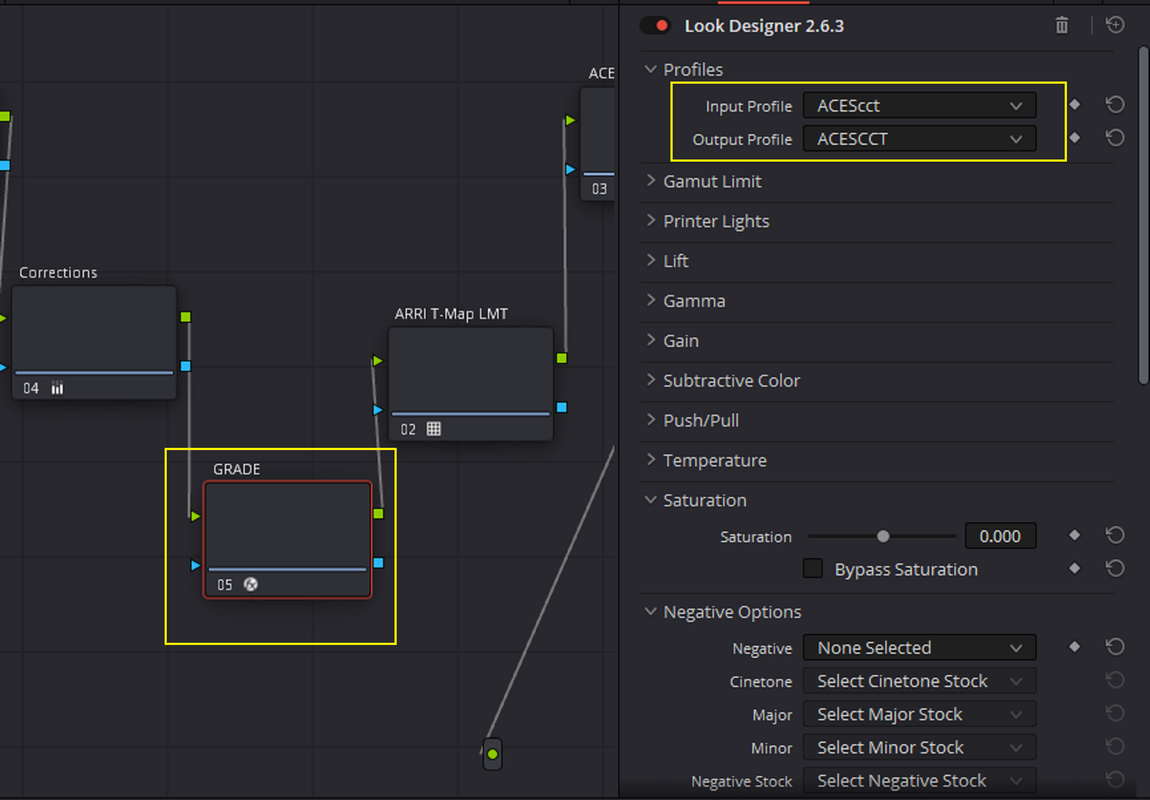
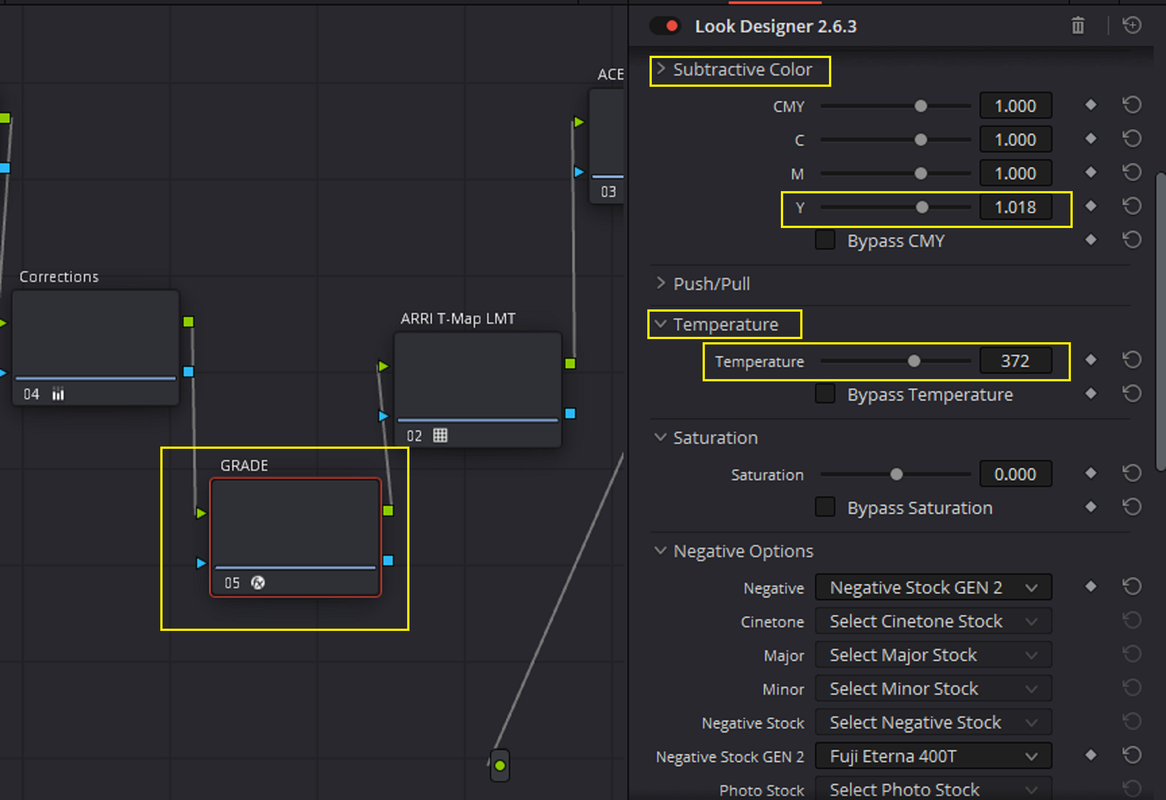
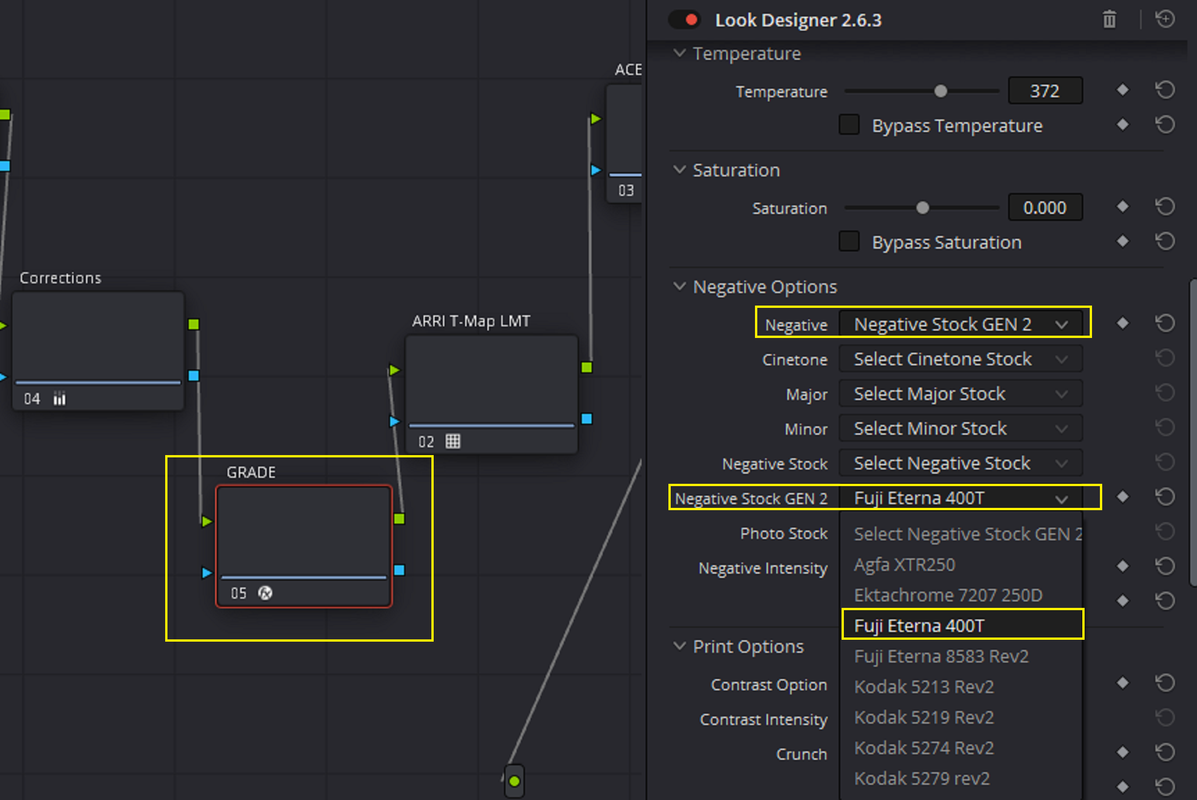
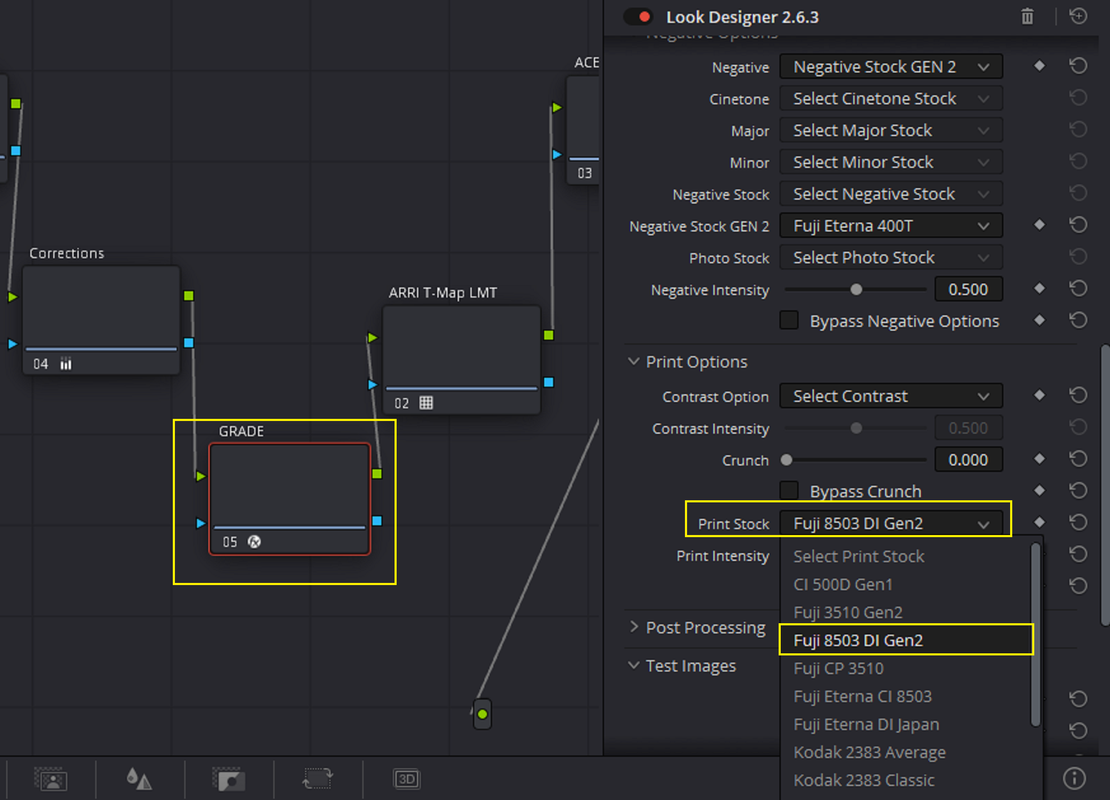
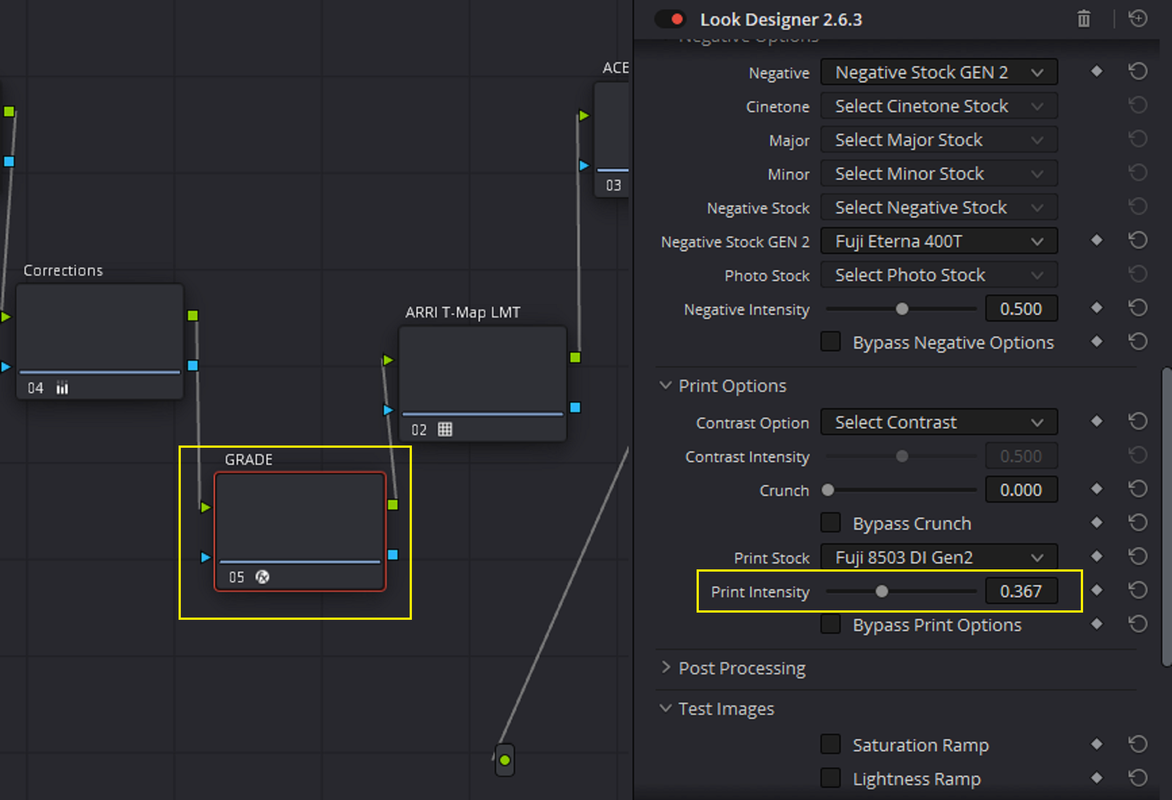
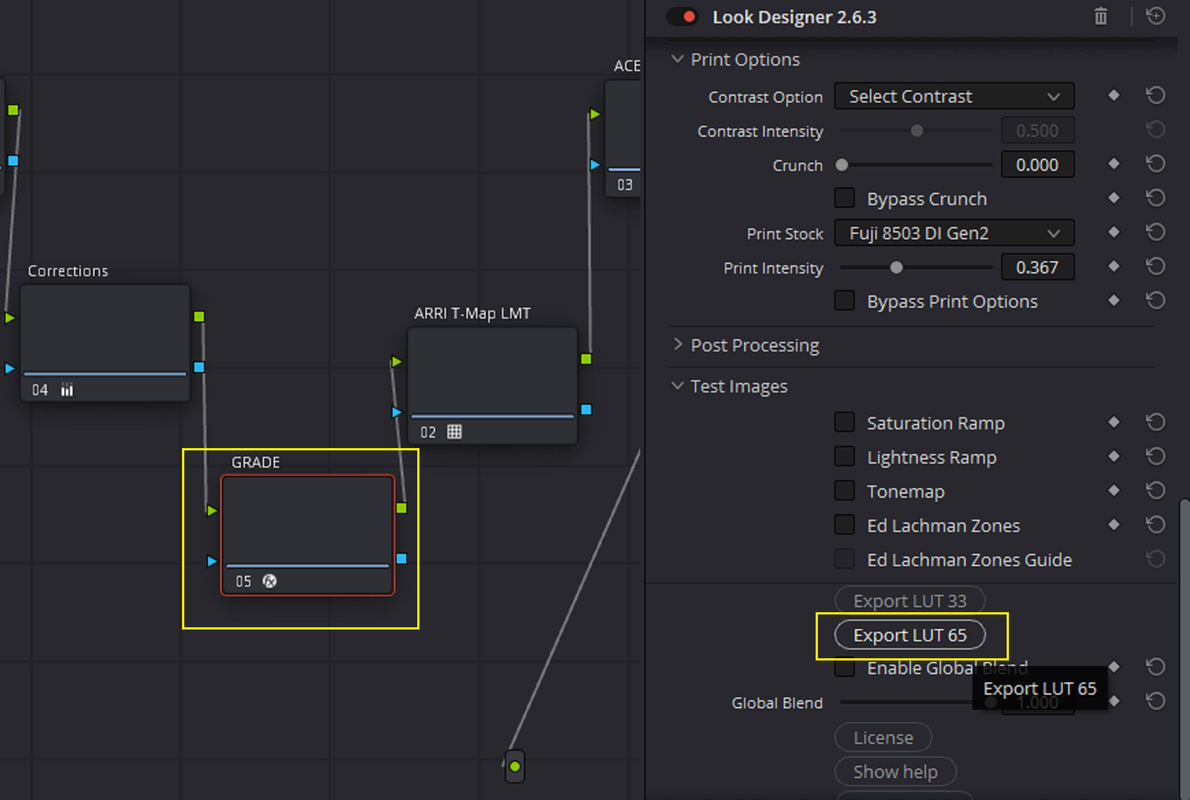
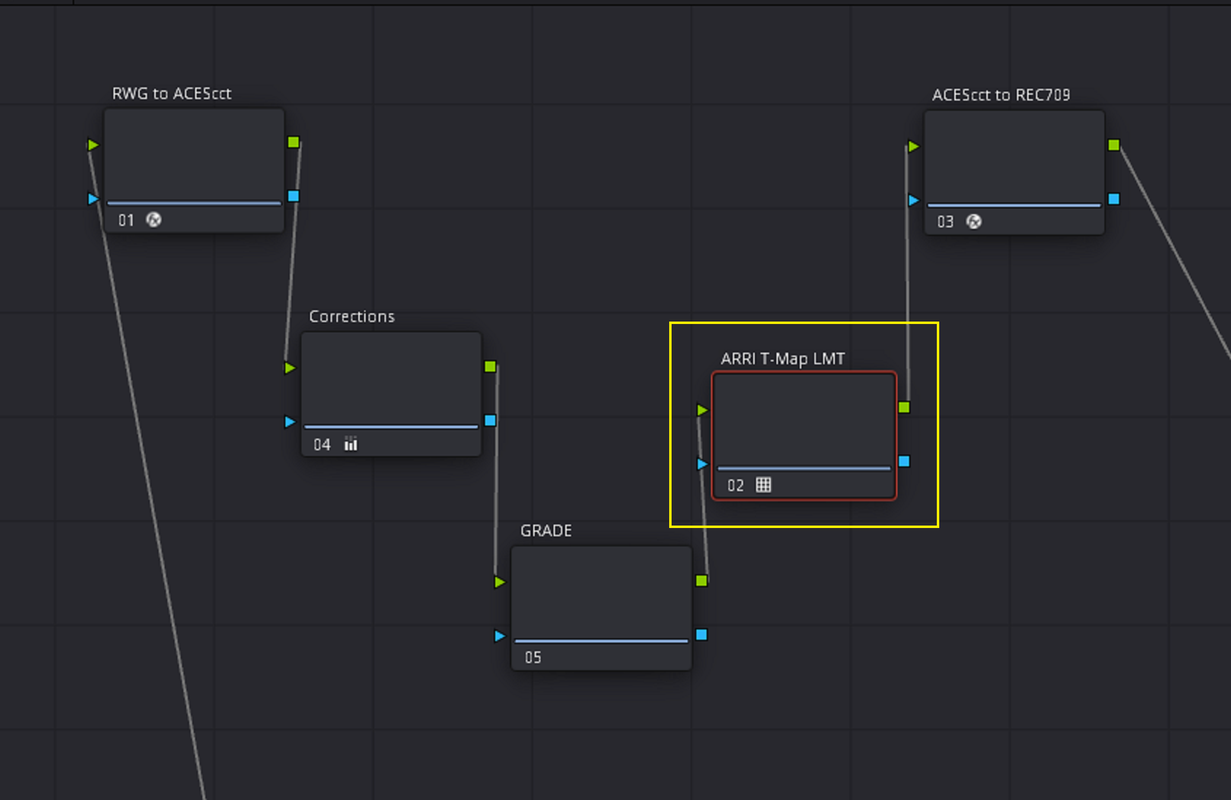
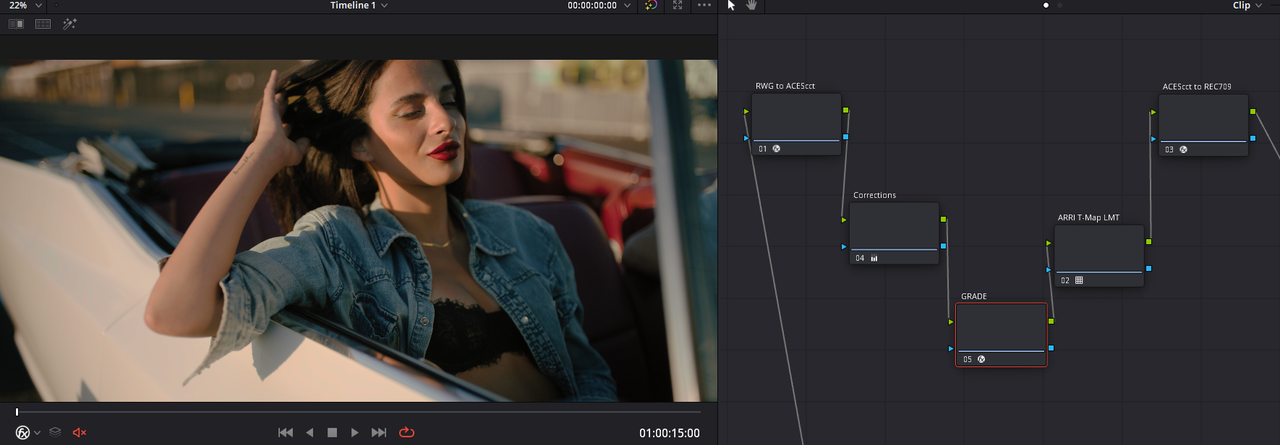
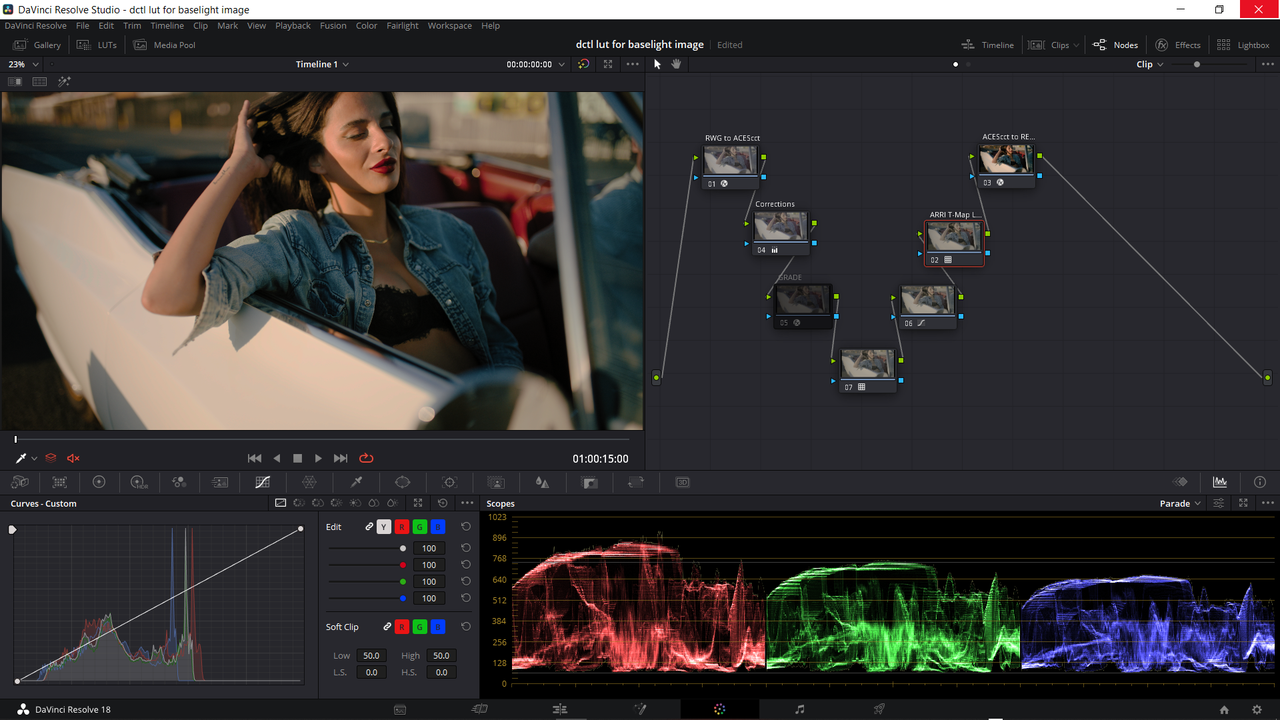
The ACES Node Based workflow for the Image from Baselight to be matched to the Baselight Reference image with "LOOK DESIGNER" grade/Lut to be used to make a Lut For Baselight.


21.png


21A.png


22.png


26.png


27.png


28.png


29.png


30.png


31.png


23.png


24.png


25.png


32.png


43-baselight-test-for-resolve-1-4-1.jpg
 
Part-3 Back in Avid Media Composer and Baselight


Now we just change the settings back in Baselight to the Reference Image's Settings.

2.png


2a.png

2b.png

4.png


5.png


6.png


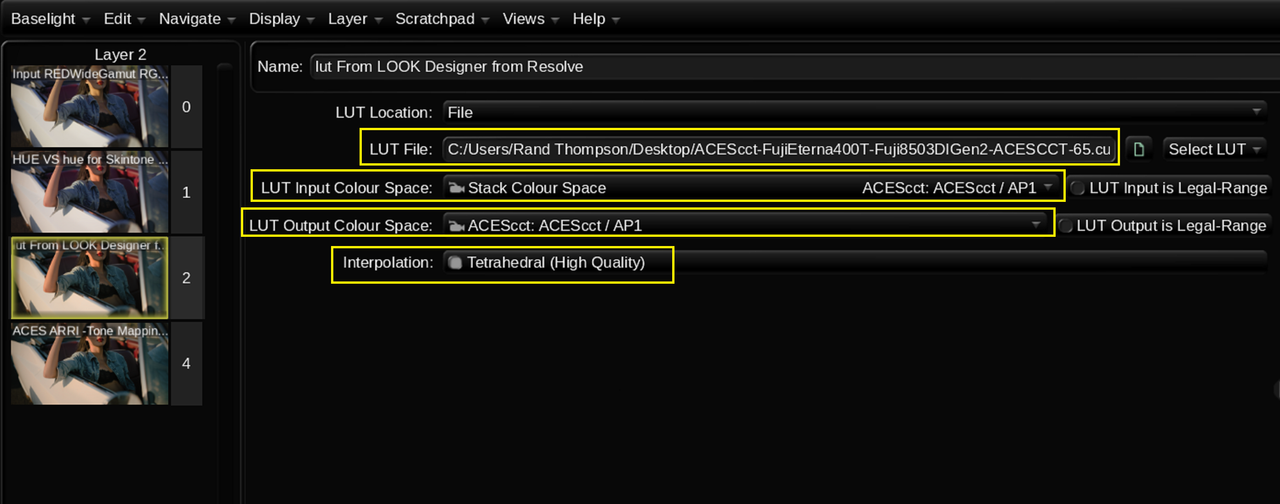
Now I use another " LUT" Operator to add the "LOOK DESIGNER" Print film Aces compatible Lut.

39.png


In Baselight and Avid Media Composer

41.png


42.png


From Resolve

43-baselight-test-for-resolve-1-4-1.jpg


And Baselight and Avid Media Composer

44-look-designer-in-avid-with-baselight.jpg
 
Part-4- Something Extra


So after getting everything that I thought was right and making the Lut in LOOK DESIGNER that I could use in Baselight , I try to Export The video of this sample Red R3D file out as a Avid DNxHR 422HQ file. Below is what I got.


Resolve -Perfect

4.png

5.png


Baselight-Perfect

7.png


Avid Media Composer- Perfect

6.png


The Export- The Shit Show

Screenshot-9560.png


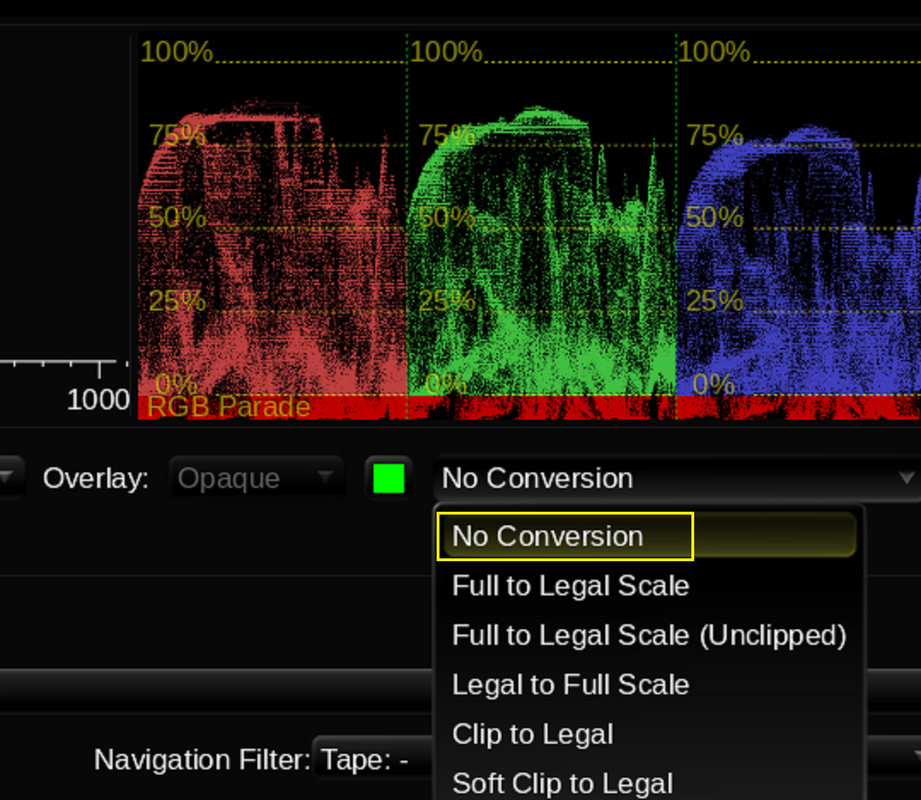
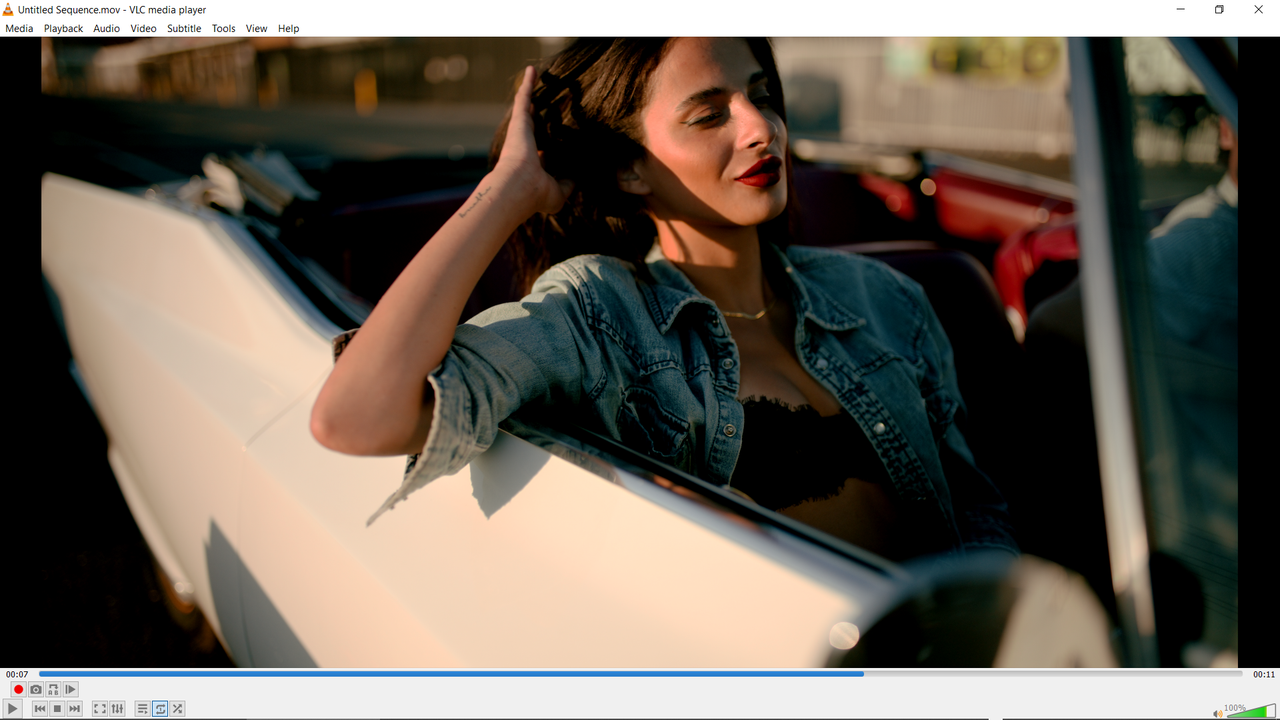
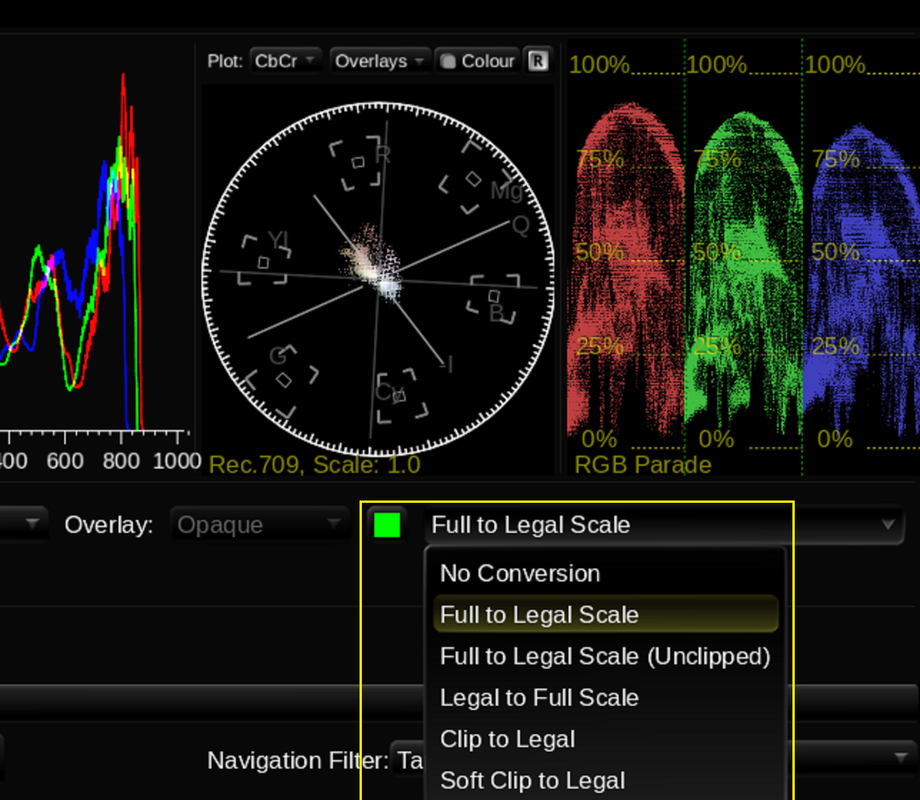
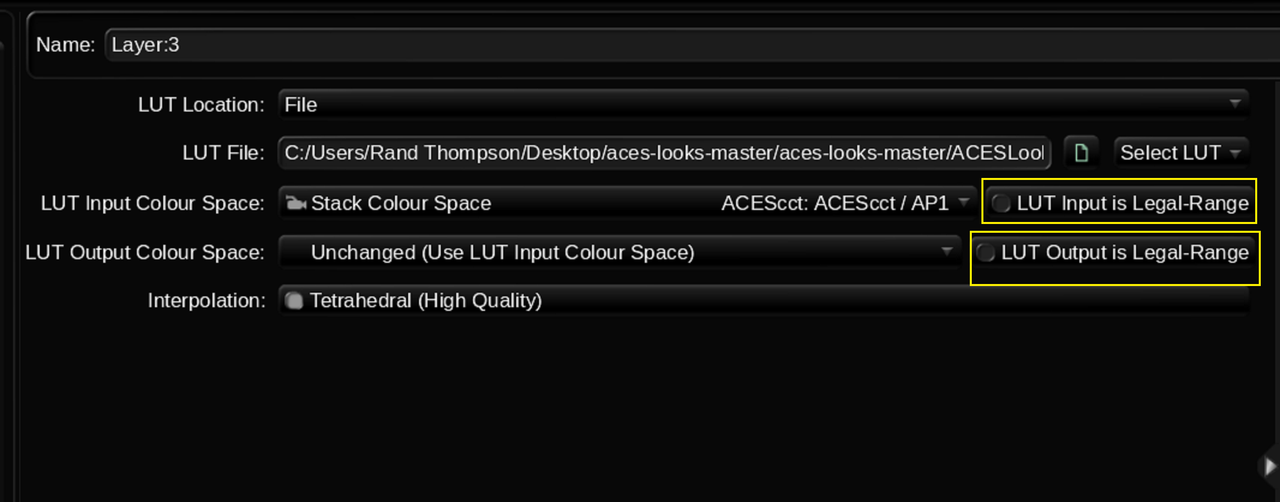
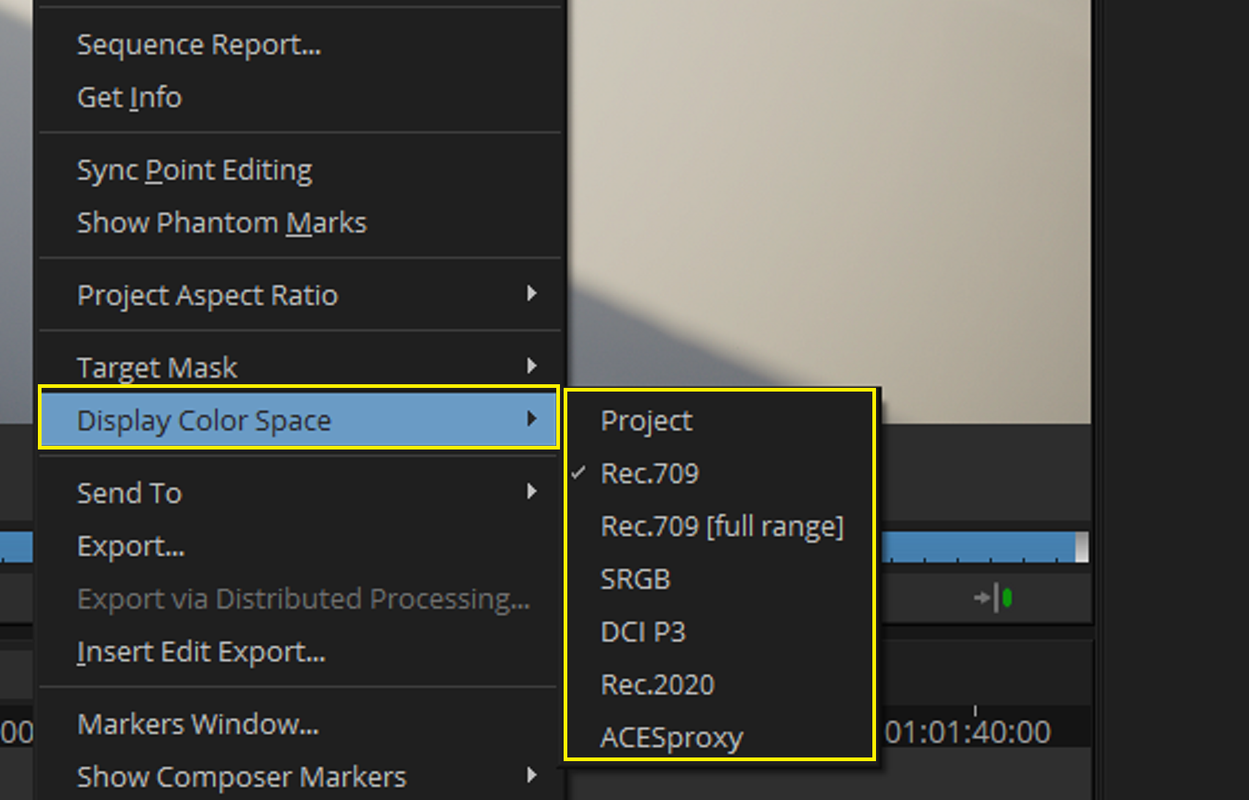
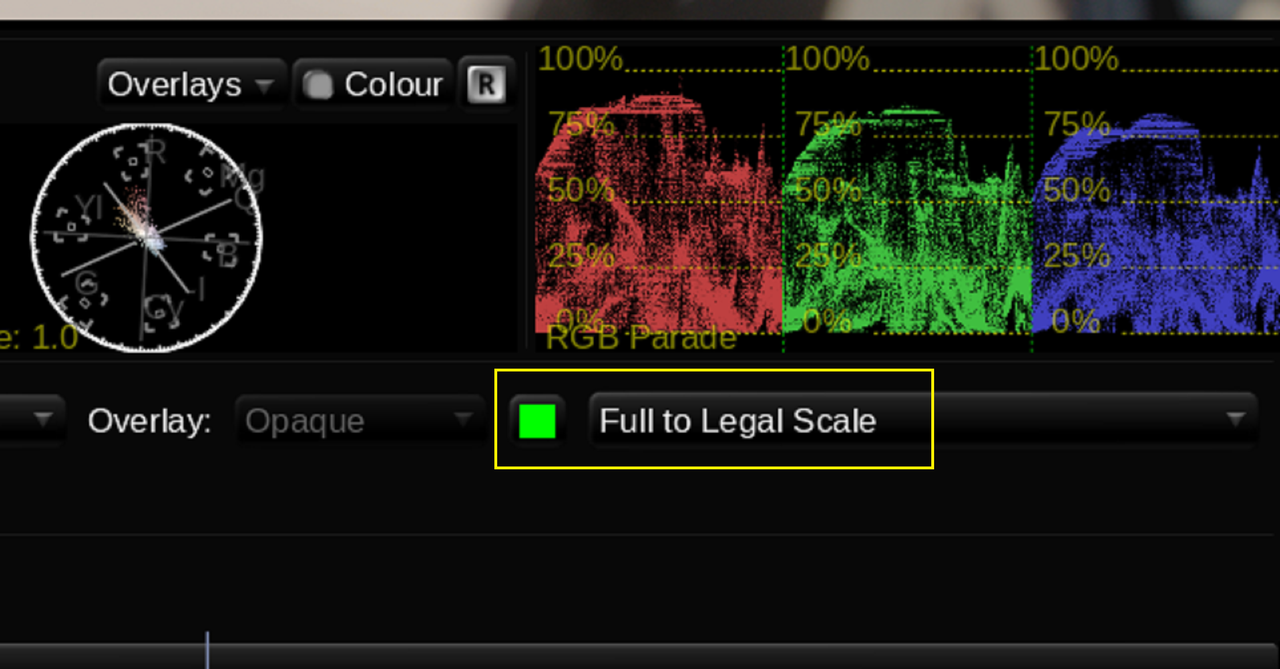
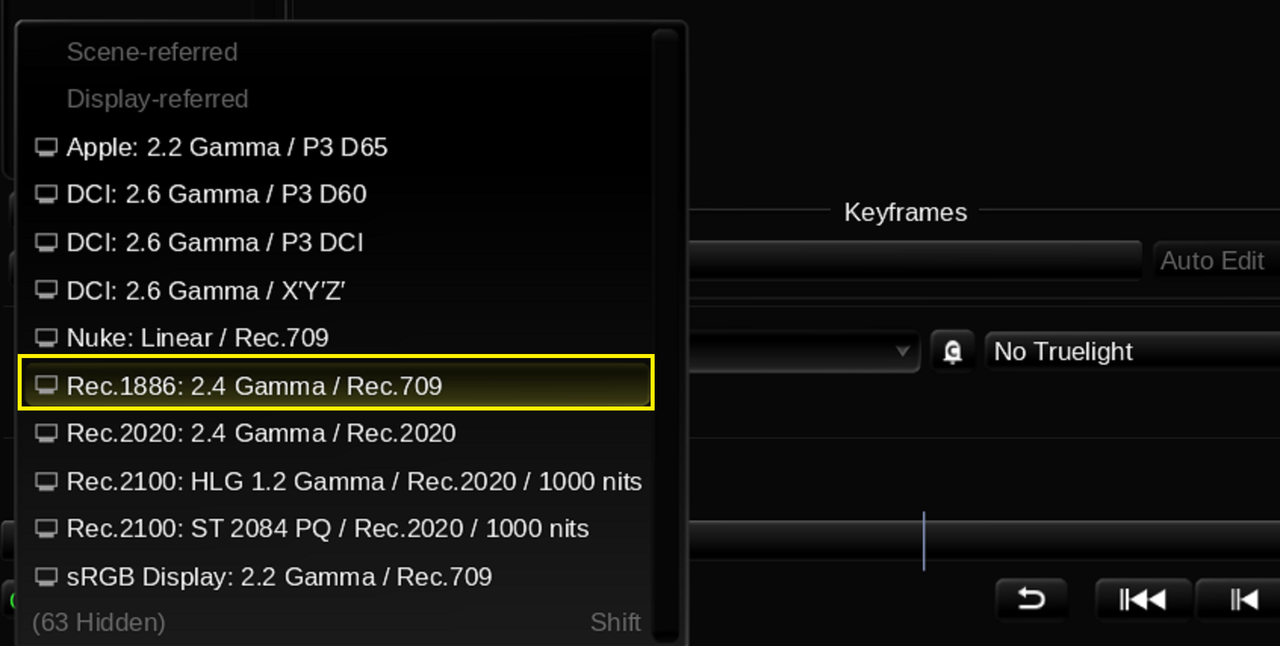
I had forgotten Why I left Avid Media Composer for Davinci Resolve in the first place, The "LEGAL RANGE" and " FULL RANGE" bullshit! Somewhere in the workflow I described above, something didn't have the right "Metadata Tags/ Flags" to show in a external media Player correctly. I tried a couple of Media players, however if it looks right in VLC Player it will also look right on Youtube and Vimeo. So VLC Player is what I use to determine if a video looks correct or not. So for the last day or so, I've been looking at a group of settings that apparently I got to get "ALL" right for the image to look like it did in Baselight and Avid Media Composer and that's just Bullshit. They Are shown below.


Screenshot-9564.png


Screenshot-9565.png


Screenshot-9566.png


Screenshot-9567.png


Screenshot-9568.png


Screenshot-9571.png


Screenshot-9570.png


Screenshot-9569.png


To Add even more Confusion, Post from a few years ago.

Screenshot-9572.png
 
Last edited:
Finally Got the Secret Formula!


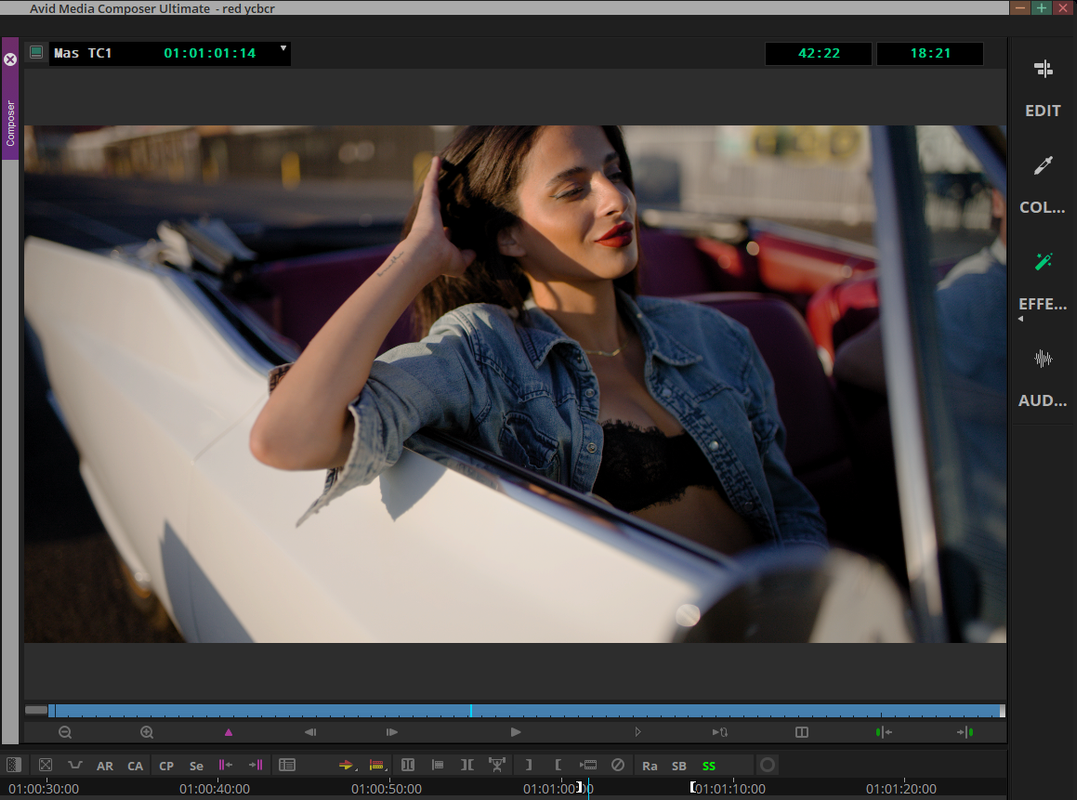
Avid Media Composer

1.png


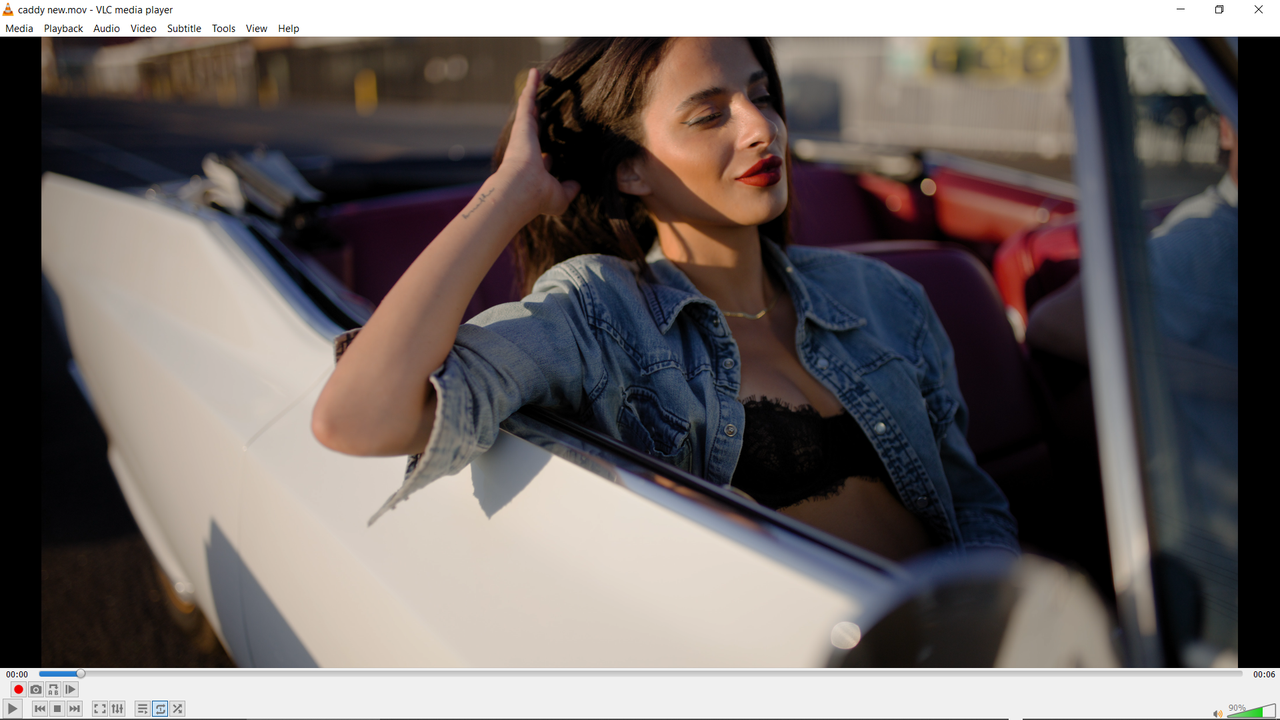
VLC Player

2.png


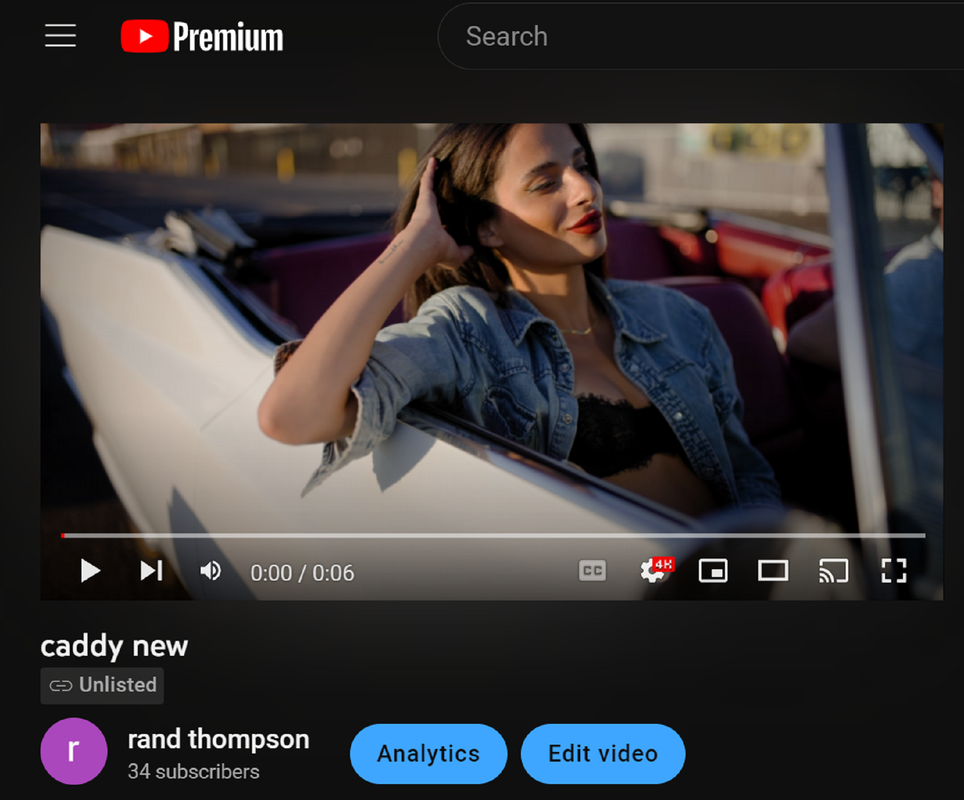
Youtube

3.png


Tiff Output

4.jpg


Only the Viewer in Baselight has slightly lifted Blacks

3a.png


The Settings

Avid Media Composer RED AMA( Avid Media Acess) Plugin Link

Avid Media Access (AMA) - Avid


s-AScs-5.png

s-AScs-1.png

Screenshot-9583.png


17c.png


Screenshot-9595.png


Screenshot-9593.png


Screenshot-9594.png


Screenshot-9588.png


Screenshot-9587.png


Screenshot-9580.png


Screenshot-9581.png


Screenshot-9592.png


Screenshot-9579.png


Screenshot-9589.png


To Get a Tiff or Jpeg to match

Screenshot-9591.png
 
Last edited:
Kaur Does really great DCTLs here's his website
Kaur Hendrikson (gumroad.com)


[1] My First DCTL // The Beginner's Guide to DCTL Development

By Kaur Hendrikson


-- Code Editors --
Sublime Text: https://www.sublimetext.com/3
VS Code: https://code.visualstudio.com/download
Notepad++: https://notepad-plus-plus.org/downloads/

-- boilerplate.dctl --
https://drive.google.com/file/d/1htMX...

-- Log File Locations --
Win: %appdata%\Blackmagic Design\DaVinci Resolve\Support\logs\ResolveDebug.txt

Mac: /Library/Application Support/Blackmagic Design/DaVinci Resolve/logs/ResolveDebug.txt

Mac App Store: ~/Library/Containers/com.blackmagic-design.DaVinciResolveAppStore/Data/Library/Application Support/logs/ResolveDebug.txt

Linux: ~/.local/share/DaVinciResolve/logs/ResolveDebug.txt

-- Maths --
Lift: in * (1.0f - lift) + lift
Gamma: in ^ (1.0f / (gamma + 1.0f))
Gain: in * gain
Offset: in + offset


Timestamps

00:00 Intro
00:13 DCTL meaning
00:45 What can/can't DCTLs do?
01:35 What do I need?
02:46 Configuring VS Code
03:57 Boilerplate explained
06:22 Running the boilerplate
06:53 Red channel to the max
07:19 Viewing the log file
08:43 Our first error
09:49 Lift, Gamma, Gain & Offset
12:06 Error 2
12:22 _powf
13:06 Error 3
14:28 Success?
15:16 Success!
16:00 Comparison
16:56 Outro
 
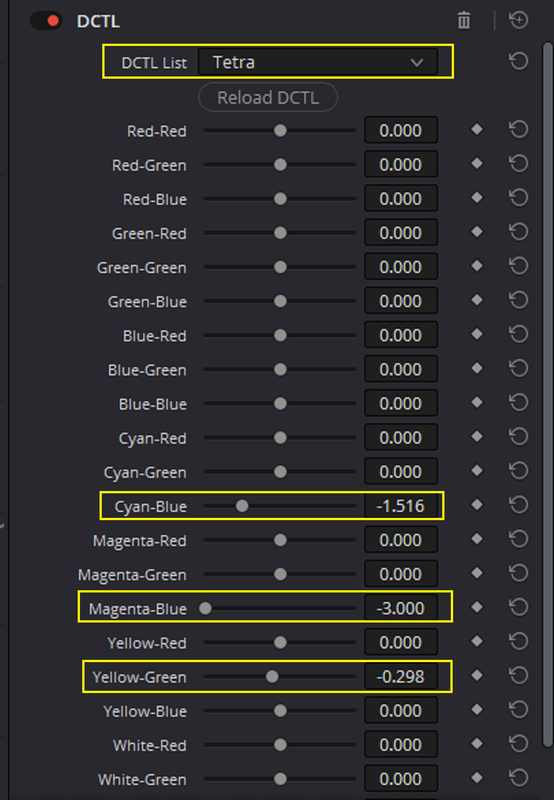
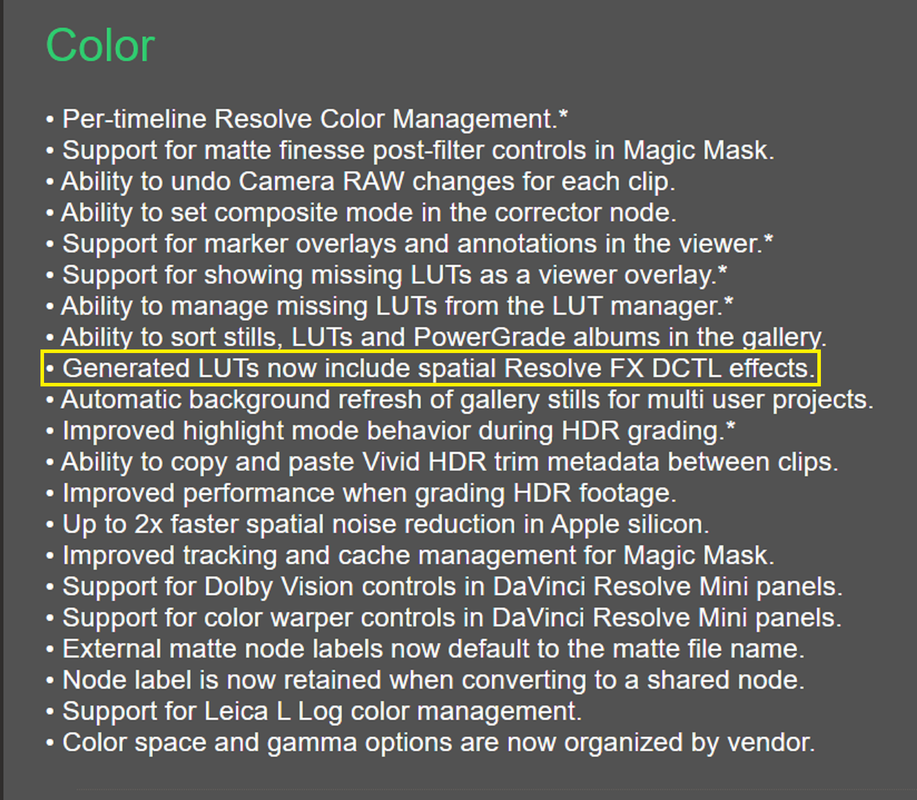
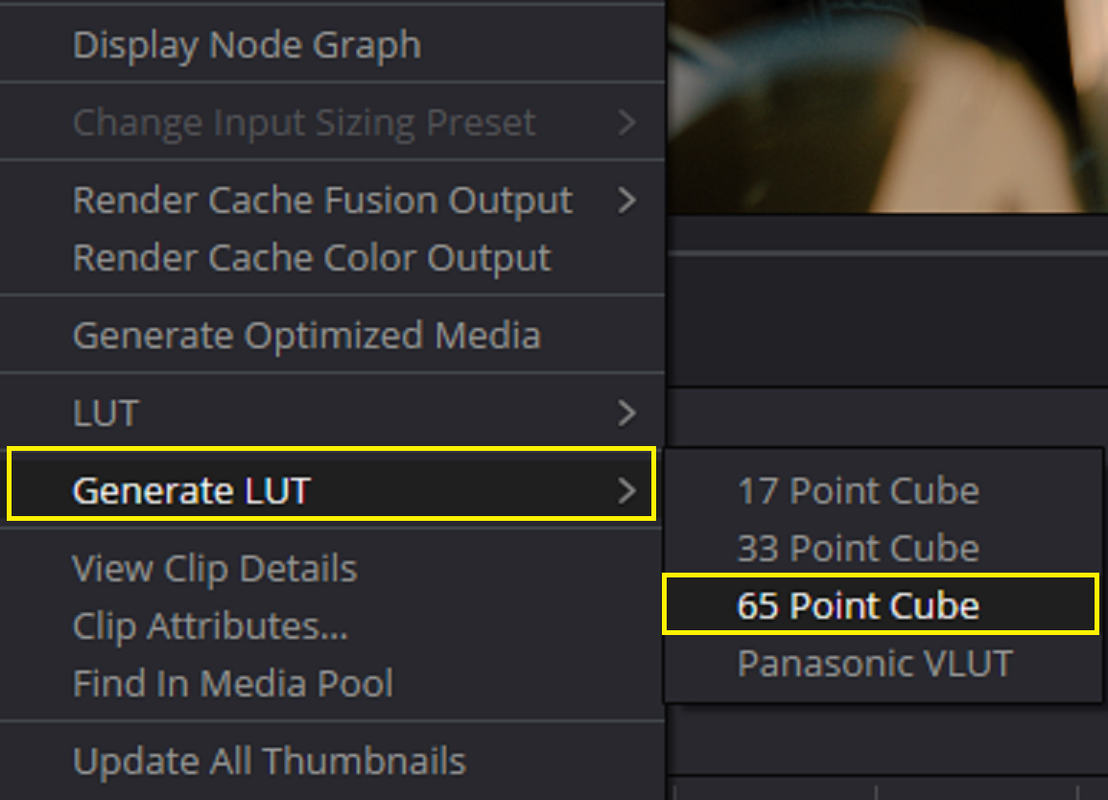
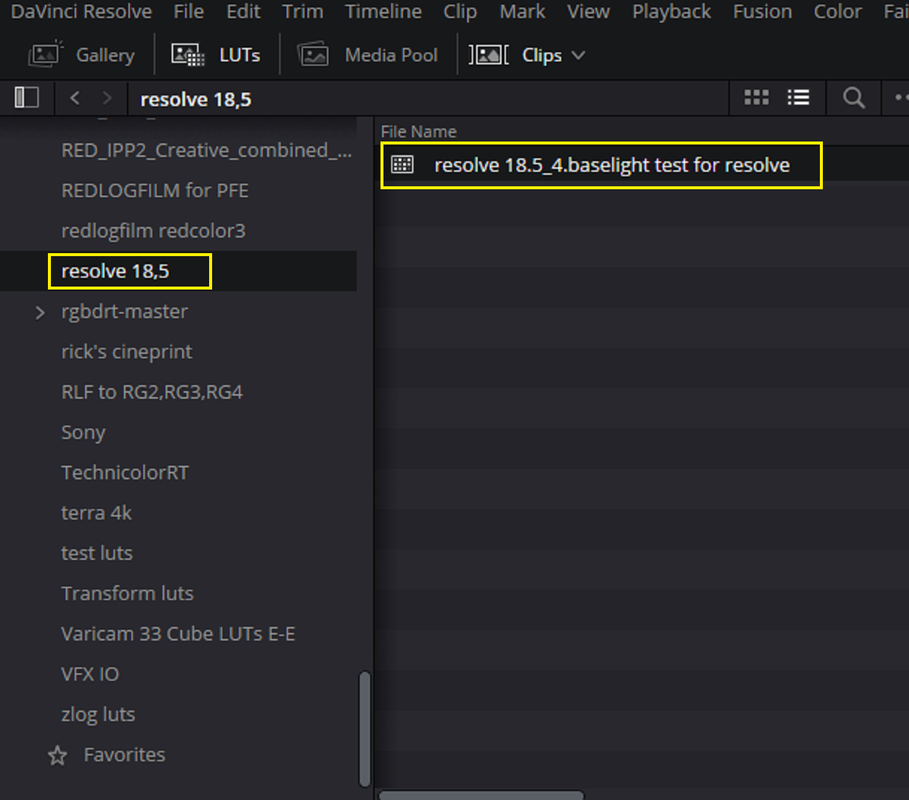
You can now use "GENERATE LUT" to make a Lut from a "DCTL" Grade( How great is that!!)


What's New Davinci Resolve 18.5
DaVinci Resolve 18 – What's New | Blackmagic Design


Davinci Resolve 18.5 Download Page
Support Center | Blackmagic Design


New Thread I Started For Resolve 18.5
Resolve 18.5 New Features - My Favorite New Resolve Updates!!! - REDUSER.net


Davinci Resolve 18.5 Section Starts at about the 15:58 minute Mark


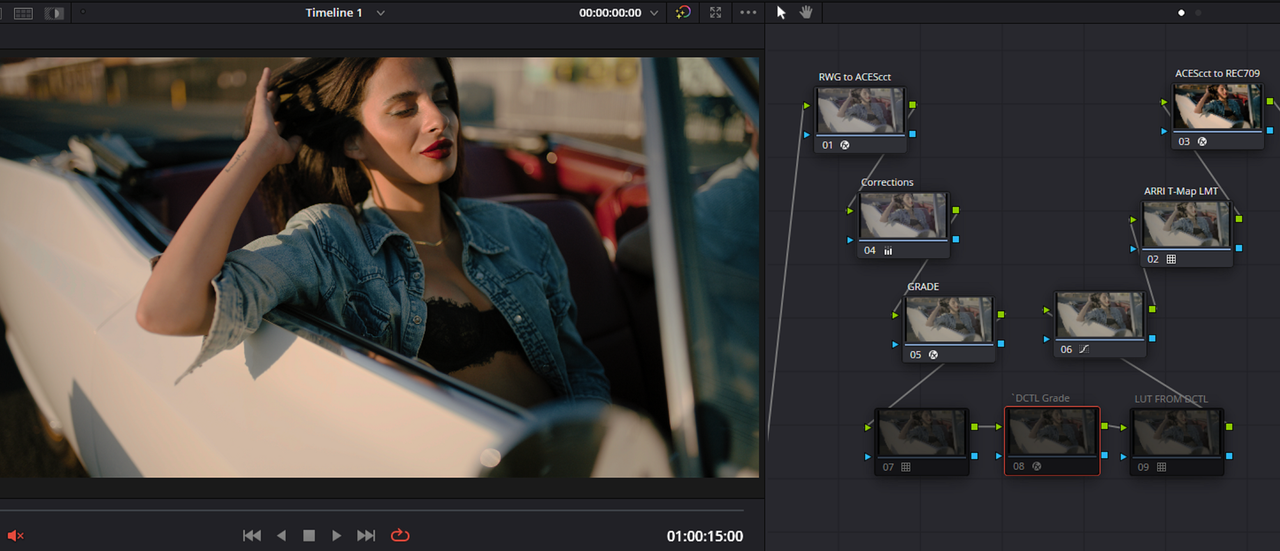
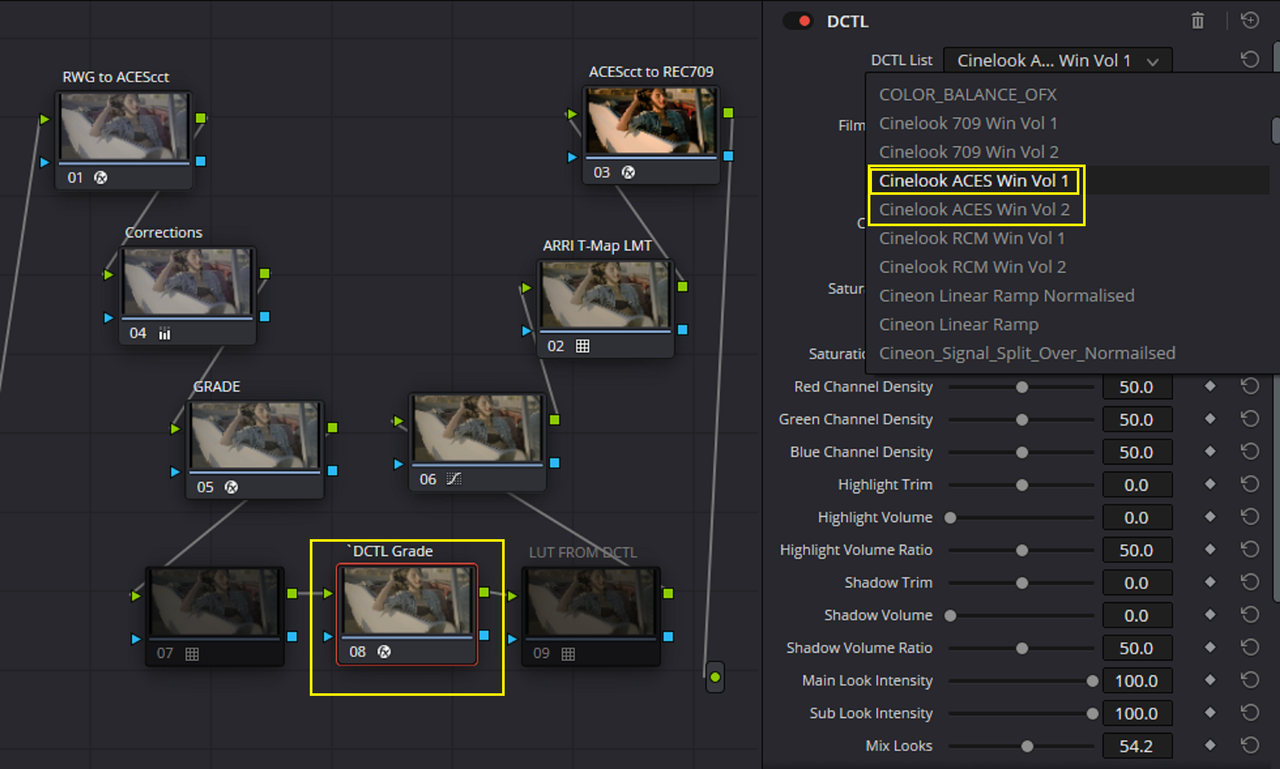
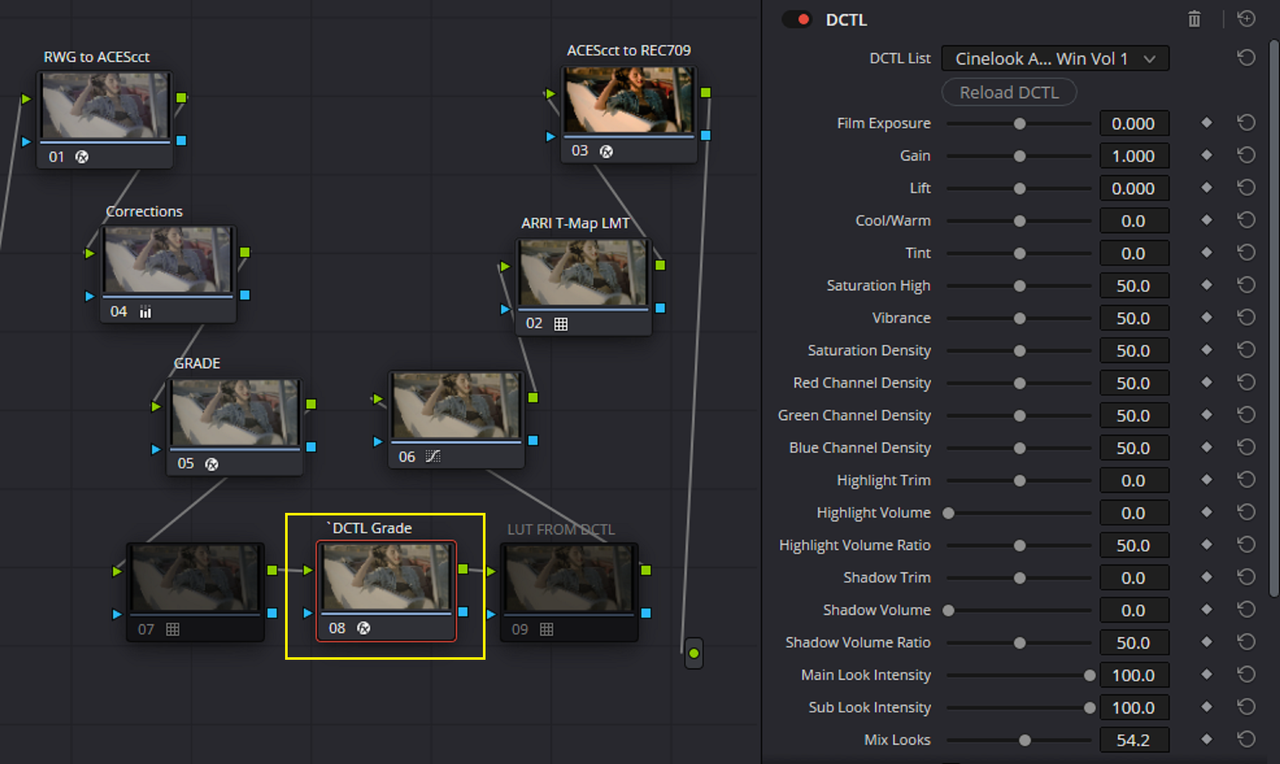
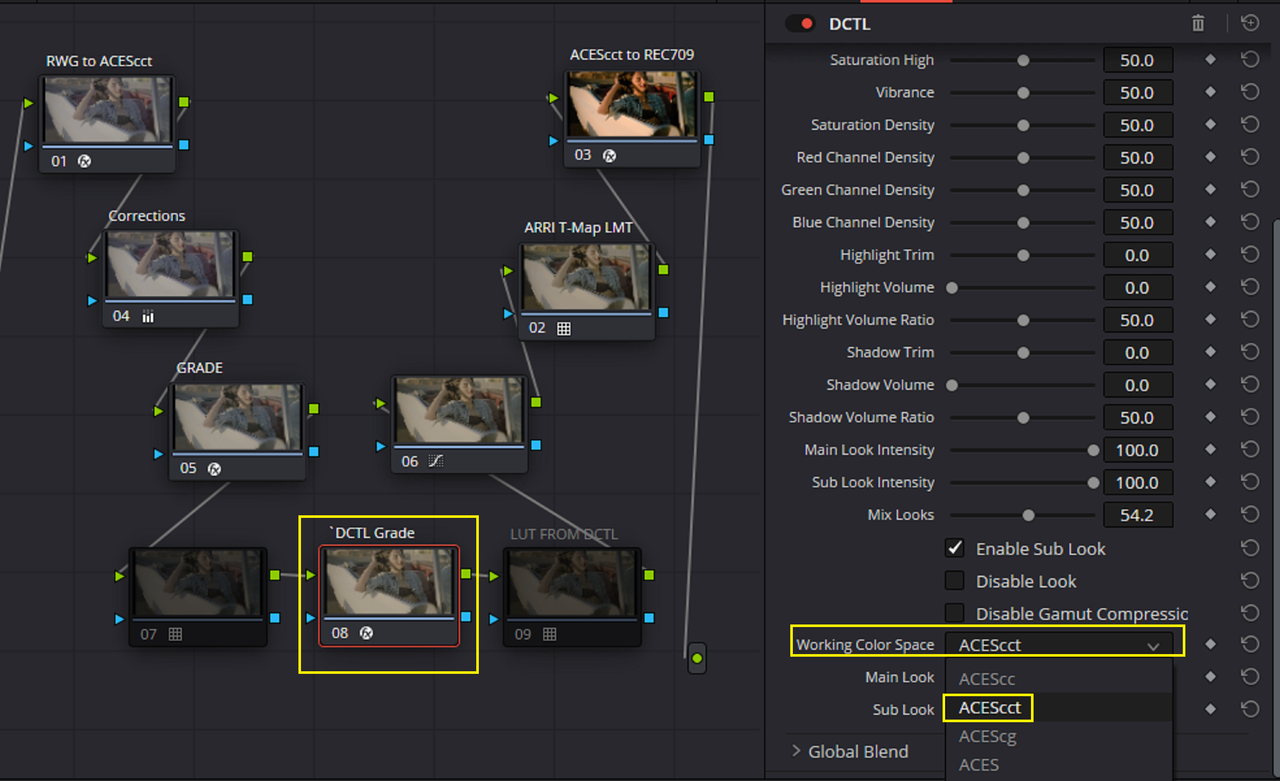
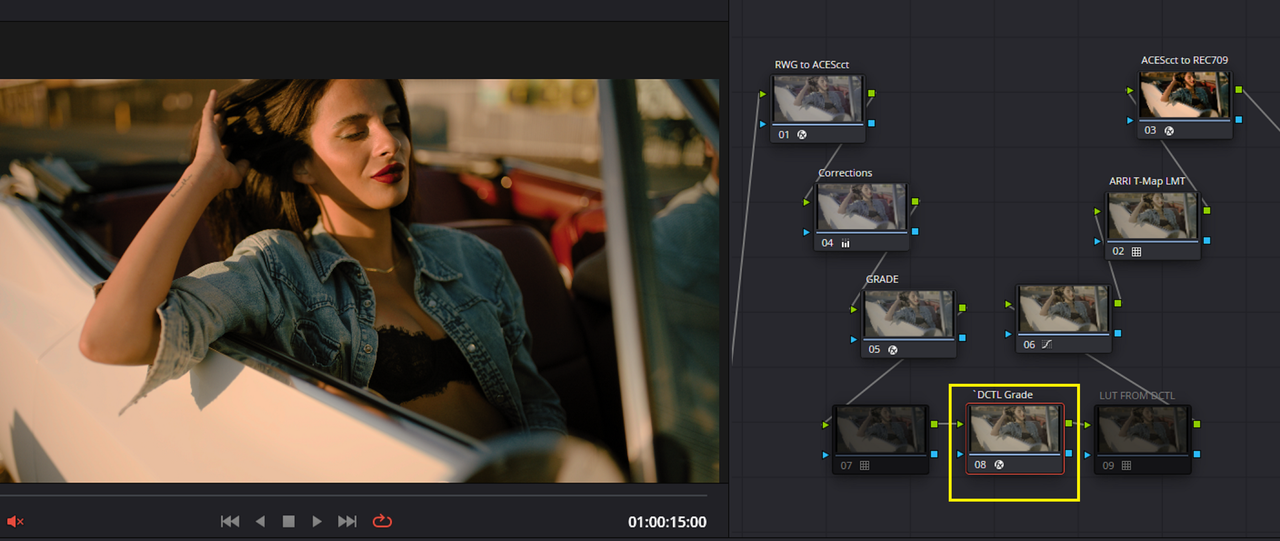
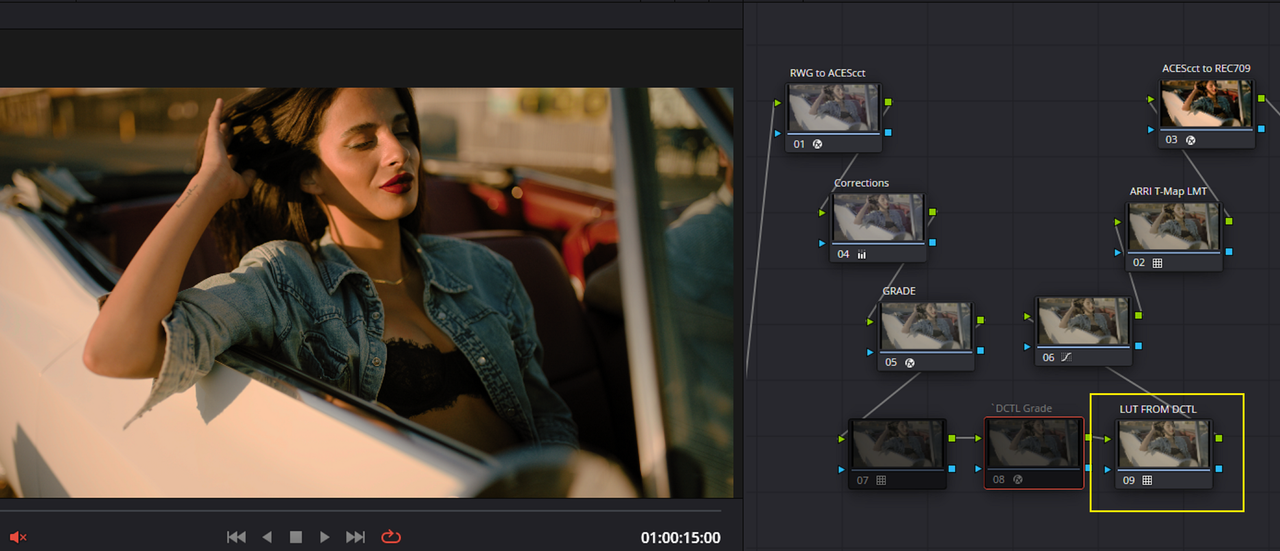
Here'a a very quick "RAVENGRADE" DCTL Grade for an ACEScct Workflow made into a Lut.

Before DCTL Grade

0a.png


DCTL Grade and Resulting LUT from the "GENERATE LUT" function

1.png

2.png


3.png


4.png


5.png


DCTL GRADE

6.png


LUT From DCTL GRADE

7.png
 
Last edited:
DCTLs in LUTs! // DaVinci Resolve 18.5 Beta

By Kaur Hendrikson

 
Last edited:
Back
Top