Welcome to our community

Be a part of something great, join today!

  • Hey all, just changed over the backend after 15 years I figured time to give it a bit of an update, its probably gonna be a bit weird for most of you and i am sure there is a few bugs to work out but it should kinda work the same as before... hopefully :)

Red Gyro Horizon

Marc Berger

Well-known member
Joined
Dec 13, 2007
Messages
884
Reaction score
0
Points
16
Location
France
Website
www.mabcine.com
Yeah, it´s finally here. Thank you Jarred!
This was big news to me, and I already love it. Since the first day I heard Epic and Scarlet have the motion sensor built in, I was waiting for it. Now, because I could not find a specific thread to this subject, I would start it here. I believe we could share our "horizon experiences" and maybe give some input for further development. My first one would be: being able to customize the style and size on the LCD.
Thanks for your input.
Marc
 
For those who were (Like me) reading Marc's post and scratching your head, here is an excerpt from the DSMC_Operation_Guide_v5.2_Rev-A pg 48:

HORIZON
Displays a HUD (heads-up display) overlay that provides a reference for the position of the horizon. The Horizonoverlay consists of two (2) short side-bars that are always horizontally centered on the monitor, and a singlelonger horizon-line that adjusts to the horizon based on the orientation of the camera.
The side-bars are green if the pitch is within +/- 1° of the calibrated zero position, otherwise they are red. Thehorizon-line is green if the roll is within +/- 1° of the calibrated zero position, otherwise it is red.
Additionally, numerical values for the pitch and roll can be added to the Horizon overlay by following the instruc-tions below:
  1. Go to Settings > Display > Monitor Control > Overlay.
  2. Select Create..., Clone..., or Edit..., respectively, for the desired overlay action.
  3. Select a location on the interface to add the numerical data for the Horizon overlay.
  4. Select Motion: Gyro Data (GYRO) from the Item drop-down menu.
  5. Select the desired text size.
  6. Select Add.
  7. Select Save.
  8. Go to Settings > Display > Monitor Control > Monitor, and ensure that your overlay is selected from the Over-lay drop-down menu.
NOTE: The camera’s internal three-axis gyroscope and three-axis accelerometer need to be calibrated for theHorizon overlay to function properly. For more information about calibrating the gyroscope and accelerometer,go to “Gyroscope and Accelerometer Calibration” on page 83.


:hurray: Now I can stop using my iPhone to check level!
 
Thank you Scott!
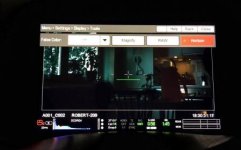
I just found a bug, well I hope its a bug and not my cam. Tilting 90° gives me sometimes following error on the picture output. On both, the LCD and the Hdsdi monitor. I have to power down the cam and start it again to make it run again properly. Access only over red mote.
Have to add: this does not happen if Horizon is disabled.
 

Attachments

  • IMG_2531.jpg
    IMG_2531.jpg
    38.7 KB · Views: 0
Thank you Scott!
I just found a bug, well I hope its a bug and not my cam. Tilting 90° gives me sometimes following error on the picture output. On both, the LCD and the Hdsdi monitor. I have to power down the cam and start it again to make it run again properly. Access only over red mote.
Have to add: this does not happen if Horizon is disabled.

Reproduced here. We'll get on it. Thanks for the report.
 
The Epic has a GPS in it?
 
Hope this is the right thread for my question - couldn't find that much info in the operations guide -.

How can we have access (or use) the data of the camera’s internal three-axis gyroscope and three-axis accelerometer in post?
When I capture live footage, the recorded data can later be used by 3D animation artists to exactly position their objects into the recorded scene.
So how can I extract these data from the R3d files and deliver it to the animation studio? Is this kind of metadata available in RedCine-X?
 
Bubble Level? hahaha :)

The DSMC Brains have a built in gyroscope (I believe it's a 3-axis one) which can be used to showcase the camera's orientation or report the camera orientation to an .R3D via metadata.

Which might be useful for certain applications.
 
Is it just me, or is the Horizon function gone again in FW 5.1.49 ? Nowhere to be seen on my tools menu - I do get the numeric overlay to function though, that helps.

Edit: I am on a Scarlet X
 
The known display issue is not 100% fixed in 5.2.14, but a little bit better.
(It doesn´t happen every time now . Sometimes I can tilt 90° without problems).
 
The known display issue is not 100% fixed in 5.2.14, but a little bit better.
(It doesn´t happen every time now . Sometimes I can tilt 90° without problems).

We weren't able to get a fix into 5.2.14 for the gyro issue. Good news is we have a fix now and it will be rolled into the next beta release.
 
Is there any way to have the data create an artificial horizon? It's not very useful just showing numbers? An artifical horizon would be really nice for steadi operation.

For steady - yes, a horisontal line is necessary, but I am not on a steady yet - you will get that in the beta 5.2.14FW (as I was kindly made aware of just recently :) )
 
How to add the horizon line on the touch screen. I managed to get the +- degree numbers there but for some reason I can not get the gyro tilt rol line. Had it before can not find it now.

This is the only thing I find for weapon:

HORIZON
Displays an overlay that provides a reference to the position of the horizon. The Horizon overlay consists of two (2) short side-bars that are always horizontally centered on the monitor, and a single longer horizon-line that adjusts to the horizon based on the orientation of the camera.
The side-bars are green if the pitch is within +/– 1° of the calibrated zero position, otherwise they are red. The horizon-line is green if the roll is within +/– 1° of the calibrated zero position, otherwise it is red.
To add numerical values for the pitch and roll to the Horizon overlay, follow the instructions below:
1. Go to Menu > Settings > Display > Monitor Control > Overlay.
2. Select Create..., Clone..., or Edit..., respectively, for the desired overlay action.
3. Select a location on the interface to add the numerical data for the Horizon overlay.
4. Select Motion: Gyro Data (GYRO) from the Item drop-down menu.
5. Select the desired text size.
6. Select Add.
7. Select Save.
8. Go to Menu > Settings > Display > Monitor Control > Monitor, and select the overlay from the Overlay drop- down menu.
NOTE: The internal gyroscope and accelerometer must be calibrated for the Horizon overlay to function properly. For more information, go to “Gyroscope and Accelerometer Calibration” on page 120.


Dont understand fully how to get the bold part of the text kicking. And now I don't have camera infront of my to try, client took it and shoots tomorrow.
 
this is the stuff:

Calibrate gyro under maintenance and then:

menu:settings:display:tools: Horizon.
 

Attachments

  • PastedGraphic-23.jpg
    PastedGraphic-23.jpg
    17.2 KB · Views: 0
Back
Top