Welcome to our community

Be a part of something great, join today!

  • Hey all, just changed over the backend after 15 years I figured time to give it a bit of an update, its probably gonna be a bit weird for most of you and i am sure there is a few bugs to work out but it should kinda work the same as before... hopefully :)

Davinci Resolve: how to reframe 8k videos into 4k?

Roberto Leone

Well-known member
Joined
Jan 31, 2017
Messages
149
Reaction score
2
Points
18
I would like to try some 8k footages, my timeline is in 4k, and i woule like to know more about reframing process in Resolve. Could somebody help me? May i need to use the "zoom" into "inspector"? or is there another more accurate tool to understand the % of the resolution wich are you working on it?
 
Crop or scale? If you scale it (using zoom), you will inevitably have aliasing and other artifacts... they're not gigantic, but they are noticeable if you know what to look for.

If you crop, there is zero loss in picture quality... but you have to frame for it to begin with in production.

So it depends. Colorist and pal Kevin Cannon posted a discussion about this some years back on the LiftGammaGain.com forum:

http://liftgammagain.com/forum/inde...ine-resolution-can-break-tracked-shapes.5217/

Chapter 9 of the Resolve 16.1 manual, "Image Sizing and Resolution Independence," is of crucial importance. This is one of the chapters I often tell students to read twice. Starts on page 258.
 
Crop or scale? If you scale it (using zoom), you will inevitably have aliasing and other artifacts... they're not gigantic, but they are noticeable if you know what to look for.

How do you get aliasing when downsampling an 8k file to an 4k timeline? Does it need something like a low pass filter?

Pat
 
I would like to try some 8k footages, my timeline is in 4k, and i woule like to know more about reframing process in Resolve. Could somebody help me? May i need to use the "zoom" into "inspector"? or is there another more accurate tool to understand the % of the resolution wich are you working on it?

If this is specific zoom percentage and framing, independent per clip, inspector is the only option. Make sure you do test renders and check different scaling algorithms in project preferences.
 
How do you get aliasing when downsampling an 8k file to an 4k timeline? Does it need something like a low pass filter?
It depends on scene content. I've seen it in all kinds of situations, certainly even with film going back years. We get it today with 4K restorations if the film is sharp enough and they happened to hit just the right combination of factors for contrast and brightness. We fix it where applicable. Aliasing is still a huge problem with the wrong costumes (as just one example), with certain fabric patterns.
 
Crop or scale? If you scale it (using zoom), you will inevitably have aliasing and other artifacts... they're not gigantic, but they are noticeable if you know what to look for.

If you crop, there is zero loss in picture quality... but you have to frame for it to begin with in production.

So it depends. Colorist and pal Kevin Cannon posted a discussion about this some years back on the LiftGammaGain.com forum:

http://liftgammagain.com/forum/inde...ine-resolution-can-break-tracked-shapes.5217/

Chapter 9 of the Resolve 16.1 manual, "Image Sizing and Resolution Independence," is of crucial importance. This is one of the chapters I often tell students to read twice. Starts on page 258.

ik thanks a lot!
I can zoom it, but i don't know how to crop, and play inside the crop..do you know a video tutorial somewhere?
 
Roberto,


Imho, the absolute best way to get the most accurate, consistent , highest quality crops, with the best selection of scaling Algorithms when using Red footage is in Redcine-X Pro and not in Resolve at all.
 
Roberto,


Imho, the absolute best way to get the most accurate, consistent , highest quality crops, with the best selection of scaling Algorithms when using Red footage is in Redcine-X Pro and not in Resolve at all.

But isn't it based on the same SDK? Does RCX use another algorithm to change the scaling as what Resolve uses?
 
Patrick,


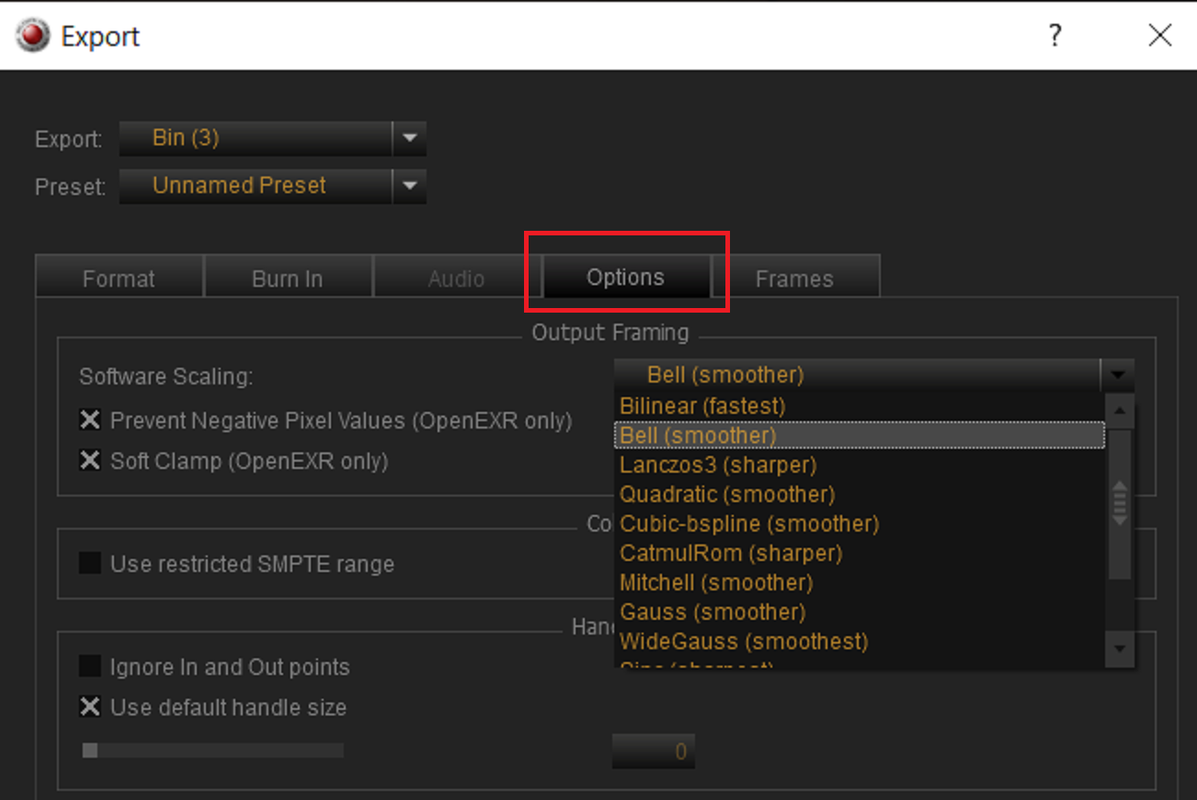
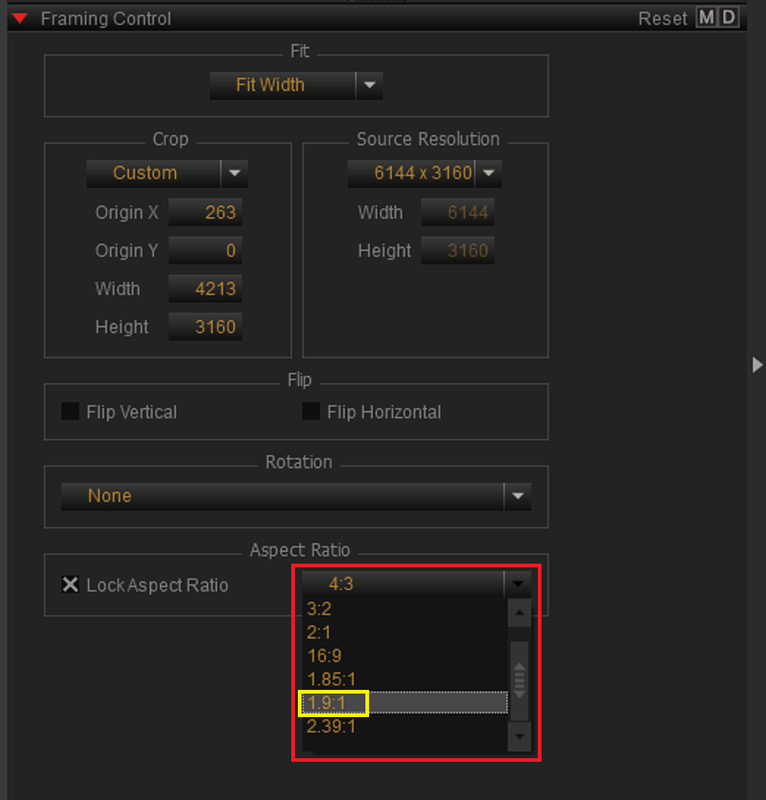
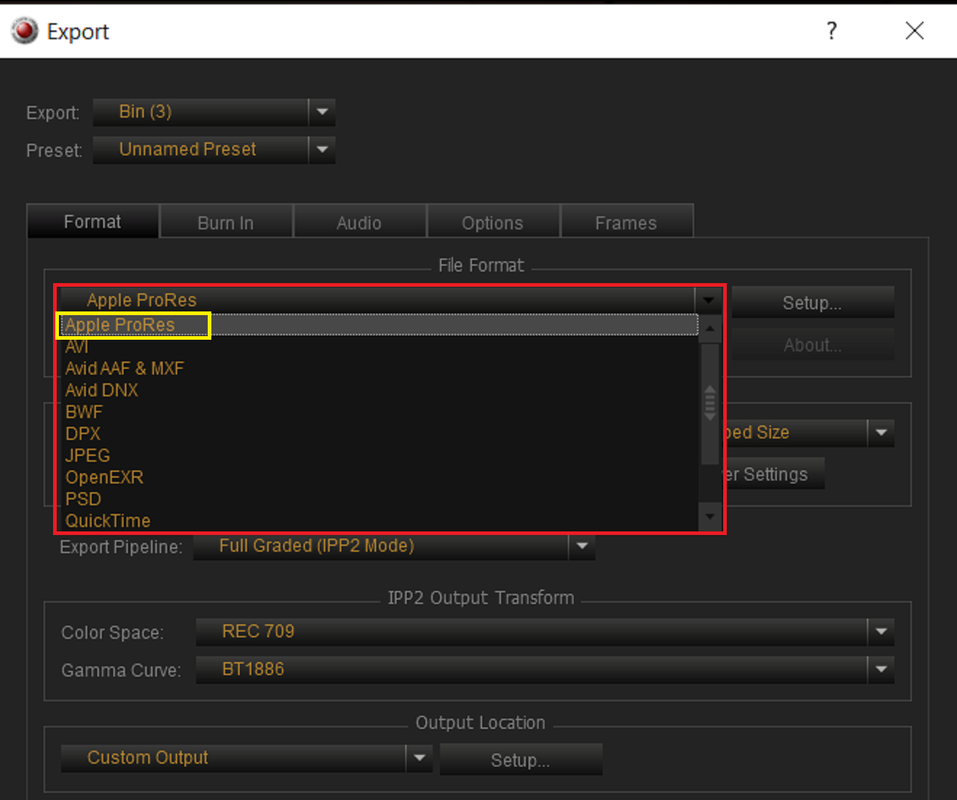
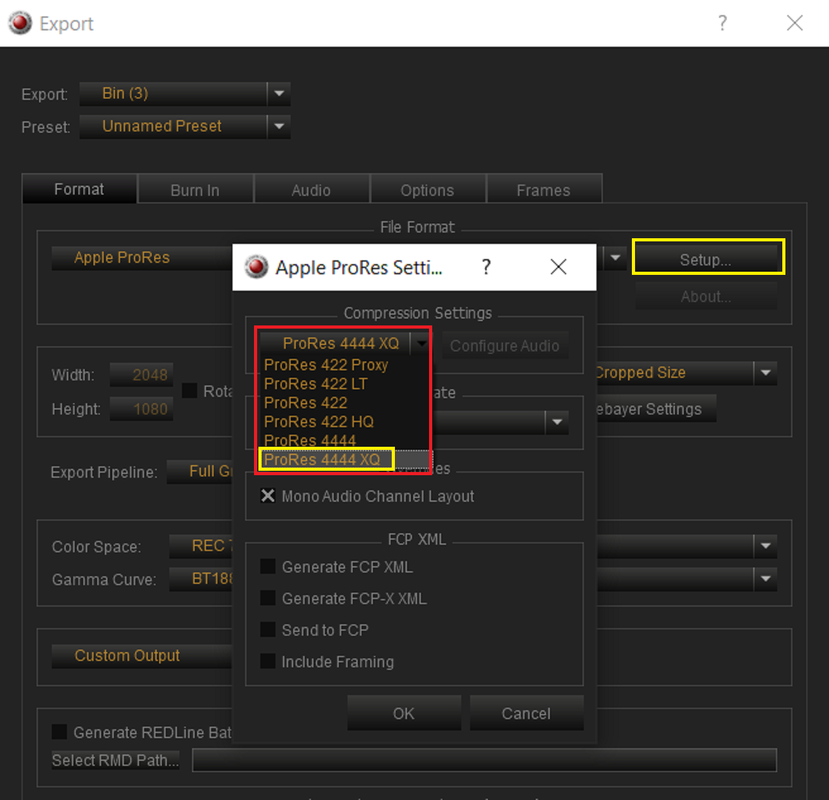
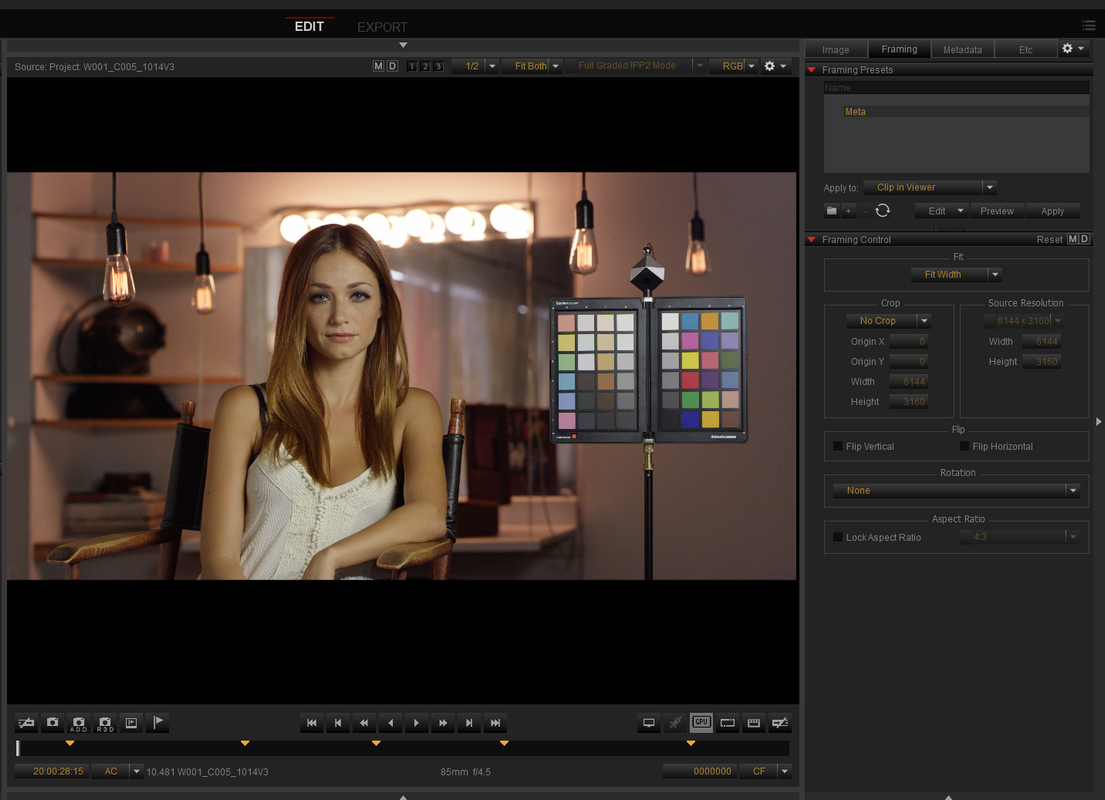
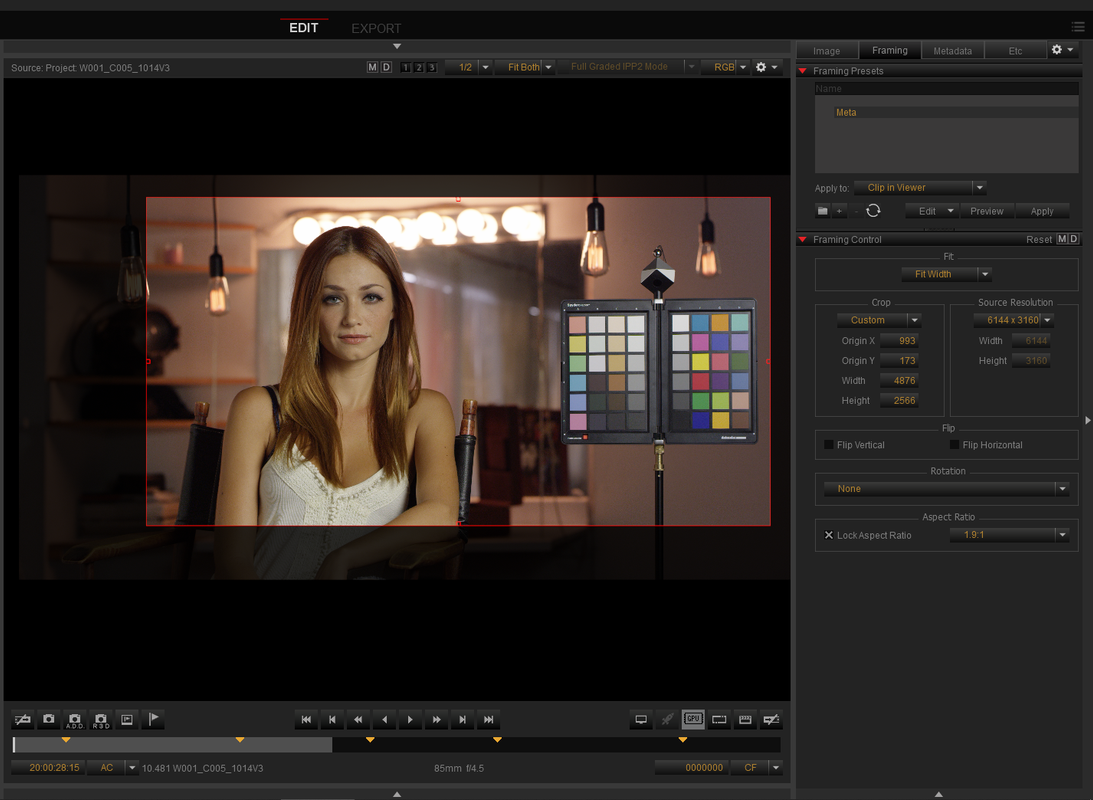
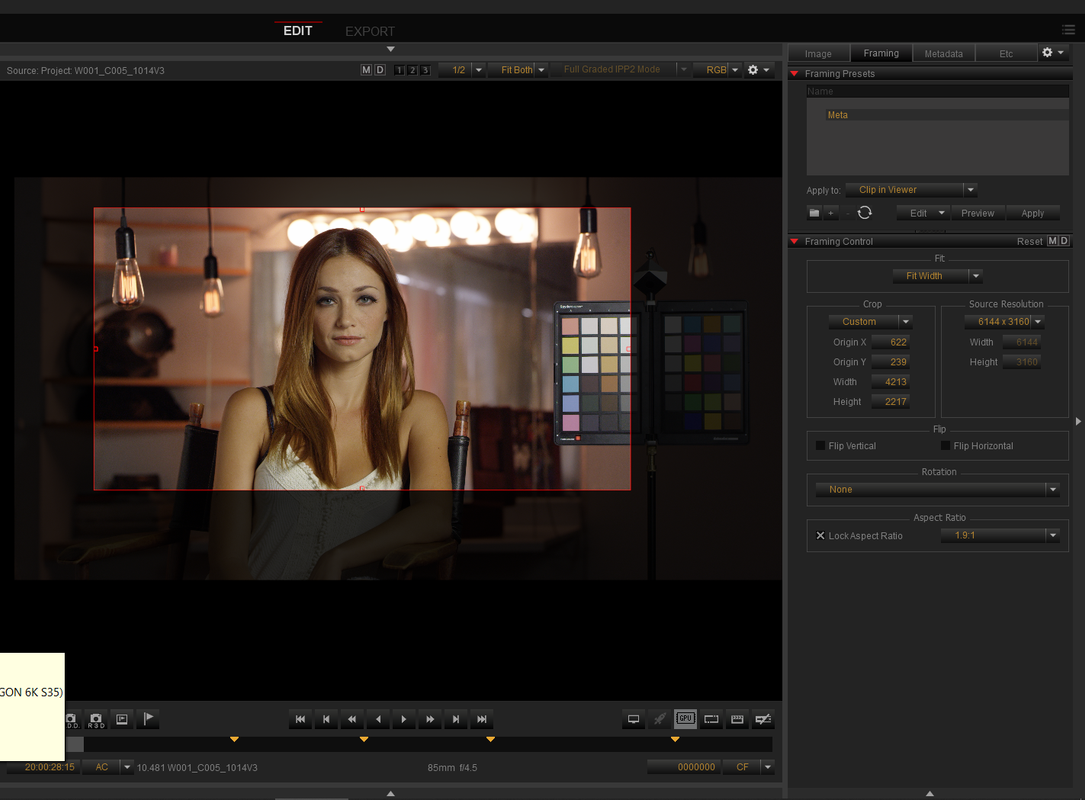
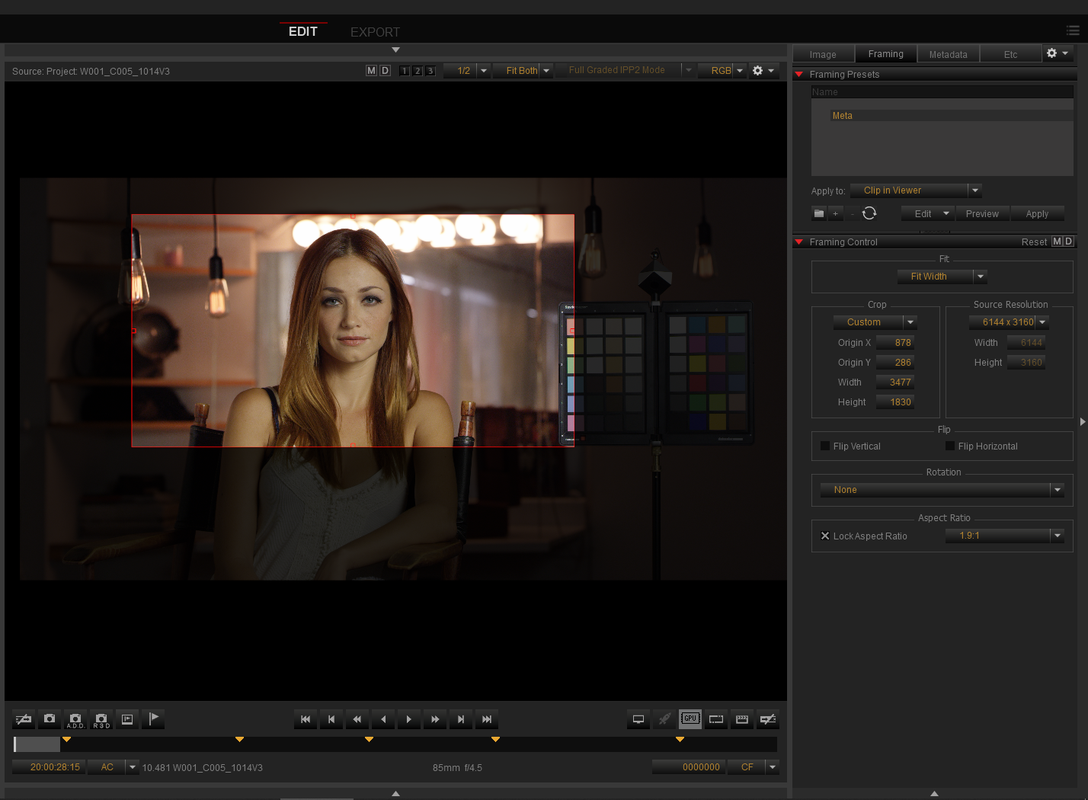
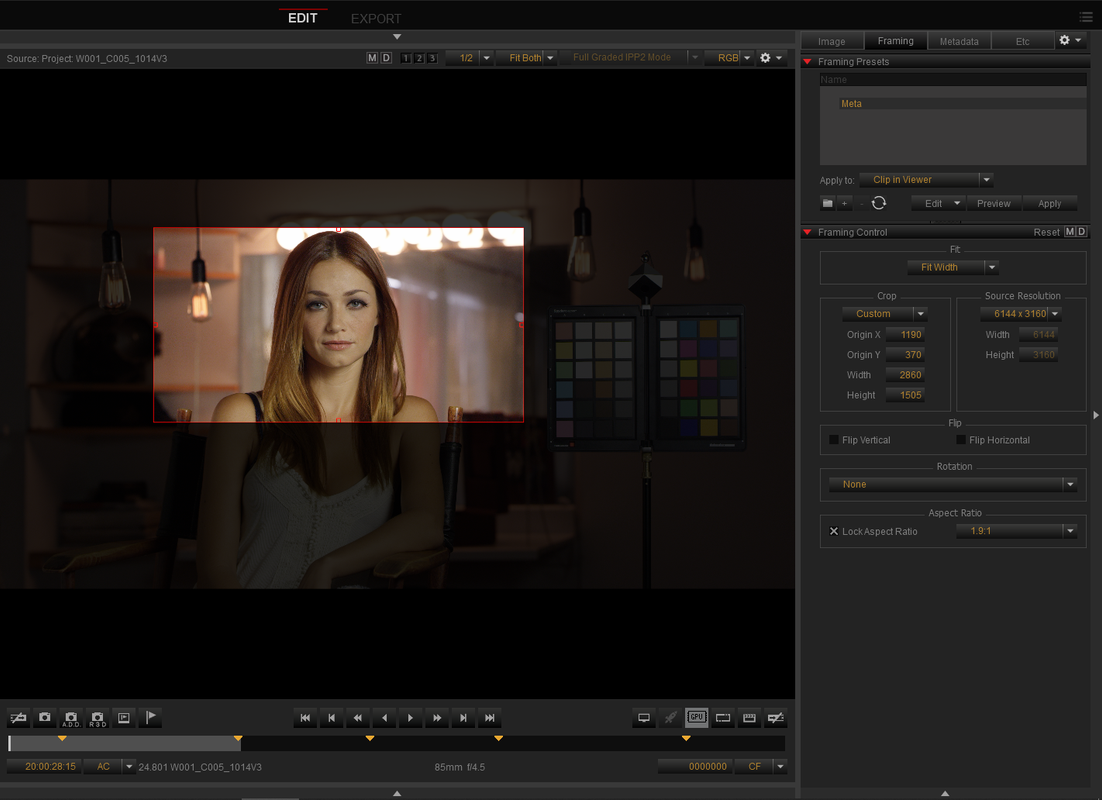
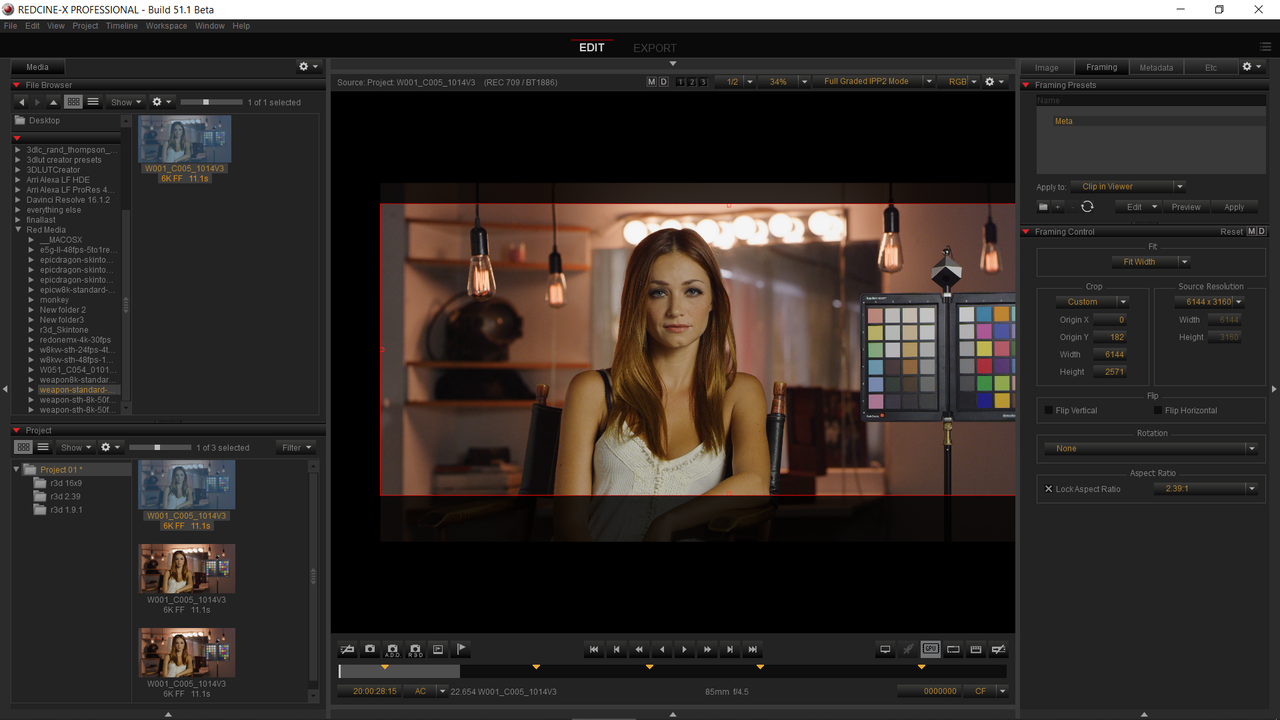
Redcine-X gives you more Scaling Algorithms to choose from and you can lock the crops to specific aspect ratios. You can also export those crops as ProRes files that can be used in Resolve again or in another NLE.


5-2.png


4.png


7.png


8.png
 
Last edited:
Patrick,


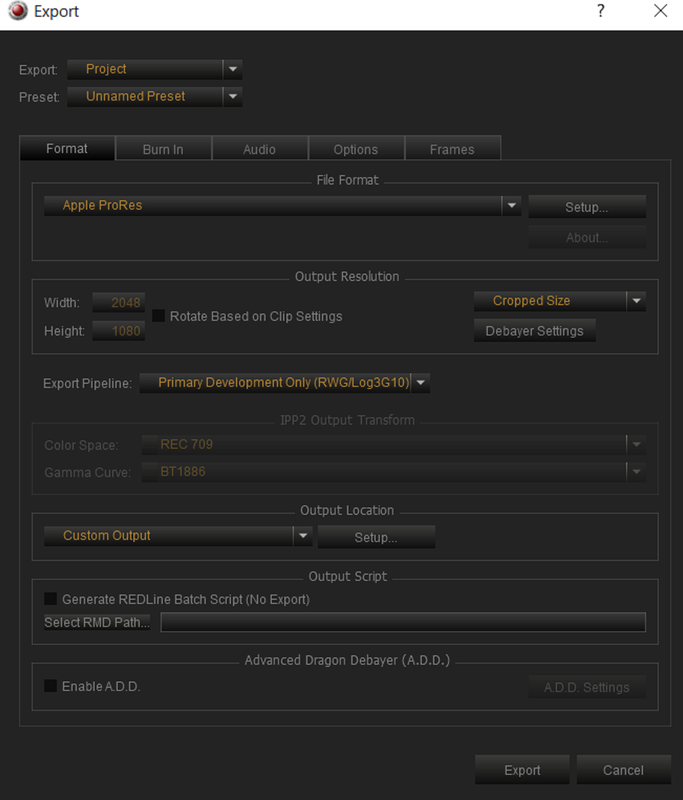
Lastly, you can export those Cropped Prores Files out in "Primary Develppment Only(RWG/Log3G10)", which will allow you to use IPP2 Output Transform Luts in Resolve or other NLEs


10.png
 
ok thanks, i will compare the crops beween red cineX and Resolve!
 
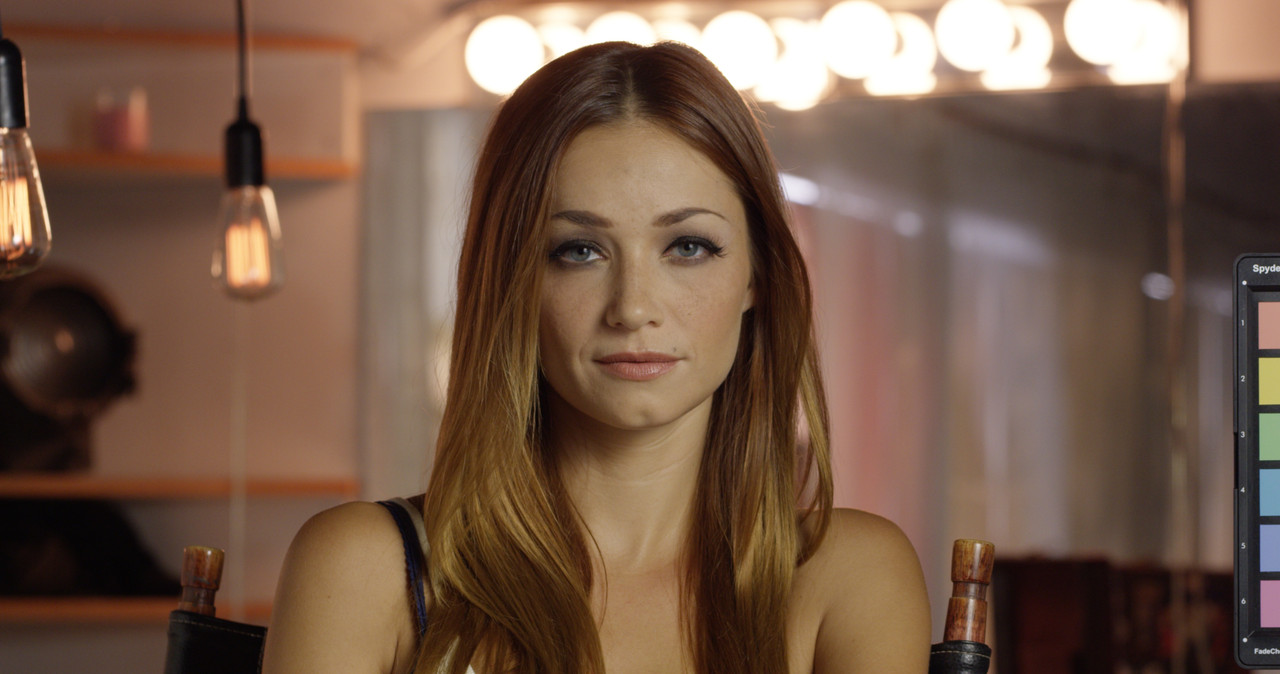
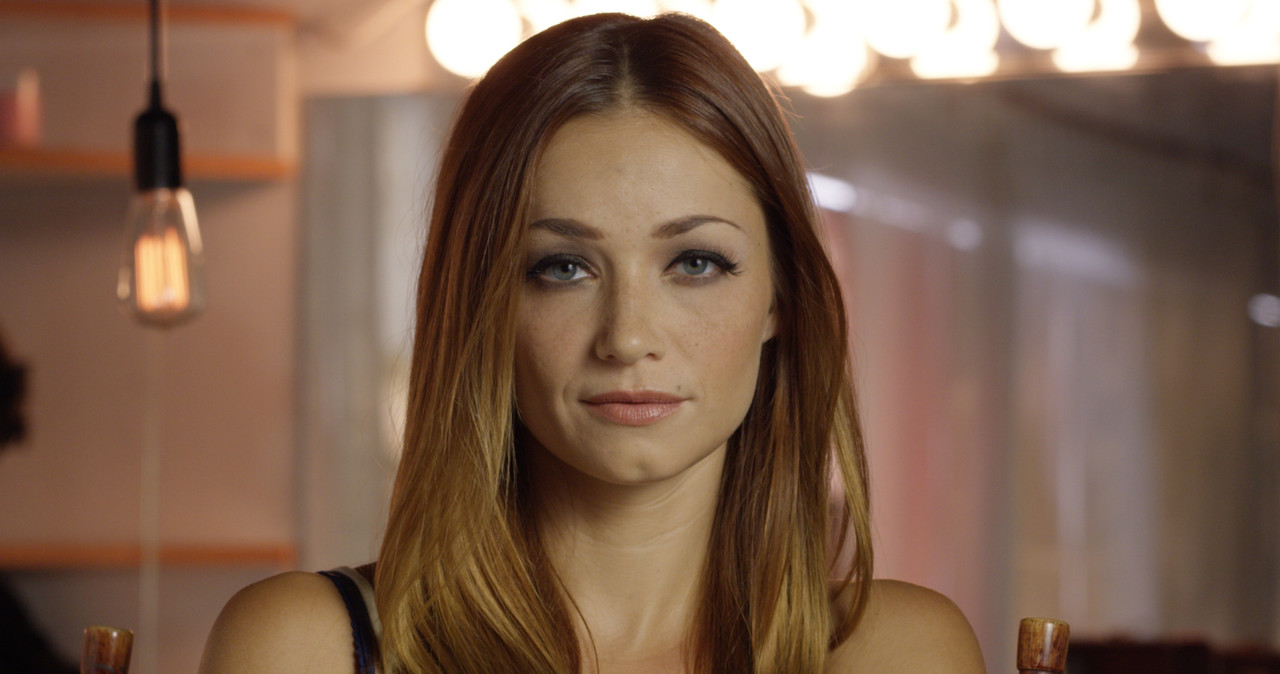
You can also have multiple instances of the same R3d file and export multiple Prores crops to a folder to audition in your NLE with all of the crops locked to a 1.9:1 Aspect Ratio.


Screenshot-402-2.png


Screenshot-406.png


W001-C005-1014-V3-0000000.jpg


Screenshot-402.png


W001-C005-1014-V3-0000002.jpg


Screenshot-403.png


W001-C005-1014-V3-S000-0000000.jpg


Screenshot-404.png


W001-C005-1014-V3-S001-0000001.jpg


Screenshot-408.png


W001-C005-1014-V3-S002-0000003.jpg
 
Last edited:
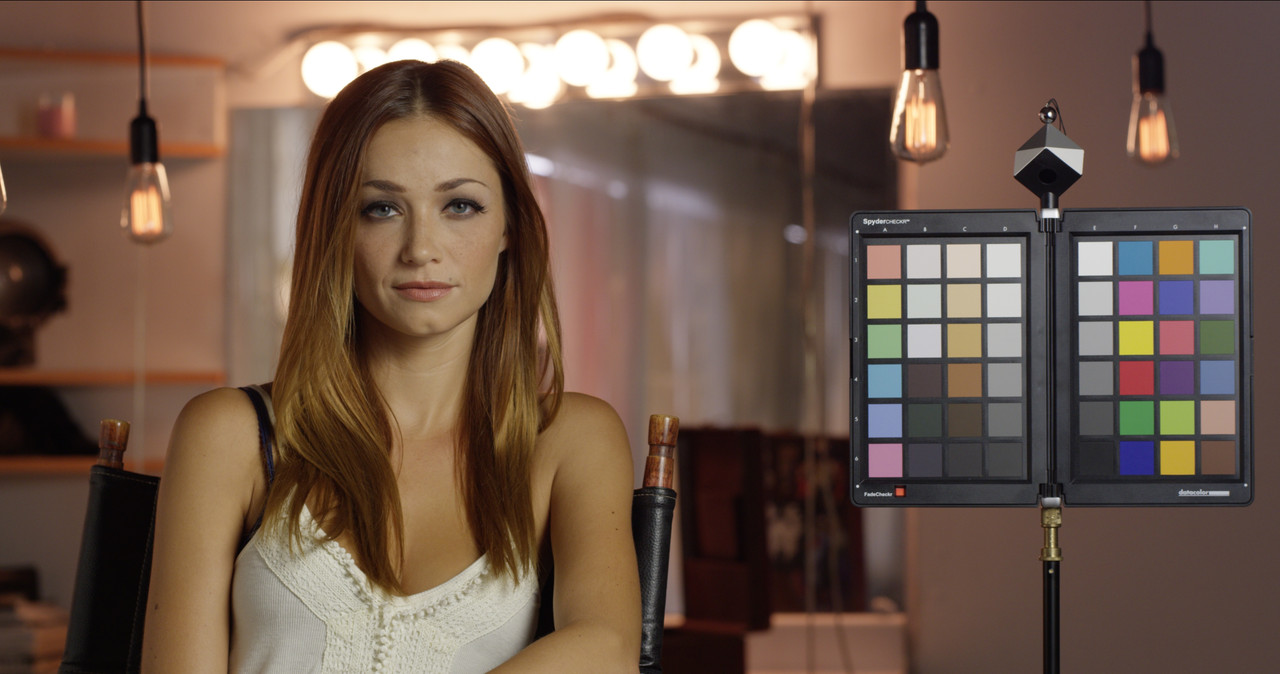
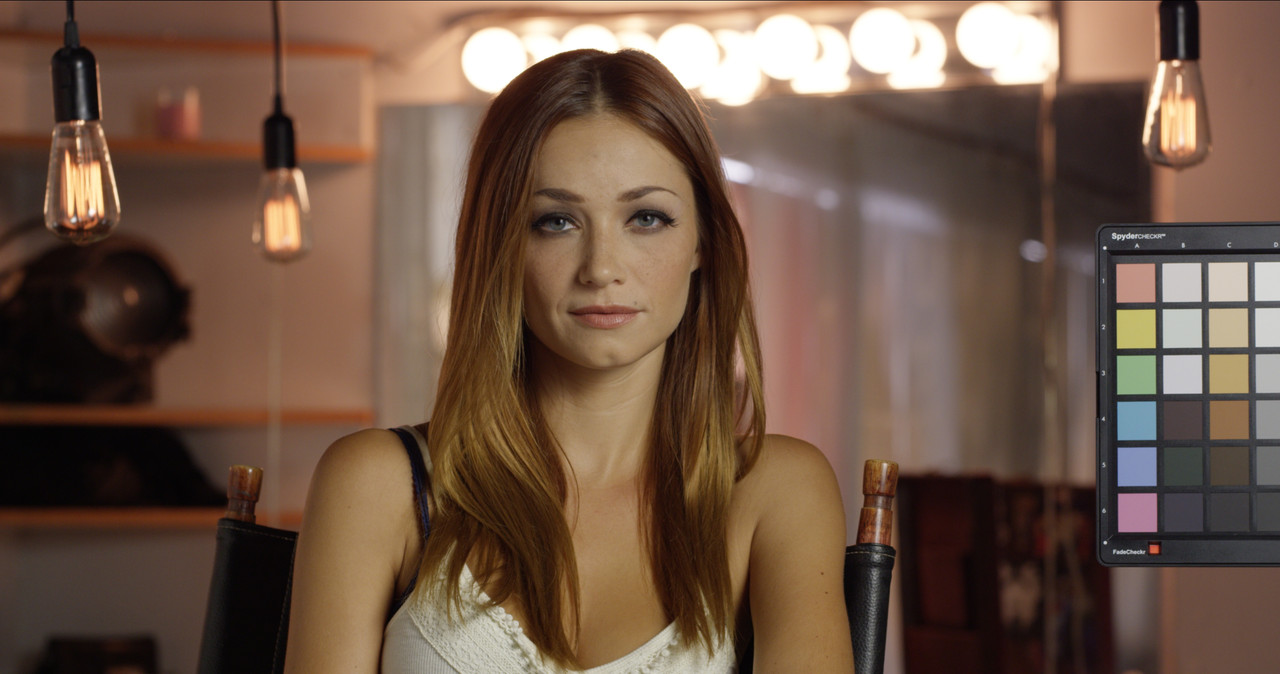
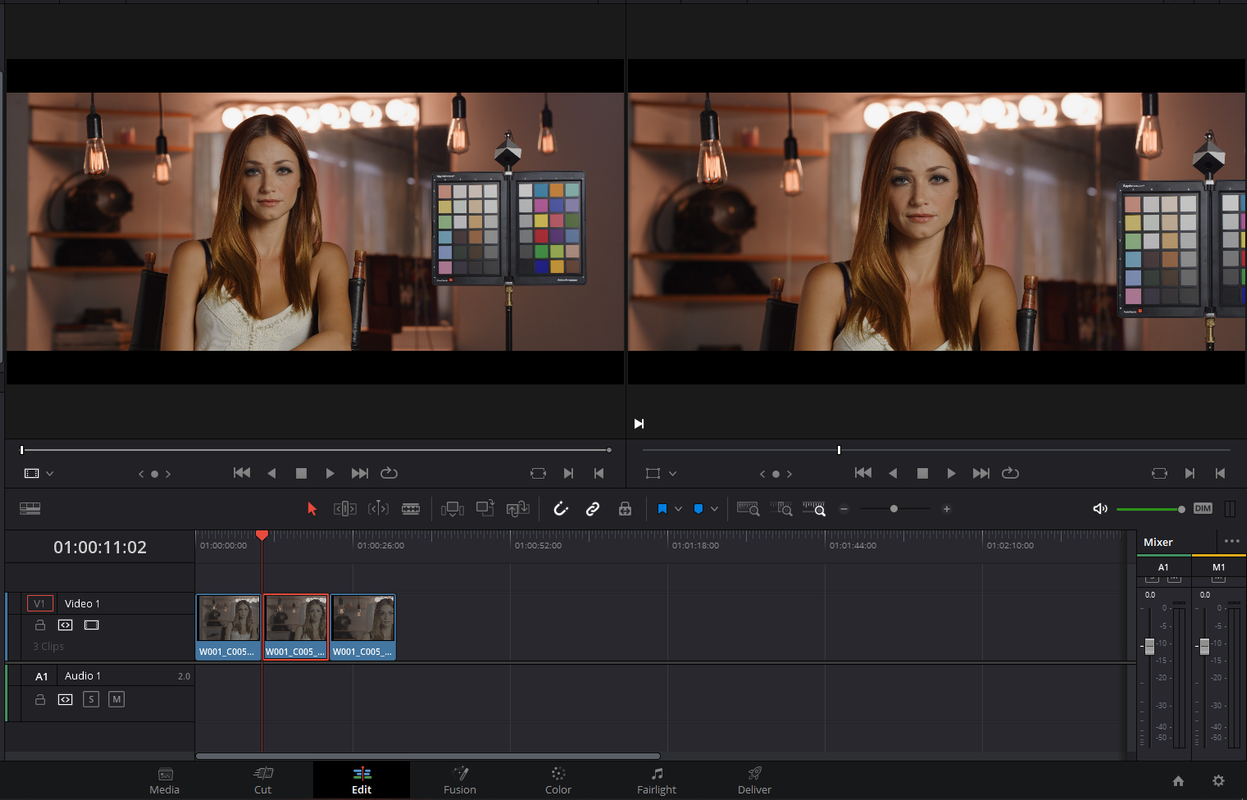
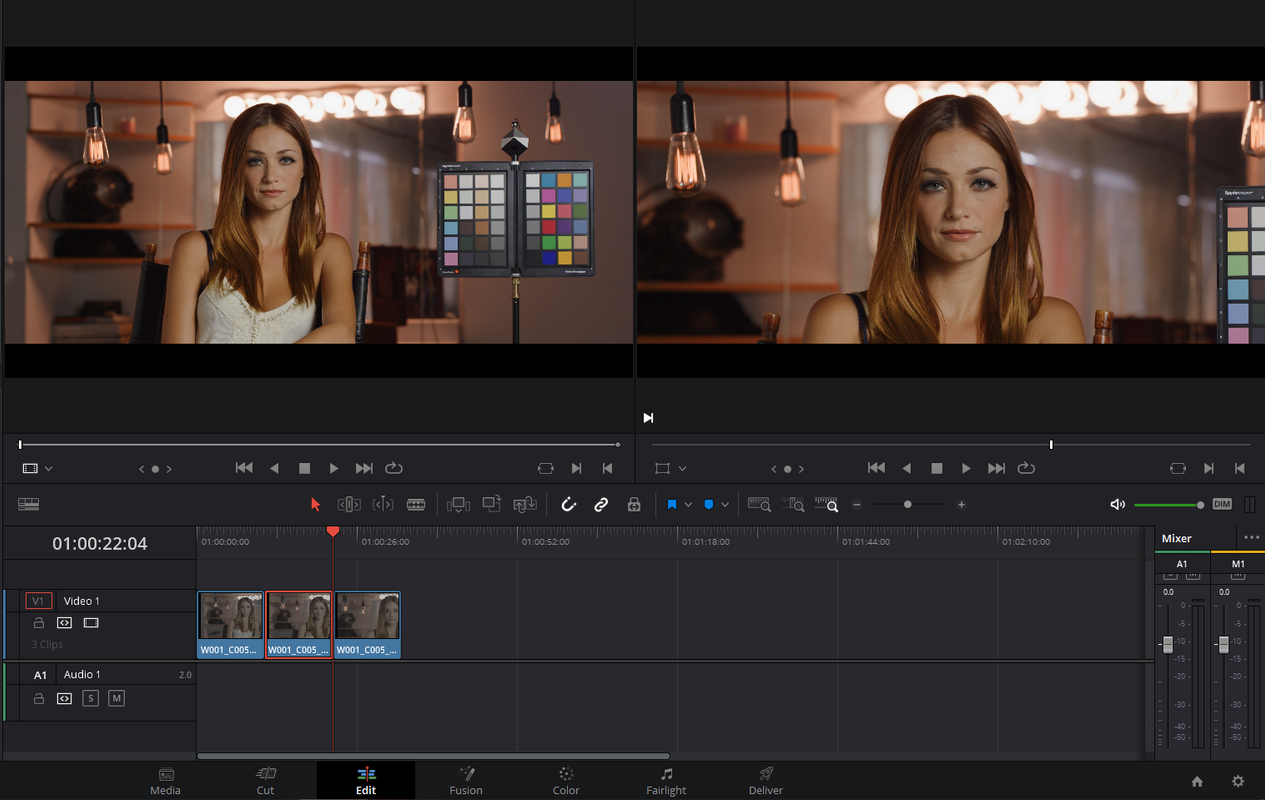
Here is the Workflow for exporting 3 different crops of the same R3d file into Davinci Resolve


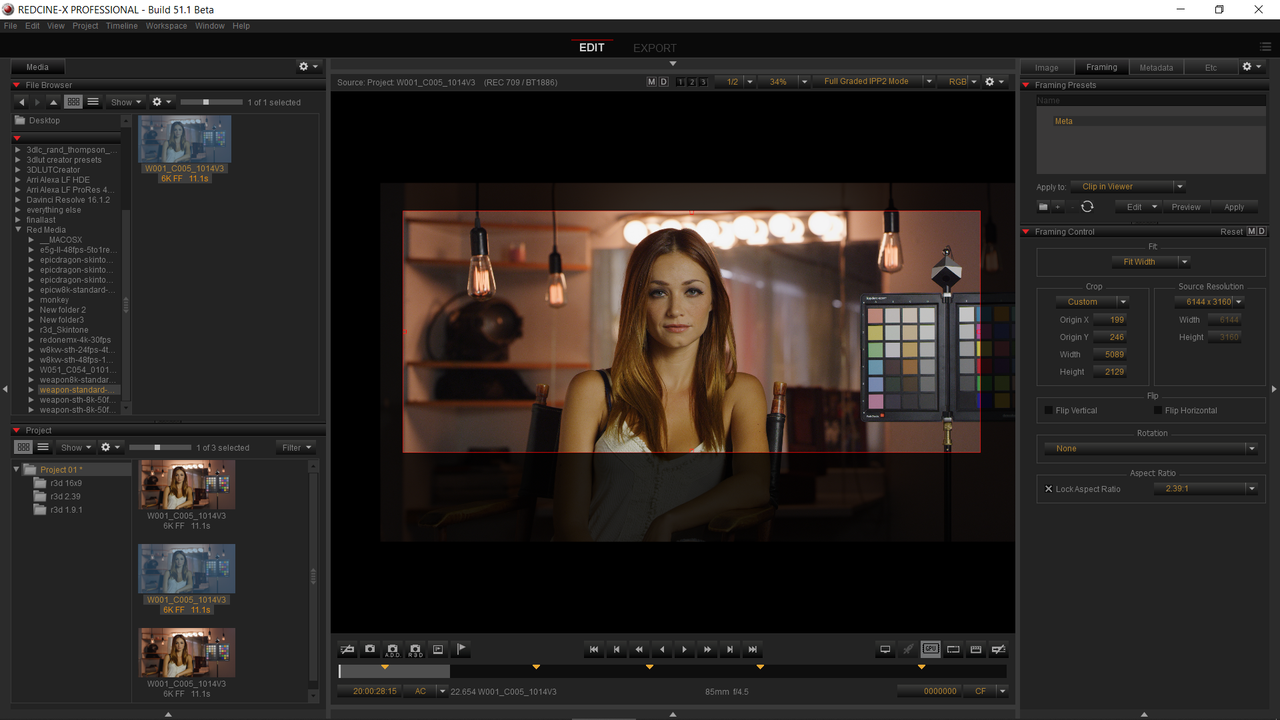
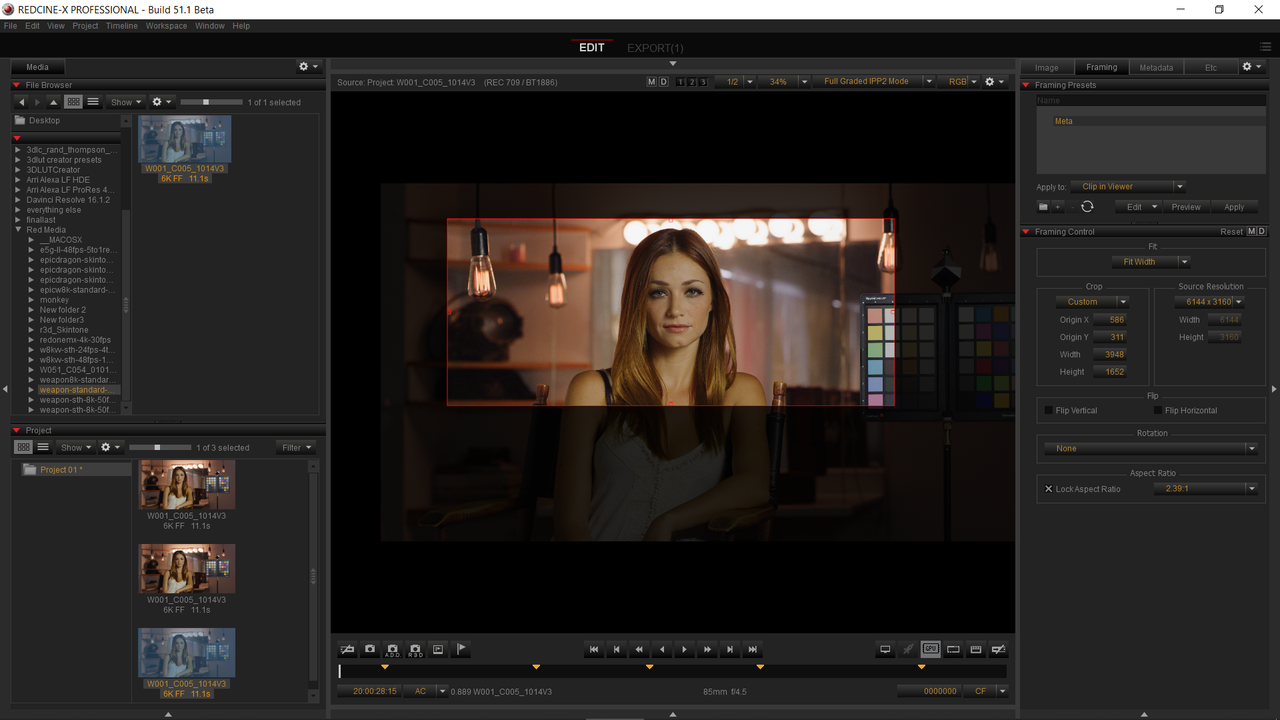
I used a 2.39:1 Crop for theses files


Important Note:

Once you've enlarged or shrinked the Crop Box to whatever you wanted hold down the "CTRL" button and move the crop box around from the center and not the edges.


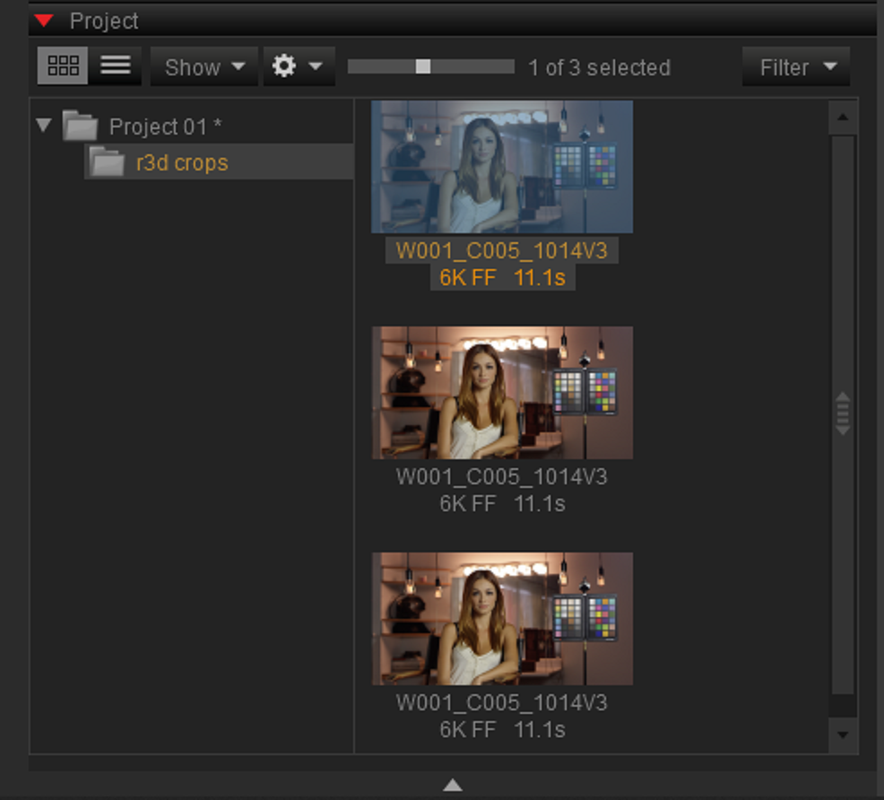
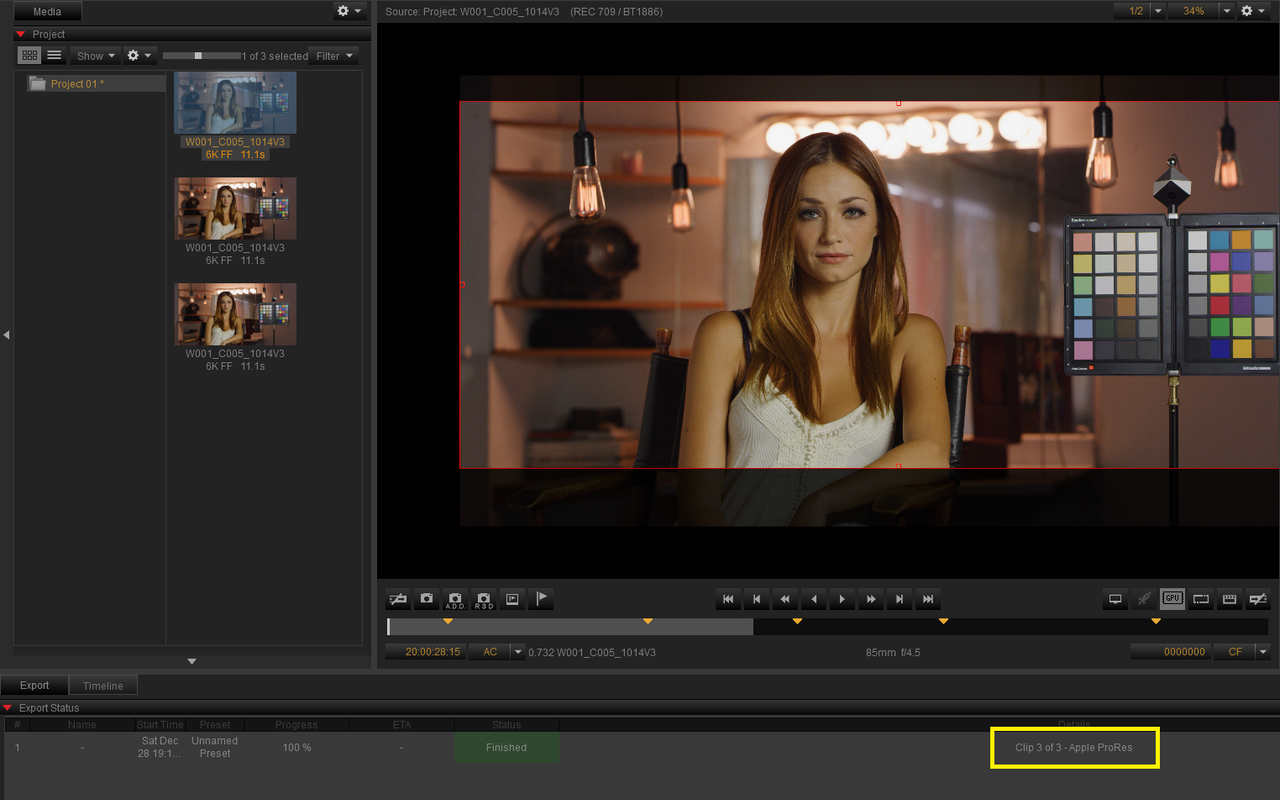
1) import the r3d into a Project or Bin for as many times as for the different crops. In this example I did it 3 times.

This was a 6144x2571 crop of 6144x3160
Screenshot-426.png


This was a 5089x2129 crop of 6144x3160
Screenshot-427.png


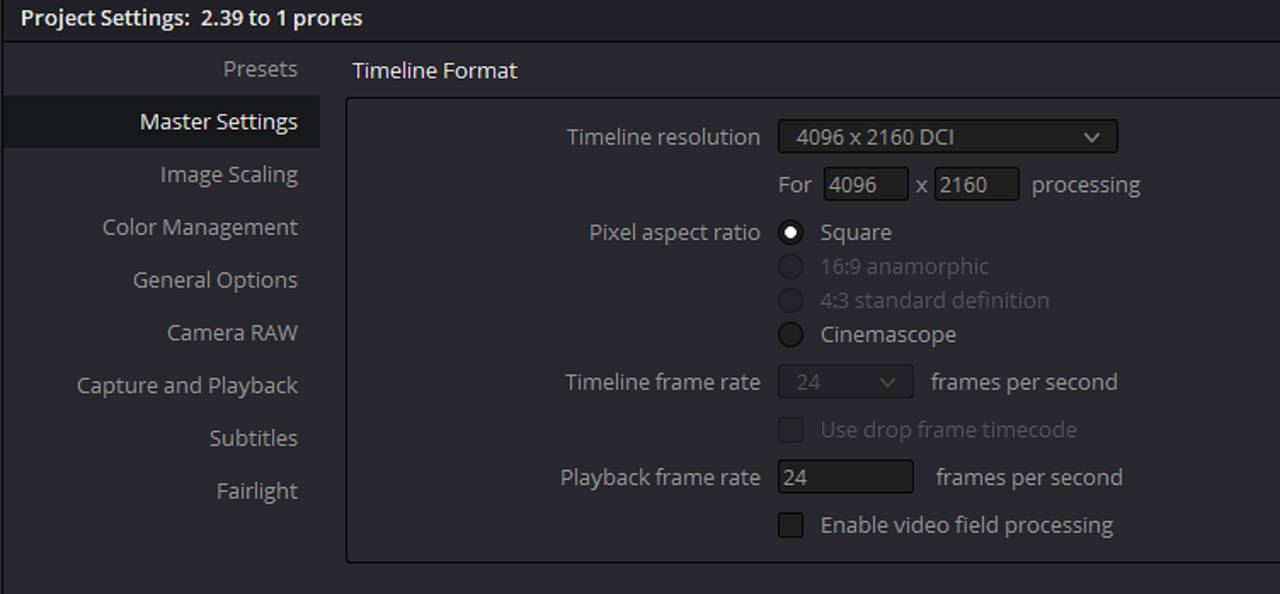
This was a 3948x1652 crop of 6144x3160 which will be slightly up-scaled in the DCI4k(4096x2160) project I will be putting it in.
Screenshot-428.png


2)Next Export the project Press "CTRl" + "E" and use the "Project" or the "Bin" you placed the files in. Choose the format you want to export the crops in, I chose "Apple ProRes" and be sure to choose "Cropped Size" or they will be exported uncropped. I chose "Primary Development Only(RWGLog3G10)" so that I could use IPP2 Output Transform luts for the clips in Resolve.


Screenshot-447.png


Screenshot-429.png


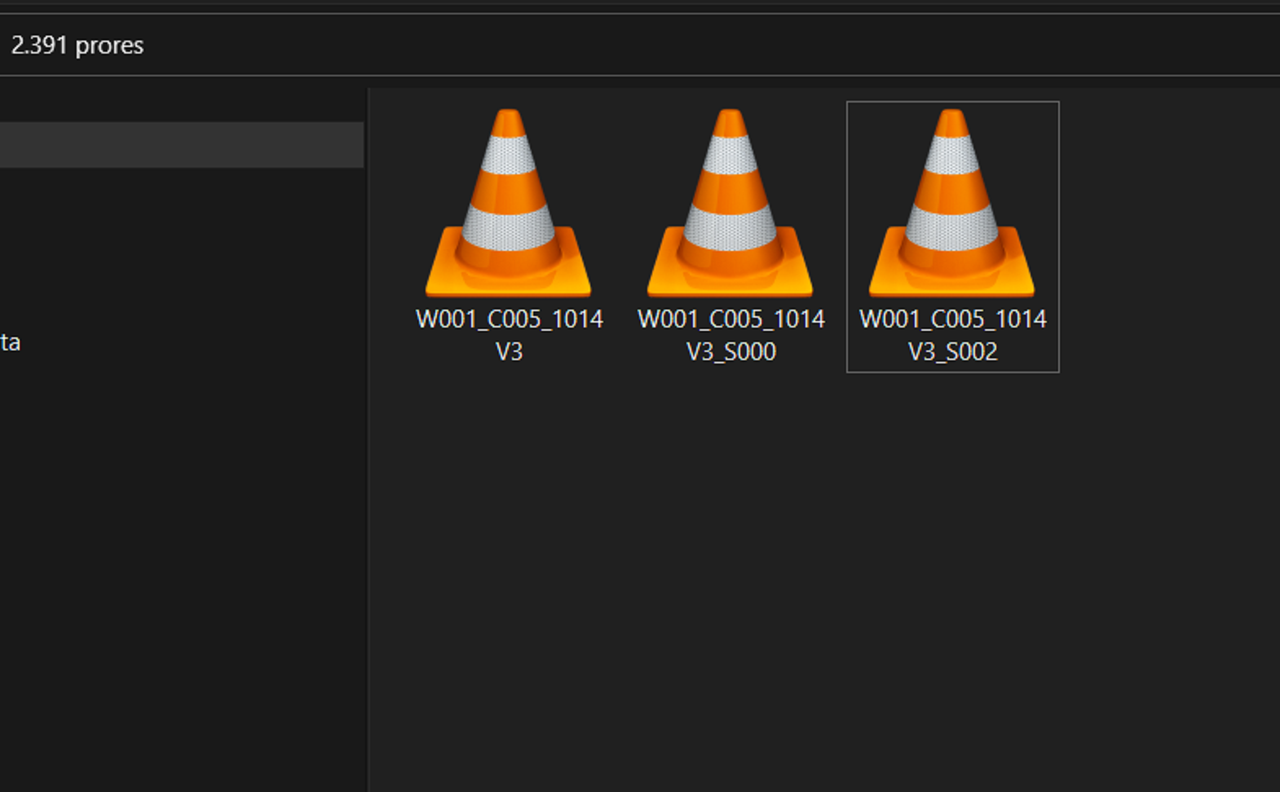
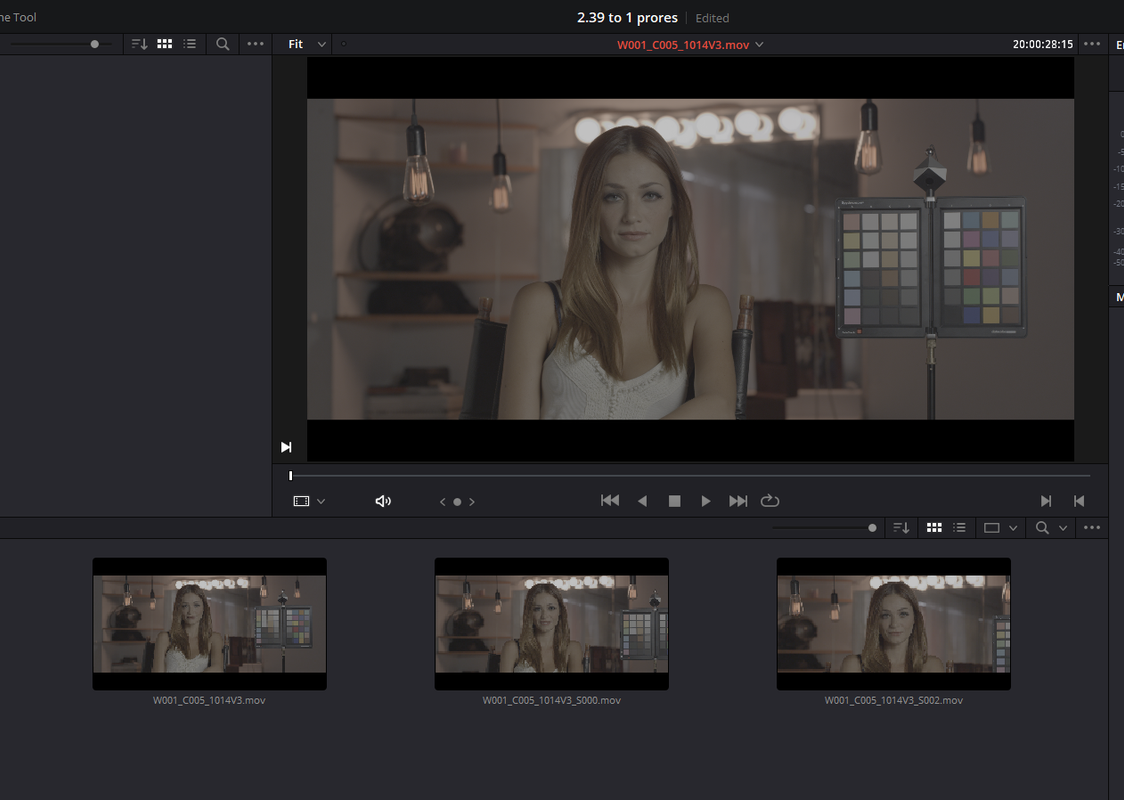
3) In Resolve, I chose a DCI4K 4096x2160 project. I searched for the Cropped Prores files and imported them into resolve. As you can see they are in the RWG/ Log3G10 flat profile.


Screenshot-430.png


Screenshot-448.png


Screenshot-442.png


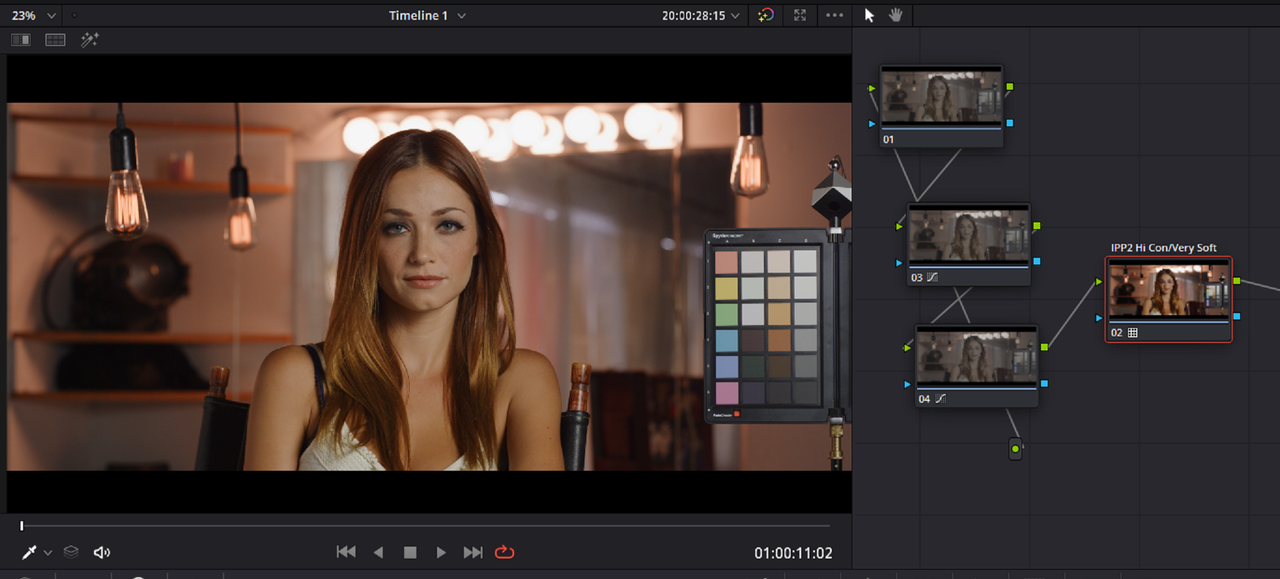
4) I applied a Hi Con/ Very Soft IPP2 Output Tranform Lut to each of the 3 with a slight grade.

Screenshot-446.png


Screenshot-439.png


Screenshot-440.png


Here is the resulting 2.39:1 DCI 4K(4096x2160) version H.264 video of all three combined.


https://www.dropbox.com/s/se268c3s6wwz6gx/2.39 to 1 Pro project.mov?dl=0


Here is the resulting 2.39:1 4KUHD(3840x2160) version H.264 video of all three combined.


https://www.dropbox.com/s/7vzkq0xln0mx5jk/4KUHD 3840x2160 2.39 to 1.mov?dl=0
 
Last edited:
Brilliant tip Rand. Will test exporting from Redcine.
I have used some of these methods myself when working with images in image processing and they all have different strengths and weaknesses. Great to have access to so many.
Andreas
 
Andreas,


Thanks! Yeah, every tip and trick we share with each other helps provide more workflow options for all of us to use.
 
So you guys are saying its not the same algoritms used when cropping and using inspector in resolve?
 
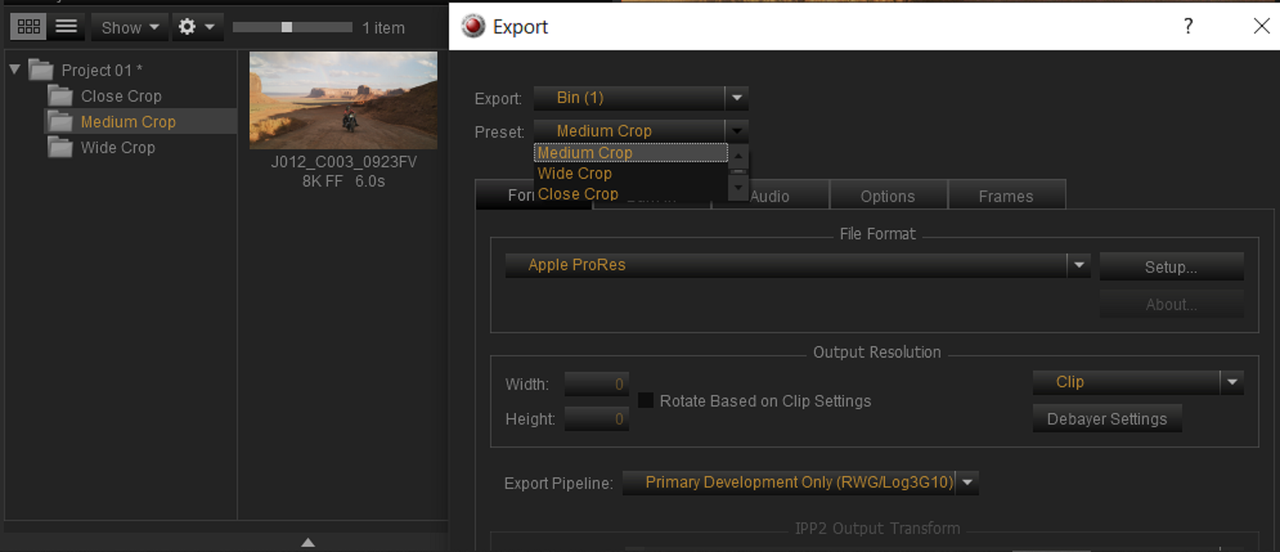
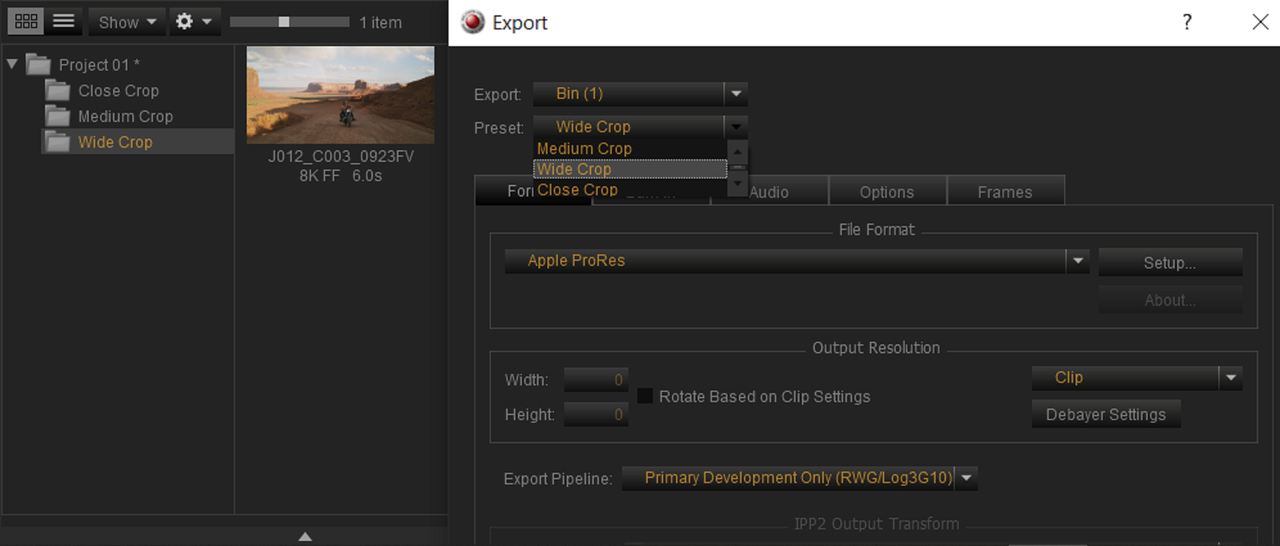
You can also create different Crop Size folders for different degrees of cropping and create Export presets with different Scaling Algorithms for each folder.


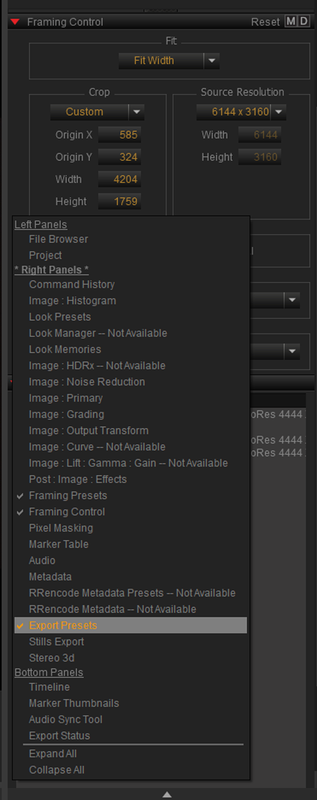
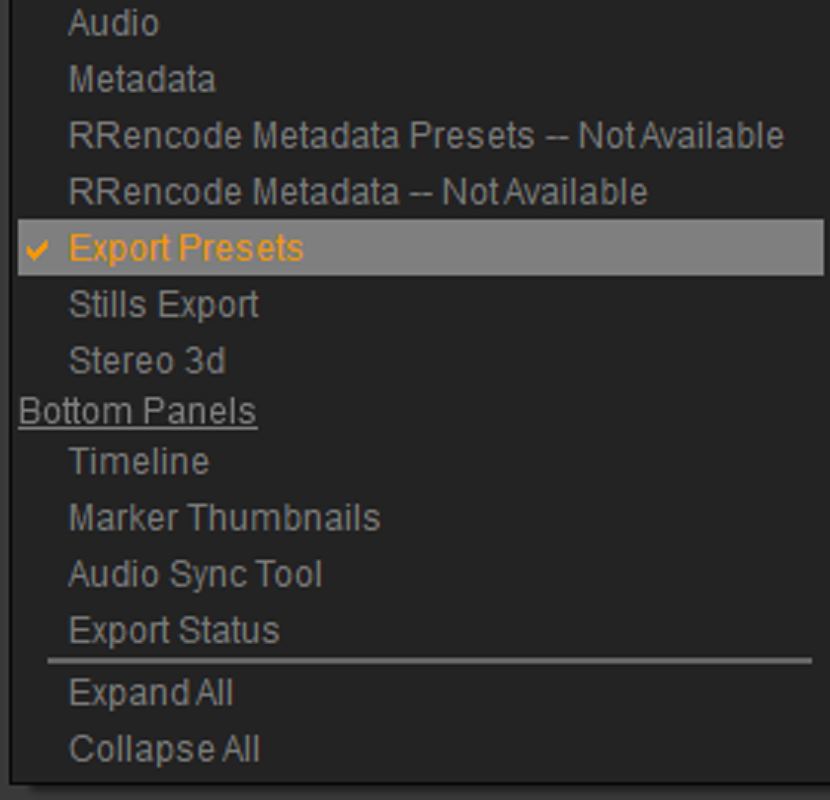
I like to have the "Export Preset" Module under the "Framing Control" module


Part 1

1) In a Dark Grey area on the "Framing Control" Module "Right Click" and choose "Export Presets" under the "Right Panels" heading. This will enable the "Export Preset" Module.


Screenshot-469.png


Screenshot-474-2.png


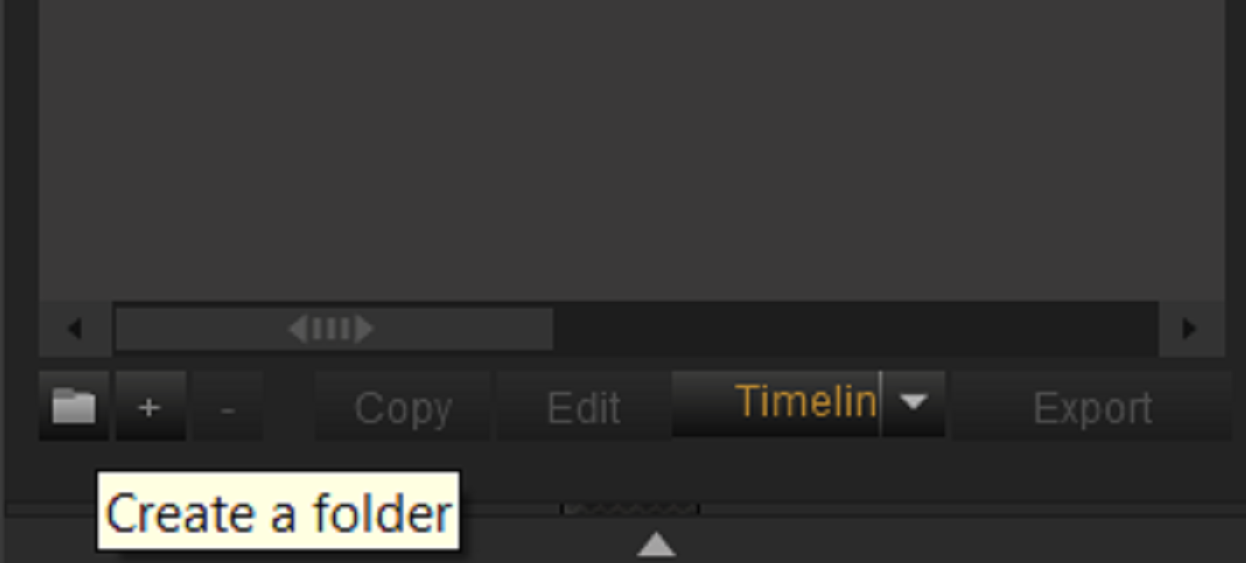
2)Next, you can Either create a Folder by clicking on the Folder Icon to put the new presets in or create the presets individually by pressing the "+" button


Screenshot-471.png


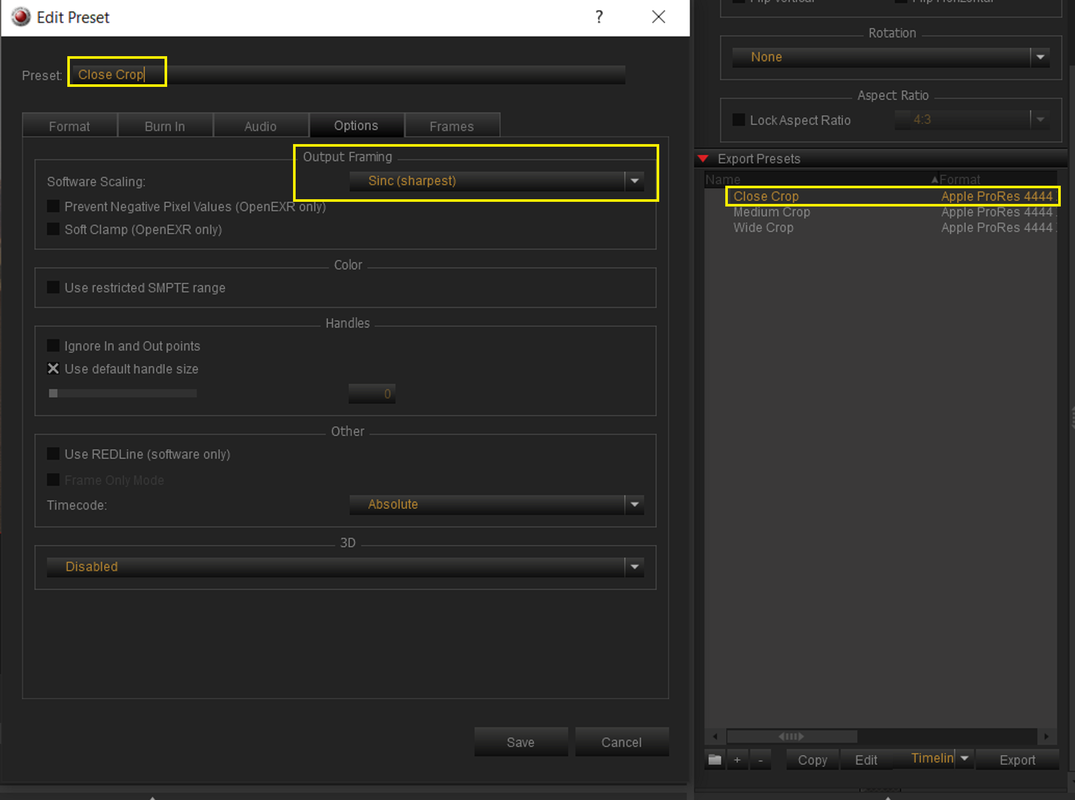
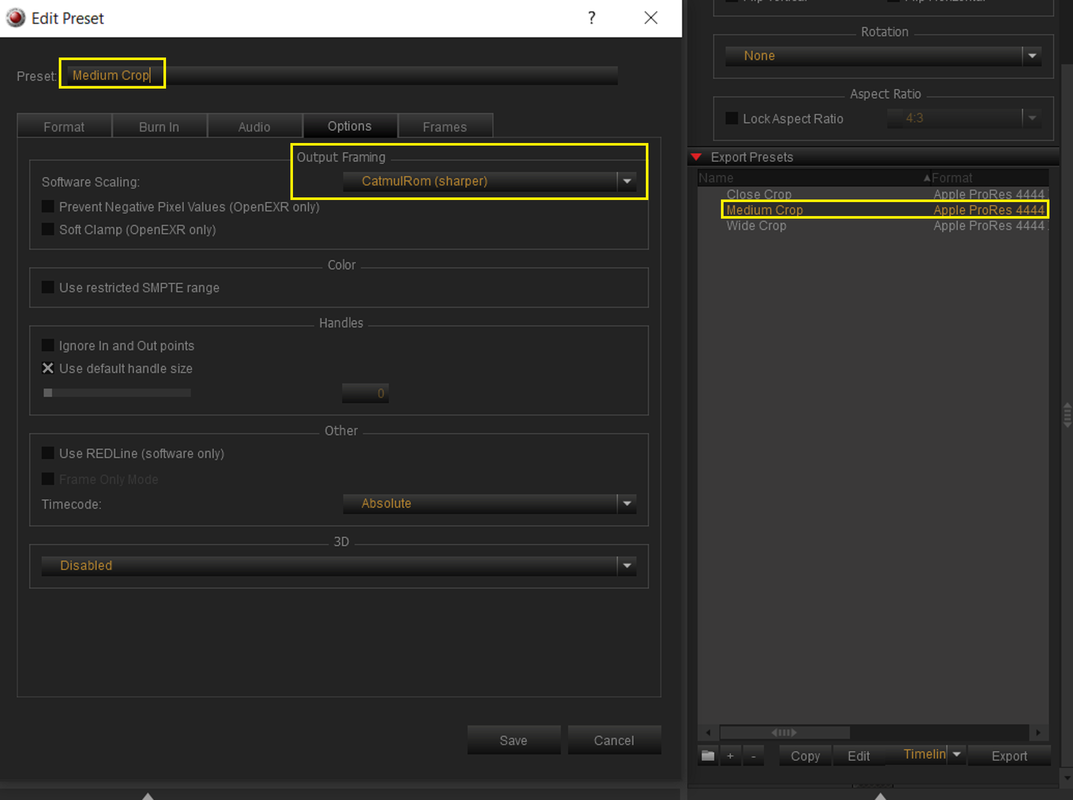
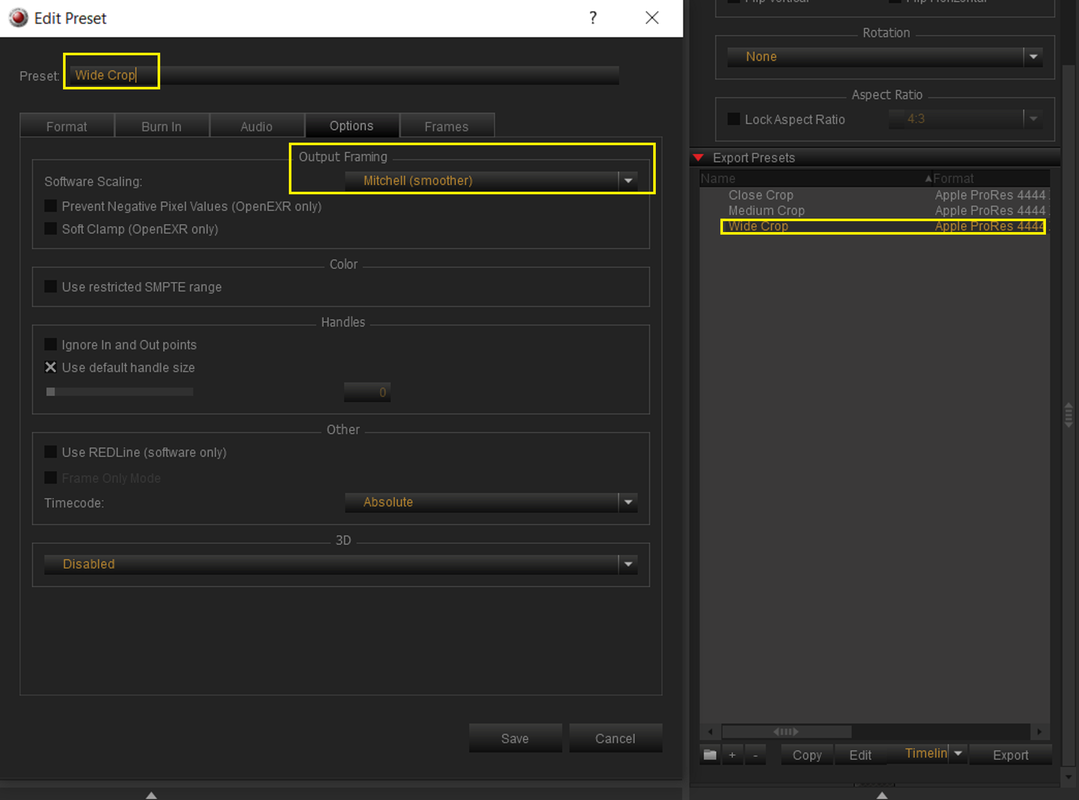
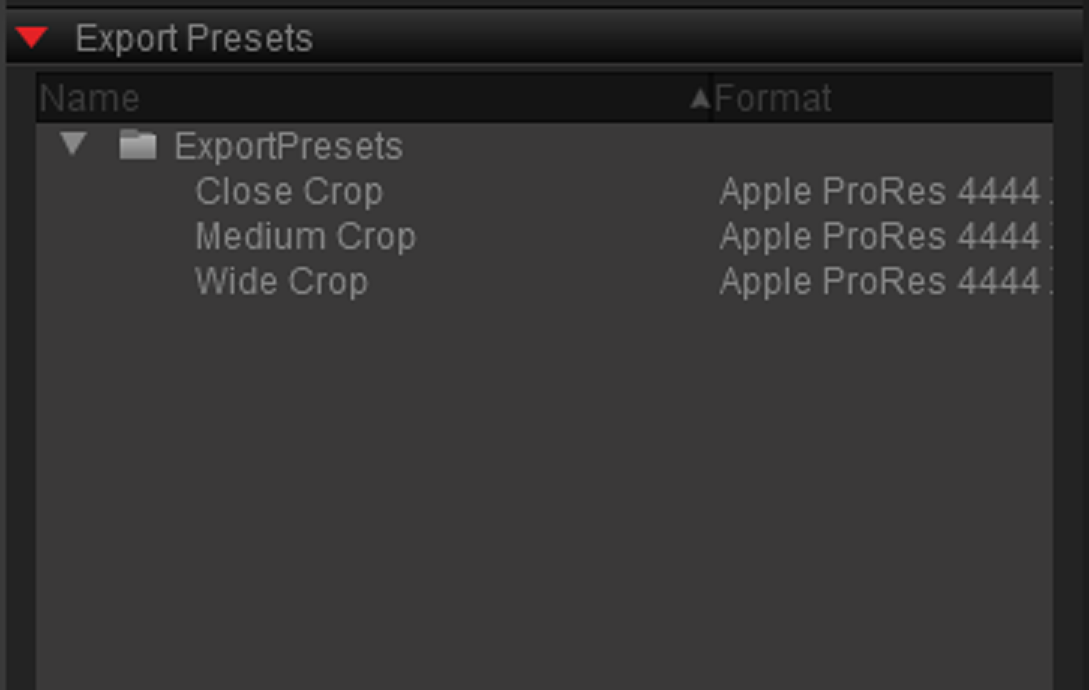
3) Now Create as many presets as you like I chose to make three:


1)Close Crop
2)Medium Crop
3)Wide Crop


I will make a preset for each all with a ProRes 4444XQ Export file type but with different Scaling Algorithms to potentially optimize the Crop factor for the Different crops of images.


Sinc(Sharpest) Scaling Algorithm for "Close Crops"

Screenshot-477.png


CatmulRom(Sharper) Scaling Algorithm for "Medium Crops"

Screenshot-478.png


Mitchell(Smoother) Scaling Algorithm for "Wide Crops"

Screenshot-479.png


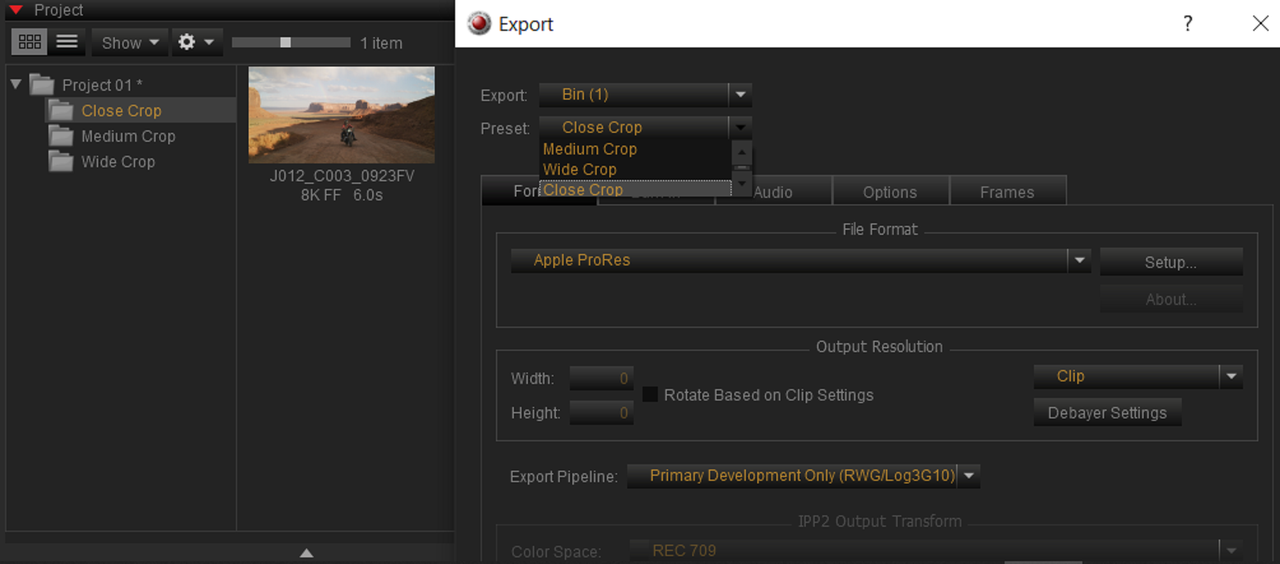
4) After creating the 3 individual Bins for the different cropping factors mentioned above, at the export of each of the individual Bins with their unique cropped images, I will choose the corresponding crop preset for each.

Sorry it should be "Cropped Size" instead of "Clip"


Screenshot-480.png


Screenshot-481.png


Screenshot-482.png
 
Last edited:
Part 2-Saving and Re-Importing Export Presets


How to Save

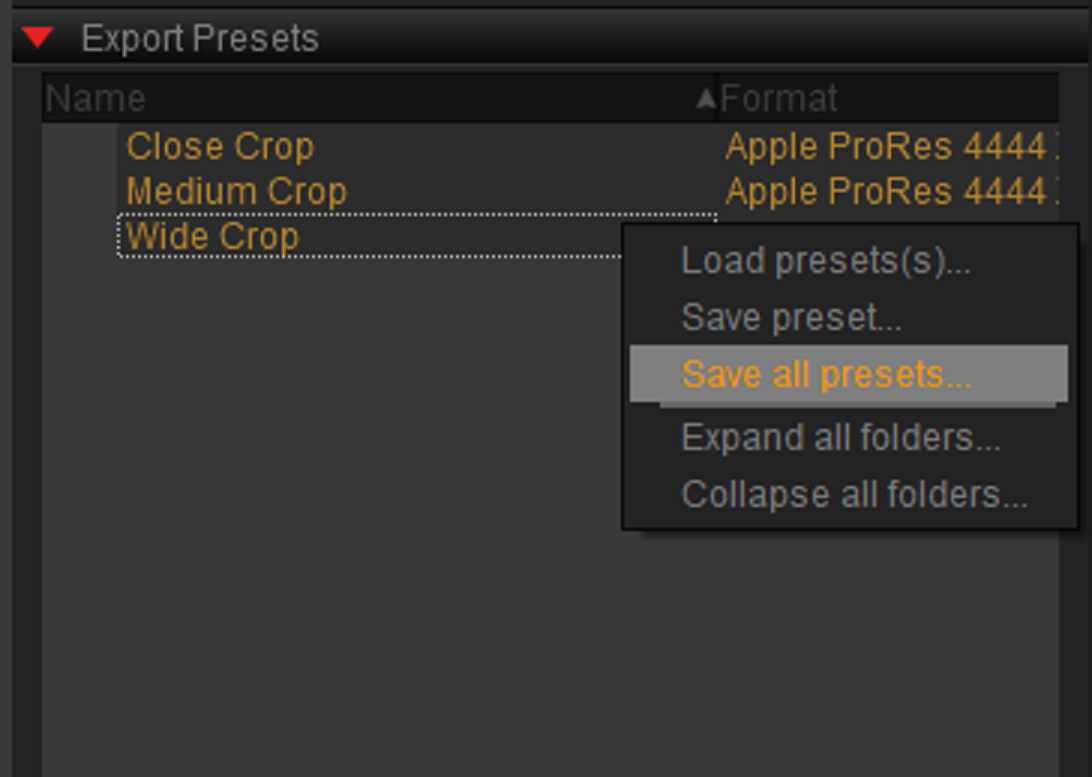
1)To Export the Presets, the presets should be saved to be used for each new project if the "Export Presets" module stays selected, to be saved or exported to someone else, Highlight the folder they were placed in or the individual presets you want to export. Next, "Right Click" inside the grey area and select either "Save Preset" or "Save All Presets".


Screenshot-464.png


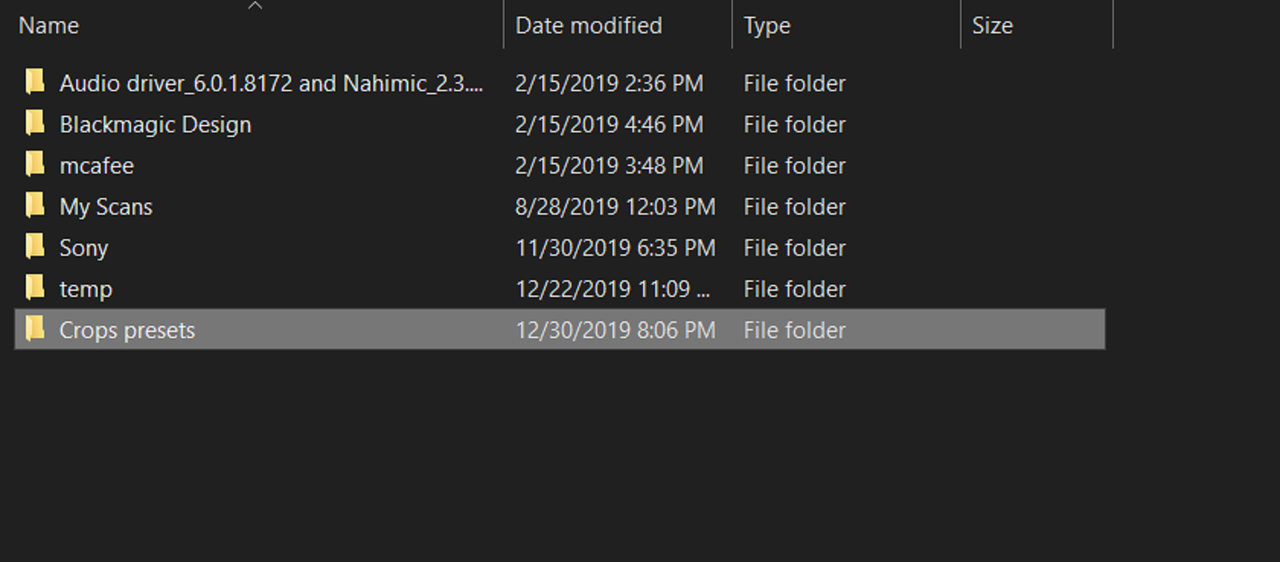
2)Create or select a folder you want to place the presets in click save.


Screenshot-465.png


How to Re-import Export Presets


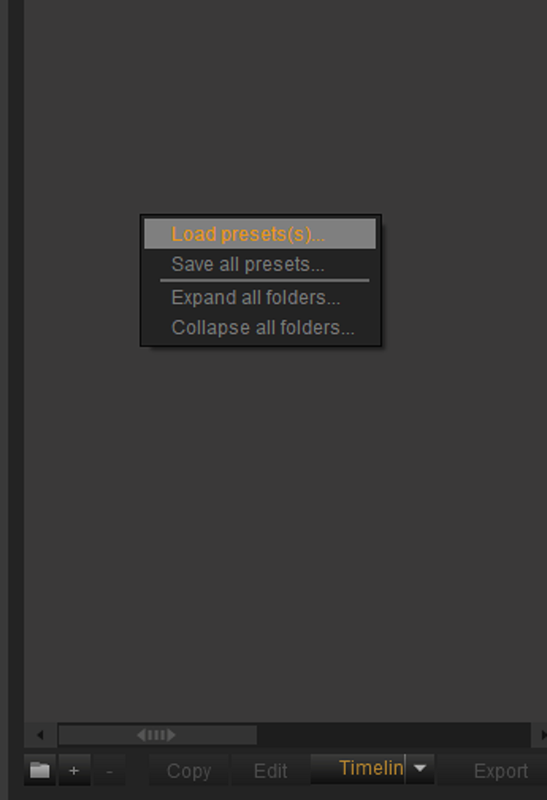
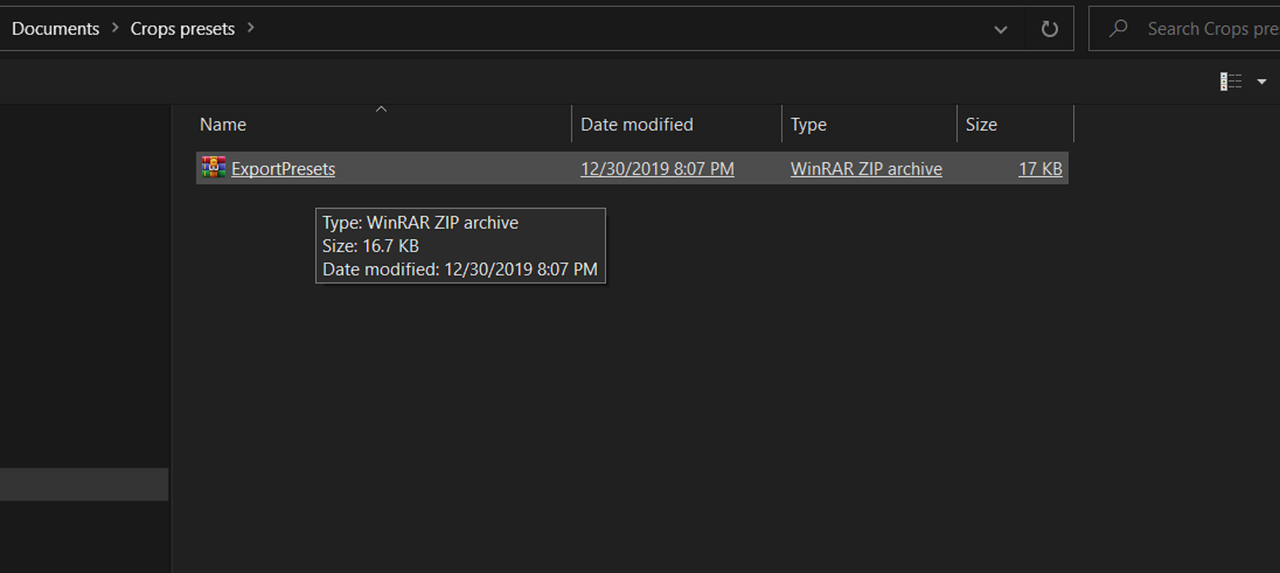
1) In the empty grey area of the "Export Presets" module, "Right Click" and choose "Load Presets". Locate the directory where they were placed and select the saved preset/s. In my example , since I exported a set of three presets, it made a Zip file. All I have to do is select that. You may need to have a Zip extracting program installed on your system just to be on the safe side. And here they are.


Screenshot-466.png


Screenshot-467.png


Screenshot-472.png
 
Back
Top