Welcome to our community

Be a part of something great, join today!

  • Hey all, just changed over the backend after 15 years I figured time to give it a bit of an update, its probably gonna be a bit weird for most of you and i am sure there is a few bugs to work out but it should kinda work the same as before... hopefully :)

DaVinci Resolve 16.2 is now available

How to Use Adjustment Clips - DaVinci Resolve 16 Tutorial


By Nathan Carter


Anyone know if 16.2.2 offers better metal performance? Can’t update for a while.
 
Last edited:
Basic Re-Lighting in DaVinci Resolve - Color Grading Tutorial


By Casey Faris


Make VOCALS Sound PROFESSIONAL in DaVinci Resolve 16 | Professional Audio in your Video


By Jason Yadlovski


Blemish Removal with Point Tracking and Clone Stamping - Davinci Resolve Fusion Tutorial


By MiesnerMedia


You're welcome David! I'm always surprised myself by what I find and what I learn.
 
Create and save your own LUTs in Davinci Resolve 16


By That Modern Dude


Quick Tip: DaVinci Resolve Basics of Using LUTs


By cinema5D


Fusion Page & Edit Page Workflow - DaVinci Resolve Tutorial


By
Casey Faris


Creating Transitions without Keyframes using Expressions in Davinci Resolve 16.2


by
MrAlexTech


Creating Transitions using Expressions - MrAlexTech Brain Dump


by
MrAlexTech


Last edited:
Michael,


I've never been good at anything that resembles code, So this video was for those whom I believe love it and use it on a daily basis. And I added the video he alluded to about creating transitions with expressions as well above.
 
How to Use "Groups" - DaVinci Resolve 16 Tutorial


By Nathan Carter


Color boost... You are using it wrong (DaVinci Resolve).


By Learn Color Grading


Using power grades to really speed up your color grading in Resolve


By Learn Color Grading


DaVinci Resolve 16: Fusion Node Editor Tutorial


By
Darren Frenette


This video covers the fundamentals of the Node Editor in Fusion.

0:56 - Interface Overview
1:54 - Node Hierarchy Example
3:28 - Panning and Zooming
3:50 - Navigator
4:19 - Grids and Pipes
6:00 - Add/Replace/Delete Nodes
11:23 - Switch Foreground and Backgrounds in Merge Node
14:30 - Node Instances
16:26 - Import/Export to Text File
18:53 - De-Instancing Parameters
21:41 - Splitting Node Outputs
23:14 - Sticky Node, Underlay, Groups
25:49 - Thumbnails
 
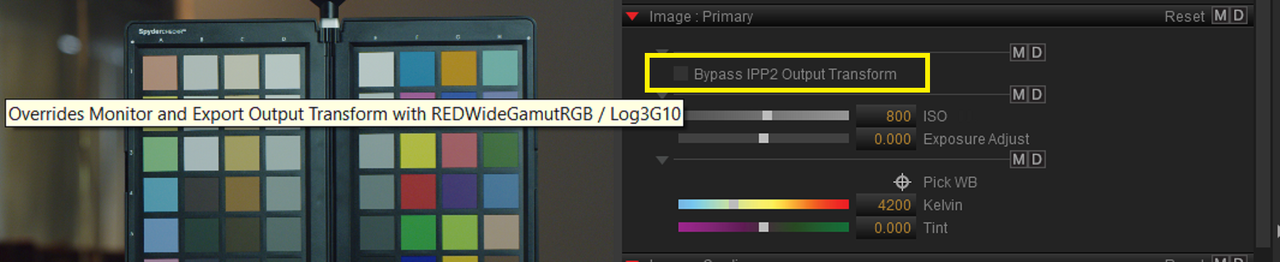
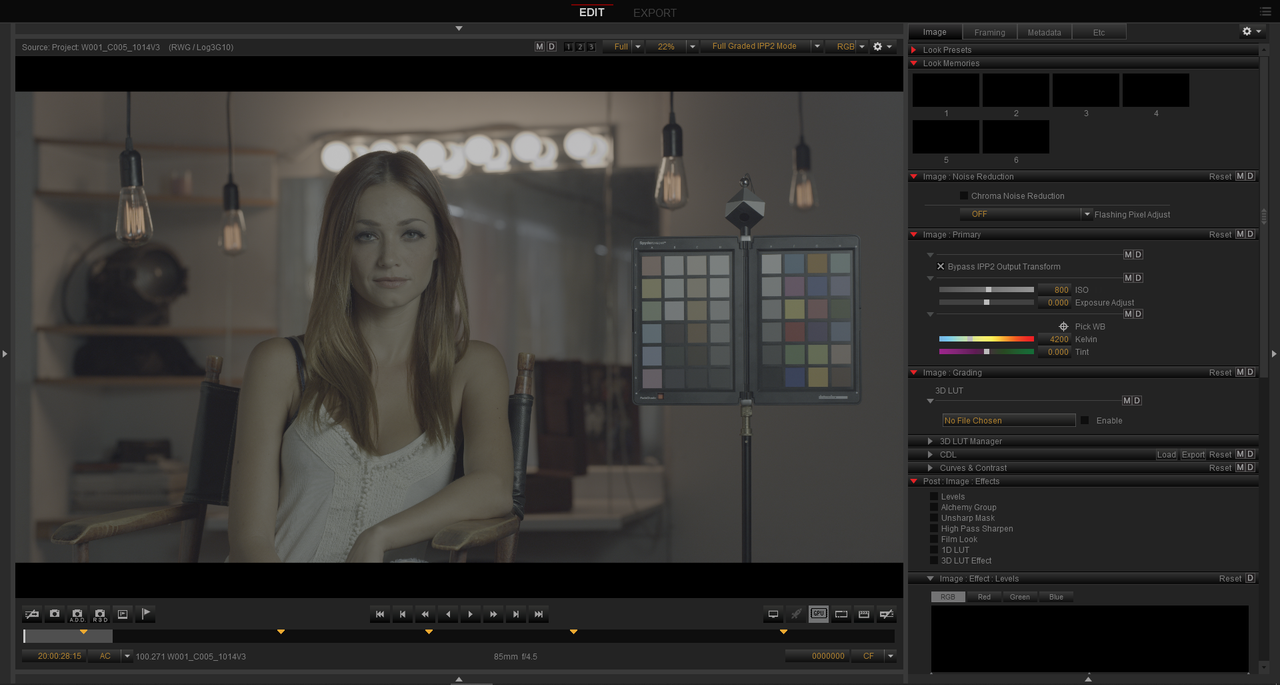
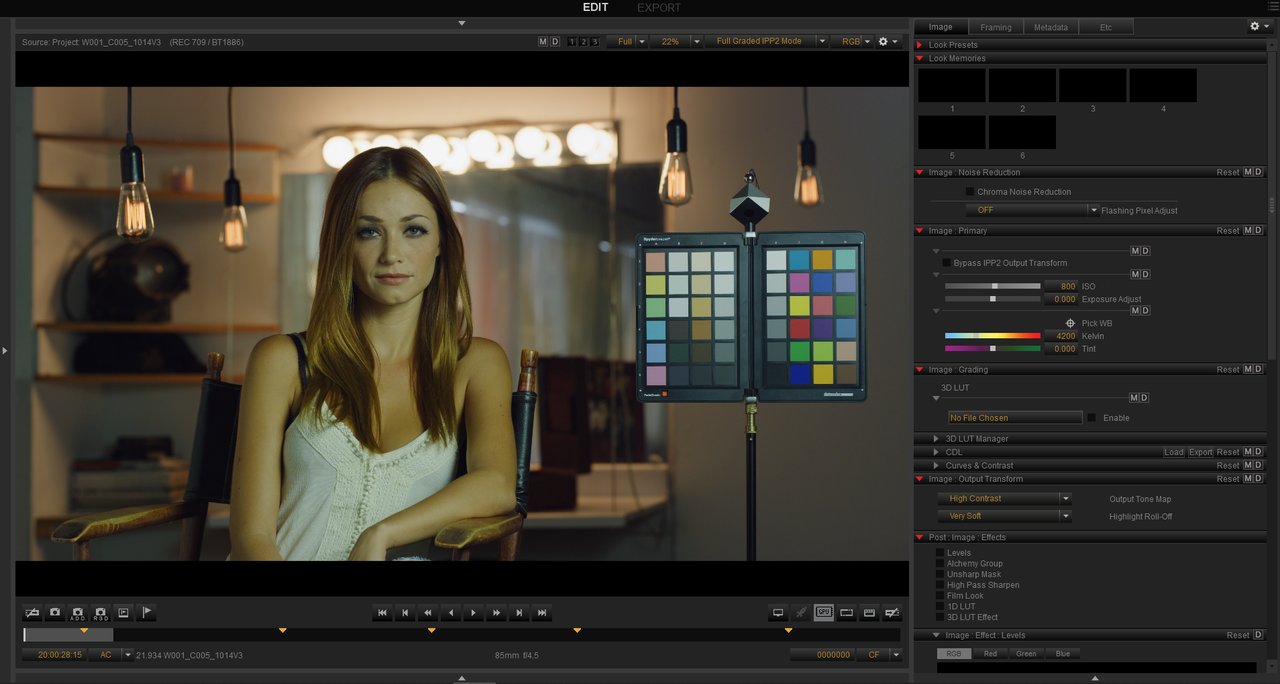
Big in the new Redcine-X update of 52.0.49422, is the ability to "Bypass" the IPP2 Output Transform inside of Redcine-X


Redcine-X Pro

Mac Version 52.0.49422 5/14/2020

https://www.red.com/download/redcine-x-pro-mac

Windows Version 52.0.49422 5/14/2020

https://www.red.com/download/redcine-x-pro-win


In Redcine-X Part 1


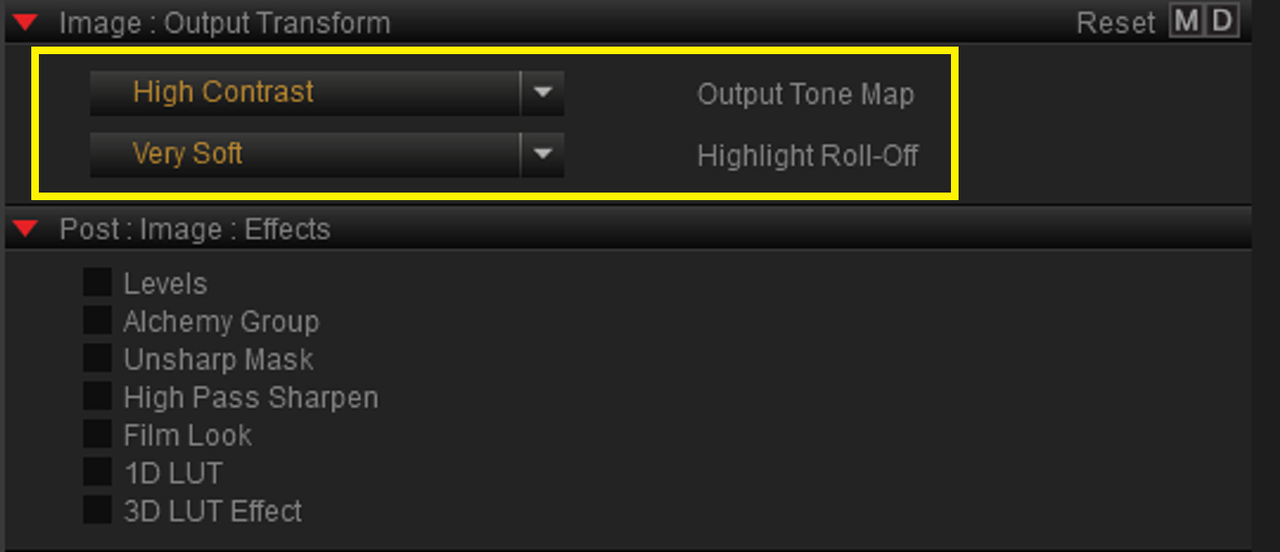
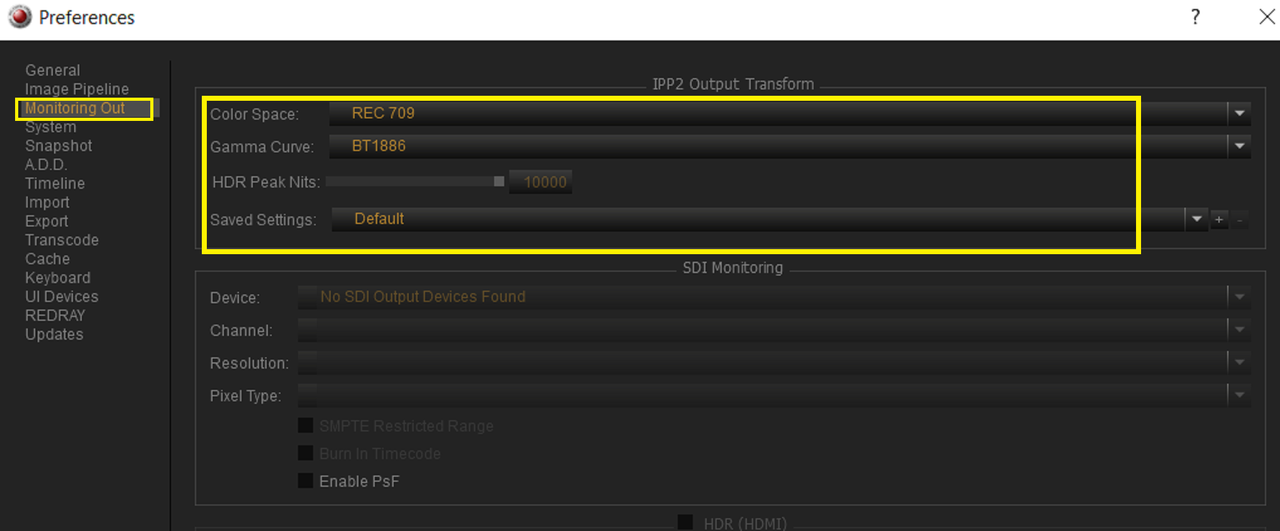
Before in Redcine-X, the IPP2 1) Tone Mapping and 2) Gamma Curve were baked in. And, In "Monitoring Out", you had to select your "Color Space" and "Gamma Curve" to see how things would look.

Screenshot-1861.png


Screenshot-1861-2.png


Screenshot-1873.png


But now with the new "Bypass IPP2 Output Transform" feature well.. it bypasses the IPP2 Output Transform. This allows you to change your Raw files into the "RWG/Log3G10" format in Redcine-X. Something you had to do before in Resolve with Resolve Project settings, or the "Camera Raw" settings.

Screenshot-1862.png


Screenshot-1863.png
 
Last edited:
Part 2 Resolve


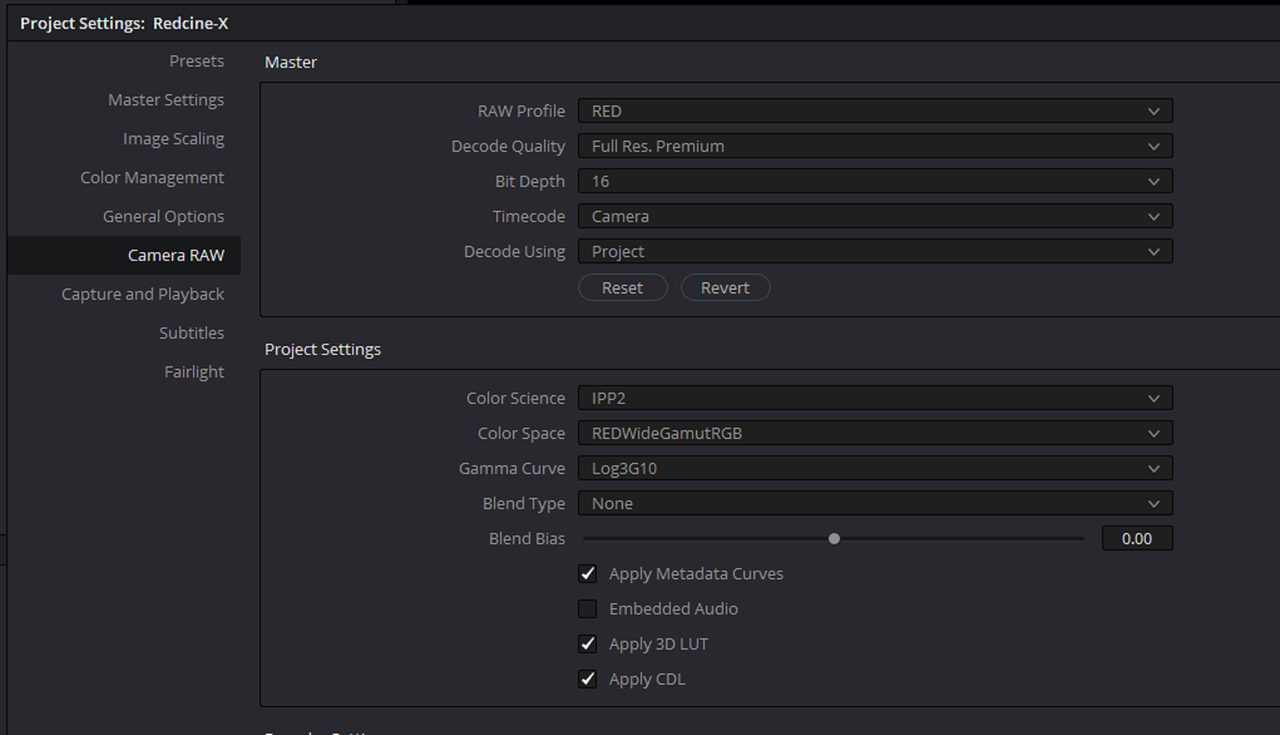
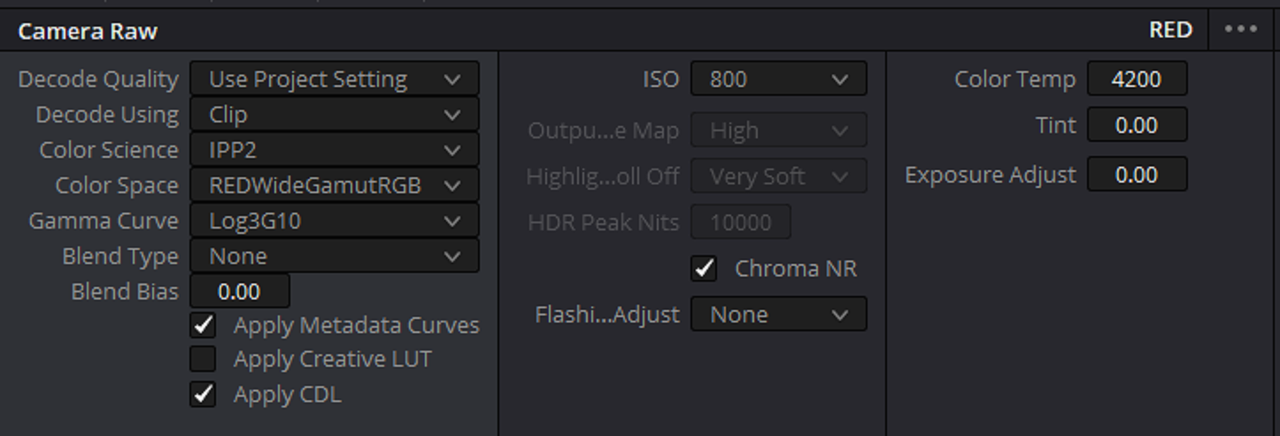
Before in Resolve, you had to use similar "Project settings" to these to convert Red R3D files into the "RWG/Log3G10" format. Or once inside the "Color" Tab in Resolve, you had to change "Decode Using" to "Clip" and change them there.


Screenshot-1864.png


Screenshot-1872.png


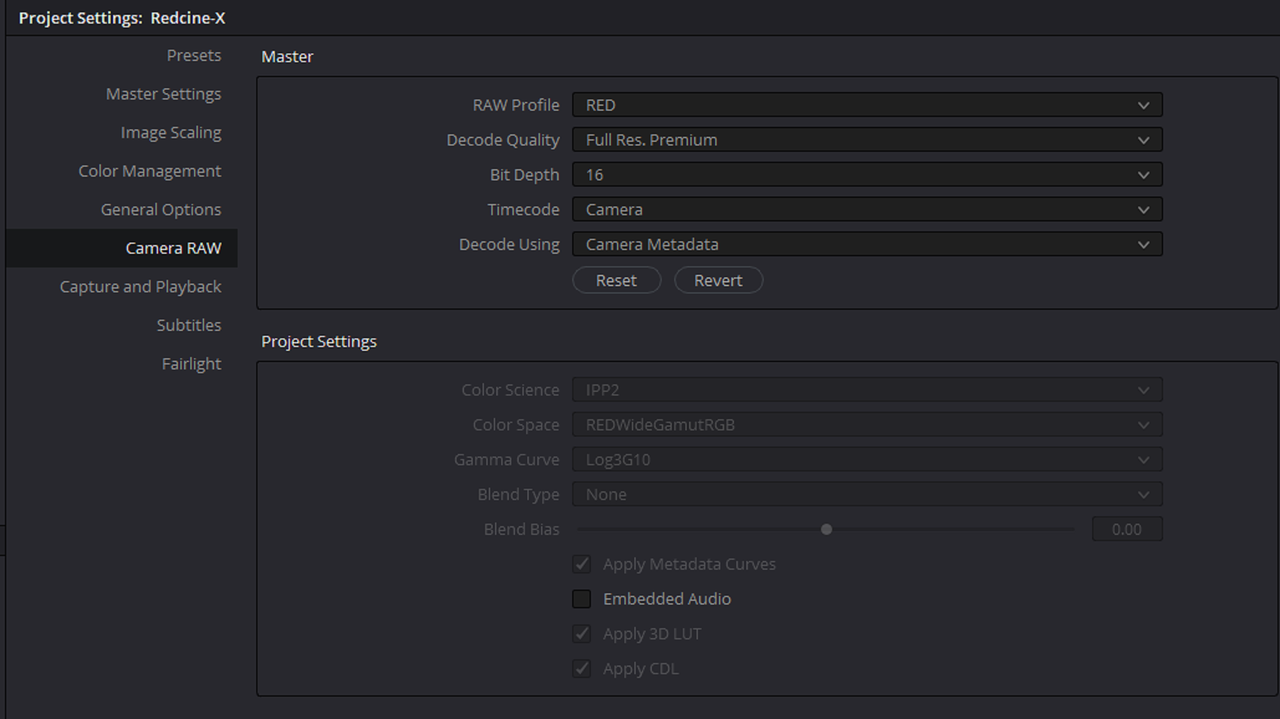
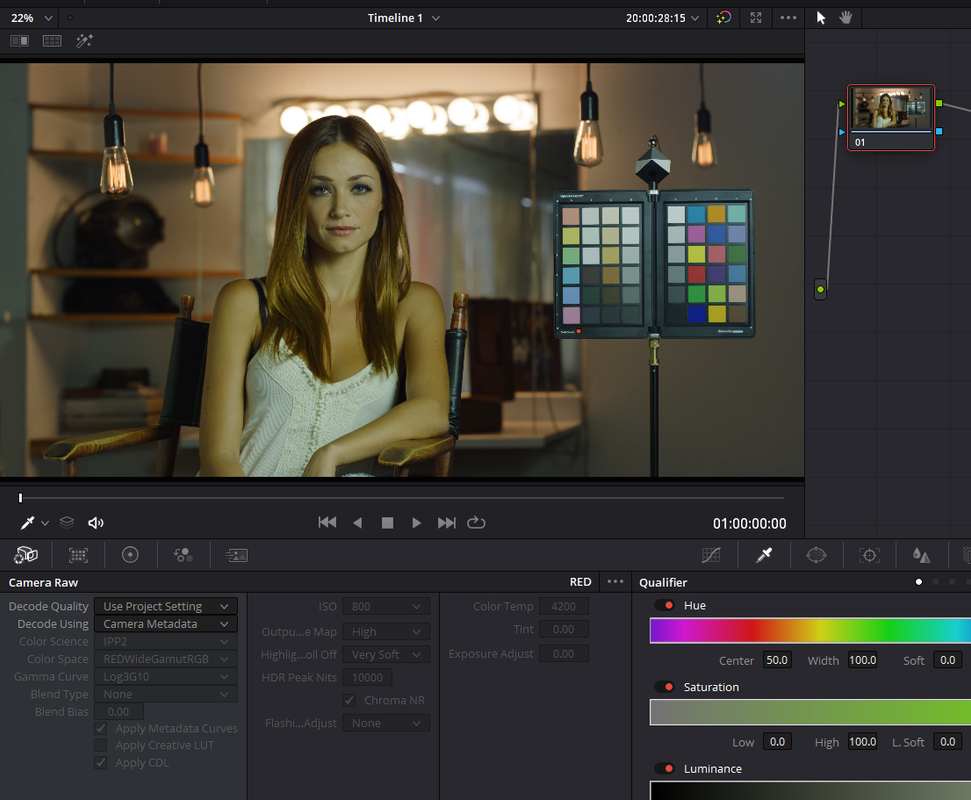
Now in the "Project settings" next to "Decode Using" you can just choose "Camera Metadata" instead of "Project"

Screenshot-1865.png


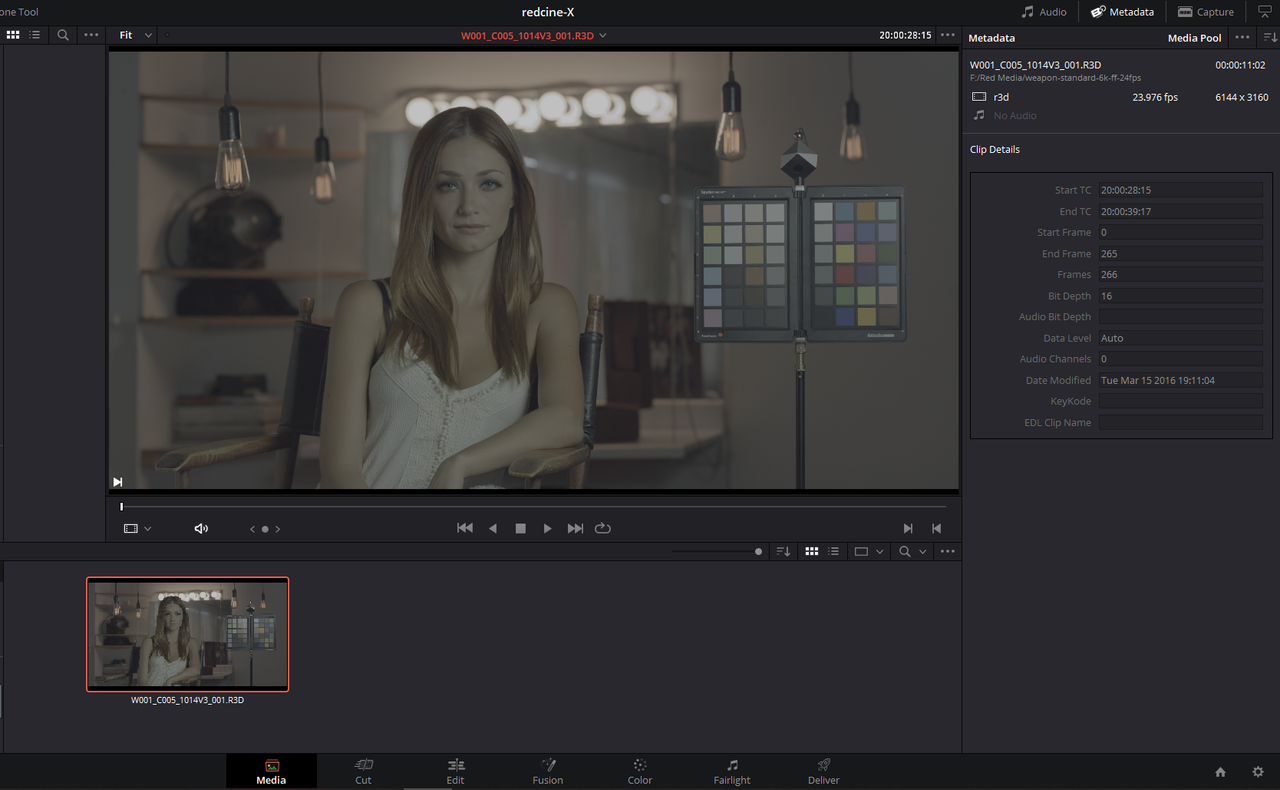
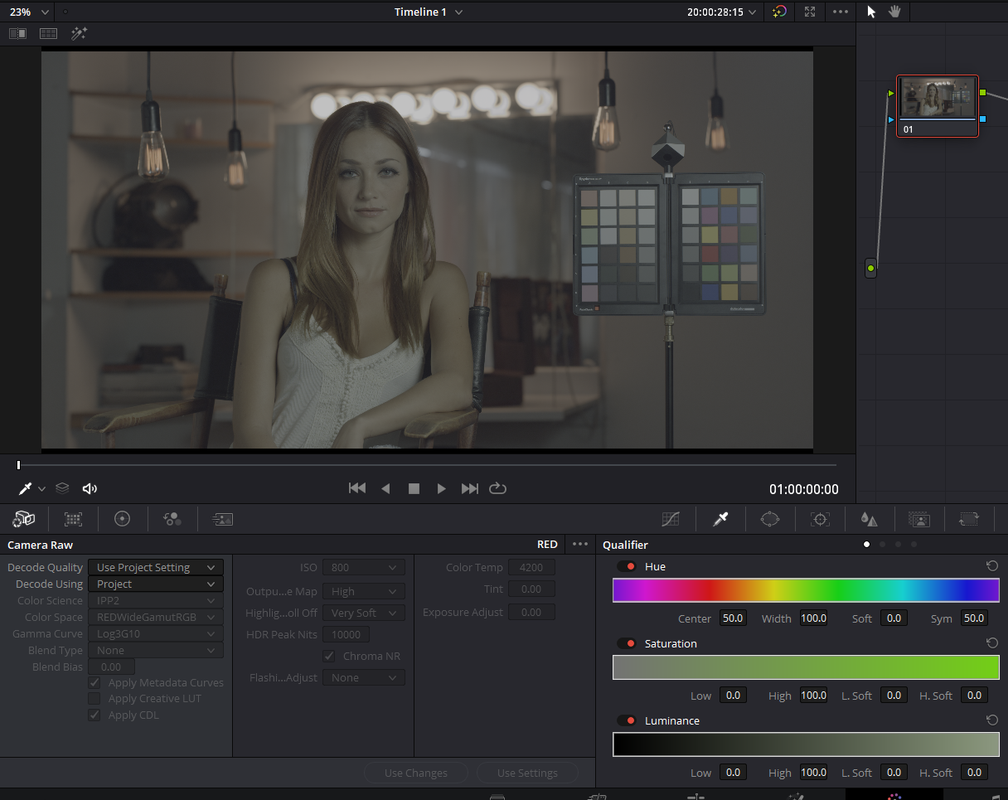
Once you import your Red R3D file that had it's IPP2 Output Tranform "Bypassed" inside of Redcine-X, it will look like this.

Screenshot-1868.png


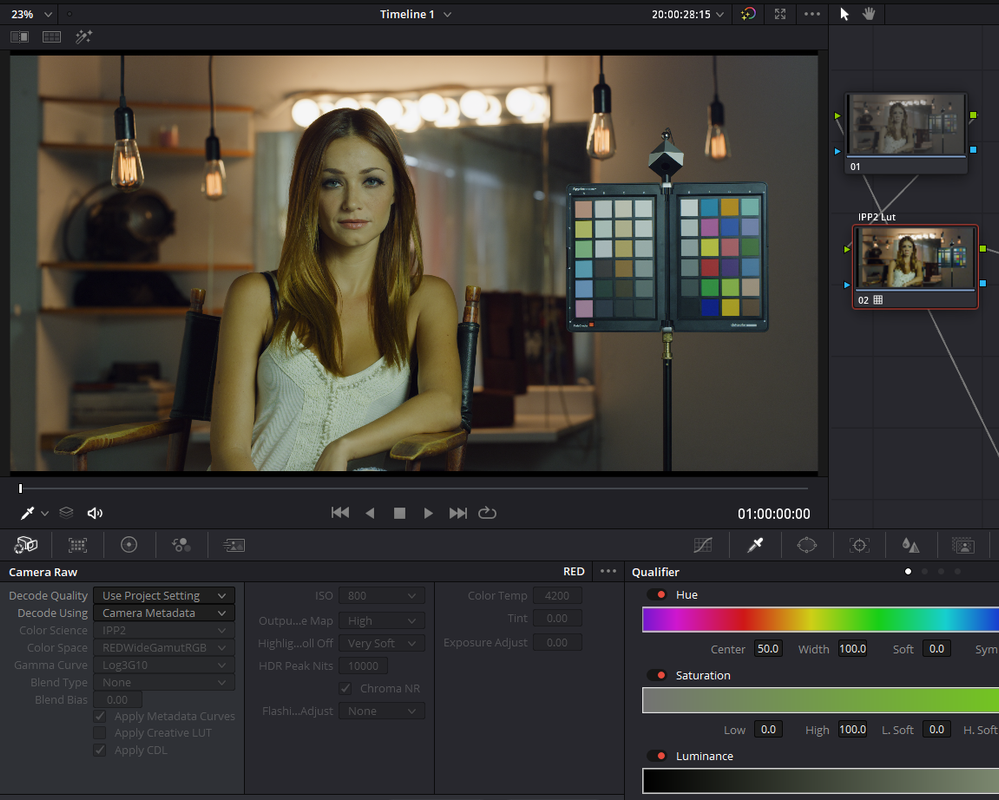
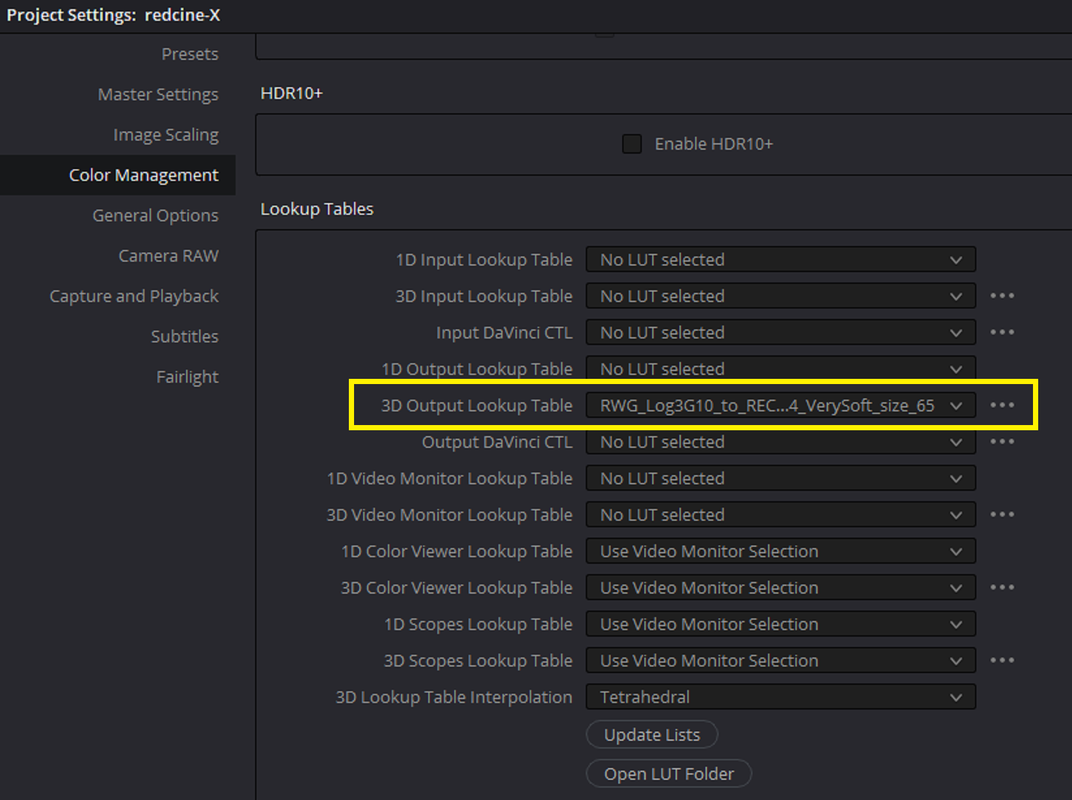
Here it is on the "Color Page". In a normal "Davinci YRGB" Project you can add an IPP2 Output Tranform Lut to the end of each clip or choose an IPP2 Output Tranform Lut next to the "3D output Lookup Table" for the whole project.

Screenshot-1869.png


Screenshot-1881.png


Screenshot-1876-2.png


Screenshot-1879.png


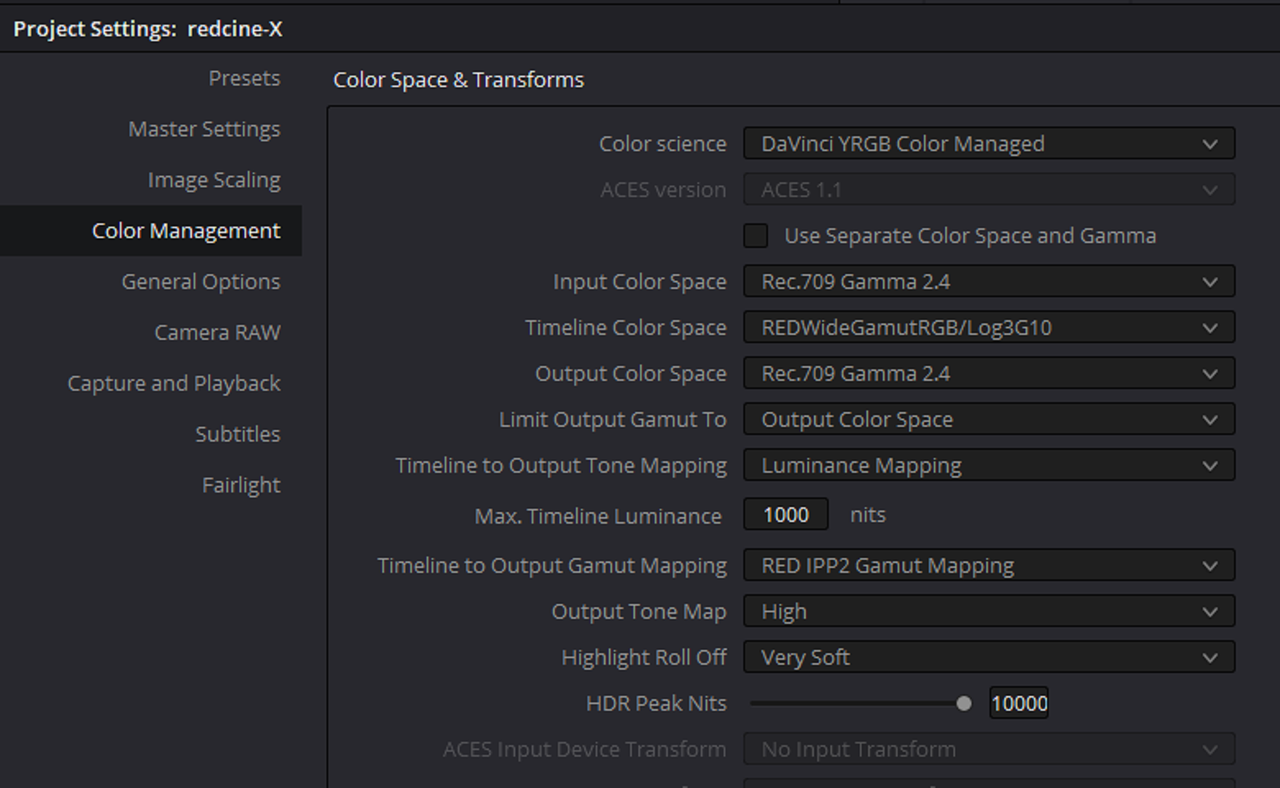
You could also use "Davinci YRGB Color Managed" for the whole project.


Screenshot-1882.png


Screenshot-1879.png


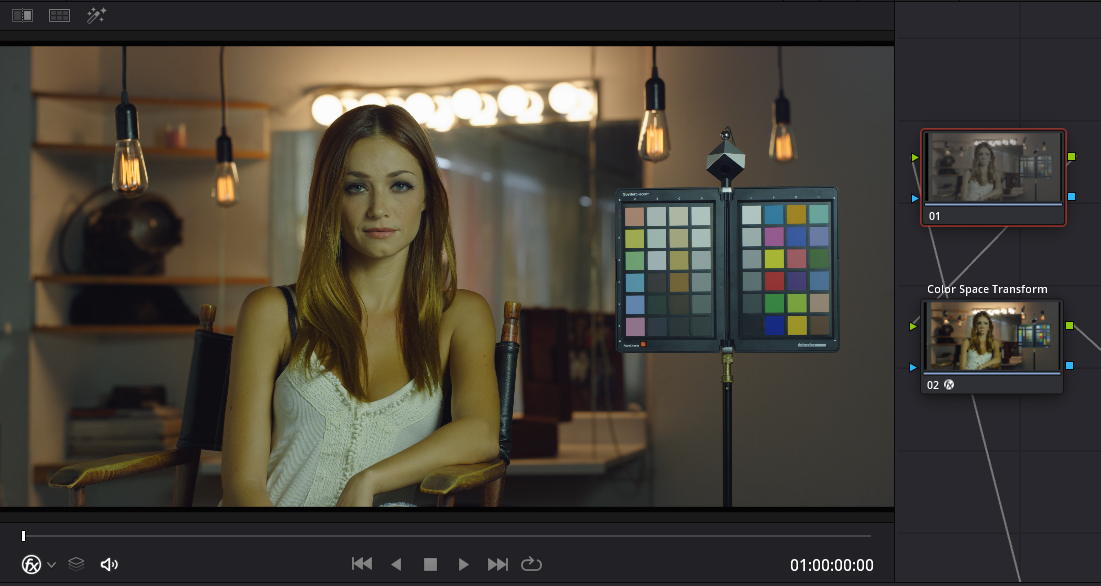
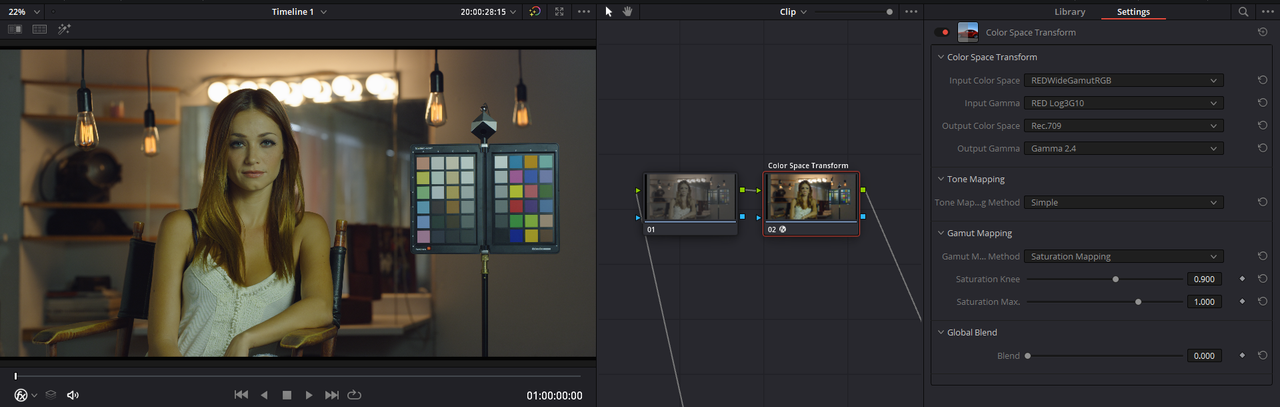
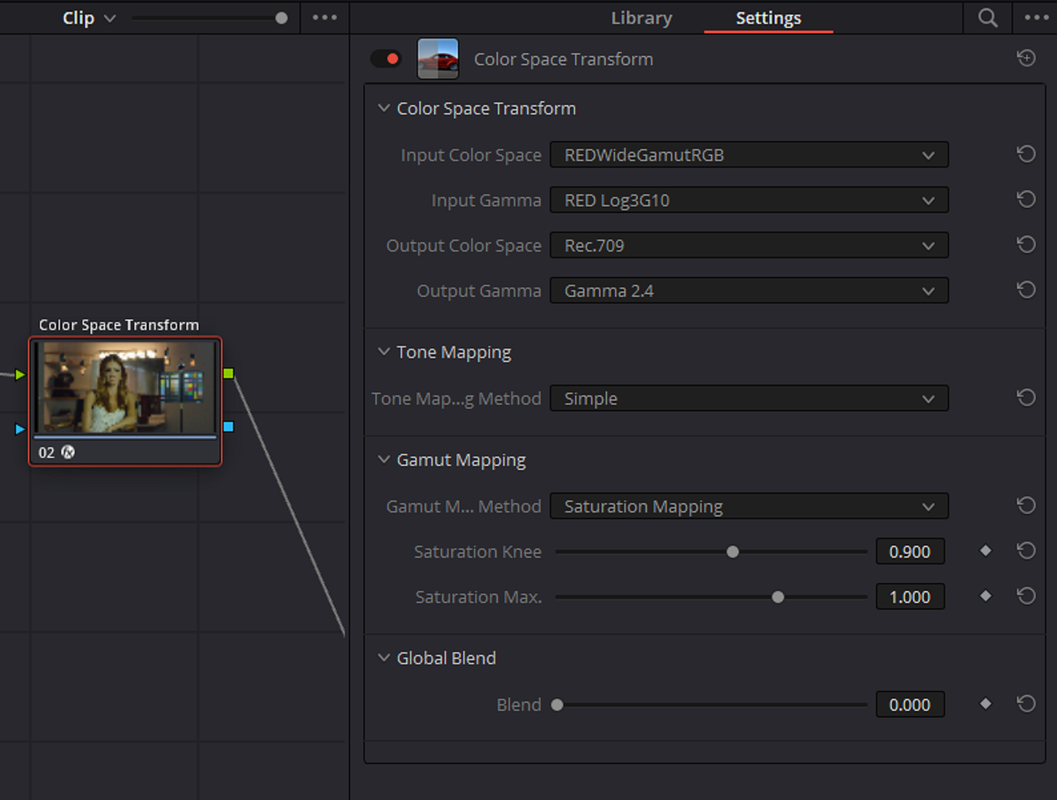
And OFX "Color Space Transform"

Screenshot-1885.png


Screenshot-1884.png


Screenshot-1884-2.png
 
Last edited:
KEYFRAME Basics in DAVINCI RESOLVE 16 | Beginner Tutorial


By Jason Yadlovski


How To Mask in Fusion - DaVinci Resolve Tutorial


By
Casey Faris


Back
Top