- Thread starter
- #561

rand thompson
Well-known member
- Joined
- Aug 9, 2011
- Messages
- 18,999
- Reaction score
- 622
- Points
- 113
Creating Proxy files for ARRI ALEXA 35 Footage in Davinci Resolve for Smoother Playback with Blackmagic's Proxy Generator Program.
Part 1
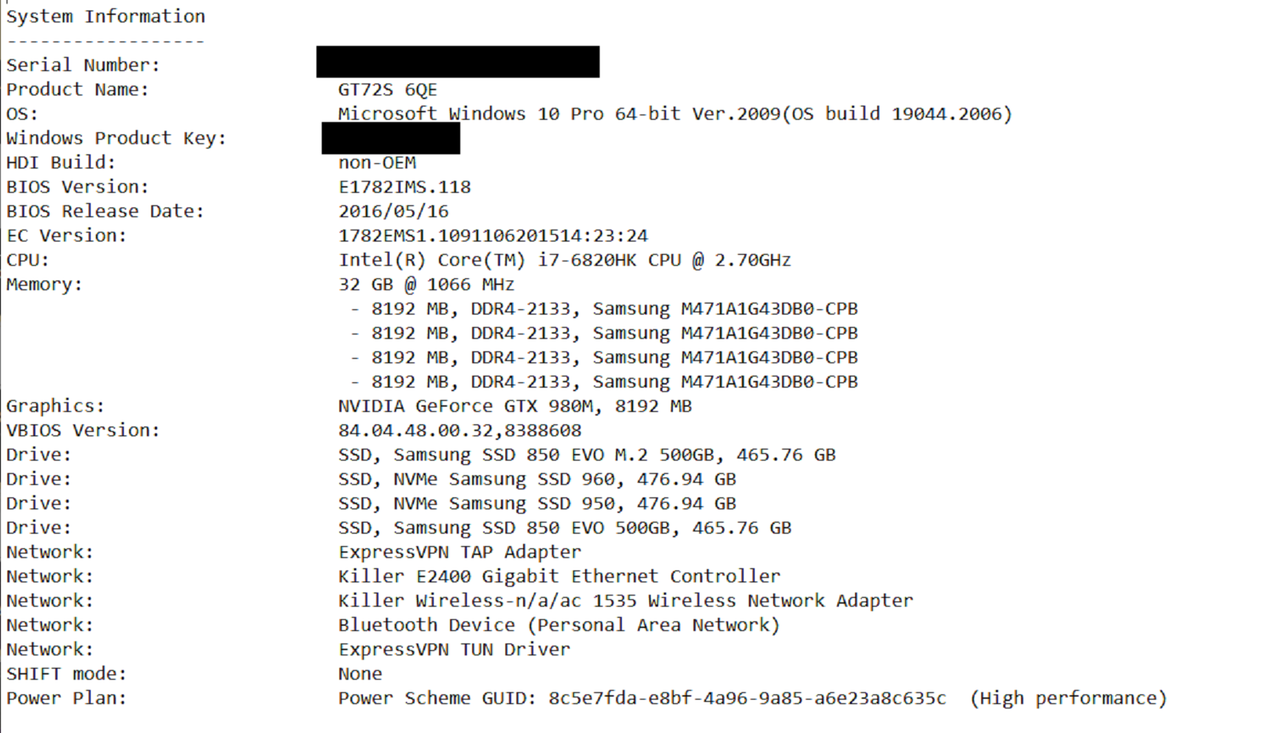
First here are my Laptop's System Specs so that you will know how it matches up with yours for reference. Your computer will most likely be more up to date with much greater performance.
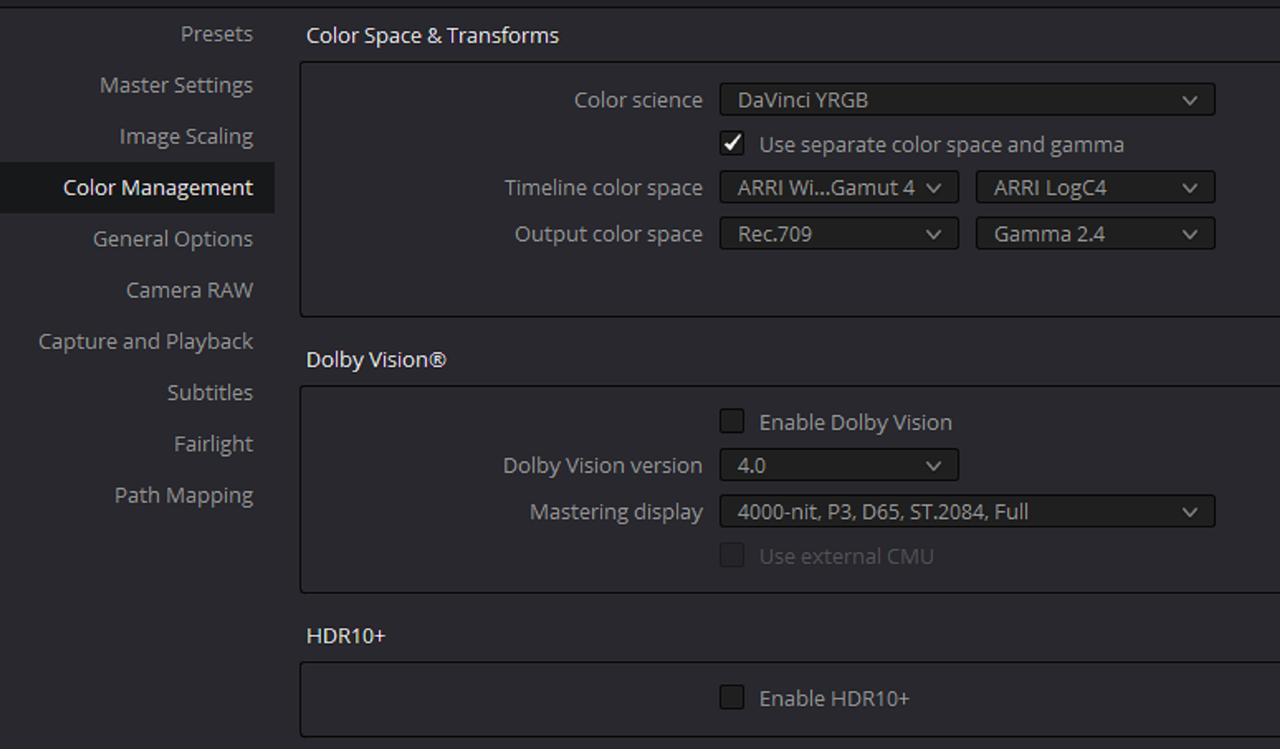
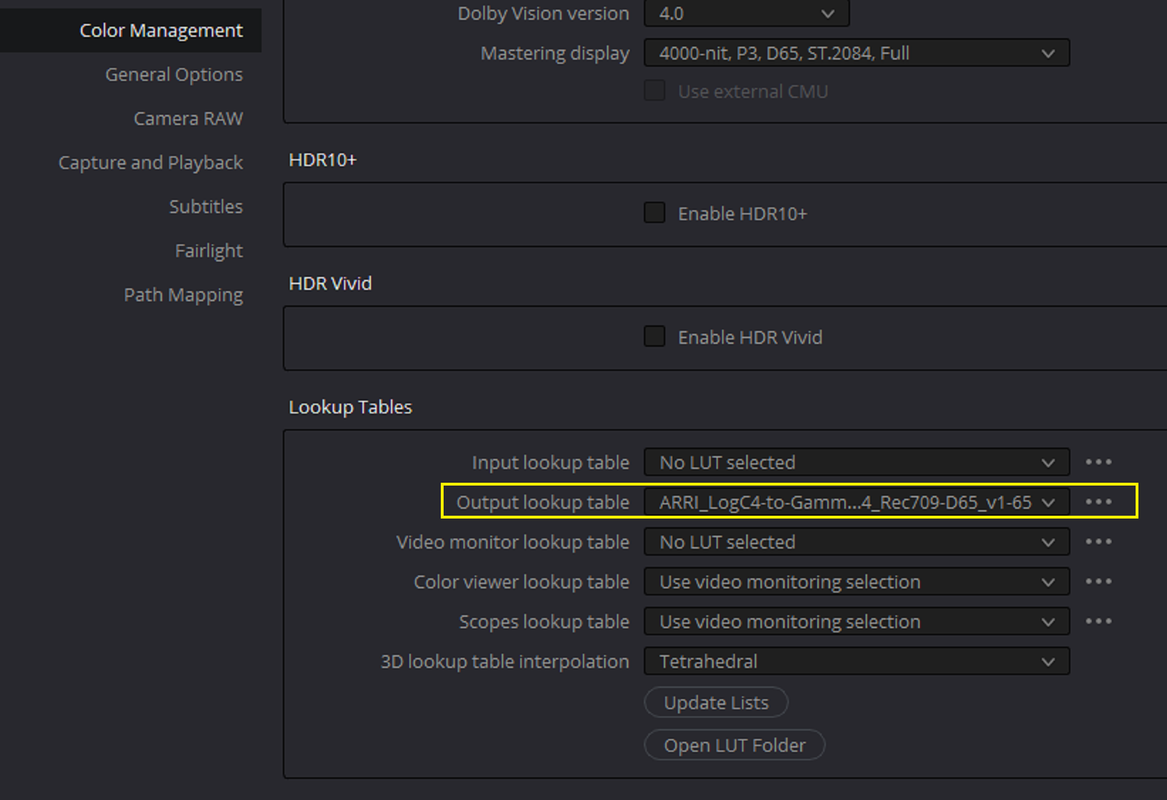
Davinci Resolve Color Management Settings
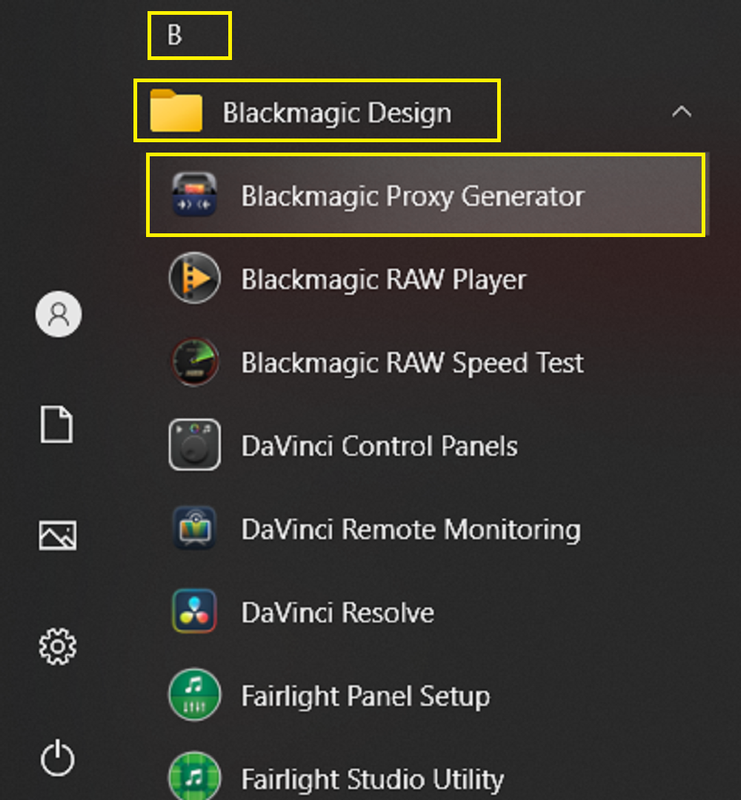
Blackmagic Proxy Generator
you can find the "Blackmagic Proxy Generator" Program inside of the "Blackmagic Design" folder in your "Start" window under the "B's"
Blackmagic Proxy Generator Setup
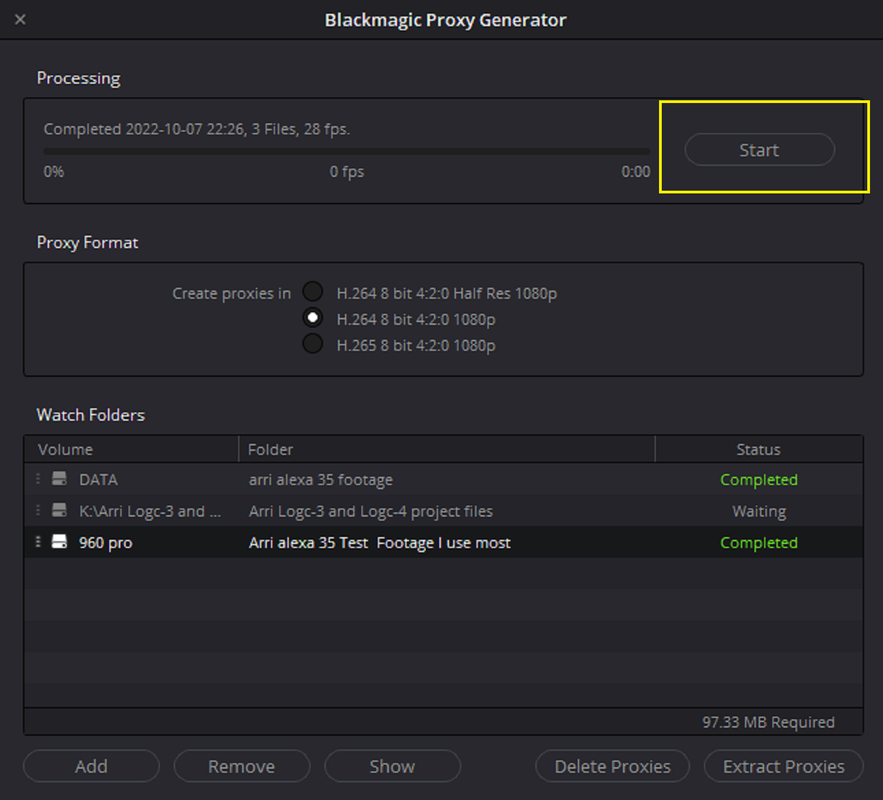
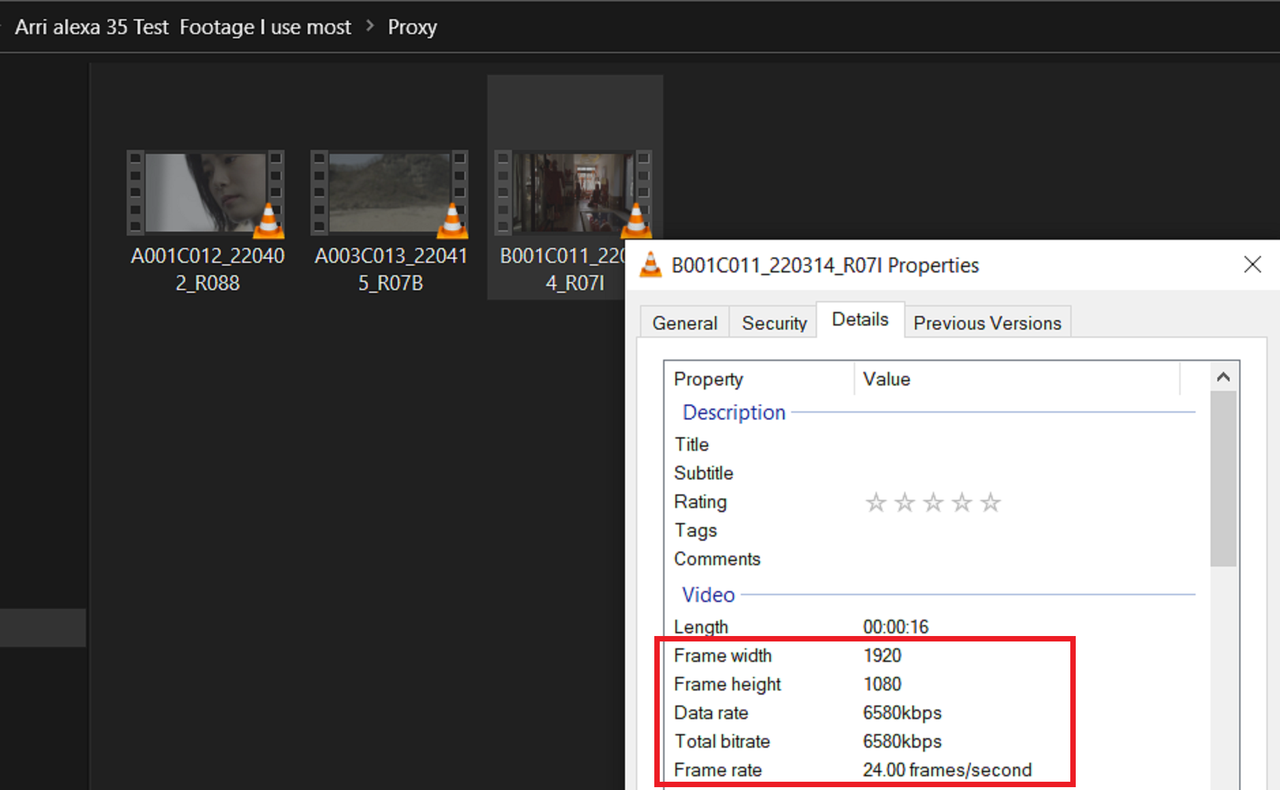
I'm using the "H.264 8 bit 4:2:0 1080P" Proxy setting
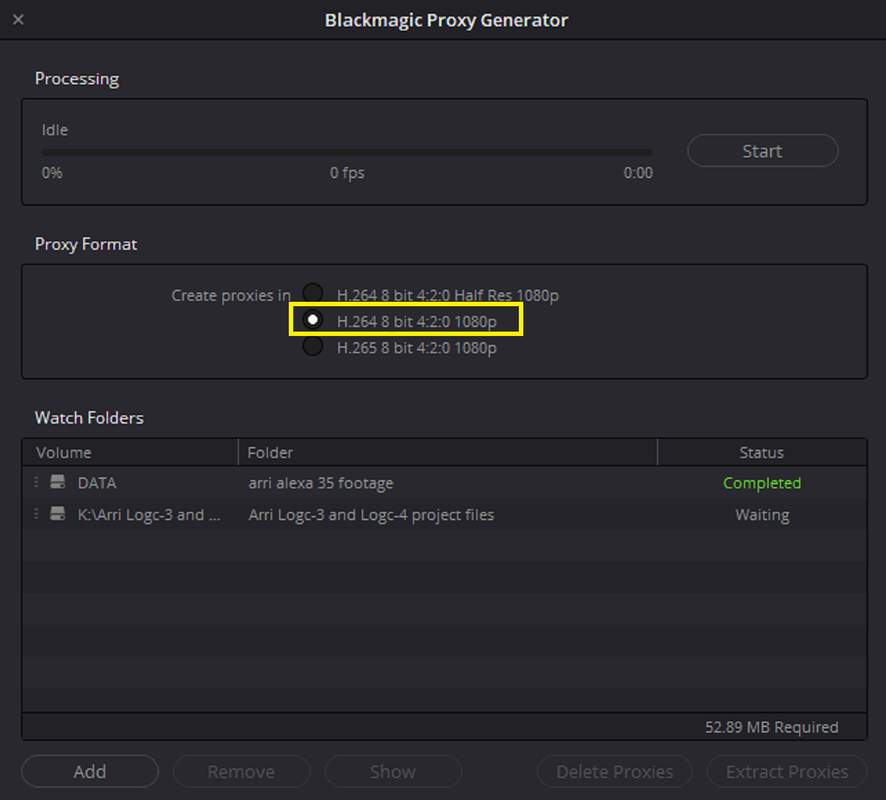
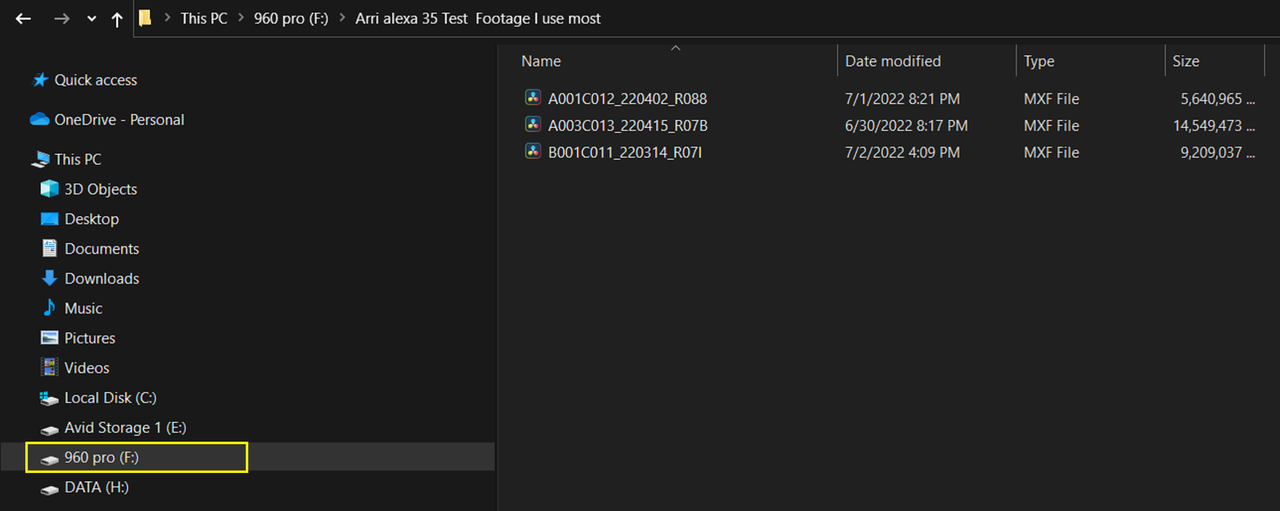
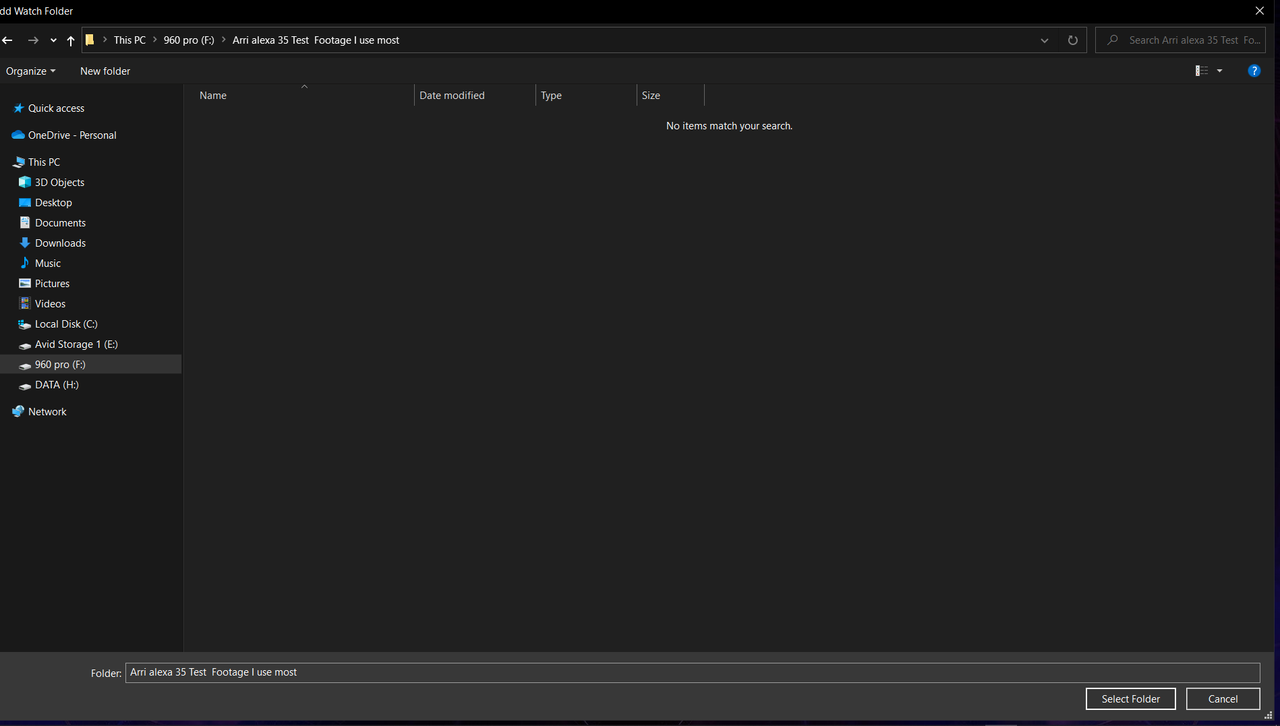
Next press "ADD" to go to the Folder that includes the ARRIRAW files you want to make Proxy files for. In this case the folder is "Arri alexa 35 Test Footage I use most"
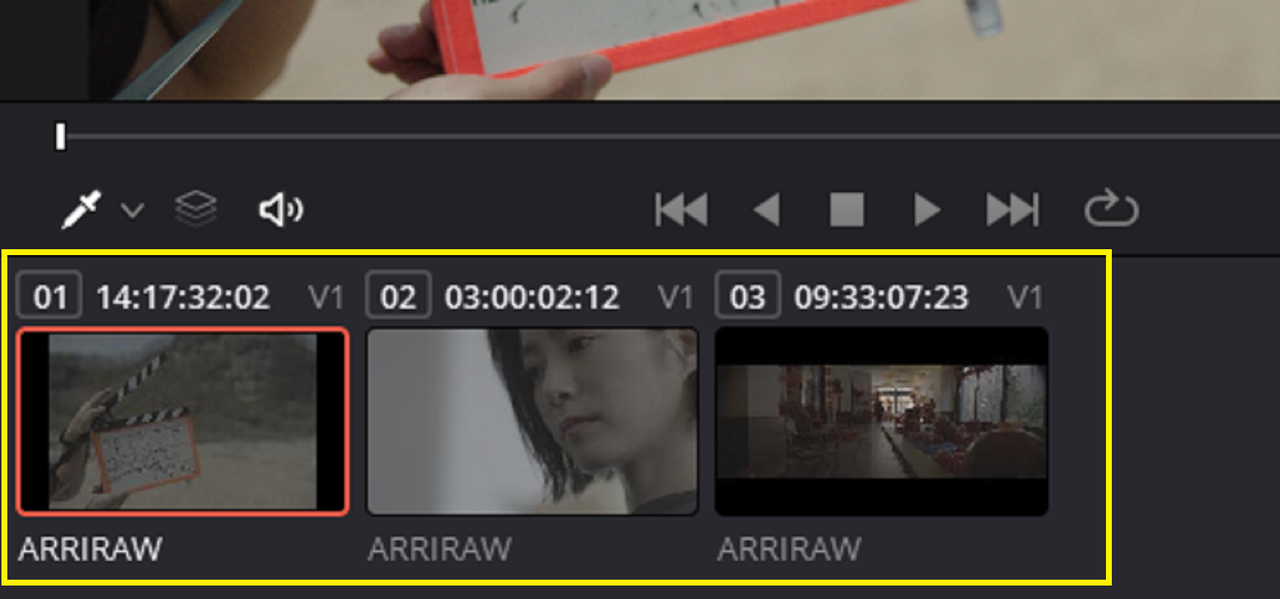
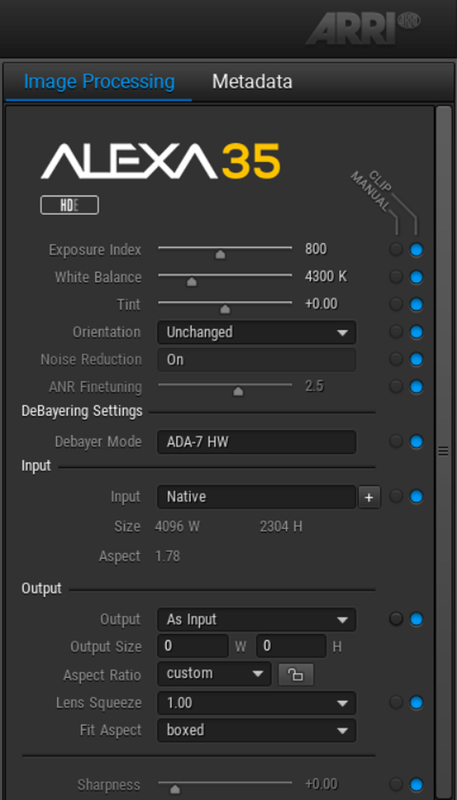
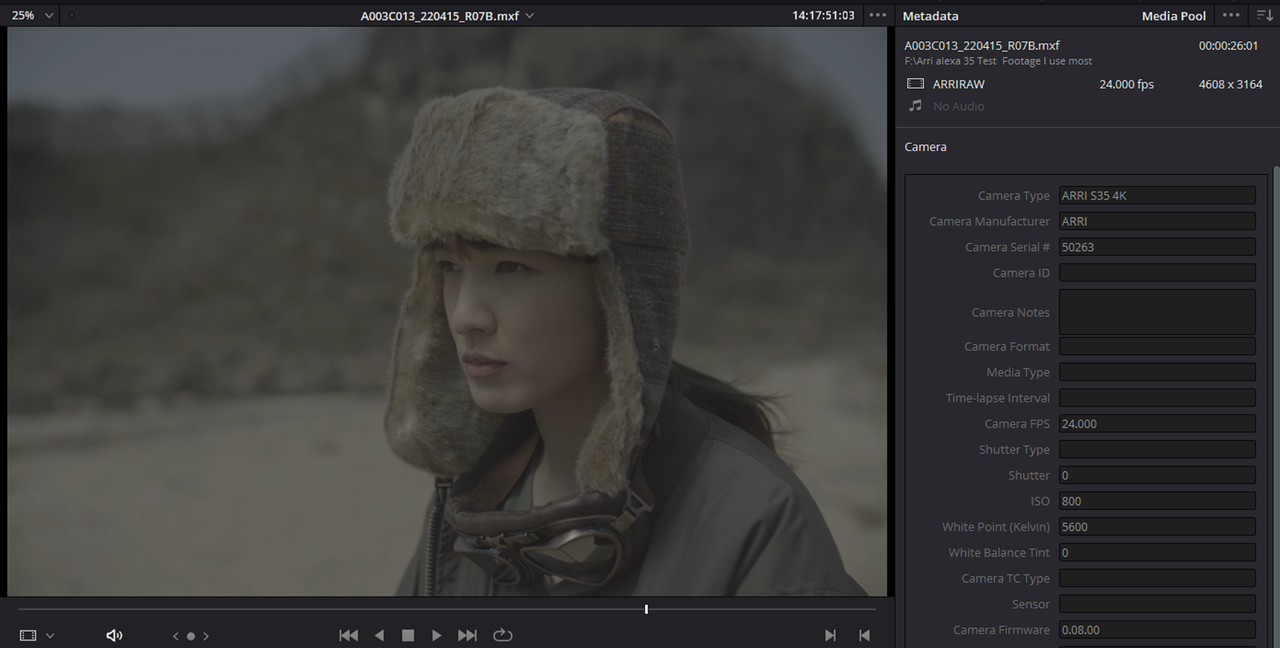
ARRIRAW 4608 X 3164 Resolution
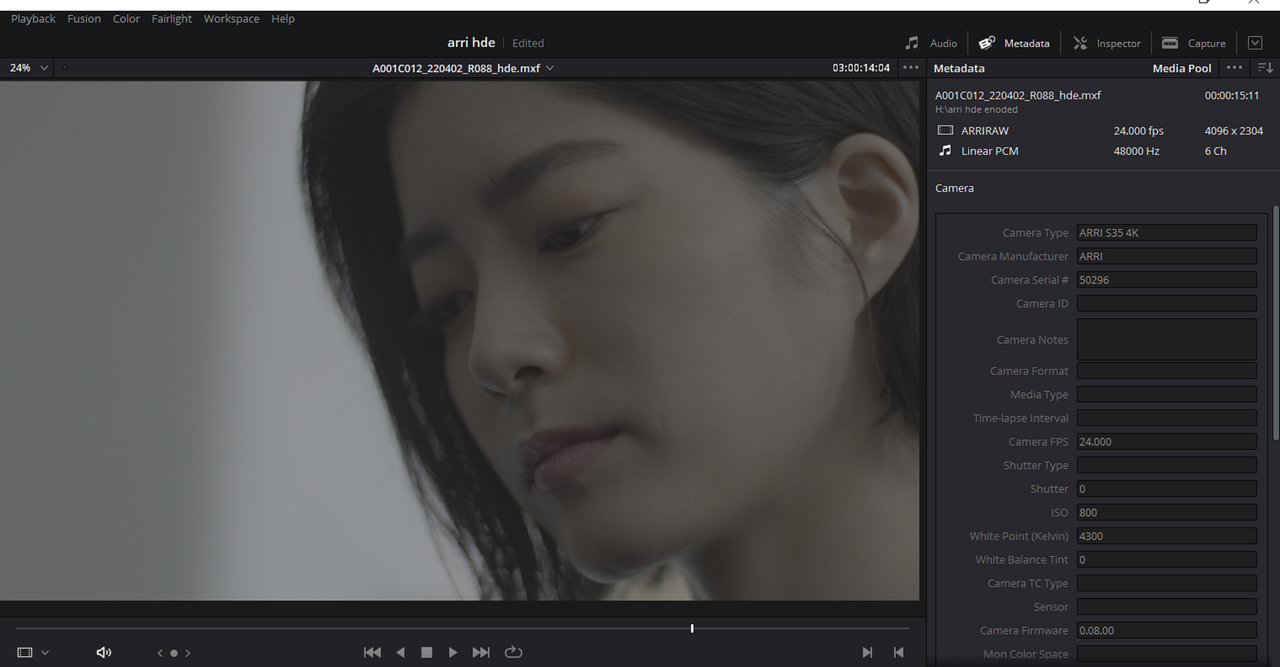
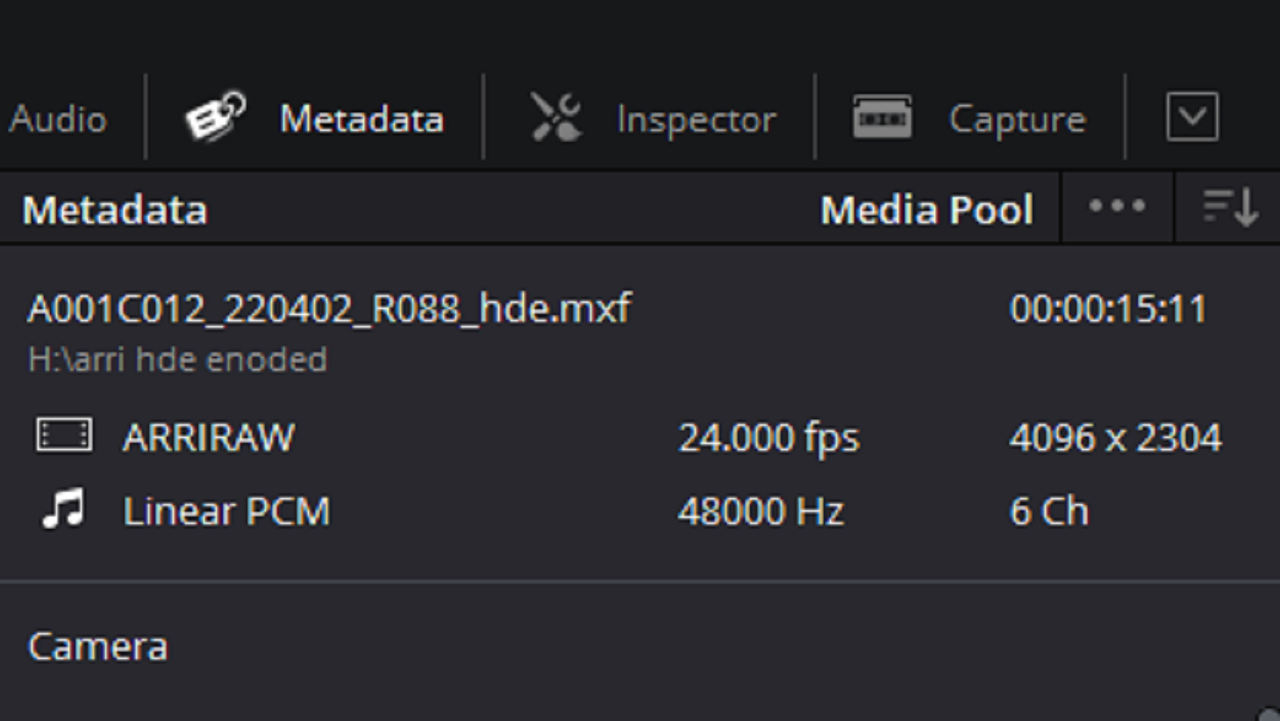
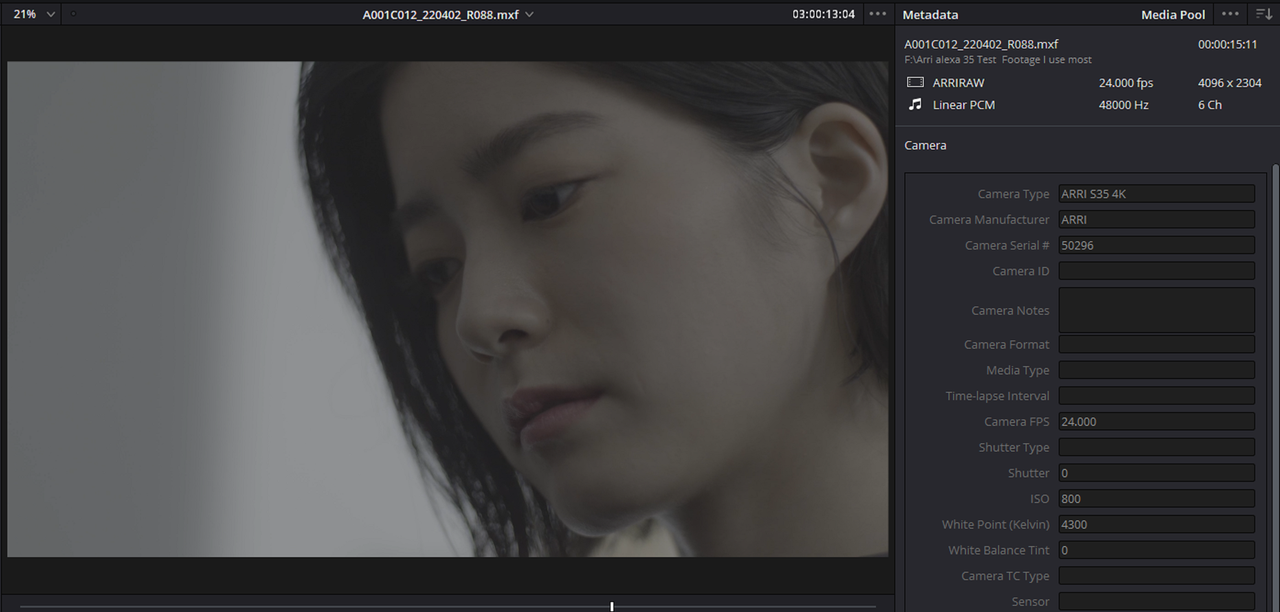
ARRIRAW 4096 X 2304 Resolution
ARRIRAW 4608 X 3164 Resolution
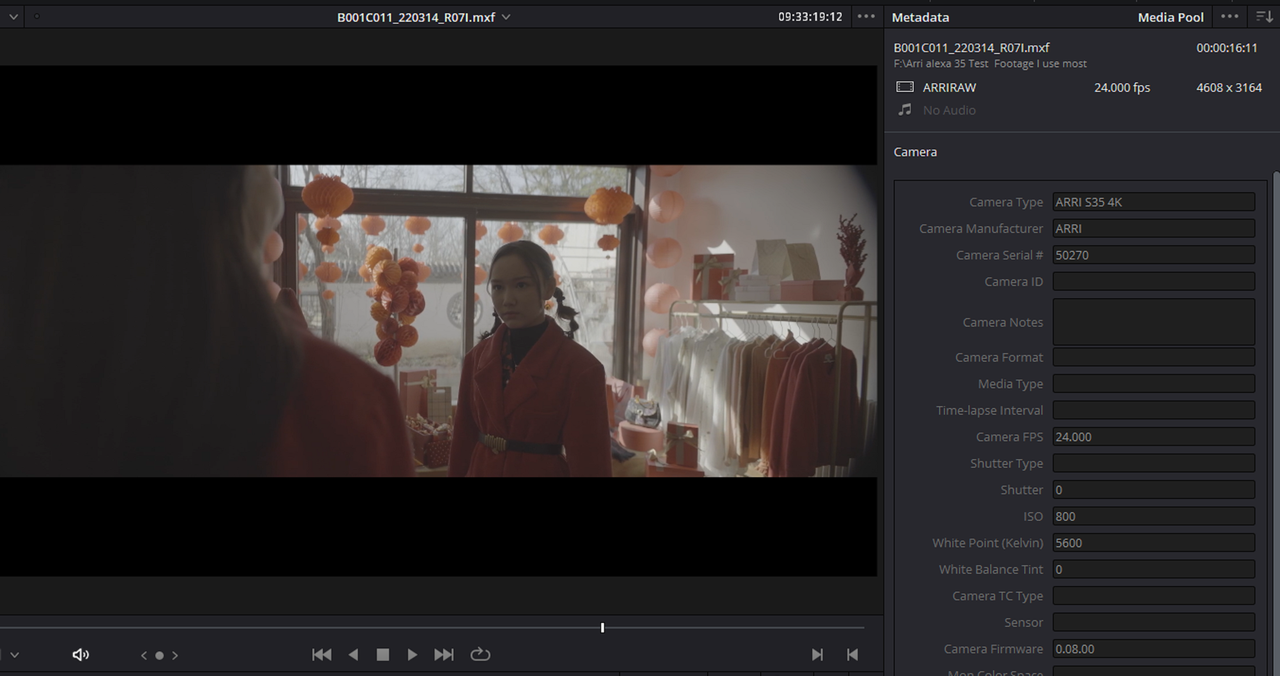
After you press the "ADD" button you will see that there is nothing in the folder you know should have 3 ARRIRAW files in it. The reason for this is because the program is looking for "PROXY" files, since you haven't made any yet it will be empty.
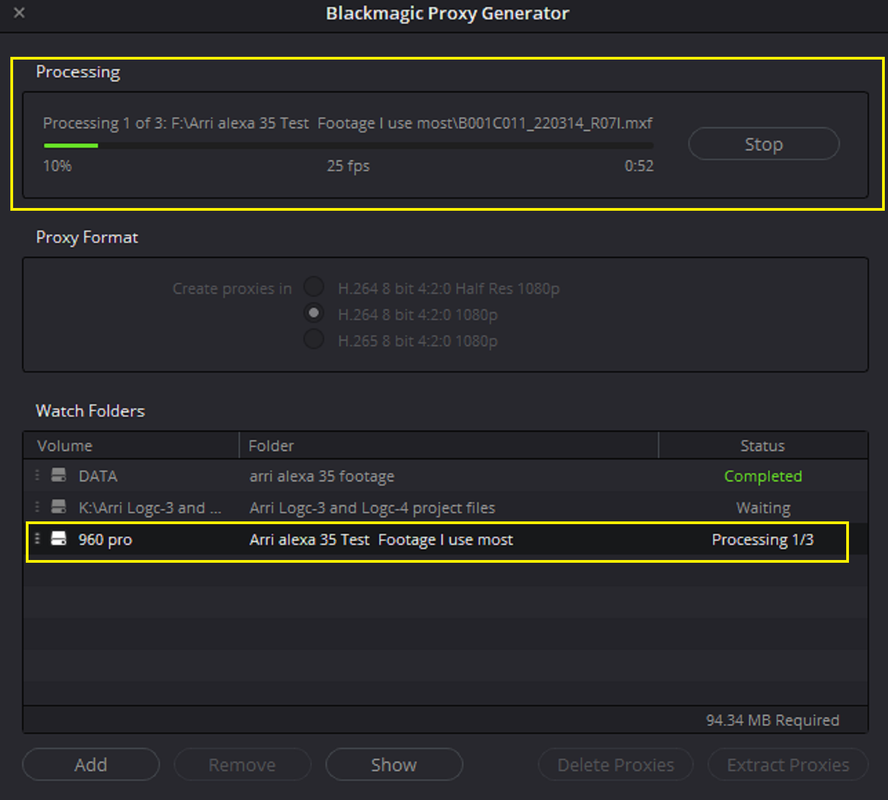
After you press "Select Folder" it will return back to the main screen with the folder you selected in the "Watch Folder".Next you will need to Press the "Start" button to start the job.
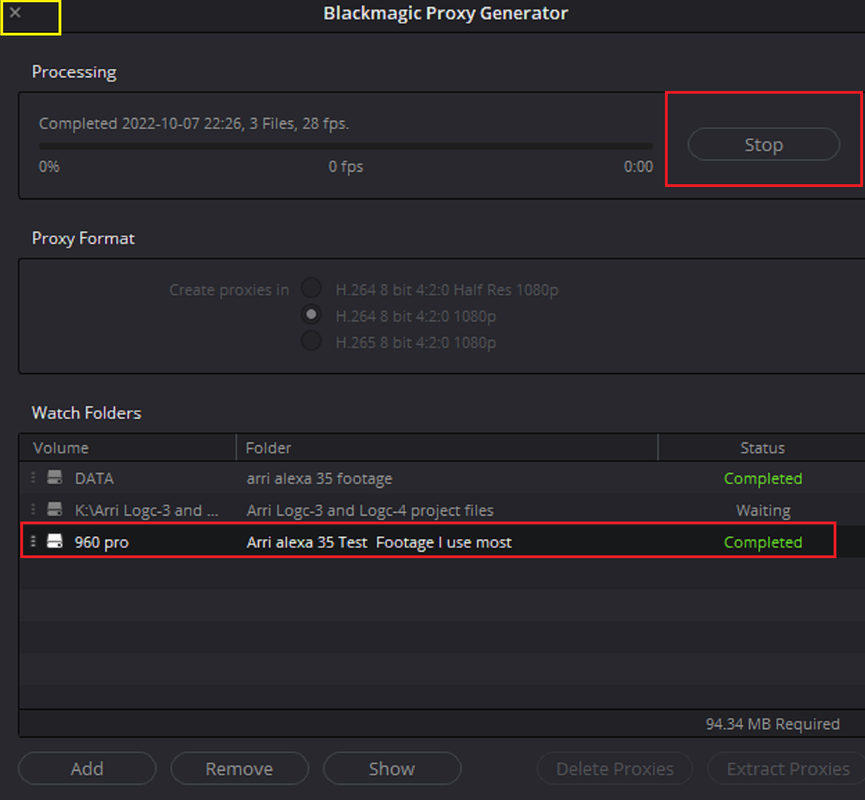
After the Proxy rendering job is complete you can do one of two things. The reason the area that contains the folder you just created Proxies in is called the "Watch Folder" is because if you don't press the "STOP" button and just close the program out by pressing the "X" after the Proxy rendering job is complete, it will continually watch for any new files you put in that folder and it will automatically create new Proxy files for those new clips. However if you don"t want it to continually create proxies of any new imported clips, just press the "STOP" button and it will go back to "START" and it will not look in that folder any further.
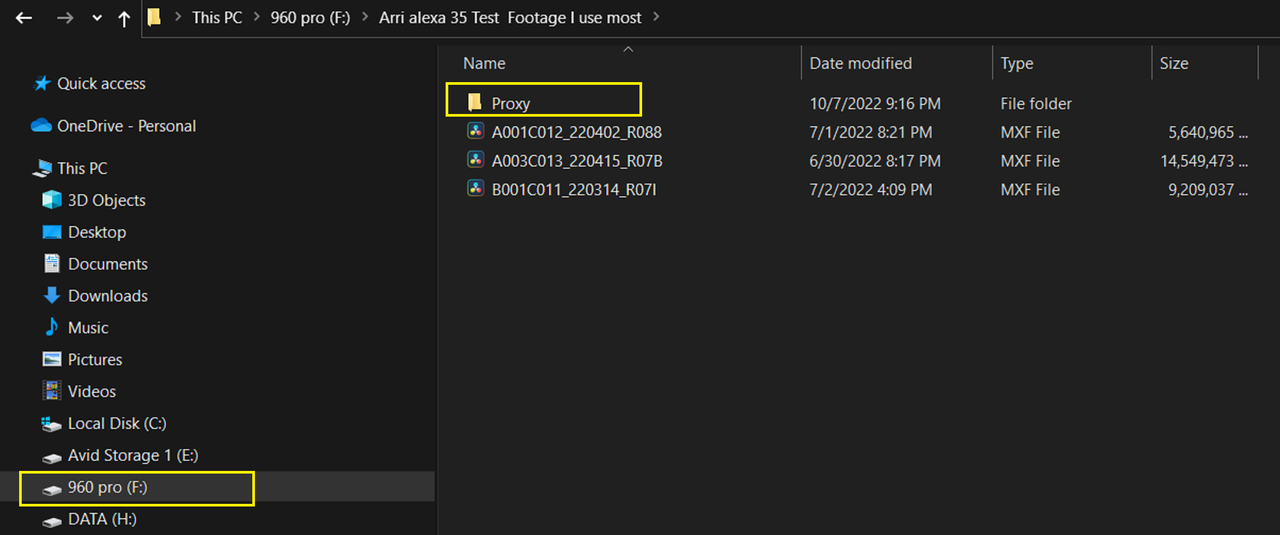
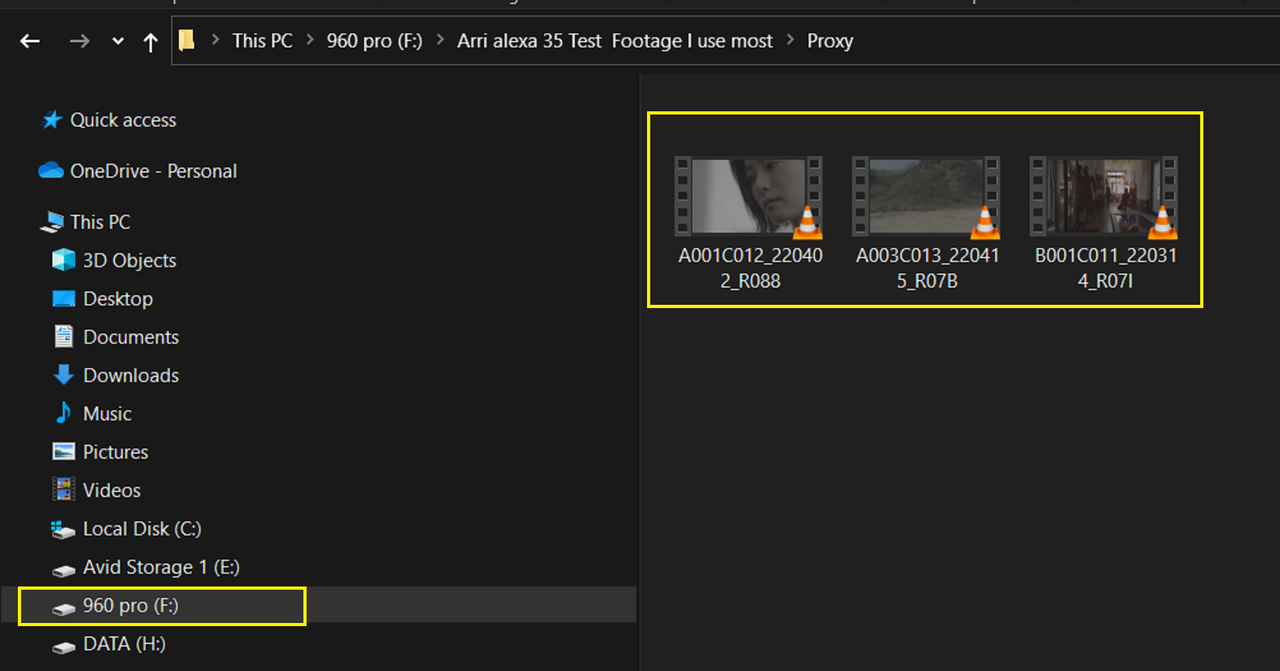
New folder for Proxy Files in the same folder as the ARRIRAW files.
Part 2 ............... NEXT
Part 1
First here are my Laptop's System Specs so that you will know how it matches up with yours for reference. Your computer will most likely be more up to date with much greater performance.
Davinci Resolve Color Management Settings
Blackmagic Proxy Generator
you can find the "Blackmagic Proxy Generator" Program inside of the "Blackmagic Design" folder in your "Start" window under the "B's"
Blackmagic Proxy Generator Setup
I'm using the "H.264 8 bit 4:2:0 1080P" Proxy setting
Next press "ADD" to go to the Folder that includes the ARRIRAW files you want to make Proxy files for. In this case the folder is "Arri alexa 35 Test Footage I use most"
ARRIRAW 4608 X 3164 Resolution
ARRIRAW 4096 X 2304 Resolution
ARRIRAW 4608 X 3164 Resolution
After you press the "ADD" button you will see that there is nothing in the folder you know should have 3 ARRIRAW files in it. The reason for this is because the program is looking for "PROXY" files, since you haven't made any yet it will be empty.
After you press "Select Folder" it will return back to the main screen with the folder you selected in the "Watch Folder".Next you will need to Press the "Start" button to start the job.
After the Proxy rendering job is complete you can do one of two things. The reason the area that contains the folder you just created Proxies in is called the "Watch Folder" is because if you don't press the "STOP" button and just close the program out by pressing the "X" after the Proxy rendering job is complete, it will continually watch for any new files you put in that folder and it will automatically create new Proxy files for those new clips. However if you don"t want it to continually create proxies of any new imported clips, just press the "STOP" button and it will go back to "START" and it will not look in that folder any further.
New folder for Proxy Files in the same folder as the ARRIRAW files.
Part 2 ............... NEXT
Last edited: