Welcome to our community

Be a part of something great, join today!

  • Hey all, just changed over the backend after 15 years I figured time to give it a bit of an update, its probably gonna be a bit weird for most of you and i am sure there is a few bugs to work out but it should kinda work the same as before... hopefully :)

Vignetee in resolve being messed up by edit page keyframe?

Marcus Friedlander

Well-known member
Joined
Jun 30, 2014
Messages
1,124
Reaction score
2
Points
38
Location
Los Angeles
Hello everyone,

I feel like I'm missing something simple here, but I'm working on a color grade that has a ton of keyframed moves in the edit. However, when I try to create a vignette using a simple shape in the color page, the shape moves to match the keyframes from the edit page?

How do I bypass that motion so I can keep the vignette stationary relative to the frame?

I feel like I'm missing something obvious so please let me know If I am!

Thanks!
 
I don't have much experience with anything that matches your exact scenario, but the first thing I would do is apply tracking to the vignette/shape to retain it's location vs the moves in the camera/edit?

https://www.youtube.com/watch?v=Z1CulyVhbAI


Thanks for the response, I gave your suggestion a try and unfortunately what I need to do is kind of the opposite of that.

Tracking the shape sticks it to the elements in the frame that are moving (which is basically what was happening before with the shape following the keyframe animation). What I need is for the shape to stick to the actual frame itself and stay completely stationary. (As if I had rendered the movie out as one file and then dropped a vignette on top of that, without having to actually double render the entire movie.)

It feels really weird that this is an issue. Aren’t vignettes just as popular as reframes in post? Which is why I feel like there’s a really simple answer I’m missing?

How does everyone else deal with this issue?
 
Marcus,


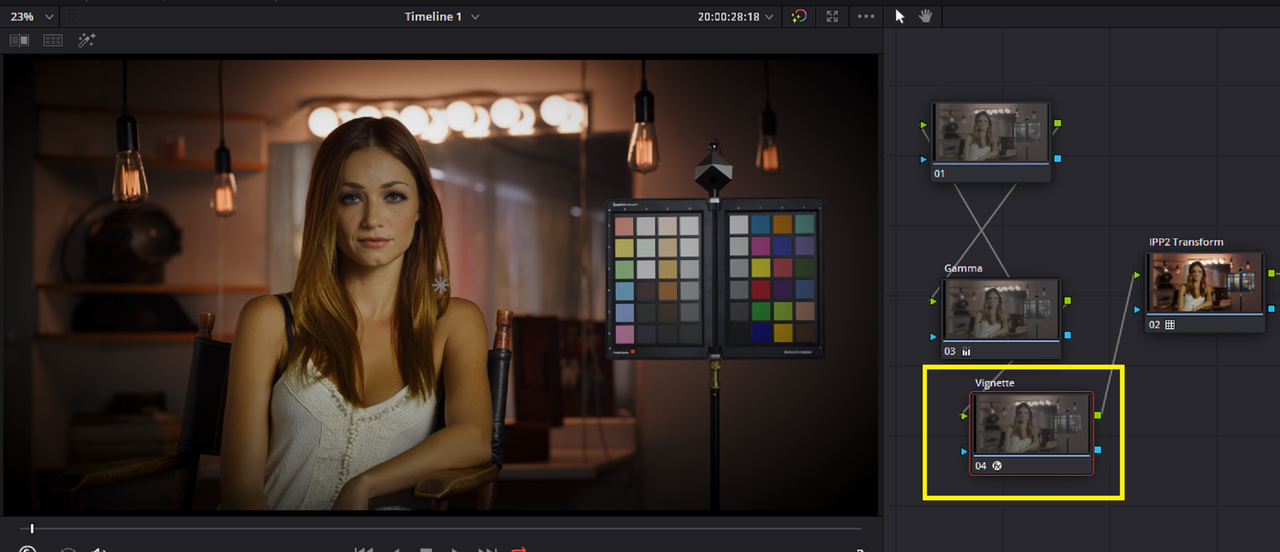
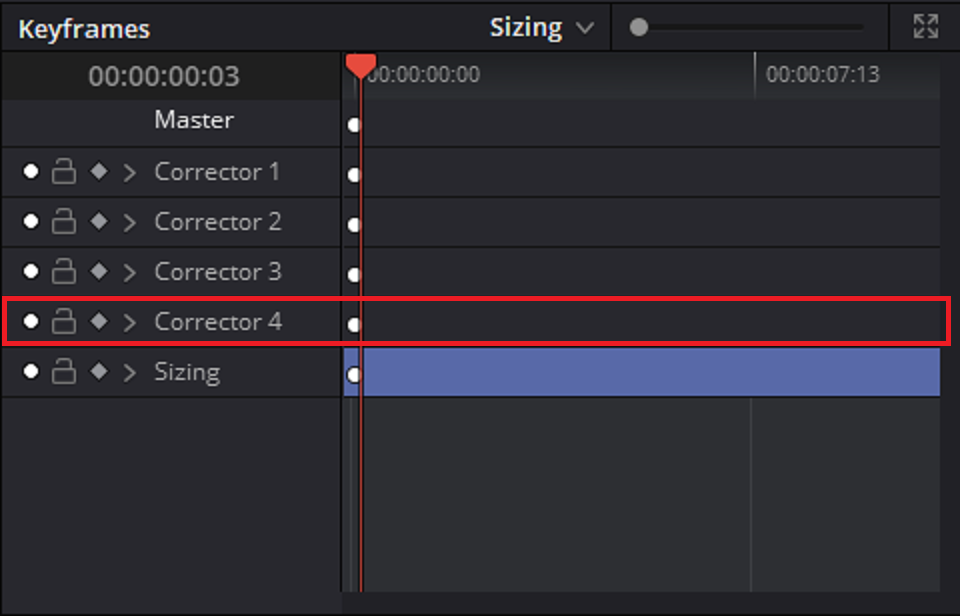
I think the problem could be that you can't "lock off" an OFX "Vignette" in the Keyframe Tab. in the screen grab below I use an OFX "Vignette" in "Node 4" or "Corrector 4" in the Keyframes.


Screenshot-38-2.png


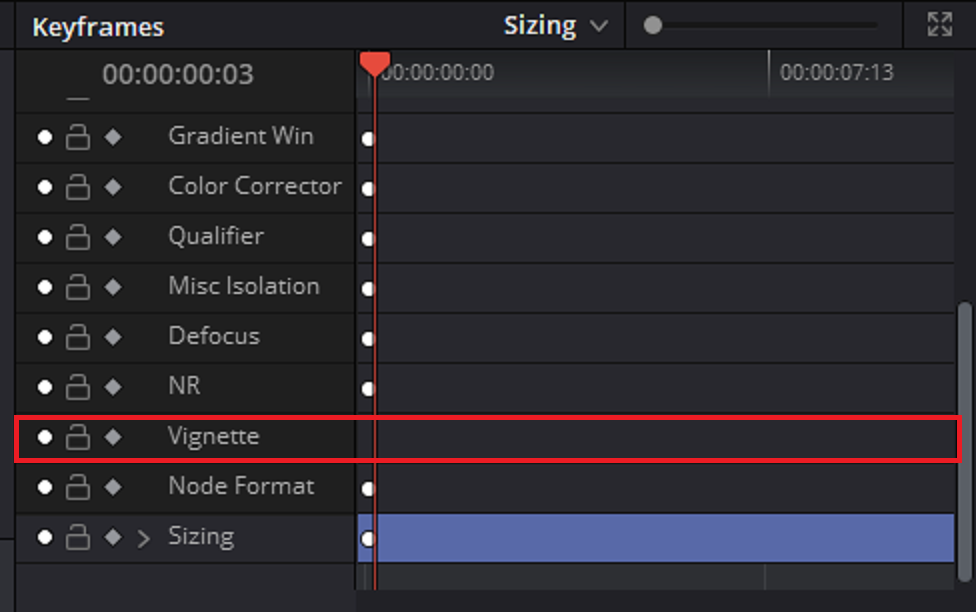
However, I could Lock all of the other possible components in "Corrector 4"(Node 4) but I couldn't lock the "Vignette" component. So it would seem that it would be controlled along with any other parameters that were keyframed.


Screenshot-36.png


Screenshot-38-3.png


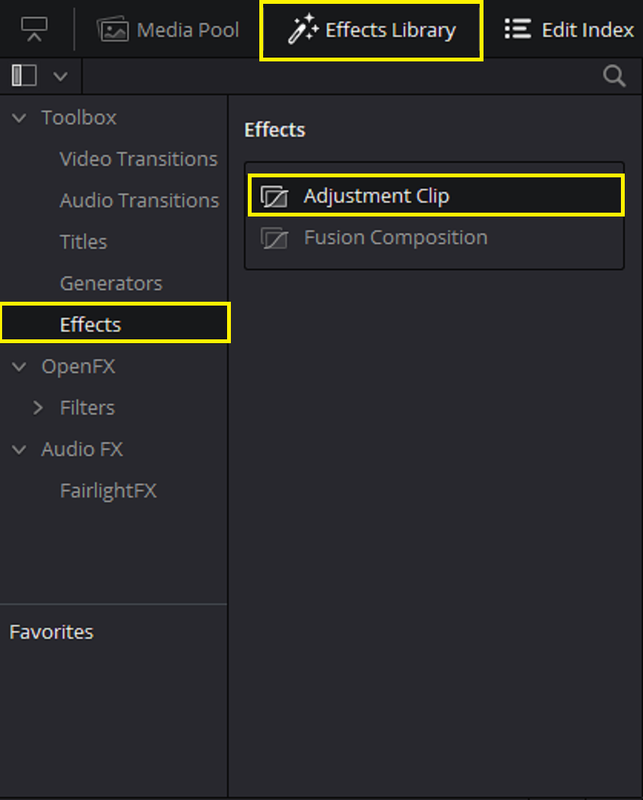
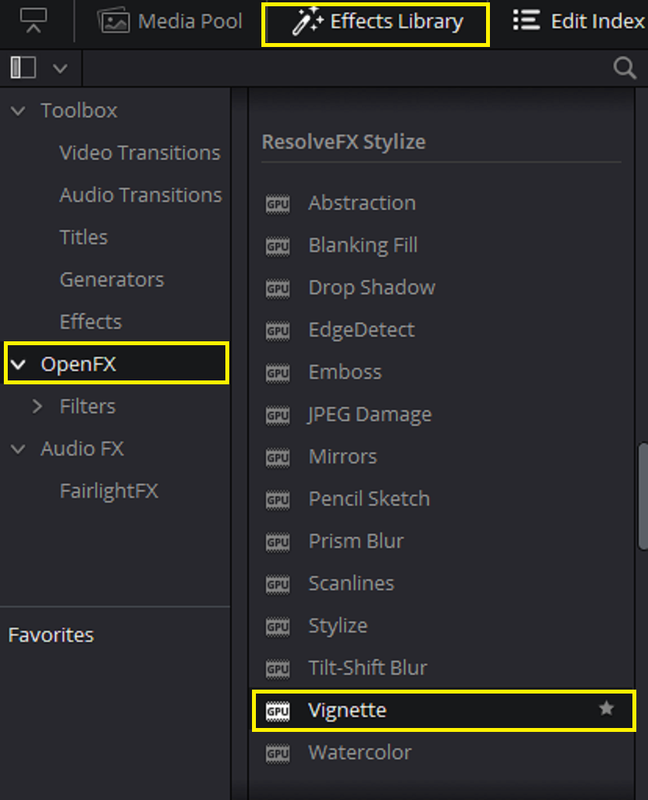
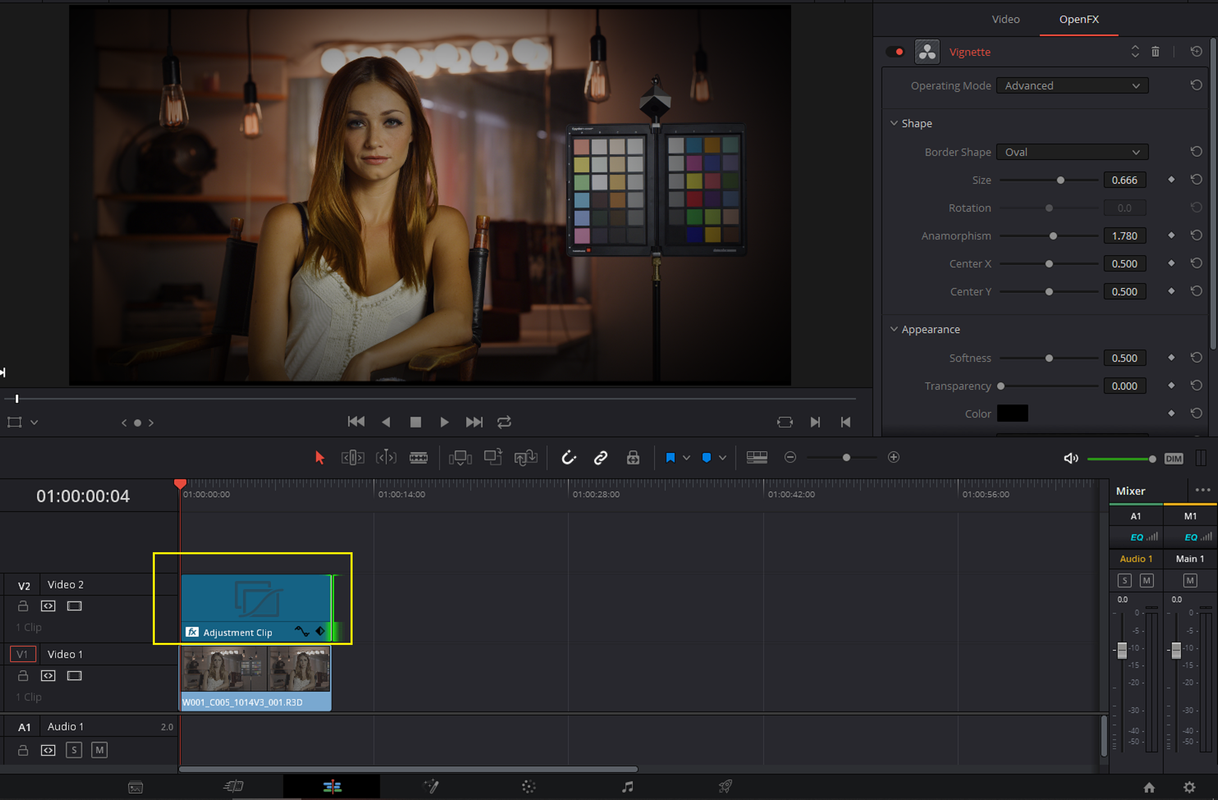
Maybe try adding an Adjustment Layer by going to the "Effects Library">"Effects">"Adjustment Clip" and applying it to a track above the clip in question then apply the OFX "Vignette" effect to that Adjustment layer and see how that works


Screenshot-41.png


Screenshot-40.png


Screenshot-39-2.png
 
Last edited:
One way would be to create a vignette in the TIMELINE node window instead of the regular node window. That would stay locked regardless of where the image moved.

You could also use an oval shape with an alpha mask to do the same thing on the edit page. And in Resolve 16, there's actually a Vignette feature available that can be used on the Edit page, and you could theoretically use it as an Adjustment Clip there (which locks it to the output size and not the clip itself).

So there are several ways to do this.
 
Marcus,


I think the problem could be that you can't "lock off" an OFX "Vignette" in the Keyframe Tab. in the screen grab below I use an OFX "Vignette" in "Node 4" or "Corrector 4" in the Keyframes.


Screenshot-38-2.png


However, I could Lock all of the other possible components in "Corrector 4"(Node 4) but I couldn't lock the "Vignette" component. So it would seem that it would be controlled along with any other parameters that were keyframed.


Screenshot-36.png


Screenshot-38-3.png


Maybe try adding an Adjustment Layer by going to the "Effects Library">"Effects">"Adjustment Clip" and applying it to a track above the clip in question then apply the OFX "Vignette" effect to that Adjustment layer and see how that works


Screenshot-41.png


Screenshot-40.png


Screenshot-39-2.png

Hey Rand,

Appreciate the detailed reply as always!

Unfortunately I don’t have an OFX plug-in for vignettes, and I don’t think there’s one that comes with the standard Resolve 15 studio software, so I’ve been trying to do it manually with just shapes like I always do. But for some reason, this time I’m running into trouble.

The only thing I can think of that’s different from this conform to what I’m used to, is that this project has a TON of keyframe movements that were done in Avid by the editor. Could the fact that I conformed from an aaf instead of an XML have anything to do with it?

P.S. is the adjustment layer a new thin in DR16? I’m not familiar with that?
 
One way would be to create a vignette in the TIMELINE node window instead of the regular node window. That would stay locked regardless of where the image moved.

That was my initial thought, and everything looked good for the first couple of clips. But it wasn’t till I was working on a clip later in the timeline (that happened to have keyframe animation on it) that I noticed the vignette was way off. Maybe there’s a bug in whatever version I’m in? Because I assumed originally that the timeline node was the correct answer?

You could also use an oval shape with an alpha mask to do the same thing on the edit page.
Could you please elaborate on this process? Do I make a black clip with nothing in it and then put a shape over that? And does that mean I have to pipe it into every shot in the movie? What about the dozen or so green screen shots in the movie that already have alpha channels?

And in Resolve 16, there's actually a Vignette feature available that can be used on the Edit page, and you could theoretically use it as an Adjustment Clip there (which locks it to the output size and not the clip itself).

Unfortunately I’m still in DR15 so I don’t have access to that feature.

P.S. a though just occurred, what if I put the entire timeline into a compound node and then put a vignette on that? It seems like a weird workaround way to get the timeline node function I was looking for. I’m about to sit down and watch last night’s render, but when I’m done I’ll test it out and let you know if it works.

And thanks for you help Marc! Appreciate it!
 
Marcus


You're welcome and what's up? Sometimes I forget that there will be some differences in the Studio Version and the Standard Version. Yeah, unfortunately, the " Adjustment Layer" feature is something new that came along in Davunci Resolve 16. I can't remember if the "Vignette" OFX tool was available in Davinci Resolve 15 or not.


Marcus, try one or a few of the videos on the YouTube page below that have Tutorial on reconforming media in Davinci Resolve to see if any of them may offer an explanation to your problem

https://www.youtube.com/results?search_query=Avid+aaf+conform+in+davinci+resolve+15


Here are two recent videos also on how to create Vignettes inside of Resolve 15

https://www.youtube.com/watch?v=HNS7ygIxKxA

https://www.youtube.com/watch?v=-KNCqOznHz0

I actually first started using Resolve, I believe it was version 12, when I was still using Avid Media Composer as my NLE. Was the Vignette added in Media Composer or in Davinci Resolve? Also, do you have Media Composer and Resolve on the same computer? If not, did the Editor provide the original media to what the AAF files link to? Since you stated that the Vignette was done in Resolve, I wouldn't image that the keyframed properties from Avid would have any effect on the Vignette applied after the aaf import from Avid.

If you don't mind, do you mind showing your workflow for the AAF import of your data into Resolve and how you added the Vignette?I haven't used Avid Media Composer in over 2 years, but maybe something will stick out.
 
Back
Top