Welcome to our community

Be a part of something great, join today!

  • Hey all, just changed over the backend after 15 years I figured time to give it a bit of an update, its probably gonna be a bit weird for most of you and i am sure there is a few bugs to work out but it should kinda work the same as before... hopefully :)

Trimming R3D files in Red Cine-X and Saving Trim as R3D

Victor Prado

Member
Joined
Jun 13, 2020
Messages
7
Reaction score
0
Points
0
Is there a way to trim R3D files in Red Cine-X, and reprocess/export as R3D, and would work like original R3D overall?

I have several R3D files where would save hard drive space in trimming beginning and end points.

Thanks.
 
Your wish has been granted!!
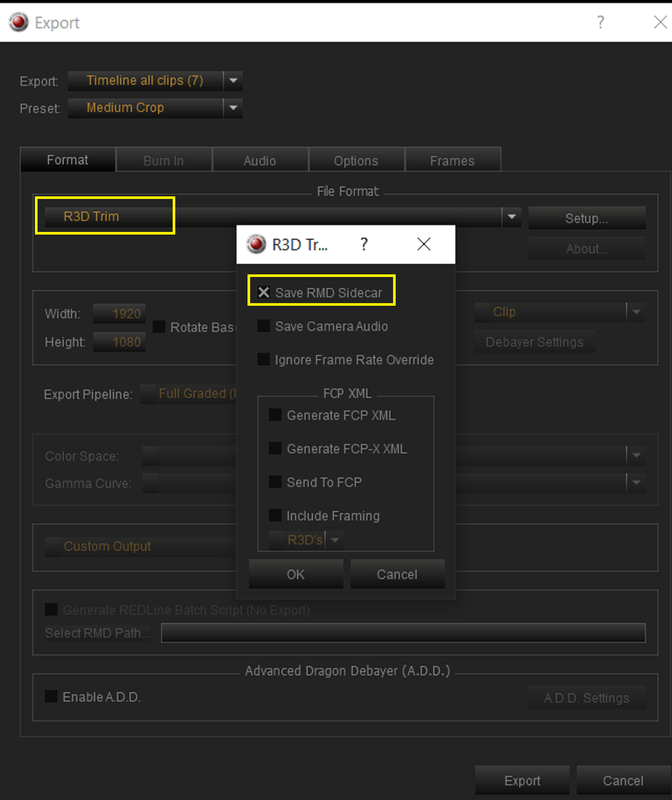
Set the IN and OUT points in the clip and then select EXPORT. In the EXPORT dialog box, select R3D TRIM as the format for the export. Easy.
 
Part 1


Victor,

Here's a Tut.


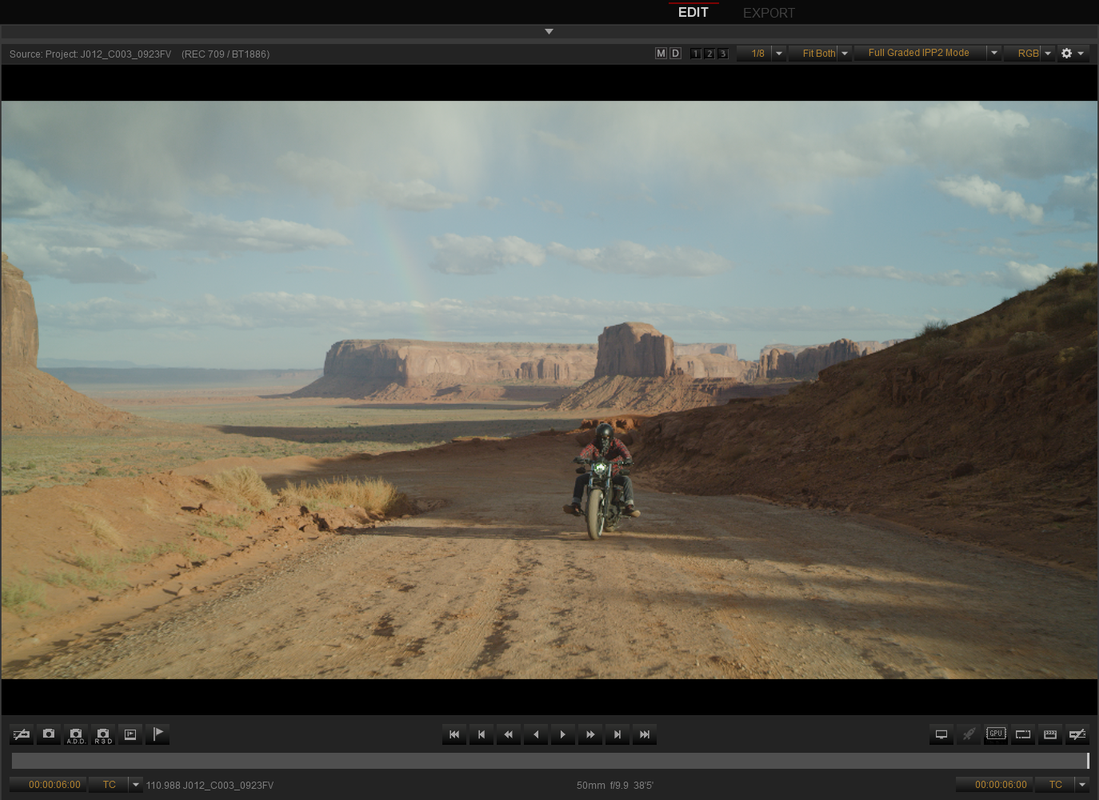
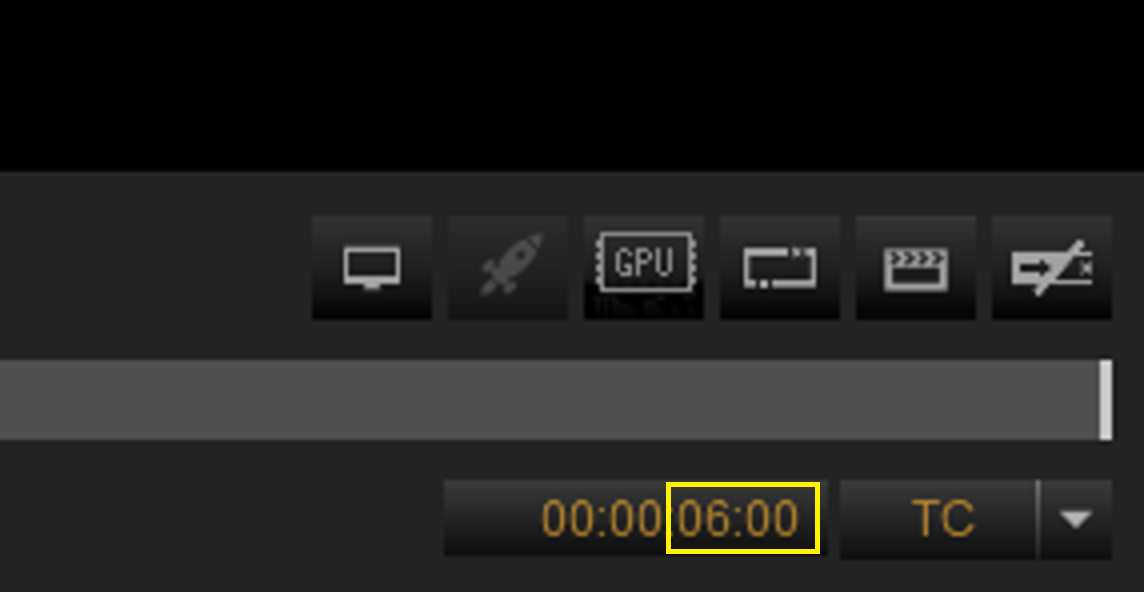
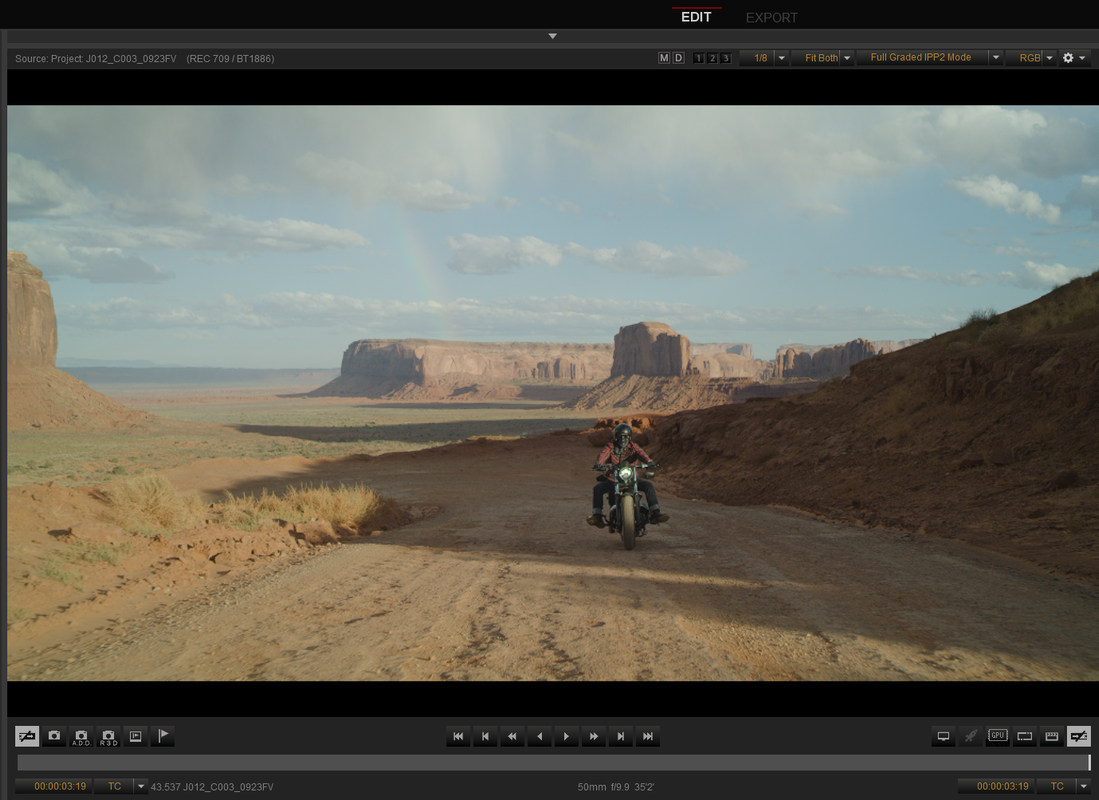
Here's the original end of this R3D file which ends at the 6 seconds mark

Screenshot-852.png


Screenshot-852-2.png


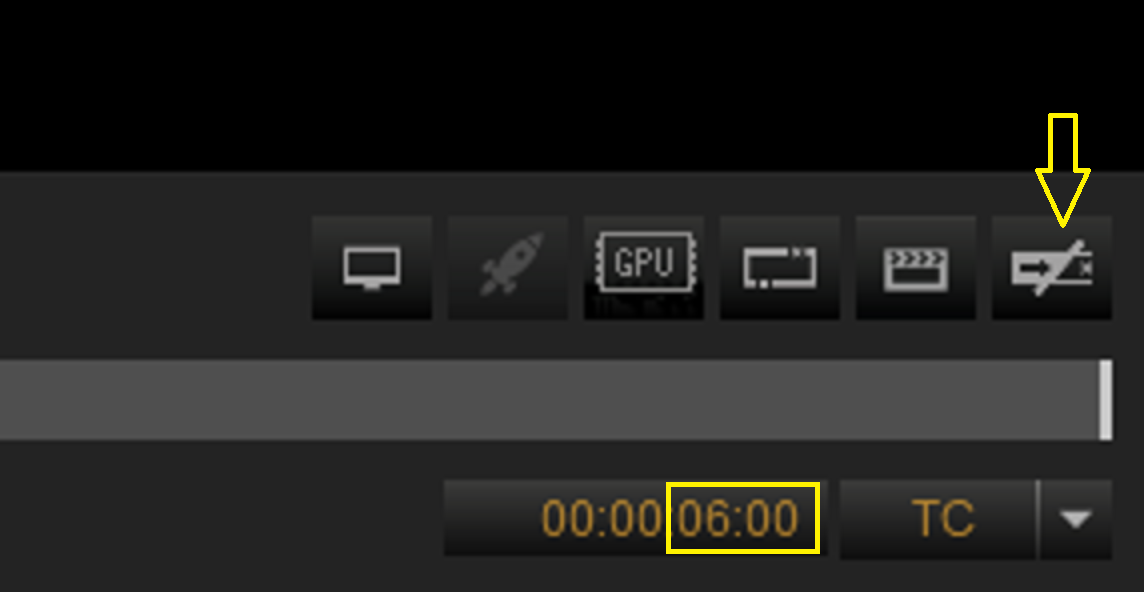
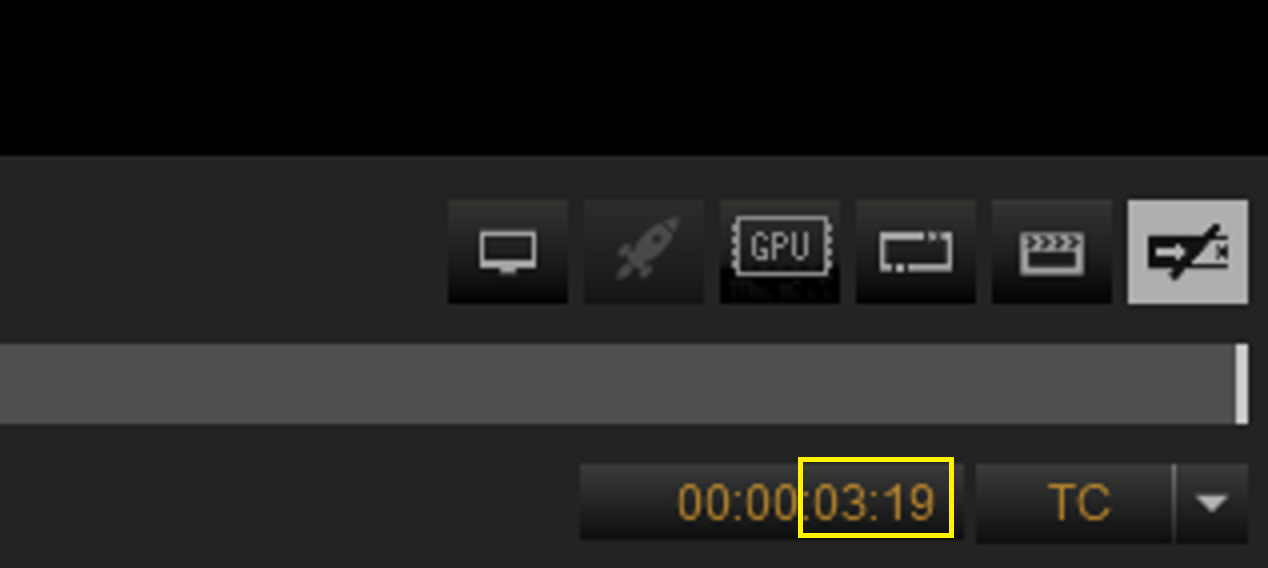
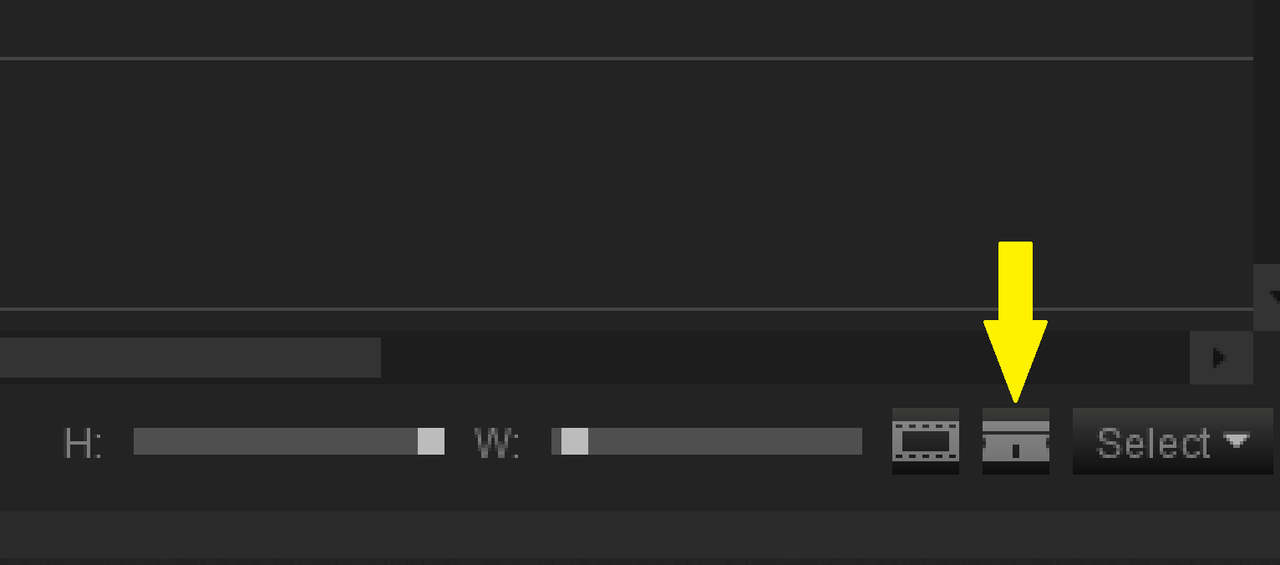
I trimmed off a few seconds at the end of the file by marking a new out point with the "Out Point" button. You can do the same with "In Point" button, at the left, to mark a new in point.


Screenshot-852-21.png
 
Part 2

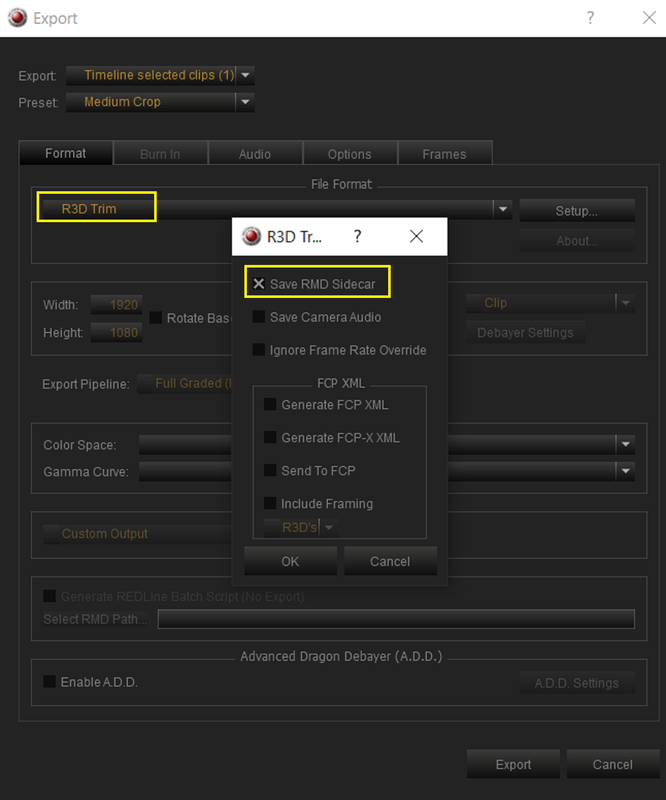
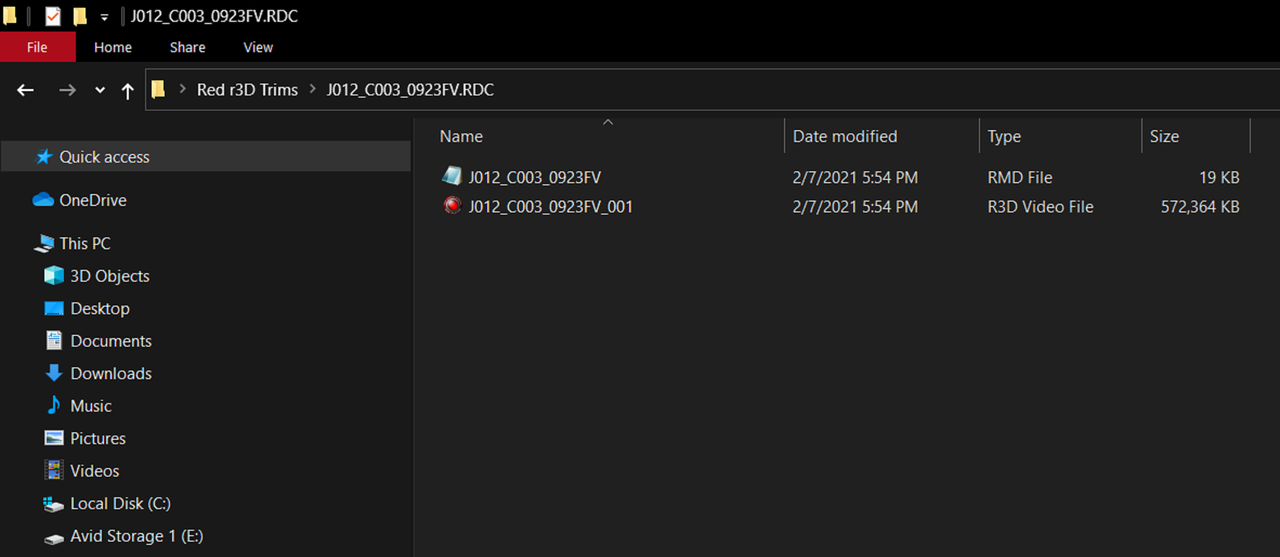
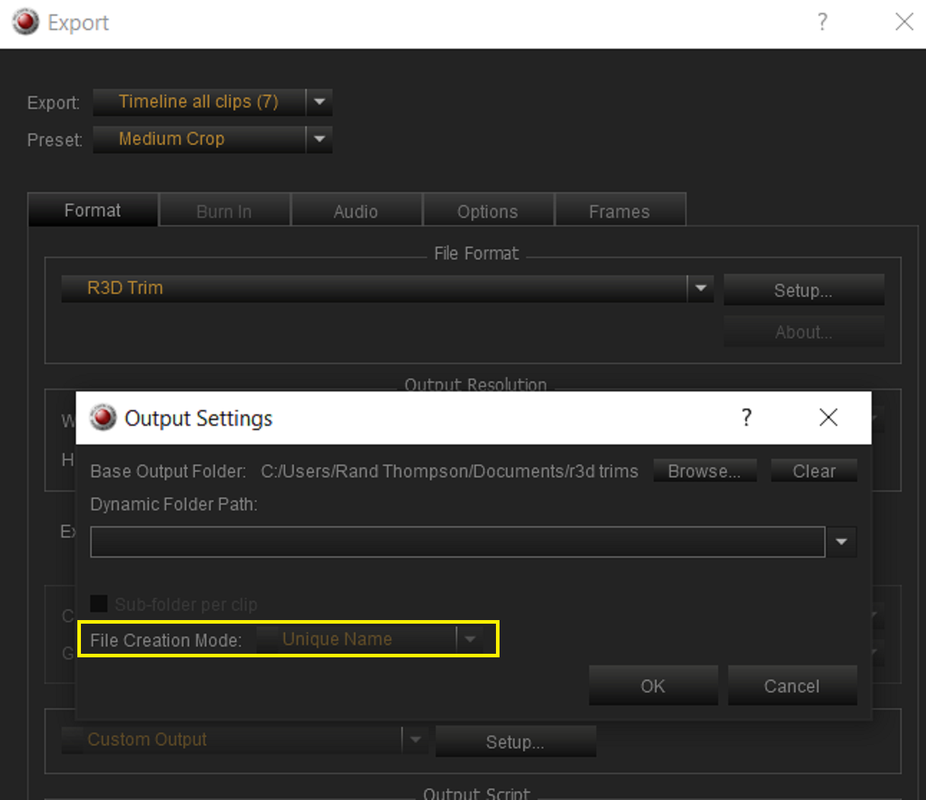
Now export the trimmed clip or clips, CTRL + E, as "Red Trim". Be sure to select "Setup" and enable "Save RMD Sidecar"

Screenshot-855.png


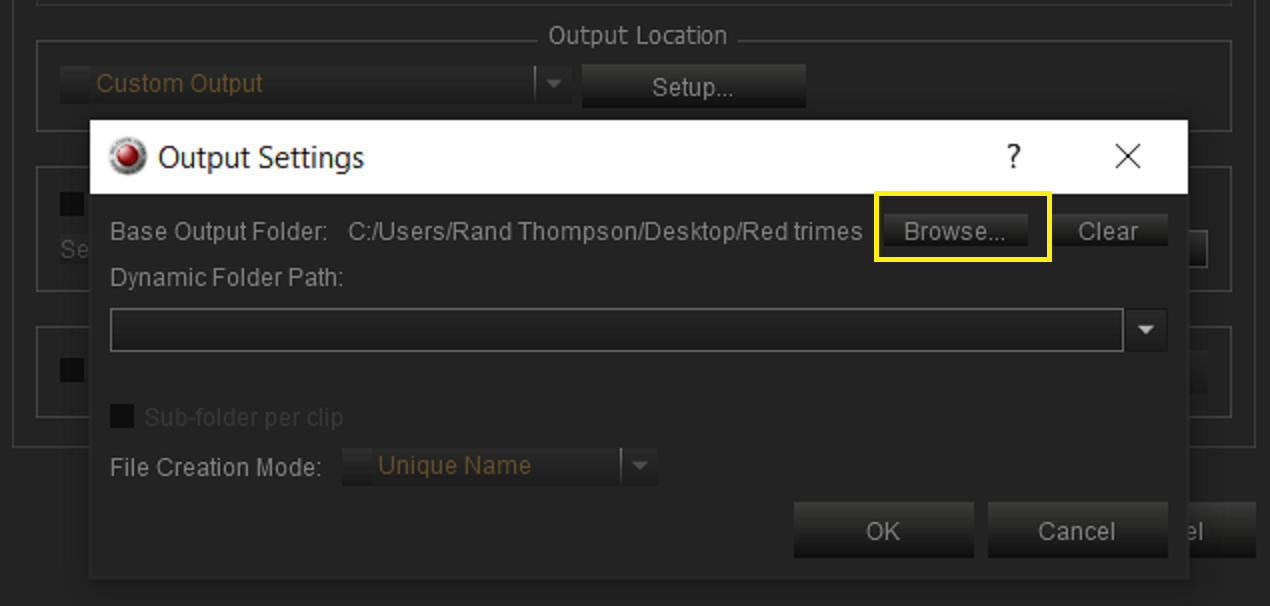
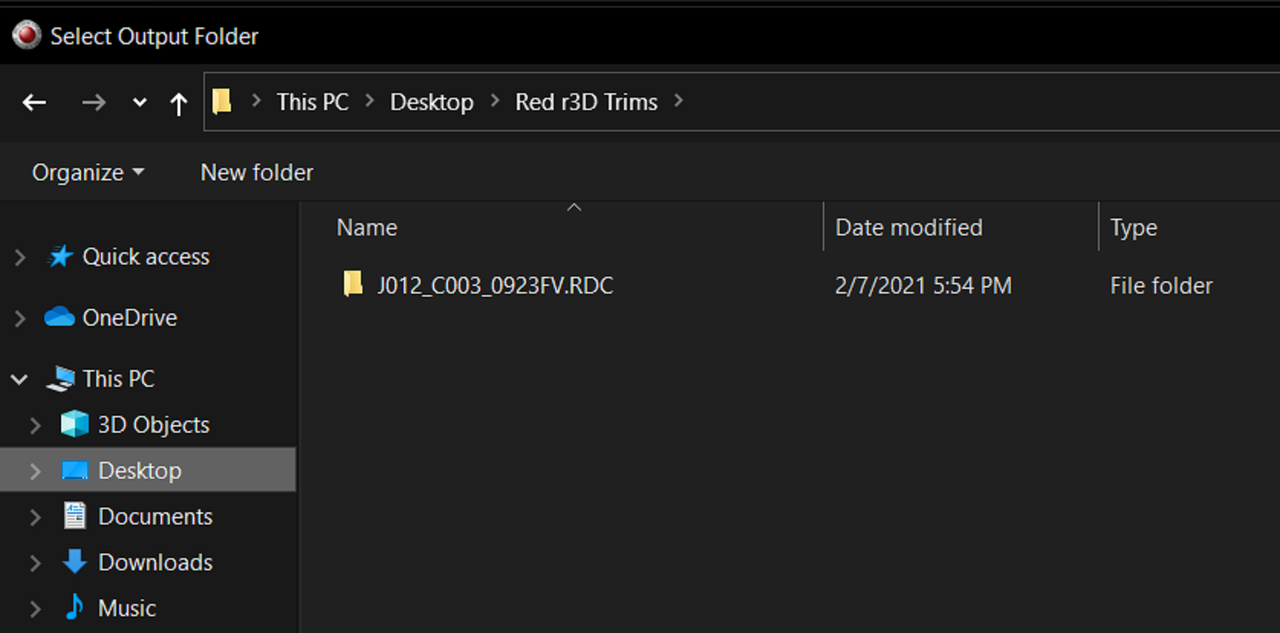
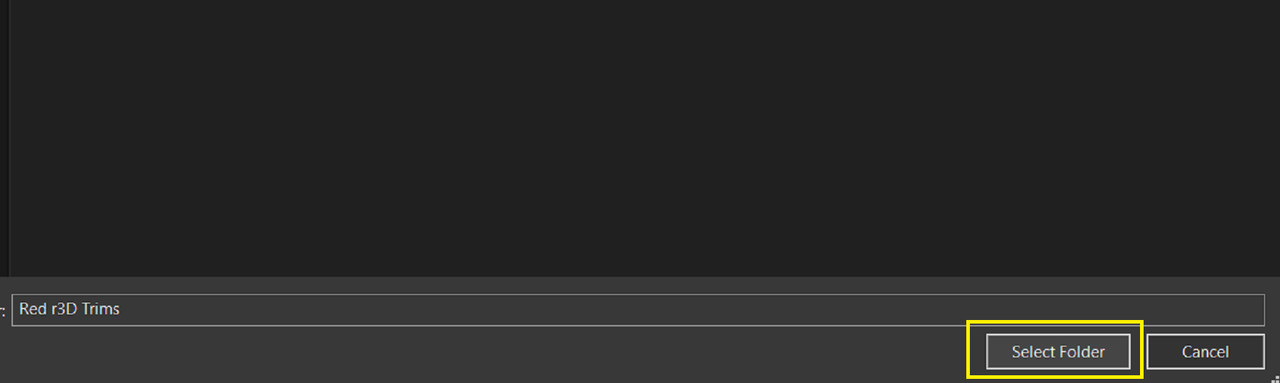
Under "Custom Output" and "Setup" select "Browse" to select a location for the file or files. Once selected, at the bottom of the folder screen select "Select Folder"

Screenshot-860.png


Screenshot-862.png


Screenshot-863.png


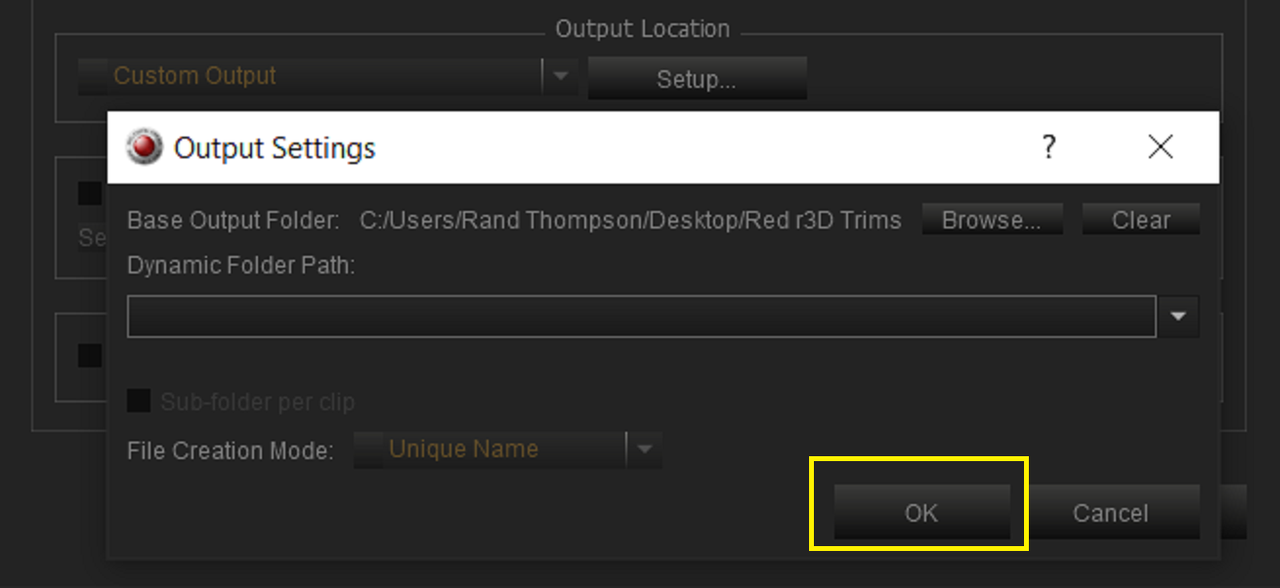
Once you select "Select Folder" it should take you back to the "Output Settings" dialog box, just press "OK"

Screenshot-864.png
 
Last edited:
Part 3

When you open back up the newly trimmed R3D file from the location you saved it in, it will have a new end point

Screenshot-866.png


Screenshot-857.png


Screenshot-857-2.png
 
The real question is if you can do it with handles via the SDK in NLEs to make.... umm... I'm drawing a blank... Y'know, the consolidated files used in the project for archival purposes... Where it exports just the trimmed clips used in the timeline (usually with handles)...

...Dang it. What's the word I'm looking for (this is killing me).
 
Mike,

I'm on a tablet now. However, if you want to try something out, export out a trimmed R3d file or files out of Premiere Pro as an "XML" file. Next, in Resolve, import that exported XML file with "Import XML AAf", I think that's the title. Check to see if the imported R3D file is the same length as the trimmed R3D file in Premiere Pro. However I think it will still be the same length as the original file.
 
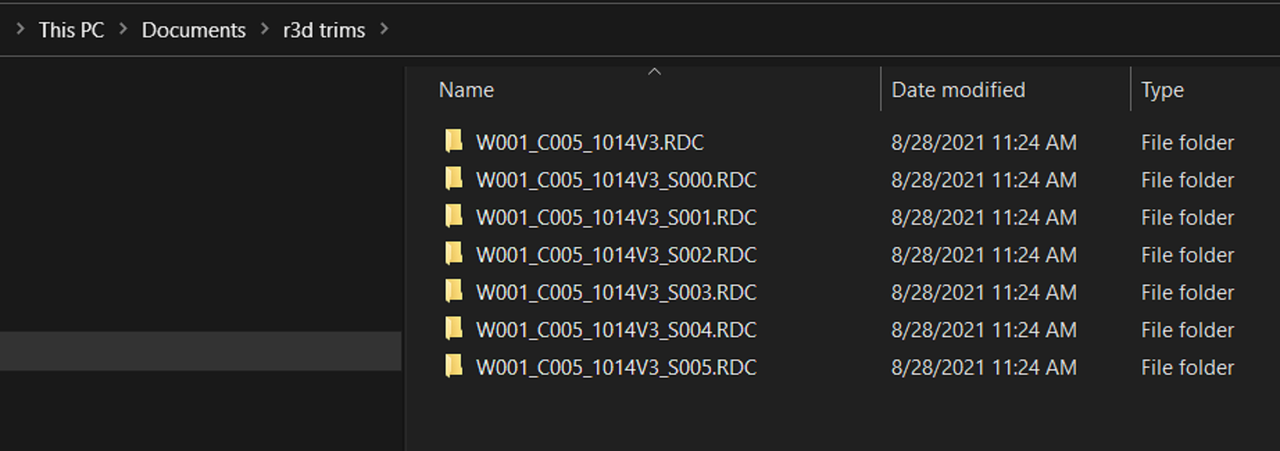
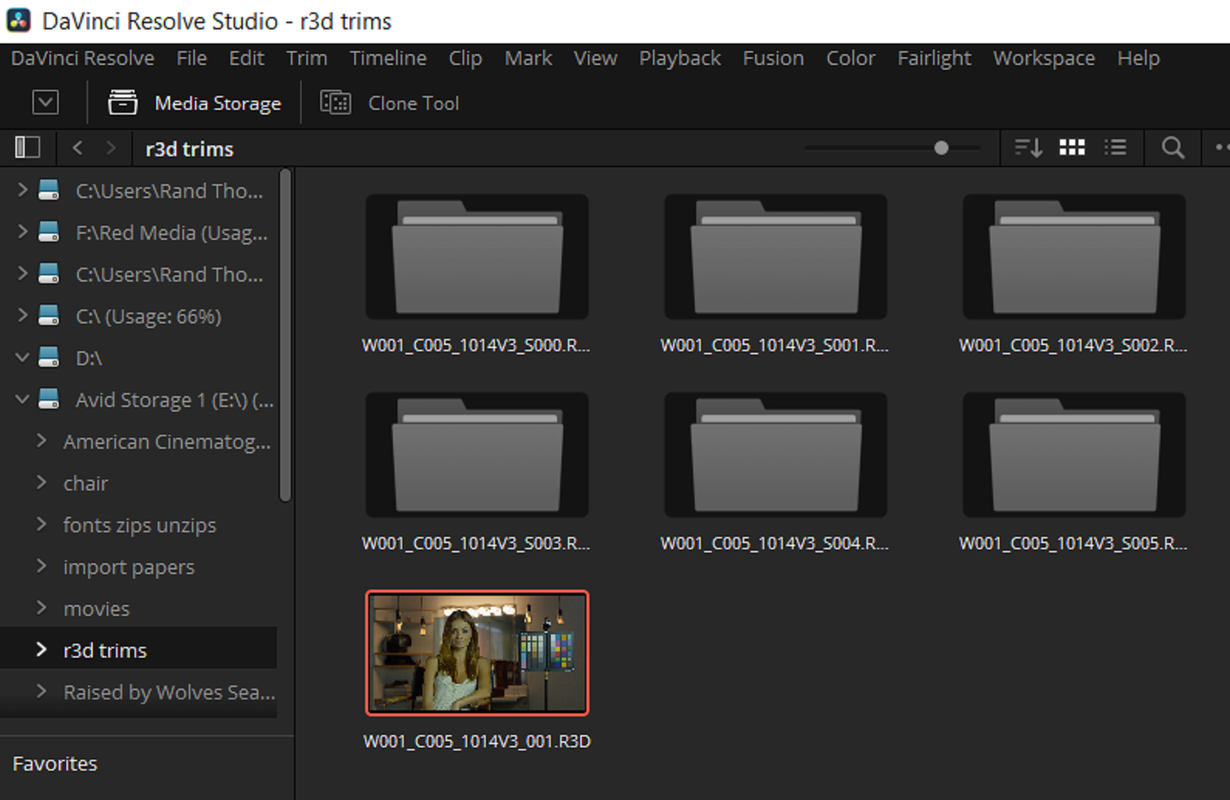
this is really helpful thankyou! Slight issue, maybe i'm doing something wrong but when exporting multiple trims from a long clip, the RDC folders get appended S001, S002 etc and when trying to bring into Resolve, the browser shows the first ones as footage but the rest of them that got appended are seen as folders and would have to keep diving inside to grab the clip which has the same name as the original clip, so i guess would have multiple clips with the same name in the project too which might cause problems?

Is there any way to consolidate all the trims from a clip back into a single RDC folder or at least have them named totally differently so they can all be seen as unique clips?

I exported from RedCine-X with the method above which was great and really easy if can make that workflow work.

thanks!
 
Kieran,

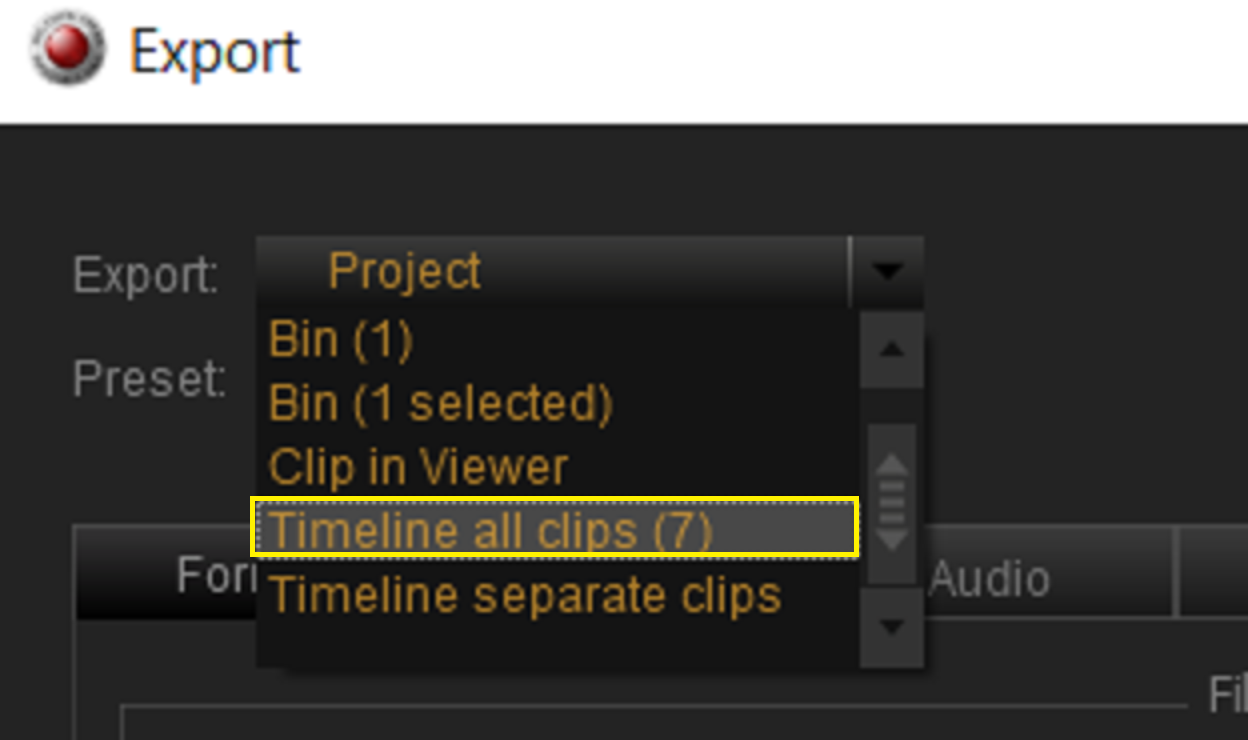
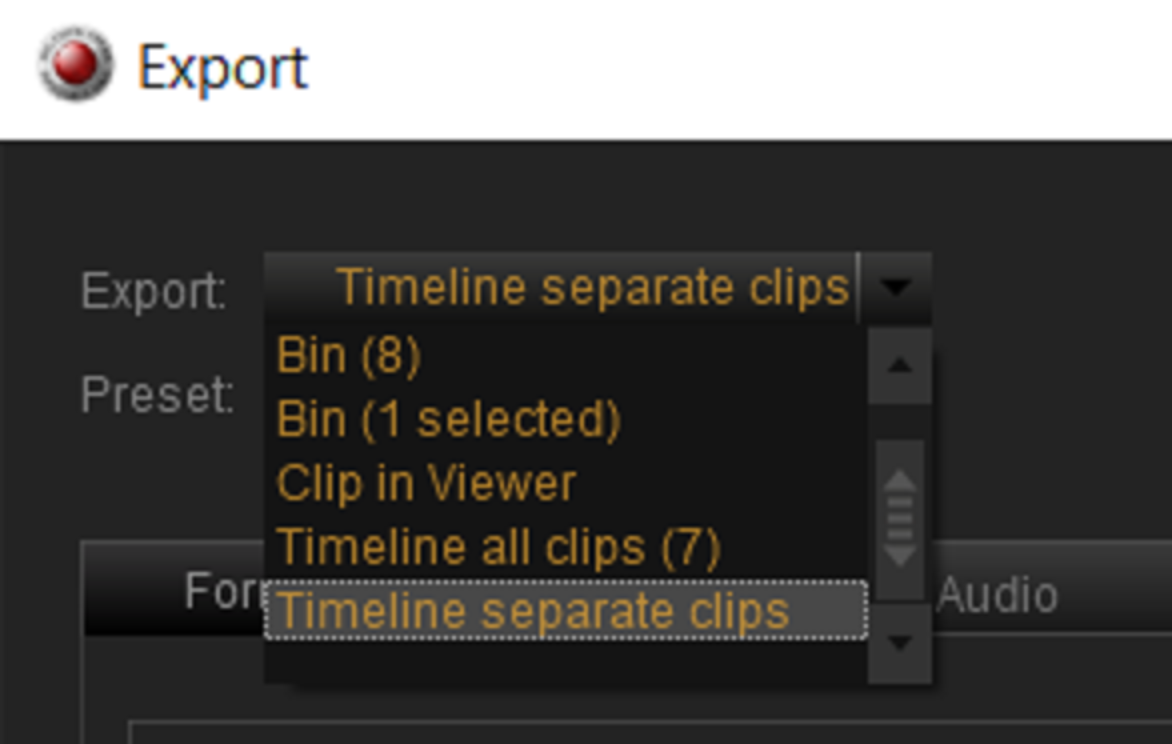
Here is how I would do it. Yeah, the "Unique Name" mode is "Greyed Out" in the "File Creation Mode" area which would allow for a unique name for each R3D Trim file other than the .S000.RDC-.S005.RDC . Maybe someone else has a better way than I listed below.


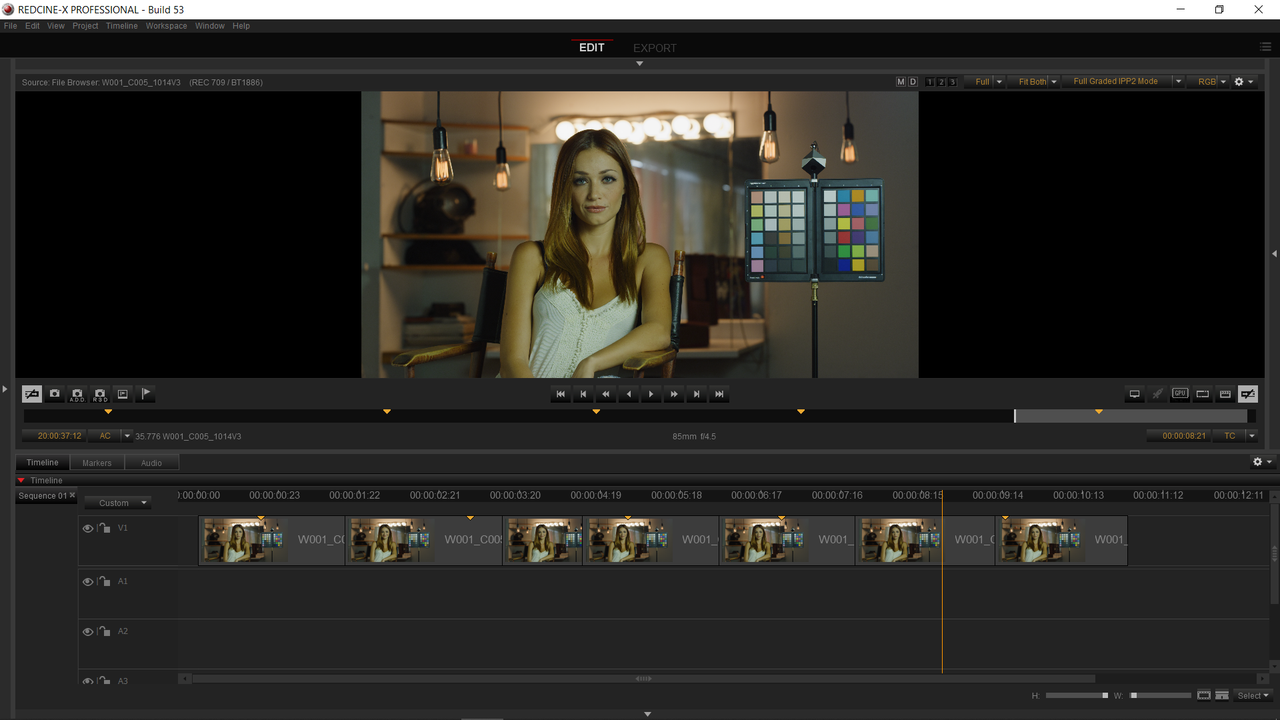
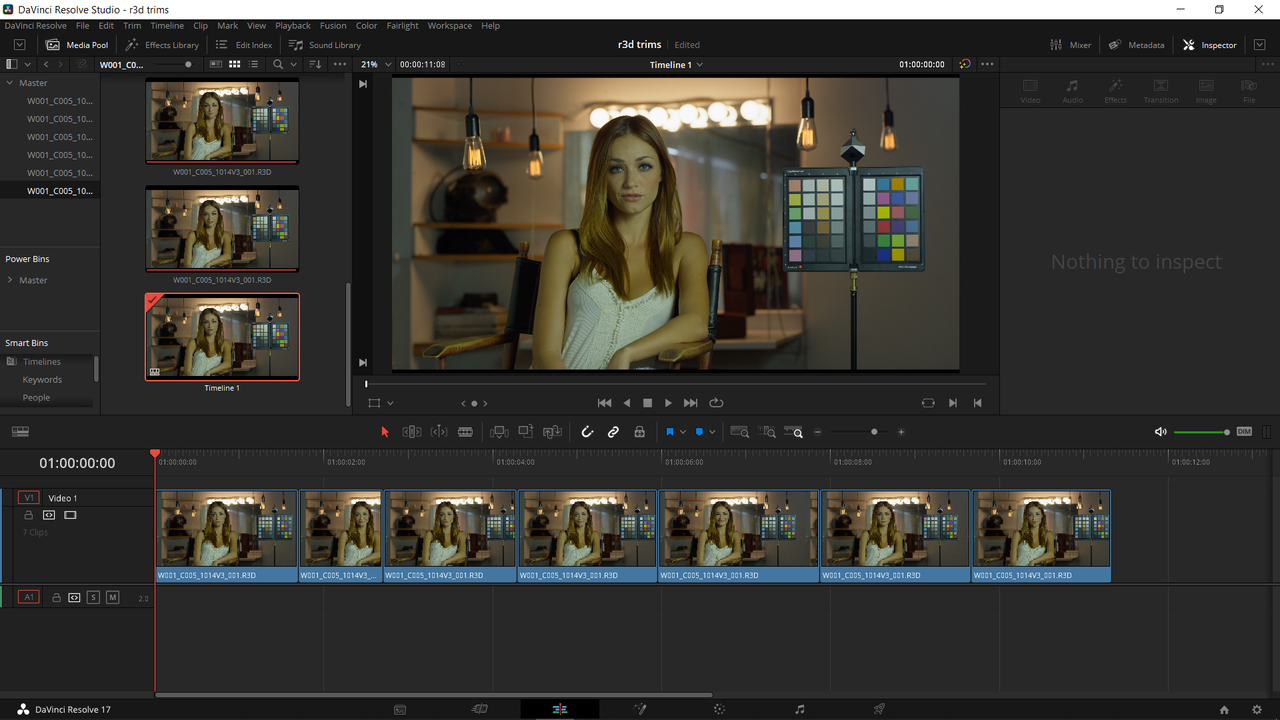
Timeline View

1.png


2.png


3.png


OR

Screenshot-2575-3.png


4.png


8.png


5.png


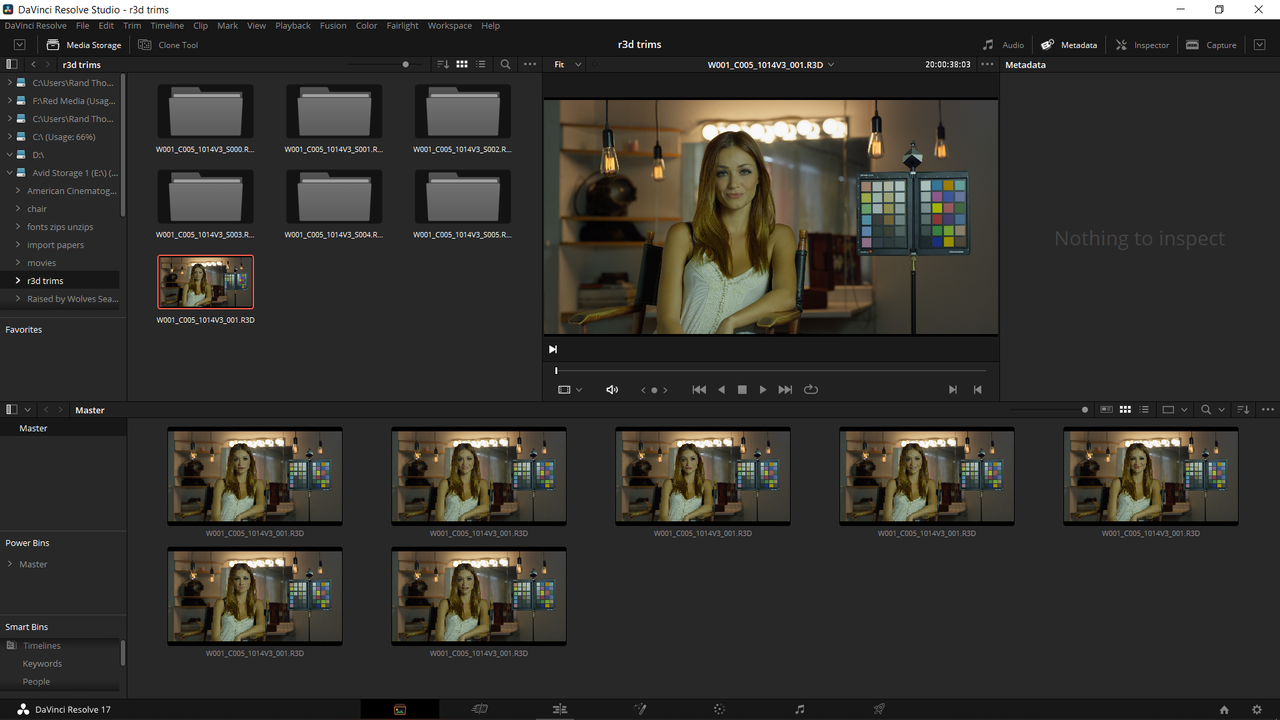
Bring the files in from the "Media Storage" window and Highlight all of those and drag them into the "Media Pool". This way you won't have to go into each folder to access the individual R3Ds they will be brought in automatically. Just dropping them in to the "Media Pool" will still leave them in their folders.

11.png


OR

10.png


6.png


7.png


9.png
 
Last edited:
Just do it in resolve works just the same but as I see it a far better tool to scrub material and do your trimming editing.

Put all the r3d bits you want to trim in a timeline and then use media management to copy / Trim those clips with a chosen set of heads and tails to a selected folder. You can also choose to relink when done.

Nice to use when editing r3ds. When done do the above with set number of handles and you get all your selects nicely extracted/copied into a chosen location.
 
Back
Top