Welcome to our community

Be a part of something great, join today!

  • Hey all, just changed over the backend after 15 years I figured time to give it a bit of an update, its probably gonna be a bit weird for most of you and i am sure there is a few bugs to work out but it should kinda work the same as before... hopefully :)

Tons of stuck pixels in low light mode

Tim Milgram

Well-known member
Joined
Apr 12, 2014
Messages
119
Reaction score
0
Points
16
Not sure if this is just low light mode or both modes but it's pretty bad. Currently removing them one by one from this footage, making what should have been a 3 hour edit into an 8 hour edit. Am I stuck with a bad sensor or can something be done?

Here's a WeTransfer file with an exported clip (colored so it's easier to see the stuck pixels) as well as a PNG file with about 70% of them isolated so you can clearly see their locations.

Settings on Gemini with standard OLPF: low light mode, 2500iso, 4000 kelvin, 4.5k HD

Any thoughts?

https://we.tl/t-TiH39T7fpP
 
Last edited:
Try doing a manual black shade in LL mode at the ISO frame rate and shutter speed you want to shoot at. This should fix the stuck pixels.

I did this for Standard and LL on my Gemini when I purchased it and this also improved the noise and grain.
 
Last edited:
Tim,

To add to the suggestions above, you can also use Redcine-X to do some "Pixel Masking".

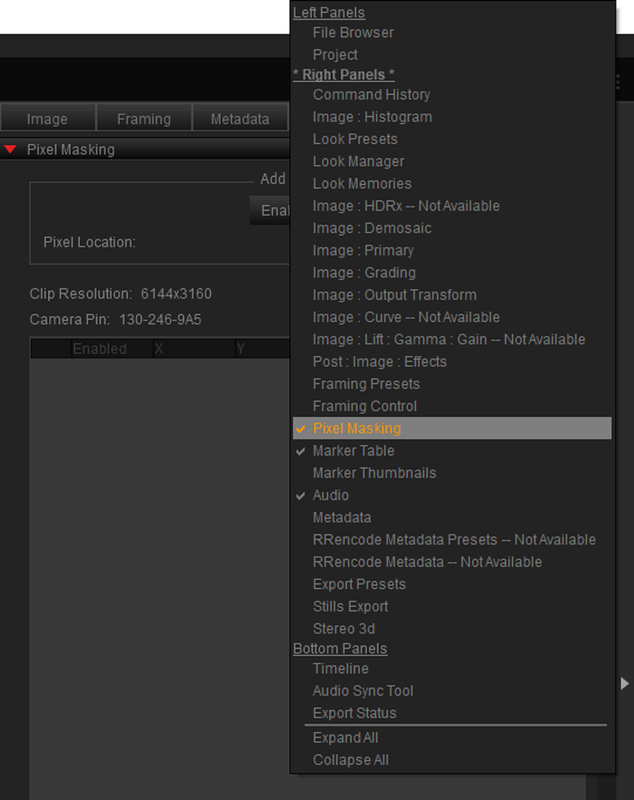
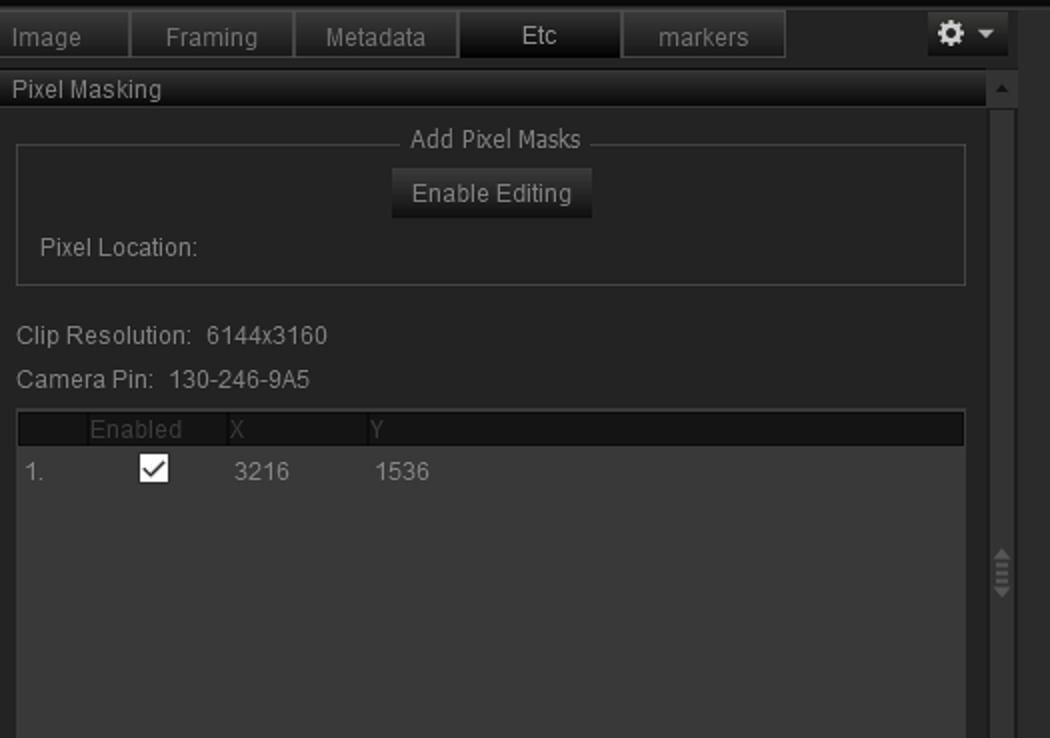
1) Open up Redcine-X and import a .R3D file, "Pixel Masking" only shows up under one of the tabs after a .R3D has been imported. If "Pixel Masking" isn't already present under one of the tabs, you can "Right Click" in a "blank" area to reveal the "modules" menu and add it.


Screenshot_456.png


2) Make sure these things are done before you start using the "Pixel Masking" tool.


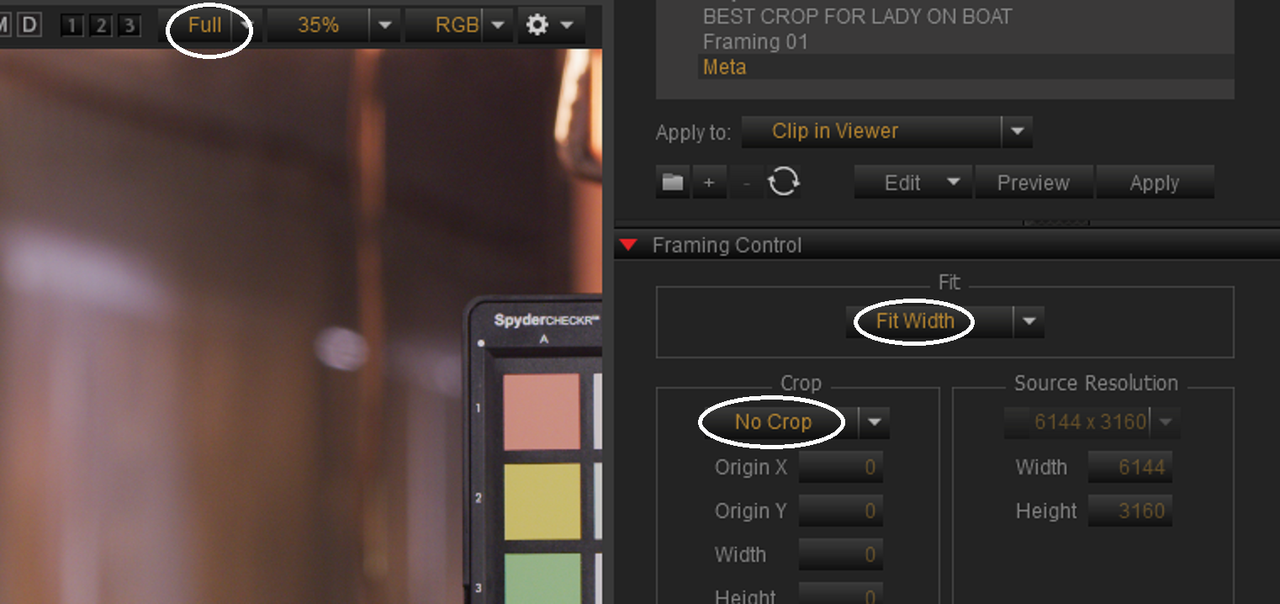
a) Disable RED ROCKET and RED ROCKET-X.

b) Make sure Debayering is set to "Full"

c) In the "Framing Control Panel", set it to "Fit Width" and "No Crop"


Screenshot_459.png


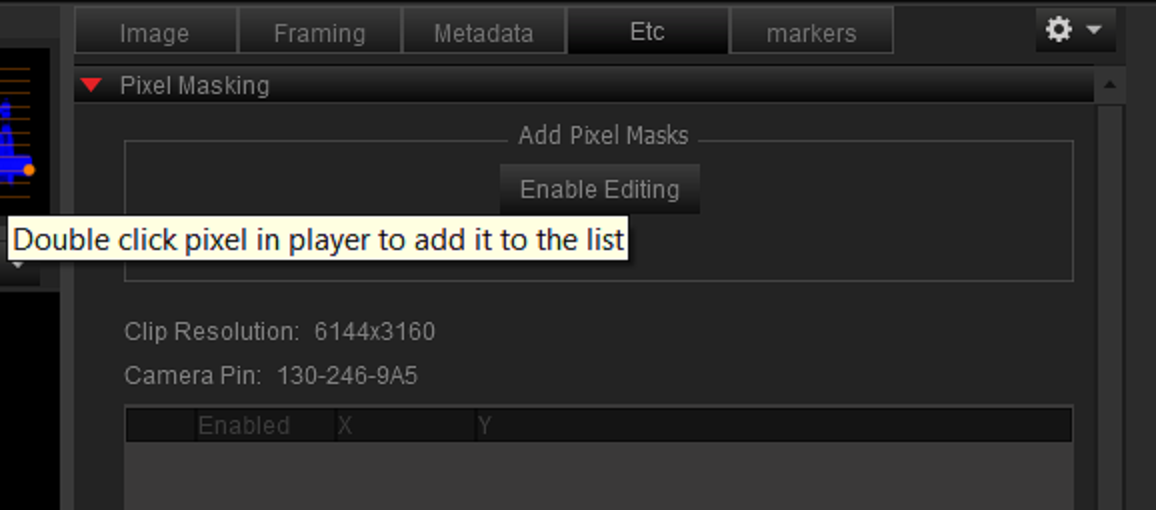
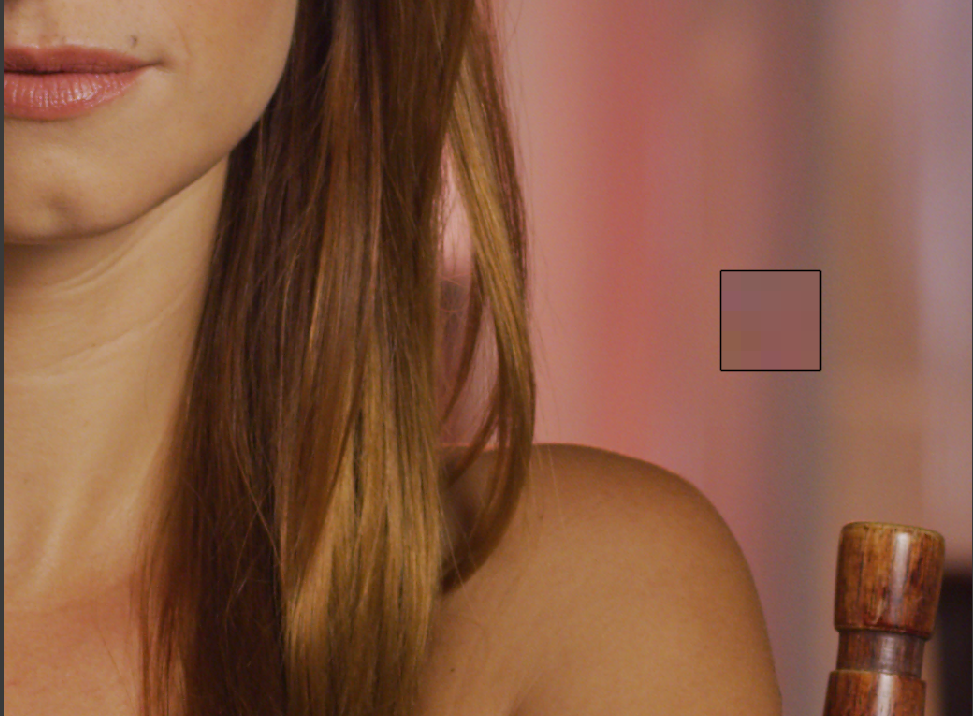
3) In the "Pixel Masking" tool click "Enable Editing", this will place a small box in your "Viewer Window" so you can incase your dead pixel/s in once you have enlarge the image so that all of the dead pixel is inside it.


Screenshot_457.png


Screenshot_458.png


4) "Double Click" in the center of the "Pixel Masking" Box, This will give the Coordinates of the dead Pixel to be stored and recalled later and "Mask" the pixel. You can "Enable" and "Disable" the "Masking" by "checking" and "unchecking" the box


Screenshot_463.png


Screenshot_464.png
 
Last edited:
Is this only a problem with auto blackshade? I've always used manual black shades on helium and have never had this problem. i just switched to gemini and shot at LL3200 iso on an auto black shade and have tons of white hot pixels.
 
Is this only a problem with auto blackshade? I've always used manual black shades on helium and have never had this problem. i just switched to gemini and shot at LL3200 iso on an auto black shade and have tons of white hot pixels.

Just to be clear, was your auto black shade done with LL enabled, or not enabled? Did you expect that auto blackshade on Gemini would do both regular and LL (in addition to all the different frame rates)? I'm not saying you're wrong or that RED is wrong...just trying to elicit a concise description of the conditions.
 
Just to be clear, was your auto black shade done with LL enabled, or not enabled? Did you expect that auto blackshade on Gemini would do both regular and LL (in addition to all the different frame rates)? I'm not saying you're wrong or that RED is wrong...just trying to elicit a concise description of the conditions.

When you auto black shade on gemini it gives you an option to create standard and LL calibrations together, which is what I did. Maybe that is where my problem was and I'd be better off doing separate auto black shades? I don't know why that option would be there if it didn't work correctly or it's very possible that I'm misunderstanding the context of it. I also tested to make sure it automatically switches calibrations when you enable LL mode, which it did. Another note is that I'm on the beta firmware. Lots of variables and sounds like I just have more testing to do. Not saying RED is wrong or that my sensor is bad just trying to figure out gemini and LL mode as it's a little different than helium.
 
Tim,

To add to the suggestions above, you can also use Redcine-X to do some "Pixel Masking".

1) Open up Redcine-X and import a .R3D file, "Pixel Masking" only shows up under one of the tabs after a .R3D has been imported. If "Pixel Masking" isn't already present under one of the tabs, you can "Right Click" in a "blank" area to reveal the "modules" menu and add it.


Screenshot_456.png


2) Make sure these things are done before you start using the "Pixel Masking" tool.


a) Disable RED ROCKET and RED ROCKET-X.

b) Make sure Debayering is set to "Full"

c) In the "Framing Control Panel", set it to "Fit Width" and "No Crop"


Screenshot_459.png


3) In the "Pixel Masking" tool click "Enable Editing", this will place a small box in your "Viewer Window" so you can incase your dead pixel/s in once you have enlarge the image so that all of the dead pixel is inside it.


Screenshot_457.png


Screenshot_458.png


4) "Double Click" in the center of the "Pixel Masking" Box, This will give the Coordinates of the dead Pixel to be stored and recalled later and "Mask" the pixel. You can "Enable" and "Disable" the "Masking" by "checking" and "unchecking" the box


Screenshot_463.png


Screenshot_464.png

Lots of good info in here.

Just a quick question for you... so I've been trying to figure this out for the better part of a year... but does pixel masking save to RMD? Every time I save and quit the pixel masking just disappears. It also doesn't show up when loaded into any other software... is the only solution to export from REDCINE-X and make sure you don't quit?
 
I'm watching a few test shots on youtube for Gemini and all of them feature dead/stuck pixels in low light mode. This has me a bit concerned about the sensor quality compared to Dragon?
A Redcine-X workaround isn't really an option for projects going through R3D IP2 grading in Resolve.

What's the status on all of this?
 
Doesn't the new RCXp have a hot pixel/flashing pixel thingamajig that's an encompassing enable/disable toggle?

I also wouldn't consider pixel masking in RCXp a fix (it's cumbersome and it doesn't really translate to any other programs, meaning you'd have to transcode/render out of raw), but I'm thinking that the new method is something that'll be in the SDK and used in 3rd party NLEs/Colour Correction suites down the line.
 
Doesn't the new RCXp have a hot pixel/flashing pixel thingamajig that's an encompassing enable/disable toggle?

I also wouldn't consider pixel masking in RCXp a fix (it's cumbersome and it doesn't really translate to any other programs, meaning you'd have to transcode/render out of raw), but I'm thinking that the new method is something that'll be in the SDK and used in 3rd party NLEs/Colour Correction suites down the line.

Yes, Redcine workaround should not be the standard procedure. This should be handled in-camera really, Red needs to take a look at this because the number of stucked pixels I've seen is on par with sub-professional DSLR videos, not a $19500 camera.
 
I haven't seen any stuck pixels on my end, but I'll look closer. Perhaps I'm misunderstanding, but if there are bad pixels, wouldn't they manifest themselves in both low-light and standard modes?
 
I haven't seen any stuck pixels on my end, but I'll look closer. Perhaps I'm misunderstanding, but if there are bad pixels, wouldn't they manifest themselves in both low-light and standard modes?

True, but it's hard to know when Red is silent nowadays. Some time ago, Red would always chime in on people's problems, now the forum feels like users trying to figure out things for themselves instead of having an active community communication with Red, other than influencer-type interactions for marketing purposes.
 
I have had zero problems with any lit pixels on Gemini. Best looking sensor red has put out in my opinion.

Nick
 
Back
Top