Welcome to our community

Be a part of something great, join today!

  • Hey all, just changed over the backend after 15 years I figured time to give it a bit of an update, its probably gonna be a bit weird for most of you and i am sure there is a few bugs to work out but it should kinda work the same as before... hopefully :)

R3D's in resolve seem to be very low contrast?

Mikko Suomalainen

Well-known member
Joined
Nov 8, 2012
Messages
130
Reaction score
0
Points
0
Location
Helsinki, Finland
Hi!

I'm grading a shortfilm on Resolve 10, and I have a problem with the contrast.
The material is shot with R1 MX, ISO 800, Red Gamma, Redcolor 1, and with Contrast setting 0,45 - 0,7 on camera.
Material looks good, and color&contrast like it's supposed to, on Red Player, and in Premiere CS 5.5, and when exported from Premiere and viewed on Quicktime/VLC.
But when I import the XML to resolve, all the material looks a lot flatter, viewed on either the GUI-monitor, or a hdmi-monitor from Blackmagic mini monitor-card.
Also when I export the material from Resolve (with all the same raw-settings, and no grading applied), it looks very flat too. Compared on the same monitor, with two different player windows side to side, the resolve-export looks very flat.

When I take the resolve-export back to Premiere, I have to add 15% contrast for it to look the same as the original R3D's.

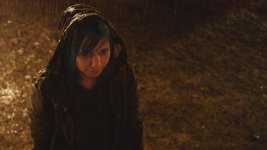
Attached are two pictures, one is snapshot from original r3d, and other is exported from resolve, no grading or raw-settings applied.

Thanks for your help!
-Mikko
 

Attachments

  • Mira_from_resolve_1.29.1.jpg
    Mira_from_resolve_1.29.1.jpg
    86.4 KB · Views: 0
  • Mira_original_r3d.jpg
    Mira_original_r3d.jpg
    85.5 KB · Views: 0
It looks like the difference between "white" and "super white" which is basically a switch that is on or off within your quicktime container. In my NLE, I right click on the properties of the rendered clip and change it there. But, if you're stuff is looking flat whilst in Resolve, that is weird. Do your resolve RED RAW settings match the camera's metadata? In any case, I fricken love that shot. Nicely lit and composed.
 
Hi! Thanks Matthew!

All the raw-settings match camera's metadata, in resolve and in premiere. These are both snapshots from the R3D's (one from resolve and one from red player), so there should not be any quicktime container, right?
 
Make sure you don't have a display LUT in play. I would also check the RAW settings to make sure they are set to clip and not project as you may have a project setting taking precidence. Are there RMD files with the R3Ds?
 
All the clips are on "Camera metadata", both in Resolve and premiere. All settings are absolutely the same. Don't have any LUT, at least not on the clip itself, and not on the general settings either. Is there another place to apply LUT?

And I don't know about RMD's, how can I check that?

Thanks in advance
-Mikko
 
I exported the file from davinci with multiple different compressions/codecs, and every time it looked pretty much the same as in Resolve, but never the same as in Premiere. The only way I could get it looking the same, was to export from Resolve, and then add 15% contrast in Premiere.

But this can't be the problem, because the contrast is so much different already when grading?

Should I just contact blackmagic?
 
Sounds like its a full range vs video range issue, at least in regards to your exports.
Do your waveforms (internal scopes, not external) match in Resolve and Premiere when looking at the same R3D? I am not really familiar with Premiere.
 
I will check that tomorrow. The raw-material also looks the same in both Premiere and RED Player, so the only exception is Resolve. And the way it looks in red player and premiere, is about the same as in camera monitor when shot.

Until now this hasn't been a problem, because I've made bigger changes in Resolve, and the exported material from Resolve looks the way I graded it.
But this time, the DP wants the image to be just as shot, only small changes applied.
 
Going to assume that its simply Resolve working with the clip in full range and Premiere working in vid range.
Does your SDI out look correct (make sure to monitor in vid range - option for monitoring out in Resolve).
 
But it's also RED-player that looks the same as Premiere, and camera monitor, when shooting, looked the same as premiere and Red Player too.
I don't have a SDI-out, only a HDMI-out for a HDMI-monitor, and the picture looks the same as on the GUI-monitor. And on premiere, it looks the same as on premiere GUI.

Can some of you try to playback R3D-files on RED-player, and then the same clip with same settings on Resolve? Does it look the same?

If it's the full range/vid range problem, I guess I would want to set Resolve to vid-range too, because all the other players are on vid range?
Or is there a way to change all the others, Premiere, Red Player, and the camera monitor/EVF, to full range?

By the way, I asked from Blackmagic customer support, and the reply was this:
"in regards to your issue before you ingest your RED footage you can go to
Project settings-camera RAW. from here you can select RED and change the exposure, colour temp, sharpness etc.
if you have already ingested your footage you can do this in the colour page, by going to the camera raw section located next to the colour wheels."

So basically the guy didn't even read my question and just answered something?
I love Resolve software, and for it's price too, but I haven't ever had such bad customer support!


Last edited:
It's hard to be sure from screen grabs, but it looks to me more like a REDlogFilm v REDgamma3 difference. Are you absolutely sure that Resolve is not set to decode as REDlogFilm, and REDCINE-X and the others are decoding as REDgamma3? When I apply a REDlogFilm to REDgamma3 LUT to your Resolve grab, it is a much better match to the REDCINE-X grab than I see with a video to full range LUT. Although there is a saturation mismatch in there too, but it is possible that is because they are JPEGs of screen grabs.
 
Hi Nick

Yeah, I'm sure, the setting is REDgamma in both, Premiere and Resolve. Both softwares are set to "Camera metadata" on the raw-settings. I've double checked this many times, because it would be the obvious answer. Also, when I apply RedLog Film to both, the difference is still there, in Premiere it's flattier, and in Resolve it's super flat.

I also checked the RGB-parade scope in both Resolve and Premiere, and there is a difference. In Premiere, the blacks are crushed down at 0, and in Resolve, the blacks of same clip are at around 10%. Once again, I double checked that all the raw-settings were the same.

Then I toggled the external HDMI-monitor feed between Resolve and Premiere, and just by eye, the difference is as big as on those screenshots I attached.

The reason I haven't seen this before, is because I haven't edited any RED-material, I've just received the XML-file for grading. And after grading the picture looks different so the editor didn't say anything. But this time, the DP just wanted minor corrections so he noticed right away how the contrast was different.

This seems to be very odd, I hope that blackmagic support will find out what's wrong.
 
Last edited:
For your HDMI output, are your monitoring levels out of Resolve set to video range? If not, your images will look crushed on whatever monitor you are running off of the HDMI since the monitor is most likely setup for video range luminance levels (unless you have it set to data levels, which I am assuming you dont).
Does Premiere have a monitoring out option for full range or video range? If so, what is it set to?
 
Hi Paul

I'm not sure about all that, but I wouldn't concern too much about the monitoring, because the RGB-parade scope showed clearly that the material in Resolve is with a lot less contrast. And also the material on the GUI-monitor looks totally different on premiere/resolve, and also the screen-shots I attached, which are double checked to be with all the same RAW-settings.

So it must be a setting/bug in resolve somewhere..
 
Hi Mikko
What was the final outcome with your problem. I think the issue of Full range 0 - 1023 vs. SMPTE (Rec 709) 64 - 940 is the source of your problem. Resolve is normally set to auto mode to determine this. I've found on numerous occasions it does this job incorrectly. Where this can be changed is either in the Media page or the Edit page. By selecting all of your RED footage, select one clip then Ctrl - A on the keyboard to select all, now right click to open up a menu of selections. Choose Clip attributes and then Video. Within this area you will see Levels. If it is set to Auto change this to Video Levels 64-940 and press OK. Now go to the Color page and see what your image looks like.
I'm curious to see if it is still off, and if so by how much.

Best regards,
David Block
Colorist in Los Angeles
 
I would do what David suggests. I found Resolve to be notorious at not interpreting footage correctly in the media pool. When I capture 4:4:4 to DPX in (BMD's own) Media Express—which apparently works in video range only, "Auto" in attributes is actually full range. I always have to change all the clips to video level to see what I saw on the scopes in the telecine bay.
 
DaVinci Resolve internally refers to a long list of codecs to set the 'auto' data/video state but we also allow you to set it manually for times when your clips don't match our table. The example of a dpx is a good one. We treat them at data but as some apps, like our own Media Express, set this to video levels you can change the input to video. If you think we consistently have it wrong somewhere, let me know.
 
Back
Top