Welcome to our community

Be a part of something great, join today!

  • Hey all, just changed over the backend after 15 years I figured time to give it a bit of an update, its probably gonna be a bit weird for most of you and i am sure there is a few bugs to work out but it should kinda work the same as before... hopefully :)

Need som fast input - Scopes question for final output

Christoffer Glans

Well-known member
Joined
Jun 11, 2007
Messages
4,993
Reaction score
36
Points
48
Age
42
Location
Stockholm, Sweden
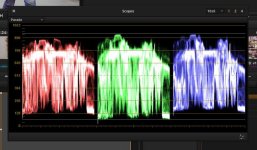
I've been grading a music video and I used the scopes with it's setting to mark out video levels. So I graded the video based on the grey lines in the picture below. Now when I render out with video levels it's totally washed out, but when rendering with data levels it appears normal on any viewed platform.

Should I NOT use these grey lines as a guide and instead grade based on the top and bottom of the entire scopes?
 

Attachments

  • Scopes.jpg
    Scopes.jpg
    76.1 KB · Views: 0
Concentrate more on the picture and less on the scopes. And don't forget the Vectorscope -- that can be as much or more important than the Parade in some cases.

Not seeing the picture, but just judging by the scopes I think you need to grind the mids down more.
 
The Scopes show data levels, so black is at the bottom. Make sure your parade waveforms are at the base or it will be washed out.

Yeah, I get that they show the entire range of the data levels, but when I have video levels set in the settings, is the video monitoring showing video based on a conversion from data levels (internal workings of resolve) to video levels (monitor)? If that is the case then I should get the image to the far bottom and top of the scopes in order for the black levels to be correct for video levels output. In the settings for the scopes there's a setting where I can get guides for video levels which is the grey areas in the image, but if that guide is for working in a data levels video output (settings) to be able to view video levels with that kind of video output, it shouldn't be used for a video levels setting project, right? Am I doing this wrong or right?

Concentrate more on the picture and less on the scopes. And don't forget the Vectorscope -- that can be as much or more important than the Parade in some cases.

Not seeing the picture, but just judging by the scopes I think you need to grind the mids down more.

Peoples perceptions is never mathematically correct and based on so many paramaters that I do not trust my eyes even though I've been doing colorist work for years. In this case it's even harder because I want a slight washed out feel, but not too much, so it's a bit hard to actually spot the level of "washness" in the image compared to when looking at pure blacks. We are doing a 16mm simulation so the look is a bit pushed both for underexposed and overexposed in some cases.

The thing here is that it isn't about the look, it's about getting the right levels out and if the grey guidelines in the scopes section that shows video levels on that data levels range is wrong in a video levels monitoring project, I need to know that. When exporting video levels right now it seems to be too washed out.

The question is rather simple. In a project with video levels monitoring, should pure blacks within range (not clipped) be pushed to the bottom of the scopes or to the bottom of the grey guides (video levels guides on the scope)? To get correct levels when exporting with video levels, should the entire scope be used for pure unclipped whites and blacks?

To clarify: The grey lines in the picture of the scopes is the guidelines for video levels on the scopes. It's in the settings on the scopes window.
 
I think the question is and I'm wondering to confirm is that you grade in full range 0-1023 and when you select video data output in the delivery, does resolve automatically take the picture graded in 0-1023 and convert it to limited range 64-940?
 
We answered the simple question. Bottom.
The video monitoring settings are not relevant, these are data scopes.

It's not irrelevant. Yes, as I said I know that the scopes show full data range, but my questions is... if you look in the settings on the scopes, you'll see a setting that put grey lines for the limit of video levels.
So the question then becomes, if I grade with video levels (monitoring and project), should I grade accoring to these grey guidelines or should I use the entire scope range even though it shows data levels? If project and video out is video levels and I do that, will the video levels in delivery be correct because...

I think the question is and I'm wondering to confirm is that you grade in full range 0-1023 and when you select video data output in the delivery, does resolve automatically take the picture graded in 0-1023 and convert it to limited range 64-940?

...this? Because if the grade becomes data levels if I use the entire scope, it will not be correct if Resolve isn't converting it to right levels on video levels delivery.

I just want to know what the hell those grey guidelines for video levels in scopes are meant to show if you are supposed to use the entire scope when grading in a video levels project.
 
To clarify the question

Data vs Video workflow using scopes.

Data level workflow
1. Choose data levels video out and project settings.
2. Grade using the scopes.
3. Deliver with Data level output.

Video level workflow
1. Choose video levels video out and project settings.
2. Grade using scopes as is - or - use the scopes grey guide lines for video levels.
3. Deliver with Video levels output.


The question I need an answer for is the highlighted one. The grey lines is the ones in the image in my first post which is just before the top and bottom of the scopes.
 
The video/data level monitoring and render has nothing to do with the scopes.
The scopes show internal data levels (well a representation of the 32 bit floating point value) and at the monitoring or render stage a decision is made by 'auto' or you to select data or video and at that stage teh scaling to video levels is performed, or not.

The grey line is movable.. open the controls for each scope and put the grey line where you want it.. 500 if you like.. its for your use as a guide.

So, black at the bottom.
 
The video/data level monitoring and render has nothing to do with the scopes.
The scopes show internal data levels (well a representation of the 32 bit floating point value) and at the monitoring or render stage a decision is made by 'auto' or you to select data or video and at that stage teh scaling to video levels is performed, or not.

The grey line is movable.. open the controls for each scope and put the grey line where you want it.. 500 if you like.. its for your use as a guide.

So, black at the bottom.

Yes, as mentioned I know all this. Thing is it doesn't actually answer the question. You say I can use the grey line "if I like", but that doesn't answer the question of whats a correct use of the scopes.
The bottom of the scopes is black, but that is black for internal data levels. If my project is set to video levels, should I use the grey lines which shows the proper video levels range on the scopes or should I use the entire scope range? Because going to the bottom of those scope for getting pure blacks is all good and fine if the output converts those blacks to video levels. But if I monitor video levels and use the grey lines as guide to video levels on the scopes, isn't that the correct way to work with the scopes?

All in all, if you look at the picture, is that a correct "grade" for something that should be exported with video levels? Or should I use the entire scope range, the entire data level range of those scopes?
Thing is that when I export video levels with that grading, it becomes too washed out, while exporting in data levels and importing as data levels in Avid creates the same look as in Resolve.

The scopes should be something to check that everything is correct, I can't use it if I don't know what the right values are when using it. So the question is still, should I use the grey lines as a video levels guide or should I use the entire data levels range of the scopes?

On these images, I've graded one image according to the entire range of the scopes (0-1023) and the other according to the video levels grey guide lines (64-940).
Which one is the correct procedur?
 

Attachments

  • Skärmavbild 2015-07-29 kl. 10.01.01.jpg
    Skärmavbild 2015-07-29 kl. 10.01.01.jpg
    19.5 KB · Views: 0
  • Skärmavbild 2015-07-29 kl. 10.33.20.jpg
    Skärmavbild 2015-07-29 kl. 10.33.20.jpg
    20.4 KB · Views: 0
"Correct" is a subjective term in this case, as developing your look for the piece will create a waveform that is lifted or crushed depending on said look. A "washed out" look will never touch the bottom of the scope. A high contrast "crushed" aesthetic will result in much of the data skewing towards the bottom. Neither is right, just different for your grade.
 
You seem to hung up on this.. " If my project is set to video levels"

Your project is never set to video levels. Your monitoring might, your input and output file format might, in which case Resolve manages that scaling of data.

You are always full data range internally. So black is at the bottom.

If you put black at the bottom of the scopes the data and video level out will be correct no matter which you select.

You say yourself that when you have black raised in the scopes the video out is washed out... so black at the bottom. Remove the grey line in scopes settings if this helps.
 
"Correct" is a subjective term in this case, as developing your look for the piece will create a waveform that is lifted or crushed depending on said look. A "washed out" look will never touch the bottom of the scope. A high contrast "crushed" aesthetic will result in much of the data skewing towards the bottom. Neither is right, just different for your grade.

You still need correct levels out whatever the look you get. If the scopes help you know where the absolute black and absolute white is, then that is a great guide. If that guide is flawed then you will have a problem knowing that what you see as black is actually coming out correct.


You seem to hung up on this.. " If my project is set to video levels"

Your project is never set to video levels. Your monitoring might, your input and output file format might, in which case Resolve manages that scaling of data.

You are always full data range internally. So black is at the bottom.

If you put black at the bottom of the scopes the data and video level out will be correct no matter which you select.

You say yourself that when you have black raised in the scopes the video out is washed out... so black at the bottom. Remove the grey line in scopes settings if this helps.

I think you misunderstand what my question is. The question is if the scopes, with the grey lines as guides, represent the video out monitoring or if you should use the entire scope range for it. In clarity does the scope represent the entire range from black to white that I see on my video out monitor? Or do I have to go by setting a guide to the correct values that video levels have in order to both see it correct on my monitor out and get correct output with video levels.

But you seem to have answered this by saying that if I'm going to have black at the darkest black I can achieve without clipping, I will need to use the entire range of the scopes, then resolve convert those levels to correct video levels on both monitor out and delivery. So setting the scope guides to correct video level values (64-940) is wrong.

Follow up question, what should we actually use data levels for? Archiving? Is it better to create a data level master to have more color information than on compressed levels?
 
…I will need to use the entire range of the scopes, then resolve convert those levels to correct video levels on both monitor out and delivery. So setting the scope guides to correct video level values (64-940) is wrong.
That is correct. I do think that the default reference levels at 64 and 940 on the scopes are confusing, and I don't know why they are set that way. For that to be relevant you need to be configuring Resolve in a way which is completely different to the default, and frankly a way which I would not recommend.
 
Would be better if the scopes were actually showing what you are working in, so that you use the entire range of the scopes when working in Data levels (which you almost never do) and 64-940 when working with video levels. I'm not sure why it's good to monitor the internal values of Resolve all the time, especially when your monitor shows you video levels. confusing.

Another question, partly close to this, is there any image indication you can switch on that shows you when you clip whites or blacks on the actual image (like the exposure check on Epic) when grading based on what levels you monitor? That way you will know that something isn't clipped. I mean yes, you should look at the monitor while working, but as mentioned I don't trust my eyes over mathematical precision, anyone who thinks their perception is perfect don't know much about how the brains visual cortex works. So as much indictions as possible for reviewing that you don't screw up would be a good thing.
 
Back
Top