Welcome to our community

Be a part of something great, join today!

  • Hey all, just changed over the backend after 15 years I figured time to give it a bit of an update, its probably gonna be a bit weird for most of you and i am sure there is a few bugs to work out but it should kinda work the same as before... hopefully :)

CS 5.5 - Premier Pro - Bug Reports bug Reports from a RED user

Brad,
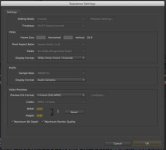
1080p...here's a snap of my sequence settings if you can see this...

Editing mode: Custom
30fps drop frame timecode
aduio 4800hz
i-frame only
1920x1080
max bit depth and max render quality both checked.

**At 1/4 rez i get choppy playback.
 

Attachments

  • Screen Shot 2012-05-11 at 6.57.41 AM.jpg
    Screen Shot 2012-05-11 at 6.57.41 AM.jpg
    9.3 KB · Views: 0
Can you have a look at your CPU usage while playing back at 1/4 res and 1/8th res for me?
Brad, what specifically should i look for? within the program area to see how PrPro is using %CPU or at bottom area to look at:
%User
% System
% Idle

**Also, the only options i see for playback are full, 1/2 & 1/4....1/8 and 1/16 are grayed out
 
Good question! I'm not on Mac so I'm taking a stab in the dark here. Start with Premiere's usage, and then also the system as a whole.

And just to add to that, can you do the tests once on a area in the timeline that has RED footage and then also again on non-RED footage?
 
I'll do this in about 1hour...i'm now redering my Tiff sequence that i encoded last night (24hour encode)....but that is a very good place to begin...not on my infected timeline with other footage mixed and piles of effects.
 
No problem - though I'll probably be asleep (stupid international time differences!)

What I'm essentially trying to work out at the moment is whether it is the RED footage in particular that is slowing your export down or whether it is the sheer amount of effects layered on top of each clip that is slowing the whole thing down. If it is the latter then it means that those long render times times are just the CPU intensive nature of the effects being added to the footage...

Hopefully we'll have some answers soon :)
 
Hi Johnny,

if you import r3D footage into a 1080p timeline (and have the preference 'scale media to comp size' set to on, then the option for 1/16 will be grayed out.
I think this is because the media will already be half debayerd on the timeline. So 1/5 will be the same as 1/4 on a 5K timeline.
Anyone can confirm this?

But there must be something not working right in your system. I am running a 980x with 24GB Ram Windows 7, no RR
and get realtime playback at 1/2 res or definately at 1/4 with multiple effects appied. That is witout RR.

Now, exporting I alway prefer doing from Premiere because I experience some glitches when using AME.

Because you are exporting Tffs, have you tried exporting in chapters instead of the whole timeline at once? With tiffs you can pick up the render where you left off.
 
Hi Johnny,

if you import r3D footage into a 1080p timeline (and have the preference 'scale media to comp size' set to on, then the option for 1/16 will be grayed out.
I think this is because the media will already be half debayerd on the timeline. So 1/5 will be the same as 1/4 on a 5K timeline.
Anyone can confirm this?

But there must be something not working right in your system. I am running a 980x with 24GB Ram Windows 7, no RR
and get realtime playback at 1/2 res or definately at 1/4 with multiple effects appied. That is witout RR.

Now, exporting I alway prefer doing from Premiere because I experience some glitches when using AME.

Because you are exporting Tffs, have you tried exporting in chapters instead of the whole timeline at once? With tiffs you can pick up the render where you left off.

HI Mennovandijk,
Thanks for offering suggestions....

Yes, i am importing R3d, AVCHD and other codecs into a 1080p timeline. Where exactly (in CS 6) are you seeing the preference setting 'scale media to comp size' at...Do you mean when i export out of PrPr where i can choose Source Scaling within the Export Settings dialogue box---under output? If so, i have that set to Scale to fit, but not sure that has any affect on my actual render out at moment. Or are you suggesting a preference setting in another location? ---but none of this i think has an affect on my transcode times or flickering issues i would think.
Are you working with CS 5.5 or CS 6? this may be where some of the settings you mention do not come up as in CS 6.

NOW: interesting to export as Chapters...i like that. Can you tell me how you do this? I realize i can start my Tiff render again if it fails...BUT and a BIG BUTT....the numbering sequence starts over at 0 when you do a render from the middle of the sequence or towards end---it just starts over...So, it would take some investigating to line up the frame that stopped with the new render....BUT, you mention doing this in chapters---I would MUCH prefer to do say 15mins at a time and call that a chapter if there was in fact an easy way to know they started and stopped on the same frame....
Can you explain more....?
thanks.
 
Johnny,

those settings are in your preference panel -> General. But you have a RR in your system right? so it should all work like a breeze.

what you can do is add markers to your timeline sequense by dragging the marker icon to the specific times,or press the M key (Yyou can also use the Chapter markers, which will be used by Encore, but have no use for a Tiff export)
Then adjust your work area slider to the range between two markers. When you export you only export that part. (you can see the in and out point in the eport preview window)

Menno
 
Menno, i actually dont see that option of scale media to comp size. But that likely is not the problem. As for my RR card....yes, in my system. Works fine with RCX and RCX is OFF and only software open that can use RR card now is Premier....BUT, keep in mind, i have mixed footage. Some R3d; AVCHD, H264 and more....However, i get very poor playback with effects applied. I'm also tackling another problem with some Flickering of effects on/off....Otherwise i would have run some additional tests on an R3d timeline only with and w/out effects. BUt spent all day today detecting Flickers....

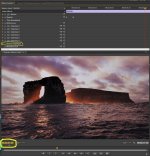
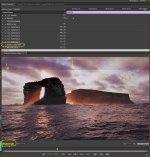
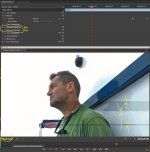
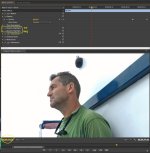
I'll post here the problem...I posted previously, but now i have more concrete information...These seem to occur when i have the Shadow/Highlight effect added....i thought it was only when stacking them, but not always the case--sometimes even if only if i add one Shadow/Highlight effect. Additionally Colorista always seems to be in the effects....but i can only get rid of the Flicker when removing one or both Shadow/Highlight effects---This is a REAL bugger....or maybe it's a BUG---Dave from Adobe??
 

Attachments

  • Shadow-Highlight-off-1.jpg
    Shadow-Highlight-off-1.jpg
    87.8 KB · Views: 0
  • Shadow-Highlight-ON-1.jpg
    Shadow-Highlight-ON-1.jpg
    89.9 KB · Views: 0
  • Shadow-Highlight-on-on-4.jpg
    Shadow-Highlight-on-on-4.jpg
    79.6 KB · Views: 0
  • Shadow-Highlight-on-off-4.jpg
    Shadow-Highlight-on-off-4.jpg
    82.9 KB · Views: 0
Yes got the same issues with Shadow/Highlight plugin added to R3D files on a windows based system. This is definately a bug.

f-ing hell...i've been at this for about 4 days now posting and trying to get an Adobe rep on this and two other forums to help with this...but no answer---and now you tell me this? Fing hell !! I was about to throw my machine in the sea and go buy a PC.....jezus Christ! Well....at least i know i'm not crazy and seeing things and chasing my tail. I've been trying to figure this out frame by frame and re-installing software like each tech has told me to and now we know this is a godamned bug? Great. Just want to vent now...But will go to bed. Hell, spent hours taking screen grabs and what not to show to adobe and other 3rd party manfs. to assist. Like i need to do this...i just want to edit this thing and move on...not become a software BETA tester.

But godam Menno--Thanks! nice to know this and have some knowledge of it....
 
Yes got the same issues with Shadow/Highlight plugin added to R3D files on a windows based system. This is definately a bug.

AND....it's not jut when adding to R3d....can be ANY codec. What a shame! or as we say here que verguenza!
 
Ok...Forget the flickering Issue---DON'T USE SHADOW HIGHLIGHT EFFECT---It just is not stable....Adobe is aware of this:

http://forums.adobe.com/message/3889344#3889344#3889344

DONE with that piece of work....wish adobe would just not put in crap that doesn't work---how can i contain such frustation after 4 days now working on this....NEXT!
 
We had similar problems to you. We also upped the fan speed inside our Mac Pro using smcFanControl. The fans are running at 70% of full speed at all times. Now we almost never have problems. The thing is, your gfx card gets progressively overheated as you render - thus the fans set higher. Mac internal fan control does not do an adequate job

On Underworld they opened the cases and blew fans directly into their Mac Pros.

I would also state that Magic Bullet was mostly tested on DSLR and other "10880p" footage at 8 bit, and is not always stable on Red stuff. Our trick is to -prerender Magic Bullet clips, and put the renders in the timeline - although I much prefer other grading methods, and generally almost never use Magic Bullet anymore.

If it makes you feel better, I just wasted 14 days on a bug in another software. 14 days man. It happens. Editing tape-to-tape probably took longer :-)
 
We had similar problems to you. We also upped the fan speed inside our Mac Pro using smcFanControl. The fans are running at 70% of full speed at all times. Now we almost never have problems. The thing is, your gfx card gets progressively overheated as you render - thus the fans set higher. Mac internal fan control does not do an adequate job

On Underworld they opened the cases and blew fans directly into their Mac Pros.

I would also state that Magic Bullet was mostly tested on DSLR and other "10880p" footage at 8 bit, and is not always stable on Red stuff. Our trick is to -prerender Magic Bullet clips, and put the renders in the timeline - although I much prefer other grading methods, and generally almost never use Magic Bullet anymore.

If it makes you feel better, I just wasted 14 days on a bug in another software. 14 days man. It happens. Editing tape-to-tape probably took longer :-)

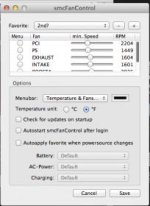
Rob....thanks....the flickering is just a BUG with Adobe that has been known for i'll guess about a year...thanks for keeping this effect BUGGED out and all in the effects....Anyway, back to fan control. Yes this could possibly help. Can you tell me your fan settigns in SMC...i see no percentage settings at all....just some bars (see attached)...would be nice to know some good setting range for heavy Graphics card work....but i fear like many things...this is NOT the root of the problem. I can burn up all kinds of RED footage with my RR card and RCX and NEVER miss a beat...but back in Premier....runs like a 2 legged dog....
 

Attachments

  • Screen Shot 2012-05-13 at 4.17.42 PM.jpg
    Screen Shot 2012-05-13 at 4.17.42 PM.jpg
    12.1 KB · Views: 0
Johnny:

As an engineer that works on the product, I can tell you for a fact that I've never heard of a bug around shadow/highlight. We're certainly not sitting on a known bug (that thread you referred back to is a user thread, and they're talking about auto levels changing with the footage dynamically & potentially creating a 'pumping' effect if there are lighting changes in a given shot, hence the suggestion to use temporal smoothing options when using auto levels). The tearing in your screenshots is something else altogether - i suspect that is a bug, and we need to repro it. I think you touched on what is probably the key issue, which is the consecutive clips each having the effect. Have you noticed whether it's specific to having GPU acceleration enabled, or are you seeing this in software mode as well?

On a related note, you've been complaining a lot about render performance, and touched on the Performance vs Memory thing. Unless you have a specific requirement for Memory mode, don't use it. What it does is reduce the amount of render threads running, which in turn lowers the amount of memory used to compute intermediate frames. This was more of concern back in CS4 & earlier, when the app was still a 32 bit process. At this point, I think it's pretty much an obsolete option and should be left to the default of Performance, unless you're running with 6 or less gigs of ram, which is just a bad/pointless idea these days.

Also, while looking at your posts on the Adobe forum, I couldn't help but notice that you have something like 6 or more instances of Colorista applied to a clip. This is probably what is bringing you render times to its knees - each layer has to be composited to a flat RGB (or possibly YUV if they do native YUV effects, although I suspect not), then the effect is applied, then the composited version is passed again to another plugin instance, recomposited again, times 6. Not optimal. I don't know how it generally performs on 4K material, but with six layers of their plugin on a given clip, you're probably breaking the bank right there.

OTOH, if you were using something like the native RGB curves / Three way color corrector / fast color corrector filters (heck, all three) - in CUDA, these are computationally combined on the GPU and happen immediately. I think you'll save yourself a ton of render time by doing whatever basic grades you can via GPU, and if necessary, try to sparingly use one or two levels of Colorista on the topmost layers.

HTH, Cheers
 
Back
Top