Welcome to our community

Be a part of something great, join today!

  • Hey all, just changed over the backend after 15 years I figured time to give it a bit of an update, its probably gonna be a bit weird for most of you and i am sure there is a few bugs to work out but it should kinda work the same as before... hopefully :)

8k DSMC2 footage, MacBook pro and Resolve

Tom Hanmer

Well-known member
Joined
Feb 13, 2012
Messages
112
Reaction score
4
Points
18
Has anyone had specific experience of working with 8k DSMC2 and Komodo footage on the new MacBook pros, in particular with Resolve.

I would be really interested to hear your experiences and whether they playback smoothly. I am happy to wait for exports, I can do these over night but are they powerful enough for editing and colouring? Most of my projects are output at 4k but can they handle 8k timelines as well?

Is there a performance benefit with the max over the pro with red footage? How much RAM do you recommend?

Would be great to hear any observations or recommendations.

Thanks
 
There’s a thread on the new M1 MacBook Pros on this board that should answer your questions.

I have a Komodo and an M1 Max (64GB RAM, the middle 24-core video option). Resolve handles the full 6k footage fine.

There’s a link to a video somewhere in the discussion showing how it handles 8k footage, I’m sure you can also find it on YouTube.
 
None of them - M1, pro, or max - can do 6kFF full res/full debayer on a 4k timeline when you add any nodes, unless it’s ~8:1 or higher on DSMC1 & 2, much less 8k… Komodo/Raptor use DCT compression which is suppose to be a bit lighter than the wavelet used on legacy cameras, so that might fare better.
 
Thanks for the replies.

M Harvey, I have been keeping an eye on that thread but must have missed the video talking about how it handles 8k footage, will go back through it. Searching YouTube it seems as though it will playback 8k raptor footage but haven’t found anything showing 8K DSMC2 footage. Thought it was worth asking here. Good to know Komodo not a problem.

Mike thanks for that, tend to shoot at a lower compression than that and at 8k so maybe not the solution.

I live somewhere fairly remote and we have occasional power cuts. One last year blew up my Raid.

Have found that Resolve 17 is too much for my 2013 HP Z840 and Resolve 16 won’t play back Komodo footage. Rather than upgrading to a new PC I was wondering if I may be able to get away with working from a M1 Max, power cuts would not be an issue with bus powered SSD drives.

Does anyone know if a Rocket X can be used with a M1 Max, it would at least handle the debayer? The last driver update was 2016 so probably not.
 
Thanks for the replies.

M Harvey, I have been keeping an eye on that thread but must have missed the video talking about how it handles 8k footage, will go back through it. Searching YouTube it seems as though it will playback 8k raptor footage but haven’t found anything showing 8K DSMC2 footage. Thought it was worth asking here. Good to know Komodo not a problem.

Mike thanks for that, tend to shoot at a lower compression than that and at 8k so maybe not the solution.

I live somewhere fairly remote and we have occasional power cuts. One last year blew up my Raid.

Have found that Resolve 17 is too much for my 2013 HP Z840 and Resolve 16 won’t play back Komodo footage. Rather than upgrading to a new PC I was wondering if I may be able to get away with working from a M1 Max, power cuts would not be an issue with bus powered SSD drives.

Does anyone know if a Rocket X can be used with a M1 Max, it would at least handle the debayer? The last driver update was 2016 so probably not.

I would go with a new PC containing an RTX 3090. The 24GB of VRAM helps me play back everything smoothly (until I add more resource intensive nodes like NR). My MBP M1 Max (32 Core, 64GB) unfortunately doesn't hold a candle to my desktop. Speaking about purely DCT from Raptor and Komodo, as others have mentioned, I got better results from LQ compression. 8K HQ is impossible to playback smoothly and MQ has a few hiccups. I'm talking out of my a** here, but perhaps R3D footage isn't fully supported/optimized by M1 chips yet? The M1's are so new that I could plausibly see the performance improving with some sort of compatibility update, assuming the aforementioned.
 
I choosed the 32GB version and see Resolve struggling with memory (with R3D, neat, 4k timeline…) It does put a lot of Gig in caching (10 to 15Gig) I don’t know if it would put more if it had 64Gb. Resolve alone needs about 15gb without handling medias.
 
You could do either of the following for better playback of 8K footage on your timeline. You don't necessarily have to use the full quality settings of the 8K Raw file during editing or for playback.

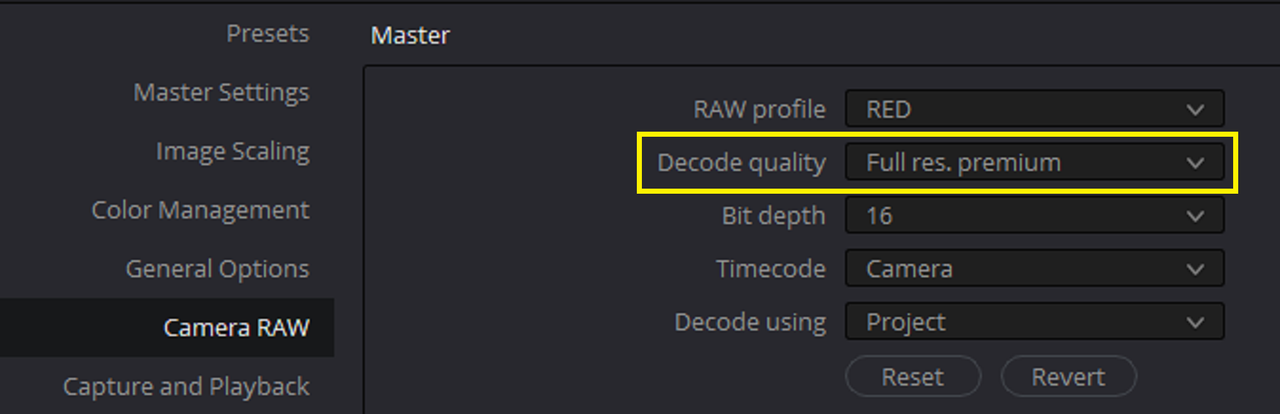
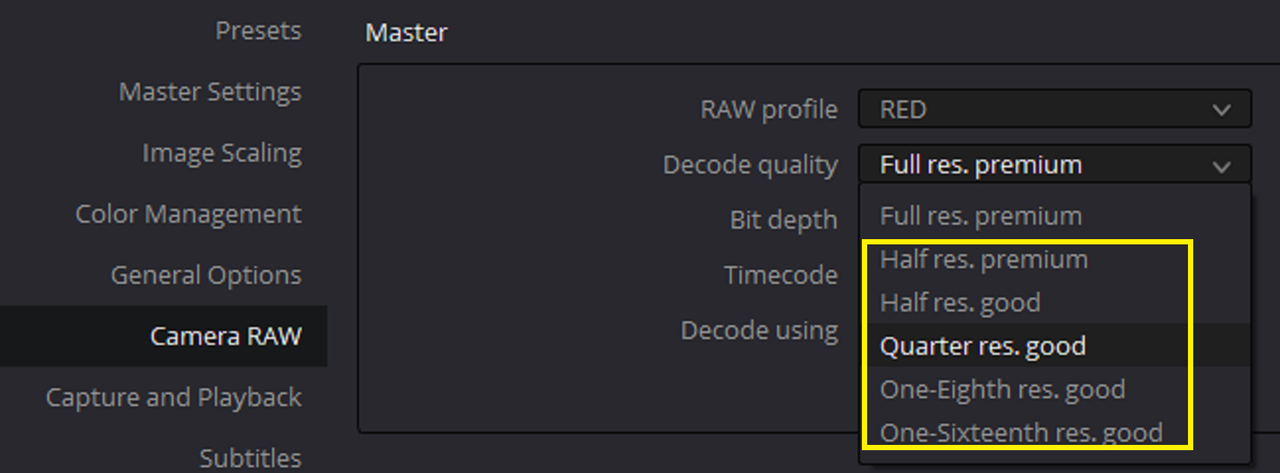
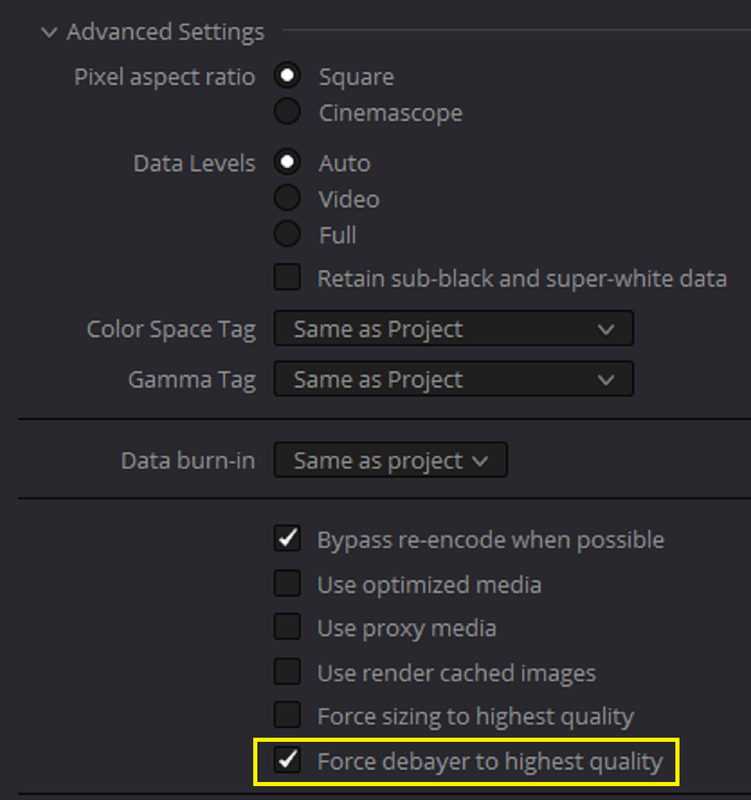
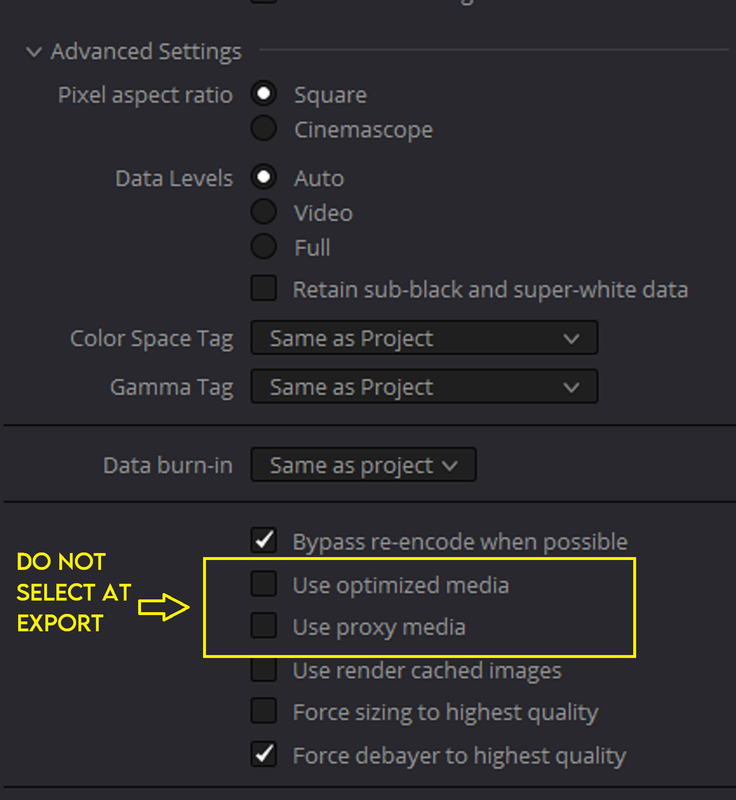
1) Set a lower Debayer Quality in the Camera Raw settings for your Specific Camera, then at export choose " FORCE DEBAYER TO HIGHEST QUALITY"

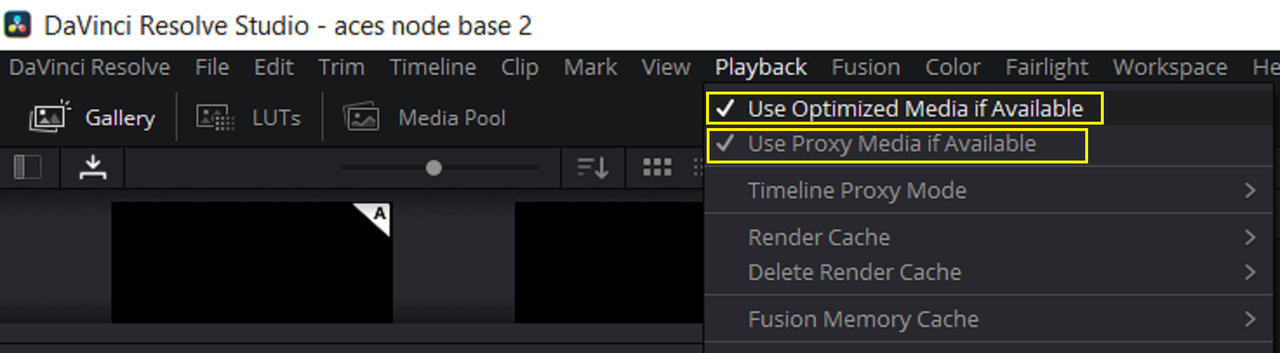
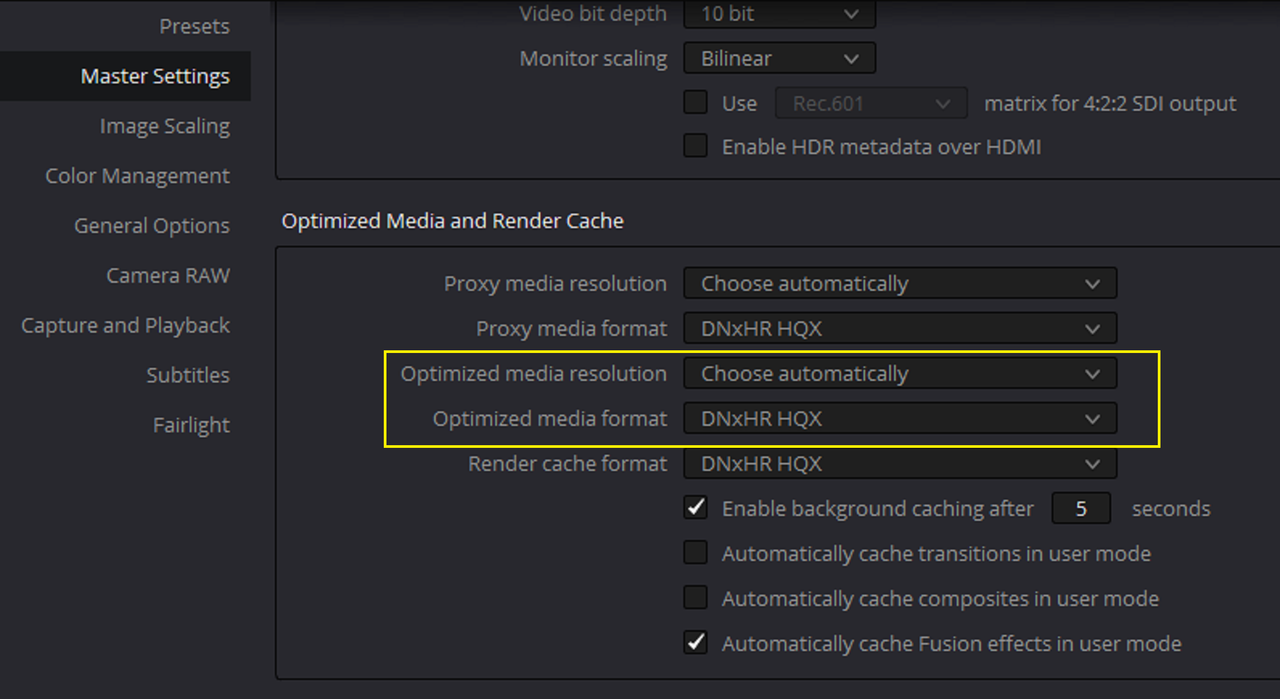
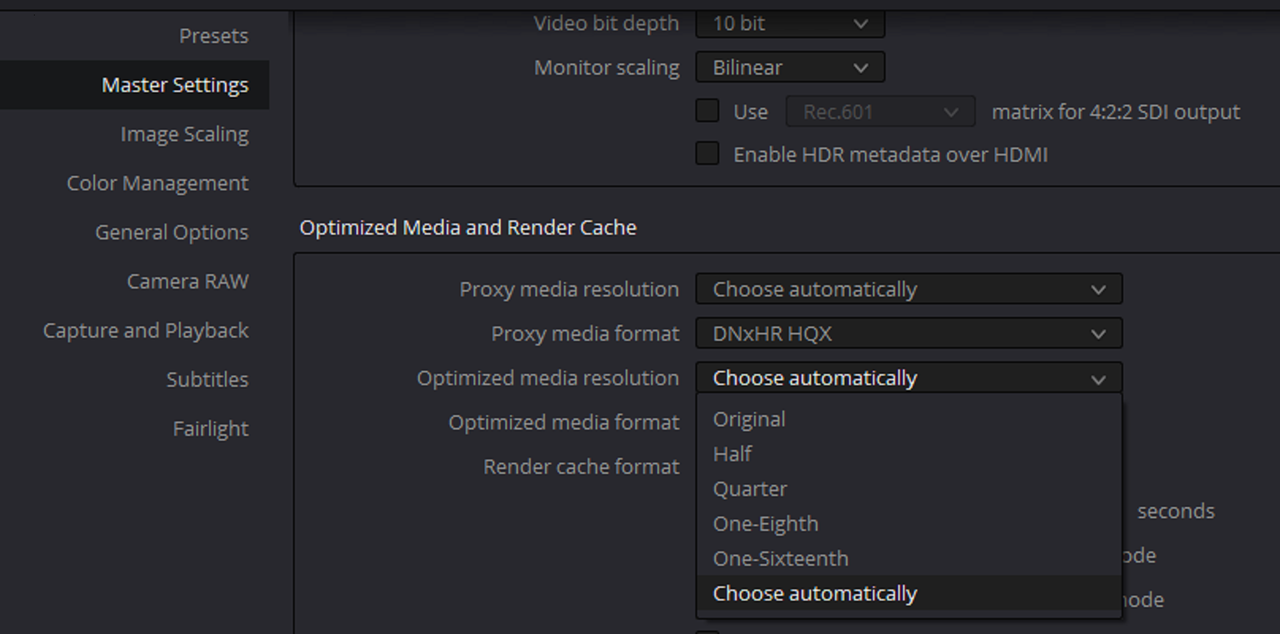
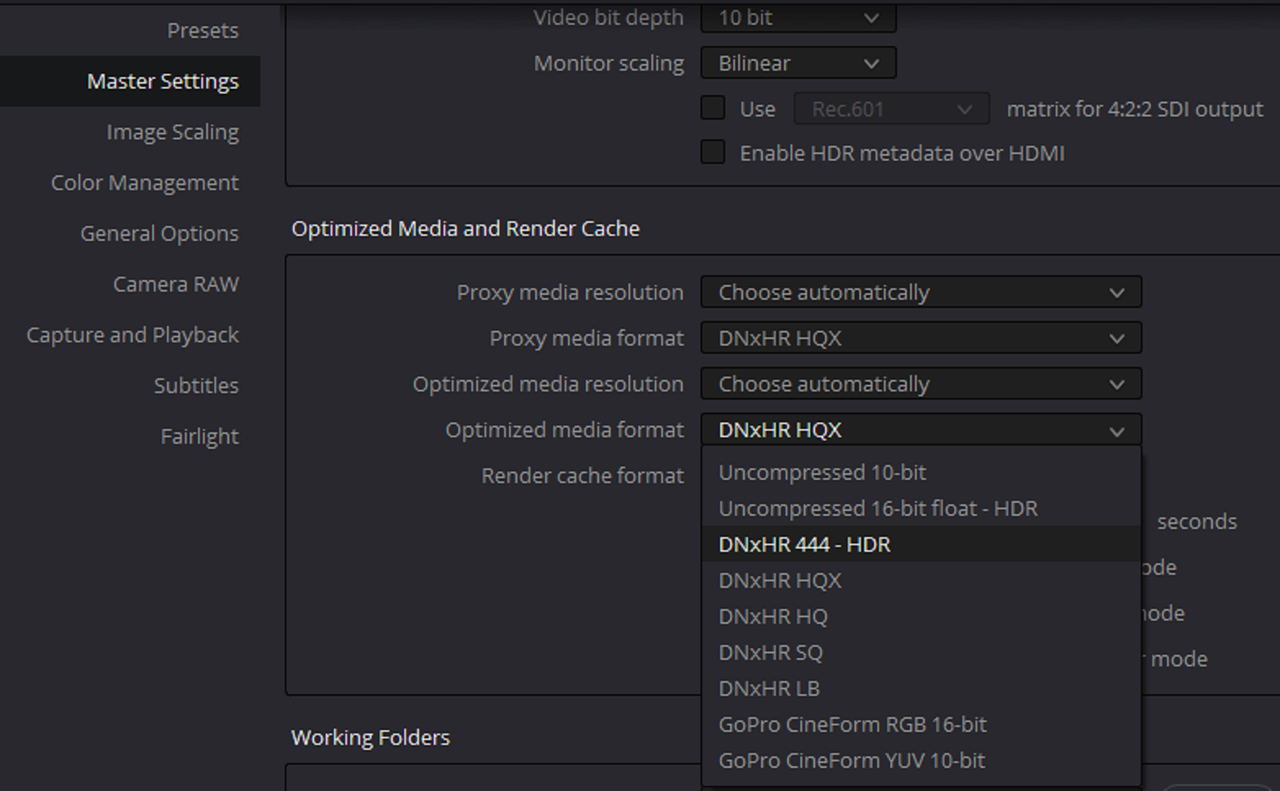
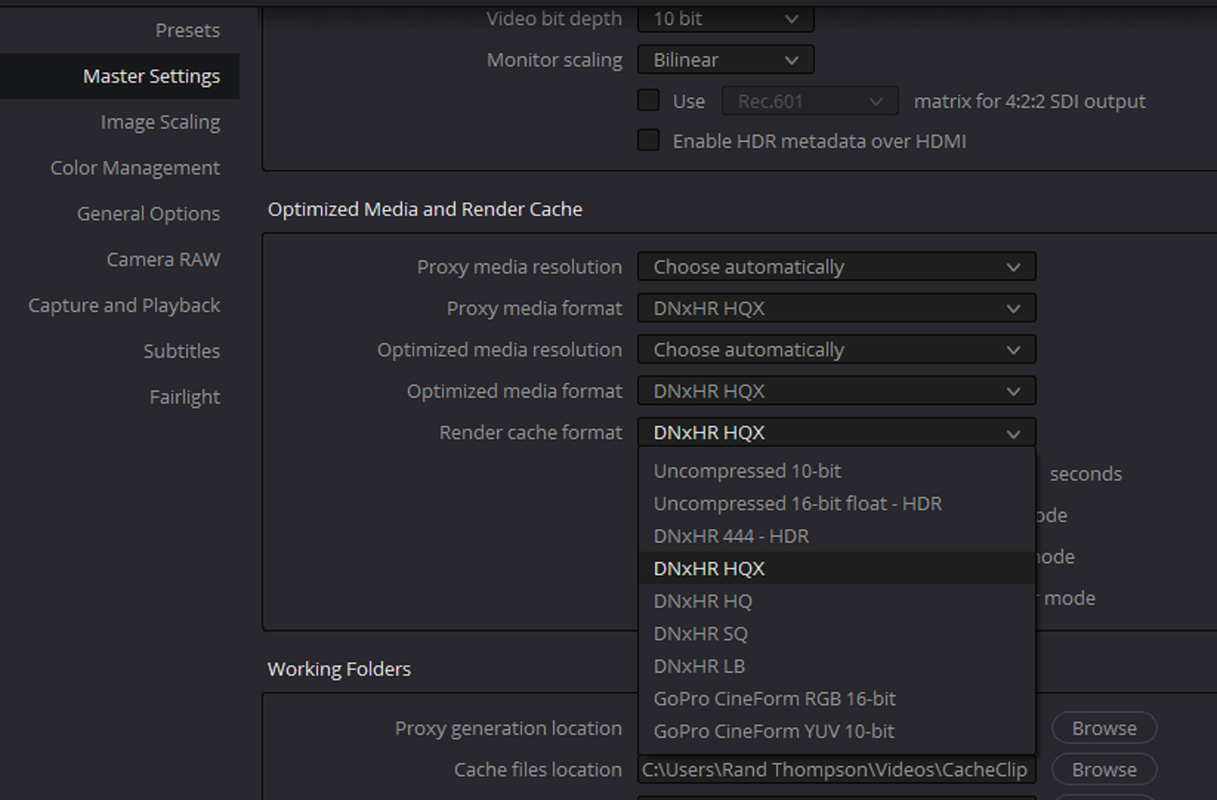
2) Use "OPTIMIZED MEDIA" and choose what codec you want to use in the Project Settings. At export, choose not to use the OPTIMIZE MEDIA by simply not placing a check mark by the box selecting it .

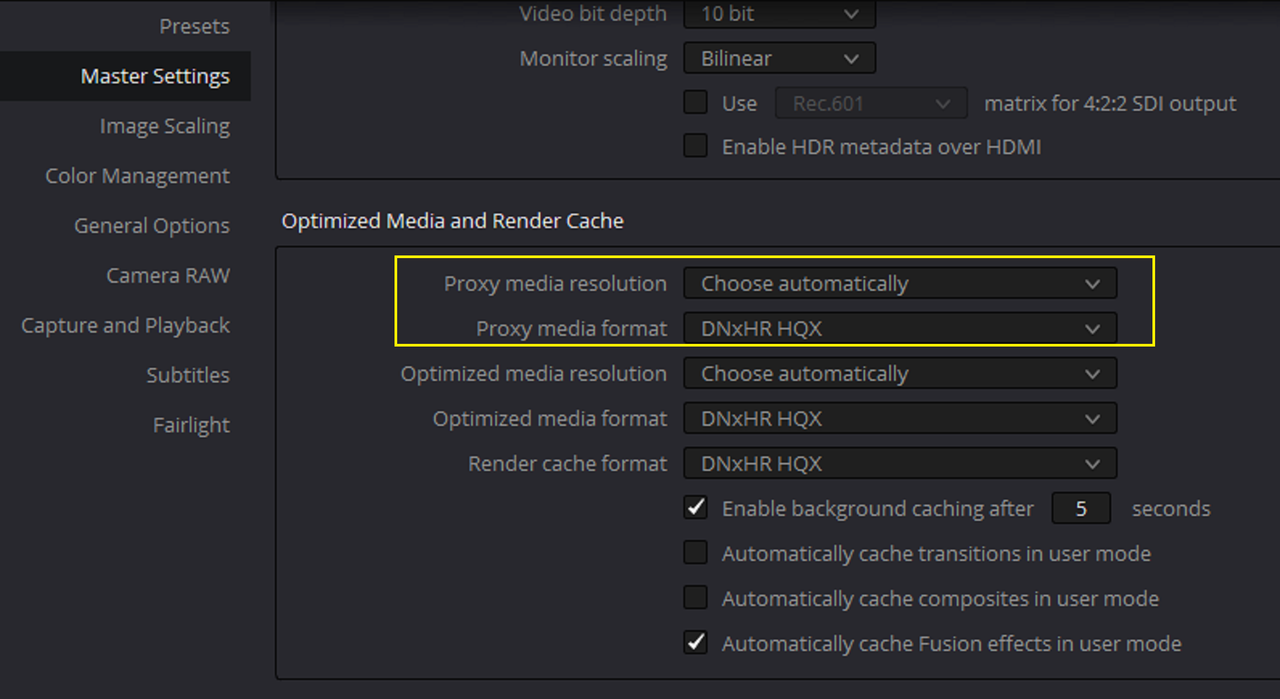
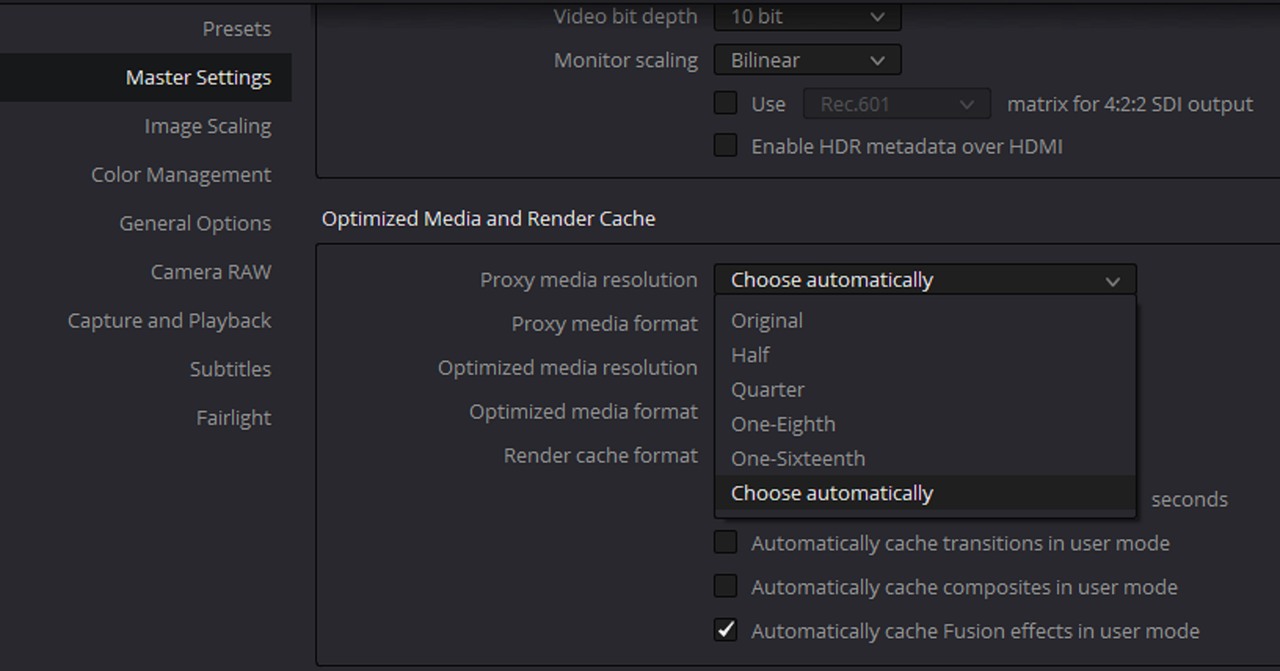
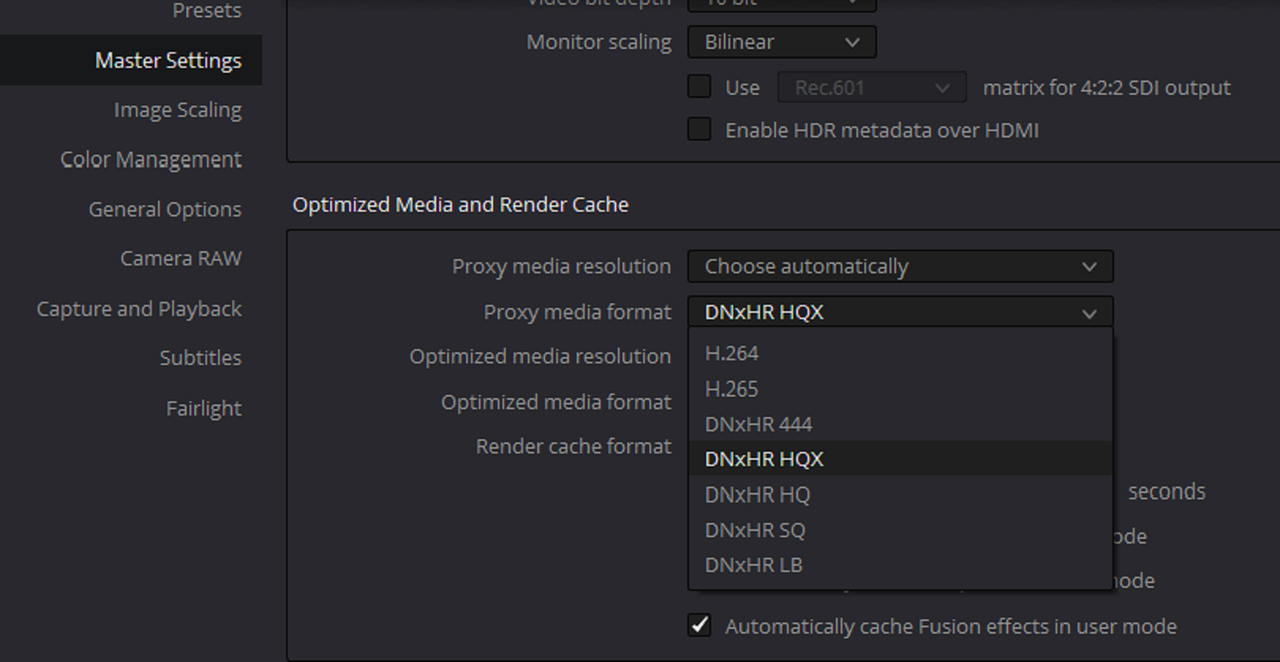
3) ​Use "PROXY MEDIA" and choose what codec you want that to use in the Project Settings. At export, choose not to use the PROXY MEDIA by simply not placing a check mark by the box selecting it.

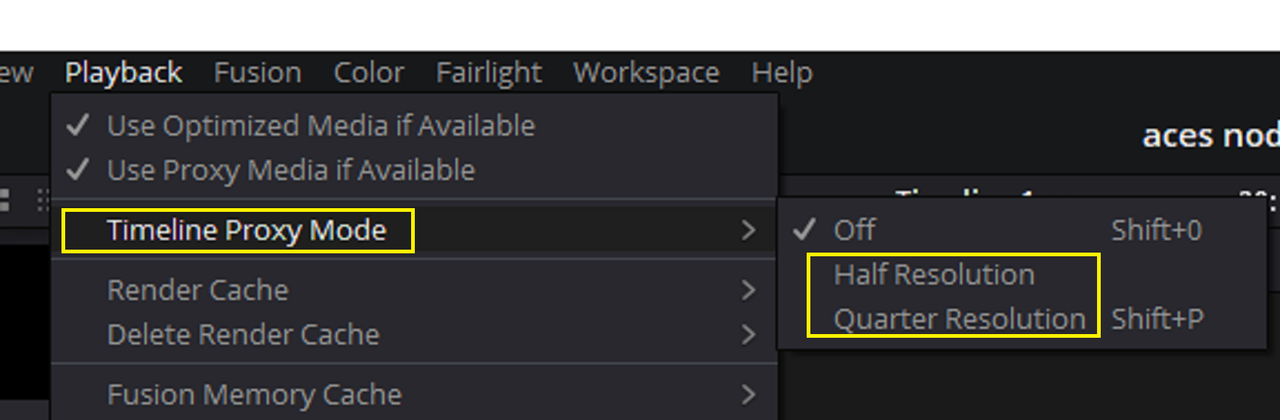
4) Under, I believe it's the PLAYBACK title menu drop down menu, choose PROXY and then either HALF quality or FOURTH quality for smoother playback.

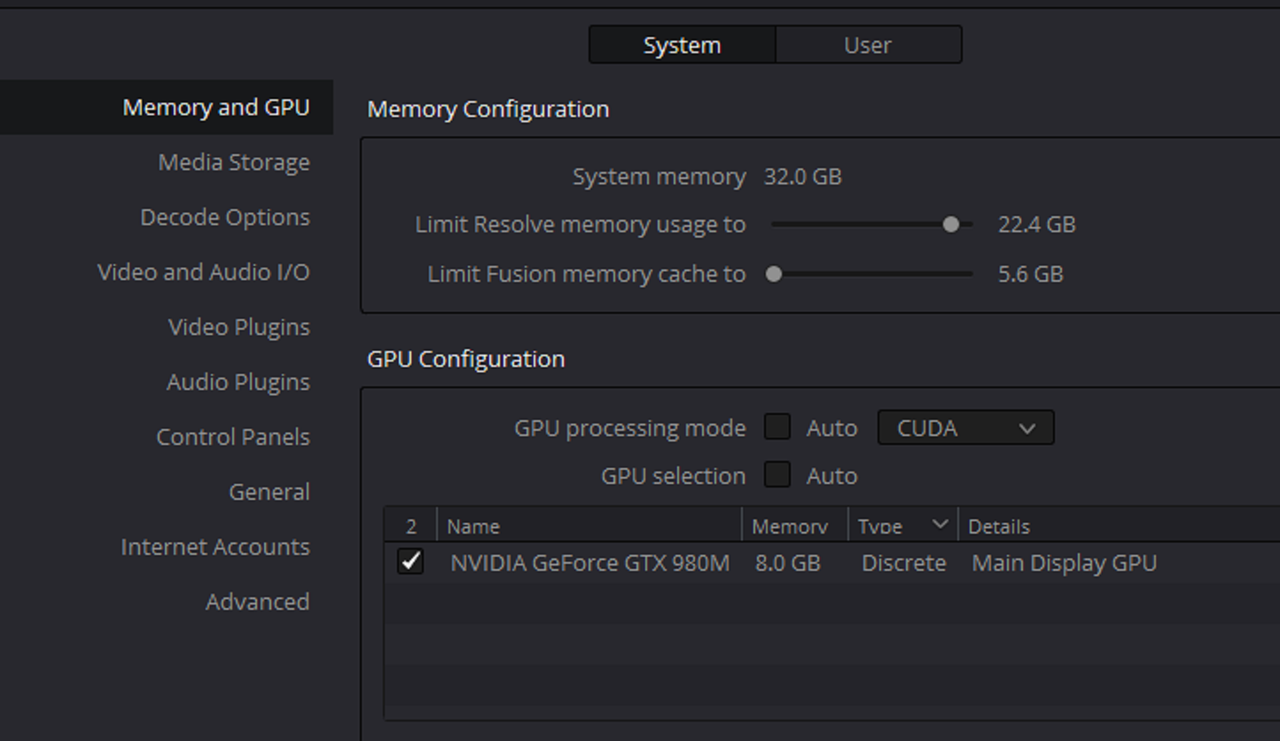
5) In the Davinci Resolve settings, I think it's under CACHE , reallocate the Percentage of Ram more towards Davinci and away from other programs.​​​​​​
 
Last edited:
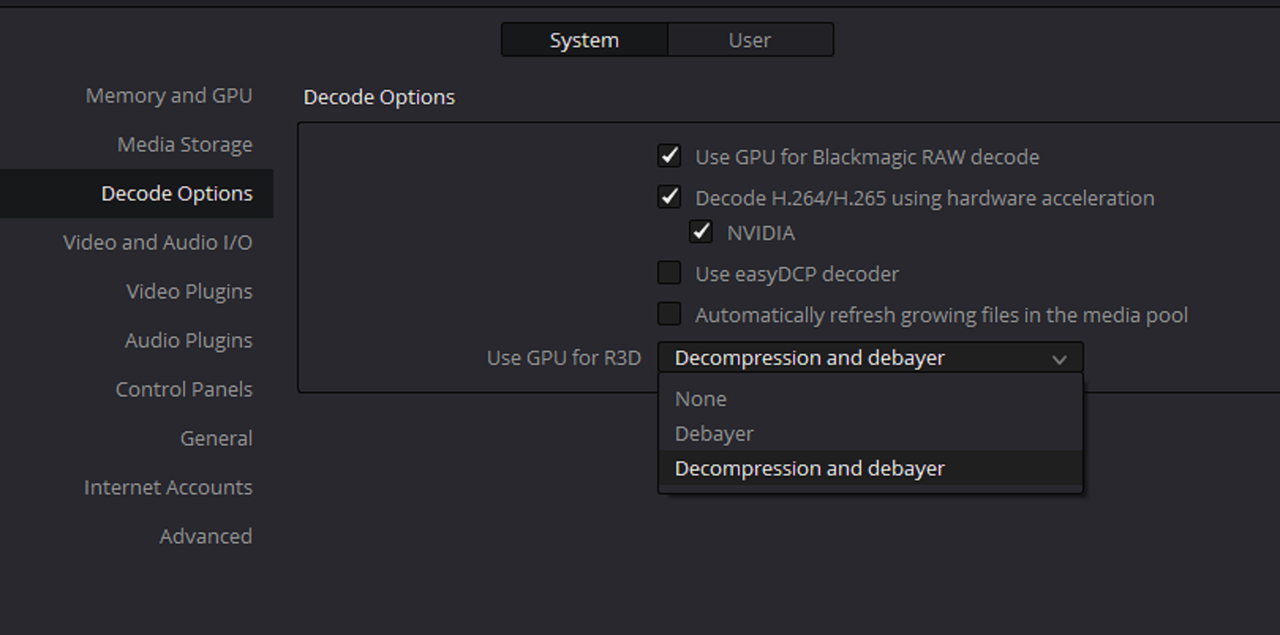
The Different Settings that you can choose from to try to get better playback quality of your 8K files in Davinci Resolve


1) CAMERA RAW SETTINGS

Screenshot-3671.png

Screenshot-3669.png


At Export

Screenshot-3672.png


2) Proxy or Optimized Media

Screenshot-3687.png


proxy.png

Screenshot-3675.png

Screenshot-3674.png


optiized.png

Screenshot-3677.png

Screenshot-3678.png

Screenshot-3679.png


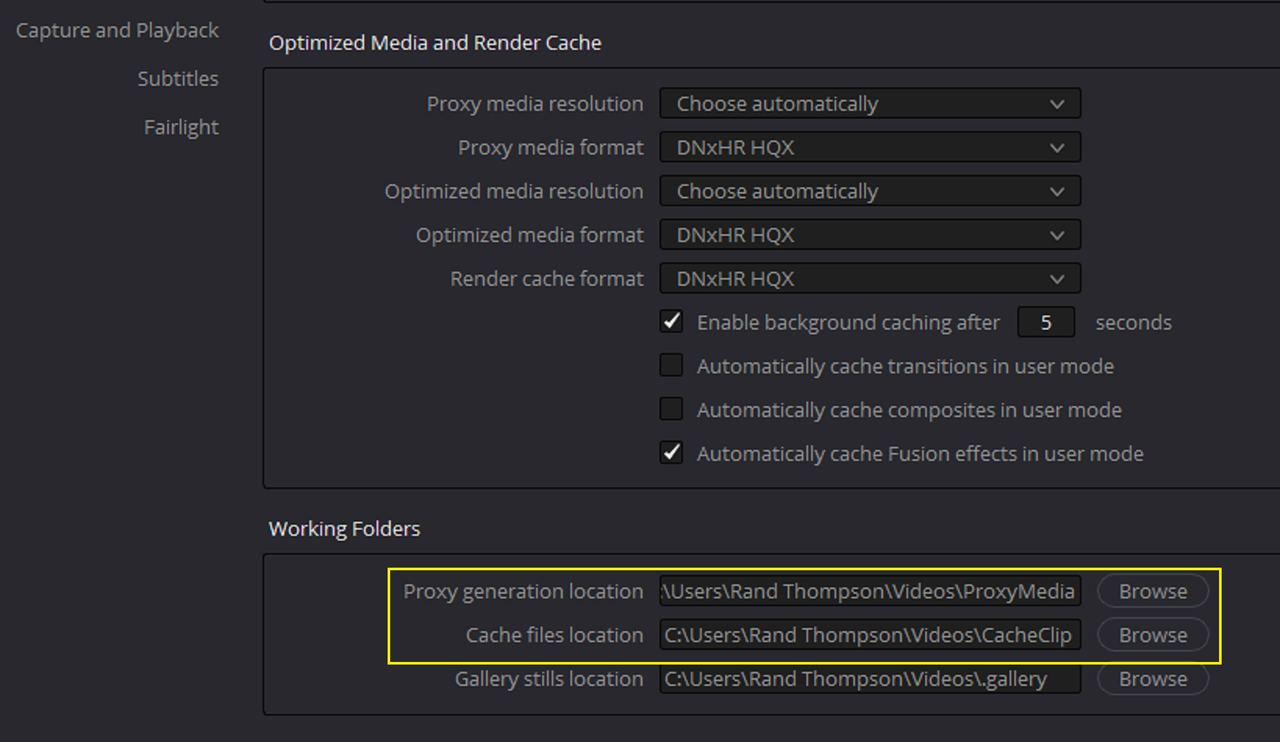
NOTE: You can also select which harddrives you want to store your, Proxy/Optimized media to and where you want to send your Cache files to, so to a potentially fast harddrive for better READ/WRITE speeds.

Screenshot-3690.png

At Export

Screenshot-3689.png


3) Timeline Proxy Mode

Screenshot-3688.png


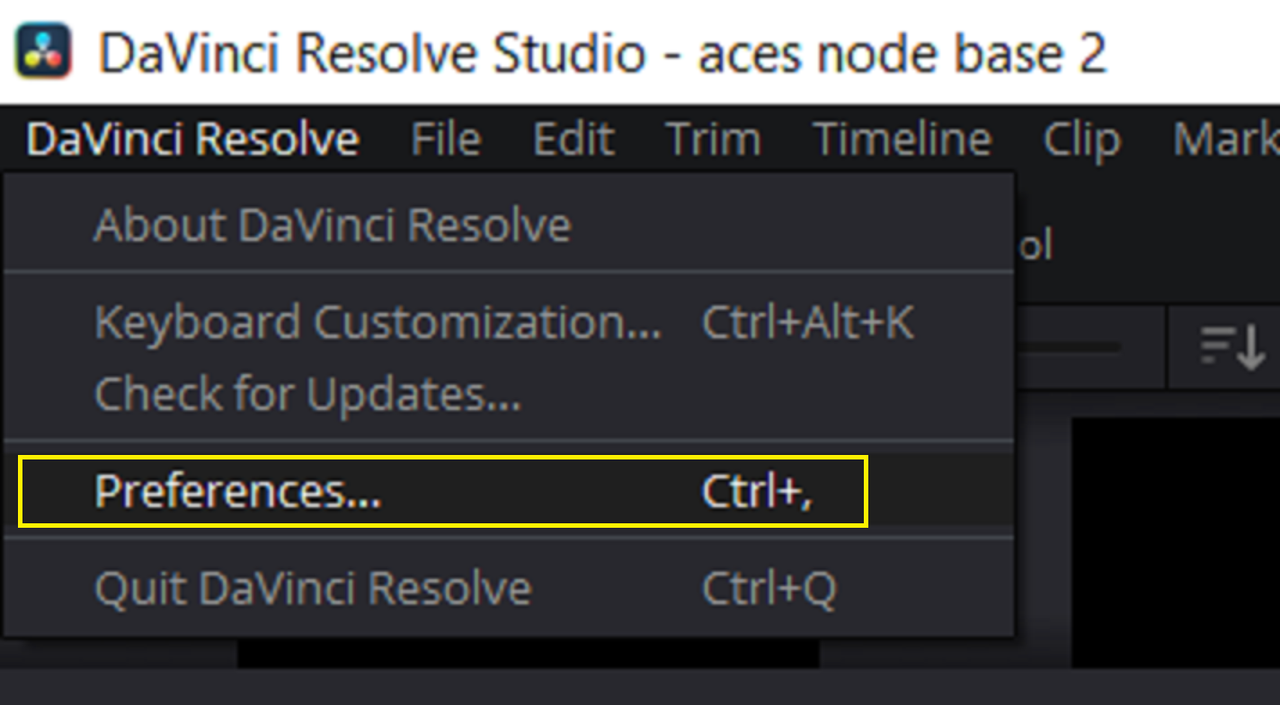
4) Preferences- System Settings

Screenshot-3686.png

Screenshot-3684.png

Screenshot-3683.png
 
Last edited:
Thanks Ryan, Patrick and Rand.

All really useful information. What’s really annoying is 8k Monstro footage plays back perfectly on my now pretty old desktop but it can’t begin to handle Komodo. Guess it’s probably down to the Red Rocket X in the desktop which won’t handle the Komodo’s DCT compression. If I go M1 max Komodo should be fine but Monstro unlikely to be any good.

Will probably try an M1 but based on your experience Patrick will go with 64 Gb, will also use Rand’s tips and see if it is smooth enough to be useable.

Rand many thanks for all of your suggestions and also for taking the time to screenshot the menus. Good to see all of the options that might make a difference. Also many thanks for all your other posts over the years, has really helped with the Resolve learning curve.

For a number of reasons I would rather not get a new desktop but Ryan you are probably right this would probably be the best bet however the 3080 ti laptops Rand linked to yesterday could be tempting.

Seems like we are on the threshold of a laptop being good enough but we’re not quite there yet.
 
Rand many thanks for all of your suggestions and also for taking the time to screenshot the menus. Good to see all of the options that might make a difference. Also many thanks for all your other posts over the years, has really helped with the Resolve learning curve.

You're welcome Tom, and Thanks for the comment!
 
Back
Top