Welcome to our community

Be a part of something great, join today!

  • Hey all, just changed over the backend after 15 years I figured time to give it a bit of an update, its probably gonna be a bit weird for most of you and i am sure there is a few bugs to work out but it should kinda work the same as before... hopefully :)

R3Ds from RCX not updating in Resolve

Ramesh Jai

Well-known member
Joined
Apr 19, 2007
Messages
982
Reaction score
0
Points
0
Website
www.apex-advertising.com
Hi,
Using the latest version of Redcine X Pro and Resolve on a M1 Mac Mini. After grading the R3D files in RCX I export the XML. On importing the XML timeline into Resolve the graded files show up as flat and ungraded. The Metadata files are present in the graded individual shot folders but the grade just not showing up in Resolve. TIA for any assistance in this.
 
Ramesh,

Why export out the graded .R3D files out as .XML? Why not just correct them in Redcine-X and import them into Resolve?

RED changed their SDK for NLEs so that RED. R3D files come into NLEs as Flat/Ungraded REDWideGamutRGB/ Log3G10 images.

Here is Dan Duran from Red Explaining why in a tutorial on How to process RED footage in Premiere Pro on why RED did this, it starts at about the 2:51 minute mark in the first video.


Here's a how to process RED Komodo footage in Davinci Resolve tutorial from Dan Duran as well.

 
Ramesh,

Why export out the graded .R3D files out as .XML? Why not just correct them in Redcine-X and import them into Resolve?

RED changed their SDK for NLEs so that RED. R3D files come into NLEs as Flat/Ungraded REDWideGamutRGB/ Log3G10 images.

Here is Dan Duran from Red Explaining why in a tutorial on How to process RED footage in Premiere Pro on why RED did this, it starts at about the 2:51 minute mark in the first video.


Here's a how to process RED Komodo footage in Davinci Resolve tutorial from Dan Duran as well.


Thank you. Will try this. Appreciate your response.
 
Thank you. Will try this. Appreciate your response.

You're welcome!

Here's just to Expand on Dan's Tutorial

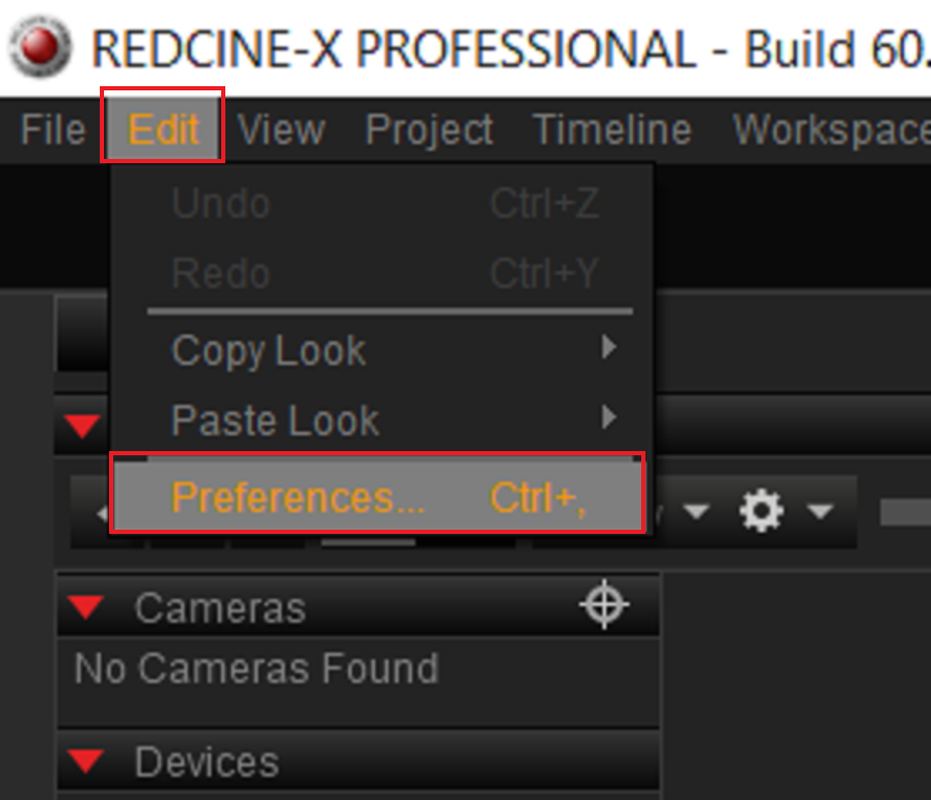
In Redcine-X

Settings

1.png
wAAACH5BAEKAAAALAAAAAABAAEAAAICRAEAOw==


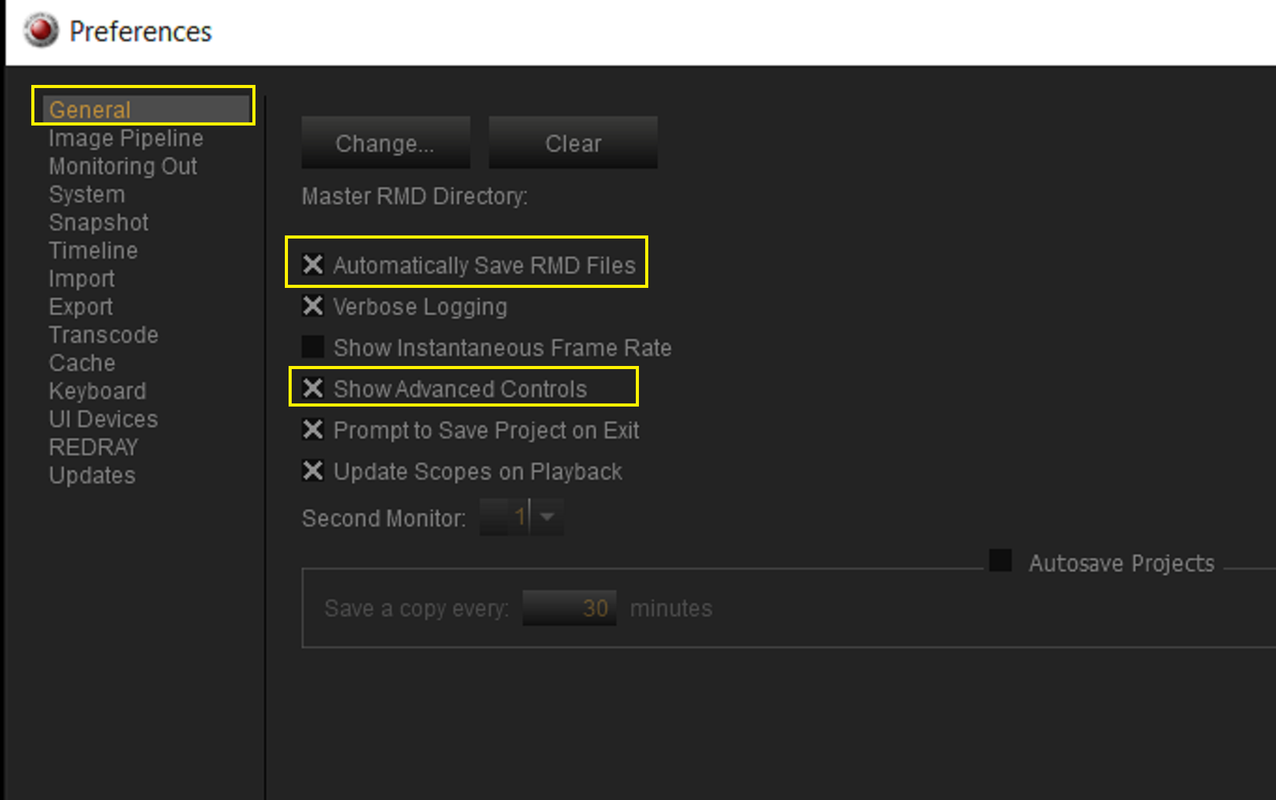
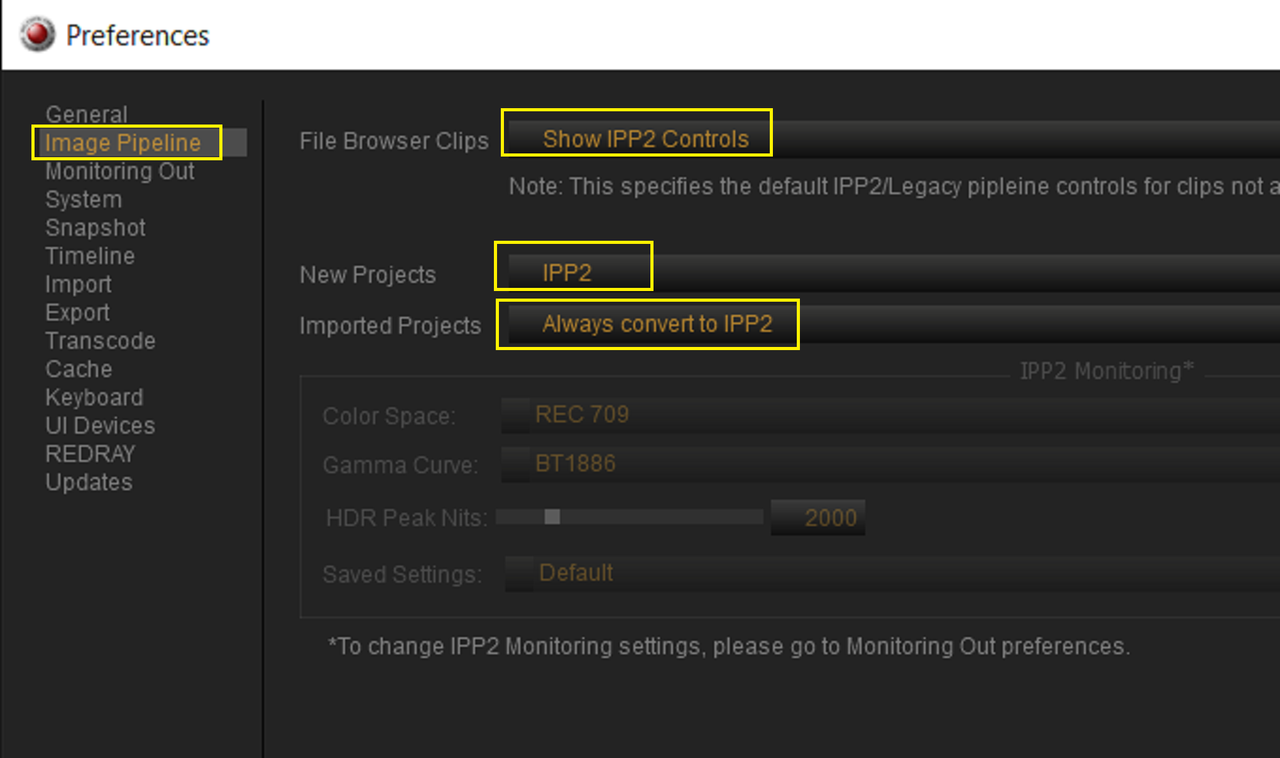
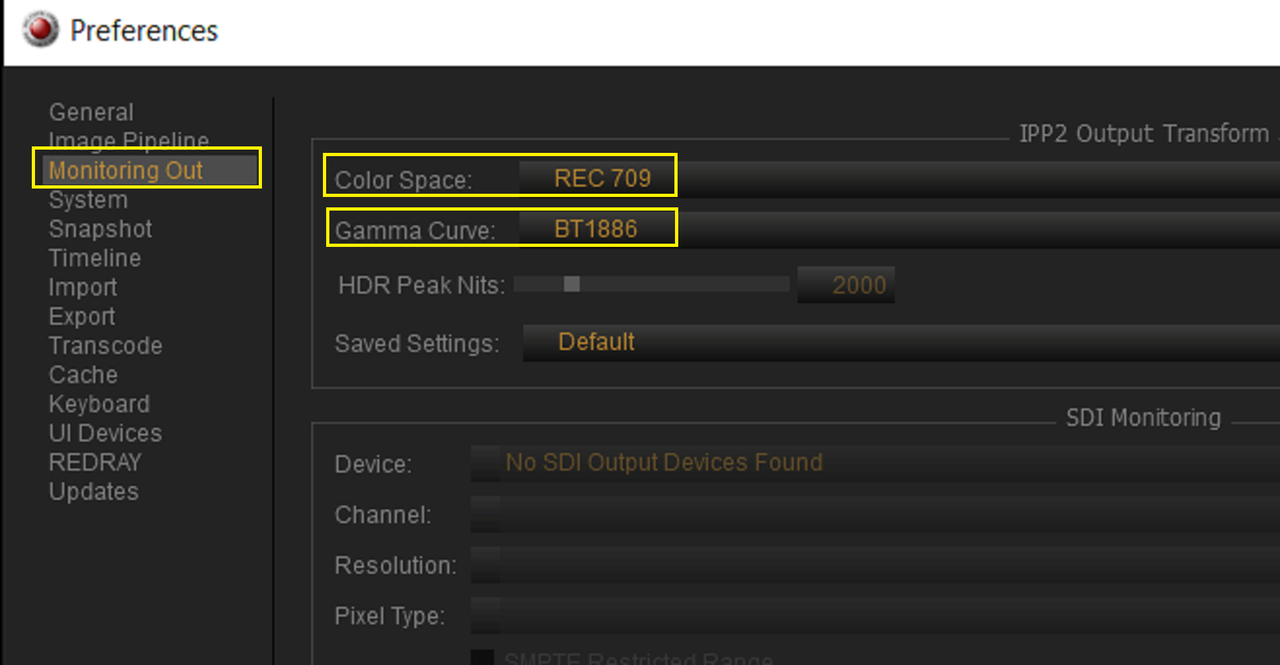
Be sure to make these changes below if you hadn't already

"Show Advanced Controls" will make sure you are working in an IPP2 Workflow, You might have to restart REDCINE-X for this change to take affect if you are not already in an IPP2 Workflow.Selecting "Automatically Save RMD Files" will make sure that any changes you make to a RED .R3D file will be carried on with the file.

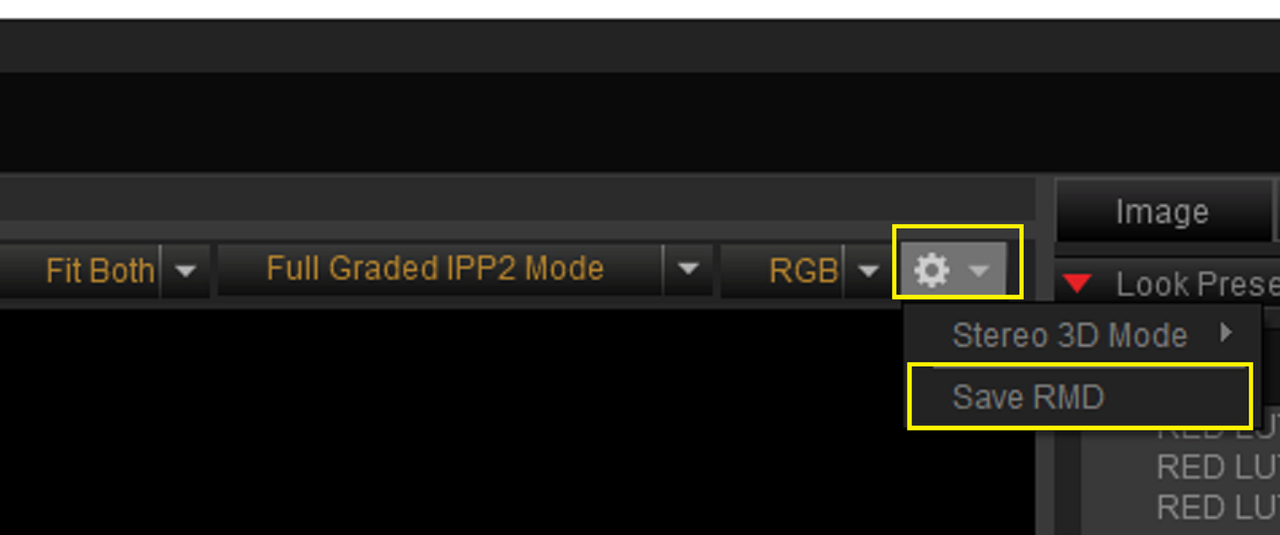
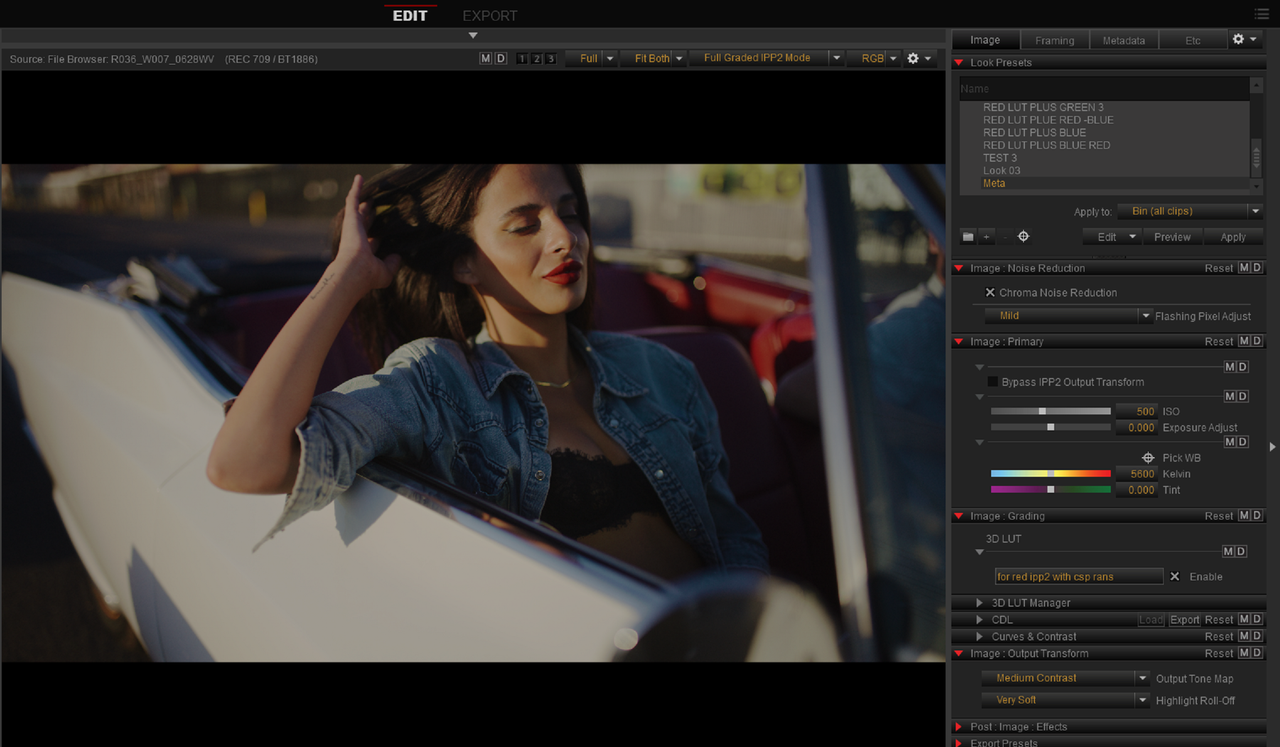
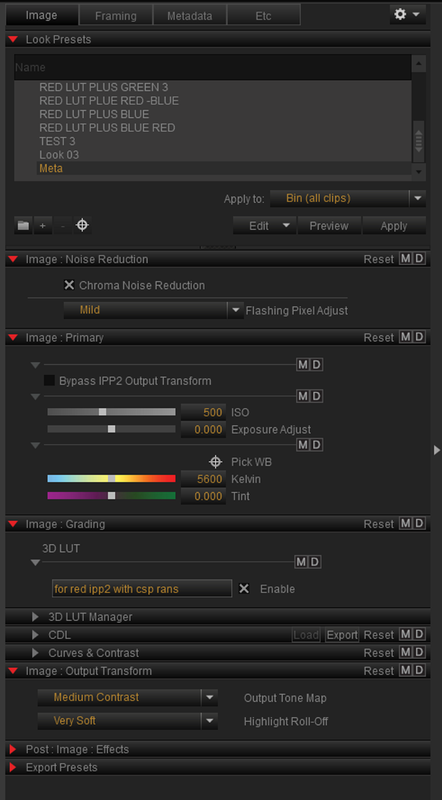
If you are experiementing with different looks and don't want the last look you tried to be embedded along with the .R3D file, disable
"Automatically Save RMD Files" and manually "SAVE RMD" for the look you do what in the upper right-hand corner of the "Viewer Window" under the "Cog wheel" icon.

2.png
wAAACH5BAEKAAAALAAAAAABAAEAAAICRAEAOw==


Screenshot-8886.png
wAAACH5BAEKAAAALAAAAAABAAEAAAICRAEAOw==


3.png
wAAACH5BAEKAAAALAAAAAABAAEAAAICRAEAOw==


4.png
wAAACH5BAEKAAAALAAAAAABAAEAAAICRAEAOw==


5.png
wAAACH5BAEKAAAALAAAAAABAAEAAAICRAEAOw==


6.png
wAAACH5BAEKAAAALAAAAAABAAEAAAICRAEAOw==


In Davinci Resolve

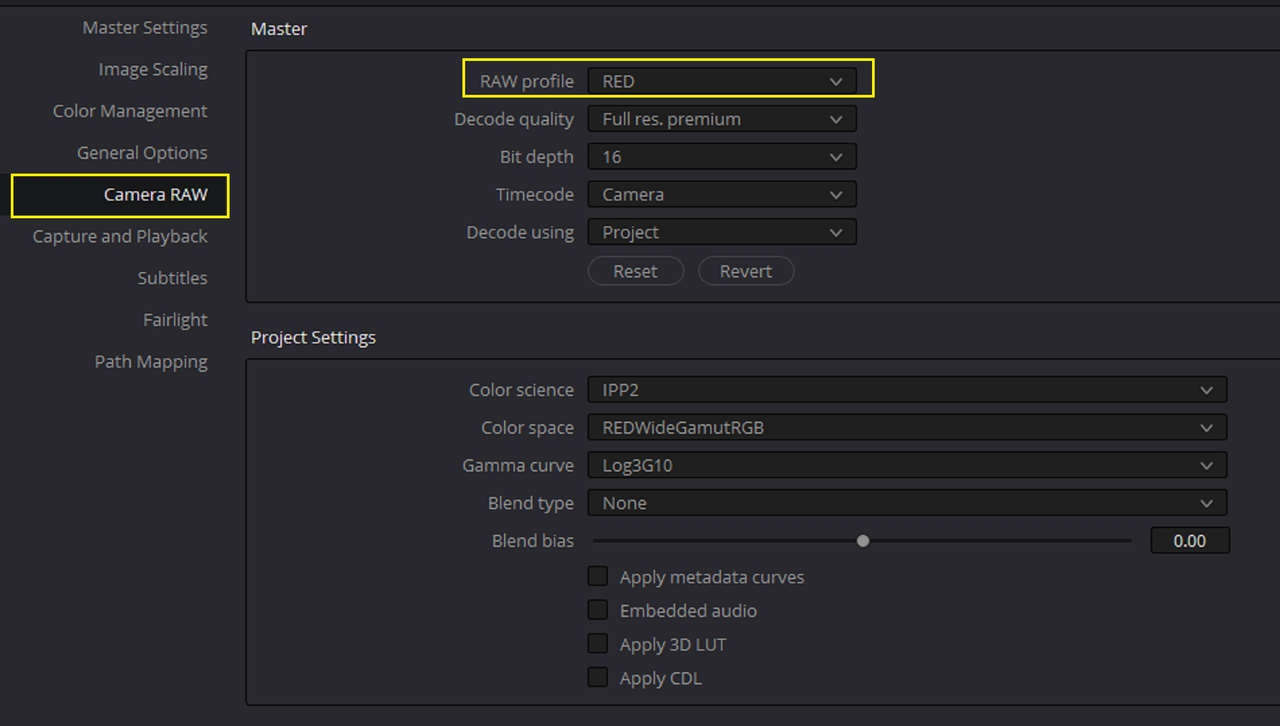
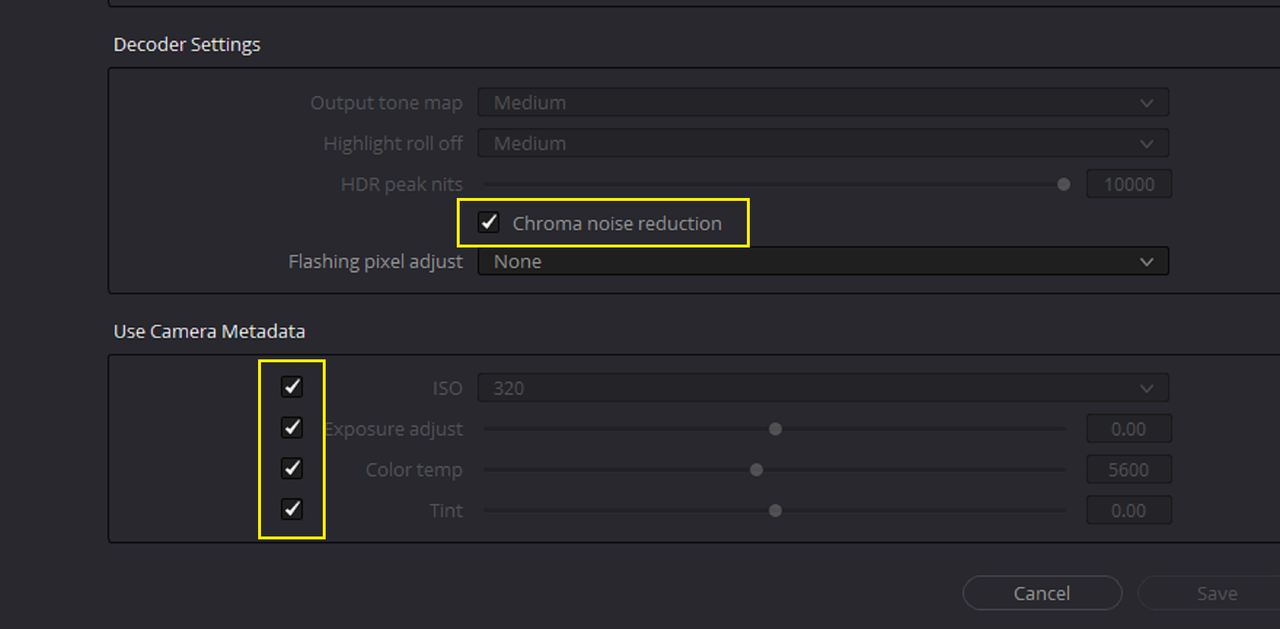
in Davinci Resolve, as Dan Demonstrated, make these changes in the
"CAMERA RAW" area


7.png
wAAACH5BAEKAAAALAAAAAABAAEAAAICRAEAOw==


You can change the "Flashing Pixel Adjustment" to "High" as Dan suggested.

8.png
wAAACH5BAEKAAAALAAAAAABAAEAAAICRAEAOw==


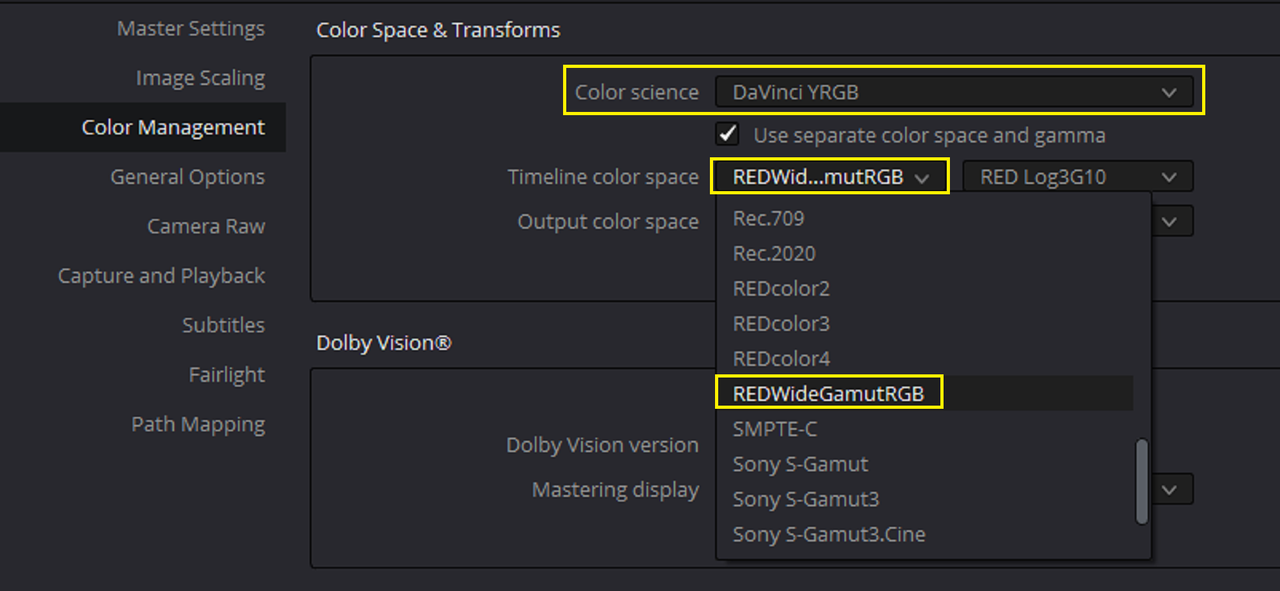
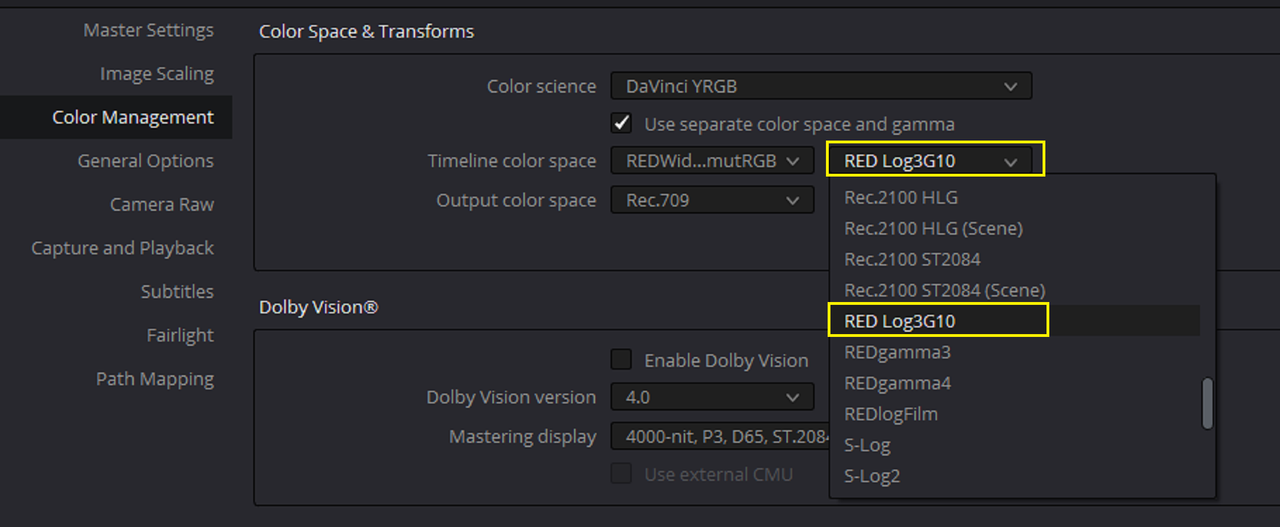
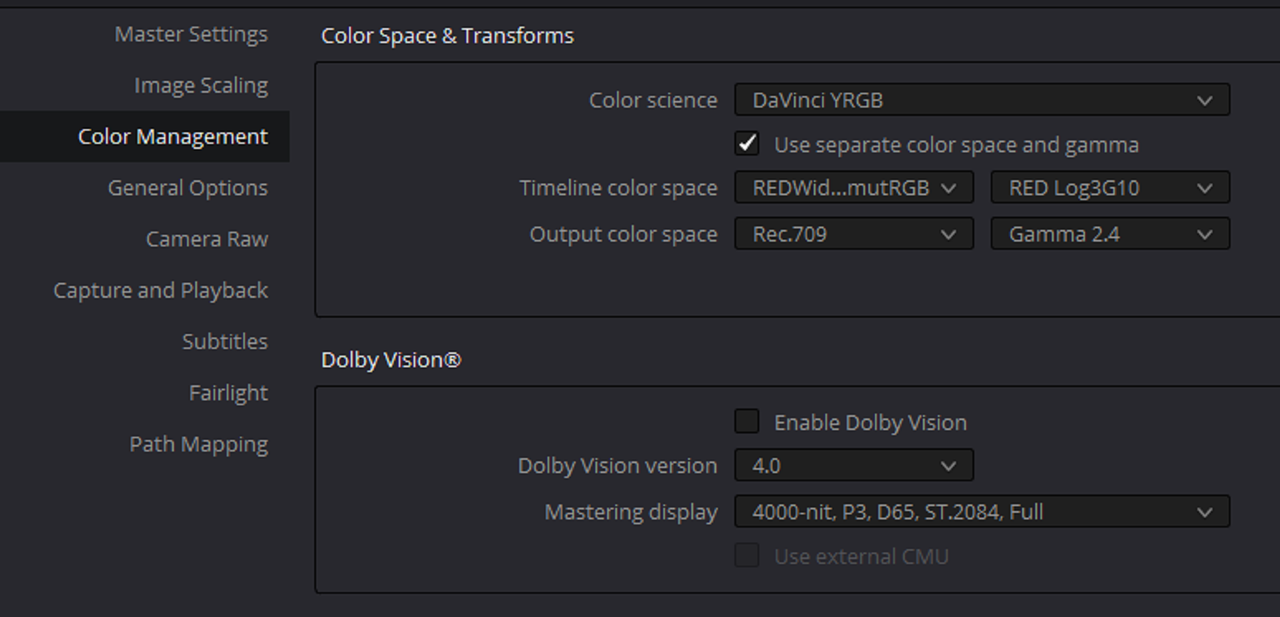
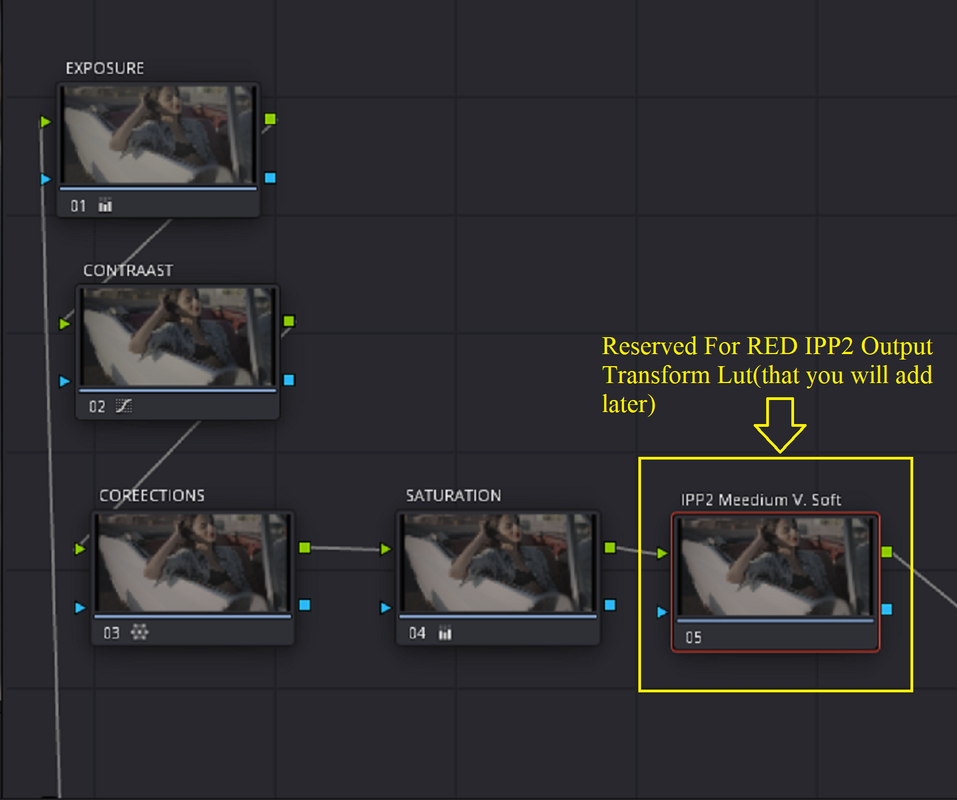
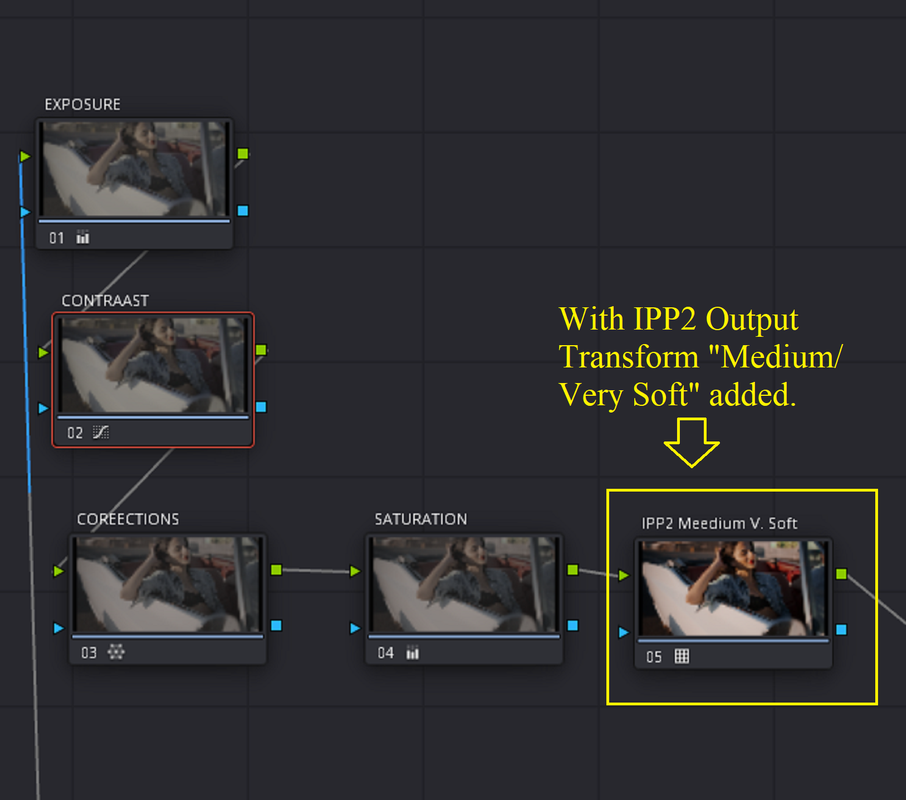
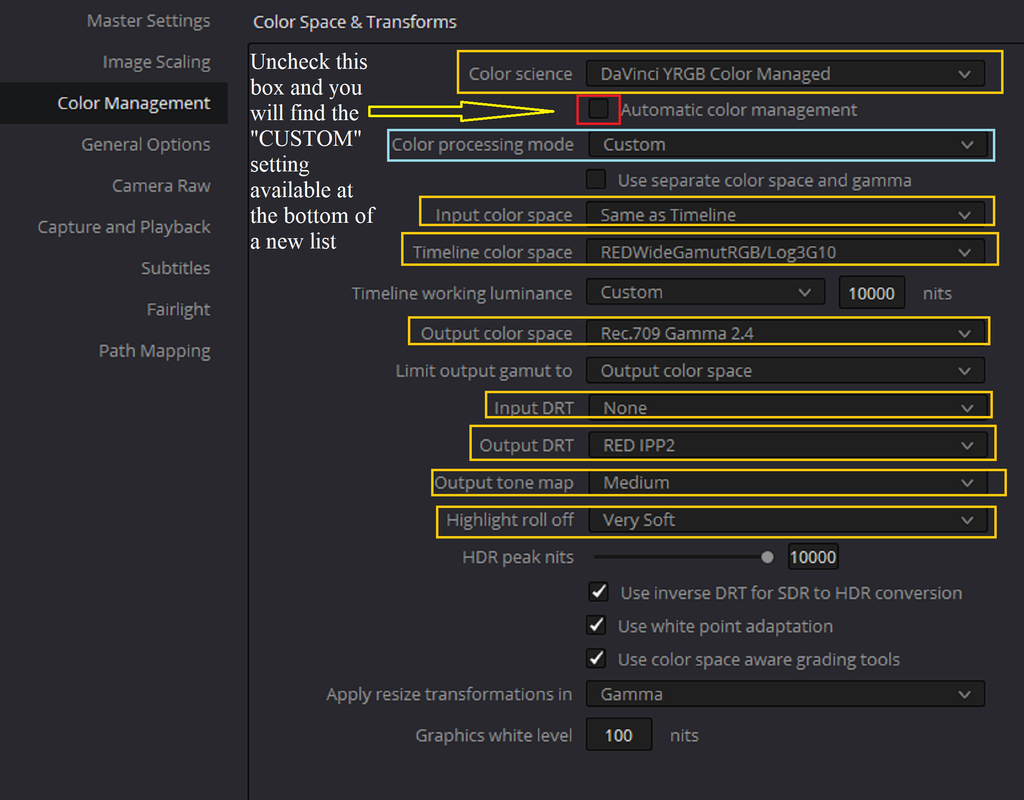
For a "NODE BASED" IPP2 Workflow which will require you to add and IPP2 Output Transform Lut at the end of the NODE Tree, use theses settings under "Color Management" Area.

9.png
wAAACH5BAEKAAAALAAAAAABAAEAAAICRAEAOw==

10.png
wAAACH5BAEKAAAALAAAAAABAAEAAAICRAEAOw==


10a.png
wAAACH5BAEKAAAALAAAAAABAAEAAAICRAEAOw==


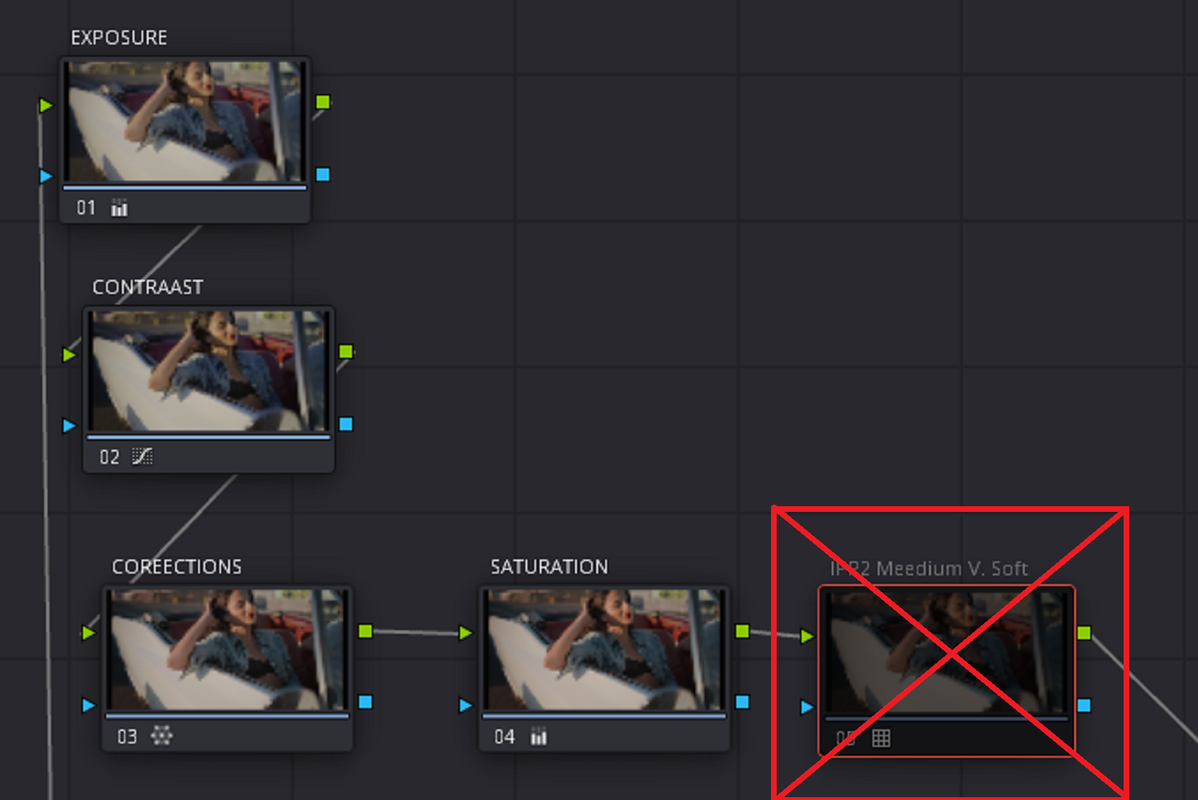
Inside of the Resolve User interface , you will notice that the RED .R3D file image is Flat in appearance. This was as Dan stated to give you the most optimal image to start grading from.


11.png
wAAACH5BAEKAAAALAAAAAABAAEAAAICRAEAOw==


R036-W007-0628-WV-001-1-3-2.jpg
wAAACH5BAEKAAAALAAAAAABAAEAAAICRAEAOw==


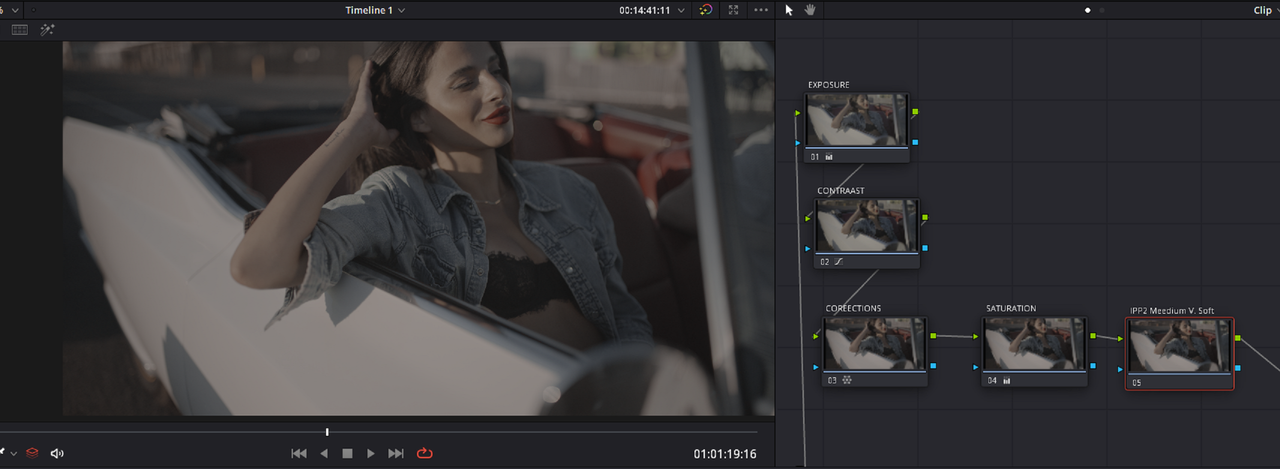
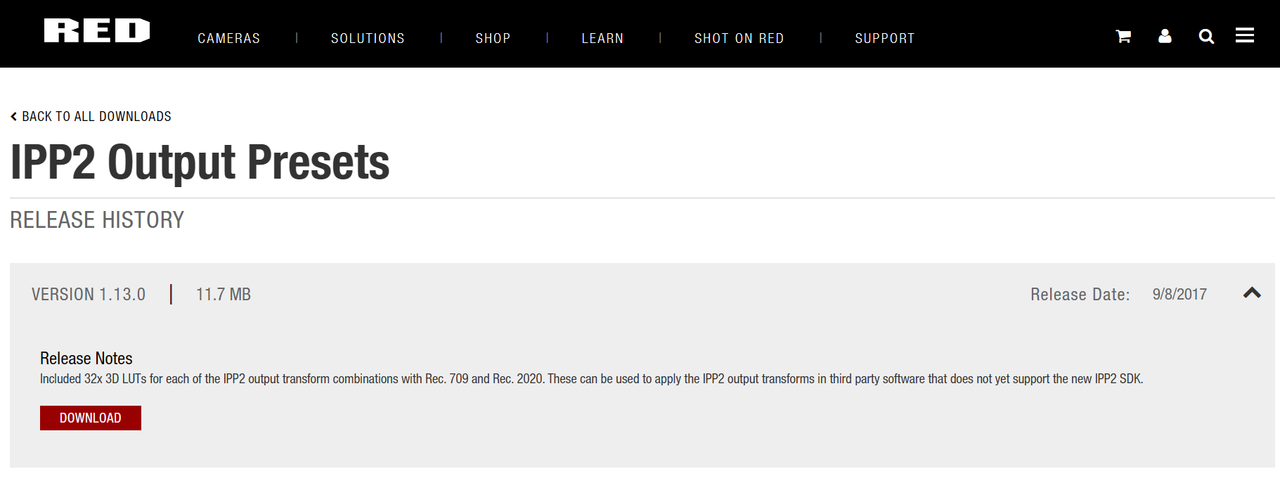
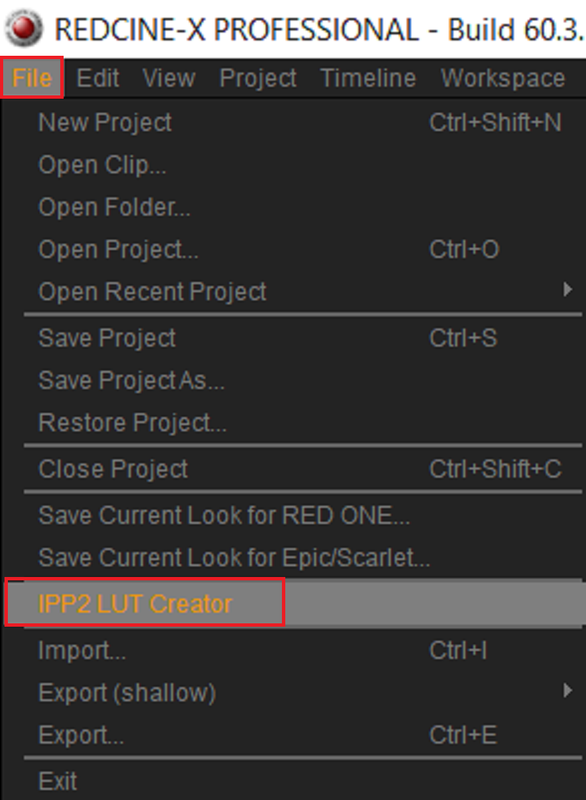
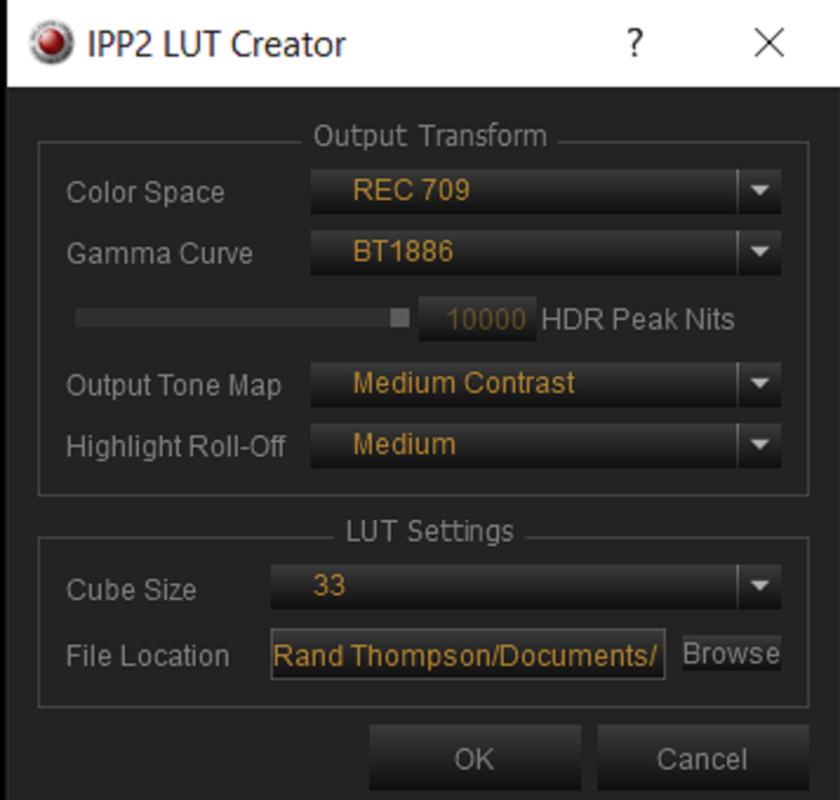
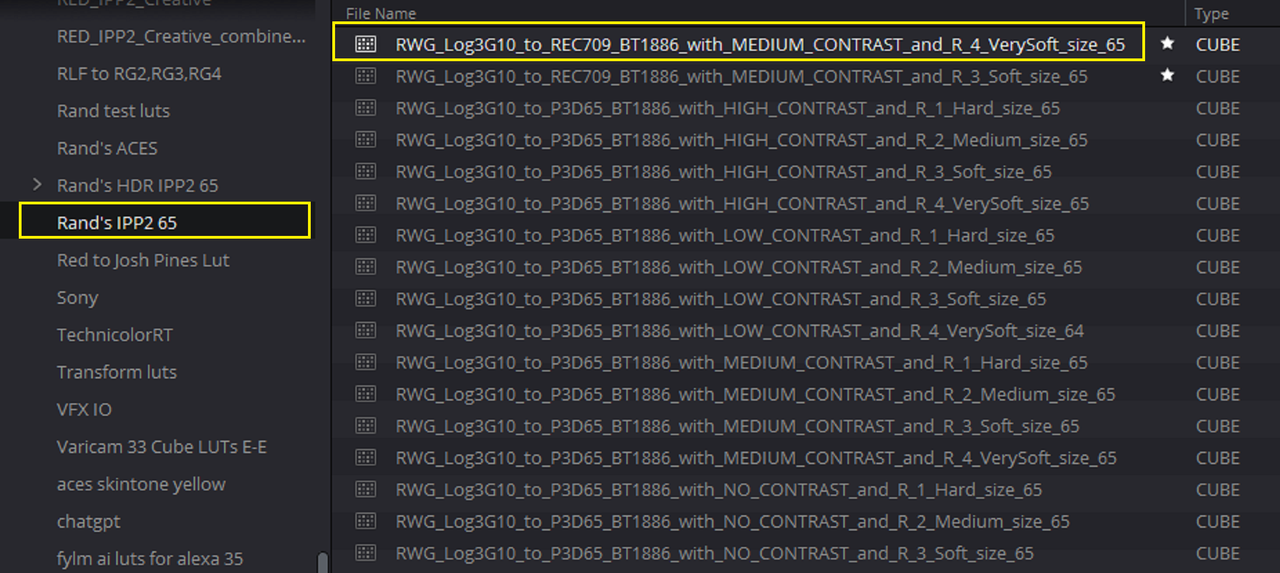
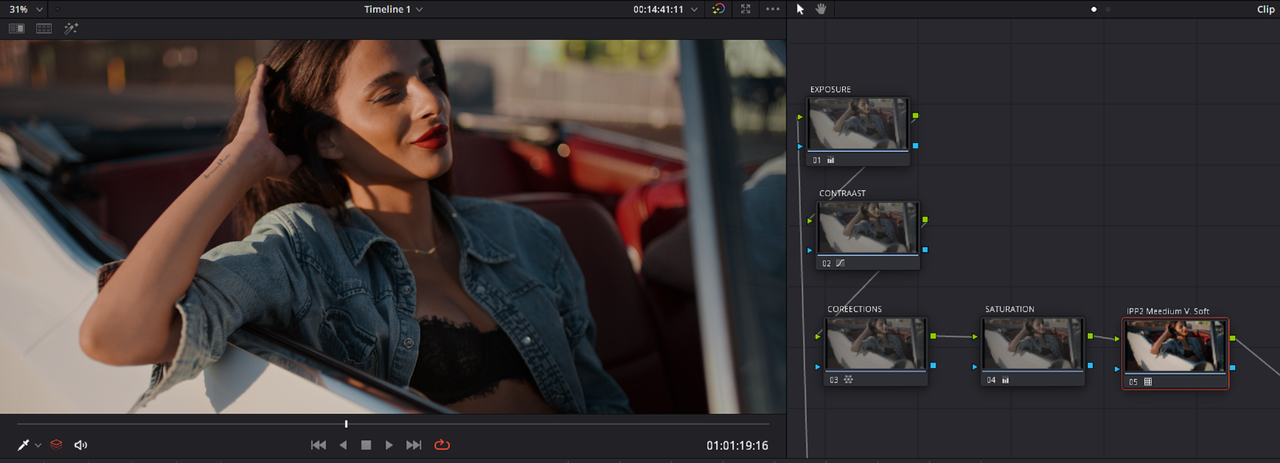
You now will need to apply and RED IPP2 Output Transform Lut at the End on the Node tree to get it to look normalized. You can download these RED IPP2 Output Transform Luts at Red's website or again as Dan stated you can make them yourself inside od REDCINE-X.

RED Website link
Downloads Details (red.com)


Inside of REDCINE-X

15a.png
wAAACH5BAEKAAAALAAAAAABAAEAAAICRAEAOw==


15b.png
wAAACH5BAEKAAAALAAAAAABAAEAAAICRAEAOw==


12.png
wAAACH5BAEKAAAALAAAAAABAAEAAAICRAEAOw==


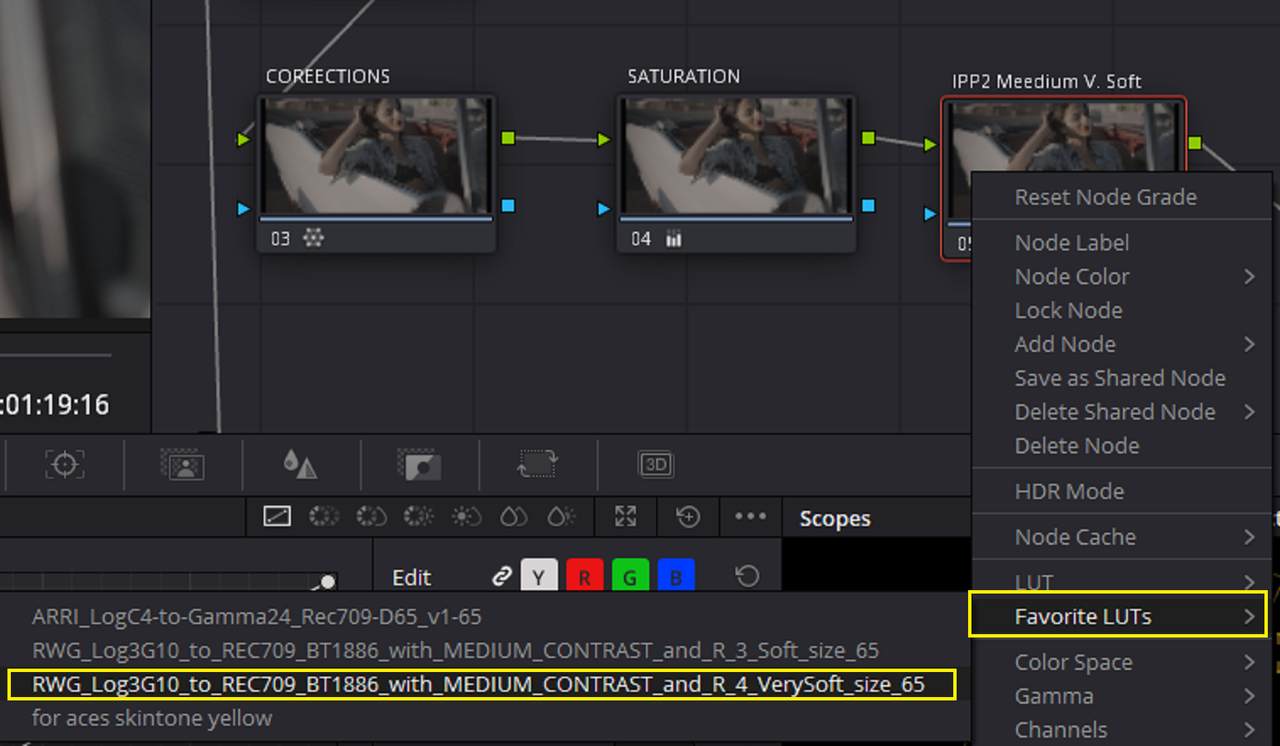
In the Screengrab below I have saved a few RED IPP2 Output Transform Luts as "FAVORITE LUTS". You will have to go in the "LUTS" Tab and apply them from there.

13.png
wAAACH5BAEKAAAALAAAAAABAAEAAAICRAEAOw==


14.png
wAAACH5BAEKAAAALAAAAAABAAEAAAICRAEAOw==


13a.png
wAAACH5BAEKAAAALAAAAAABAAEAAAICRAEAOw==


13b.png
wAAACH5BAEKAAAALAAAAAABAAEAAAICRAEAOw==


R036-W007-0628-WV-001-R3-D-1-3-3.jpg
wAAACH5BAEKAAAALAAAAAABAAEAAAICRAEAOw==


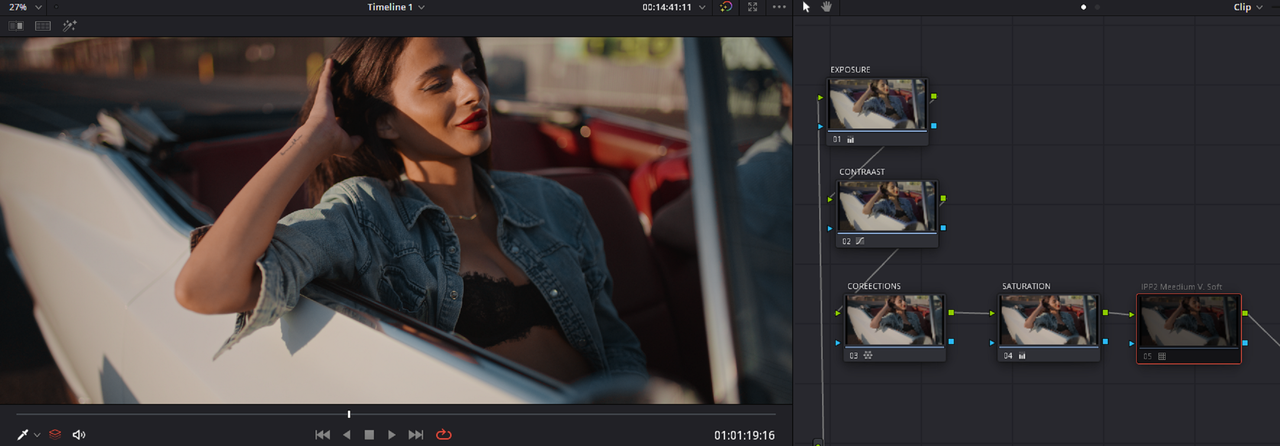
If you didn't want to apply an IPP2 Output Transform Lut to every RED .R3D file in your timeline but wanted all of your clips to be automatically processed with an PP2 Output Transform of your choice you could use an "RED IPP2 COLOR MANAGED" workflow.

Settings

No additional RED IPP2 Output Transform Lut at the end of the NODE TREE is needed.

16.png
wAAACH5BAEKAAAALAAAAAABAAEAAAICRAEAOw==

17.png
wAAACH5BAEKAAAALAAAAAABAAEAAAICRAEAOw==

18.png
wAAACH5BAEKAAAALAAAAAABAAEAAAICRAEAOw==

R036-W007-0628-WV-001-R3-D-1-3-3.jpg
​​​​​​​​
 
Back
Top