Welcome to our community

Be a part of something great, join today!

  • Hey all, just changed over the backend after 15 years I figured time to give it a bit of an update, its probably gonna be a bit weird for most of you and i am sure there is a few bugs to work out but it should kinda work the same as before... hopefully :)

R3D to Cineform...OVER EXPOSURE

Sean007Davis

Active member
Joined
Jul 6, 2008
Messages
33
Reaction score
0
Points
0
Just wondering if anyone has had this Problem, My post workflow uses cineform, I just started cutting my short, shot partially on RED. I own prospect HD and I converted the R3D files to CFHD files 1920x1080 422. All my extrior shots in the resulting 1080p CFHD files appear to be overexposed but when I watch the same footage in in the orriginal R3D files in REDCINE it does not look overexposed.
Has anyone out there using Cineform had this issue and is there a solution.
 
Sean,

I can't speak to working with Prospect HD but we use Prospect 4K with great success on a daily bases and have never seen the issue you've encountered.

Are you using the R2CF scripts for your encoding?

David
 
lots of possible reasons....

color space conversion ie rec 709 -redspace ect most likely

if you have prospect 4k or similar this can all be adjusted after the fact...so the data is not lost just displayed improperly
are you converting with the scripts...or command line
what color space was it shot in or are you viewing it in redcine.

i have not ever had problems yet with this but i could see it possible if i was doing a command line conversion as there are a lot of variables you could enter wrong
 
I used the R2cf scripts....I couldn't find simple instructions for using, the command line R2CF tool
it was shot with the standard colour space in build 16.
I own Prospect HD and I converted it using the new Prospect HD V4.

I just got REDCINE so I didn't play with any of the settings I just put it in to verify the footage.
I'm watching the same scenes side by side and the difference is night and day...I went of on the DP that shot the exterior scenes when
I saw how over exposed the image was. but then after looking at the orricinal and the 1080p conversion side by side I realized it was the conversion that screwed up the image
 
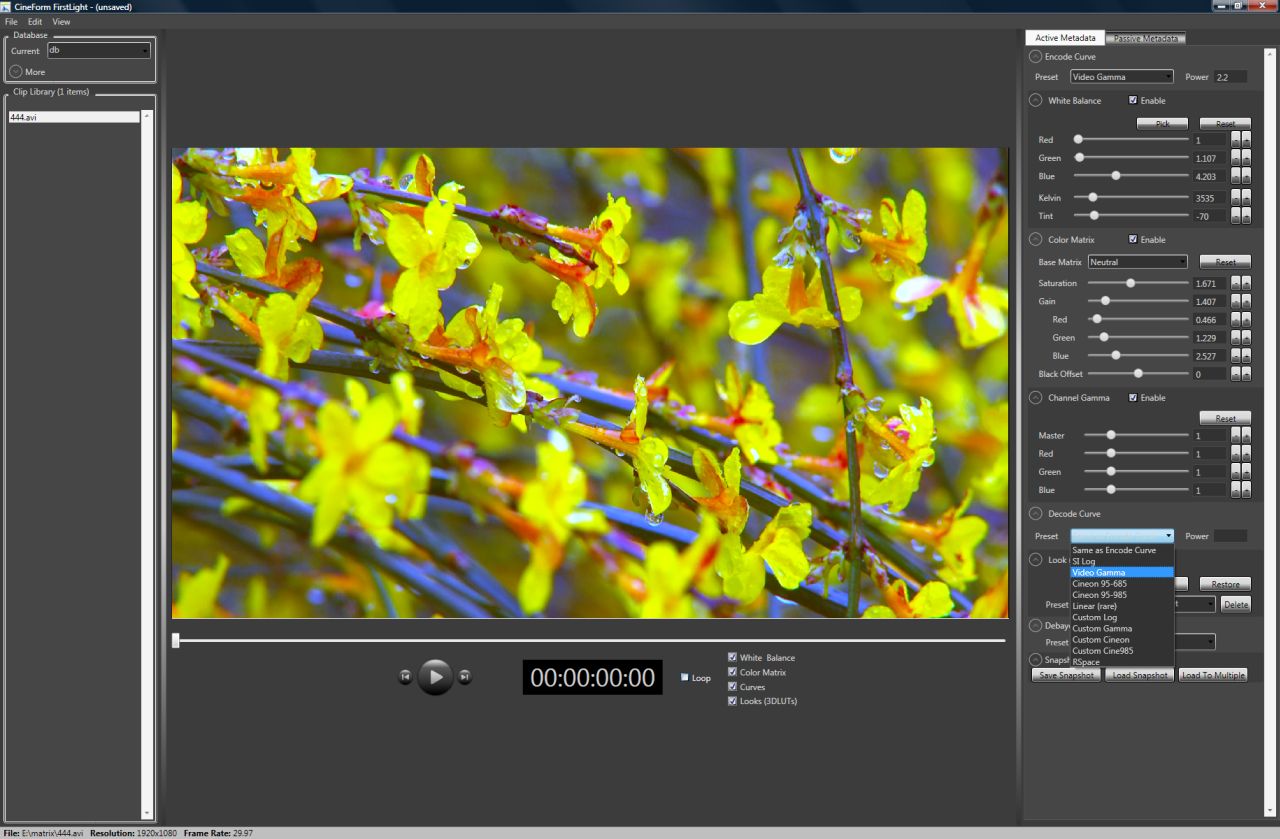
Nothing is baked into the CineForm file, as it is all Active Metadata. Most of the batch scripts default to a flat log curve designed for grading, the are not overexpose just log. If you load the clips into First Light (any v4 CineForm product) you can change the decode curve to 2.2 gamma (Rec709), RSpace, or whatever -- before you do any other color tweaks or corrections.

This image show where the decode curve control is:
FirstLight.jpg


If you what the clip to default to a particular look such as RSpace add the -dR (for 2.2 gamma -dG2.2) in the .vbs script. Open the .vbs script in an text editer (notepad is fine) add in the first few lines you can see something like

defaultr3dswitches = "-q4 -w1920 -h1080 -p1"

to default to RSPace:
defaultr3dswitches = "-q4 -w1920 -h1080 -p1 -dR"

This is all non-destructive, so you can change your mind later.
 
first light does not work

first light does not work

I tried using first light to fix the issues but it does not work it just crashes right after I open it...can I do the conversion using the simple scripts and have it default to red space and have the footagve come out looking the way it is supposed to look. I'm not too good at the whole command line thing, I just need to comvert the blood R3D files to 1080P 422 to i can edit, I'm already a week behind on this project because of this issue.
I'm also still waiting on Cineform tech support to get back to me about converting AVCHD to cineform cause that isn't working either and I have V4 which is supposed to work,
thanks Davis
 
Setting the output curve to red space proves you weren't over exposed, you just aren't used to looking at a log curve. Log curves can be better for later grading, although the red space is fine if it is close to your final intended look.

Sounds like your PC might have install issues. First Light requires the latest .Net 3.5 Framework from Microsoft. Uninstall your CineForm software, and get the 4.0.4 version and reinstall. Support will ask the same if you using earlier software.
 
converting R3D to Cineform 1080p 4.4.4.

converting R3D to Cineform 1080p 4.4.4.

Can anyone give me instructions for down converting R3D to 1080p 444 cineform HD
I need to get a guide for dummie preferably using scripts.
I'm already 2 weeks behind on a project. I just need to convert the R3D to cineform without it comming out looking overexposed.

I just upgraded to prospect 4k and everything is working greast to I am about to give reconverting my R3D to cineform I just dont want to have it come out looking overexposed like the my last attempt at down conversion.
again the issue was the when I down converted the footage came out with a different exposure than what I had in camera while shooting and what was showing up in REDcine

the camera was build 17 in its orriginal form I didn't play with color or log in camera.
I'm told that cineform converts to standard log which is apparently different from the RED log, so I need it to convert to RSpace I belive.

I'd like to do this using script if possible cause I'm not too confident in my command line skills
 
Last edited:
In a text edit open this script
C:\Program Files\CineForm\Tools\scripts\BatchHD444.vbs

A few lines down you will see
defaultr3dswitches = "-q4 -w1920 -h1080 -p1"

What these mean:
-q4 means quality 4 (5 is cool too -- Filmscan 1 and 2 respectively)
-w.. -h.. width and height is pretty clear
-p1 means decode to 4K (or full res) and scale to the target (i.e. best quality.) For more speed use -p2

For the curve you want, just add "-dR"

so you have:
defaultr3dswitches = "-q4 -w1920 -h1080 -p1 -dR"

-d is the decode curve and R is for RSpace. This is a non-destructive way of getting the look you want, as you can change it after your encoded to CineForm using First Light.


Now just select that BatchHD444 script and you can convert drives of the stuff without a worry.
 
command line usage

command line usage

Hi David, i am trying to get inside scripting our digilab with cineform tools. r2cf etc. Where can i found info regarding the parameters (subsampling, crop, data rate changes, timecode managment, and also if is possible to filter the transcoding with something like an edl filter with in/out handles) also i dont understand how can i fill metadata placeholders like scene, take, fstop etc for later usage. In fact i am giving all this info to a guy that will take care about programming inside our studio.

best!
 
Running the R2CF tool from command shell explain all of the switches. Have your programmer look at that first that we can explain what knowlegde he maybe missing after that. That are so many ways to drive the shell tools, hard to do an information dump.
 
HOW DO I LOCK RSpace into my converted cineform files

HOW DO I LOCK RSpace into my converted cineform files

Ok so First light works I drop the CFHD 444 film I got from converting my R3D files into it and when I change it to Rspace the exposure problem is fixed. I save it and go to work with the files in AE but they are still looking over exposed. I know nothing is baked into CFHD but How do I lock in the RSpace in so that when I open the clips up in AE to color correct them with Magic bullet Colorista I start out with the files in RSpace with the proper exposure not the over exposed looking files.
Basically I want the CFHD 444 files to stay in RSpace outside of Firstlight since I;m doing my CC using magic bullet and I need to start with the look that matches my RED stuff to my panasonic, other wise I may have to do every bloody thing frame by frame
 
Sean,

There is clearly some missing information so maybe you should talk to support, however I will try. The settings in First Light will match the settings outside of First Light, that is basic point of the First Light, a non-destructive image developer tools that works with every application (including AE.) Also you don't need to use First Light just to set RSpace for every clip (although the copy and paste of developer parameters work quickly), if you want that on everything you can request at conversion time -- see my post a few entries ago and look for "For the curve you want, just add "-dR"". Active Metadata is either stored in each frame or as in the color database that First Light manages. If you also want RSpase on everything, you should use the -dR option to store it in all frames.

Maybe you are using a different PC for you AE work form you First Light system, if so you will need to export you color database to follow your media. That is easy, but you didn't mention multiple systems. Also First Light can have issues with Vista's User Account Control (UAC), so it you have that on, try turning it off. There are more complex instruction for running with UAC on, but any again I don't know your setup.

If you do file a support ticket, they will know what software version (a new release went out yesterday) and you system details, making it make easier to isolate the problem.

David
 
I'm not really sure whats going on, I may not be saving the setting to the files in first light.
I load the clips change them to RSpace them go into file and save project. is there some other way I should be saving the settings...I mean first light didn't exactly come with instructions.
I'm no good at altering scripts so I am at a loss when it comes to converting the files to come out in RSpace, I just ran the normal script that converts R3D to 1920x1080 444 and it comes out in LOG
you're instructions on altering the script were quite frankly greek to me. I just hope I can lock these blood file to RSpace in first light and have them stay in RSpace for the rest of my post workflow....and By the way Tech support is always slow at getting back about anything
 
Sean,

It is not greek, just truncated english. Embrace the power of scripts.

follow these steps

1) launch notepad (WindowsKey+R then type "notepad")
2) open the script file you use (Ctrl+O, then on the bottom right of the file dialog set the file type to All files *.* The scripts are located "C:\Program Files\CineForm\Tools\scripts".)
3) A few lines down it says something like:
defaultr3dswitches = "-q4 -w1920 -h1080 -p1"
change this to:
defaultr3dswitches = "-q4 -w1920 -h1080 -p1 -dR"
4) Save the file (Ctrl+S)

These parameters are all that is different in each script, so just add "-dR" to any of the scripts you use.

It is that easy. The next time you run the scripts next time you have the curve you want.

If First Light parameters aren't stick that is a support issue, as that is not a known bug. Get the latest software, just in case, we released 4.0.7 on Friday.
 
Back
Top