Welcome to our community

Be a part of something great, join today!

  • Hey all, just changed over the backend after 15 years I figured time to give it a bit of an update, its probably gonna be a bit weird for most of you and i am sure there is a few bugs to work out but it should kinda work the same as before... hopefully :)

IPP2 - Creative LUT don't load - Davinci Resolve / Premiere Pro

Maxim Kľujev

Member
Joined
Oct 6, 2018
Messages
9
Reaction score
0
Points
1
Hello

I have problem with creative luts in IPP2 workflow in Davinci Resolve.
We use luts in camera, at set. Luts are prepared for ipp2 and works fine in camera.
But after some time in editing in premier pro, or sometime in color grading in Davinci Resolve, Creative luts that should be implemented in R3D file, just don't show up. Even when we check box "apply creative LUT " in metadata options.... nothing really changes, it almost looks like it don't have that LUT in root folder. But when you open R3D file in RedCine-X everything looks just fine. Is it bug in Davinci Resolve? is there anything to do about that?

Thank you for any help
 
Maxim,


Unfortunately I don't own a Red camera so I can't talk to that end of the problem. Can I ask you a couple of questions?


1) Are you importing the .R3ds directly from your camera into resolve, or are you importing them in Redcine-X Pro first?

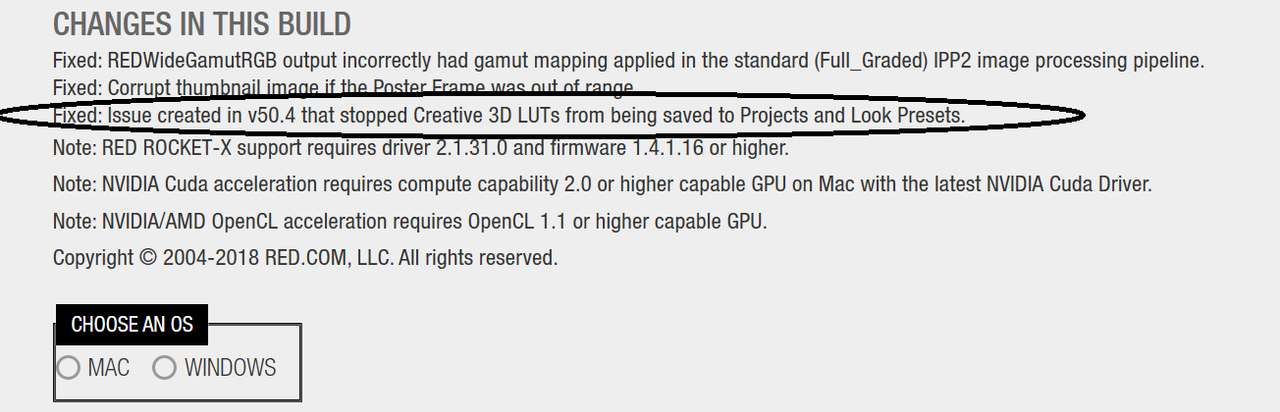
2) What Version of Redcine-X Pro are you using? The Latest Version of Redcine-X Pro, Version 50.5, addressed an issue similar to yours.

Screenshot-46.png


Screenshot-46-6.png


3) Were the Creative Looks you assigned in-camera saved with the .R3D files in Redcine-X Pro?

4) What were your "Red Raw" Project settings or "Camera Raw" settings inside Resolve?

5) Where are you reading the .R3d files from on your computer, was that changed at anytime during the project?
 
Last edited:
Maxim Kľujev;1845077 said:
Hello

I have problem with creative luts in IPP2 workflow in Davinci Resolve.
We use luts in camera, at set. Luts are prepared for ipp2 and works fine in camera.
But after some time in editing in premier pro, or sometime in color grading in Davinci Resolve, Creative luts that should be implemented in R3D file, just don't show up. Even when we check box "apply creative LUT " in metadata options.... nothing really changes, it almost looks like it don't have that LUT in root folder. But when you open R3D file in RedCine-X everything looks just fine. Is it bug in Davinci Resolve? is there anything to do about that?

Thank you for any help

Within resolve, you don't apply the LUT in metadata. You apply it to the project, a clip, or a node.
 
Nick,


You are partly correct. You have to apply the "IPP2 Output Transform Lut" to a Project, Clip or Node. However, you can add the "Creative Lut" to a node or bring it in from Redcine-X.


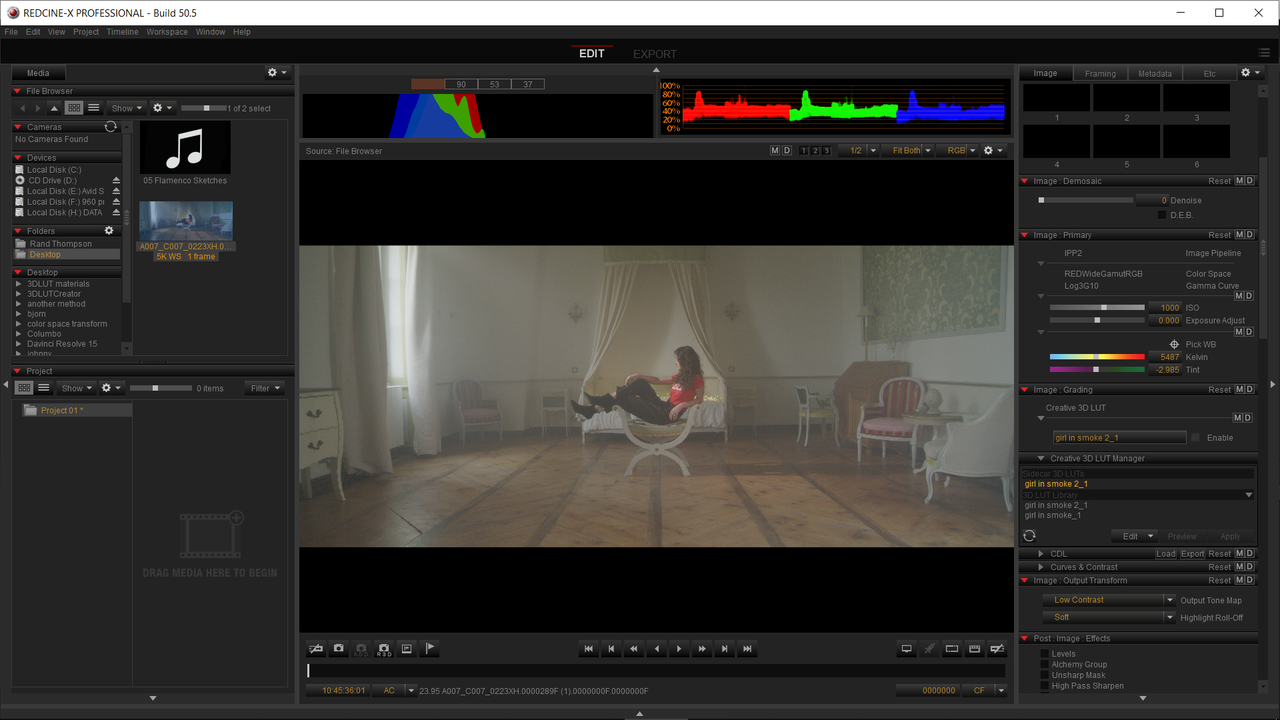
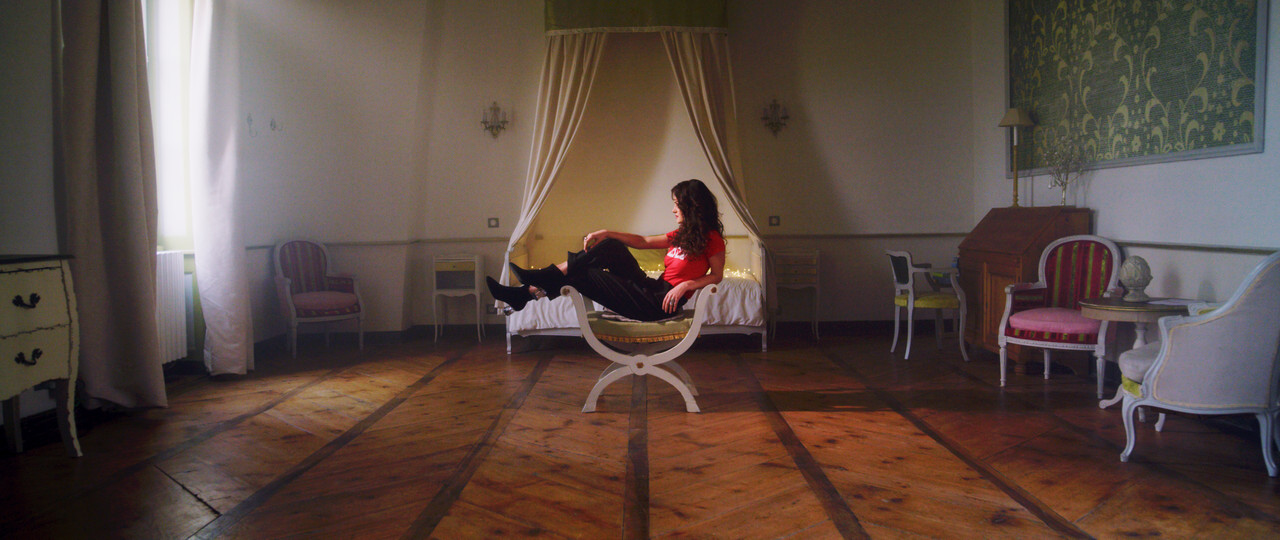
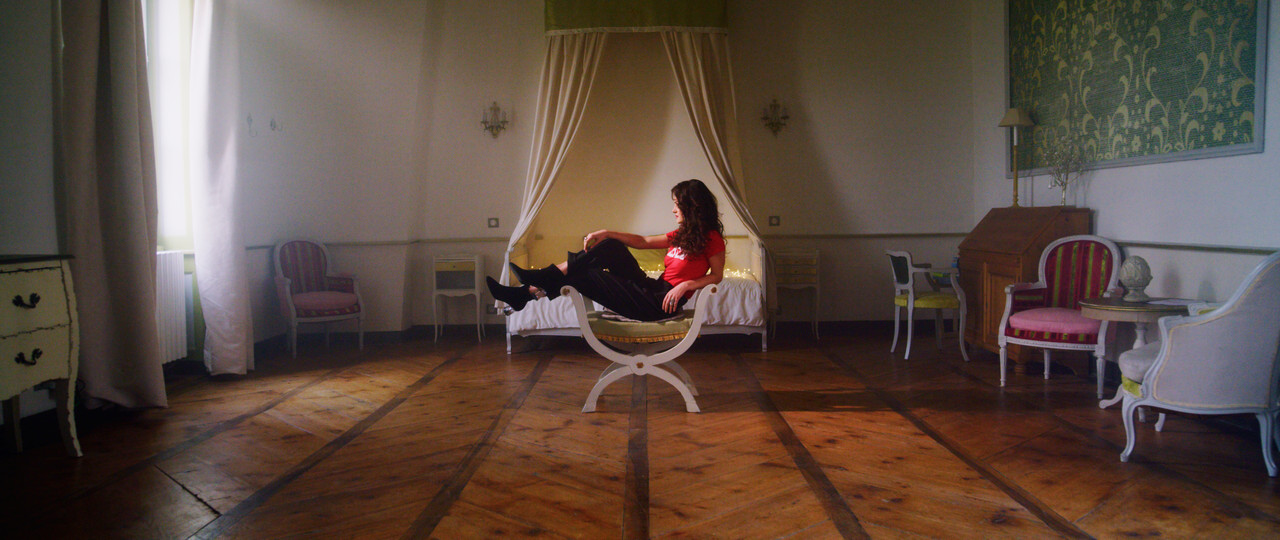
Here is the Girl in the smokey room clip by Julien from another thread in Redcine-X with the original metadata.


Screenshot-59.png


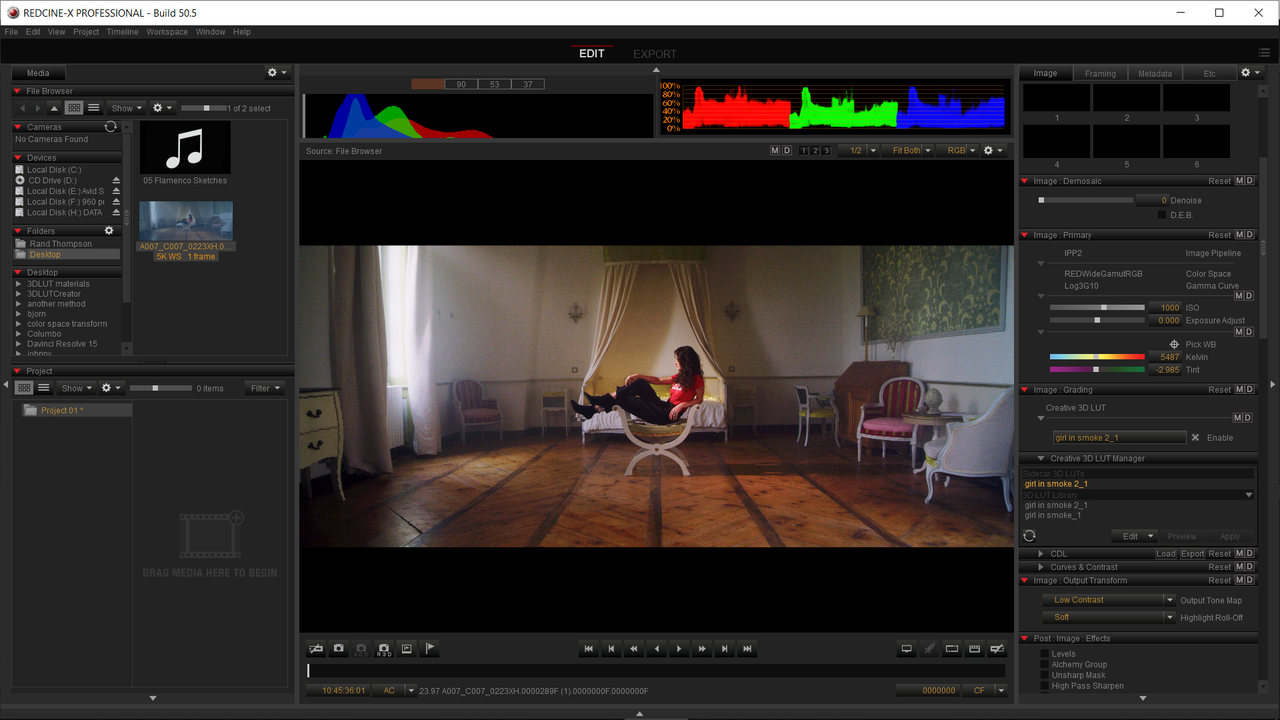
Here is that same scene from Julien with a Creative Lut I made in Davinci Resolve I called "Girl in Smoke 2" applied in the "Creative 3DLut Manager."


Screenshot-60.png


Screenshot-60-2.png


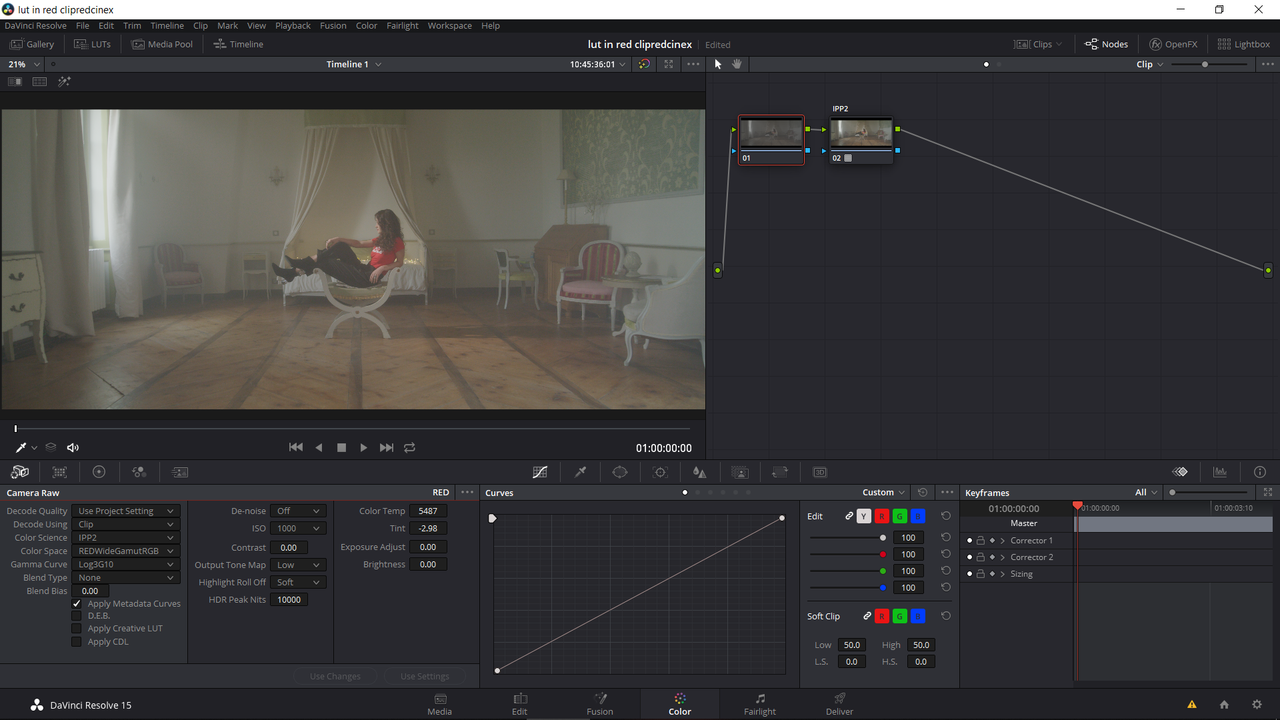
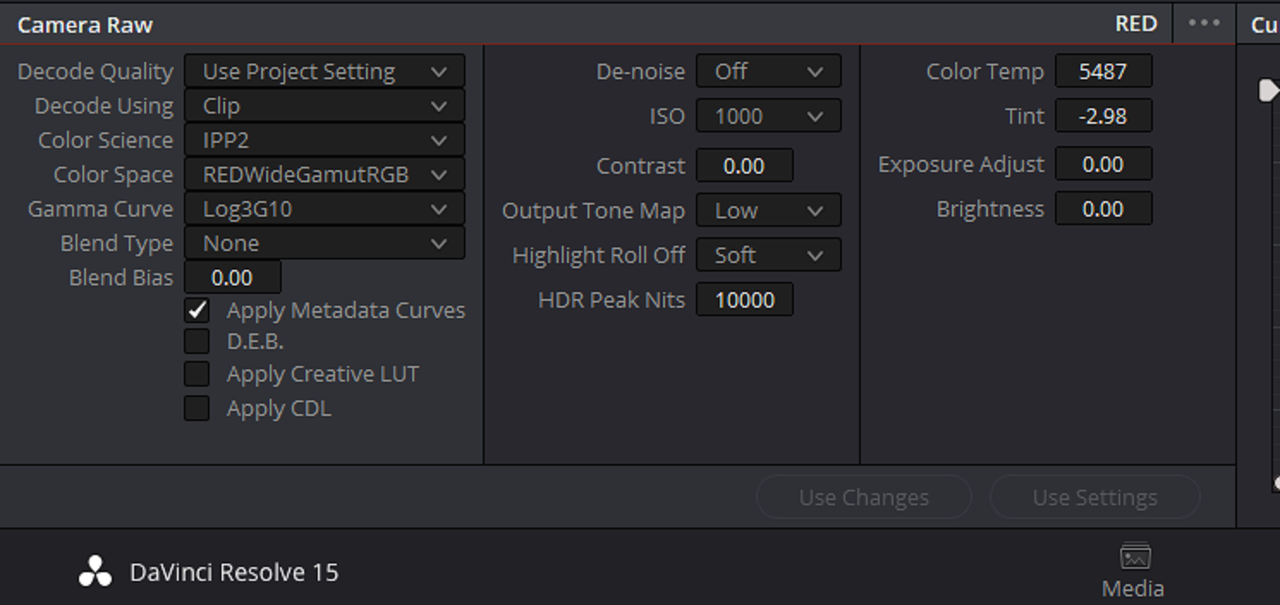
Here we are inside an IPP2 Project in Resolve. Here is the RWG/Log3G10 image inside Resolve with a "Low/Soft" IPP2 Output Transform Lut" already applied to the last node in the node tree. This has the "Apply Creative Lut" unchecked.


Screenshot-61.png


Screenshot-61-2.png


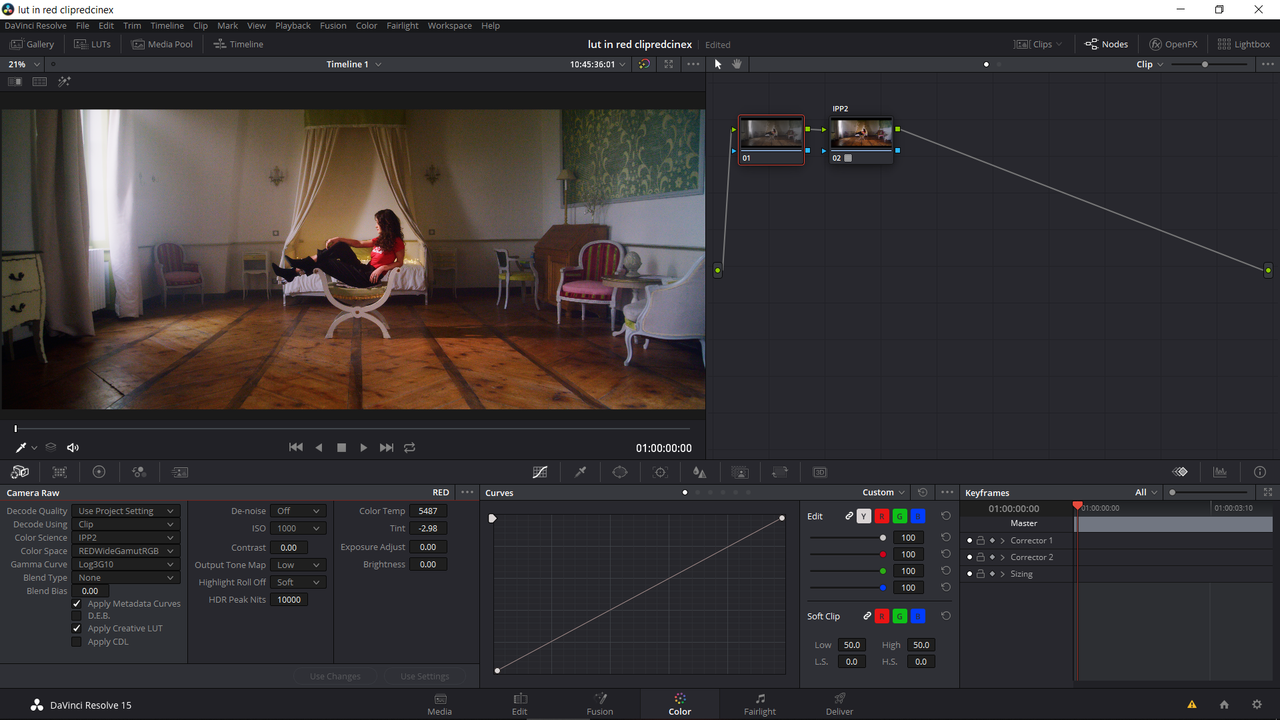
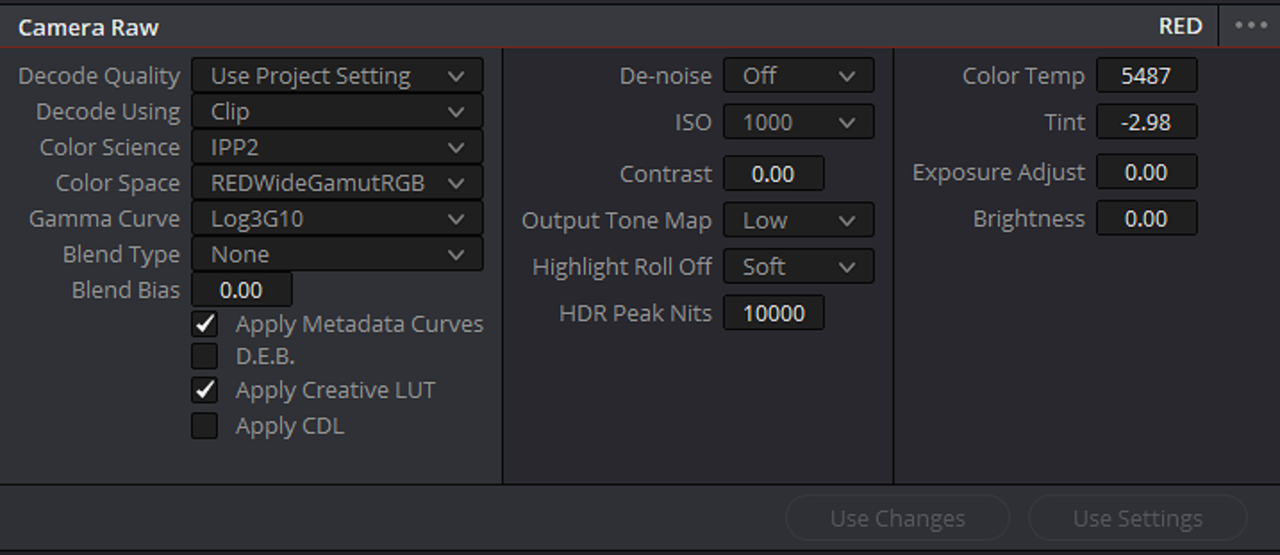
Next, here is the same image above with the "Girl in Smoke 2" Creative Lut brought in from Redcine-X when I enable the "Apply Creative Lut" Box.


Screenshot-62.png


Screenshot-62-3.png


from Redcine-X

A007-C007-0223-XH-0000289-F-1-0000000-F-0000000-F-0000000.jpg


From Resolve


from-Resolve-1-1-1.jpg


Nick also,


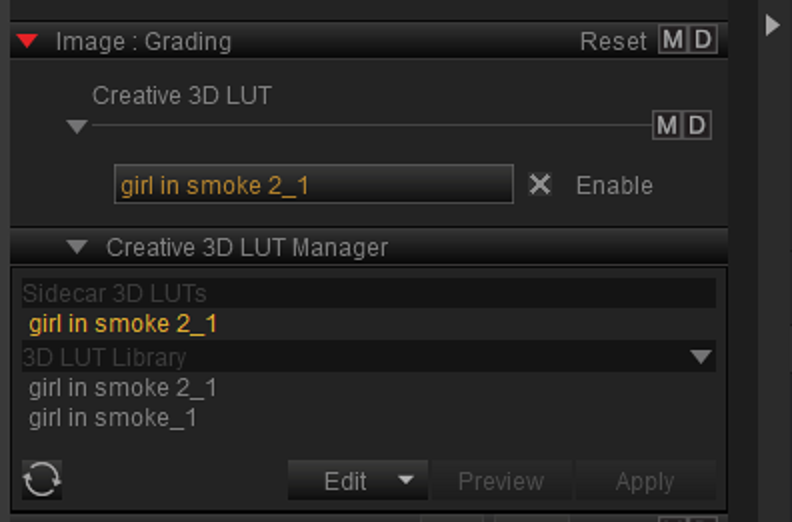
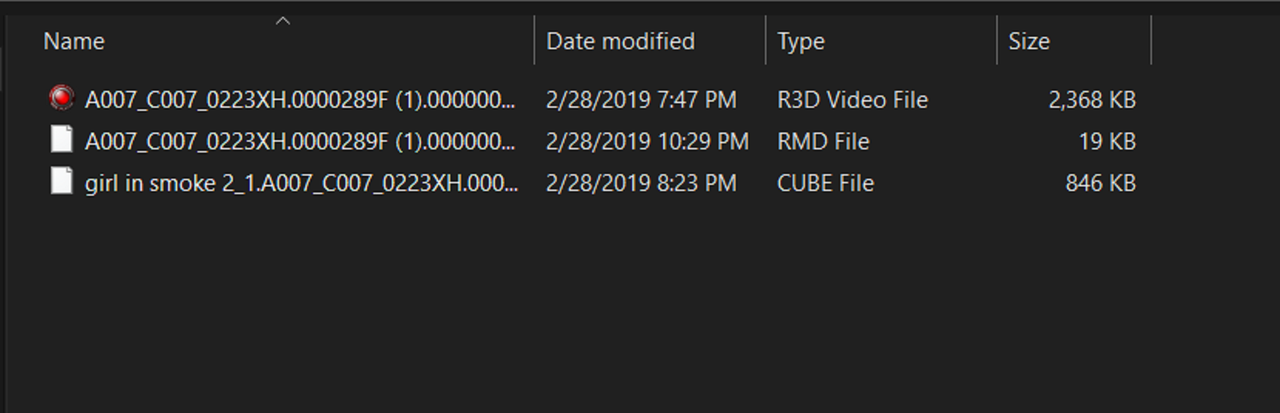
Although the .R3d with .RMD file and the "girl in smoke2_1" .cube file were in different folders, when I imported it into Redcine-X as a Creative Lut, when you look in the folder with the .R3d with .RMD file in it now the "girl in smoke2_1" .cube file is associated with the .R3D file and .RMD file as well.


Screenshot-63.png
 
Last edited:
Back
Top