Welcome to our community

Be a part of something great, join today!

  • Hey all, just changed over the backend after 15 years I figured time to give it a bit of an update, its probably gonna be a bit weird for most of you and i am sure there is a few bugs to work out but it should kinda work the same as before... hopefully :)

Footage Not Showing as Graded in Resolve and Premiere

Mark Paris

Member
Joined
Sep 14, 2017
Messages
11
Reaction score
0
Points
0
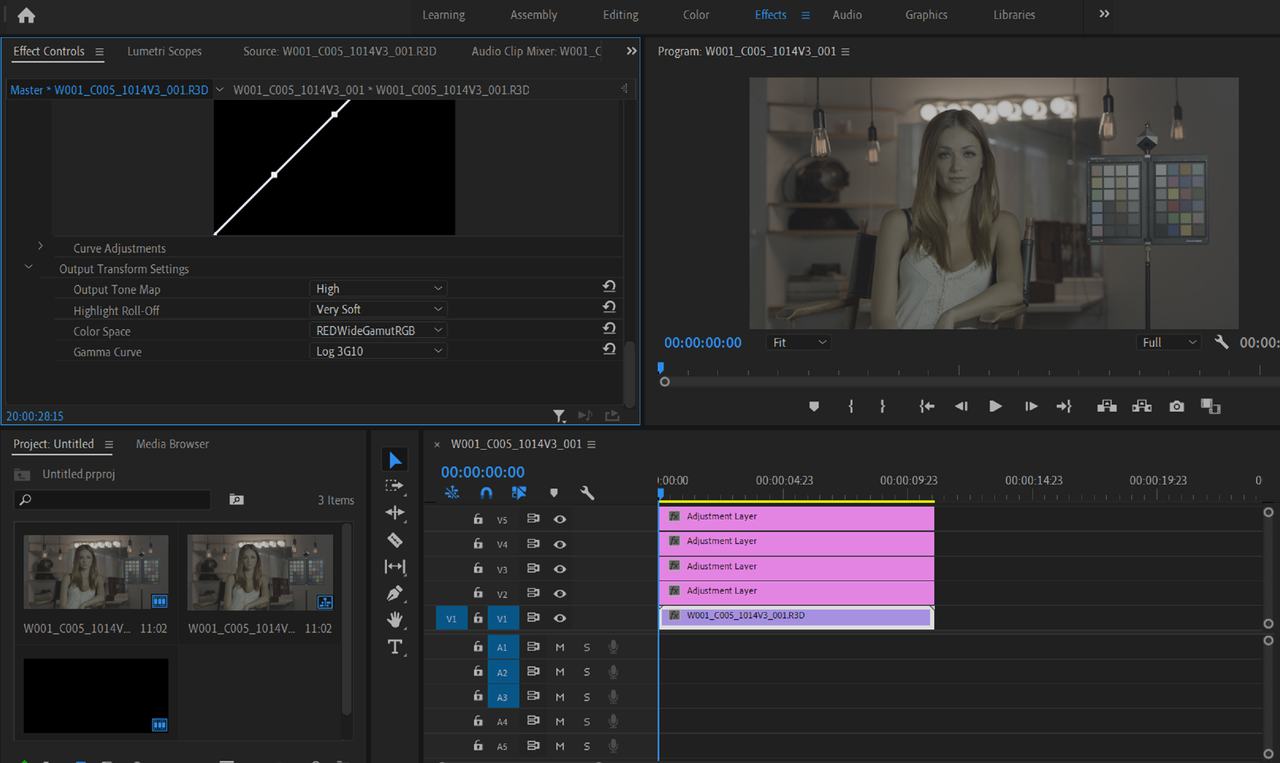
I just updated my Epic-W to version 7.4.1. For some reason, all of the footage that is now shot on the camera shows up as ungraded. When I open the clip in Premiere or Resolve, it's showing as a flat, ungraded IPP2 clip. I'm on the latest version of Resolve (16.2.7.010). I also got the latest version of REDCINE-X, and clips DO show up graded and looking correct in there. I went through the camera settings and don't see anything that would cause this issue. Was there something changed in the R3D that other programs cannot interpret it now? Aside from putting on a LUT, I'm not sure what more I can do aside from reverting to an older firmware version.
 
Mark,

Do you have R3D frame or clip that exhibited this problem that you can share?
 
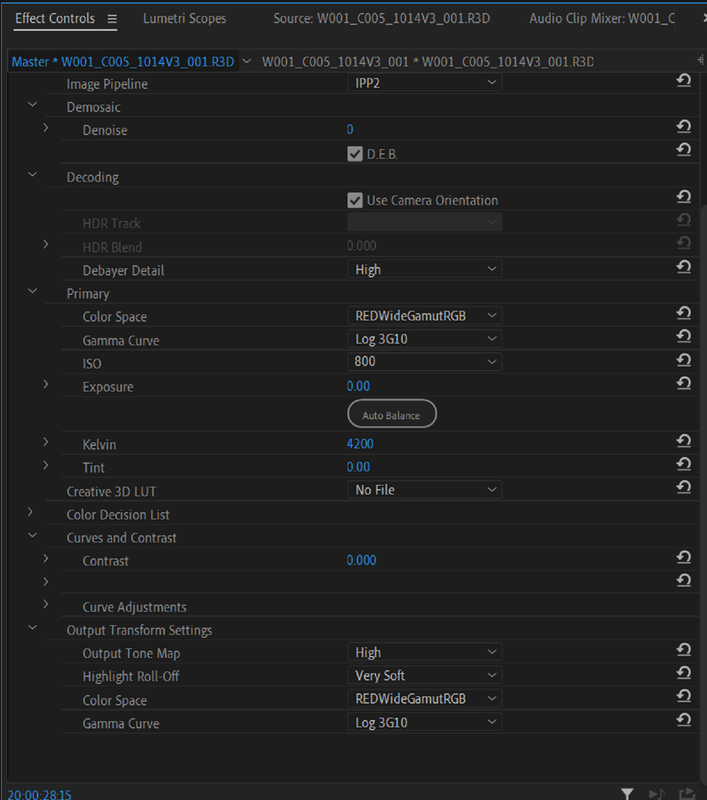
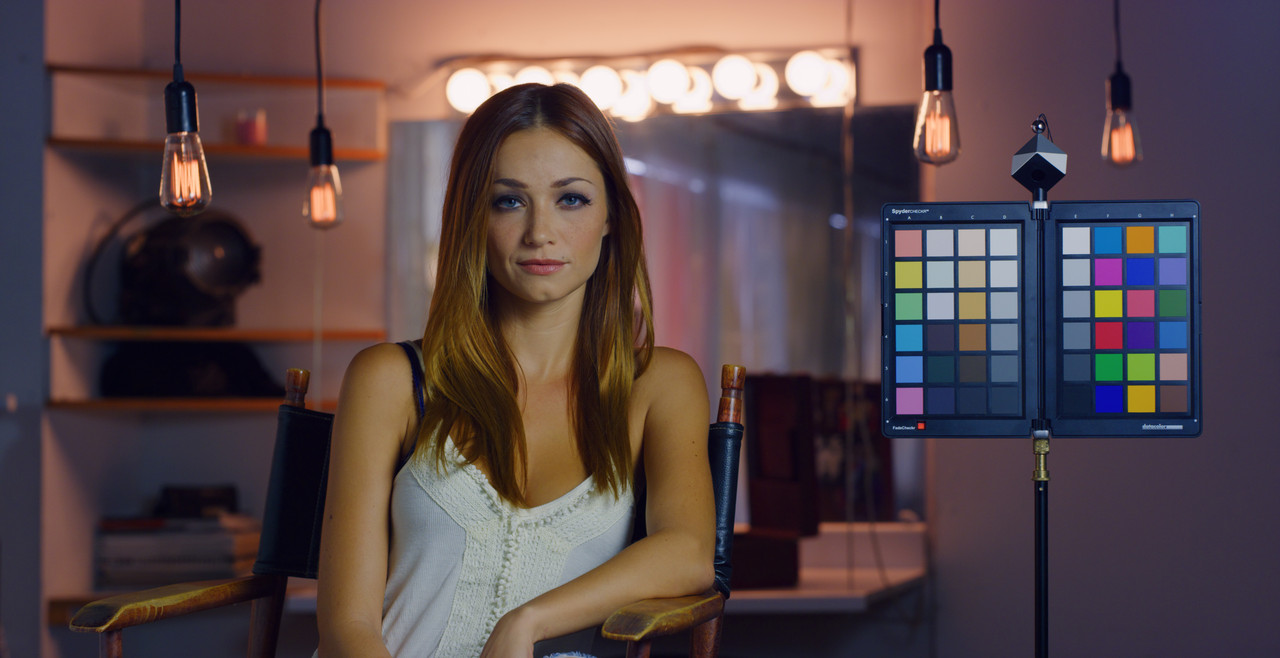
So it seems like changing the output transform settings in Premiere fixed the issue. "As shot" used REDWideGammutRGB for Color Space and Log 3G10 for Gamma Curve. Changing it to Rec.709 and BT.1886 respectively fixed it. Not sure if there is no color space and gamma curve specified in the metadata? Looking back at clips shot on the previous version, it never defaulted to REDWide/LOG 3G10. Seems like just this version is missing those specifics in the metadata.
 
More interesting discoveries: took a look at the RMD file. None generated by camera, but is when settings tweaked in RCP. Looked at output transform settings. By default, set to this:

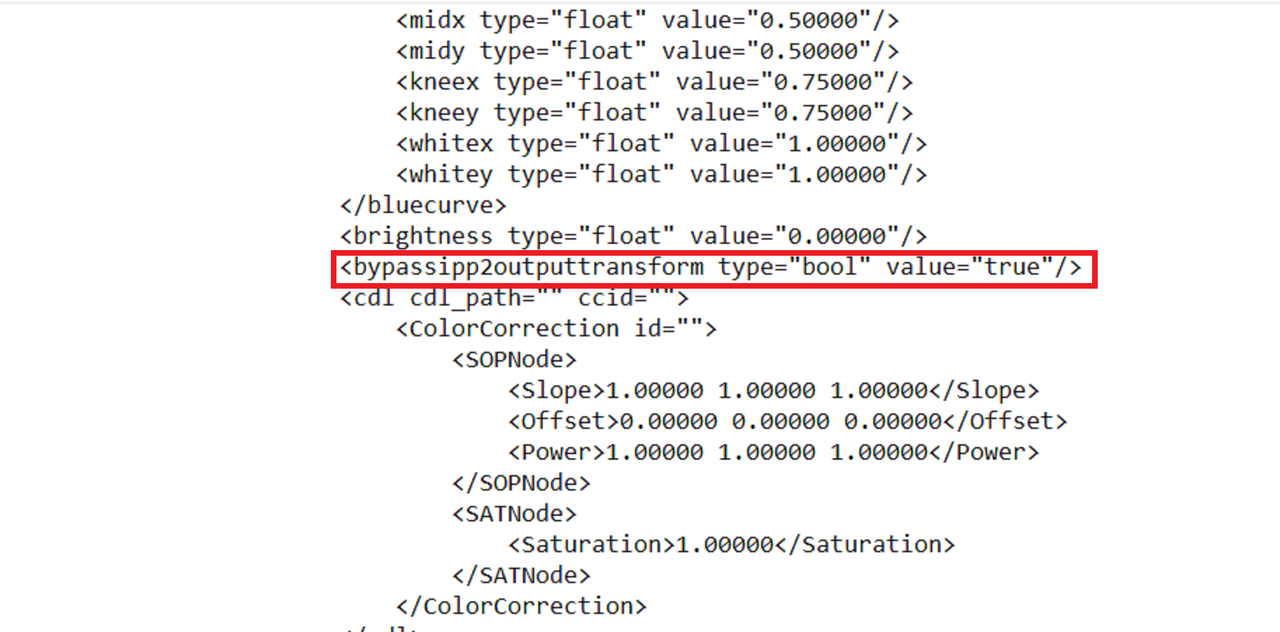
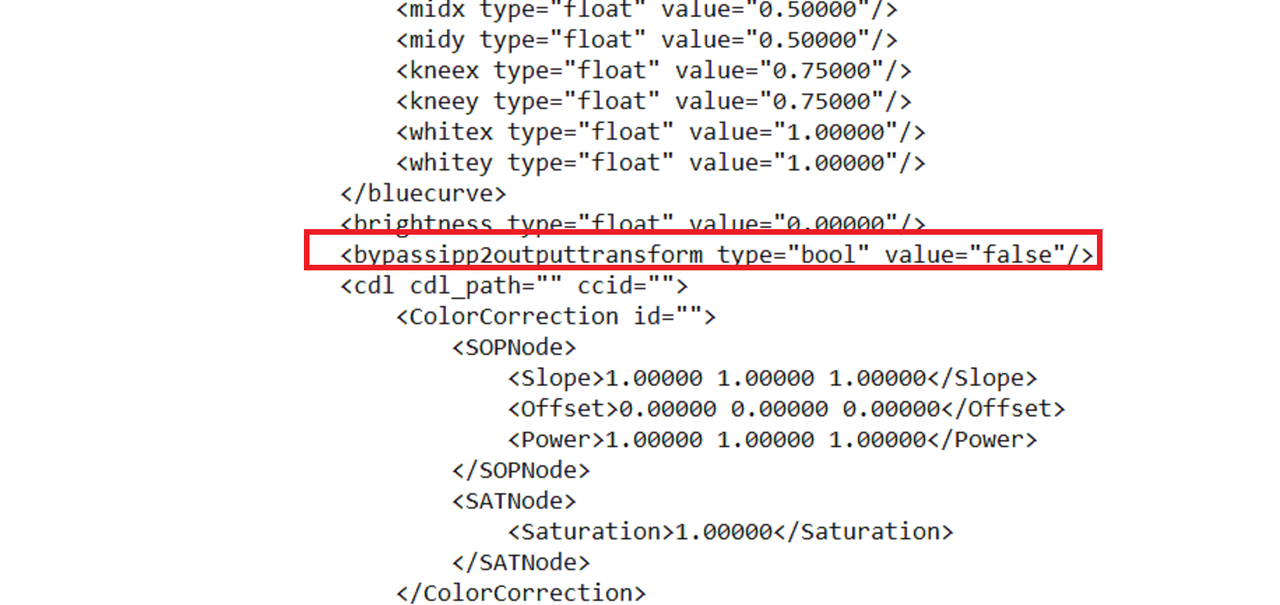
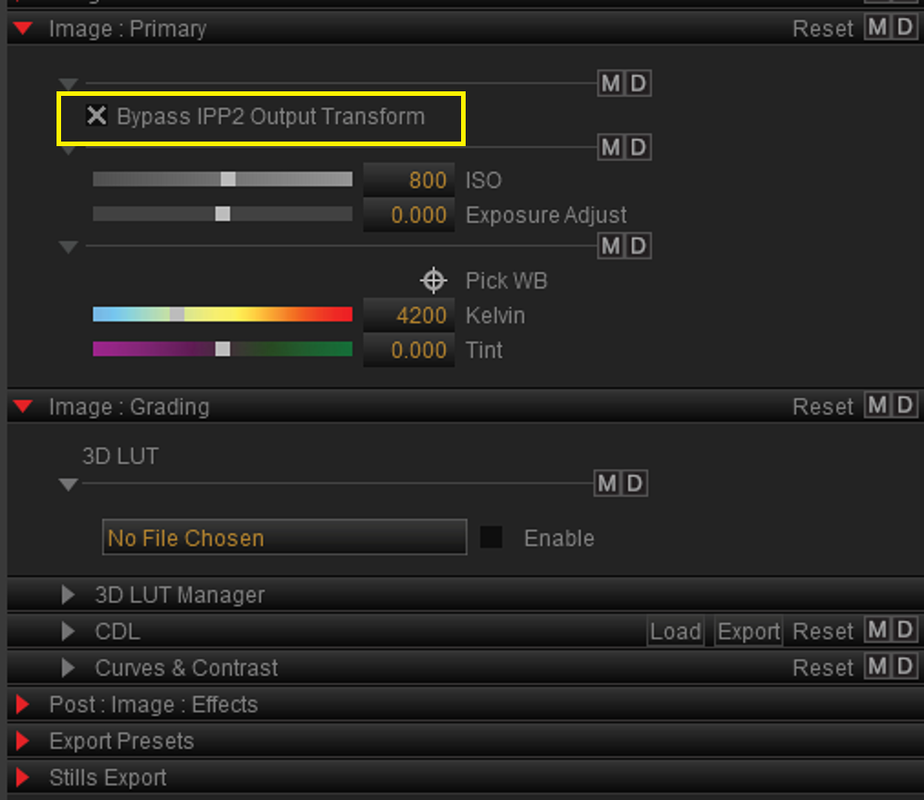
<bypassipp2outputtransform type="bool" value="false"/>

Changing that false to a true made Premiere load it with the correct Rec.709 and BT.1886 values, showing a fully graded IPP2. Now the question is, does RED need to fix this in a software update, or is there something I can change in the camera?
 
Mark,

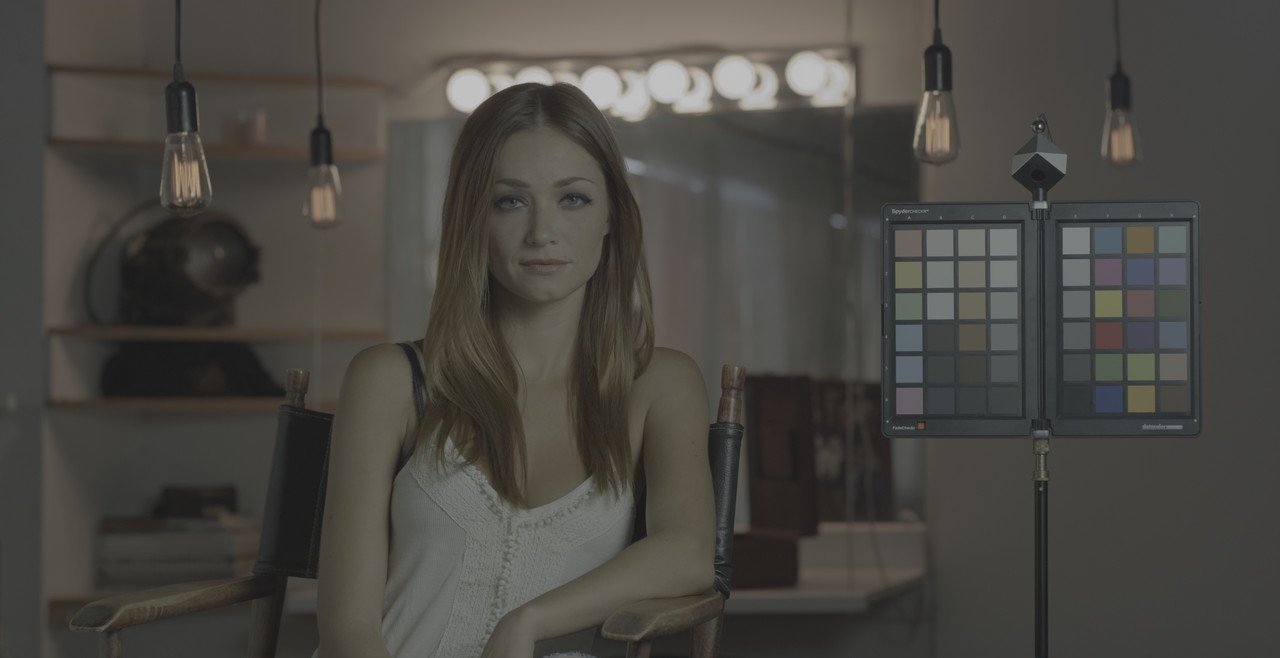
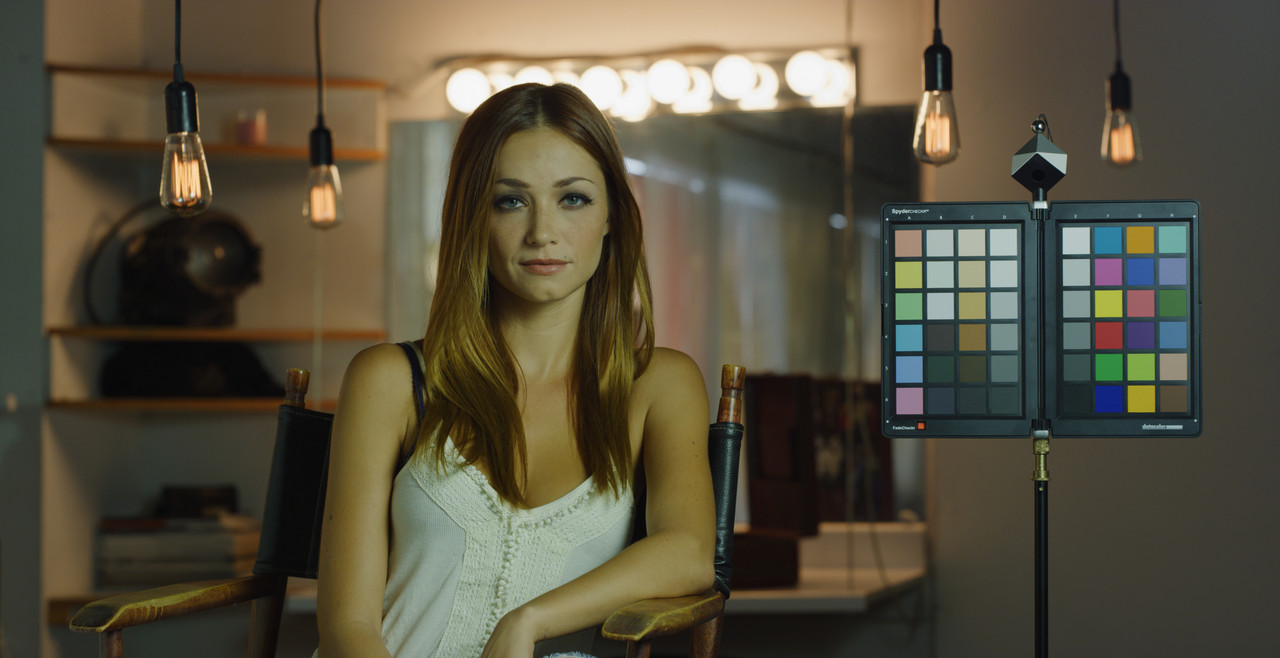
"True" should have done the opposite and given you a flat image.

True
Screenshot-543.png

W001-C005-1014-V3-0000000.jpg


False

Screenshot-545.png

W001-C005-1014-V3-S000-0000000.jpg


Also


Did you check in Redcine-X to see if you might have had "Bypass IPP2 Output Transform"checked by mistake.

Screenshot-546.png
 
Last edited:
RED is making changes to the default behavior of R3D’s in all third party applications to unify the results and deliver consistent and predictable behavior no matter what software you are working in.

All R3D’s will be decoded in software such as Premiere, Resolve, and Final Cut Pro as Log3G10/REDWideGamutRGB by default.

Most software, such as Resolve and Final Cut Pro, have ways to customize how R3D’s are decoded project or system wide - and so if a workflow that is different from the default is wanted, it can be configured applied to all future R3Ds in all future projects.

Premiere is the one exception to this - with neither a true color managed workflow capability nor ability to change R3D decode parameters project wide.

However, there is still a suitable workflow for Premiere which maintains true flexibility in color grading and is simple to implement.

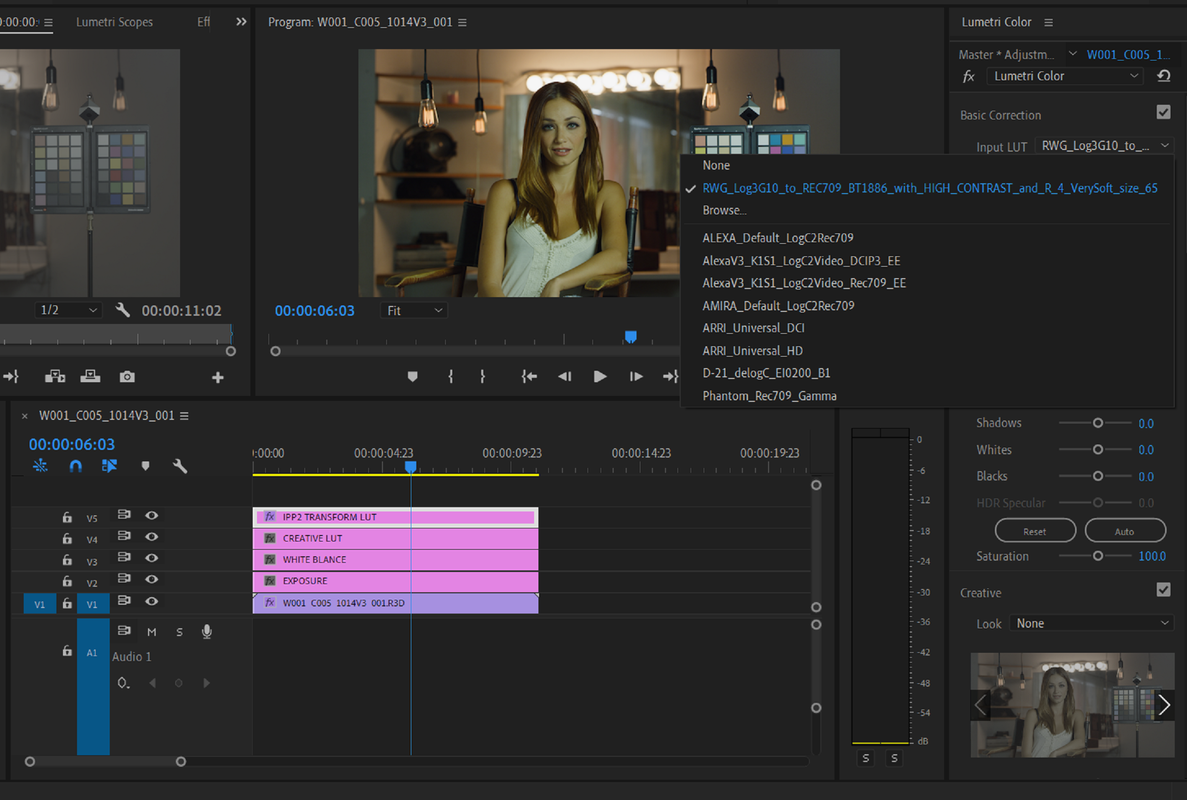
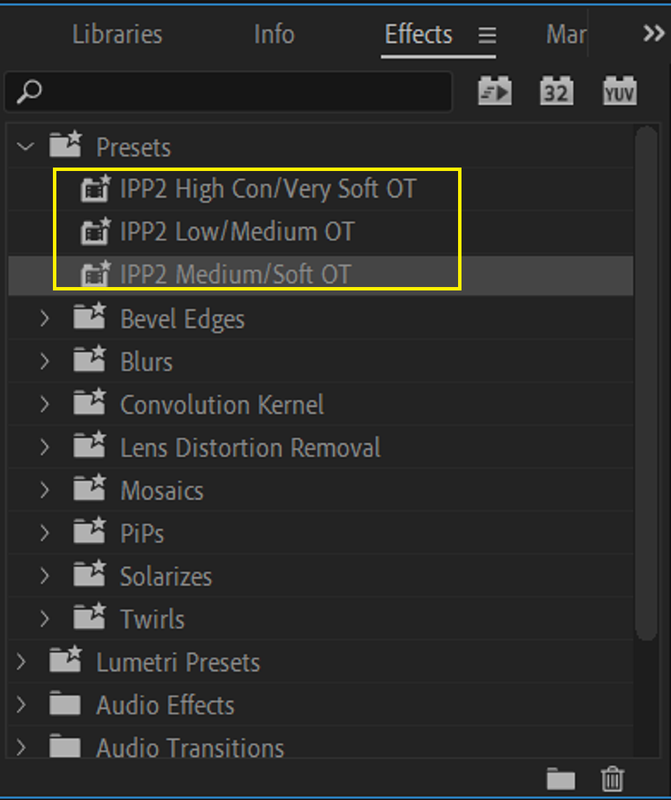
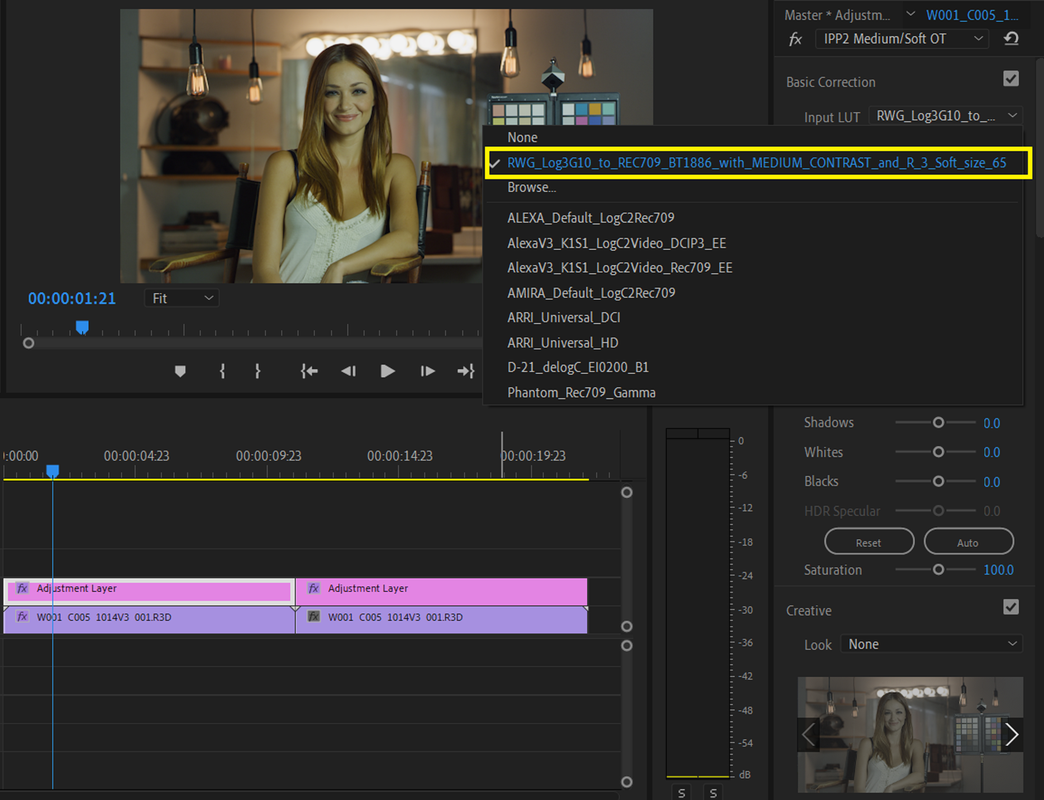
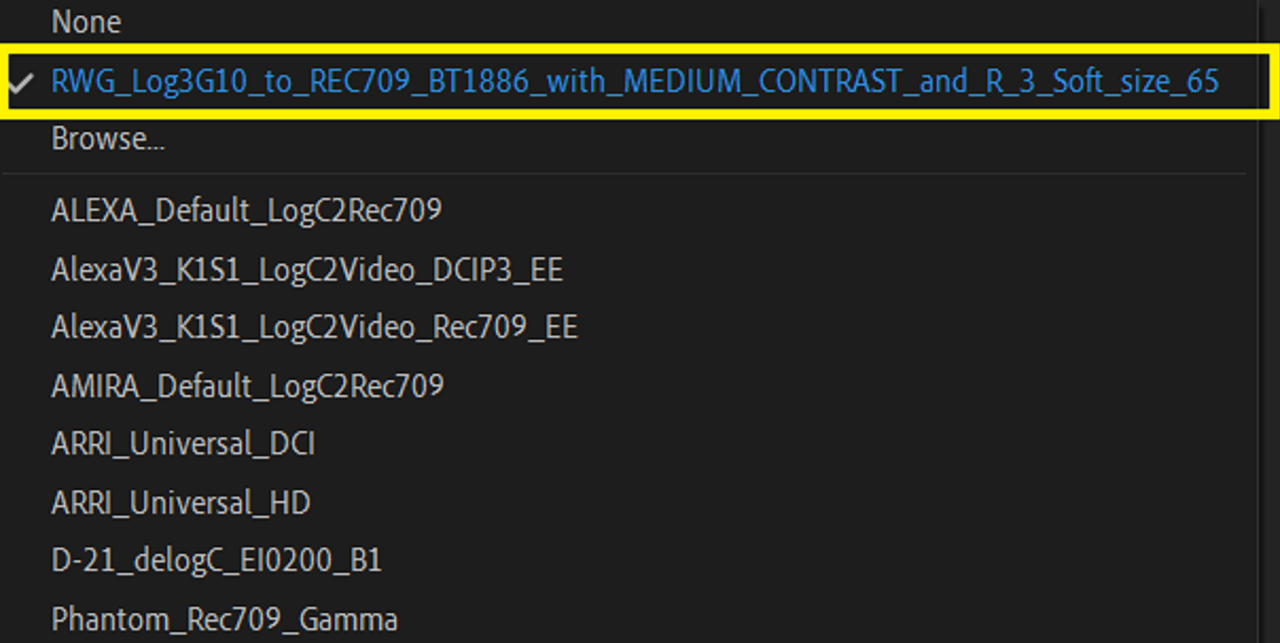
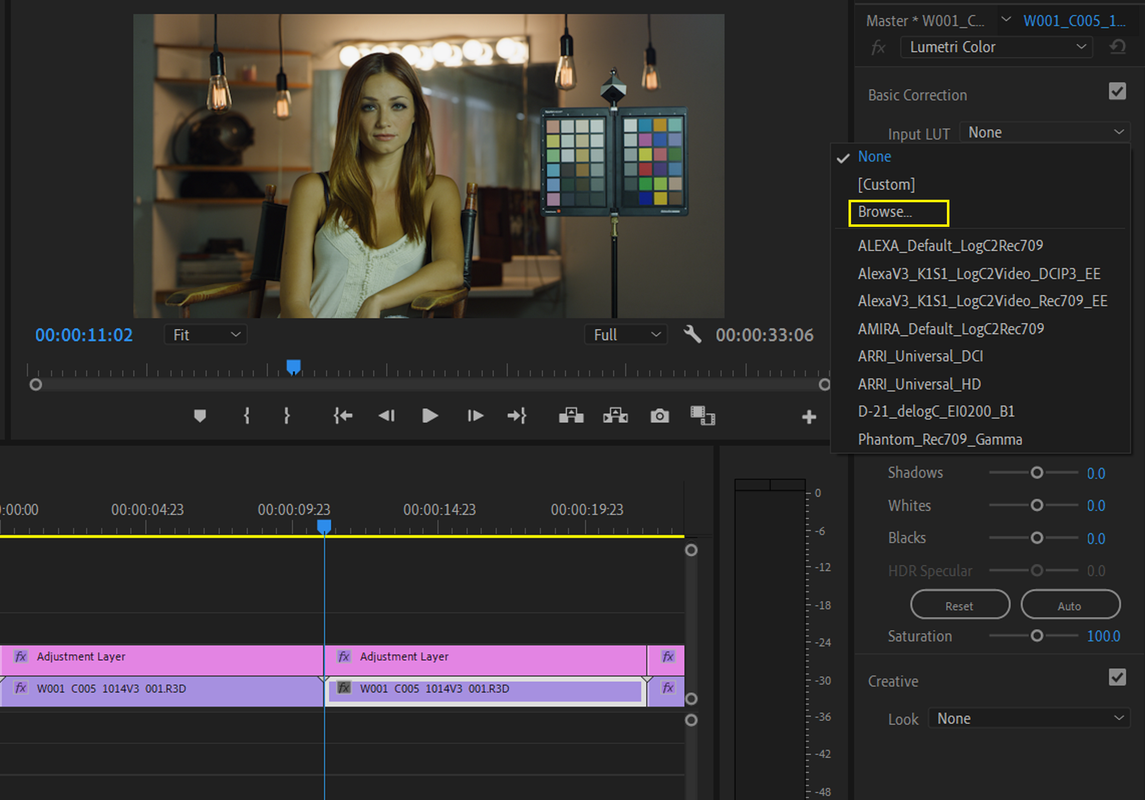
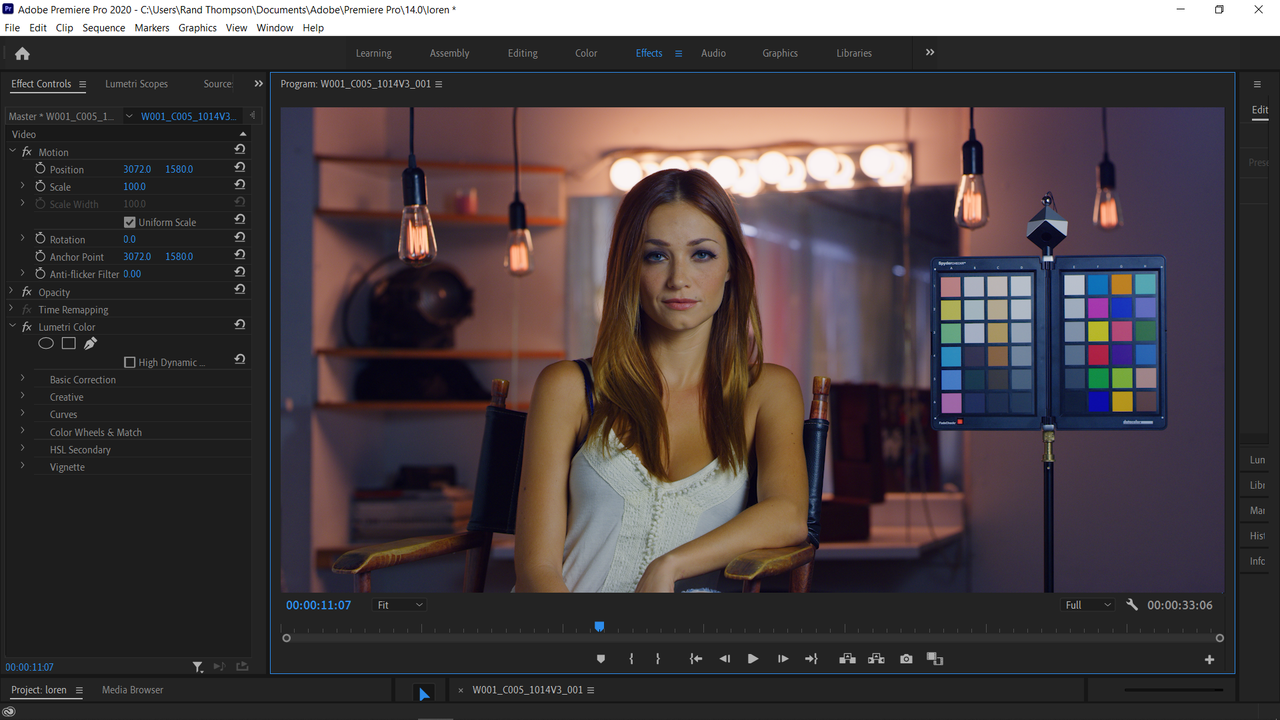
Our recommendation is to generate the desired IPP2 Output Transform from REDCINE-X, for example a Rec.709 with Medium Contrast and Soft Highlight Roll-off. Once that .cube is created, select that as the Creative LUT for one of your clips in Premiere’s Lumetri Panel. After that, simply save that Lumetri Panel as a Lumetri Preset by right clicking the top of the panel.

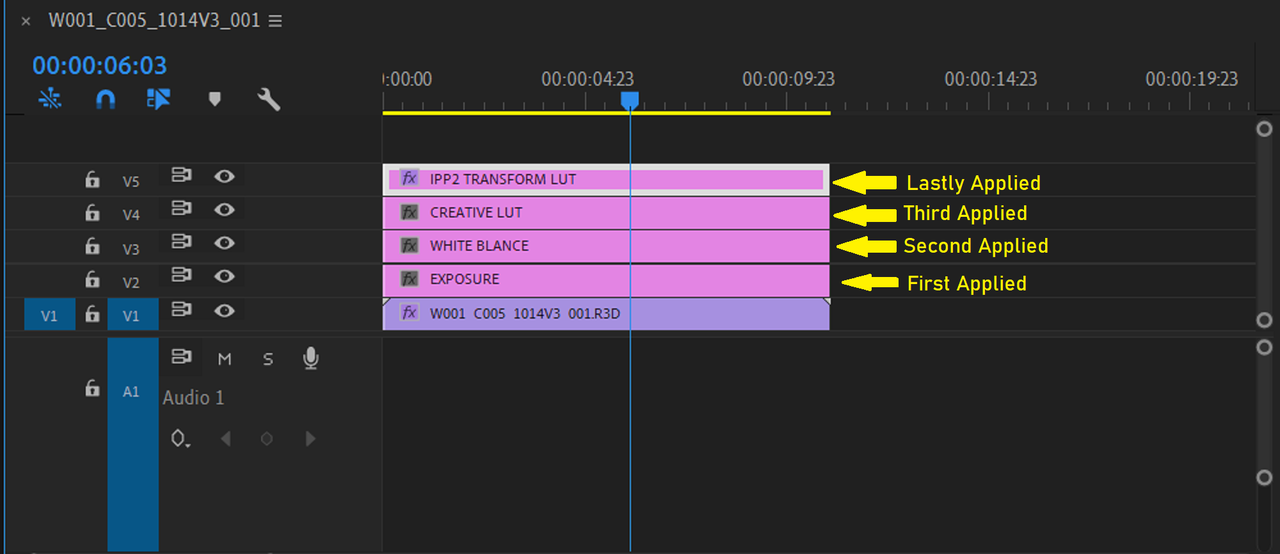
This Lumetri Preset can either be applied to all of your R3D clips in your bin, or, the Preset can be dropped into a top level Adjustment Layer which runs the length of your timeline - automatically applying it to any image beneath it in the timeline.

Either of these methods will delivery you a proper image, with the added benefit of still maintaining the full flexibility of your logarithmic image behind the resulting image when changing your Lumetri values.

Previously, with images coming into Premiere directly decoded into say Rec.709 Medium Contrast Soft Highlight Roll-off, any adjustments made in Lumetri would happen on-top of that image, severely restricting your latitude in post.
 
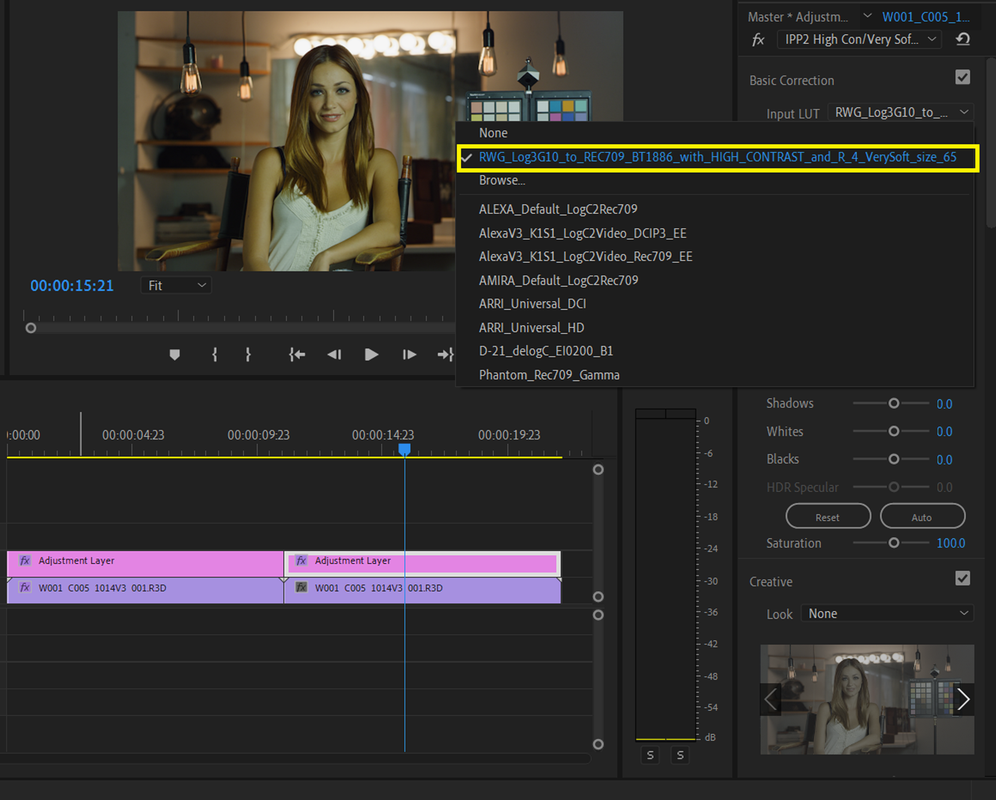
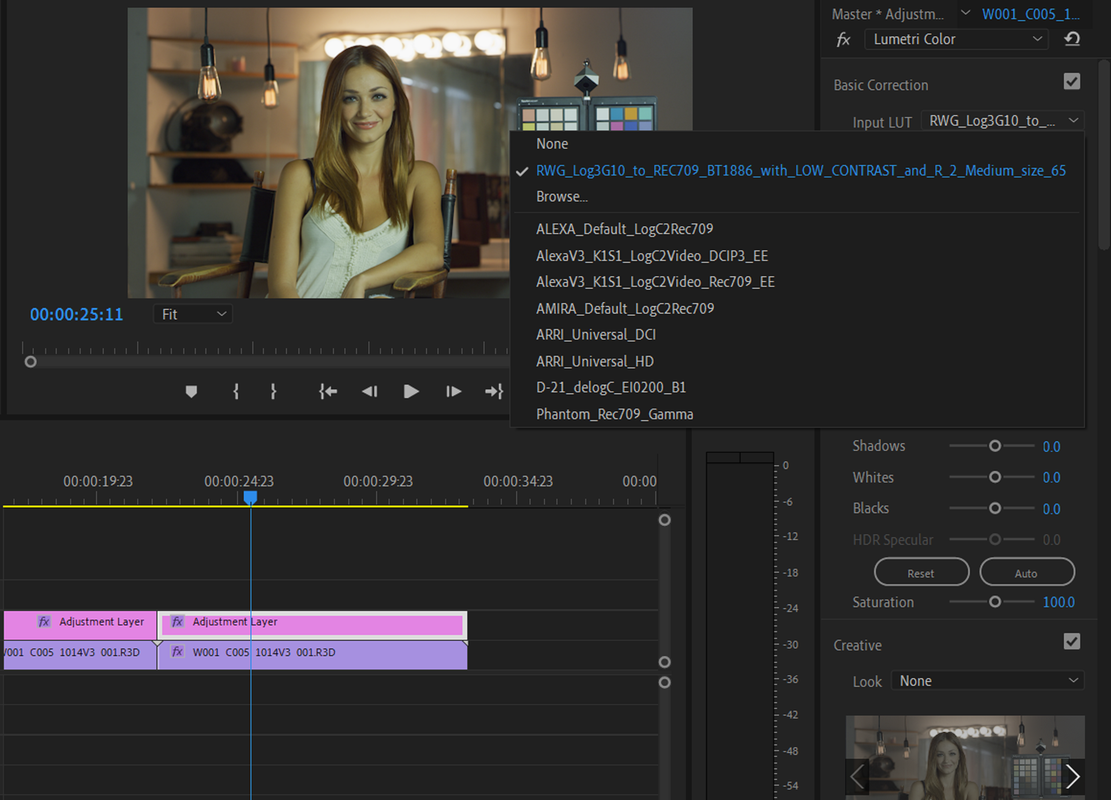
Like Loren stated above, it's something like this in Premiere.


Screenshot-167.png


Screenshot-170.png


Screenshot-169.png
 
Loren,


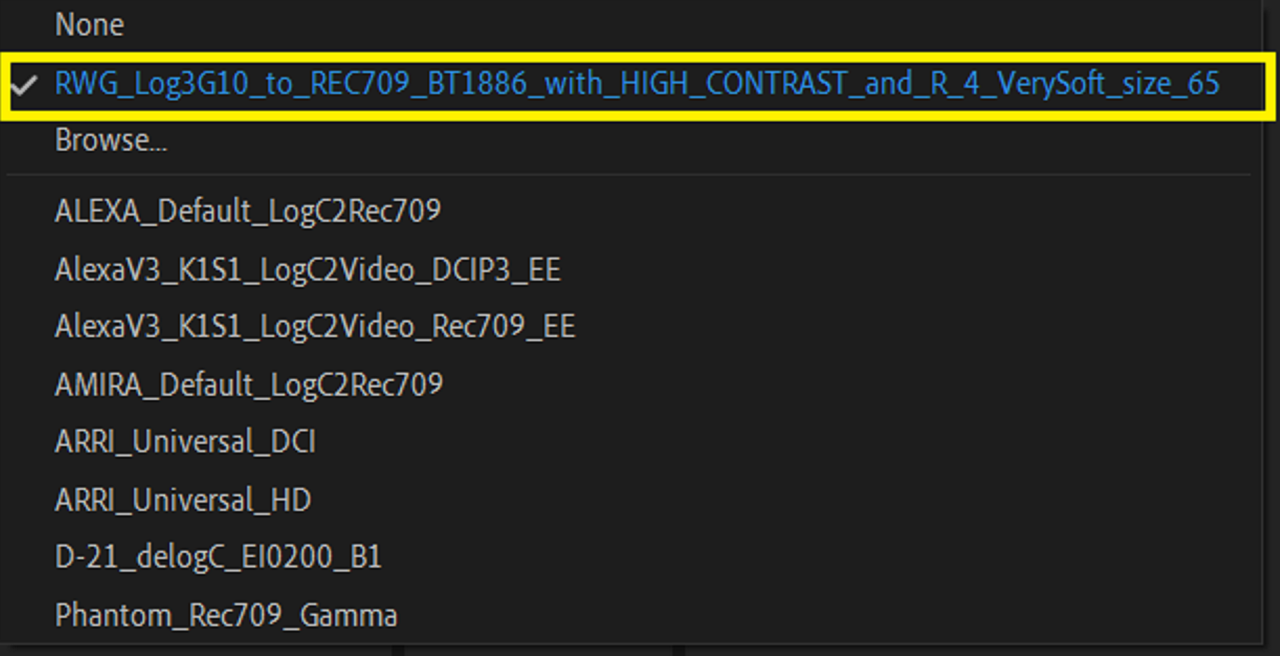
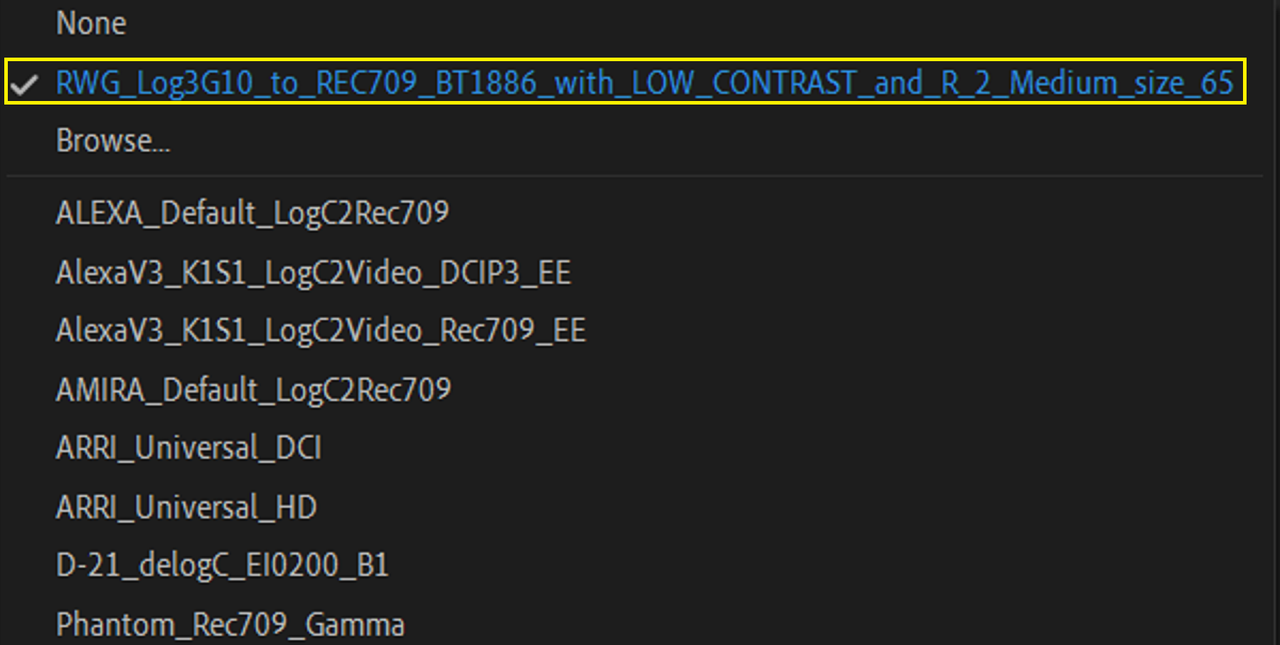
Using your method you could apply an adjustment layer above each clip with a preset IPP2 Transform preset applied.

Screenshot-566.png

Screenshot-565.png


IPP2 Output Transform Medium Con/Soft
Screenshot-561.png


Screenshot-561-2.png


IPP2 Output Transform High Con/ Very Soft
Screenshot-562.png


Screenshot-562-2.png


IPP2 Output Transform Low Con/ Medium
Screenshot-564.png


Screenshot-564-2.png
 
Last edited:
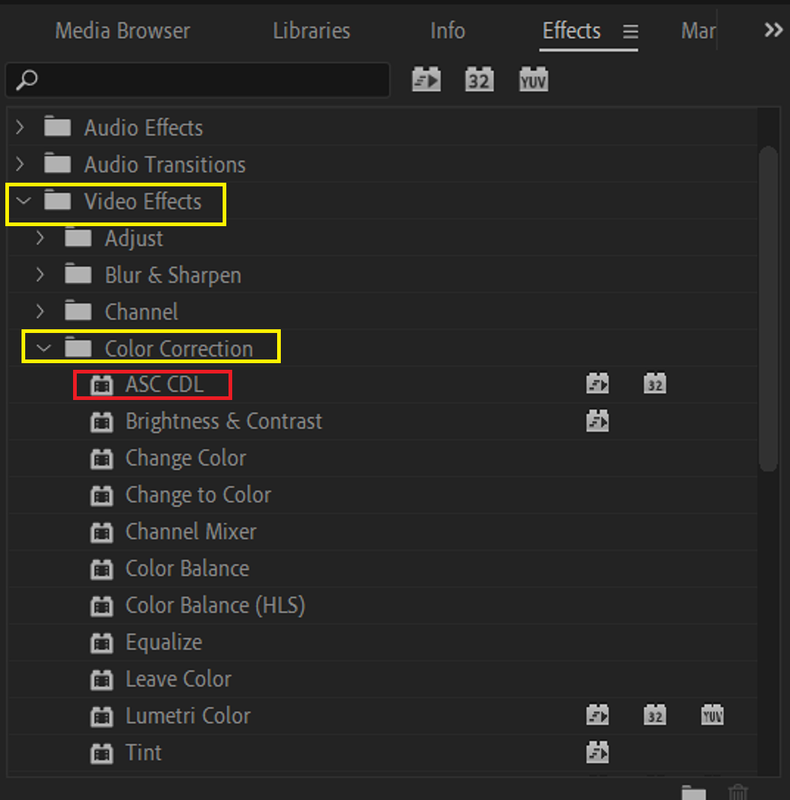
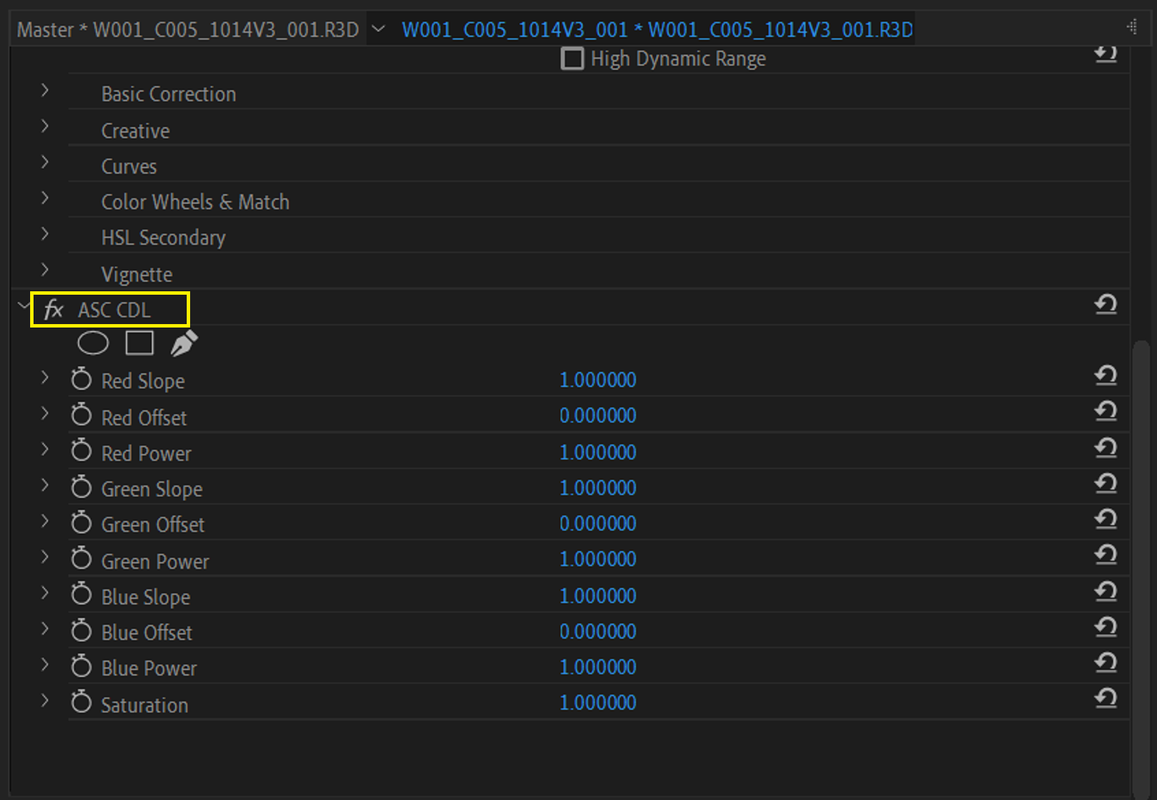
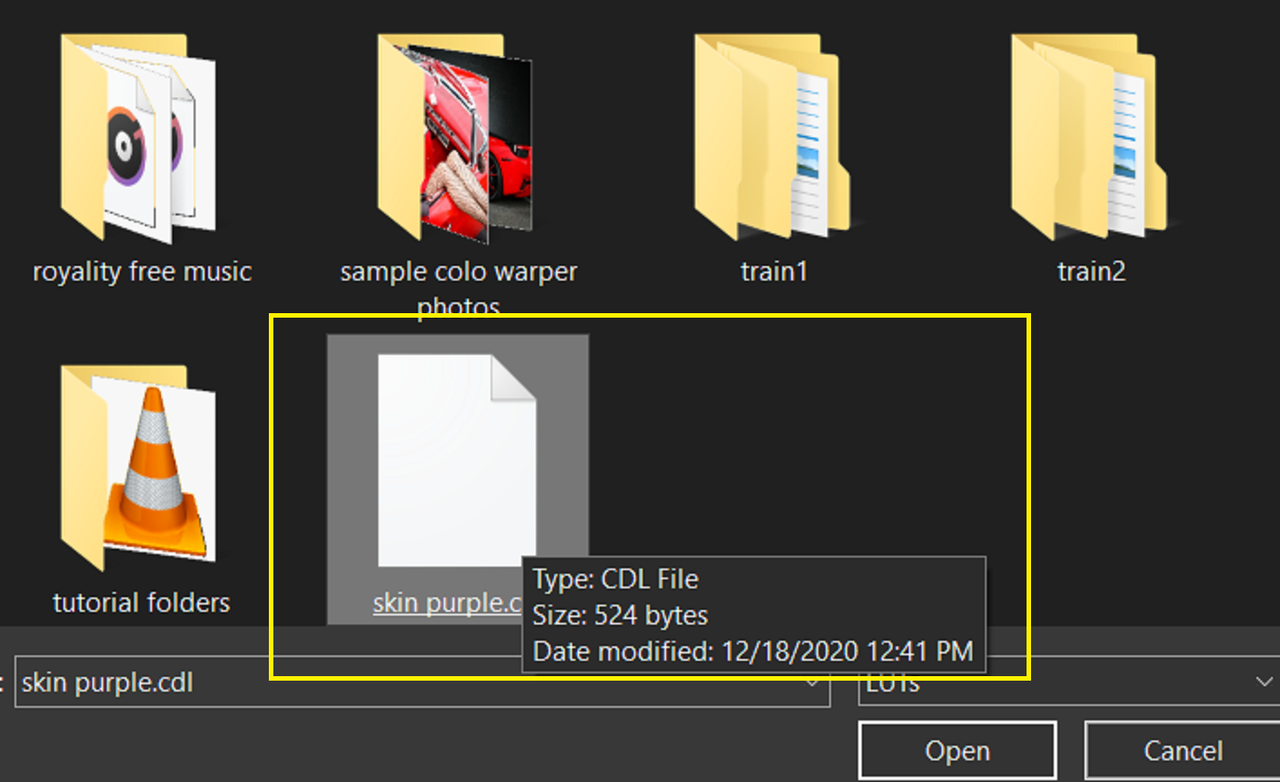
Also you can Import a CDL file into Premiere, however you can't modify it like in Resolve. I was hoping that you could use "ASC CDL" in the "Color Correction" Folder under the " Video Effects" folder to directly import the CDL file from Redcine-X, but there's no "import" function.


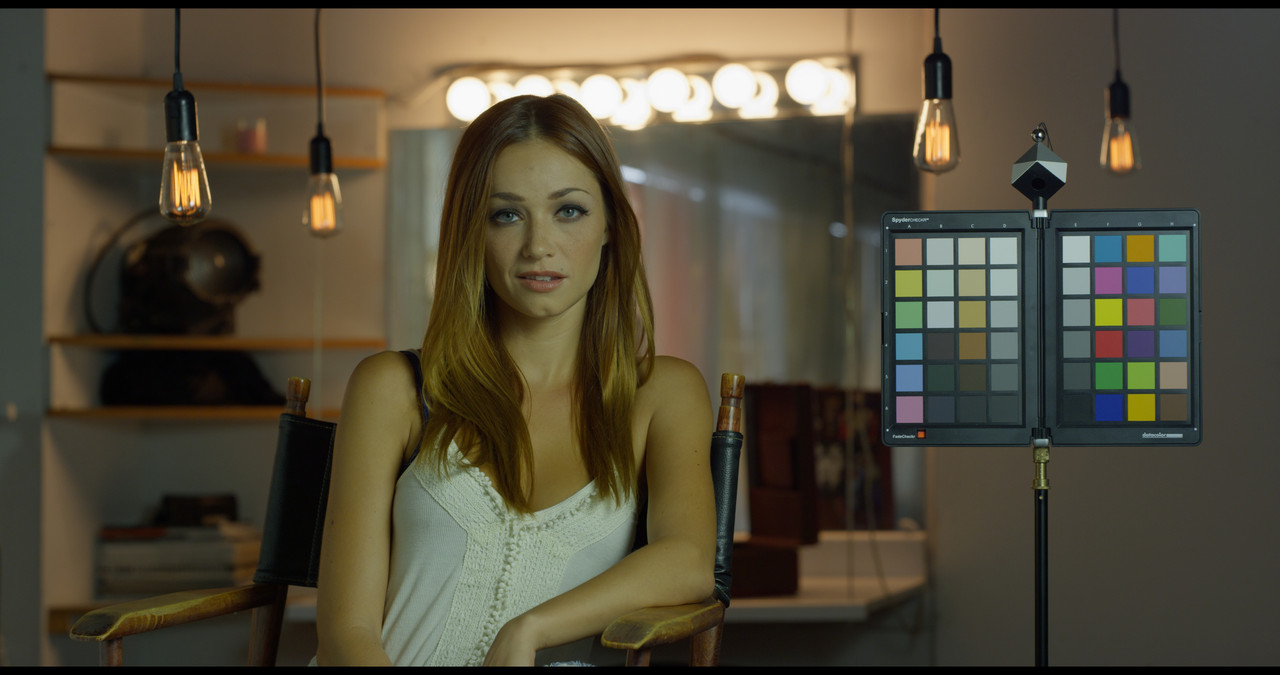
REDCINE-X


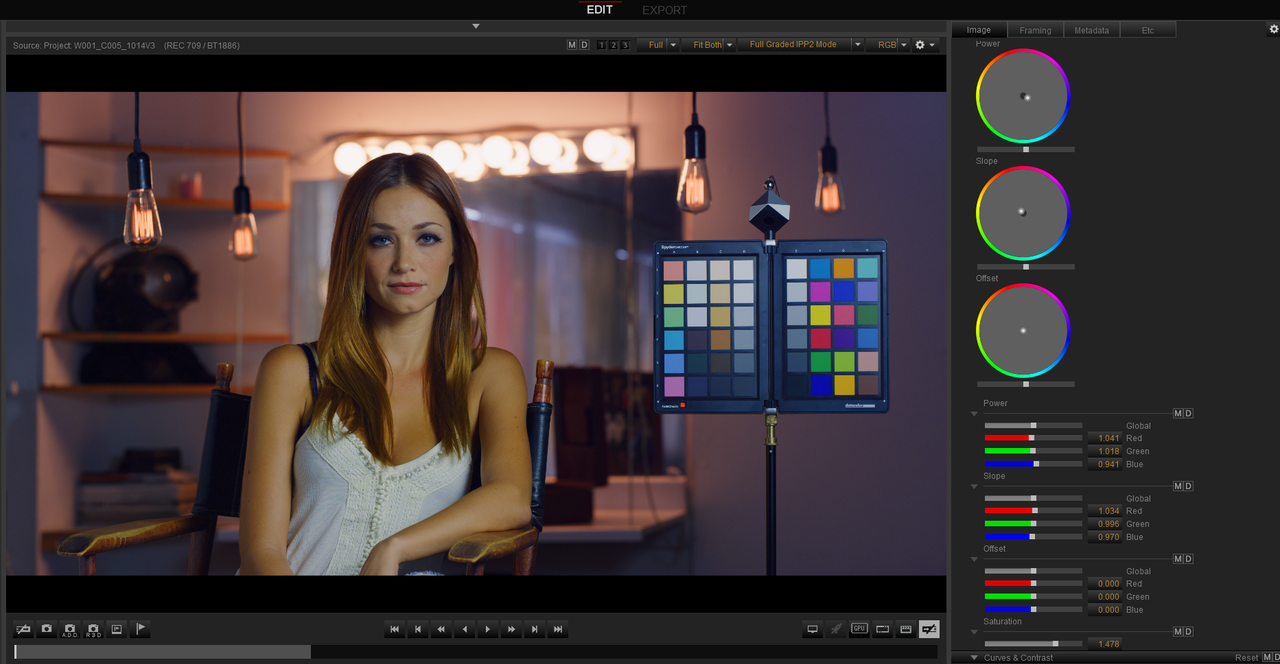
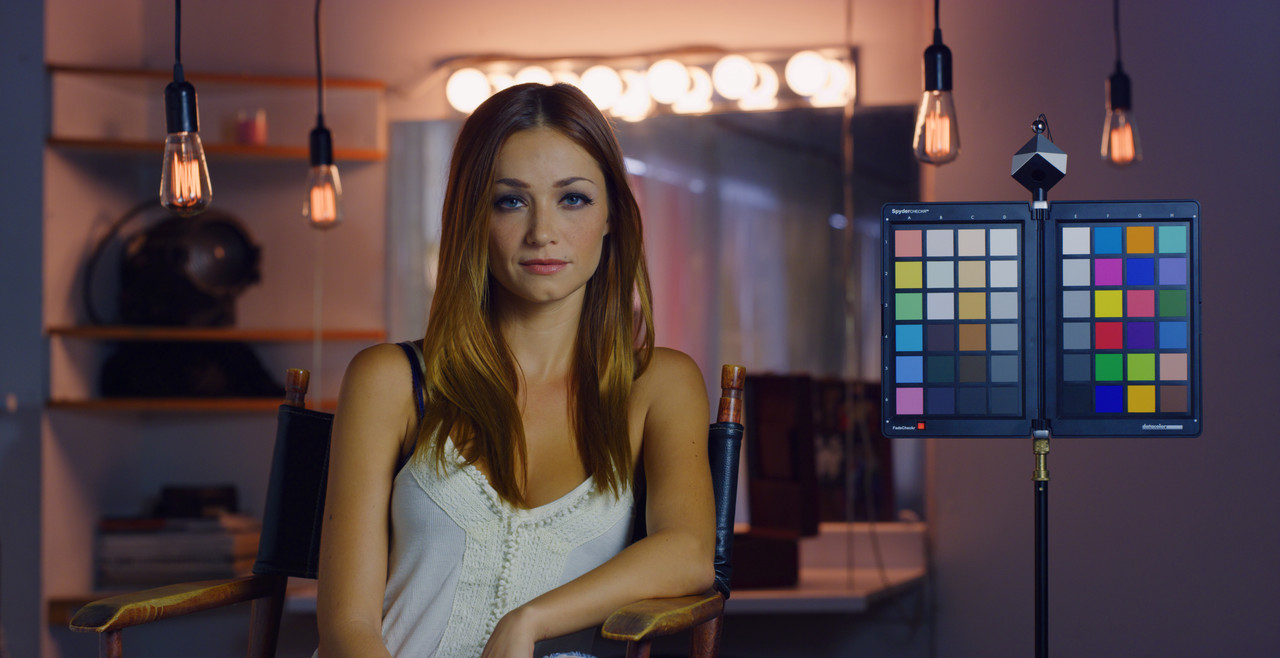
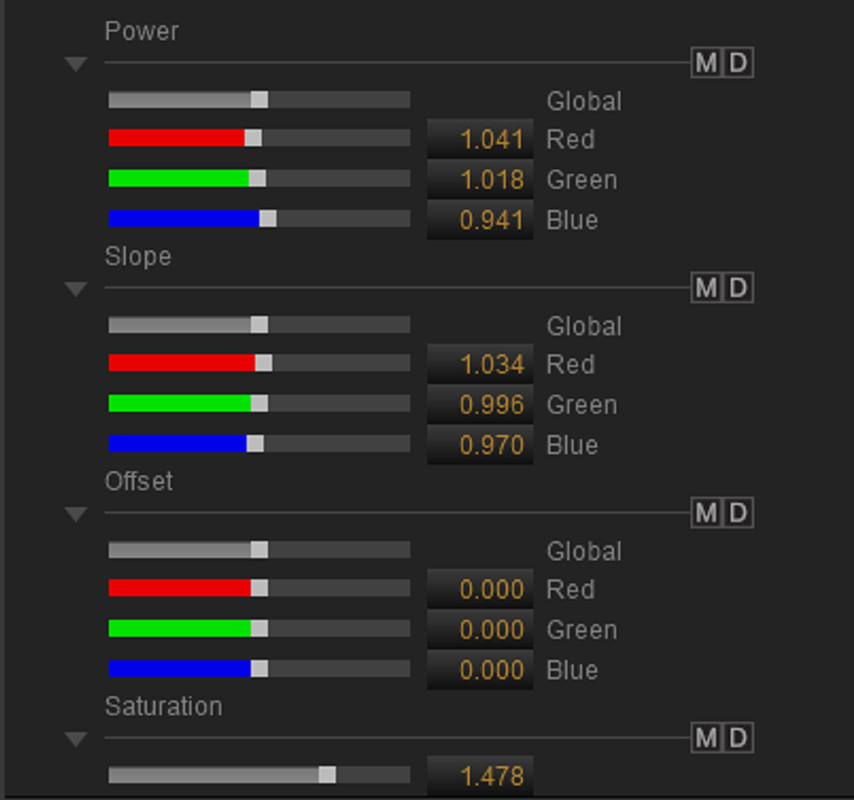
1)Create a look in the "CDL" Palette. The Look below was made from a 4200K and 800 ISO setting.
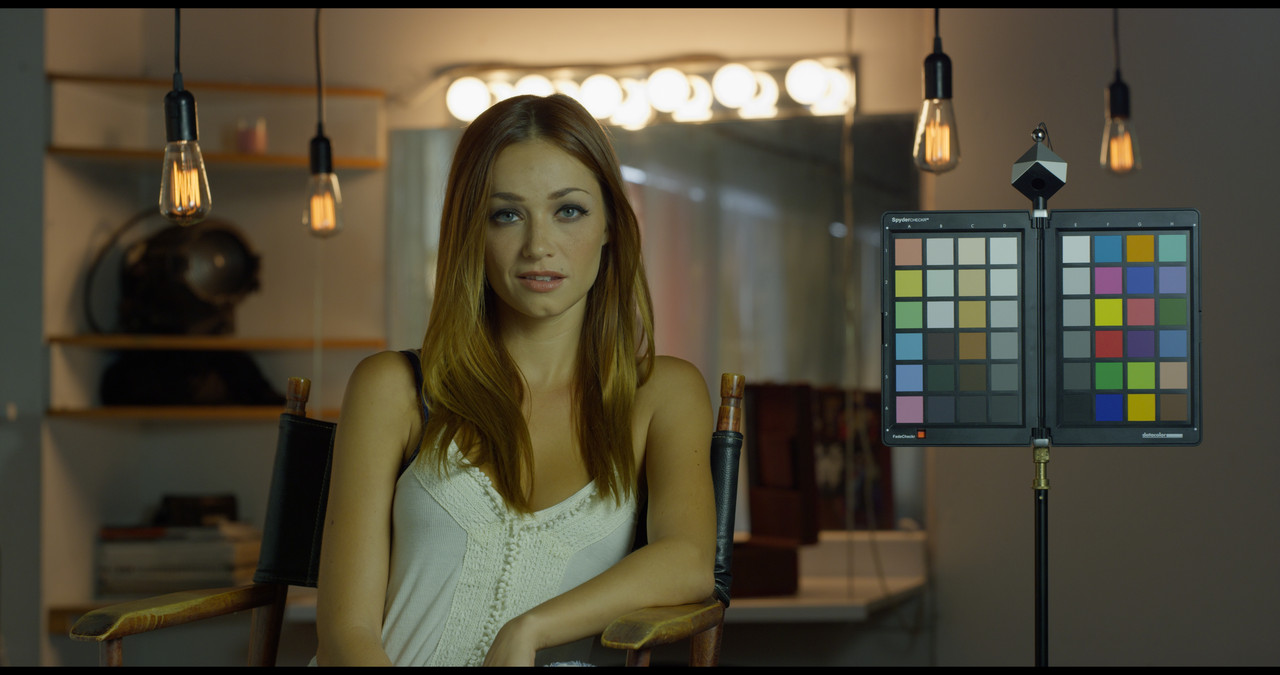
Screenshot-268.png


W001-C005-1014-V3-S000-0000000.jpg


Screenshot-268-2.png


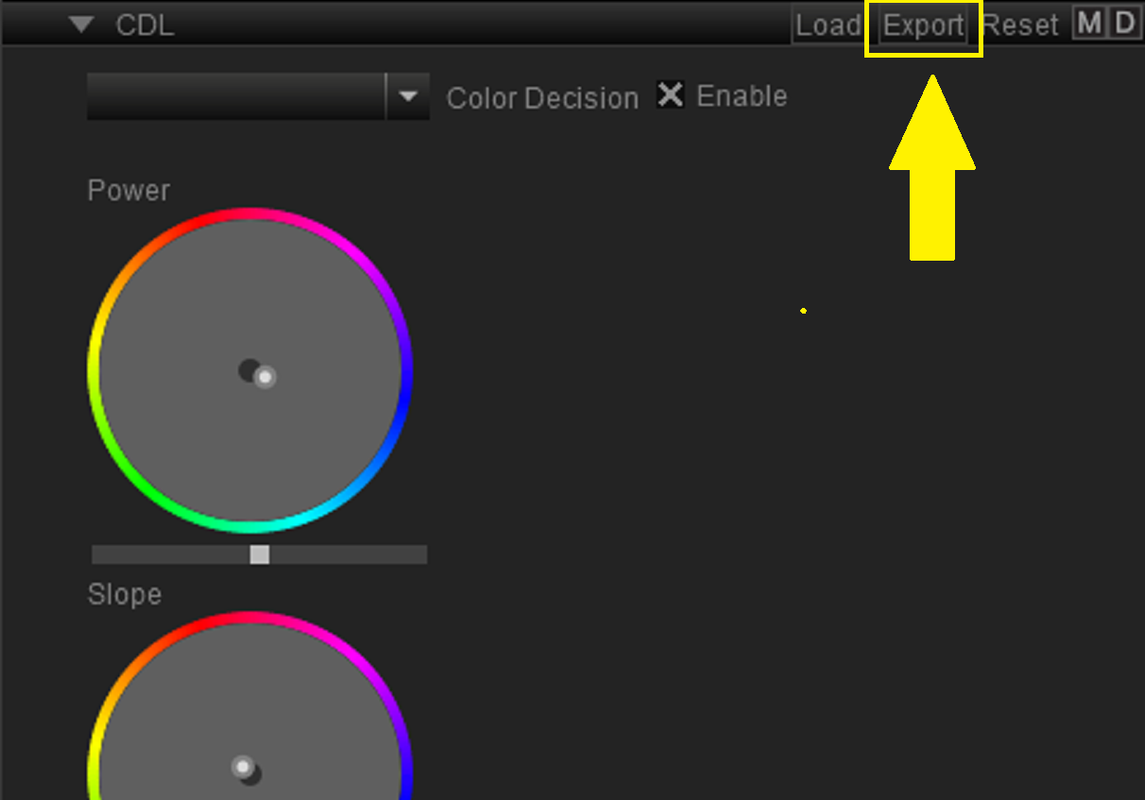
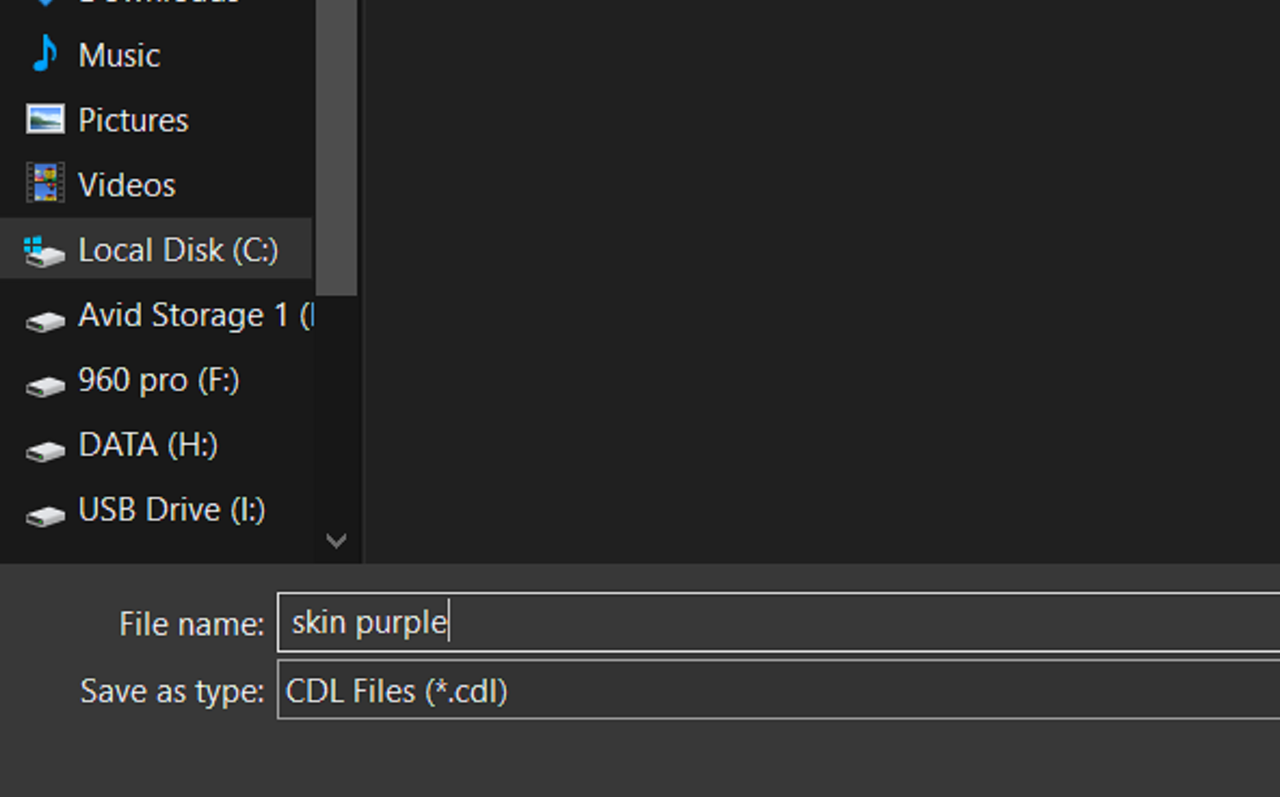
2)Next, "EXPORT" the CDL Grade to your desired location


Screenshot-269.png


Screenshot-270.png


Adobe Premiere


This was useless for a Direct import of the CDL export file from Redcine-X

Screenshot-571.png


Screenshot-572.png


Screenshot-567.png


Screenshot-568.png


Screenshot-570.png


W001-C005-1014-V3-001-00-00-11-07-Still001.jpg
 
Last edited:
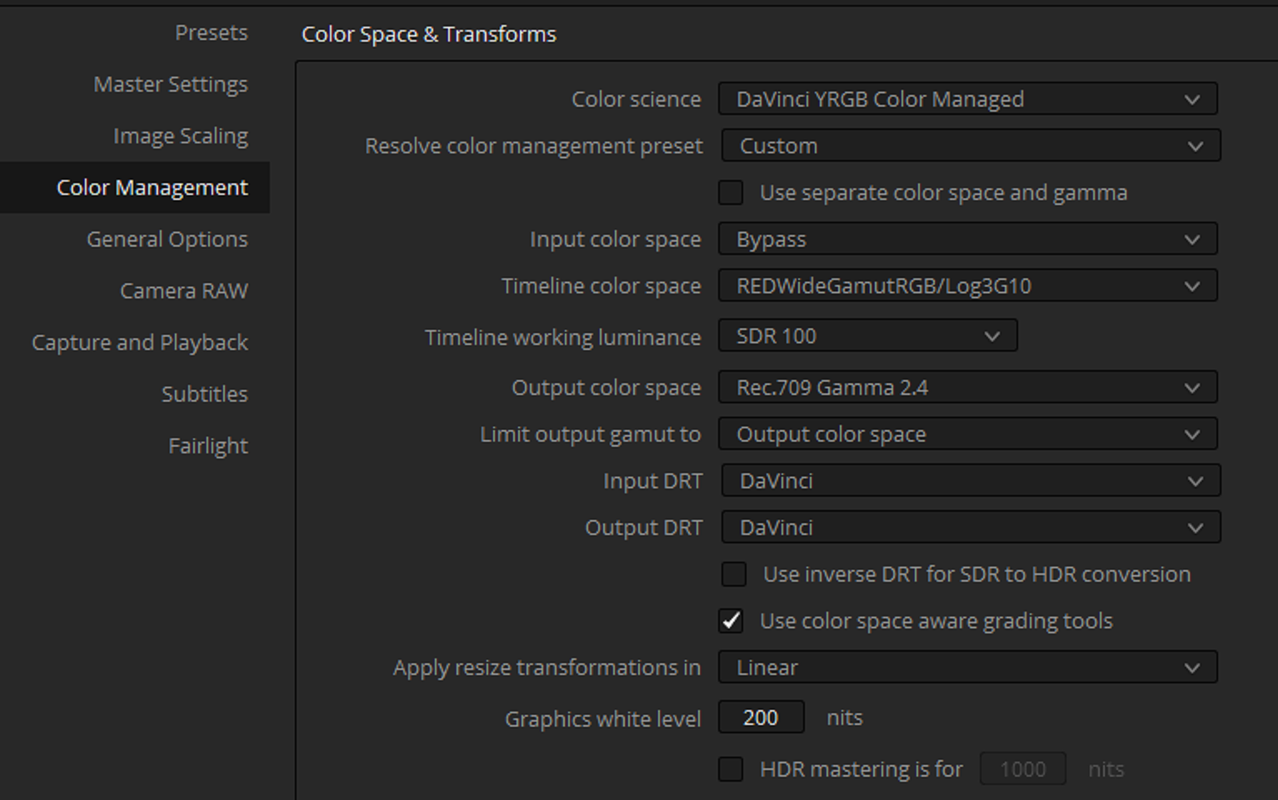
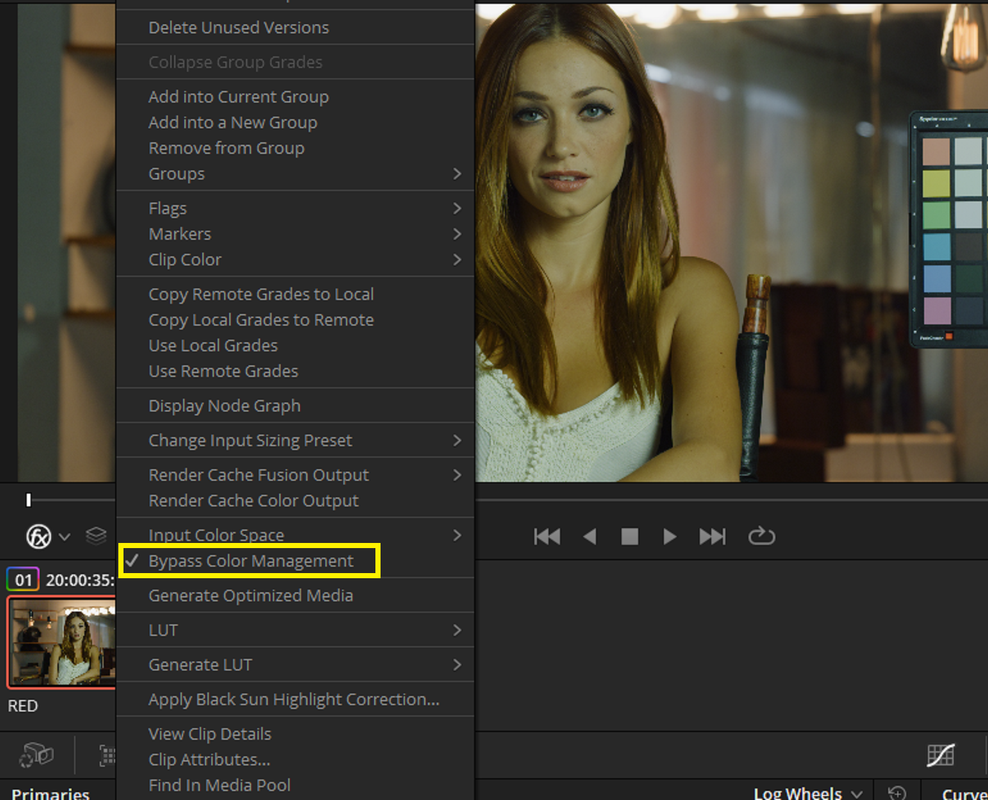
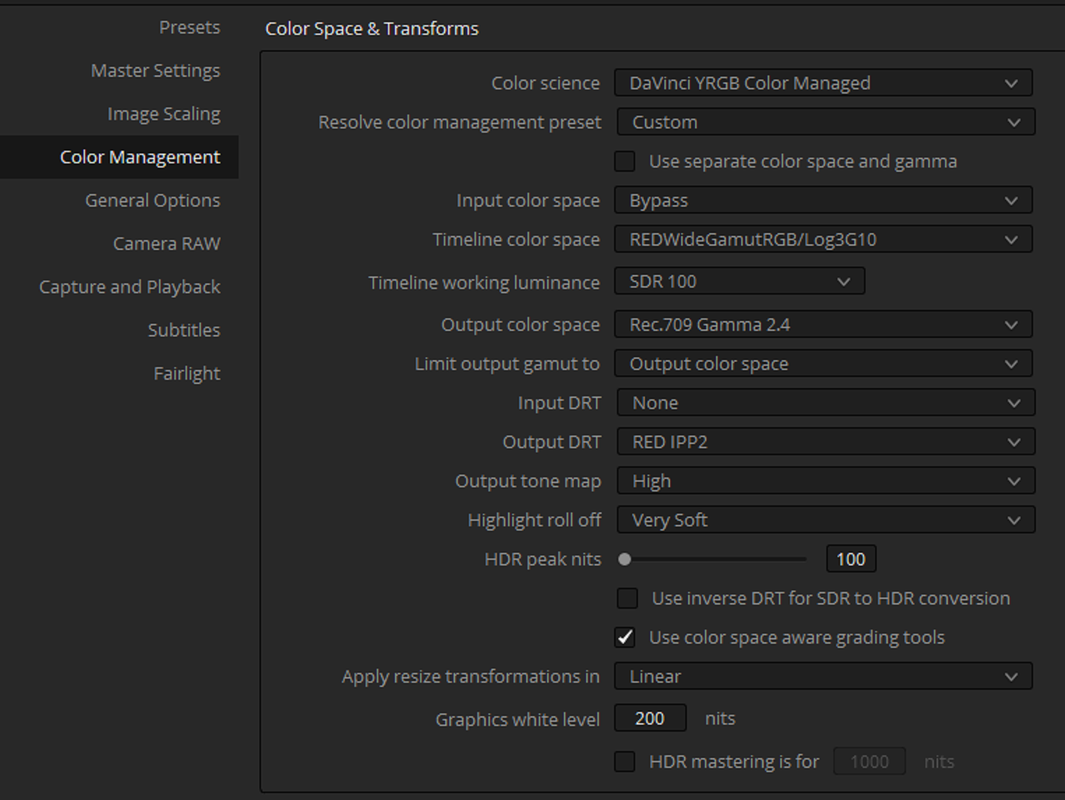
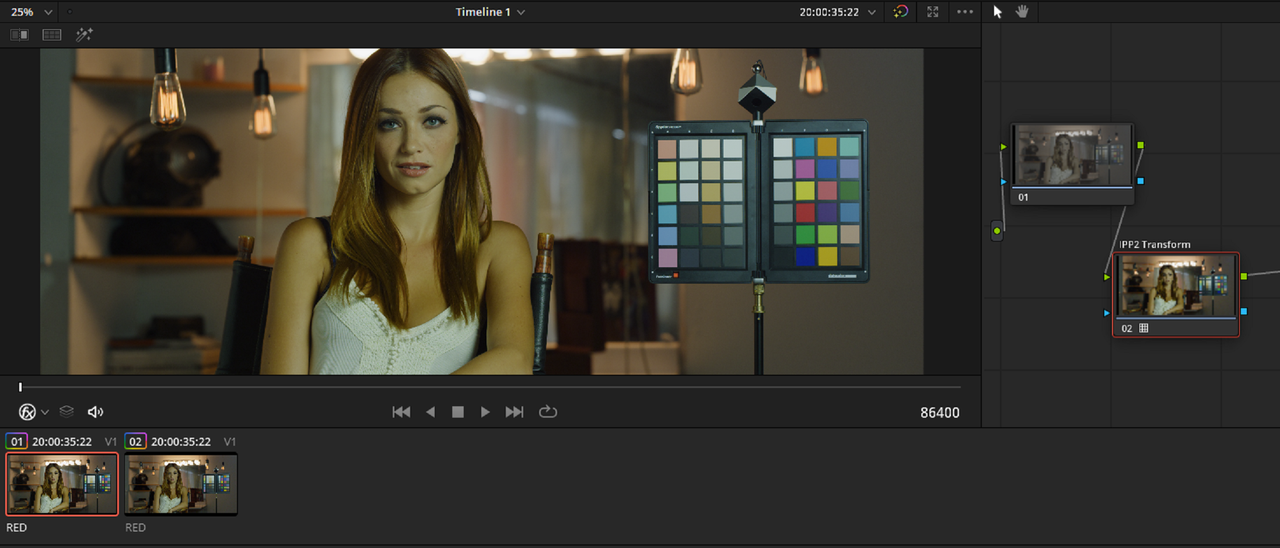
Here's the Davinci Color Managed workflow I'm currently using


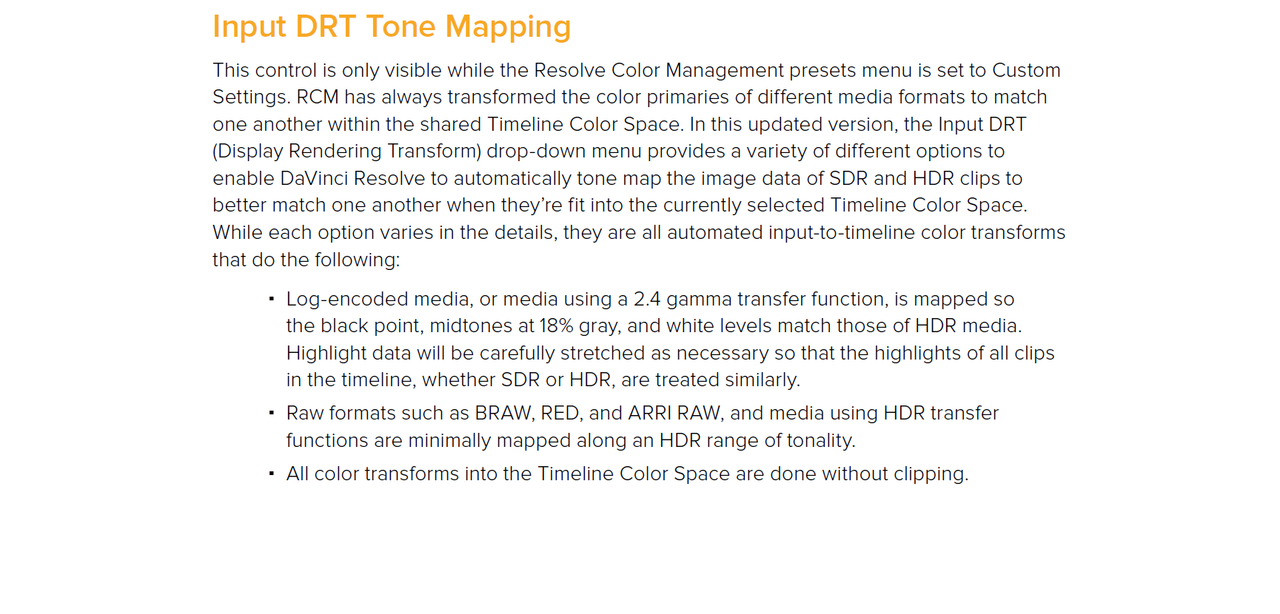
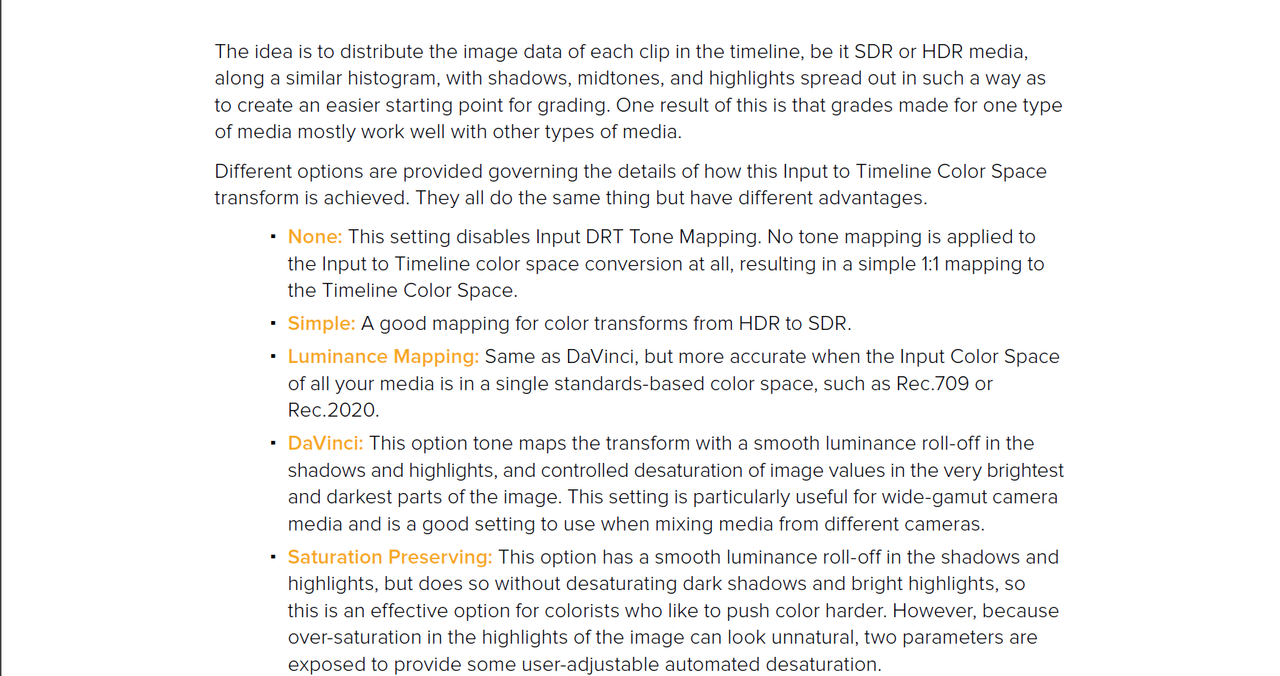
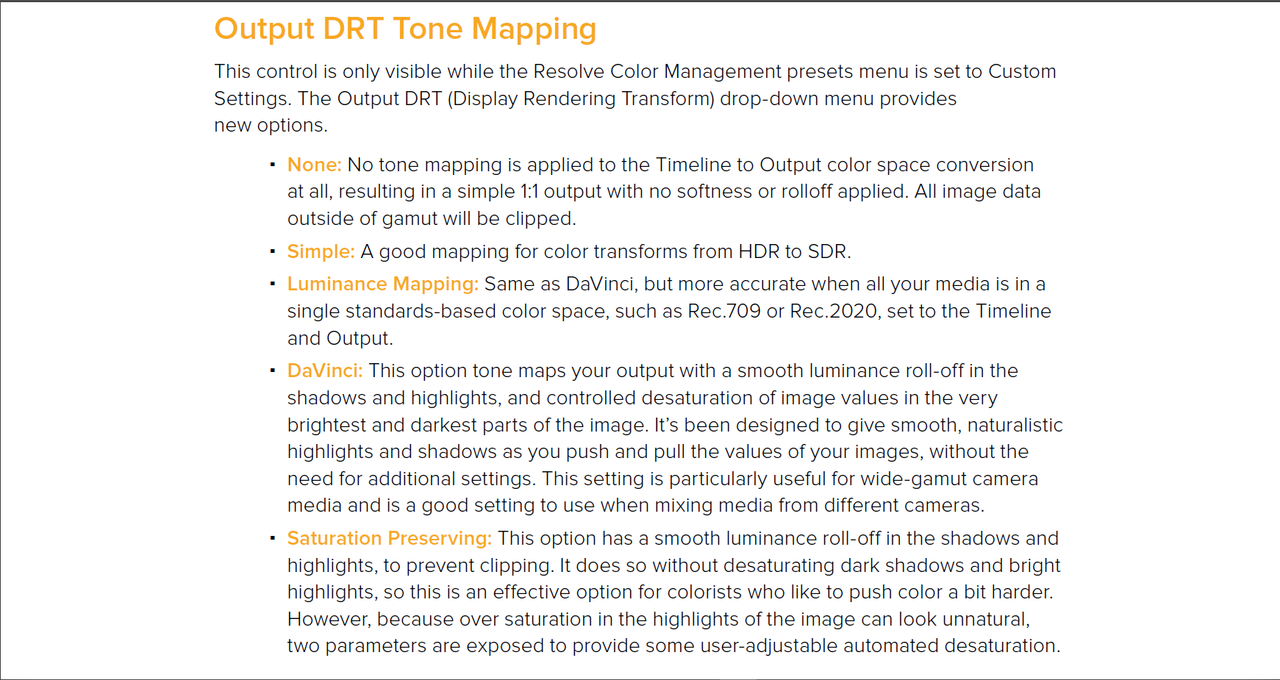
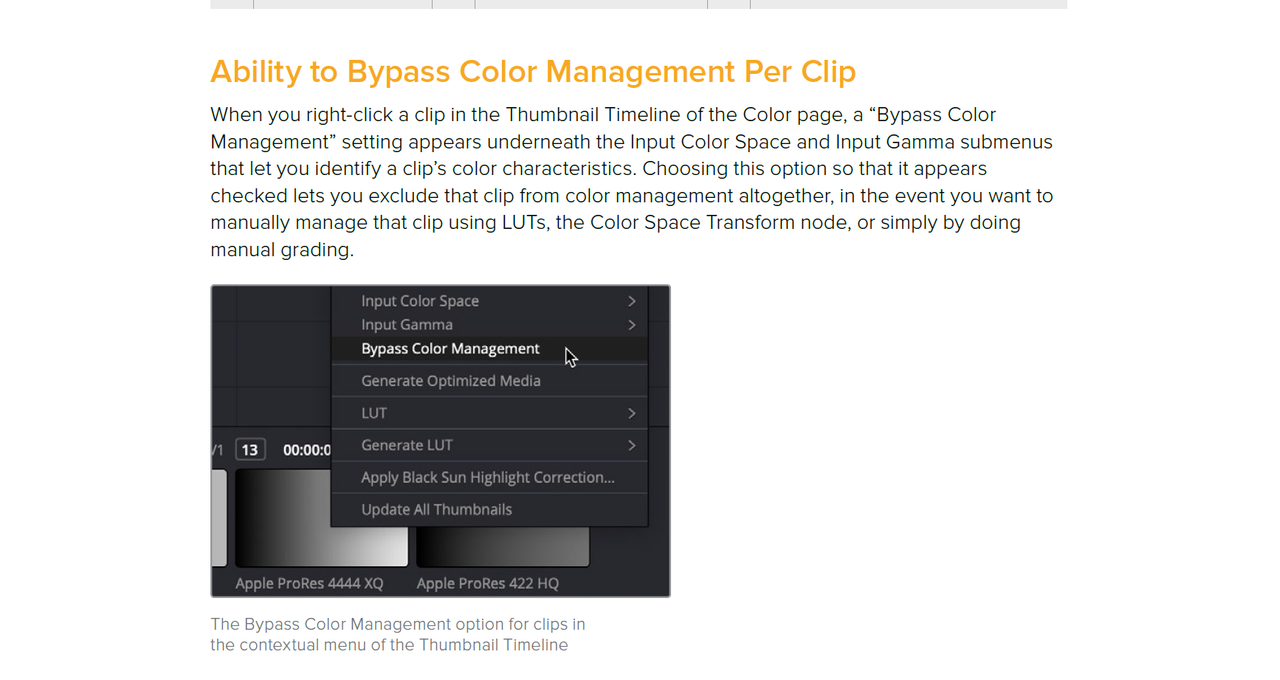
Sometimes I like the Tone-Mapping of the new "Davinci" "Input DRT" and "Output DRT" and sometimes I like the Tone-Mapping of IPP2. Now, if I want to "By-Pass" the "Davinci" Tone-Mapping and use the Tone-Mapping of "IPP2" I can do it in the Same Project.


Screenshot-578.png


Screenshot-579.png


Screenshot-580.png


Screenshot-581.png


Screenshot-573.png


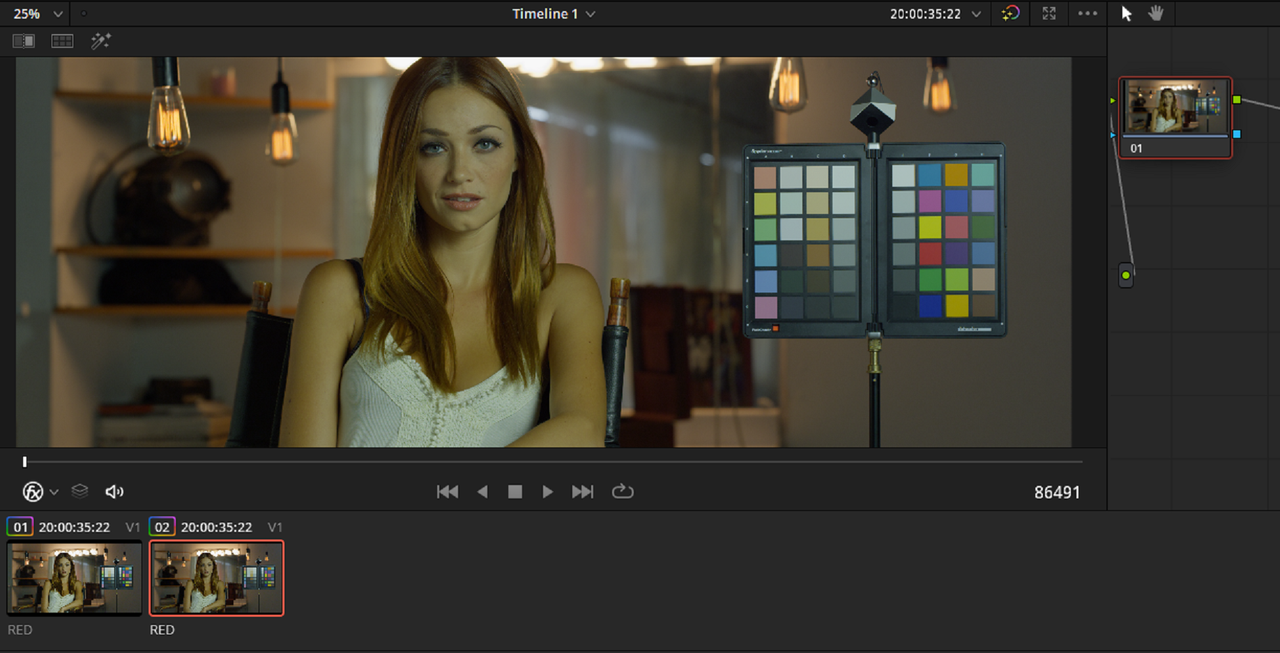
I "Bypassed" the "Davinci" Color Management in the first Red .R3D and kept it in the Last Red R3D file


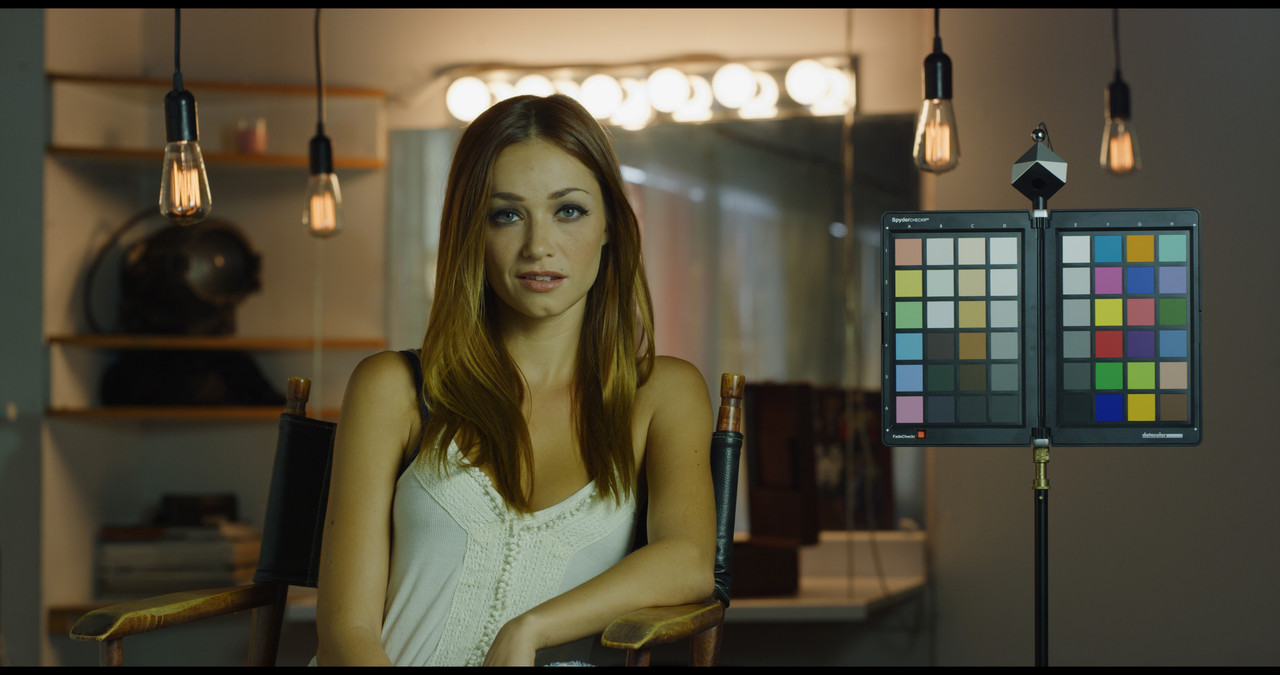
I Bypassed "Davinci" I-DRT and O-DRT with IPP2 High Con/Very Soft Transform Lut in the first Red R3D file.


Screenshot-574.png


Screenshot-577.png


Red-IPP2-1-1-2.jpg


I used the Project's "Davinci" I-DRT and O-DRT on the second Red .R3D file

Screenshot-576.png


Red-Davinci-1-2-1.jpg
 
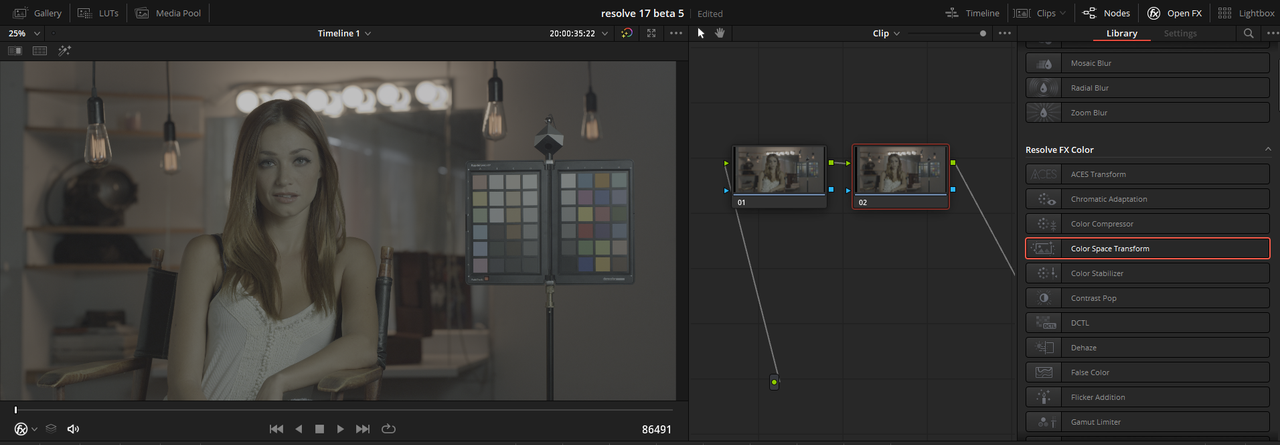
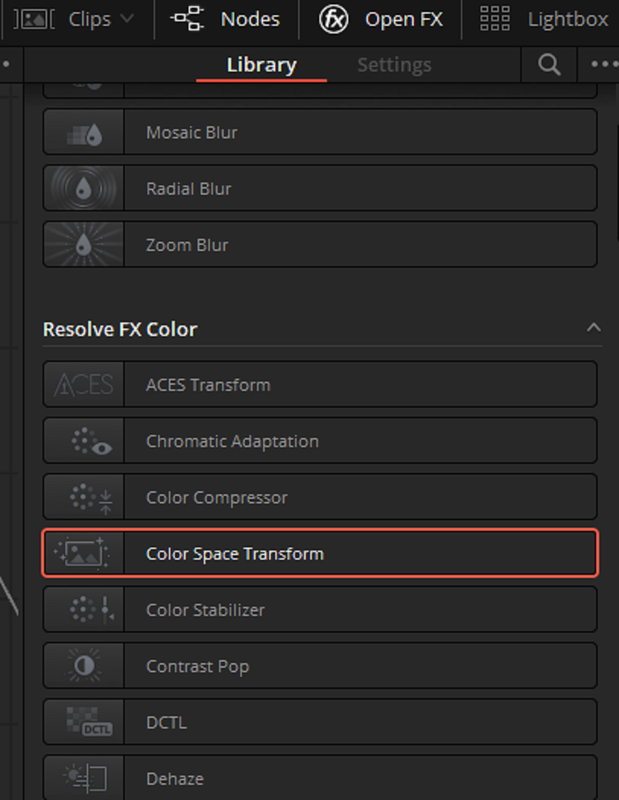
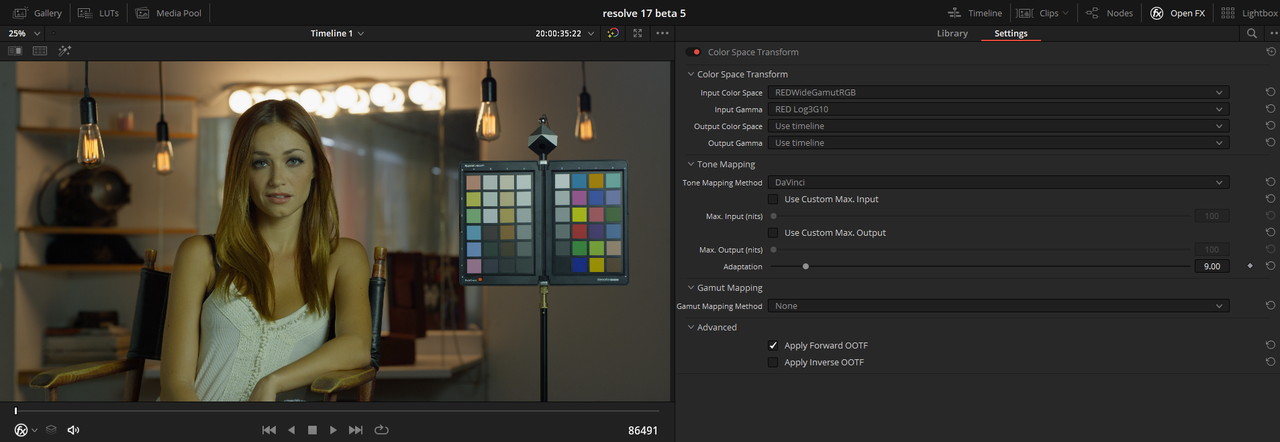
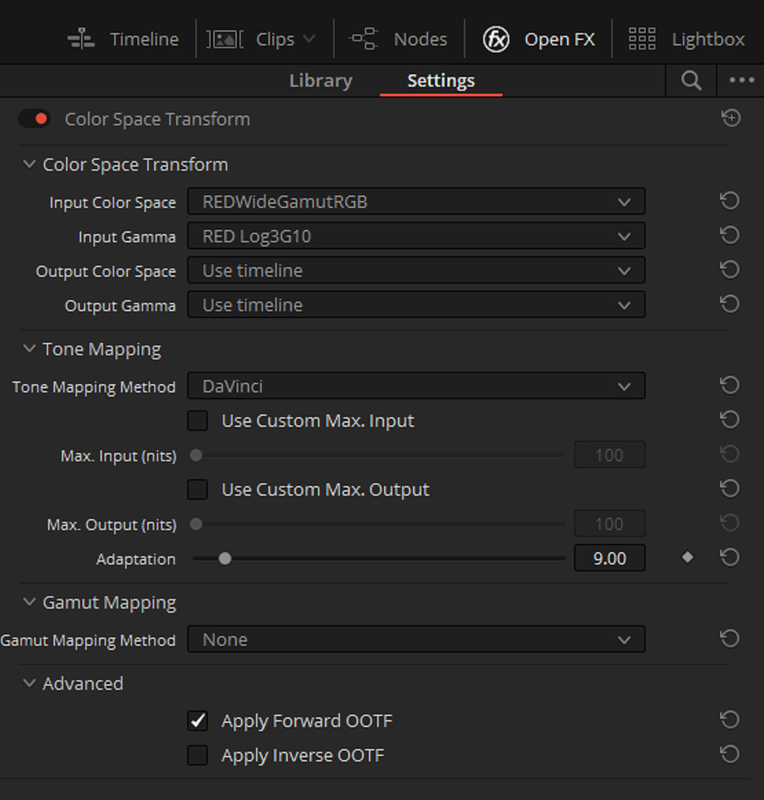
You can do the Reverse with an "IPP2" Project with the Last Red .R3D file using a "OFX Color Space Transform" to change it to "Davinci" Tone-Mapping.


Screenshot-583.png


Screenshot-574.png


Screenshot-584.png


2.png


Screenshot-585.png


Screenshot-587.png


davinci-2-1-2-2.jpg
 
Last edited:
Back
Top