Welcome to our community

Be a part of something great, join today!

  • Hey all, just changed over the backend after 15 years I figured time to give it a bit of an update, its probably gonna be a bit weird for most of you and i am sure there is a few bugs to work out but it should kinda work the same as before... hopefully :)

Batch Export IPP2 for Scarlet W

Matt Brooks

Member
Joined
Jul 11, 2018
Messages
12
Reaction score
0
Points
1
Location
Kamloops BC
Hey There,

Does anyone know of a way to turn all of the clips to IPP2 rather than legacy before you begin to edit. Some sort of batch export? I may be wrong but it appears that RED CINE-X doesn't allow you to export the batch of footage while retaining the RMD. Ideally I'd like to be able to open premiere pro, import all my R3D files and have them already be in the IPP2 setting but still retain the RMD so I have the master tab for further adjustment. Any suggestions?
 
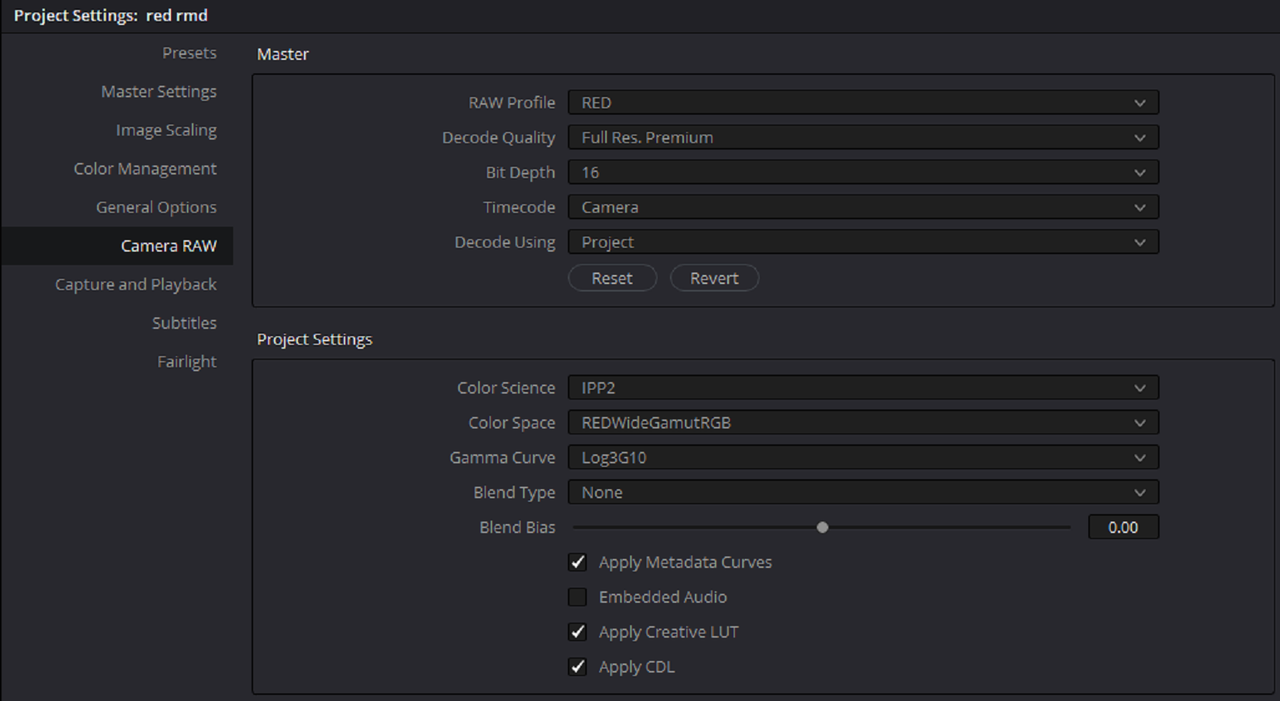
I have configured the camera color as RedWideGammut / Log3G10 , so when the clips are imported in resolve I've got them in IPP2. For viewing on set I have a lut on the camera for recording, the only limitation is that if you try to playback the clips in camera they will appear without color. For me is the best workflow with the S-W and IPP2
 
I'm going to try that. I primarily use REDCINE-X and Premiere. I was under the assumption that Legacy mode was native on the Scarlet-W and that you had to change to IPP2 in post. Perhaps I was misinformed? Premiere always seems to default to Legacy. Still curious if anyone knows of a way to batch export footage through RED CINE-X into IPP2 while retaining the RMD though?
 
I have this same question and have never found an answer. Thoughts anyone??
 
Matt,

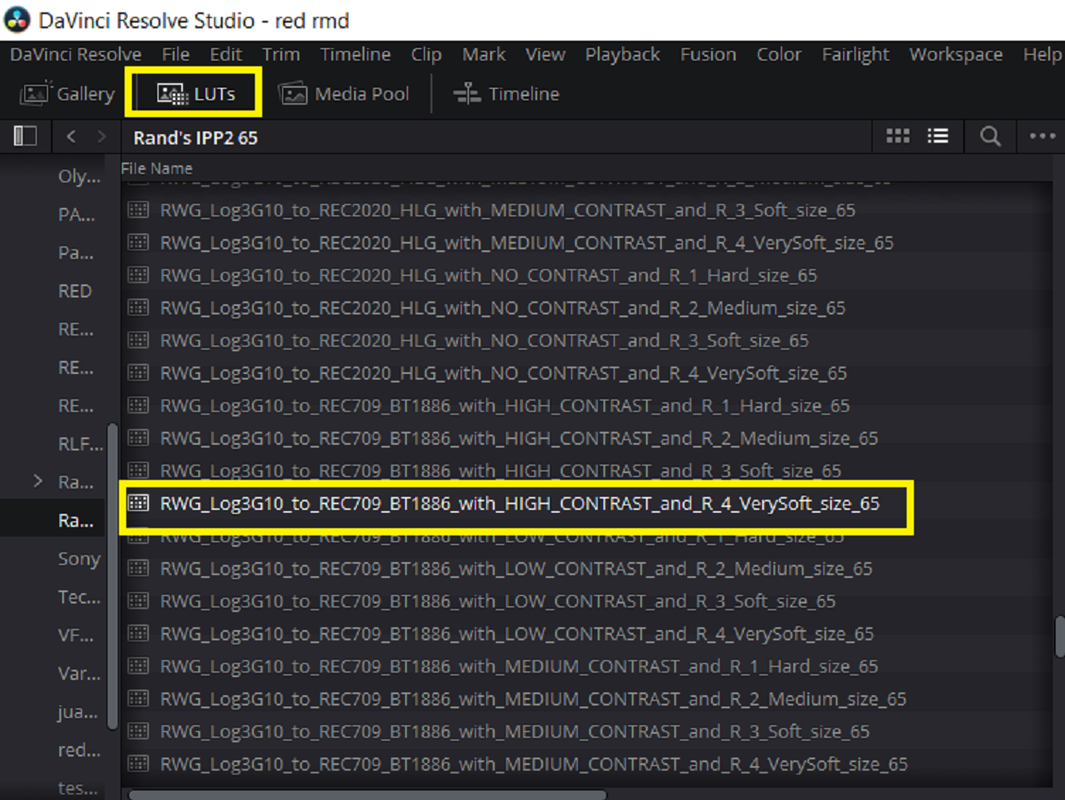
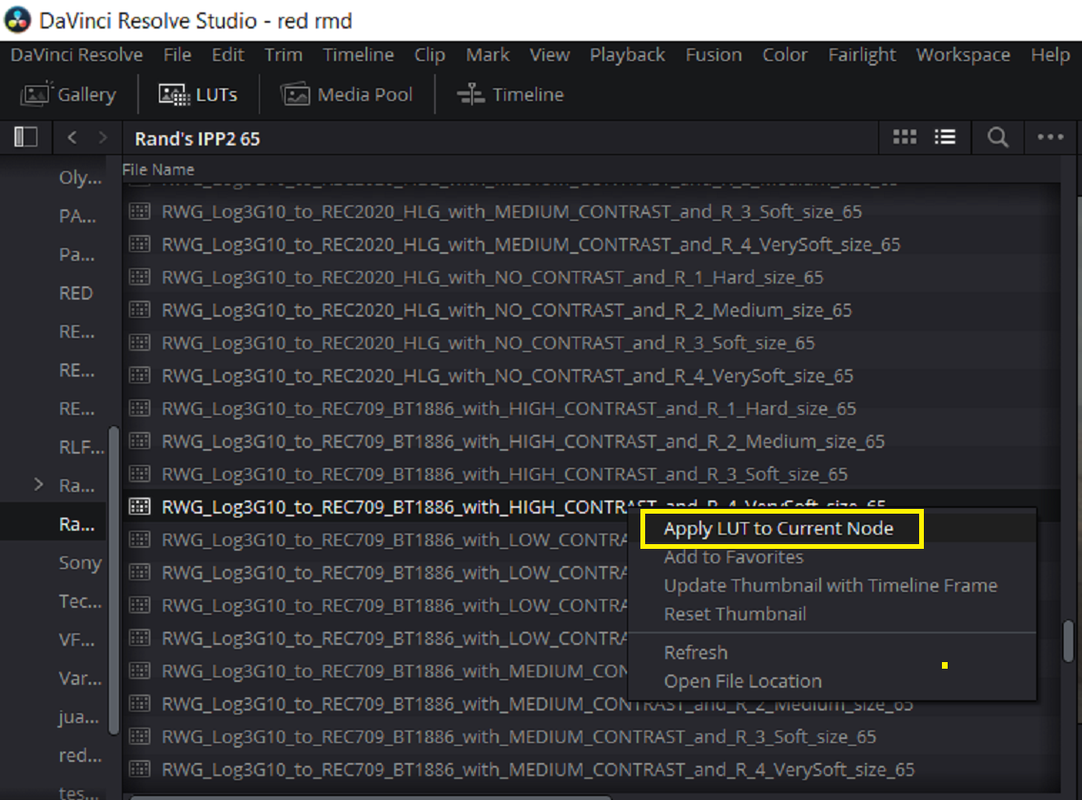
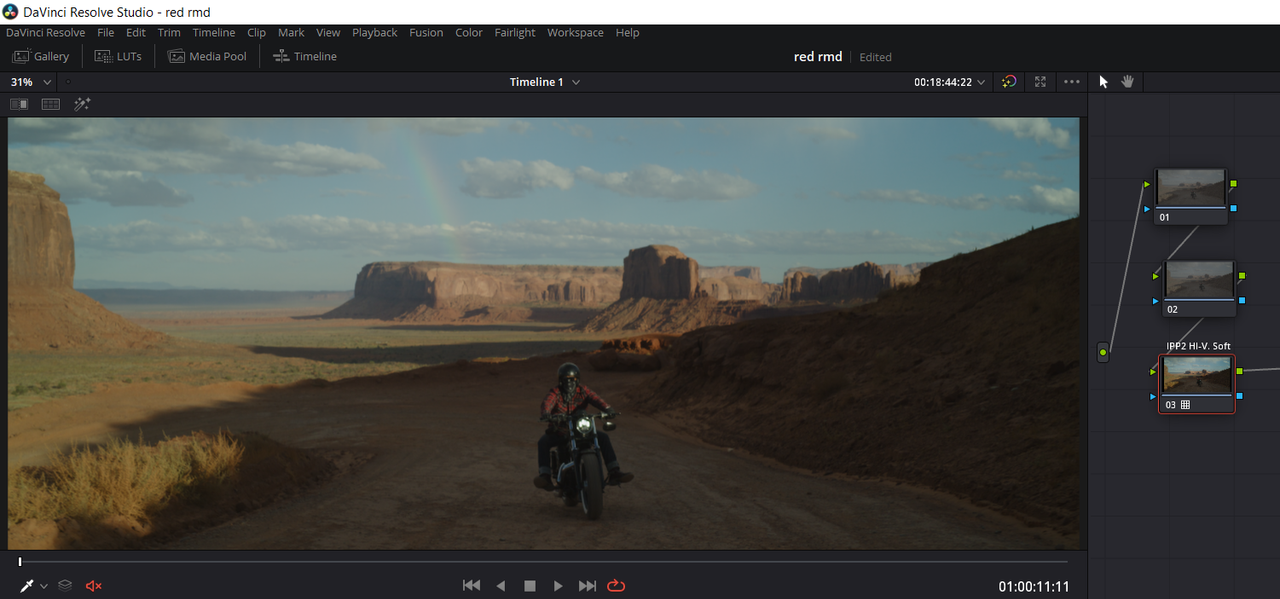
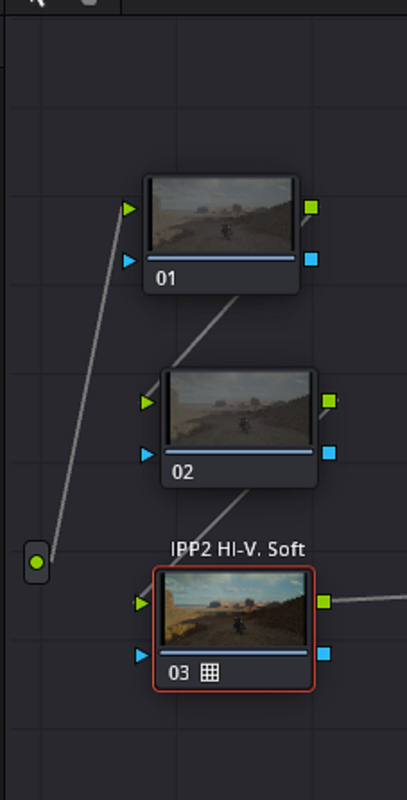
Try this, This is for Resolve(which I use) so maybe someone who knows Premiere can submit the import settings .


Part 1-In Redcine-X

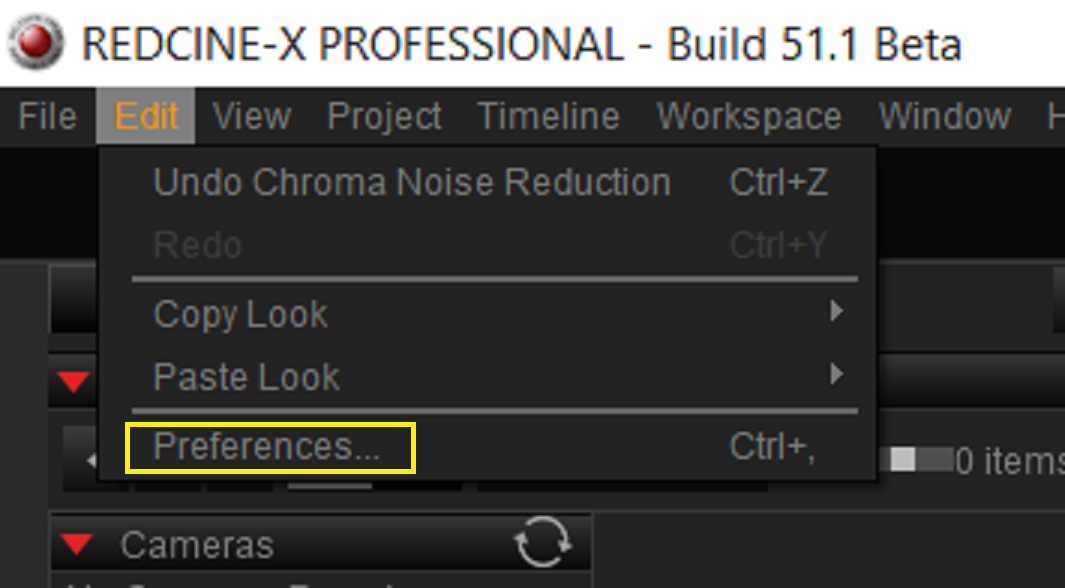
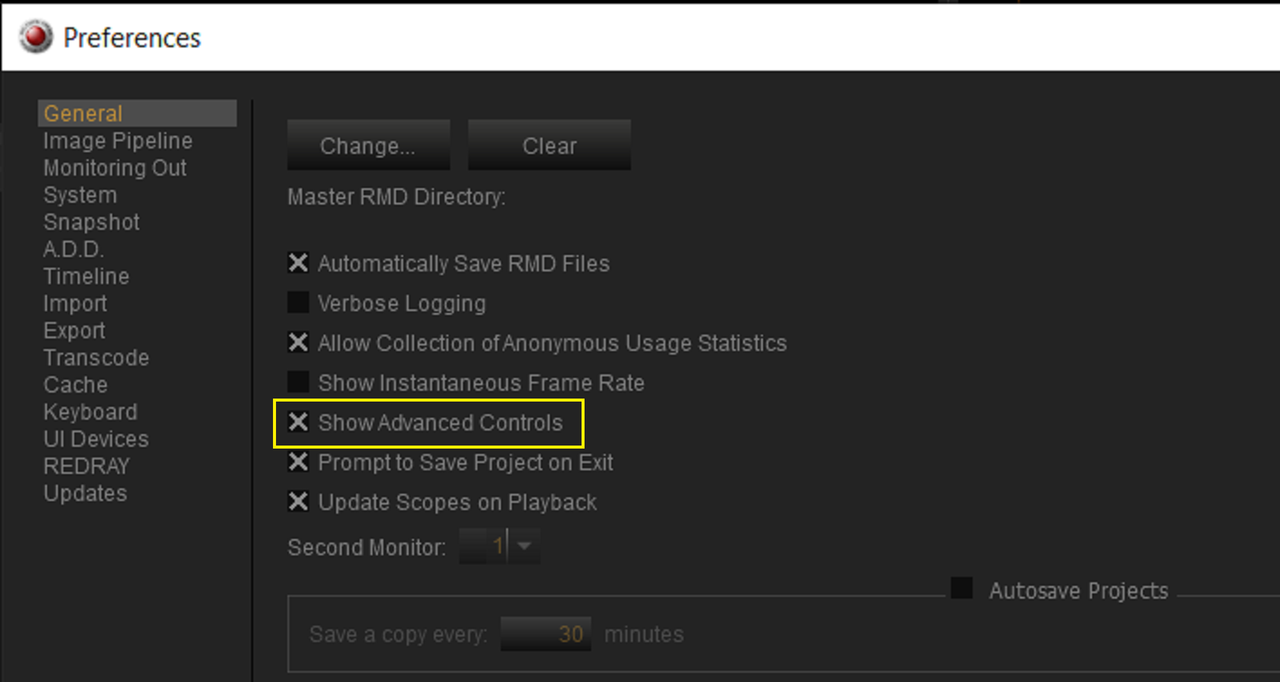
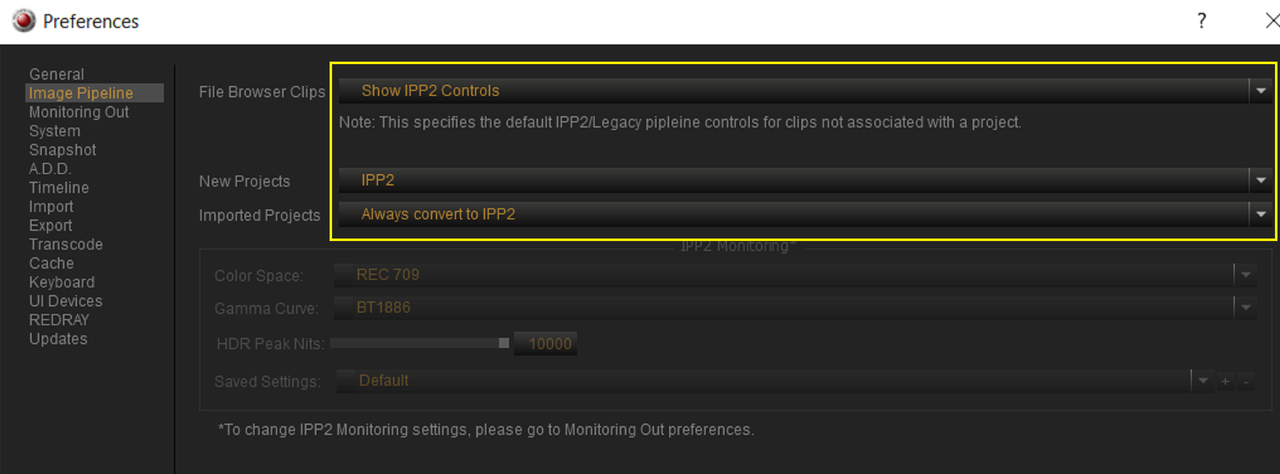
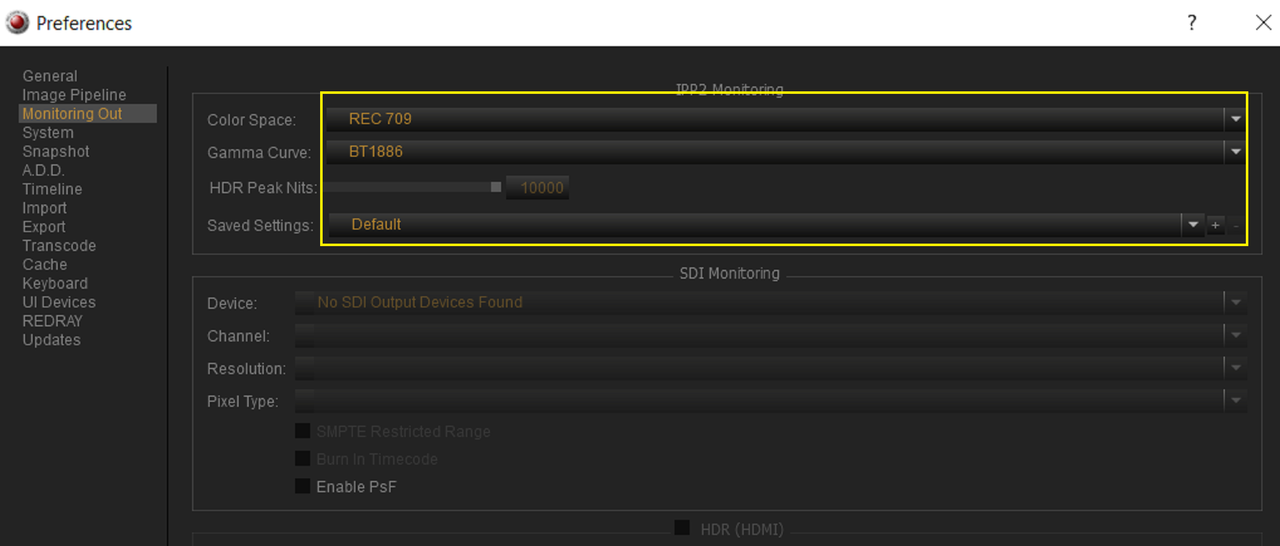
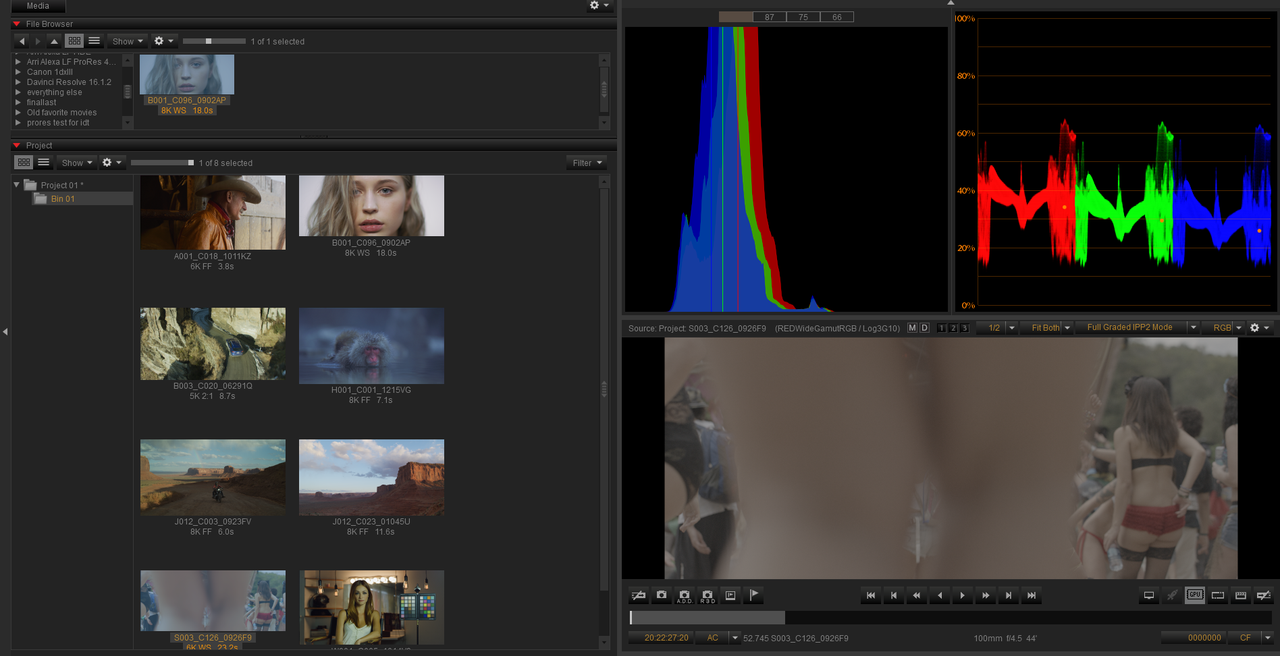
First-Preference Settings for Redcine-X

Screenshot-977.png


Screenshot-978.png


Screenshot-979.png


Whatever Colorspace and Gamma you need

Screenshot-980.png


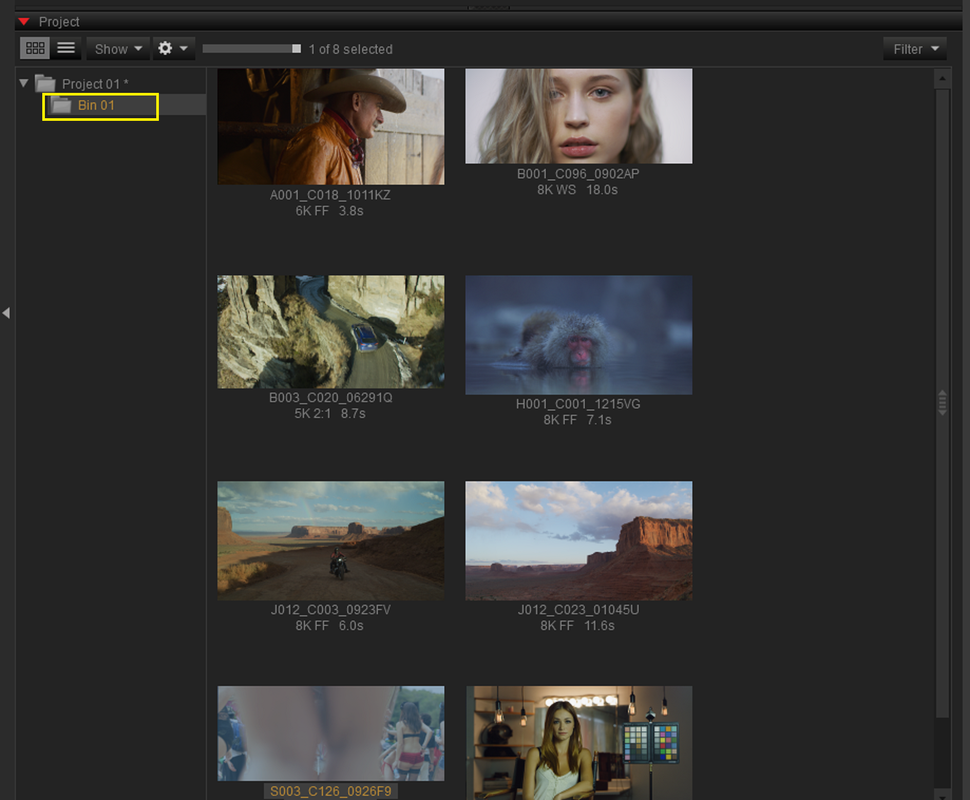
Create "Bin" to place all the .R3D you want to export in.

Screenshot-946.png


Screenshot-946-2.png


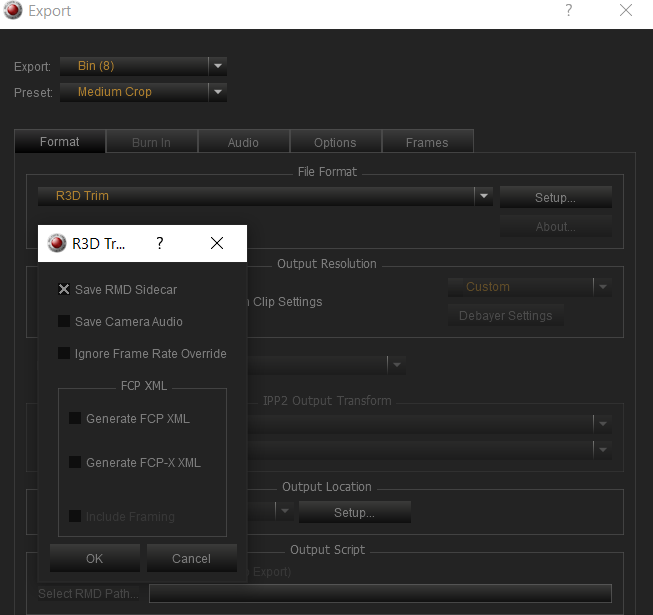
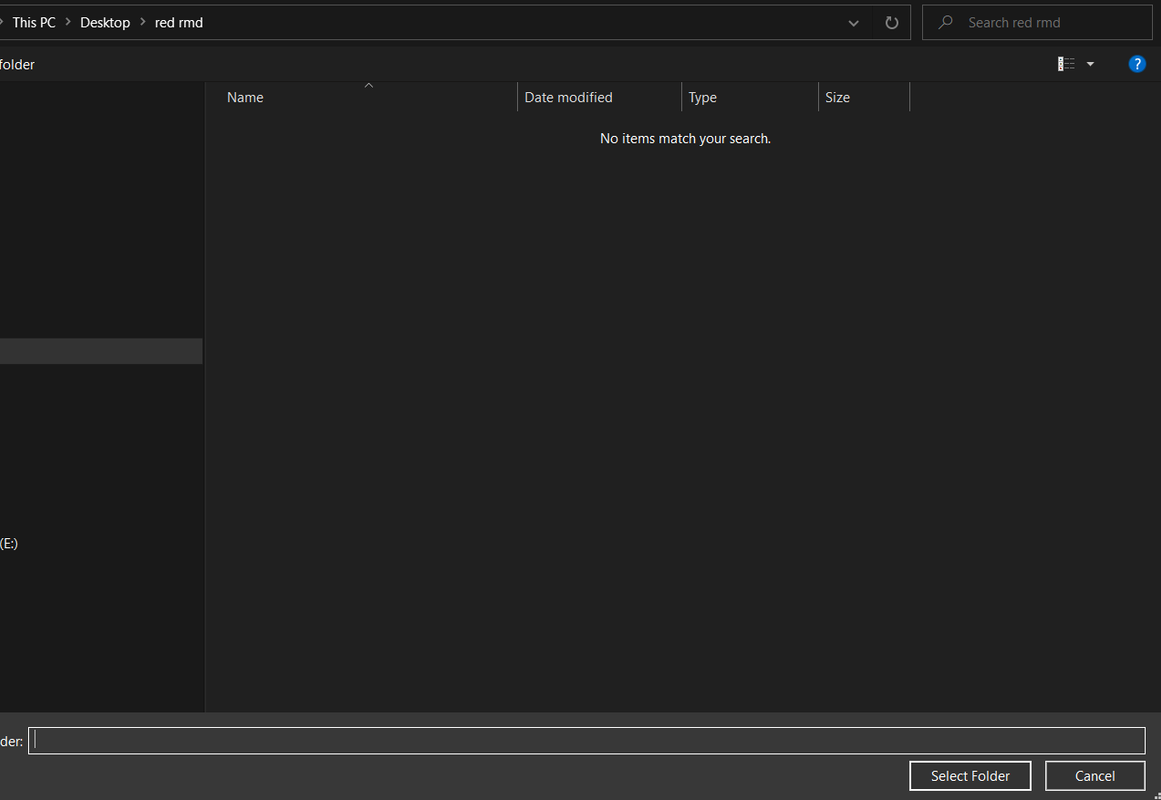
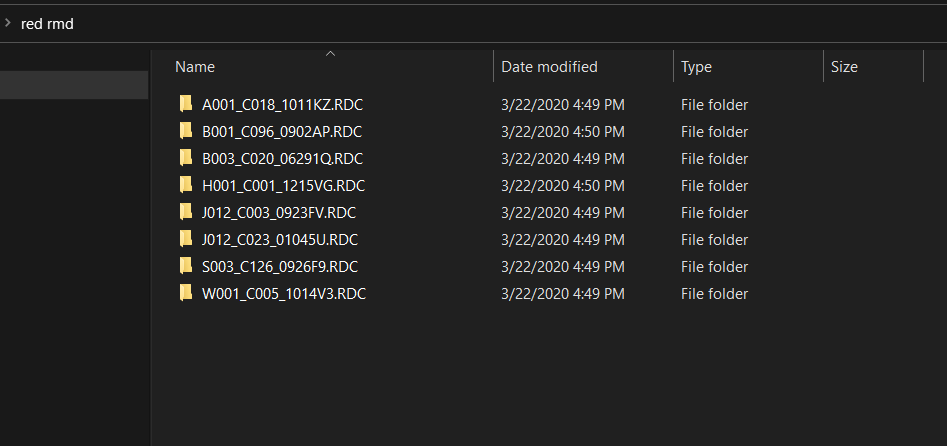
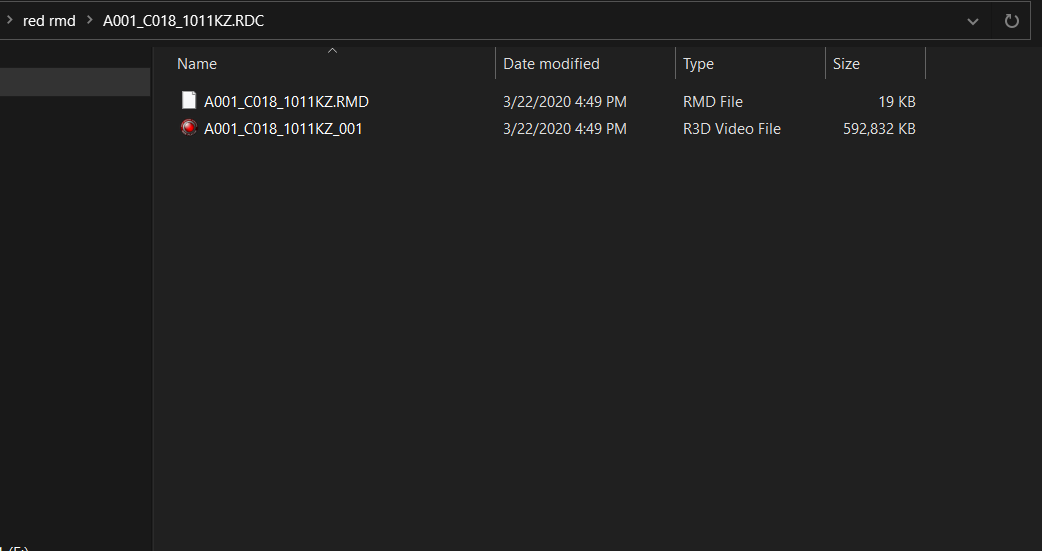
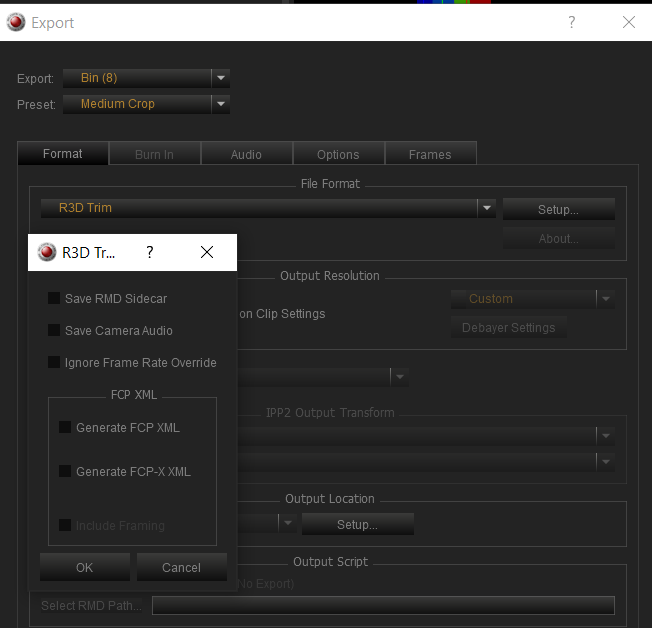
Press "Ctrl + E" to export, choose what you want to export from , in this case "Bin" which has 8 files. Choose "Red Trim" and in "setup" choose "Save RMD Sidecar"

Screenshot-960.png


Screenshot-948.png


Screenshot-951.png


Screenshot-952.png


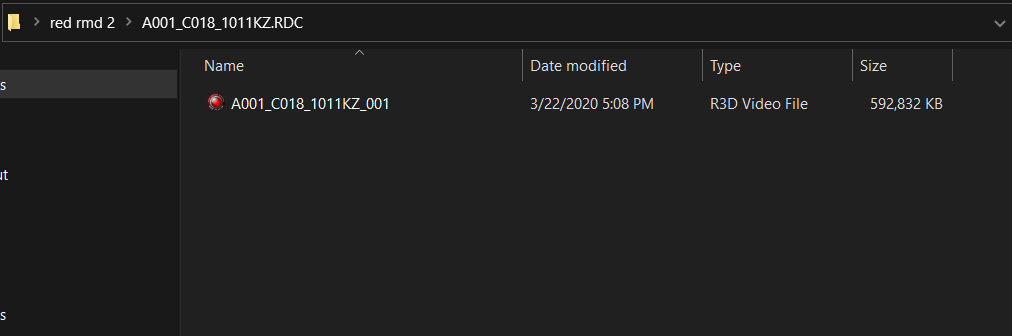
If you don't choose "Save RMD Sidecar", all you will get is the .R3D file

Screenshot-961.png


Screenshot-962.png


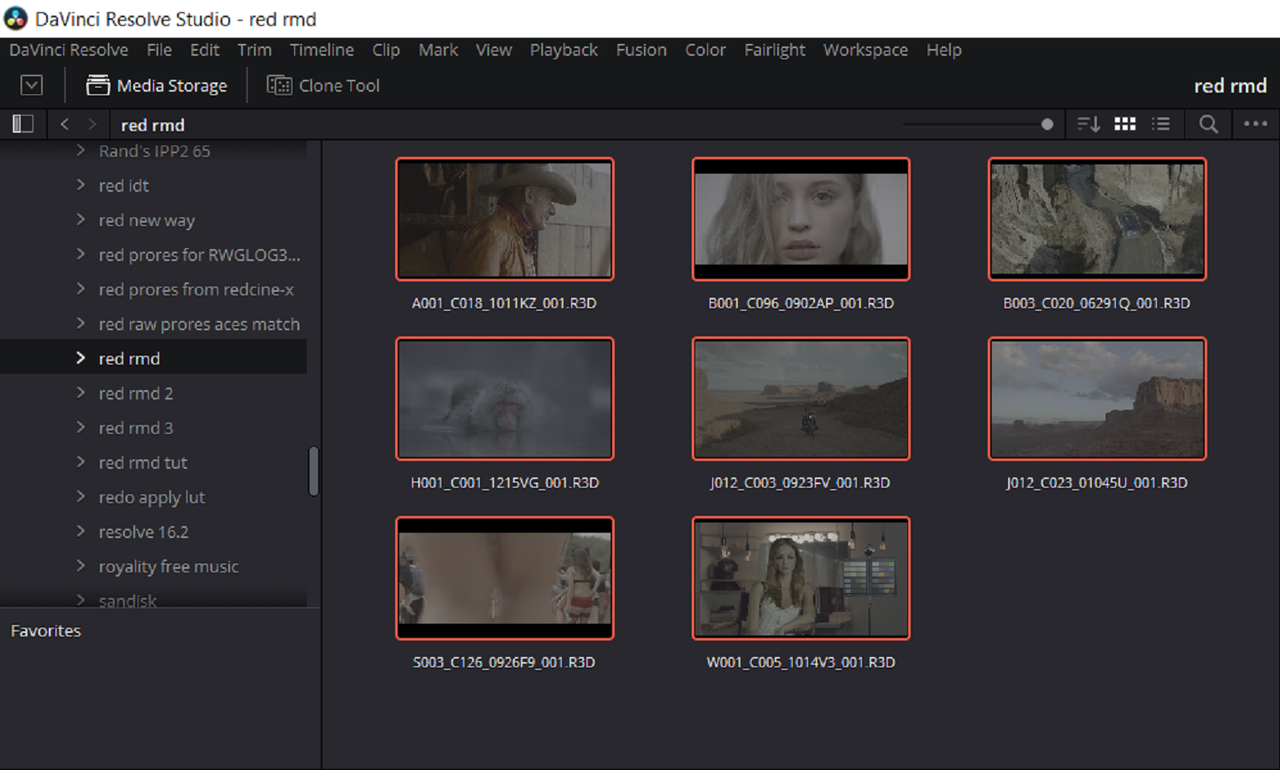
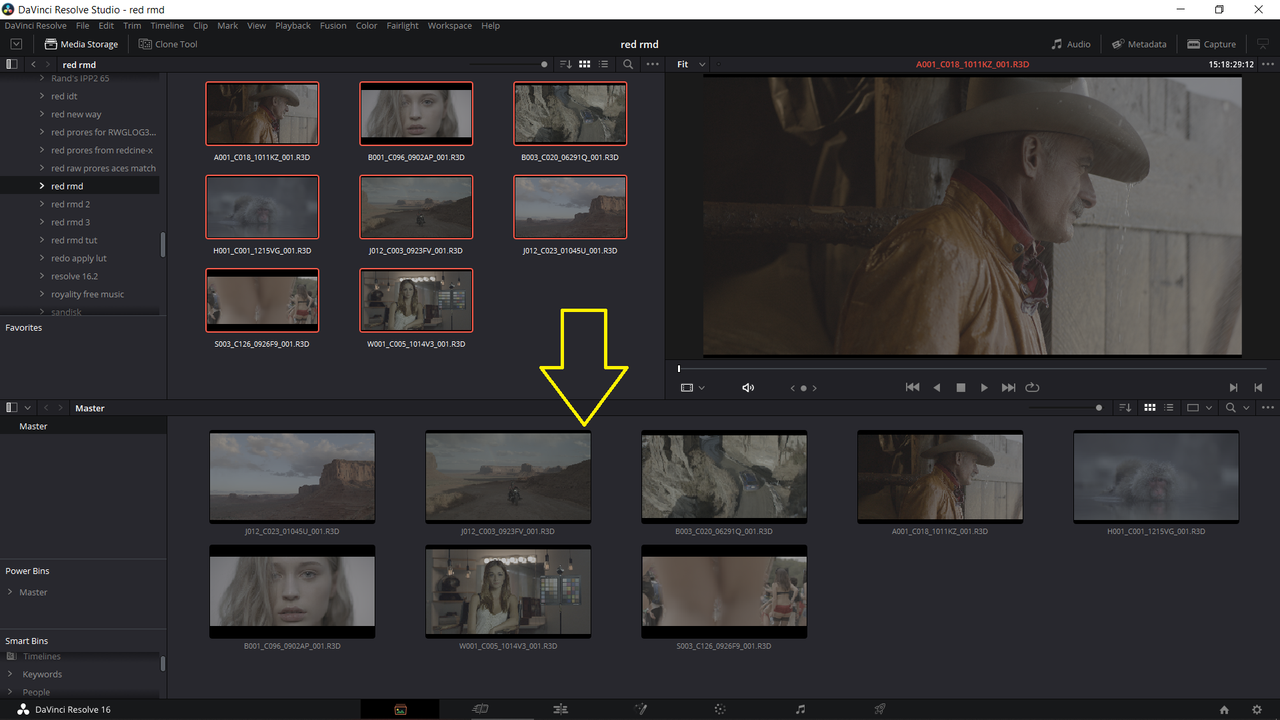
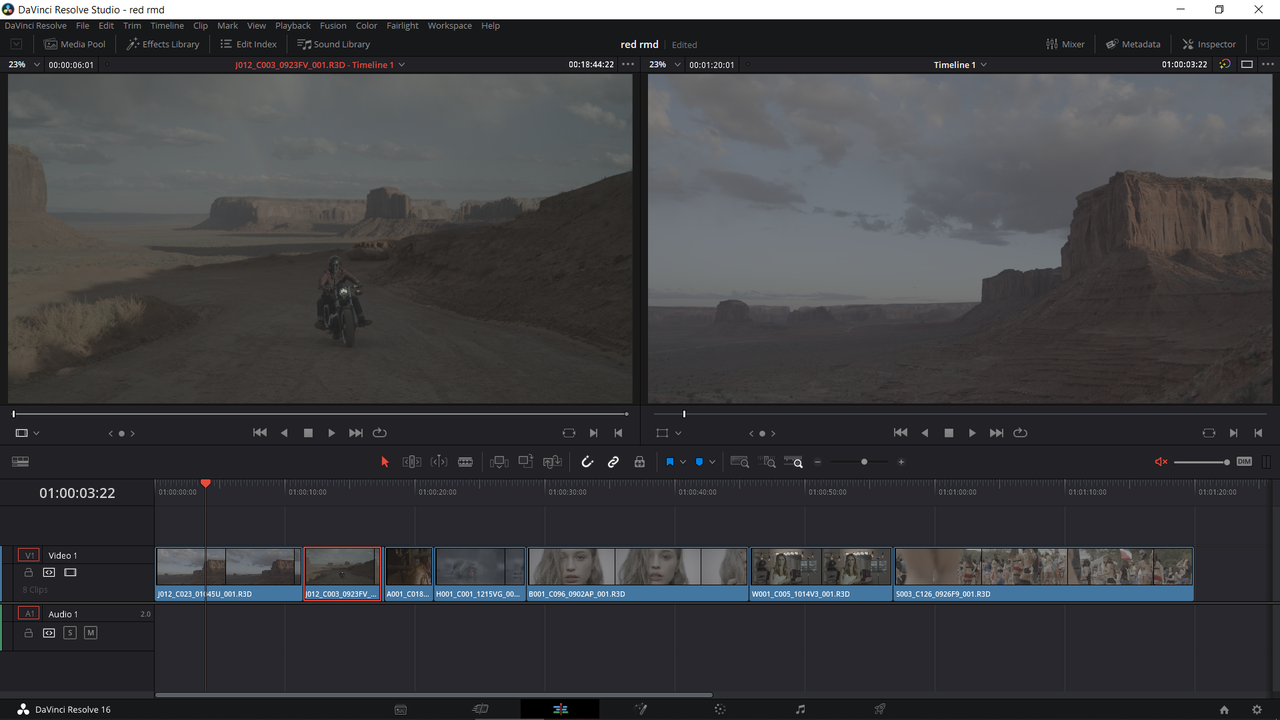
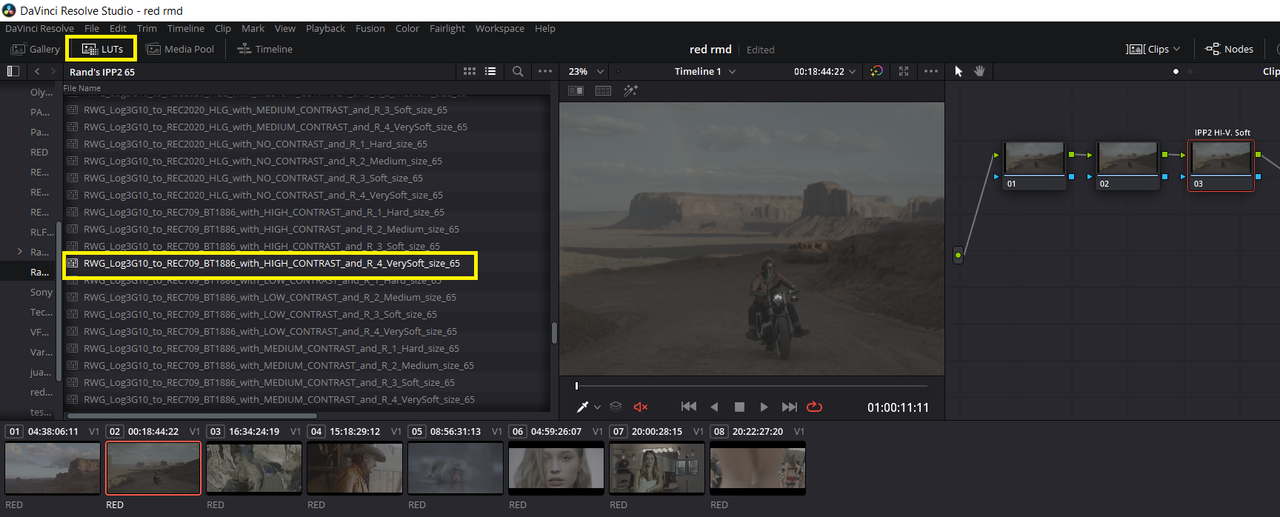
Next, Part 2- In Resolve
 
Last edited:
Part 2- In Resolve

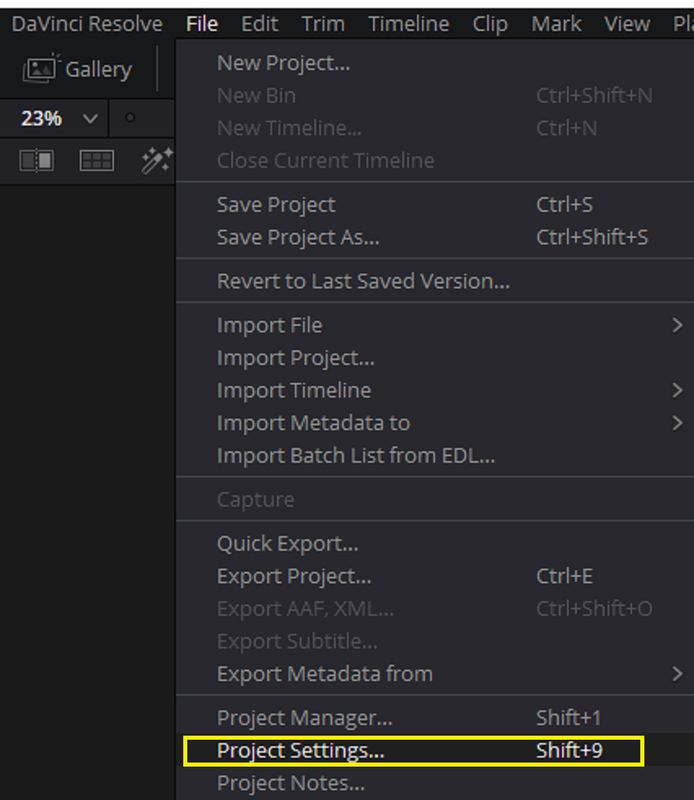
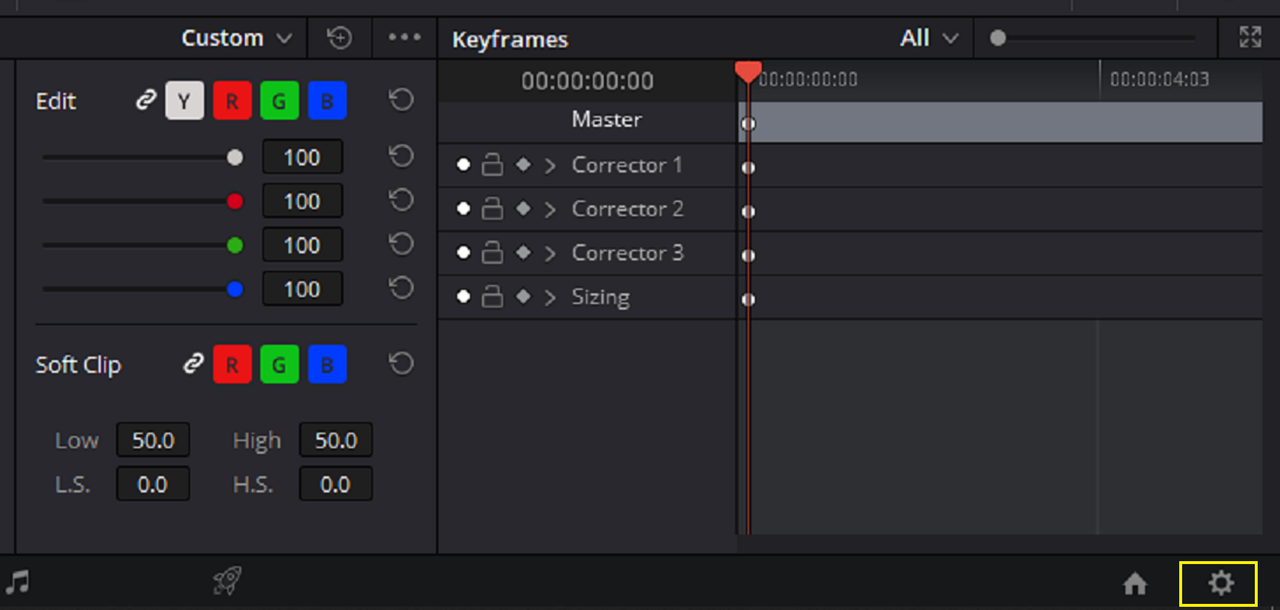
Go To "Project Settings" by either

1) Shift+9

2)File > Project Settings

Screenshot-976.png


3) Cog Wheel at buttom Right-Hand corner of the screen

Screenshot-975.png


Screenshot-966.png


Screenshot-967.png


Screenshot-964-2.png


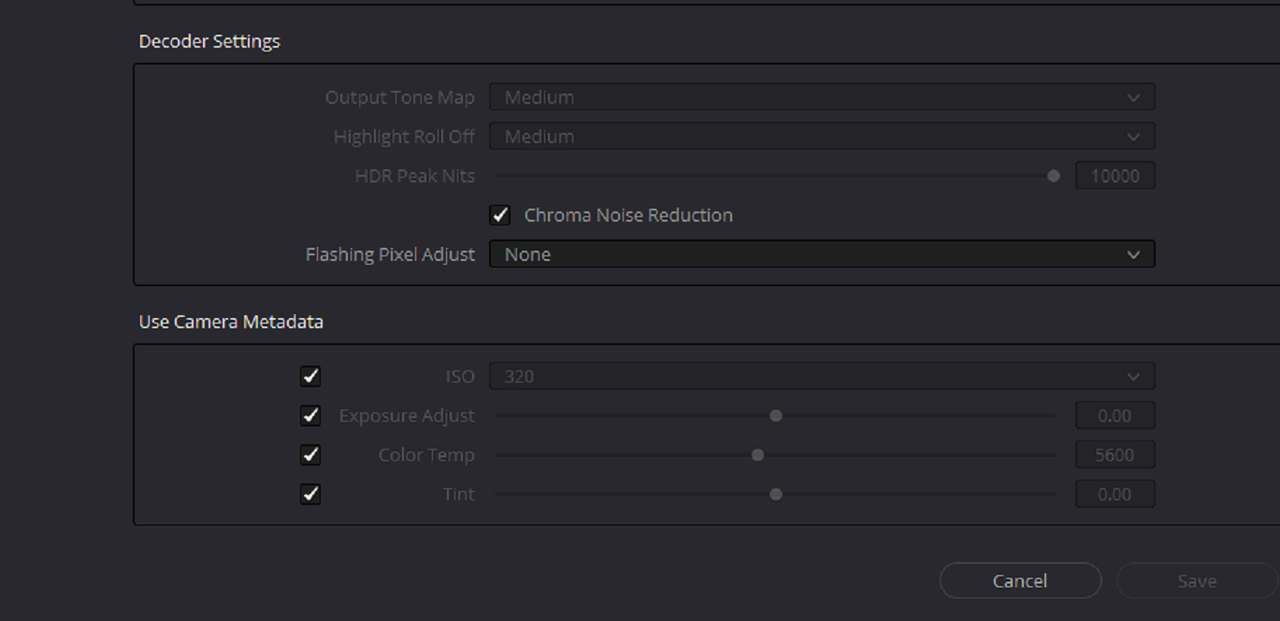
Screenshot-964.png


Screenshot-968.png


Screenshot-970.png


Screenshot-970-2.png


Screenshot-971.png


Screenshot-974.png


Screenshot-974-2.png
 
Last edited:
Back
Top