Welcome to our community

Be a part of something great, join today!

  • Hey all, just changed over the backend after 15 years I figured time to give it a bit of an update, its probably gonna be a bit weird for most of you and i am sure there is a few bugs to work out but it should kinda work the same as before... hopefully :)

Apple color r3d workaround

Mel may have issues we aren't having, but we certainly had exactly ZERO trouble editing our entire feature using RED's proxies in FCP (it was totally smooth and trouble-free) and very, very few issues (other than an occasional off-line file and a few strange edit issues here and there) having a final 2K master finished in Scratch (very capably by John Tissavary).

Stephen
 
I'm editing my first short film shot with the Red and even after reading this thread, I still have a few questions.

My workflow thus far has consisted of the following:
- Logged and transferred through Final Cut Pro.
- edited film in a ProRes 422 timeline. Now have picture lock.
- noticed some shots were underexposed or had the wrong white balance. I corrected those shots in Clipfinder.

Now I'm trying to get Final Cut Pro to see the changes I've made to the shots in Clipfinder. I think following the steps to make an XML is what I need to do (Please correct me if I'm wrong). However, I've never worked with XML before and need to know exact settings that I should use.

For example, when I click on "Export XML" in Final Cut Pro, it brings up the "Export XML" window. It gives me format options, an option to "include master clips outside selection" and "save project with latest clip metadata".

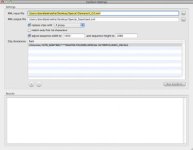
Then when I open the XML in Clipfinder and run Conform FCP Project, it brings up a whole bunch of options like:
- Replace clips with "P Proxy"
- Match only first 16 characters
- adjust sequence width to
- and lastly, there's the path area, which I assume is the folder containing all my original .R3D files.

I'm scared to hit "Run Conform" because I'm not sure exactly what I need to check off or fill in.

Thanks in advance for any help!

- Curtis
 
So I assume you are doing your final grading in FCP?

The workflow detailed in the one present is an OFFLINE ONLINE workflow which uses Aple Color to do the final grading and FCP to do the final output.

I only select the final sequence and export that as a version 5.0 XML file.

Replace clips with H proxy.
You can check Match only first 16 characters (since you used log and transfer)
I would leave adjust "sequence width to" checked or you can check it and use 1920x1080
You are correct about the path area. Tell clipfinder where the original r3d files are.
 

Attachments

  • Screen shot 2009-10-28 at 1.33.05 PM.jpg
    Screen shot 2009-10-28 at 1.33.05 PM.jpg
    11.2 KB · Views: 0
at 1st problem:
no they dont. color can also not read rsx information as far as i know whats a realy bad thing is.... hopefully that will change in the future....

at 2nd problem:
color will check that you are sending a proxy file and will look direct to the raw in the application. you should see a red tab when you are in the grading screen to your right hand side.

note, you getting only in the newest version of color a full debayer.....
 
Hi,

I'm going to be starting my first red project and I've been reading these posts to better understand the workflow between Clipfinder, FCP and Color. Unfortunately I still just can't manage to complete the workflow process properly.

Here is my workflow:

Import r3d material into Clipfinder
Export QT pro res files for offline editing
edit with QT pro res files in FCP
export XML into Clipfinder
Replace files with H proxy
Create a new XML file
open XML file in FCP
H proxy files are successfully replaced

(1st problem) the H proxies do not have any RSX information?

(2nd problem) when I send to colour the files are still H proxy. How do I convert them to the native r3d files? I have tried a re-conform but this does not work. I know i'm missing something and I hope it's something simple. If anyone can please help I would be very grateful.

Kind regards,

James.

james,

You might want to make sure that the RED tab is working in Color. This is one surefire way to check that it is reading the R3D. If it is reading the R3D then it is reading the full file not the H proxy. The H proxy is just a pointer file.

You can't load an RSX in Color, but you can set all kinds of parameters in the RED tab, ISO, etc, before you start grading the material.

You can also set, CAMERA Color space, exposure, etc.
 

Attachments

  • Screen shot 2009-10-28 at 6.28.00 PM.jpg
    Screen shot 2009-10-28 at 6.28.00 PM.jpg
    5.1 KB · Views: 0
I am not sure of which version of Color implemented the RED tab. But you will find it within your Primary In Room. On the far right side of your screen just above the "Auto Balance" and the "Copy To Selected" buttons.

Cheers,

Jesse Korosi
www.digitalcinemalessons.com
 
I have created a video tutorial that might help anyone that is confused with the process of getting back to your Raw R3D files after editing with Pro Res files.

- One workflow uses an EDL saved from FCP and opened within Color.
- The second workflow shows exporting an XML file. Then run Conform on XML File within Clipfinder. And finally open the New XML file within Color to work with the R3D files.

http://www.digitalcinemalessons.com/product_info.php?products_id=236

Cheers,
Jesse Korosi
 
Hi,

Thanks for your replies, it's really useful to receive your advice. I'm unable to see a colour tab for R3D. In the screen tab you sent there seems to be colour tools for Saturation, Kelvin, Exposure etc.

I can not see this tab. The order of my tabs are as follows:

1. Setup
2. Primary in
3. Secondaries
4. Color FX
5. Primary out
6. Geometry
7. Still store
8. Render Queue

I'm using Colour (version 1.5). Is there any reason why the red tab is not showing up?

Thanks,

James.


It's in the primary tab on the far right hand side.

David
 
Color is always accessing the original R3D whichever proxy you throw at it.
 
Does anybody know of another method to re-conform R3D material in colour?

1- Log and Transfer to transcode R3D files to Apple Pro Res
2- Complete an edit
3- Choose File > Export > EDL
4- In EDL Export Option;
Choose CMX3600 format And Select None for each in Audio Mapping list (Color doesn't import audio). Save the EDL
5- Launch Cinema Tool & Create New Database (Accept default setting)
6- Load all the reels you've used in your RED project into Cinema Tools by dragging
7- Launch Color and open the EDL you saved in FCP
 
1- Log and Transfer to transcode R3D files to Apple Pro Res
2- Complete an edit
3- Choose File > Export > EDL
4- In EDL Export Option;
Choose CMX3600 format And Select None for each in Audio Mapping list (Color doesn't import audio). Save the EDL
5- Launch Cinema Tool & Create New Database (Accept default setting)
6- Load all the reels you've used in your RED project into Cinema Tools by dragging
7- Launch Color and open the EDL you saved in FCP

Nice to know Kwan. Thanks for sharing this.

David
 
1-
5- Launch Cinema Tool & Create New Database (Accept default setting)
6- Load all the reels you've used in your RED project into Cinema Tools by dragging
7- Launch Color and open the EDL you saved in FCP


What exactly is Cinema Tools doing within this step? Is it the process of making your edl point to your R3D files instead of the pro res?
If so cant you just choose your Source Directory as your Master R3Ds while importing your EDL into Color?


Cheers,
Jesse Korosi
 
James.

Created a video tutorial of this workflow last night. I'll post a link here later today.

David
 
Thanks Kwan,

However, I'm also not too sure why the Cinema tools is needed in the workflow either. Could you please let us know.

Thanks,

James.

I'd like to know as well. Digitalcinemalessons.com has a nice video tutorial for conforming to R3D from EDL and it doesn't include this step but still works quite nicely. the video tutorial costs only $3....it's a nice reference for this workflow.

David, you should submit your tutorial to them - I'm sure that a lot of folks would be interested, and it's fantastic that you're posting it here for free, but their website will likely become a nice central location for this sort of thing to be acquired inexpensively. Here it will get buried in the thread. Especially once Jim announces the new schedule and no one talks about anything else for the next week...:rolleyes:

Don't work for them, just liking their "pay only for what you need" approach.
 
Thanks Meryem,

I just finished making a video tutorial on the proxy workflow also. I will be uploading that soon. Basically what the tutorial will show is:
Import all _M proxies to cut with.
Edit.
Send To Color.
Color using Raw R3Ds.
Render/Send back to FCP.
Export final Qt Deliverable.


Cheers,
Jesse
www.digitalcinemalessons.com
 
I'd like to know as well. Digitalcinemalessons.com has a nice video tutorial for conforming to R3D from EDL and it doesn't include this step but still works quite nicely. the video tutorial costs only $3....it's a nice reference for this workflow.

David, you should submit your tutorial to them - I'm sure that a lot of folks would be interested, and it's fantastic that you're posting it here for free, but their website will likely become a nice central location for this sort of thing to be acquired inexpensively. Here it will get buried in the thread. Especially once Jim announces the new schedule and no one talks about anything else for the next week...:rolleyes:

Don't work for them, just liking their "pay only for what you need" approach.

Thanks,

I'll see if Chris Parker is interested in the tutorial.

David
 
Jesse,

When are you leaving town.

I might have a job for you?

David

Haha,
Thanks,
I'm pretty happy where I'm at though.
p.s. I passed along your message to Chris about your video.

Cheers,
Jesse
 
Back
Top