Welcome to our community

Be a part of something great, join today!

  • Hey all, just changed over the backend after 15 years I figured time to give it a bit of an update, its probably gonna be a bit weird for most of you and i am sure there is a few bugs to work out but it should kinda work the same as before... hopefully :)

Green Screen help, Files included

Barry Bishop

Well-known member
Joined
Oct 1, 2010
Messages
278
Reaction score
0
Points
0
Location
USA-California
I am getting some noise from the black, and I want a sharp image, I was wondering what will help.
I'm always trying to get better so any tips would be much appreciated. I have black shaded.
Wondering if my iso is correct and if things are over or under exposed. Thanks for the help.

Here are the green screen files:

Lit as evenly as possible Zebra IRE 40-45%
http://i.imgur.com/9dZG068.jpg

Talent R3D File: https://www.yousendit.com/download/UW14MFhoSU96NE1sYzhUQw
No Talent R3D FILE: https://www.yousendit.com/download/UW14MFhoSU9waFRyZHNUQw

I am getting some noise from the black. I was wondering what will help.
Lighting: 2 4bank Keno with green bulbs
1 Softbox (dont know the color temp)
1(back light also dont know the color temp)

Resolution: 4k
Lens: Canon L 16-35mm
FPS:29.97
ISO: 640 (should this be 800 for greenscreen?)
FStop: 3.5
Speed: 1/96
Color Temp: 3547k
RC: 8:1
 
Whenever I shoot greenscreen, I try to shoot at iso400 at 5600k and the highest RC I can.

My guess, is that your wb setting is pretty low, probably introducing some noise in the blue channel.

What I would do w/ the R3D, is adjust the shadow slider to the left until the blacks are where you want your detail levels to be. This should also help minimize noise in the blacks.

Hope that helps!

Edit:
Also, what did you light your key to?
 
That looks more like lamp flicker.
The Kinos might very well flicker since they are flourescants.
Adjust your shutter angle until the lighter lines disappear. If you can.
Looks like you may only have to shutter down a degree or so.
Sensor scanning speed gives the noise an angled appearance.
 
What did I light my key too?
the key is set to 40-45ire and its about 3 stops higher then talent.
 
Your footage looks underexposed a lot! Face of your talent in 50% of parade zone. This is too low. If you gain your picture to normal exposure you gaining the noise too.
Your blue channel looks clipped down. This makes a real problem to get your black colors displayed correctly. So you need to get Blackshade at working camera's temperature. After that you need to get White balance manually. Give a page of white office paper to your talent. Zoom in to it and get the white balance manually.
Looks like you have warm temperature's bulbs for your shot. Rumors are that Red cameras don't likes warm light but loves the daylight. Try to switch your bulbs to daylight's bulbs if you can. Ideally you should use all of the bulbs with the same temperature. Modern cheap energy-saving bulbs needs about 20 mins in order to emite light of correct temperature.
Maybe it is a good idea to make green color much more greener with green bulbs. :) But do you know the specs of your green bulbs? Can it emite a uw light? If it can than you have a possibility to get a huge problems with your blue channel. (Anybody knows are the Red cameras have UW and Infrared on-sensor coatings?) I think that better idea to use usual-spectre-bulbs with correct color temperature and clipped UW-spectre. Going to green bulbs can also cast unwanted green light into your enviroment.
Dont forget about shutter speed. 1/96 can be too long for fast actor's movements and it can discover problems when you start to key.

So:
1) Test your shutter and look how long motion blurs are. Correct shutter if you need to create actor's motion sharper. Don't forget about light's flickering here.
2) Get the balance right! Get the Blackshading at working camera's temperature and after that get White Balance manually if you not sure about color temperature of your bulbs. You need to get white paper at 90-95% of RGB parade. Dont overexpose that white page when Whitebalancing.
3) Expose your talent correctly and try to achieve almost maximum dynamic range of the sensor to cover it fully.
4) Try to lower your ISO setting to get the noise down if 1) 2) and 3) not helps. Prepare more light for this.
5) Barry Bishop can be right here. You need first expose correctly your actor. After that tune the lights for your greenscreen to required level. You possibly need to Whitebalance again here.
6) To get your image sharper try to avoid opening of your lenses to the dead end. If you have F2.8 lens than use F3.5-4.0-4.5 to get the sharpest results.

Good luck!
 
I did black shade before. I will go test the recommendations now. I appreciate your help.
I lit the backdrop first, got it even, then I lit the talent. I will post pics when I am finished. I appreciate the advice.
 
Hi barry looked at you files.

Basically you should open up quite a bit as you histogram in the image uploaded does not clip until after 4000 iso. (best test is to bring in a frame in red cine and drag the iso slider to the right, when the white goal post appears then you are out of range) so increase your light, or open up, or if you do not have to much rapid movements in frame go for a longer exposure. 200deg is fine if somebody just stands there taking. but for a jumping rap artist or such you need to be down at 90deg..

Also now your lights for the greanscreans are hot, try to filter them green, then you loose some light, so add if you got some more to give, but its better the lights for the green screen are green than red/yellow. Preferably you would use 5600k lights for your backround and filter them green. (Now you got tungsten in the back so it's all very yellow, red back there and expo is low. That makes the histogram of you greenscreen land closer to skin tone which is a big minus.) but if you add more light and filter it you would be good even if it's tungsten.

The light on the actuall guy looks good, it's also a bit hot, but thats actually not all bad as it compensate a bit for green spill. and if exposed correctly it's somthing you can pull out in the grade no problem.

But most important you need to get up on exposure, 2 stops would be ideal.


If you do the above your lights are good.


Then there is one more thing you can do, it might sound a bit odd but will improve you key results by a factor of x4. Not many think of this but it's definitely somthing worth considering.

Flip the camera 90 deg. Put on twice the focal length.

By doing the above you then use more pixels for your character (as I assume he is supposed to be standing as he does, half figure shot and not walking in or out of frame. As when you do this flip thing you will use more than only the middle 1/3 of the sensor. By zooming in and shooting 9:16 instead of 16:9 you will be able to resample the image down to almost 1/2 in post but still keep your framing. By doing so you get a quarter of the noise and 4 times the detail for your edges. Which gives the keyer a much better image to drive from.

Regarding your blackshade, thats no concern here your image got an even fine looking noise so a new blackshed would not do much difference. it actually looks good as it is. But it does not hurt to do one in early in the morning before the shoot.

Also shoot lowest possible compression. No need to save little hard drive space when it comes to these green moments...
And I assume you shoot scarlet as you are in 4k. 1:8 if you got epic 5k 1:3 is the greenscreen mode...

Last, using a zoom lens is usually equal to more chromatic aboration. So a high performance prime lens will improve the result, as that rainbow colored edge the chromatic aboration gives is really hurting the edges. But you zoom looks pretty good so no big errors from that.

Now with the above said, it might sound that it's all shot to shit. But it's actually far from that bad, as with a little bit of talent you should be able to get a very good key out of your image with not to much difficulties. So the above is more of suggestions for improvements.
 
haven't looked at the files yet - but you can do noise reduction in order to create a clean matte, then apply that to the original (and dial in noise reduction as much or as little for the final presentation)
 
From a purely mechanical and practical setup, I only use 5000K white florescent lights to evenly light my green screen.
The wall used for the green screen is first painted with a Behr paint Ultra white matte finish, then given 2 to 3 coats of
green paint like Behr S-G-430 ("Sparkling Apple") Both available at Home Depot. Using a white light versus a green light
avoids green halation effects on your subject for spillover. Your subject needs to be a minimum distance of 12 to 15 feet
or more away from the green screen to minimize the green reflection off the back key wall. Light the subject separate
from the green screen.

That being said, what I noticed from your RD3 file was that the subject may be too close to the key wall and a little
soft on focus. However, what you shot is perfectly usable depending on what look and background plate you were aiming for.

A little fiddling around with RedCine-X as well as your rendering/editing software can fix it in post production.

Here is a grab frame from your greenscreen footage as one possible look:

https://picasaweb.google.com/107684591869725923903/ReduserTest#slideshow/5846913005574258754


Best Regards
James L. Perry
Old man with a paint can
 
First of all...thank you all for your comments. As I said I am trying to be better...that said please don't take offense, as I am trying to understand peoples suggestions. I will test again tomorrow and see how this all goes.

I am getting conflicting reports.

Wey Wang: Whenever I shoot greenscreen, I try to shoot at iso400 at 5600k and the highest RC I can.

Andrey B 4) Try to lower your ISO setting to get the noise down if 1) 2) and 3) not helps. Prepare more light for this.

Björn Benckert: Basically you should open up quite a bit as you histogram in the image uploaded does not clip until after 4000 iso. (best test is to bring in a frame in red cine and drag the iso slider to the right, when the white goal post appears then you are out of range) so increase your light, or open up

Which ISO is best? Lower or Higher?


Im lost by these comments

Randall Weatherington: Adjust your shutter angle until the lighter lines disappear. If you can.

Are you talking about the zebra?


Andrey: Your blue channel looks clipped down

One the histogram they are too low?

Andrey: But do you know the specs of your green bulbs? Can it emite a uw light? If it can than you have a possibility to get a huge problems with your blue channel

They are Kino Flo bulbs that are green, bought at B&H. They are facing the green wall. I have no idea what you mean by problems with the blue channel...as they are on the wall, and it seems to key that out fine.


Ok now problems I have come across.

You need to get white paper at 90-95% of RGB parade.

The best I can get is 85...I guess my lights cant get it high enough...with iso 640 or 800. If I do get it to 90 I have to use 2.4 fstop the lowest...which will decrease the sharpness as I am told.

The talent will be just waving his hands pointing at objects. So 1/98 with 200degree is ok?

your lights for the greanscreans are hot, try to filter them green

They are green bulbs. What IRE should they be at? I have them zebra at 40-45

I will try flipping the camera....my i not break anything :P


http://www.reduser.net/forum/member.php?113351-Wey-Wang
 
I picked up a can of this. I am in a small converted conference room. Not much i can do about distance. This is the best I can do, make do with what you got kinda deal.

http://www.bhphotovideo.com/c/product/550856-REG/Rosco_150057110640_Chroma_Key_Paint_Green.html

Thank you for your time. I know the image isn't terrible but I want to be better :) I taught myself everything regarding keying...hence why i'm posting trying to learn from people better than I. Again great thanks for your

Oh these are the bulbs for my kino's http://www.bhphotovideo.com/c/product/434715-REG/Kino_Flo_55C_K5X_Compact_Lamp_55.html
 
Which ISO is best? Lower or Higher?

One the histogram they are too low?


They are Kino Flo bulbs that are green, bought at B&H. They are facing the green wall. I have no idea what you mean by problems with the blue channel...as they are on the wall, and it seems to key that out fine.


The best I can get is 85...I guess my lights cant get it high enough...with iso 640 or 800. If I do get it to 90 I have to use 2.4 fstop the lowest...which will decrease the sharpness as I am told.

The talent will be just waving his hands pointing at objects. So 1/98 with 200degree is ok?

I will try flipping the camera....my i not break anything :P

Björn Benckert absolutely right here with flipping the camera. You can get a 1.5x more pixels for your talent. But be careful if he waving his hands too much! Dont let his hands out of the screen area.

What ISO is the best? The lower possible ISO. Lower ISO = Lower noise.

One of the histograms is too low. I attached the picture with RGB parade.

RGR you about KinoFlo bulbs. Its allright than. KinoFlo must have no any problems with wrong light spectre.

Try 1/96 and 1/200 shutter speeds and test it by your taste. 1/200 gives you 2x sharper motion.

Looks like you have wrong focus setting on your lens. (I attached the picture).

The verdict:

All we wrote here is the pure tips for you. You need to get the golden-sweet-middle from all of your settings. I understand that lower ISO gives cleaner image for you but if you cant gain the lights - its useless advice. You need to find the compromise of all of your settings to get the best possible result.

Pictures:

4SMTXc3n.jpg

G]
 
Last times I even dont use the green screen at all. I trying to use the backgound color on set similiar to final cg background color. If cg backround will be light grey than I use white background on set.


After I can key it with usual Color range tool in my After Effects. You can notice a lot of artifacts here on the edges of the talent's feet and hands.


But CG BG colour is almost the same. This method gives me a smooth really smooth edging and no any problems with the actor's hairs.

 
Let me explain this:

Im lost by these comments


Randall Weatherington: Adjust your shutter angle until the lighter lines disappear. If you can.


The flourescent lights flicker on and off at a rapid frequency. The lines that you see are an overlapping additional exposure.
If you are using a 180 degree shutter in your camera, it is allowing the the start of one flicker to overlap the previous flicker.
Adjust your shutter to somewhere around 175-177 degrees, and the lines should all but disappear. Go too low, and you will start to get black lines.
If all of the pixels on the MX sensor were data scanned simultaneously, the lines would be vertical, but there is a time lag during the scan. Hense the angles of the lines. It's like panning a white picket fence too rapidly.

Everything that everybody else is saying about lighting green screen applies.
I am not sure of the exact spectral sensitive curve of the MX sensor, but the green pixels should peak around 550 nanometers. (Red = 650 nm, blue = 450 nm)
Use green light only on the screen, and do not allow the screen to become contaminated with any other light. As the others also say, get your levels up to proper screen/foreground luminance ratio.
 
Let me explain this:


Randall Weatherington: Adjust your shutter angle until the lighter lines disappear. If you can.


The flourescent lights flicker on and off at a rapid frequency. The lines that you see are an overlapping additional exposure.


I am sorry but what lines are you referring to? Maybe there is a disconnect as I am assuming you are talking about this image:
http://i.imgur.com/9dZG068.jpg

Those lines are zebra lines to tell me the backdrop is and if its evenly lit.
 
I'm sorry.
I thought the zebra was the end result, which I have seen with other setups.
Please disregard, unless somebody else got the problem I was describing.
 
Looks better now. But your whites still at 60%. And still something strange with the blue shadow. It clipped down. I think the reason is your titler's polarized glass. Will you plan output this as FullHD?
 
Last edited:
Hilarious! I will be outputting to I believe 1080p or 720p...most likely 720p. There is a teleprompter, but also a UV filter on the glass. Any idea how to fix the blue shadows?
 
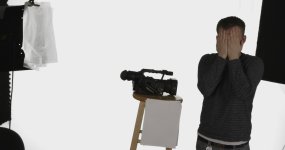
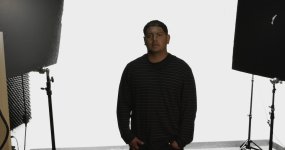
I tried a quick key in After Effects, and this is my result. I didn't notice anything wrong with the shadows (there's no color correction on the image other than despill & RedGamma3).

I didn't bother to fix the green reflection on the stool / camera (it's still slightly transparent in those areas):

attachment.php


I tried the same key on the original r3d footage:
attachment.php
 

Attachments

  • A001_C009_02200L.0000446F 2_1355192.jpg
    A001_C009_02200L.0000446F 2_1355192.jpg
    64.6 KB · Views: 0
  • A007_C012_0217P6_002_1632985.jpg
    A007_C012_0217P6_002_1632985.jpg
    80 KB · Views: 0
Back
Top