Welcome to our community

Be a part of something great, join today!

  • Hey all, just changed over the backend after 15 years I figured time to give it a bit of an update, its probably gonna be a bit weird for most of you and i am sure there is a few bugs to work out but it should kinda work the same as before... hopefully :)

DaVinci - Epic Scaling question

Ray Tragesser

Active member
Joined
Jan 19, 2010
Messages
32
Reaction score
0
Points
0
I am still struggling to find the optimal work flow for dealing with RED Epic Footage. I have attached a picture that is 5120 x 2700 pixels. This is the size of the RED Epic footage. The goal is to pan and scan / zoom into the footage for a 1920 x 1080p DaVinci Project. What I am still unclear about is what settings I need to use to be able to move the image around the canvas and at the same time make sure I am not scaling passed 100% of the native resolution. Meaning I dont want to scale past 5120 x 2700. I cant seem to find that information.

If you look at the three screen shots I have attached

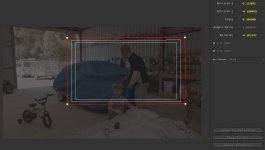
1) EPIC_Resolve - Notice how much information is outside the 1920 x 1080 frame. I want to be able to "see" this and use it during grading. From what I can tell there doesn't seem to be a way to zoom out the viewer and see this extra material. It makes it difficult to understand where I am.


2) Config - On the config page for the project, what setting should I be using for RED EPIC 5K footage?

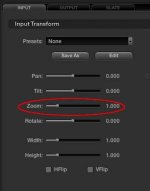
3) Format Input - By default the zoom slider is at 1.0. I am not really certain what is happening to the footage as I increase or decrease this slider from a mathematical standpoint. Because I cant zoom out of the viewer I have no idea where on the image I am.

Can you tell me a better way to go about this?

Thanks
Ray

 

Attachments

  • epic_resolve.jpg
    epic_resolve.jpg
    90.6 KB · Views: 0
  • config.jpg
    config.jpg
    19.3 KB · Views: 0
  • format_input.jpg
    format_input.jpg
    11.9 KB · Views: 0
You have your timeline set to 1920x1080 and your input scaling to full frame with crop which is the right setting for Epic 2:1 5K footage (for HD delivery). This will fit and scale your Epic frame into 1920x1080 and chop off the sides. It will display full frame a 4800x2700 pixel image in a 1920x1080 framework (you chop off 160 pixels on each side). You zoom/pan/etc creatively in the Color window in the bottom left and all the underlying information will be available. If you zoom more than 250% you run out of resolution... Hope that helps.
 
I'm not quite sure what the material is that your working with or your end goal. IMHO you should not be concerned with going past 1:1 ratio on the material but instead be more concerned with how it looks on a decent display that represents with what you are working with. If the material is perfectly in focus and is well exposed, you may find that you can push in on the material much more than would seem reasonable with a calculator. On the flip side, if the focus is soft, exposure isn't quite what it should be, it could be that even at the native 5k it needs a bit of digital sharpening and can't be pushed in at all.

If your question was simply how resolve handles resolutions that aren't at your monitoring resolution, Florian should have you squared away. Worst case review the manuals, it may take a half day, but with experimentation, it should all start to make sense.
 
Hi Guys,

Thanks for the replies. New to DaVinci but certainly not new to post :)

Florian, here is the issue. If the frame size is 5120 wide and I am posting a 1080 timeline, that would leave 1600 pixels on the left and the right provided I didn't scale up anything yet. What settings do I need to get that flexibility out of the gate.

Jerimiah, I asked DaVinci support already about this, and they really didn't have an answer to this because at the time Resolve was released there was no 5K source footage. I suspect that some additional parameters are coming. I find it odd that there is no way to see the full frame in the viewer as you are panning around the image like any standard NLE or Compositor. I really like to know where I am on the canvas and that wireframe of the full raster is key. I still haven't found a way to do this. Thats why the math is important to me. I have a killer HD-SDI monitor and I can easily make a judgement call with my eyes, but I would like to know also what percentage passed the native resolution I have gone. Currently the zoom scale values of .250 to 4 dont really give me that.

Thanks
Ray
 
For Epic footage shot in Widescreen mode (5120x2160) I set the timeline resolution to 2048x864 and the video monitoring to 1080p (I have 2 HD Monitors), in this way the video scales correctly on the monitors with black bars under and above but in the computer monitor I have the correct image without bars. I set also "scale full frame with crop" in the settings. Then in the color or format tab you can zoom in, pan etc. after that you can render to 4k, 2k or HD, for 4k WS I put 4096x1728 in the render tab.
 
Back
Top