Welcome to our community

Be a part of something great, join today!

  • Hey all, just changed over the backend after 15 years I figured time to give it a bit of an update, its probably gonna be a bit weird for most of you and i am sure there is a few bugs to work out but it should kinda work the same as before... hopefully :)

Clipfinder = Conform XML issues

Curtis Jensen

Member
Joined
Oct 8, 2009
Messages
20
Reaction score
0
Points
0
I've been struggling with the Red One workflow for a couple weeks now, my problems essentially being limited to getting Final Cut Pro to see the changes I've made to clips in Clipfinder and Red Alert.

I have picture lock of my short film (which I edited in FCP and imported the footage via Log and Transfer), but noticed that the color balance and exposure was off in a few places during editing. So I fixed those issues in Clipfinder / Red Alert. Then I followed the workflow here: http://www.daun.ch/software/ClipfinderHelp/conformingafinal.html

I rendered all the clips out of clipfinder to a new folder, which I selected when I went to conform the XML for FCP. However, when I click on Conform, it claims all 121 clips were "not found" and it "replaced 0 of 121 clips."

I'd appreciate any guidance you might have.

- Curtis
 
Hard to tell, since it works for me.
Did you use any special characters in one of the paths ?
 
Try changing the number of characters Clipfinder looks for to match a clip- sometimes that will fix the problem.

Noah
 
I've been struggling with the Red One workflow for a couple weeks now, my problems essentially being limited to getting Final Cut Pro to see the changes I've made to clips in Clipfinder and Red Alert.

I have picture lock of my short film (which I edited in FCP and imported the footage via Log and Transfer), but noticed that the color balance and exposure was off in a few places during editing. So I fixed those issues in Clipfinder / Red Alert. Then I followed the workflow here: http://www.daun.ch/software/ClipfinderHelp/conformingafinal.html

I rendered all the clips out of clipfinder to a new folder, which I selected when I went to conform the XML for FCP. However, when I click on Conform, it claims all 121 clips were "not found" and it "replaced 0 of 121 clips."

I'd appreciate any guidance you might have.

- Curtis
Try to give to Clipfinder more accurate paths.
For example, if you have a folder called FOOTAGE and inside you have all the r3ds inside folders called DAY_1, DAY_2, etc., try to add the exact directories ( DAY_1, DAY_2) , and not just FOOTAGE.
 
Hey everyone,
Thanks for the responses.

I've tried following the Clipfinder workflow found here: http://www.daun.ch/software/ClipfinderHelp/conformingafinal.html

Essentially, the workflow was going well until I rendered all the Red video files to a new folder (separate from the original r3ds). My steps (after rendering) were as follows:
- Set "XML input file" to the file you exported from Final Cut.
- Set "Clip directory" to the directory into which you rendered your clips.
- Select a filename for the conform output in "XML output file". It is usually not a good idea to use the exact same name that you used for the file you exported from Final Cut.
- Press the *Run Conform" button to start the conform process.


If I uncheck "replace clips with H Proxy", the conform finds the files I rendered into a new folder out of Clipfinder.


Then I import the xml into Final Cut, setting the sequence settings to "ProRes using Red", which is a custom setting I found on the Red Forums. It's basically an Apple Pro Res 4444 preset with the following settings:
- frame size of 2048x1152
- aspect ratio = custom

- pixel aspect ratio = square
- Editing timebase = 23.98


However, after importing the xml, the footage is all super-zoomed in. What am I doing wrong now?
 
Hey everyone,
However, after importing the xml, the footage is all super-zoomed in. What am I doing wrong now?

Nothing, you'll just either need to change your sequence settings, or your basic motion attributes, because one or the other will be wrong. E.g if you were working on the correct size sequence, but you had smaller footage as your proxies, it will have been blown up in scale to fit the timeline.

The basic motion characteristics will have all have copied through to your new sequence from your old, so you just need to return the scale to 100%.

Alternatively, you had set up your sequence settings to match your proxies, which were much smaller than your R3D footage, and now that you have brought them back in at 100% only a portion of the footage fits into the canvas. Just change your sequence settings to the correct resolution and this should be resolved.
 
Hi Craig,
Thanks for the response. I'm unclear though as to how to get the scale back to 100%. Where do I need to go to change my sequence / basic motion attributes? What should they be?
 
Load up a clip in the sequence, in the viewer, go to the motion tab, then under the Basic Motion attributes there is a scale setting. Change that back to 100%.

Once you have done that for one clip on the timeline, you can copy that clip and the Paste Attributes (cmd click) and choose basic motion on all the remaining clips on the timeline.

However, if you have resized/repositioned any specific clips in the off line, best to apply the change to those clips manually because pasting the basic motion will remove any existing attributes.
 
That did the trick! I thought it was going to be more complicated than that, but it was actually pretty easy. Thanks!

One other quick question you might be able to answer for me:
When we logged and transferred the footage, there were
about 10 clips that were renamed during the transfer. So now I'm
having issues getting the XML from Final Cut Pro to
reference the original .r3d files.

An example is:
- instead of naming the clip A006_C001_0805Q0 (the name of the
original r3d file), Final Cut Pro decided to log and transfer the clip
as A006_C001_0805Q1

Thoughts?
 
Problem with quickrender

Problem with quickrender

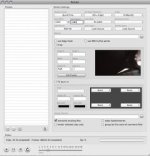
Hey guys. I'm trying this same workflow, but when I do Edit>Quickrender in Clipfinder, and start the render, it does nothing at all. Here is a grab of my settings. Can anyone spot what I'm doing wrong?
 

Attachments

  • Picture 1.jpg
    Picture 1.jpg
    13 KB · Views: 0
Back
Top